

Main menu/zh TW
Deutsch · English · Español · Français · Italiano · Magyar · Nederlands · Português · Shqip · Slovenčina · Suomi · Македонски · Русский · 中文(中国) · 中文(台灣) · 日本語
主選單
主選單包含了以下的幾個項目: 檔案 (F) 編輯 (E) 搜尋 (S) 檢視 (V) 專案 (P) 執行 (R) 元件 (C) 工具 (T) 環境 (n) 視窗 (W) 協助 (H)
一般說來,選項都可以用滑鼠移過去後點擊選取,或是按鍵盤 Alt+F (將焦點移至主選單,如果原來還沒有),然後再按 Tab 在這幾個子選單裡交替移動,直到你要的子選單被反白為止。
檔案子選單 (File)
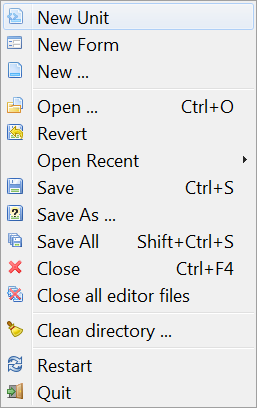
- 新單元:建立一個新的單元檔 (Pascal 原始碼)。
- 新表單:建立一個新表單:同時包含圖形視窗與相關聯的 Pascal 原始碼檔案。
- 新增...:彈出一個選單 (擷圖),裡面有各種各樣的文件可供新增。
- 開啟:彈出一個對話框,讓你可以瀏覽己經存在你的檔案系統裡的檔案來開啟。
- 還原:完全放棄你對現在編輯的檔案所做的變更.把他還原到原來的狀態。
- 開啟先前檔案:列出一份你先前開過檔案的清單,讓你選擇其中一個來開啟。
- 儲存:使用該檔原來的檔案儲存檔案.如果他本來沒有取名,則為出現提示 (則同另存新檔)。
- 另存新檔:讓你選另一個不同的檔名來儲存檔案。
- 儲存全部:儲存所有編輯器開啟的檔案,而非只有目前編輯中的。
- 關閉:關閉目前的檔案,並提示以儲存變更。
- 關閉所有編輯的檔案:關閉所有開啟在編輯器裡的檔案,並提示儲存。
- 清理目錄:用對話框的模式提供給你一些可自訂的篩選器,讓你可以移除一些目錄裡的檔案。例如 .bak 這種檔或舊的 Delphi 專案殘骸。
- 列印:使用系統的印表機列印所選取的檔案,若您不是使用 Windows,選單裡預設並沒有任何項目。你會需要先安裝 $Lazdir/components/printers/design/printers4lazide.pas 這份套件再重新編譯 Lazarus IDE。
- 重新開啟:重開 Lazarus,當你感到你的 Lazarus 已經變的一團亂的時候很有用!
- 離開:退出 Lazarus,並提示您是否已儲存所有你編輯的檔案。

編輯子選單 (Edit)
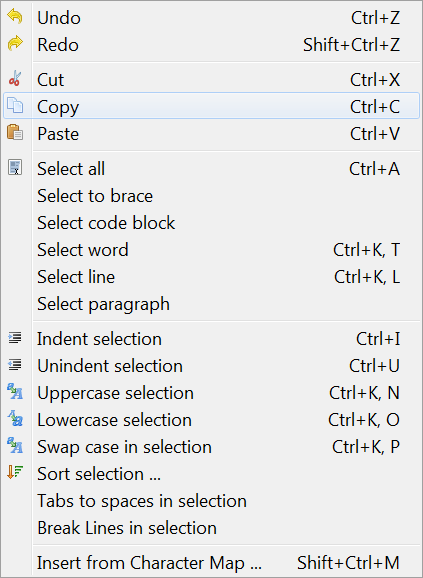
- 復原:復原您上一動的編輯,讓編輯器裡回到上一個動作之前的狀態。
- 重做:重新進行上一步已經被你復原回去的動作。
- 剪下:移去您選取的文字(或任何項目)並放置到剪貼簿裡。
- 複製:建立一份所選取的文字的副本,留有原來的文字並將副本放到剪貼簿裡。
- 貼上:將剪貼簿裡的內容置放到你游標目前的位置。如果你目前的游標選取了某些字,則剪貼簿裡的內容會取代這些被選取的字。
- 選取文字縮排:將選取的文字向右移動一個距離,可於[環境]->[編輯器選項]->[一般]->[區塊縮排]設定。這在你撰寫 Pascal 原始碼時用於統一格式,區分區塊結構時很有用。
- 選取文字取消縮排:移除一個階層的縮排,將文字向左移動一個區塊固定的距離。
- 關閉選取文字:彈出一個選單,裡面有幾個選項可以讓你關閉選取文字裡,符合條件的敘述句 (begin ... end; try ... except; try ... finally; repeat ... until; { ... } 等等)。
- 選取文字變大寫:轉換選取的文字成大寫。
- 選取文字變小寫:轉換選取的文字成小寫。
- 選取文字跳格轉空白將選取的文字裡作任跳格字元轉換成固定數量的空白字元,數量可於[環境]->[編輯器選項]->[一般]->[跳格寬度]裡設字。空白字元數量並非固定的,但至少一定會填滿目前跳格字元的寬度。
- 選取文字斷行若有任何選取文字裡單行有超過 80 個字元(或於[環境]->[編輯器選項]->[顯示]->[右邊界]設定寬度)的情況,則將該行在邊界的地方自動斷行並於下一行繼續。
- 註解選取文字: 將選取的文字每一行插入 // 以轉成註解。
- 選取文字取消註解:移除註解標記。
- 排序選取文字:將行 (或字或段落) 依字母排列;可選升冪或降冪,區不區分大小寫。總之不管有無意義你覺得有需要就可以這麼做。
- 選取:可以讓你選取一個區段的文字。選項有選取全部,選取括號,選取段落或行等等。
- 從字元表插入字元:讓你可以插入一個鍵盤裡沒有的符號或是外國字,從彈出的字元表選單裡去選。
- 插入文字: 彈出一個選單,讓人可以插入一些標準的文字,如 CVS 關鍵字 (Author, Date, Header 等等) 或是 GPL 警告,使用者名稱或是目前日期與時間。
- 程式碼自動完成:完成目前游標所在處的程式碼。會自動區分前後文的文意以節省你的時間。例如;它會自動加入 private 變數,擷取並設定方法的內容並直接加入方法本體,以完成整個類別。在指派變數 (如 i:=3;) 的敘述裡他會自動加入變數的宣告,在定義程序裡,他會自動加入程式的本體。在觸發事件的指派裡 (OnClick:=) 它則會自動加入方法的定義與方法本體。參見Lazarus IDE 工具.
- 建立程序:利用選取的文字 (一段敘述或一連串的敘述) 來建立一個新的程序。
搜尋子選單
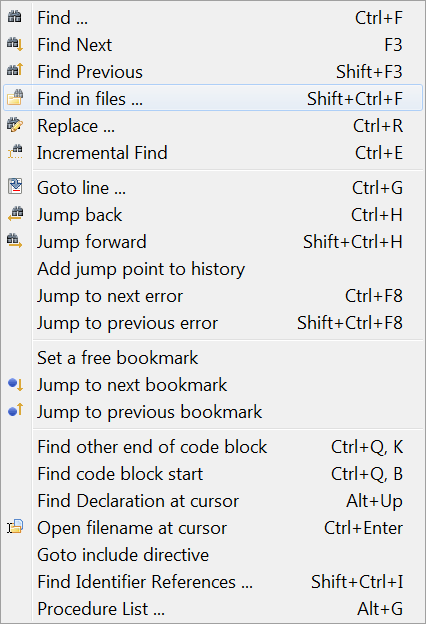
- 尋找:功能幾乎與所有圖形介面的文字編輯器一樣:一個彈出的對話框可以輸入要搜尋的字串,有區分大小寫的選項,完整字辭搜尋,起點,命名空間和搜尋方向。
- 尋找下一個,尋找上一個:利用上次輸入的字串,向指定的方向再次搜尋。
- 在檔案裡尋找:在檔案裡搜尋字串:彈出對話框,選項有[所有開啟的檔案],[所有專案裡的檔案],[所有目錄];允許建立遮罩以指定檔案類形。
- 取代:和尋找類似;彈出對話框讓你可以同時輸要搜尋的字串和要取代成的字串,然後有區分大小寫,搜尋方向等等的選項。
- 漸進式尋找:搜尋動作會依你輸入字串一步一步搜尋,例如你選取[漸進式尋找]後,你先按下 "l" ,所有第一個字母是 "l" 的字會被標明出來,然後你若再輸入 "a",則編輯器會接著尋找 "la"。
- 移至:移動編輯中的游標到指定的行號。
- 跳回:跳到上一個位置。每一次跳躍到錯誤或是宣告處 IDE 會儲存目前原始的位置,這個功能可以讓你再依記錄跳回來。
- 向前跳:跳到下一個位置,復原回上一次跳躍。
- 新增跳躍記錄點:加入目前的位置到跳躍記錄中。
- 檢視跳躍記錄點:檢視跳躍點的清單。(更多)
- 跳到下一個錯誤, 跳到上一個錯誤:跳到到上一個或下一個在原始碼檔裡被回報有錯誤的地方。
- 設定書籤:標記目前游標所在行成可以利用 (自由使用) 的書籤並加上編號,然後加入到書籤清單裡。注意彈出的選單 (加原始碼檔案裡在適當的行裡點右鍵取得) 裡書籤的範圍很廣,可以指定編號找到書籤,或是允許使用者指定編號跳到書籤處,而不單只是上一個下一個。
- 跳到下一個書籤, 跳到上一個書籤:依順序跳到上一個或下一個書籤。
- 尋找程式碼區塊的其他結尾:如果目前處在 begin 處,找到相對應的 end 處,反之亦然。
- 尋找程式碼區塊的開始:移動到目前游標所在的程序或函式的 begin 處。
- 尋找游標處的宣告:為目前選取的識別子找到它的宣告處。位置有可能再同一個檔案裡,也可能在另一個編輯器開啟的檔案裡;但若是未開啟的檔案,程式則會自動開啟該檔。(像一個程序或函式在 classesh.inc 裡宣告後,程式則將之開啟)。(更多)
- 開啟游標處的檔案:開啟游標選取其檔名的檔案。對於 Include 檔的搜尋或是取得專案裡包含的單元特別有用。
- 移到含括檔指示處:若游標指到的檔名是被 Included 在其他的檔案裡,則移至 Include 所指名稱的檔案裡。
'''
- 尋找參照的識別子:建立一份列出在目前檔案裡,或所有依附於目前專案裡所有識別子的清單。
- 識別子重新命名:可以讓開發者為識別子重新命名。對話框提示開發者看是要針對目前撰寫中的檔案裡改名就好,還是整個專案的,或所有已開啟檔案的都要改。甚至於註解文字裡的識別子都會一起改掉。此功能適用於當編譯時有識別子已經存在了,或你單純想為識別子重新取個名字。
- 程序清單:建立一份目前檔案裡所有程式與函式的清單,並加註他們宣告處所在的行號。
檢視子選單
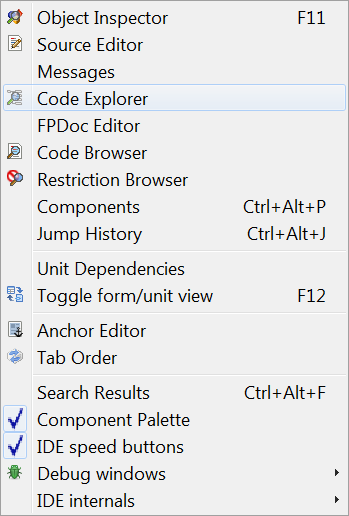
控制螢幕裡各個視窗與面版的一些顯示。
-
物件檢視器:這個視窗通常都一直佔據在你桌面的左方,顯示您表單的特徵。滑鼠選的所有表單裡的物件,詳細內容都會在物件檢視器裡顯示。上半的面版有一個專案的樹狀圖,分列出表單裡的元件供選取。這和物件檢視器所提供的是一致的。主要的下半面版顯示有兩個籤頁,內容和事件。選擇內容會顯示的特徵有如命名,顏色,字型,尺寸等:這部份分成兩欄,左半是寫內容名稱,右半則是與內容關聯的值。選擇事件會出現兩欄文字:左半一樣是事件名稱,如關聯到元件的 MouseClick 或 KeyDown,而右邊就是事件發生後要進行的動作。如果沒有定義任何動作,按一下刪節號 ...
會跳回原始碼編輯器,游標會停在一個空的程序裡,等待你把程式內容寫進去。
-
原始碼編輯器:編輯原始碼程式的主視窗。操作方法與其他的圖形文字煸輯器皆雷同,如滑鼠可以移動游標可在上文字上游走,只要按下左鍵來拖曳就可以反白選取文字。按右鍵會跳出選單,包含有剪下,複製或貼上的功能,尋找宣告處和開啟游標處的檔案。原始碼編輯器上方有數個頁籤,分別對應你目前專案中正開啟的檔案;點擊頁籤就可以轉換觀看檔案,讓你在檔案之間編輯內容或是使用複製貼上等功能。原始碼編輯器裡對不同語法可用不同的顏色標明,像標點符號,註解,字串等。它還會自動在行與行之間維持文字縮排的層級,直到你再一次的縮排。原始碼編輯器的功能與外觀都可以在主選單的[環境]-> [編輯器選項]裡幾個籤頁之間調整設定。
-
程式碼瀏覽器:總是在桌面的右方,以樹狀結構顯示。該結構是指你目前的單元或程式。通常他顯示著單元的名字,下面的分支有 Interface 和 Implementation 的區段,在點任何一個分支左邊的 +
字符號後其下的子分支會再展開出來,直到看到一些獨立的常數,函式與程序的宣告為止。如果你在原始碼編輯器中再去切換檔案,你需要去點擊原始碼瀏覽器上的重整鈕重新顯示新檔案裡的原始碼結構。
-
單元...:開啟彈出對話框視窗,表列目前專案裡的所有單元。用滑鼠點擊檔名來選檔案;再按原始碼編輯器裡的[開啟]鈕顯示檔案內容。注意選取框裡允許同時選取數個檔案,而且也可以都同時在原始碼編輯器裡一同開啟 (但一次只能檢視一個檔案)。[專案]->[專案檢視器]選單裡的選項可以讓你決定是只要列出單元就好,還是能從此列表開啟檔案。
-
表單...:開啟彈出對話框視窗,表列目前專案裡的所有表單,並可以同時選取多個開起來檢視。
-
檢視單元依存性:開啟彈出對話框視窗,顯示一個代表著目前開啟中的單元檔的結構依存性樹狀圖。大多數依存性列表裡的檔案都還有獨立一個 +
字號,可以再展開顯示以下獨立的個體。通常會形成一個迴圈。
-
切換表單 / 單元檢視 F12:在原始碼編輯器與目前編輯中的表單之間做切換。將視窗換至最上層。若目前視窗焦點於原始碼編輯器,那你就可以進行原始碼撰寫;若目前視窗焦點於表單上,你就可以為表單的外觀進行排版。在這兩者之間最簡單的切換方法就是按鍵盤的
F12,只是直接選主選單裡的這選項也能發揮同等功能。 -
訊息:顯示編譯過程中諸多訊息的視窗,編譯過程中的進度是否成功或是表列出檔案裡的錯誤。
-
搜尋結果:一個用來表列出在檔案裡搜尋的結果的視窗。
-
除錯視窗:彈出一視窗,帶有除錯時用的到的選項設定,請參見除錯器。
專案子選單
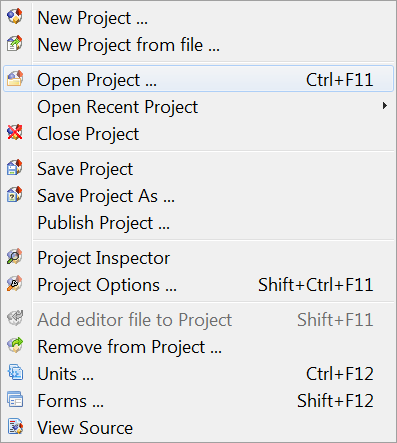
- 新專案:建立一個新專案。會彈出一個的對話框並提供一些建立新專案的選項。
- 從檔案建立新專案:出現個導覽對話視窗,可讓你選取檔案再從中建立新專案。
- 開啟專案:開啟先前儲存的專案檔。導覽對話視窗會列出 Lazarus 專案資訊 (.lpi) 檔案供你選擇。
- 開啟先前專案:彈出一個列出你先前工作過的專案清單,然後讓你選一個打開。
- 儲存專案:相同於[檔案]->[儲存]:儲存所有專案裡的檔案;如果之前還沒存過,會像[另存專案...]一樣跳出提示要你取一個專案名稱。
- 另存專案...:跳出提示為專案取名後儲存。預設的檔名是 Project1.lpi,但你應該自己另取一個檔名。Lazarus 不會允許你使用與專案檔或單元檔相同的名稱 (參見此處)。
- 發佈專案:為整個專案建立一個副本。如果你僅只想要將你的原始碼與編譯設定傳送給某人,那這個功能就是你的好幫手了。一般專案的目錄裡包含了一堆的資訊。但裡面有很多在發佈時並不需要:.lpi 檔包含有會期的資訊 (像是跳脫符號的位置或是未開啟檔案裡的書籤) 而專案目錄裡包含有很多 .ppu 和 .o 的檔案與執行檔。建立 lpi 檔會產生僅包含基本資訊和原始碼程式,然後放在 "Publish Project" 的子目錄裡。對話框中你可以設定和選定要排除或要含括的篩選器,也可以使用壓縮指令令其發佈成單一檔案。參見Lazarus IDE 工具。
- 專案檢視器:彈出一對話框,將目前的專案以樹狀結構呈列出,允許你新增,移除或是開啟所選取的檔案,或是變更專案的設定。
- 專案選項...:彈出一帶多頁籤的對話框,針對應用程式 (標題,輸出目標檔名) 設定選項,表單 (可選取多種不同內建的表單讓你在一開啟程式時自動建立等) 和資訊 (指定在關閉檔案時編輯器裡的何種資訊要儲存下來,或是只有專案檔案) 時使用。
- 編譯器選項 ...:(從之前的[執行]選單中移到此)。開啟一多籤頁的視窗用來設定你的編譯器。籤頁包括路徑,定義單元,包含檔或函式庫等的搜尋路徑。也可以選則表單型式的工具 (gtk,gnome,win32);解析,選取解析原始碼程式的規則,程式碼,選取程式最佳化,或是最快速,最小的取向,選取目標處理器,檢查器選取,雜湊值大小等;連結,可選取是否或如何來使用除錯器,靜態或動態函式庫,或是否穿透連結器傳送的選項;訊息定義在除錯階段時要產生的訊息種類;其他,可決定使用預設組態檔 (fpc.cfg) 或是其他的檔案;繼承,顯示樹狀結構圖來指出如何設定在表單下合併元件要如何繼承;編譯,定義在編譯器執行前後還有哪些指令要執行,也可以使用 Make 檔案。
- 加入編輯器中的檔案進專案:將目前編輯器中使用的檔案加入到專案裡。
- 從專案中移除:彈出一選單,讓你可將專案裡的檔案移除。
- 檢視原始碼:不管你現在在編輯什麼,將你轉回到主程式檔 (.lpr) 或若是沒有 .lpr 檔時轉到主要 .pas 檔。
- 檢視 ToDo 清單:開啟對話框,列出與此專案相關聯的 ToDo 項目。你專案裡的和其他任何你有使用的 Lazarus 單元所有 ToDo 註解都會列出來 (註解行 //TODO)。若要新的 ToDo 項目出現你需要在對話框中重整 (使用工具列的箭頭按鈕) 。ToDo 清單的第一列會指出該註解項所記注之文字;若單純只有註解 //TODO 會顯示為零,但若註解為 //TODO999 (舉例) 則該列即顯示 999。請記住在 //TODO 所在行之前不能有空隔,而且在上一次儲存之後才注計之 ToDo 項目不會顯示出來!
執行子選單
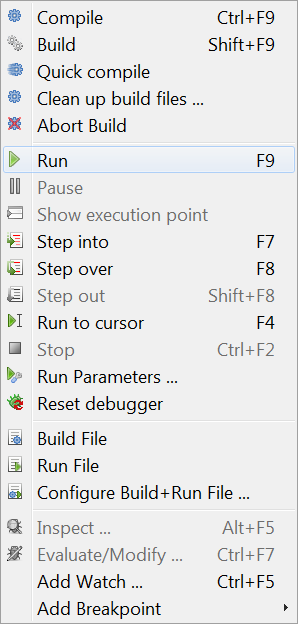
- 建置:Lazarus 進行建置 (或說編譯) 在專案中所有從上次建置到這次中有修改過的檔案。
- 建置所有:專案中所有的檔案都進行建置,無論他有沒有被改過。
- 放棄建置:停止正在執行中的建置 - 像在你發現你可能什麼忘記做了而想要停止建置或發現系統跑太久而明顯是有錯誤的樣子。
- 執行:這大概是最常使用的編譯器的方法,若編譯成功完成,則自動執行起該應用程式。實際上是 Lazarus 將你的檔案另存一個副本,然後開啟編譯器與連結器,然後開始執行最後連結到的二進位程式。
- 暫停:將目前執行中的程式暫停。這可以讓你偵測程式產生的輸出值;再選一次執行程式可以再繼續執行。
- 階段執行:與除錯器同時結合,讓編譯進行時可以一次一步,或是依原始碼內的書籤點一步步地進行。
- 跨躍執行:依定位點先一次執行到該處,然後忽略,然後再繼續執行。當想要找出程式中有邏輯錯誤時很有用。
- 執行到游標點:先以正常情況執行編譯 (不是一次一步),直到敘述句執行到游標停在的位置時停止。再按一次執行繼續。
- 停止:停止編譯程式。無法再從執行指令來繼續;只能再重新從頭編譯過 (用於有需要重新編譯時)。
- 帶參數執行:彈出一多籤頁的視窗,用來選定程式執行時要下的指令行與參數;可以選程式執行時顯示的選項 (如在 Linux 下使用遠端搖控);有些系統環境下的變數會被蓋過而失效。
一種很重要的用法是使用此子選單的功能開啟一個遠端視窗來控制傳統 Pascal 主控台中輸入/輸出的顯示。如果你在開發一主控台模式的 Pascal 程式 (就是不使用圖形使用者介面,表單,按鈕和對話盒),那你應該選取 "使用投放式程式"。如果你是第一次使用這個編譯/執行工作,你可能會得到這樣一個無來由的回應訊息
"xterm: Can't execvp /usr/share/lazarus//tools/runwait.sh: Permission denied".
"{無法執行 /usr/share/lazarus//tools/runwait.sh: 權限不足}"。
若真的發生了,你需要為一些檔案變更適當的權限 (舉例使用 chmod +x 檔名,或是用視窗工具變更權限);也許你會需要 root 的權限來變更。之後,每一次你要發動你的程式的時候,就會彈出一主控台視窗框,所有你的文字輸出/入 (readln, writeln 等) 都會顯示在裡面。
After your program has finished execution, a message "Press enter" appears on the screen. Thus any output your program generated will remain on the screen until you have had a chance to read it; after you press 'enter' the console window closes.
Note: as for the current version, there is no prepared console command for Windows users. Until the Lazarus team adressess that, the following line should work (on WinXP -- someone please update for other Windowses)
C:\Windows\system32\cmd.exe /C ${TargetCmdLine}
See the separate tutorial on Console Mode Pascal programming.
- Reset debugger: Restores the debugger to its original state, so that breakpoints and values of variables etc are forgotten.
- Build file: Compile (build) just the file that is currently open in the Editor.
- Run file: Compile, link and execute just the currently open file.
- Configure Build + Run File: Opens a multi-page tabbed window with options to allow for build of just this file when Build Project is selected, allows selection of the working directory, the use of various Macros, etc. Then Builds and Runs the file.
These last three options enable you to open (and maintain) a test project. Use File -> Open to open an .lpr file, pressing cancel on the next dialog to open this file as "normal source" file.
The Package sub-menu
- Open Package: Displays a list of installed packages, with an invitation to open one or more of them, or to select various general or compiler options.
- Open Package File: Open one of the files in the selected package.
- Open Recent Package: Open a package that was opened recently.
- Add Active Unit to Package: Place the unit file (currently in the editor) into a package.
- Package Graph: Displays a graph showing the relationships of the packages currently being used (if you aren't using any other packages, the Lazarus package and the FCL and LCL will be displayed).
- Configure custom components: If you have created some components, allows you to configure them.


The Tools sub-menu
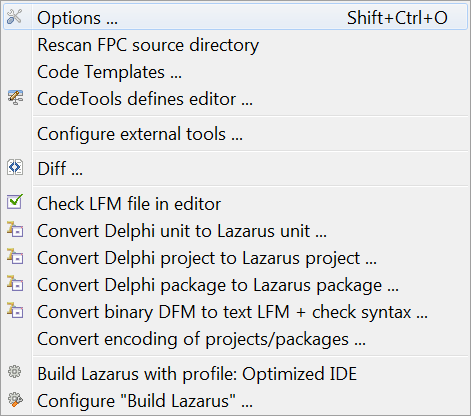
- Configure custom tools: Allows the user to add various external tools (usually macros) to the toolkit
- Quick syntax check: Perform a quick check of the syntax in your source file without actually compiling anything. Essential step in developing long or complicated programs, where you don't want to waste time compiling if the code is wrong.
- Guess unclosed block: useful utility if you have a complex nested block structure and you have left out an 'end' somewhere
- guess misplaced IFDEF/ENDIF: useful if there is a complex or nested macro structure and you think you have left out an ENDIF directive
- Make resource string: Makes the selected string a resource string by placing it in the resourcestrings section. An advantage of resource strings is you can change them without the need to recompile your project!
- Diff: Allows comparison between two files (or, usually, two versions of the same file) to find differences. Options to ignore white space at beginning or end of lines or differences in line termination: CR+LF versus LF). Useful for checking if there have been changes since last CVS update etc.
- Check LFM file in editor: Allows inspection of the LFM file which contains the settings that describe the current form
- Convert Delphi unit to Lazarus unit: Helps in porting Delphi applications to Lazarus; makes the necessary changes to the source file. See Lazarus For Delphi Users and Code Conversion Guide.
- Convert DFM file to LFM: For porting from Delphi to Lazarus: converts the Form Description files from Delphi to Lazarus. See Lazarus For Delphi Users and Code Conversion Guide.
- Build Lazarus: Launches a re-build of Lazarus from the most recently downloaded or updated SVN files. Hit the button and sit back to watch it happen! (track the process on your Messages window).
- Configure "Build Lazarus": Allows the user to determine which parts of Lazarus should be re-built, and how. For example, you could select to have just the LCL re-built, or to have everything except the examples built; you can select which LCL interface to use (ie which set of widgets), and you can select the target operating system and specify a different target directory.
Standard packages add the following menu items:
- Project templates. This item is added by the package Project Templates.
環境子選單
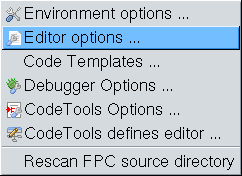
- 環境選項:顯示一個代多個標籤頁的視窗
- 檔案 - allowing the user to specify path to default directory, compiler, source directory and temporary directory for compilation;
- 桌面 - options for Language, Auto save behaviour, saving desktop properties, hints for component palette and speed buttons;
- 視窗, to allow specification of size and behaviour of the various windows;
- 表單編輯器 - choose colours for editing forms;
- 物件檢視器 - choose colour and height of items;
- 備份 - specify how to backup files when editing;
- 命名 - specify what extension to use in naming pascal files ('.pp' or '.pas'), whether to save files with names in lowercase, whether to perform auto-delete or auto-rename.
- 編輯器選項: Multi-page window, with tabs for
- 一般 - determines behaviour like auto-indent, bracket highlighting, drag-drop editing, scrolling, syntax highlighting, showing hints, size of block indent and tabs, limit of Undo;
- 顯示 - options for showing line numbers, presence of gutters, size and type of font for editor, and contains a preview panel showing the colours of the various syntax features such as comments, directives, punctuation, errors and breakpoints;
- 按鍵對應 - options to select Lazarus or Turbo Pascal scheme;
- 顏色 - allows choice of colour scheme for text features, for a number of language types such as Object Pascal, C++, Perl, HTML, XML and shell scripts. It shows preview panel again (for whichever language is selected);
- Code Tools - allows selection of features like Identifier Completion, tooltips, specification of template file names, specific templates for code completion.
- Debugger Options: Multi-page window with tabs for
- General - choose debugger: none, GNU debugger (gdb) or gdb through SSH, specify search paths for debuggers,and specific options for chosen debugger;
- Event log - specify whether to clear log on run, and which messages to display;
- Language Exceptions - select which exceptions can be ignored;
- OS Exceptions - allows user to add certain signals which apply to current operating system (not implemented).
- Code Tool Options: Multi-page window, tabs for
- General - Allows entry of additional source search paths, specify Jumping Method;
- Code Creation - determines whether created code is added before or after certain features;
- Words - determines whether Pascal keywords are to be entered in upper or lower case, or as Capitalised Words;
- Line Splitting - establish rules about where lines are allowed to be split (before or after punctuation, after keywords etc);
- Space - decide whether a space is to be added automatically before or after certain syntactic features such as keywords or punctuation marks.
- Code Tools Defines Editor: Here you can see all IDE internal definitions to parse sources. You will see all the defines, unit, source, include paths for all source directories. Beginning with the settings of the current FPC, the defines for the Lazarus Source directory, all package directories and project directories.
Most of these settings are auto generated and read only.
- Re-scan FPC Source directory Looks through the directory again. Lazarus uses the fpc sources to generate correct event handlers and while looking for declarations. If somebody changes the directory in the environment options, then this directory is rescanned, to make sure Lazarus uses the version stored in that location. But if this directory has changed without Lazarus noticing, then you may get some errors when designing forms or doing "Find declaration". If you get such an error, you can do two things:
- Check the fpc source directory setting in the environment option.
- Re-scan FPC source directory.
The Windows sub-menu
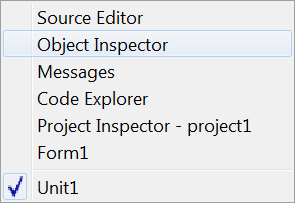
Contains a list of the currently opened files and the available windows such as 原始碼編輯器, 物件檢視器 and Project Inspector. Clicking on the name of one of the windows brings it to the foreground and gives it focus.
The Help sub-menu
At present this has three selections:
- Online Help which at present opens a browser window that contains a picture of the running cheetah and a few links to the Lazarus, Free Pascal and Wiki websites
- Reporting a bug opens the wiki page, which describe the bug reporting procedure
- Configure Help which opens a pop-up menu with options to select viewers and databases from which to read Help information. This option allows the user to specify either the on-line documents section of the Lazarus-CCR website, some other website containing the documents, or a local store for the documentation (this would eventually become the default, when the Help system is fully developed).
At present by default, if you place your Editor cursor over any keyword from the Free Pascal Components Library FCL, the RunTime Library RTL or the Lazarus Components Library LCL, and then press F1 you will be taken by your default browser to the appropriate definition on the website. Be aware that your browser may be located on another desktop on your machine (eg in Linux), and you may not see the information immediately; of course if you are not connected to the internet you cannot get this information.
There are alternative help options which gives the end-user off-line help. For example, if you have a copy of Kylix, you can reuse the help files supplied with it, inside Lazarus IDE. See the Adding Kylix Help page for details.
- About Lazarus Displays a pop-up box with some information about Lazarus.
Eventually there will be a full on-line Help service, with information about Pascal syntax, the use of the IDE, how to use, modify or create Components, and hints on how to perform certain tasks. This part of the Documentation section (the thing you are currently reading) represents the beginning of the process. We need contributions from anyone who feels able to provide them: the WiKi is very easy to edit.
From the Free Pascal wiki, page "Main menu/zh TW", as it stood on 2021-12-08 after a change by Kupferstecher, out of the wiki's dump of 2024-05-26. Copyright stays with the author who wrote it, according to the old wiki's Licensing page. If you have concerns about this material, message the admin.
Talk about this page
Nobody has opened a bench for this page yet. Sign in to open one.