

BGRABitmap tutorial 12
Deutsch · English · Español · Français
This tutorial shows how to use the text functions. For advanced features, see font renderers.
Create a new project
Create a new project and add a reference to BGRABitmap, the same way as in the first tutorial.
Simple text
You can draw a simple text like this:
procedure TForm1.FormPaint(Sender: TObject);
var
  image: TBGRABitmap;
  c: TBGRAPixel;
begin
  image := TBGRABitmap.Create(ClientWidth,ClientHeight, ColorToBGRA(ColorToRGB(clBtnFace)) );
  c := ColorToBGRA(ColorToRGB(clBtnText)); //retrieve default text color

  image.FontHeight := 30;
  image.FontAntialias := true;
  image.FontStyle := [fsBold];
  image.TextOut (5, 5, 'Hello world', c);
  image.SetPixel (5, 5, c);

  image.free;
end;
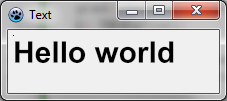
Here the font size is set to 30 pixels, with antialiasing. Using font antialiasing is slower but more beautiful.
The upper-left corner of the text is at (5,5). This origin is shown with a SetPixel.
Using alignment
Just replace the TextOut and SetPixel lines by:
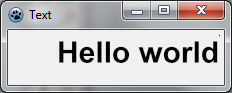
  image.TextOut(ClientWidth-5,5,'Hello world',c,taRightJustify);
  image.SetPixel(ClientWidth-5,5,c);
Now the origin is on the right side of the form, and the text is aligned to the right.
Rotated text
It is also simple to draw rotated text. To do this use TextOutAngle or set FontOrientation property:
  image.TextOutAngle(30,5,-450,'Hello world',c, taLeftJustify);
  image.SetPixel(30,5,c);
The angle is in tenth of degrees and positive value means counter clock wise.
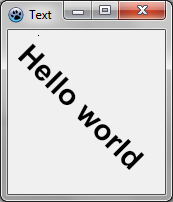
Notice where the text origin is (the added pixel).
Word wrapped text
There is an easy to use version of TextRect:
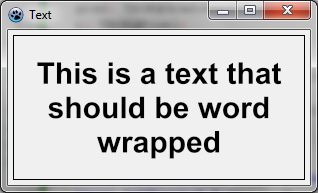
  image.TextRect(rect(5,5,ClientWidth-5,ClientHeight-5),'This is a text that should be word wrapped',taCenter,tlCenter,c);
  image.Rectangle(rect(5,5,ClientWidth-5,ClientHeight-5),c,dmSet);
Parameters are:
- the bounding rectangle
- the text
- horizontal alignment
- vertical alignment
- color
Text with shadow
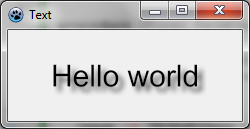
You can make a text shadow with a blur effect:
var
  image,txt: TBGRABitmap;
  grad: TBGRAGradientScanner;
  c: TBGRAPixel;
begin
  image := TBGRABitmap.Create(ClientWidth,ClientHeight, ColorToBGRA(ColorToRGB(clBtnFace)) );
  c := ColorToBGRA(ColorToRGB(clBtnText));

  txt := TextShadow(ClientWidth,ClientHeight,'Hello world',30,c,BGRABlack,5,5,5);
  image.PutImage(0,0,txt,dmDrawWithTransparency);
  txt.Free;

  image.Draw(Canvas,0,0,True);
  image.free;
end;
The procedure TextShadow creates a bitmap that contains the text with a shadow. The parameters are:
- The size of the bitmap
- The text
- Font height
- Font color
- Shadow color
- Shadow offset and blur size
Do not forget to free the bitmap after using it.
Text with gradient
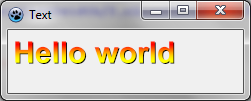
Like other drawing functions, you can supply a gradient or a texture to fill the text with. Here is an example:
uses BGRAGradientScanner;

var
  image: TBGRABitmap;
  grad: TBGRAGradientScanner;
begin
  image := TBGRABitmap.Create(ClientWidth,ClientHeight, ColorToBGRA(ColorToRGB(clBtnFace)) );

  grad := TBGRAGradientScanner.Create(BGRA(255,255,0),BGRA(255,0,0),gtLinear,PointF(0,0),PointF(0,35),True,True);
  image.FontHeight := 30;
  image.FontAntialias := true;
  image.FontStyle := [fsBold];
  image.TextOut(6,6,'Hello world',BGRABlack);  //draw a black border
  image.TextOut(5,5,'Hello world',grad);       //draw gradient text
  grad.free;

  image.Draw(Canvas,0,0,True);
  image.free;
end;
First a horizontal sine gradient is created, with color yellow and red. It is then used as a texture.
Previous tutorial (combining transformations) Next tutorial (coordinate system)
From the Free Pascal wiki, page "BGRABitmap tutorial 12", as it stood on 2023-01-22 after a change by Crore, out of the wiki's dump of 2024-05-26. Copyright stays with the author who wrote it, according to the old wiki's Licensing page. If you have concerns about this material, message the admin.
Talk about this page
Nobody has opened a bench for this page yet. Sign in to open one.