

BGRABitmap tutorial Font rendering
English · Français
Basic text functions are available in TBGRABitmap objects. You can find explanations about this in tutorial 12.
Here are more advanced features.
FontRenderer property
TBGRABitmap images has a FontRenderer property. By default, the renderer uses LCL drawing functions, eventually by drawing it bigger and applying antialiasing. This is done un TLCLFontRenderer class of BGRAText unit. However, this drawing does not allow to draw shadows or apply an outline to the text. Moreover, it is rather slow when drawing text in a rectangle (TextRect function).
You can replace the renderer by creating an object derived from TBGRACustomFontRenderer and by applying it to FontRenderer property. Note that an instance can be used for one image only, which became the owner. So you don't have to free the renderer yourself.
Adding effects
To improve speed and add effects, you will need TBGRATextEffectFontRenderer class, which is in BGRATextFX unit. For this, simply write:
Uses BGRABitmap, BGRATextFX;

var Bitmap: TBGRABitmap;
    Renderer: TBGRATextEffectFontRenderer;

begin
  ...
  Renderer := TBGRATextEffectFontRenderer.Create;
  Bitmap.FontRenderer := Renderer;
Note that you could directly assign the object without using an intermediary variable Renderer, but it will be useful to choose applied effects.
- For a shadow, use the following properties: ShadowVisible, ShadowColor, ShadowOffset and ShadowRadius. A shadow is visible if ShadowVisible is True and ShadowColor is not transparent.
- For an outline, use OutlineVisible, OuterOutlineOnly, OutlineColor or OutlineTexture and OutlineWidth. An outline is visible if OutlineVisible is True and a texture, otherwise a non transparent color is defined. Moreover OutlineWidth must be non zero.
For example, you can define an OnPaint event by double-clicking in the object inspector of a window and write:
Uses BGRABitmap, BGRABitmapTypes, BGRATextFX;

procedure TForm1.FormPaint(Sender: TObject);
var
  bmp: TBGRABitmap;
  renderer: TBGRATextEffectFontRenderer;
begin
  bmp := TBGRABitmap.Create(ClientWidth,ClientHeight,ColorToRGB(clBtnFace));
  renderer := TBGRATextEffectFontRenderer.Create;
  bmp.FontRenderer := renderer;
  renderer.ShadowVisible := True;
  renderer.OutlineVisible := True;
  renderer.OutlineColor := BGRABlack;
  renderer.OuterOutlineOnly := True;
  bmp.FontFullHeight := 50;
  bmp.TextOut(5,5,'Hello world',CSSRed);
  bmp.Draw(Canvas,0,0);
  bmp.Free;
end;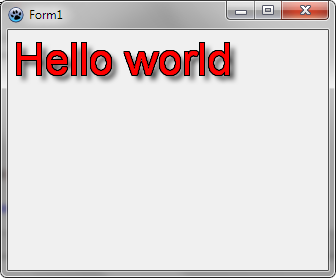
Note that antialiasing is not activated. To draw with antialiasing:
bmp.FontQuality:= fqFineAntialiasing;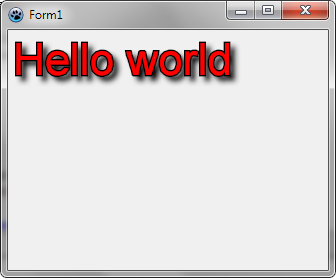
Using phong shading
To have a phong shading, you will need shader. To create it:
uses BGRAGradients;
var
  shader: TPhongShading;
  renderer: TBGRATextEffectFontRenderer;
begin
  shader := TPhongShading.Create;
  renderer := TBGRATextEffectFontRenderer.Create(shader, True); //the second parameter indicates that the shader is owned by the font renderer
The full example, using shading, becomes:
uses BGRABitmap, BGRABitmapTypes, BGRATextFX, BGRAGradients;

procedure TForm1.FormPaint(Sender: TObject);
var bmp: TBGRABitmap;
  shader: TPhongShading;
  renderer: TBGRATextEffectFontRenderer;
begin
  bmp := TBGRABitmap.Create(ClientWidth,ClientHeight,ColorToRGB(clBtnFace));
  shader := TPhongShading.Create;
  renderer := TBGRATextEffectFontRenderer.Create(shader,True);
  bmp.FontRenderer := renderer;
  renderer.ShadowVisible := True;
  bmp.FontFullHeight := 50;
  bmp.FontQuality:= fqFineAntialiasing;
  bmp.TextOut(5,5,'Hello world',CSSRed);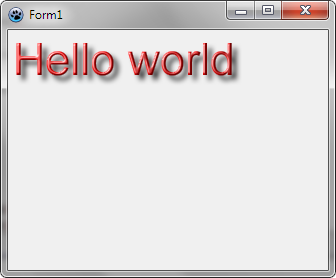
Using fonts with LazFreeType integrated in Lazarus
Since version 1.0, Lazarus has a FreeType font engine. Note that you must supply yourself files or streams that contain the fonts you want to draw. System directories and installed fonts are ignored, unless of course you explicitely add those files. Note that in the current implementation, it is necessary to provide Arial font even if you are not using it.
In order to define fonts, write this when creating your application:
uses LazFreeTypeFontCollection;

var FFontCollection: TFreeTypeFontCollection;

procedure TForm1.FormCreate(Sender: TObject);
begin
  FFontCollection := TFreeTypeFontCollection.Create;
  FFontCollection.AddFile('Arial.ttf');   //supposing the file is next to the application
  SetDefaultFreeTypeFontCollection(FFontCollection);
end;

procedure TForm1.FormDestroy(Sender: TObject);
begin
  SetDefaultFreeTypeFontCollection(nil);
  FreeAndNil(FFontCollection);
end;
Now, to use those fonts, defined the FontRenderer property:
uses BGRABitmap, BGRABitmapTypes, BGRAFreeType;

procedure TForm1.FormPaint(Sender: TObject);
var
  bmp: TBGRABitmap;
  renderer: TBGRAFreeTypeFontRenderer;
begin
  bmp := TBGRABitmap.Create(ClientWidth,ClientHeight,ColorToRGB(clBtnFace));
  renderer := TBGRAFreeTypeFontRenderer.Create;
  bmp.FontRenderer := renderer;
  bmp.FontName := 'Arial';
  bmp.FontFullHeight:= 50;
  bmp.FontQuality := fqFineClearTypeRGB;
  bmp.TextOut(10,10,'Hello world',BGRABlack);
  bmp.Draw(Canvas,0,0);
  bmp.Free;
end;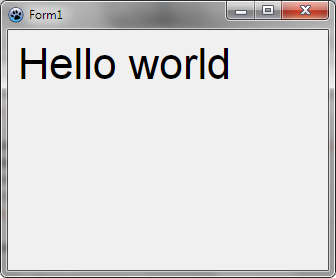
You can add a shadow with Shadow properties:
renderer.ShadowVisible := True;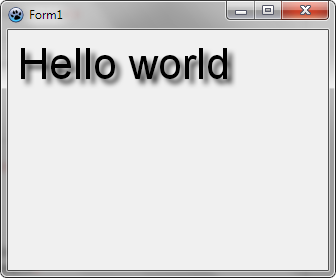
To add an outline:
  renderer.OutlineVisible := True;
  renderer.OutlineColor := CSSBlack;
  renderer.OuterOutlineOnly := True;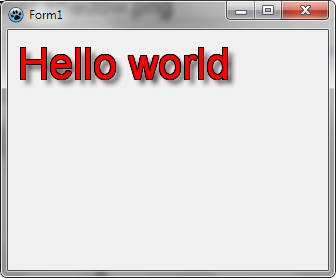
Phong shading
To add phong shading, you will need a shader:
uses BGRAGradients;
var
  shader: TPhongShading;
  renderer: TBGRAFreeTypeFontRenderer;
begin
  shader := TPhongShading.Create;
  renderer := TBGRAFreeTypeFontRenderer.Create(shader, True); //shader owned by the font renderer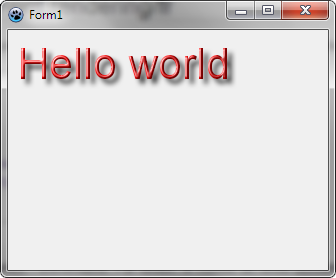
From the Free Pascal wiki, page "BGRABitmap tutorial Font rendering", as it stood on 2020-04-11 after a change by Circular, out of the wiki's dump of 2024-05-26. Copyright stays with the author who wrote it, according to the old wiki's Licensing page. If you have concerns about this material, message the admin.
Talk about this page
Nobody has opened a bench for this page yet. Sign in to open one.