

VirtualTreeview Example for Lazarus
English · Español · Français · Polski · Русский
Here are a few examples on how to use VirtualTreeview for Lazarus (tested on win32). These are mostly collected from the web written for Delphi, and from the tutorial/docs by Philipp Frenzel and Mike Lischke.
The tutorial/docs can be downloaded from http://www.soft-gems.net. Below someone would find only the quick way to use VirtualTreeview on Lazarus, not explanations. For explanations and lots of other functions/methods, get the official documents and the tutorial.
Basic Tree Listview With 3 Columns
1. Run lazarus. In Lazarus v2.0 or newer, the VirtualTreeViews package is installed by default. In all other cases, or if you want to work with a different version, install the component as explained in VirtualTreeView#Installation.
2. Drop a TVirtualStringTree component (under Virtual Controls tab). Note that in Lazarus v2.2+ the built-in component is named TLazVirtualStringTree and is found on the LazControls tab.
3. Go to the Source Editor (press F12) and check that a unit VirtualTrees (in Laz 2.2+: laz.VirtualTrees) has been added to the uses clause:
uses
  Classes, SysUtils, LResources, Forms, Controls, Graphics, Dialogs,
  VirtualTrees;  // or laz.VirtualTrees in Laz 2.2+
4. Get to the Form Designer (press F12). Select the Virtual Tree Component. On the Object Inspector click on Name, type VST and press enter. Click on Header (expand it) -> Columns, click on the small button next to "0 items". Click 3 times on Add button to add 3 columns. Do not close this window.
5. On the Column Editing window now the 3rd column is selected. Get to the Object Inspector. Click on Options (expand it) -> set coAllowClick to False.
6. Click on Text. Type Column2.
7. Click on Width, type 100 and press enter.
8. Get to the Column Editing window, select 1st and 2nd column, and set their property as above (for Text field, use different names, ie Column0, Column1).
9. Close the Column Editing window. Select the Virtual Tree Component on form. On Object Inspector get to Header -> Options (expand). Set hoVisible to True.
10. Scroll down to Style set it to hsFlatButtons.
11. Scroll down to TreeOptions(expand) -> MiscOption(expand), set toEditable to True. Set toGridExtensions to True.
12. Scroll down to SelectionOptions(expand) -> set toExtendedFocus to True. Set toMultiSelect to True. On the Form Designer resize VST (Virtual Tree Component) to get view of all the columns, if needed.
13. Now to add 3 buttons on the form. Get these from the component palette - Standard Tab ("OK" Label).
14. Click on Button1, on Object Inspector change Caption to AddRoot. Click on Button2, change the caption to AddChild. Change the caption of Button3 to Delete.
15. Keep this here and get to the Source Editor (press F12). On Source Editor replace the line:
{$mode objfpc}{$H+} with {$MODE DELPHI}
16. Under the "implementation" paste following lines:
type
  PTreeData = ^TTreeData;
  TTreeData = record
    Column0: String;
    Column1: String;
    Column2: String;
  end;
17. Get to the Form Designer (press F12). Select VST. Go to Object Inspector, select Events tab, scroll down to onChange. Double click on the combobox. Paste the follwings:
procedure TForm1.VSTChange(Sender: TBaseVirtualTree; Node: PVirtualNode);
begin
  VST.Refresh;
end;
18. Scroll to onFocusChanged. Double click and paste the following:
procedure TForm1.VSTFocusChanged(Sender: TBaseVirtualTree; Node: PVirtualNode;
  Column: TColumnIndex);
begin
  VST.Refresh;
end;
19. Scroll to onFreeNode. Double click and paste the following:
procedure TForm1.VSTFreeNode(Sender: TBaseVirtualTree; Node: PVirtualNode);
var
  Data: PTreeData;
begin
  Data := VST.GetNodeData(Node);
  if Assigned(Data) then begin
    Data^.Column0 := '';
    Data^.Column1 := '';
    Data^.Column2 := '';
  end;
end;
20. Scroll down to onGetNodeDataSize. Double click & paste the following:
procedure TForm1.VSTGetNodeDataSize(Sender: TBaseVirtualTree; var NodeDataSize: Integer);
begin
  NodeDataSize := SizeOf(TTreeData);
end;
21. Scroll to onGetText. Double click & paste the following:
procedure TForm1.VSTGetText(Sender: TBaseVirtualTree; Node: PVirtualNode;
 Column: TColumnIndex; TextType: TVSTTextType; var CellText: WideString);
var
  Data: PTreeData;
begin
  Data := VST.GetNodeData(Node);
  case Column of
    0: CellText := Data^.Column0;
    1: CellText := Data^.Column1;
    2: CellText := Data^.Column2;
  end;
end;
22. Press F12 to get Form Designer. Double click AddRoot button. Paste the following:
procedure TForm1.Button1Click(Sender: TObject);
var
  Data: PTreeData;
  XNode: PVirtualNode;
  Rand: Integer;
begin
  Randomize;
  Rand := Random(99);
  XNode := VST.AddChild(nil);

  if VST.AbsoluteIndex(XNode) > -1 then
  begin
    Data := VST.GetNodeData(Xnode);
    Data^.Column0 := 'One ' + IntToStr(Rand);
    Data^.Column1 := 'Two ' + IntToStr(Rand + 10);
    Data^.Column2 := 'Three ' + IntToStr(Rand - 10);
  end;
end;
23. Press F9 to Run the project to check. Click on AddRoot to add node. If it is ok, node will be added on VST.
24. Stop execution. On the Form Designer double click the AddChild captioned button. Paste the following:
procedure TForm1.Button2Click(Sender: TObject);
var
  XNode: PVirtualNode;
  Data: PTreeData;
begin
  if not Assigned(VST.FocusedNode) then
    Exit;

  XNode := VST.AddChild(VST.FocusedNode);
  Data := VST.GetNodeData(Xnode);

  Data^.Column0 := 'Ch 1';
  Data^.Column1 := 'Ch 2';
  Data^.Column2 := 'Ch 3';

  VST.Expanded[VST.FocusedNode] := True;
end;
25. On the Form Designer double click the Delete captioned button. Paste the following:
procedure TForm1.Button3Click(Sender: TObject);
begin
  VST.DeleteSelectedNodes;
end;
26. Run the project by pressing F9 to check. Add some node, child and delete them.
27. Try to edit a node. Select a node and press F2, write new value. If you can see what you are typing then it is OK. Else, read below "If Cell Editing Can't Be Seen".
28. To get VST show the new value entered after editing, go to the Form Designer, select VST. On Object Inspector -> Events -> OnNewText combobox double click. Paste the following:
procedure TForm1.VSTNewText(Sender: TBaseVirtualTree; Node: PVirtualNode;
  Column: TColumnIndex; NewText: WideString);
var
  Data: PTreeData;
begin
  Data := VST.GetNodeData(Node);
  case Column of
    0: Data^.Column0 := NewText;
    1: Data^.Column1 := NewText;
    2: Data^.Column2 := NewText;
  end;
end;
So far, example for basic use ends here. You may drop few more buttons on the form to test few more commands given below. Next would be, showing checkbox, image, font colour and adding combobox on node.
- Another Way to Add Root Node
procedure TForm1.Button8Click(Sender: TObject);
begin
  with VST do
    RootNodeCount := RootNodeCount + 1;
end;- Another Way to Add Child
procedure TForm1.Button9Click(Sender: TObject);
begin
  if Assigned(VST.FocusedNode) then
    VST.ChildCount[VST.FocusedNode] := VST.ChildCount[VST.FocusedNode] + 1;
end;- Determine & Delete Children of A Node
procedure TForm1.Button4Click(Sender: TObject);
var
  c: Integer;
begin
  if not Assigned(VST.FocusedNode) then
    Exit;
  if VST.HasChildren[VST.FocusedNode] then
  begin
    c := VST.ChildCount[VST.FocusedNode];
    VST.DeleteChildren(VST.FocusedNode);
    ShowMessage('Number of deleted child:' + #13#10 + IntToStr(c));
  end;
end;- Delete Node
procedure TForm1.Button5Click(Sender: TObject);
begin
{VST.Clear;  //Delete All Nodes}
  if not Assigned(VST.FocusedNode) then
    Exit;
  VST.DeleteNode(VST.FocusedNode);
end;- Search and Select Node
procedure TForm1.Button6Click(Sender: TObject);
var
  XNode: PVirtualNode;
  Data: PTreeData;
begin
  XNode := VST.GetFirst;

  while XNode <> nil do
  begin
    Data := VST.GetNodeData(XNode);
    if Data^.Column0 = '1' then
    begin
      VST.ClearSelection;
      VST.Selected[XNode] := True;
      VST.SetFocus;
      break;
    end else
    XNode := VST.GetNextSibling(XNode);
  end;
end;- Determine Parent
procedure TForm1.Button13Click(Sender: TObject);
var
  XNode: PVirtualNode;
begin
  if not Assigned(VST.FocusedNode) then
    Exit;
  XNode := VST.FocusedNode;
  while VST.GetNodeLevel(XNode) > 0 do
  begin
    XNode := XNode.Parent;
    VST.Selected[XNode] := True;
  end;
  VST.Refresh;
  VST.SetFocus;
end;- Search All
procedure TForm1.Button7Click(Sender: TObject);
var
  XNode: PVirtualNode;
  Data: PTreeData;
begin
  if VST.GetFirst = nil then Exit;
  XNode := nil;
  repeat
    if XNode = nil then
      XNode := VST.GetFirst
    else
      XNode := VST.GetNext(XNode);
    Data := VST.GetNodeData(XNode);
    if (Data^.Column0 = '1') or (Data^.Column1 = '1') or (Data^.Column2 = '1') then
    begin
      ShowMessage('Found at Node Level : ' + IntToStr(VST.GetNodeLevel(XNode)));
      break;
    end;
  until XNode = VST.GetLast();
end;- Search next
procedure TForm1.Button8Click(Sender: TObject);
var
  XNode: PVirtualNode;
  Data: PTreeData;
begin
  if not Assigned(VST.GetFirst) then
    Exit
  else
    XNode := VST.GetFirst;
  repeat
    XNode := VST.GetNext(XNode);
    Data := VST.GetNodeData(XNode);
    if Pos(LowerCase(SearchEdit.Text), LowerCase(Data^.Column0)) > 0 then
    begin
      VST.FocusedNode := XNode;
      VST.Selected[XNode] := True;
      if MessageDlg('Item found?', mtConfirmation, mbYesNo, 0) = mrYes then
      begin
        VST.Expanded[XNode] := True;
        VST.Refresh;
        VST.SetFocus;
        Break;
      end;
    end;
  until XNode = VST.GetLast;
end;- Insert Node
procedure TForm1.Button12Click(Sender: TObject);
var
  XNode: PVirtualNode;
begin
  if Assigned(VST.FocusedNode) then
  begin
    XNode := VST.InsertNode(VST.FocusedNode,amInsertBefore);
    // To Insert After Selected Node.
    {XNode := VST.InsertNode(VST.FocusedNode,amInsertAfter);}
    VST.Refresh;
  end;
end;- Set Node Height
procedure TForm1.Button14Click(Sender: TObject);
begin
  if Assigned(VST.FocusedNode) then
    VST.NodeHeight[VST.FocusedNode] := 32;
end;- Save And Load
Simple tree (without column) can be saved and loaded as:
VST.SaveToFile('filename.dat');
VST.LoadFromFile('filename.dat');
To save and load the above mentioned example, place 2 buttons on the form, rename caption to "Save" and "Load". Select VST, on Object Inspector -> TreeOptions -> StringOptions make sure toSaveCaptions is set to True. Go to Object Inspector's Events tab. Scroll down to OnLoadNode, double click and then paste:
procedure TForm1.VSTLoadNode(Sender: TBaseVirtualTree; Node: PVirtualNode;
  Stream: TStream);
var
  Data: PTreeData;
  Len: Integer;
begin
  Data := VST.GetNodeData(Node);
  Stream.read(Len, SizeOf(Len));
  SetLength(Data^.Column0, Len);
  Stream.read(PChar(Data^.Column0)^, Len);

  Stream.read(Len, SizeOf(Len));
  SetLength(Data^.Column1, Len);
  Stream.read(PChar(Data^.Column1)^, Len);

  Stream.read(Len, SizeOf(Len));
  SetLength(Data^.Column2, Len);
  Stream.read(PChar(Data^.Column2)^, Len);
end;
Again on Object Inspector's Events tab - scroll down to OnSaveNode, double click and then paste:
procedure TForm1.VSTSaveNode(Sender: TBaseVirtualTree; Node: PVirtualNode;
  Stream: TStream);
var
  Data: PTreeData;
  Len: Integer;
begin
  Data := VST.GetNodeData(Node);
  Len := Length(Data^.Column0);
  Stream.write(Len, SizeOf(Len));
  Stream.write(PChar(Data^.Column0)^, Len);

  Len := Length(Data^.Column1);
  Stream.write(Len, SizeOf(Len));
  Stream.write(PChar(Data^.Column1)^, Len);

  Len := Length(Data^.Column2);
  Stream.write(Len, SizeOf(Len));
  Stream.write(PChar(Data^.Column2)^, Len);
end;
On Form Designer double click Save captioned button, paste:
procedure TForm1.Button10Click(Sender: TObject);
begin
  VST.SaveToFile('C:\vst.dat');
end;
On Form Designer double click Load captioned button, paste:
procedure TForm1.Button11Click(Sender: TObject);
begin
  VST.LoadFromFile('C:\vst.dat');
end;
Now test to save and load tree.
- Scroll Problem
The header of the treeview disappears fully or partially when scrolling. I could not find a good solution for this. One way to overcome this is to set the header height to 0, then using general label for columns. This is good while there are few columns, and all are visible without horizontal scrolling. Or, the header height can be set to a higher value like 25 or 30. VST.Refresh can be added to the OnScroll event.
- Column Resize
It was not possible to resize column by dragging mouse on VST header. May be it is for the header bug or I have missed something. If it is for the header, probably will be fixed on next version of Lazarus. See this link: http://bugs.freepascal.org/view.php?id=11209
Anyway, it is possible to resize column from code. When you press down right mouse button and move mouse-wheel up, the width of the selected column increases and press down the right mouse button and move mouse-wheel down, to decrease the width of the selected column. To do this:
1. Add a variable in the source editor named as CurCol: Integer; So it looks like:
var
  Form1: TForm1;
  CurCol: Integer; // <- Add this line only.

implementation

{ TForm1 }
2. On the Form Designer double click the form to generate an event OnCreate. Inside the OnCreate procedure type Form1.OnMouseWheelUp:= and press Ctrl+Shift+C, this will complete the code and make skeleton of the MouseWheelUp event. Now get back to procedure TForm1.FormCreate(Sender: TObject); And add another event for MouseWheelDown. Type Form1.OnMouseWheelDown:= and press Ctrl+Shift+C, to generate the MouseWheelDown event. FormCreate procedure now looks like:
procedure TForm1.FormCreate(Sender: TObject);
begin
  Form1.OnMouseWheelUp   := @Form1MouseWheelUp;
  Form1.OnMouseWheelDown := @Form1MouseWheelDown;
end;
3. Fill the TForm1.Form1MouseWheelUp procedure as:
procedure TForm1.Form1MouseWheelUp(Sender: TObject; Shift: TShiftState;
  MousePos: TPoint; var Handled: Boolean);
begin
  if VST.Focused and (ssRight in Shift) then
    VST.Header.Columns[CurCol].Width := VST.Header.Columns[CurCol].Width + 10;
end;
4. Fill the TForm1.Form1MouseWheelDown procedure as:
procedure TForm1.Form1MouseWheelDown(Sender: TObject; Shift: TShiftState;
  MousePos: TPoint; var Handled: Boolean);
begin
  if VST.Focused and (ssRight in Shift) then
    VST.Header.Columns[CurCol].Width := VST.Header.Columns[CurCol].Width - 10;
end;
5. Go to the Form Designer (press F12), select VST, on Object Inspector's Events tab scroll to OnFocusChanged, double click & paste:
procedure TForm1.VSTFocusChanged(Sender: TBaseVirtualTree;
  Node: PVirtualNode; Column: TColumnIndex);
begin
  CurCol := Column;
end;
When you run, click on a column then hold down right mouse button and move wheel up to increase width, wheel down to decrease. You may tune-up the above procedures if needed. Or, add keyboard event with something like "if (key=187) and (ssShift in Shift) then" to watch for Shift + "+".
Checkbox
On Form Designer select VST. Go to:
- Object Inspector -> Properties -> CheckImageKind and select ckDarkCheck.
- Object Inspector -> Properties -> TreeOptions -> MiscOptions -> toCheckSupport and set it to True.
Now switch to Events tab.
- Scroll to OnInitNode. Double click and paste the following:
procedure TForm1.VSTInitNode(Sender: TBaseVirtualTree; ParentNode,
  Node: PVirtualNode; var InitialStates: TVirtualNodeInitStates);
var
  Level: Integer;
begin
  Level := VST.GetNodeLevel(Node);
  if Level = 0 then
    Node.CheckType := ctCheckBox;

  if Level = 2 then
    Node.CheckType := ctRadioButton;

  if Level = 1 then
  begin
    Node.CheckType  := ctTriStateCheckBox;
    Node.CheckState := csCheckedNormal;
  end;

  if Level = 3 then
    Node.CheckType := ctButton;
end;
Run the program, add rootnode and child then child of the child, and check if you can check and uncheck properly. If not, close the program. Go to the Object Inspector's Events tab.
- Scroll to OnChecked, double click and paste:
procedure TForm1.VSTChecked(Sender: TBaseVirtualTree; Node: PVirtualNode);
begin
  VST.Refresh;
end;- Scroll to OnChecking, double click and paste:
procedure TForm1.VSTChecking(Sender: TBaseVirtualTree; Node: PVirtualNode;
  var NewState: TCheckState; var Allowed: Boolean);
begin
  VST.Refresh;
end;
Hope now it is ok. To determine checkbox state use like:
if XNode.CheckState = csCheckedNormal then
ShowMessage('Checked.');
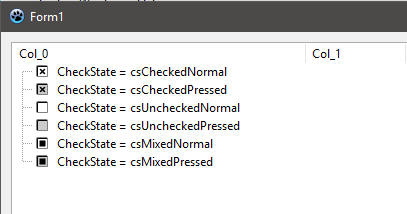
Other states are:
csUncheckedNormal = unchecked and not pressed
csUncheckedPressed = unchecked and pressed
csCheckedNormal = checked and not pressed
csCheckedPressed = checked and pressed
csMixedNormal = 3-state check box and not pressed
csMixedPressed = 3-state check box and pressed
Note:visually, the CheckState property looks something like this:
 \
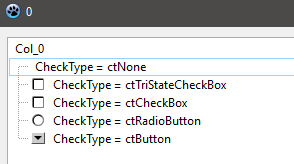
Other types are:
ctNone
ctTriStateCheckBox
ctCheckBox
ctRadioButton
ctButton
Note: visually, the CheckType property looks something like this:
 \
- To Catch Checkbox's Button (ctButton) Click
Go to Object Inspector's Events tab. Scroll to OnChecked, double click and paste:
procedure TForm1.VSTChecked(Sender: TBaseVirtualTree; Node: PVirtualNode);
begin
  if Node.CheckType = ctButton then
    ShowMessage('Ok.');
  VST.Refresh;
end;
End of checkbox.\
Images
To show image on VST nodes, a list of image should be created.
- Go to the Component Palette -> Common Controls. Select and drop a TImageList component on the form. Right click on the component icon and select ImageList Editor. Click on Add button and and select some images (at least 3 for now), then click on tick button to accept and close the ImageList Editor. By the way, there are some nice images you can download from http://www.famfamfam.com/lab/icons/silk/
- Now on the Form Designer select VST, and on Object Inspector's Properties tab, scroll to Images and select ImageList1
- On Object Inspector's Events tab scroll to OnGetImageIndex, double click and paste:
procedure TForm1.VSTGetImageIndex(Sender: TBaseVirtualTree; Node: PVirtualNode;
  Kind: TVTImageKind; Column: TColumnIndex; var Ghosted: Boolean;
  var ImageIndex: Integer);
begin
  if Kind in [ikNormal , ikSelected] then // Either Selected or not
  begin
    if Column = 0 then                    // if 1st Column
      ImageIndex := 0;                    // 1st Image of the ImageList1

    if Column = 1 then                    // if 2nd Column
      ImageIndex := 1;                    // 2nd Image of the ImageList1

    if Sender.FocusedNode = Node then     // Only show if Focused
      if Column = 2 then                  // if 3rd Column
        ImageIndex := 2;                  // 3rd Image of the ImageList1
  end;
  {Sender.NodeHeight[node] := 40; //If Image is big}
end;
Font Colour
On the Form Designer select VST, and on Object Inspector's Events tab, scroll to OnPaintText, double click and paste:
procedure TForm1.VSTPaintText(Sender: TBaseVirtualTree;
  const TargetCanvas: TCanvas; Node: PVirtualNode; Column: TColumnIndex;
  TextType: TVSTTextType);
var
  Data: PTreeData;
begin
  Data := VST.GetNodeData(Node);

  if Data^.Column0 = 'sky' then
    TargetCanvas.Font.Color := clBlue;

  if Column = 1 then
  begin
    TargetCanvas.Font.Color := clRed;
    TargetCanvas.Font.Style := Font.Style + [fsItalic];
  end;

  if Column = 2 then
  begin
//  ImageList1.Draw(Form1.Canvas, -1, -1, 2); {draw top left of form, 3rd image of ImageList1??}
    TargetCanvas.Font.Size  := 9;
    TargetCanvas.Font.Color := clHighlightText;
  end;
end;
Adding A Combobox
- I guess you have an open project on Lazarus IDE having VST on it and can edit the nodes. If not see the "Basic Tree Listview With 3 Columns" above, and atleast complete steps 1 to 21.
- Below there is an unit file named combo. Copy that unit and save as combo.pas inside the project directory. Under your program's uses clause add combo. So it may look like:
uses
  Classes, SysUtils, LResources, Forms, Controls, Graphics, Dialogs,
VirtualStringTree, VirtualTrees, combo;- The combo.pas unit
unit combo;

{$mode delphi}

interface

uses
  Classes, SysUtils, LResources, LMessage, LCLType, Forms, Controls, Graphics, Dialogs,
  VirtualStringTree, VirtualTrees, StdCtrls, windows;

type
  TStringEditLink = class(TInterfacedObject, IVTEditLink)
  private
    FEdit: TWinControl;
    FTree: TVirtualStringTree;
    FNode: PVirtualNode;
    FColumn: Integer;
  protected
    procedure EditKeyDown(Sender: TObject; var Key: Word; Shift: TShiftState);
  public
    destructor Destroy; override;
    function BeginEdit: Boolean; stdcall;
    function CancelEdit: Boolean; stdcall;
    function EndEdit: Boolean; stdcall;
    function GetBounds: TRect; stdcall;
    function PrepareEdit(Tree: TBaseVirtualTree; Node: PVirtualNode; Column: TColumnIndex): Boolean; stdcall;
    procedure ProcessMessage(var Message: TLMessage); stdcall;
    procedure SetBounds(R: TRect); stdcall;
  end;

implementation

destructor TStringEditLink.Destroy;
begin
  FEdit.Free;
  inherited;
end;

procedure TStringEditLink.EditKeyDown(Sender: TObject; var Key: Word; Shift: TShiftState);
begin
  case Key of
    VK_ESCAPE:
      begin
        FTree.CancelEditNode;
        Key := 0;
        FTree.setfocus;
      end;
    VK_RETURN:
      begin
       PostMessage(FTree.Handle, WM_KEYDOWN, VK_DOWN, 0);
       Key := 0;
       FTree.EndEditNode;
       FTree.setfocus;
      end;
  end; //case
end;

function TStringEditLink.BeginEdit: Boolean;
begin
  Result := True;
  //FEdit.Height := (FTree.DefaultNodeHeight - 1); //Needed for editbox. Not combo
  FEdit.Show;
  TComboBox(FEdit).DroppedDown := True;
  FEdit.SetFocus;
end;

function TStringEditLink.CancelEdit: Boolean;
begin
  Result := True;
  FEdit.Hide;
end;

function TStringEditLink.EndEdit: Boolean;
var
  s: String;
begin
  Result := True;
  s := TComboBox(FEdit).Text;
  FTree.Text[FNode, FColumn] := s;

  FTree.InvalidateNode(FNode);
  FEdit.Hide;
  FTree.SetFocus;
end;

function TStringEditLink.GetBounds: TRect;
begin
  Result := FEdit.BoundsRect;
end;

function TStringEditLink.PrepareEdit(Tree: TBaseVirtualTree; Node: PVirtualNode; Column: TColumnIndex): Boolean;
begin
  Result := True;
  FTree := Tree as TVirtualStringTree;
  FNode := Node;
  FColumn := Column;

  FEdit.Free;
  FEdit := nil;

  FEdit := TComboBox.Create(nil);
  with FEdit as TComboBox do
    begin
      Visible := False;
      Parent := Tree;
      Items.Add('Google');
      Items.Add('Yahoo');
      Items.Add('Altavista');
      OnKeyDown := EditKeyDown;
    end;
end;

procedure TStringEditLink.ProcessMessage(var Message: TLMessage);
begin
  FEdit.WindowProc(Message);
end;

procedure TStringEditLink.SetBounds(R: TRect);
var
  Dummy: Integer;
begin
  FTree.Header.Columns.GetColumnBounds(FColumn, Dummy, R.Right);
  FEdit.BoundsRect := R;
end;

end.- After saving the file, on the Form Designer select VST and on Object Inspector's Properties, scroll to TreeOptions -> MiscOptions, set toEditable to True. Then get to TreeOptions -> SelectionOptions, set toExtendedFocus to True.
- Switch to Object Inspector's Events tab. Scroll to OnCreateEditor, double click and paste:
procedure TForm1.VSTCreateEditor(Sender: TBaseVirtualTree;
  Node: PVirtualNode; Column: TColumnIndex; out EditLink: IVTEditLink);
begin
  EditLink := TStringEditLink.Create;
end;- On Object Inspector's Events tab. Scroll to OnNewText, double click and paste:
procedure TForm1.VSTNewText(Sender: TBaseVirtualTree; Node: PVirtualNode;
  Column: TColumnIndex; NewText: WideString);
var
  Data: PTreeData;
begin
  Data := VST.GetNodeData(Node);
  case Column of
    0: Data^.Column0 := NewText;
    1: Data^.Column1 := NewText;
    2: Data^.Column2 := NewText;
  end;
end;
Run program, select a node and press F2 to get combobox. On pressing Enter new value should appear on the node.
If Cell Editing Can't Be Seen
Open VirtualStringTree.pas unit file (if you are still on the above example project, right click on VirtualStringTree under Uses clause and select Find Declaration. This opens the file on next tab. Go to that file's tab.). Get to the "function TStringEditLink.BeginEdit: Boolean; stdcall;". It looks like:
function TStringEditLink.BeginEdit: Boolean; stdcall;

// Notifies the edit link that editing can start now. Descentants may cancel node edit
// by returning False.

begin
  Result := not FStopping;
  if Result then
  begin
    FEdit.Show;
    FEdit.SelectAll;
    FEdit.SetFocus;
  end;
end;
Now add "FEdit.Height:=18;". It should look like:
function TStringEditLink.BeginEdit: Boolean; stdcall;

// Notifies the edit link that editing can start now. Descentants may cancel node edit
// by returning False.

begin
  Result := not FStopping;
  if Result then
  begin
    FEdit.Show;
    FEdit.SelectAll;
    FEdit.SetFocus;
    FEdit.Height := 18; // <--- Added this line.
  end;
end;
Save the file (press Ctrl + S). If you are on the example project, close this (Project -> Close Project). Click on Tools -> Configure "Build Lazarus" ... Select Clean Up + Build All and then click on the Build button. After compile Lazarus should be restarted. Now open the example project and try to edit node on VST. This time it should be ok.
External links
- Virtual Treeview tutorials/docs
- Programando en Pascal - Spanish tutorial focused on FPC/Lazarus, hosted in Wikibooks.
From the Free Pascal wiki, page "VirtualTreeview Example for Lazarus", as it stood on 2023-02-27 after a change by Kepsz, out of the wiki's dump of 2024-05-26. Copyright stays with the author who wrote it, according to the old wiki's Licensing page. If you have concerns about this material, message the admin.
Talk about this page
Nobody has opened a bench for this page yet. Sign in to open one.