

IDE Window: Project Options
Deutsch · English · Français · Suomi · Русский · 日本語
Navigation
Main Menu > Project > Project Options ... > Project Options
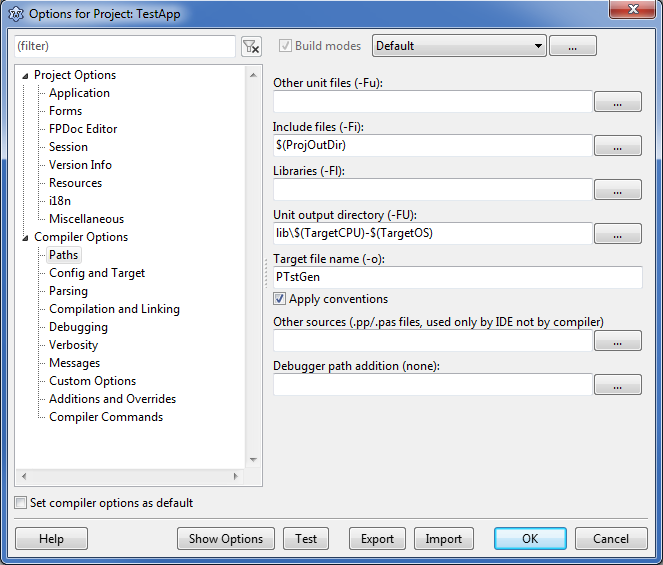
Options for Project
Application
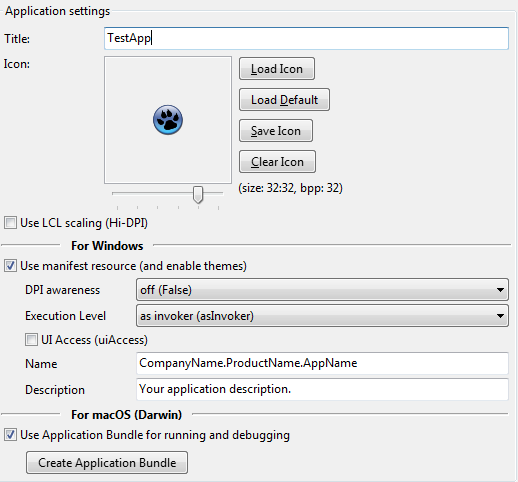
Title
Same as setting:
Application.Title:='Some text';The title is shown differently on the various platforms.
Icon
Several buttons allow to load icon from PNG file or to set default one.
- Icon is always used on Windows.
- Icon is not used on Linux (e.g. on Ubuntu to assign an icon, you need to create PNG file in special folder and also create .desktop file).
- Icon is used on macOS, as initial icon for Application Bundle (but better to copy icon manually, and then specify it manually).
For Windows
Use manifest file to enable themes (for Windows)
Enable to automatically create "manifest" resource (embedded into .exe file, this is not app.exe.manifest file). This manifest is needed for themes support (Windows XP and higher).
DPI Awareness
Control High DPI awareness. For Windows Vista+. Values:
| Awareness | Description |
|---|---|
| False | Sets the application to not DPI-aware. |
| True | Sets the application to system DPI–aware. |
| Per-monitor | On Windows 8.1, sets the application to per monitor-DPI aware. On Windows Vista through Windows 8, sets the application to not DPI–aware. |
| True/PM | On Windows 8.1, sets the application to per monitor-DPI aware. On Windows Vista through Windows 8, sets the application to system-DPI aware. |
Execution Level
You can select the level of elevation (Windows Vista+) that your program requires. Values:
| Elevation | Description | Recommendations |
|---|---|---|
| asInvoker | The application runs with the same access token as the parent process | standard user applications. |
| highestAvailable | The application runs with the highest privileges the current user can obtain. | mixed-mode applications. |
| requireAdministrator | The application runs only for administrators and requires that the application be launched with the full access token of an administrator. | administrator only applications. Internal elevation points are not needed. The application is already running elevated. |
UI Access
MS documentation: "Applications that are not providing accessibility should set this flag to false. Applications that are required to drive input to other windows on the desktop (on-screen keyboard, for example) should set this value to true."
Text fields
Button allows to change string properties of manifest. Currently these are: project name, project description. Some of these values are used by OS in crash report dialog (and maybe in Event Log).
Use Application Bundle for running and debugging (for Darwin)
This is needed for correct execution of macOS applications. By setting this option on, IDE runs/debugs Application Bundle (folder with extension .app) instead of real executable.
MacOS (Darwin)
Create Application Bundle
Pushing this button creates Application Bundle, with symbolic link to executable for this project.
For further info about Application Bundles see Carbon Interface#Creating the Apple resource files.
Forms
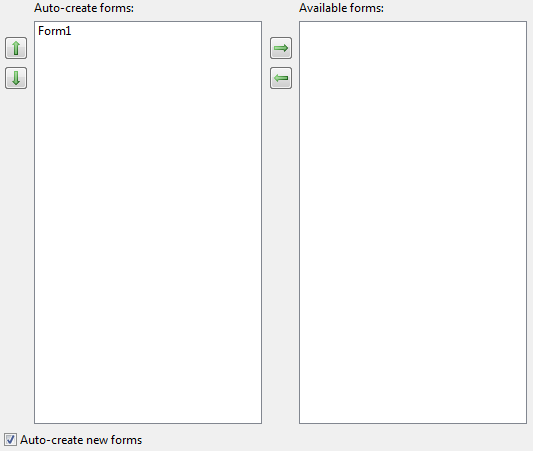
You can create forms on start of the project. This is the same as adding
Application.CreateForm(FormX,TFormX);lines to the code.
Note: The forms are automatically created, not automatically shown. They are shown if their 'Visible' property is set to true. For instance the form variable is set, so you can write 'Form1.Caption:='Some text';'. To show such a form add a line 'Form1.Show;' or 'Form1.ShowModal;'.
FPDoc editor
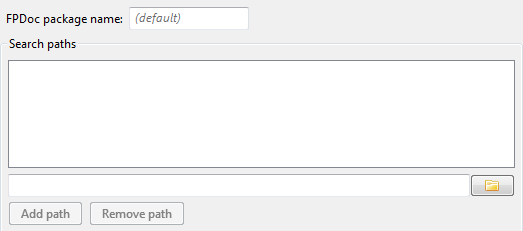
FPDoc files path
Contains paths to FPDoc files with documentation for the project. The FPDoc files are simple *.xml files and created by the built-in FPDoc editor or the standalone application lazarus documentation editor (it comes with lazarus in doceditor/lazde.lpi).
For example: Set it to "docs". The IDE will then lookup and create fpdoc files in the sub folder "docs" of your project directory.
Session
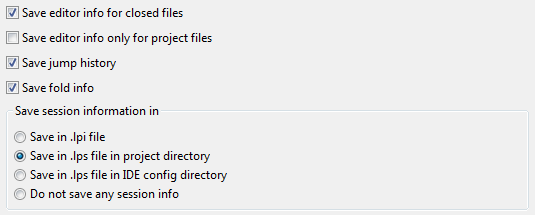
Save editor info for closed files
The IDE saves the editor settings (caret position, top line, page index, bookmarks, jump history) even for closed files and will restore it, when the file is opened again. Default: enabled.
Save editor info only for project files
The IDE saves various settings for each file, like editor settings, run file settings, resource names. Normally the IDE will save this information together with the project sesssion information (.lpi or .lps file). Enable this to not store such values on disk. Default: true.
Save session information in
Each project has a session. A session contains all meta information about open files in the source editor, the bookmarks, jump history and run file information. You can setup, where to store this information for the current project:
- Save in .lpi file - the file will change often.
- Save the .lps file in the project directory - useful if the .lpi file is under version control (e.g. cvs, svn).
- Save in IDE config directory - useful if the project directory is read only
- Do not save any session info - useful for the paranoids.
Version Info
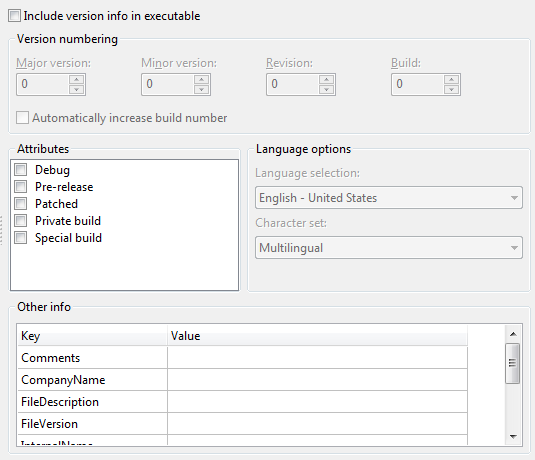
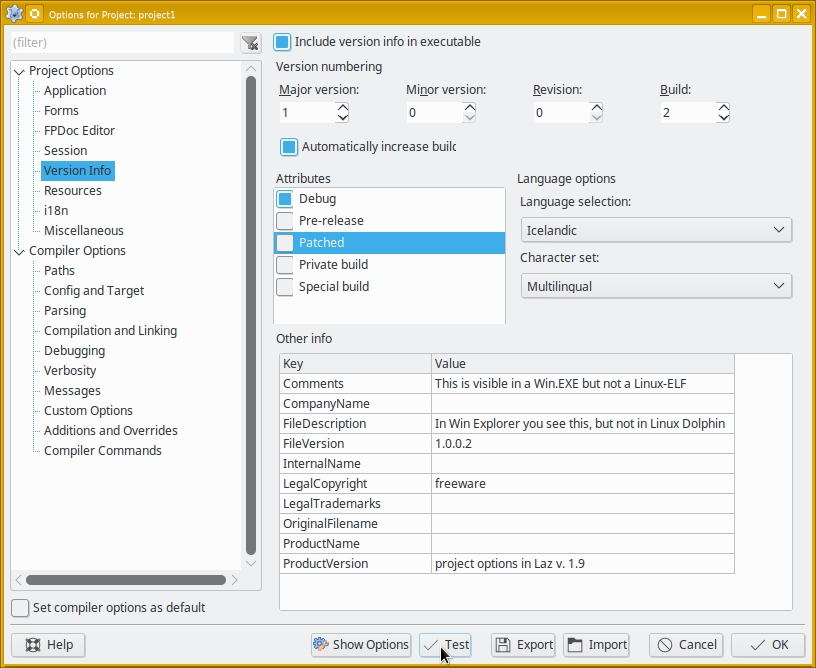
Dialog with Test button always available for use.
You can choose to include file version information in the executable/library. On Windows, this will show in the properties of the file.
Resources
The dialog shows a list of files that will be included in the application as resources.
You can use the Add and Delete buttons to add or delete a resource.
The Delete all button will remove all resources.
When you click add, the IDE will prompt you for a filename. Each filename will be added to the resources of the application, and is added to the list below the toolbar. by default, the filename (without path or extension) is used as the name of the resource.
If you select one of the resources, you can rename it in the edit box at the right. You can then also change the type: RCDATA is the default type, because it can be used for any kind of binary data.
When you select one of the resources and click delete, the resource is removed.
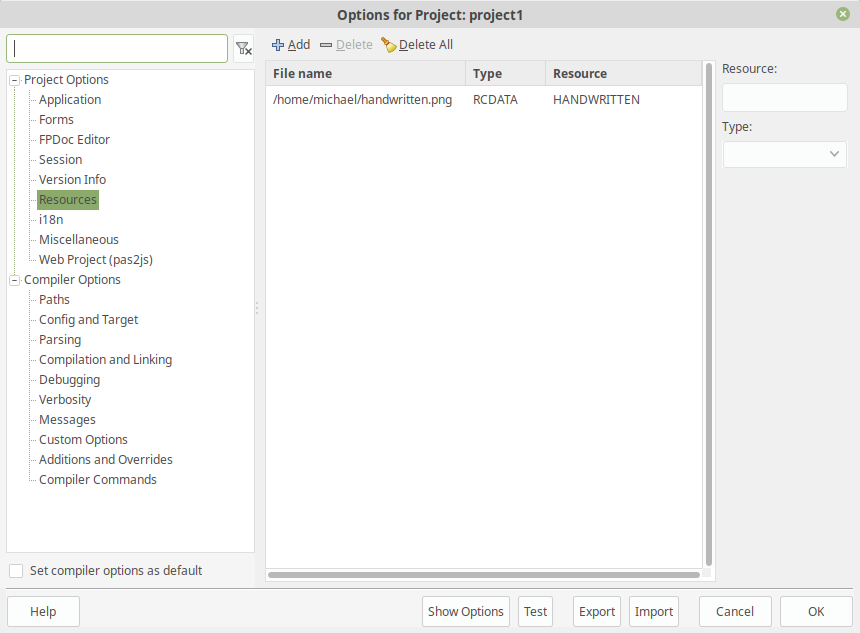
The list of resources (the filename, type and resource name) is saved in the project file (.lpi).
Note that this means that the files you select must remain available, they are not copied: The resource file - which is linked into the binary when compiling - will be regenerated depending on the actions taken in the IDE. Whenever the resource file is regenerated, the files indicated here must be available.
It is therefor a good idea to add the files that are indicated here to the project file as well.
See also
- FCL resource units
- Description of using FPC and Lazarus resources
- Lazarus Resource compiler (deprecated)
i18n
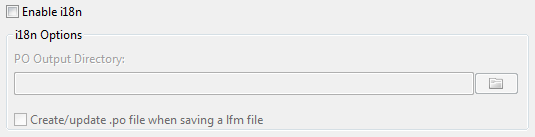
I18n stands for Internationalization. When enabled the IDE will automatically create and update translations files (.po files) for your resourcestring sections and lfm files.
For more details see here.
Enable i18n
Enable to create .po files for .rst files in the given output directory.
Create/update .po file when saving a lfm file
When enabled the IDE adds the strings of type TTranslateString of the form/datamodule to a unitname.po file in the po output directory.
You can disable this creation for individual forms via the project inspector.
Excluded: Identifiers and Originals
Starting with Lazarus 1.8 the i18n frame contains two boxes "Identifiers" and "Originals" to exclude specific strings from the generated po files. For example, suppose the caption of a button is assigned to a specifically declared resource string. In this case the caption seen in the object inspector is obsolete and can be excluded by entering its text in the column "Originals"; alternatively the string tform1.button1.caption can be entered in the list "Identifiers" (this assumes that the button is named Button1 and sits on an instance of TForm1). (In v1.8 series the excluded entries are not removed from the po files automatically. You must perform a Clean up and Build to recreate the required files. In v2 series the the excluded entries are removed on the next compile.)
Resources
Miscellaneous
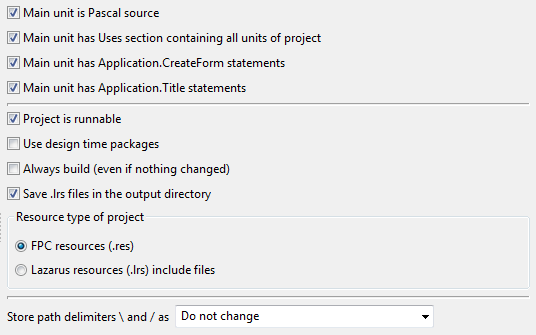
Main unit is Pascal Source
The main source is the root unit of a project. Typically this is the .lpr file. Set to true, if the main source is a pascal source. Set to false to avoid the IDE trying to parse it.
Main Unit has Uses Section containing all Units of project
If this is enabled, the IDE will update the uses section whenever a unit is added or removed from the project.
Update Application.CreateForm statements in main unit
If this is enabled the IDE will add/remove Application.CreateForm(FormX, TFormX); statements for forms. If it is disabled, it will ignore these statements (no delete, no add, no change).
Update Application.Title statement in main unit
If this is enabled the IDE will add/remove Application.Title:='Some Text'; statements. If the Title contains a value it will add a line, if the Title is empty it will remove it. If the Title changes it will add/remove/change the statement. If it is disabled, it will ignore these statements (no delete, no add, no change).
Update Application.Scaled statement in main unit
If this is enabled the IDE will add/update the Application.Scaled:=true|false; statement. See "Project Options" -> "Application" -> "Use LCL scaling -> (Hi-DPI)"
Project is runnable
The Project can be run in the debugger.
Use design time packages
Normally design time packages are not added to the unit path of the compiler. Enable this if your project uses a design time package at runtime.
Always build (even if nothing changed)
If disabled, the IDE checks before running for changes and if nothing changed will skip the compile step. Lazarus checks the compiler parameters, the compiler executable (filedate and filename) as listed in the projectname.compiled file and it checks the file dates of files listed in the project inspector. It does not check the fpc.cfg and not all the files in the project directories (only those listed in the project inspector) and it does not check all used units. So it will ignore changes in used units not listed in the project inspector, even if it is used by the project and opened in the source editor.
Maximize compatibility of project (LPI and LPS)
Sometimes the IDE gets new features, which changes some information in the lpi file, breaking compatibility with older Lazarus versions. Some of these features support storing some simpler values in the old format as well, so an old IDE can load it.
For example in Lazarus 2.0 the format of the unit list was changed from unit<number> to just unit, to avoid big git/svn diffs when an unit was removed from the project.
Keep in mind that when an old IDE saves a lpi it stores only things it knows, loosing all values of the newer IDE version.
Save .lrs file in the output directory
Only applicable if the project's resource type is ".lrs". Enable this option to generate the lrs file in the project's unit output directory.
Resource type of project
When you create a new form, data module, or frame a .lfm file is created. This option defines how the .lfm file is added to the executable, and determines how the project resources are stored. Since version 0.9.29 the two options are:
- lrs include file - This option needs one include file per unit and a corresponding include directive {$I unit1.lrs} in the unit's initialization section. This option is supported on all platforms, and the IDE creates and updates the needed .lrs file automatically.
- FPC resources - This option needs at least FPC version 2.4.0 (or higher) and a resource directive {$R *.lfm} in each unit which requires resources. Loading speed and executable size is similar to the .lrs option. The main advantage of FPC resources is that there is one less source file (since no .lrs files are generated).
This project setting affects how project resources are stored, as well as which is the appropriate source code directive to use (although the directives are inserted into the unit source for you). If you choose the "lrs include file" option, then the IDE stores icon resources in the .lrs file (and - only on the Windows platform - includes .rc files, if any). If you choose "FPC resources" then the IDE stores resources in .rc files on all platforms. The IDE automatically searches for a project icon resource in any .lrs resource first. If no icon resource is found there, or if there is no .lrs file, then it searches in the project's fpc resources.
Compiler Options
From the Free Pascal wiki, page "IDE Window: Project Options", as it stood on 2023-06-27 after a change by Mattias2, out of the wiki's dump of 2024-05-26. Copyright stays with the author who wrote it, according to the old wiki's Licensing page. If you have concerns about this material, message the admin.
Talk about this page
Nobody has opened a bench for this page yet. Sign in to open one.