

Catalog · How the catalog works
torov

ToroV allows user's applications to run as VMs and to communicate with the host OS by relying on a POSIX hypercall interface.
- ★ 12 on GitHub
Anyone may press Interesting, signed in or not. It helps others find this project.
README
ToroV
ToroV enables applications to run as Virtual Machines. It is a Virtual Machine Monitor (VMM) that exposes a POSIX API to the guest. The guest communicates with the VMM by using syscalls.
Architecture
The architecture is made of three components: the guest, the Runtime Library (RTL) and the VMM. The guest is a normal user application that is compiled with the RTL. The RTL contains the required code to run the application as a guest. For example, it allows to correctly boots the application. The guest is an user application that requires services from the OS by using syscalls. In ToroV, the VMM acts as the OS that provides such services. When the application guest invokes a syscall, this produces a VMExit that the VMM catches, processes, and finally returns to the application. This technology is similar than gVisor. The main difference with ToroV is that in gVisor syscalls are first trapped by the guest os, and then, forward them to the host. In ToroV, syscalls are trapped by the host first.
Features
- Configurable syscalls per application
- Fast migration of applications
- Fast booting time
- Reduced memory footprint
- POSIX interface
- Fast syscalls
Drawbacks
In ToroV, applications trigger a VMEXIT by using the out instruction. This instruction replaces the use of the syscall instruction. This requires that applications are compiled with a STDLIB in which the syscall instruction has been replaced.
How to try it?
You require a Linux host with KVM to run the VMM. To check if KVM is enabled, you can execute lsmod to list the loaded module. If KVM is in the list, you can move forward, if not, you need to first install it.
Try by using a ToroV Docker image (Recommended)
To simple try ToroV, you can build an image in docker with the required tools to build the vmm and the examples. First, you have to build the docker image by running:
wget https://raw.githubusercontent.com/torokernel/torov/master/ci/Dockerfile
docker build -t torov-dev .
Then, run the HelloWorld example by running:
docker run --privileged -it torov-dev
cd examples/HelloWorld
../build.sh HelloWorld
../../src/vmm/vmm helloworld.json
Note that docker runs with the --privileged flag to be able to use Kvm from the container.
Try step by step
Step 0. Clone ToroV
git clone git@github.com:torokernel/torov.gitStep 1. Install Freepascal 3.2.0
wget https://sourceforge.net/projects/lazarus/files/Lazarus%20Linux%20amd64%20DEB/Lazarus%202.0.10/fpc-laz_3.2.0-1_amd64.deb/download
mv download fpc-laz_3.2.0-1_amd64.deb
apt install ./fpc-laz_3.2.0-1_amd64.deb -y
Step 2. Get the RTL for ToroV
git clone https://github.com/torokernel/freepascal.git -b fpc-3.2.0-for-torov fpc-3.2.0-for-torovStep 3. Edit path in build.sh
Go to torov/examples and edit build.sh to set the correct paths to fpc. The path corresponds with the directory where the freepascal compiler is stored in step 2.
Step 4. Build the VMM
Go to torov/src/vmm and run build.sh. This generates the binary named vmm which contains the VMM.
Step 5. Build HelloWorld example
First, go to torov/src/rtl and execute:
fpc -s ToroVSys.pasSecond, go to torov/examples and execute:
nasm -f elf64 boot.s -o boot.oFinally, go to torov/examples/HelloWorld/HelloWorld.ld.elf and edit the path to freepascal RTL objects. Then, run:
../build.sh HelloWorldIf the command successes, it generates three files: HelloWorld.elf, HelloWorld.bin and HelloWorld.dbg. You can run this example by running:
../../src/vmm/vmm ./helloworld.jsonYou will get something like:
Hello World, I am ToroV!How to debug an application
You can debug your application by using a gdb client. To do this, follow the steps:
Step 1. Generate debug symbols
Edit torov/examples/build.sh, uncomment line 5, and comment line 6. Then, compile the HelloWorld example from its directory:
../build.sh HelloWorldStep 2. Run the VMM with a GdbStub
You have to edit helloworld.json and set the Allowed to true in the debug section. Then, run the VMM with the gdbstub:
../../src/vmm/vmm helloworld.jsonThe gdb server waits for the gdb client at port 1234.
Step 3. Launch the gdb client
gdb HelloWorld.dbg
target remote localhost:1234
c
Profiling
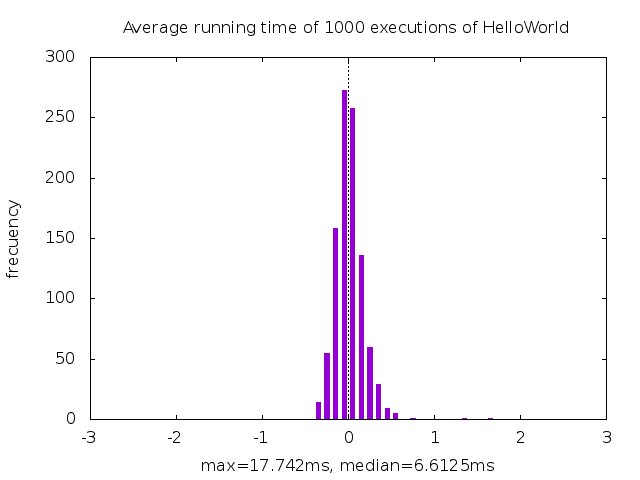
In the folder torov/src/vmm, you can find the script profile.py that is meant to measure the running time of any application. To run it, you have just to save the binary and the correspoding json in this directory, and then run the script as follows:
python3.5 ./profile.py 1000 helloworld.jsonIn this case, the test measures the average running time of 1000 executions of the HelloWorld example. The scripts outputs a gnuplot command to plot the result.
References
[0] ToroV, a kernel in user-space, or sort of. FOSDEM 2022.
[1] ToroV, a kernel in user-space to deploy server-less applications. 17th Workshop on Virtualization in High-Performance Cloud Computing.
License
GPLv3