Sign in Join

Live chat for Free Pascal, Lazarus, Delphi and every Pascal programmer.

Catalog · How the catalog works
Anything · Lazarus or Delphi
Random projectRandom project

DNR

DOS Navigator Revived

View on GitHub

Member rating

No ratings yet.

Sign in to rate this project.

README

DOS Navigator Revived (DNR)

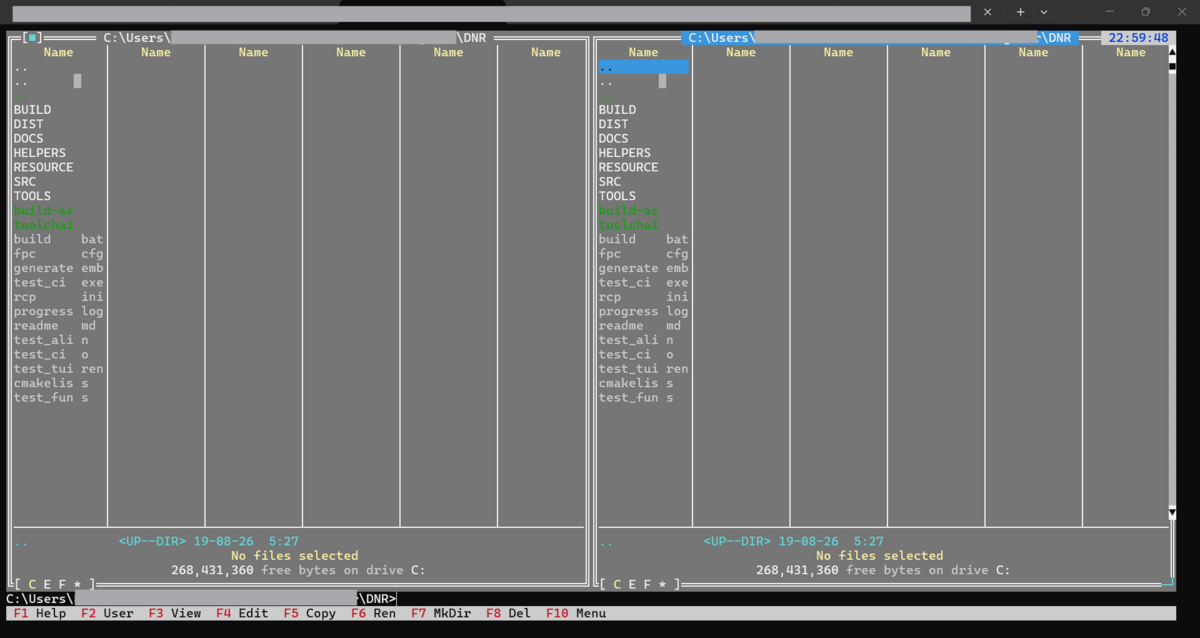
DOS Navigator Revived (DNR) is an ongoing engineering initiative modernizing the legendary DOS Navigator file manager and desktop work environment (originally created by Stefan Tanurkov, Dmitry Dotsenko, Andrew Zabolotny, and RIT Research Labs) into a native, modern, 32-bit Windows console application using exclusively Free and Open Source Software (FPC and NASM).

DOS Navigator Native Win32 Console TUI


Current Status (November 2026)

  • 100% Monolithic & Portable Executable: dn.exe is a completely standalone PE console executable with built-in embedded dialog and language resources (DN.DLG, DN.LNG, DNRUS.DLG, DNRUS.LNG). Runs standalone from any directory without external dependency files and without resource load crashes.
  • Native 32-bit Win32 PE Target: Successfully builds and links src/pascal/DN.PAS into a native Windows console binary (build/dn.exe). No DOSBox, NTVDM, or 16-bit emulation required.
  • Modern Responsive Console TUI: Fully responsive terminal layout supporting modern Windows Terminal, ConHost, and PTY environments:
    • Dynamic Startup Viewport: Automatically detects the active console buffer and window geometry (from standard 80×25 up to 300×150+).
    • Live Resize Event Relayout: Listens to Win32 WINDOW_BUFFER_SIZE_EVENT console events and dynamically resizes the view hierarchy (TProgram, TDeskTop, dual file panels TDoubleWindow, menu bar, command line, and status line).
    • Dynamic Frame Buffering: Eliminates legacy 80×50 (4,000 cell) limits and 16-bit Word size overflows via dynamic LongInt heap buffers.
  • Byte-Exact CP866 Preservation: All source files and build pipelines enforce strict byte-exact single-byte encoding (latin-1 byte stream) to preserve authentic CP866 extended ASCII box-drawing characters without UTF-8 corruption.
  • Automated TUI Testing: Validated through headless PTY automation (tools/surfaces/dn_surface.py via surfacekit).

Features & Modernization Highlights

  • Pure FLOSS Toolchain: Built strictly using Free Pascal Compiler (FPC 3.2.2) and the Netwide Assembler (NASM 3.02+).
  • Direct Win32 Console API Integration:
    • Console handles managed cleanly through CONOUT$ and CONIN$.
    • Video rendering routed through WriteConsoleOutputA with dynamic CharInfoBuf allocation.
    • Keyboard and mouse events bridged to Win32 ReadConsoleInputA.
  • Legacy Borland Pascal 7 / Turbo Vision Compatibility:
    • Flat 32-bit memory and heap compatibility shims (PrefixSeg, HeapOrg, HeapEnd, HeapPtr, MemAvail, MaxAvail).
    • Resolved namespace ambiguities between Objects.TPoint and Windows.TPoint.
    • Replaced 16-bit segmented inline assembly (lds/les) with 32-bit flat register operations.

Prerequisites

  1. Free Pascal Compiler (FPC): Version 3.2.2 or later targeting i386-win32 (fpc.exe / ppc386.exe on PATH).
  2. Netwide Assembler (NASM): Version 3.02 or later (nasm.exe on PATH).
  3. Operating System: Windows 10, Windows 11, Windows Server, or Linux/macOS with Wine.

Building from Source

Quick Build (Windows Command Prompt or PowerShell)

Run the included automated build batch script:

cmd
build.bat

The script compiles the resource compiler (build\RCP.exe), builds binary dialog and language resources, generates embedded resource tables, compiles src/pascal/DN.PAS, and outputs the monolithic executable to both build\dn.exe and dist\dn.exe.

Clean Rebuild

cmd
build.bat clean && build.bat

Running DOS Navigator

Launch the compiled executable directly from any console (Windows Terminal, Command Prompt, or PowerShell):

cmd
dist\dn.exe

Command-Line Arguments

pascal
Usage: dn [options]
  /?          Display help message
  /C<file>    Specify configuration file
  /S<dir>     Specify swap directory
  /P<file>    Specify palette file
  /NOXMS      Disable XMS memory
  /NOEMS      Disable EMS memory

Keyboard Shortcuts Reference

DOS Navigator features a comprehensive keyboard layout designed for high-efficiency terminal navigation, file management, and text editing.

1. Function Keys Matrix (F1 – F12)

Key Default (Alone) Shift + Key Ctrl + Key Alt + Key
F1 Help: Context help index Copy to Archive: Add to archive Toggle Left Panel: Show/hide Panel 1 Drive Left: Select drive for Panel 1
F2 User Menu: Custom command menu Extract Archive: Unpack archive Toggle Right Panel: Show/hide Panel 2 Drive Right: Select drive for Panel 2
F3 View: View file (internal/ext) Phone Book: Open dialer / phonebook New Manager: Open new file panel Alternate View: Force internal viewer
F4 Edit: Edit file Edit New: Create & edit new file Close Window: Close active window Alternate Edit: Force internal editor
F5 Copy: Copy tagged files / dirs Split / Combine: Long file copy Size / Move Window: Relayout window User Screen: Toggle full DOS console
F6 Rename / Move: Rename or move Reanimator: Undelete files on FAT Calculator: Open calculator tool Duplicate Line: (In Editor) dup line
F7 Make Directory: Create folder Format Disk: Format floppy / drive UU-Encode: Encode binary to text Find File: Search across drives
F8 Delete: Delete tagged files Single Delete: Delete without confirm UU-Decode: Decode UU-encoded file History: DOS command history list
F9 Next Window: Switch active window Prev Window: Switch backwards Print: Send file to print manager Game: Rest game (Tetris / Pentix)
F10 Main Menu: Activate top menu bar EGA/VGA Lines: Toggle 25/43/50 lines Custom Video 2: User video mode 2 Custom Video 1: User video mode 1
F11 — SpreadSheet: Open spreadsheet CD Player: Built-in CD player NavyLink: Remote PC link
F12 — — — —

2. File Panels & File Operations (Alt & Ctrl Alphabet Keys)

Shortcut Action Description
Alt + A Manual Dial Open terminal / modem dialing dialog
Alt + B Sort Method Change panel sort order (Name, Extension, Size, Date/Time, Unsorted)
Alt + C Change Drive Change disk drive for the active panel
Alt + D Disk Menu Open disk utility menu
Alt + E File Attributes View and modify file attributes (Archive, Hidden, Read-Only, System)
Alt + F File Menu Open the main File operations menu
Alt + G Directory Size Calculate total recursive size and file count of highlighted folder
Alt + H Disconnect Hang up active modem connection
Alt + I Info Panel Toggle drive and memory information in the opposite panel
Alt + J Terminal Open built-in serial communications terminal
Alt + K Setup Columns Configure visible columns and widths for file panels
Alt + L Make List File Export names of selected files to a text file
Alt + M Manager Menu Open file manager commands menu
Alt + N Archiver Setup Select and configure active archiver (ZIP, RAR, ARJ, LHA, etc.)
Alt + O Options Menu Open configuration and preferences menu
Alt + P Panel Menu Open panel display options menu
Alt + Q SmartPad™ Open SmartPad scratchpad text notes editor
Alt + R Re-read Force re-reading and refreshing the active panel directory
Alt + S Panel Setup Configure panel appearance, hidden files, mini-status line
Alt + T Directory Tree Open visual directory tree dialog for quick directory jumping
Alt + U Utilities Menu Open tools menu (Calculator, Calendar, Phonebook, etc.)
Alt + V Read List File Load external list of files into a panel
Alt + W Window Menu Open window list and tiling/cascading controls
Alt + X Exit Quit DOS Navigator
Alt + Y Memory Info Display detailed conventional, XMS, and EMS memory usage
Alt + Z Zoom Window Maximize or restore the active window size
Alt + 0 Window List Show list of all open windows for rapid switching
Alt + Backspace Dir History Show history list of previously visited directories
Alt + Del Advanced Filter Open file filter configuration (by date, size, attributes)
Ctrl + B ASCII Table Display interactive ASCII character chart
Ctrl + C Compare Dirs Compare left and right directories (highlight differences)
Ctrl + H Dir Branch Flatten and display all files in directory tree recursively
Ctrl + L Disk Info Toggle disk drive statistics in passive panel
Ctrl + O Output Screen Show/hide the DOS output console window
Ctrl + P Hide Inactive Hide or show the passive (inactive) file panel
Ctrl + Q Quick View Open live preview viewer of highlighted file in opposite panel
Ctrl + R Re-read Re-read and refresh the current directory
Ctrl + T Tree Panel Convert panel to full visual directory tree view
Ctrl + U Swap Panels Swap contents and positions of left and right panels

3. File Tagging, Selection & Wildcards

Shortcut Action Description
Ins / Space Toggle Tag Select / unselect highlighted file or folder and move cursor down
Gray + Select Group Select files matching wildcard pattern (e.g. *.PAS; *.ASM)
Gray - Unselect Group Unselect files matching wildcard pattern
Gray * Invert Selection Invert tag state of all files in active directory
Ctrl + Gray + Select Type Select all files matching highlight group of current file
Ctrl + Gray - Unselect Type Unselect all files matching highlight group of current file
Ctrl + Shift + Gray + Select Ext Select all files with the exact same file extension
Ctrl + Shift + Gray - Unselect Ext Unselect all files with the exact same file extension
Ctrl + Ins Copy Names Copy names of all tagged files to Clipboard
Shift + Del Single Delete Delete highlighted file directly (skipping multi-file queue)

4. Navigation & Directory Bookmarks (Quick Dirs)

Shortcut Action Description
Enter Open / Execute Enter directory, enter archive file, or execute program
Shift + Enter Execute Secondary Execute program using secondary association parameter
Alt + Enter Execute Menu Open context menu of actions defined for this file extension
Ctrl + PgUp Parent Directory Navigate up to parent directory (..) or exit archive / search
Ctrl + \ Root Directory Jump directly to root directory (\) of active drive
Alt + 1 .. Alt + 9 Quick Dir Jump Instantly jump to bookmarked directory slot 1 through 9
Ctrl + Shift + Alt + 1..9 Set Quick Dir Save current directory to quick bookmark slot 1 through 9
Alt + Shift + 0 Quick Dirs List Display and manage all saved quick directory bookmarks

5. Command Line Integration

Shortcut Action Description
Ctrl + Enter Insert Name Paste current file name onto DOS command line
Ctrl + Shift + Enter Insert Full Path Paste absolute pathname of current file onto command line
Ctrl + [ Insert Left Path Paste current directory path of left panel onto command line
Ctrl + ] Insert Right Path Paste current directory path of right panel onto command line
Alt + F8 Command History Open searchable history dialog of executed console commands
Up / Down Command Recall Browse previously entered commands when cursor is on command line

6. Window Management & Desktop Controls

Shortcut Action Description
Alt + Tab / F9 Next Window Cycle forward through open windows
Ctrl + Tab / Shift + F9 Previous Window Cycle backward through open windows
Ctrl + F4 Close Window Close active editor, viewer, or tool window
Ctrl + F5 Resize / Move Enter window geometry mode (use arrow keys to move/resize, Enter to confirm)
Alt + Z Zoom Maximize active window to full screen or restore original size
Alt + 0 List Windows Show window switcher modal list
Alt + F5 User Screen Switch to underlying console screen buffer; press any key to return
Ctrl + O Output Window Open floating window displaying console output history
Shift + Alt + Ins Screen Grabber Capture a rectangular region of the text screen into Clipboard
Alt + Q SmartPad™ Summon quick notepad dialog anywhere in the application
Alt + X Exit Prompt to exit DOS Navigator cleanly

7. Internal Text Editor Shortcuts

The built-in text editor supports dual control paradigms: standard modern CUA hotkeys and classic Borland/WordStar two-key sequences.

Cursor Movement & Navigation

Shortcut WordStar Key Action
Left / Right Ctrl + S / Ctrl + D Move one character left / right
Ctrl + Left / Ctrl + Right Ctrl + A / Ctrl + F Move one word left / right
Up / Down Ctrl + E / Ctrl + X Move one line up / down
Home / End — Move to beginning / end of current line
PgUp / PgDn Ctrl + R / Ctrl + C Scroll one page up / down
Ctrl + Home / Ctrl + End — Jump to top / bottom of document
Ctrl + W / Ctrl + Z — Scroll screen up / down one line (cursor position preserved)
Alt + G — Go to line number
Ctrl + K 0 .. 9 — Place bookmark marker 0 through 9 at cursor
Ctrl + Q 0 .. 9 — Jump to bookmark marker 0 through 9

Block Operations & Clipboard

Shortcut WordStar Key Action
Shift + Arrows — Select block of text continuously
Ctrl + K B — Mark beginning of block
Ctrl + K K — Mark end of block
Ctrl + Ins Ctrl + K C Copy block to Clipboard
Shift + Del Ctrl + K V Cut block to Clipboard
Shift + Ins — Paste block from Clipboard at cursor
Ctrl + Del Ctrl + K Y Delete block without copying
Ctrl + K R — Read / insert file from disk into document
Ctrl + K W — Write marked block to disk file
Ctrl + K I / Ctrl + K U — Indent / unindent block
Ctrl + B V — Toggle vertical (columnar/rectangular) vs. horizontal block mode
Ctrl + B L / R / C / J — Align block left / right / center / justify
Alt + T — Sort lines inside marked block alphabetically
Alt + Ins — Calculate numerical sum of numbers within marked block

Editing, Case Conversion & Utilities

Shortcut Action Description
Ins / Ctrl + V Insert Mode Toggle between Insert and Overwrite text mode
Ctrl + Y Delete Line Delete current line
Ctrl + Q Y Delete to EOL Delete text from cursor position to end of line
Ctrl + Backspace Delete Word Left Delete previous word
Ctrl + T Delete Word Right Delete word to the right
F6 Duplicate Line Duplicate the current line below
Alt + Backspace Undo Multilevel undo buffer
Tab / Shift + Tab Tab / Unindent Insert tab character or unindent current line
F4 / Ctrl + Q M Line Drawing Toggle pseudo-graphic box drawing mode (arrow keys draw borders)
Ctrl + P Insert Symbol Open ASCII chart to insert special or extended character
Ctrl + Q D Insert Date Insert current date string (formatted) at cursor
Ctrl + Q T Insert Time Insert current time string at cursor
Ctrl + [ Uppercase Word Convert current word to UPPERCASE
Ctrl + ] Lowercase Word Convert current word to lowercase
Ctrl + \ Capitalize Word Capitalize First Letter Of Current Word
Ctrl + Shift + [ Uppercase Line Convert entire line to UPPERCASE
Ctrl + Shift + ] Lowercase Line Convert entire line to lowercase
Ctrl + Shift + \ Capitalize Line Capitalize Words Across Entire Line

Search & Replace

Shortcut WordStar Key Action
F7 Ctrl + Q F Search for text string (supports whole word, case sensitive)
Ctrl + F7 Ctrl + Q A Search and replace text
Shift + F7 Ctrl + L Repeat last search
Alt + F7 — Search backward (reversed search direction)

File & Window Operations in Editor

Shortcut Action Description
F2 / Ctrl + K S Save Save current file to disk
Shift + F2 Save As Save file under new name or path
Ctrl + F2 Save All Save all modified open files across all editor windows
F3 Open Open another file for editing
F8 Print Send active file to printer
Shift + F8 Print Block Send selected block to printer
Ctrl + F4 Close Close active editor window

8. Internal File Viewer Shortcuts

Shortcut Action Description
F2 Toggle Wrap Toggle line wrap on/off (wrap long lines to window width)
F4 Hex / Text Mode Toggle between ASCII Text and Hexadecimal view mode (Hex mode supports in-place editing)
F7 Search Search for text string or hexadecimal byte sequence
Shift + F7 Search Next Continue search for next match
Alt + F3 / Esc Close Viewer Close file viewer window

9. Built-in Utilities & Subsystems

SpreadSheet (.WKZ) Table Editor

Shortcut Action Description
F2 / Shift + F2 Save / Save As Save spreadsheet table
F3 Open Open existing spreadsheet
F4 New Create new spreadsheet table
Alt + Backspace Undo Undo last cell edit
Shift + Del Cut Cut cell contents
Ctrl + Ins Copy Copy cell contents
Shift + Ins Paste Paste cell contents
Ctrl + Del Clear Clear selected cell range
Ctrl + F4 / Esc Close Close spreadsheet window

Low-Level Disk Editor

Shortcut Action Description
Alt + F Open File Open file for direct cluster analysis
Alt + R Open Directory Open directory structure
Alt + D Open Drive Select drive for raw sector editing
Alt + C Open Cluster Jump to specific cluster number
Alt + S Open Sector Jump to specific logical sector number
F2 Hex Mode Display sector contents in hexadecimal
F3 Dir Mode Decode sector as directory entries table
F4 Text Mode View sector as raw ASCII text
F5 FAT Mode Decode and browse File Allocation Table
F7 / Shift + F7 Search / Next Search for byte pattern or text across sectors
Alt + Backspace Undo Revert sector modifications
Alt + F3 Exit Exit disk editor

Automated TUI Testing

Automated testing is driven by the surface test utility in tools/surfaces/dn_surface.py:

cmd
:: Run selftest (verifies startup landmark and clean Alt+X exit)
python tools/surfaces/dn_surface.py selftest

:: Capture the active screen layout across the current terminal dimensions
python tools/surfaces/dn_surface.py screen

Repository Structure

pascal
DNR/
????????? build/                 # Compiled binaries and unit output artifacts (.exe, .ppu, .o)
????????? dist/                  # Monolithic portable distribution binaries and zip archives
????????? helpers/               # Legacy build and conversion utilities
????????? resource/              # Binary resources, menus, and help definitions
????????? src/
???   ????????? asm/               # Assembly sources modernized for NASM / 32-bit
│   └── pascal/            # Turbo Pascal / Turbo Vision sources (DN.PAS, DRIVERS.PAS, etc.)
├── tools/
│   └── surfaces/          # TUI surface automation drivers (dn_surface.py)
├── build.bat              # One-click native Win32 build script
└── README.md              # Project documentation

License & Credits

DOS Navigator was originally developed by RIT Research Labs (Stefan Tanurkov, Dmitry Dotsenko, Andrew Zabolotny) and open-sourced under the DOS Navigator Open Source License / GNU General Public License. See PROGRESS_LOG.md and source file headers for historical documentation and contributor credits.