

coreglow-rainmeter

A modern, glowing Rainmeter skin for Windows 11: CPU/GPU, temps, power, RAM, network and weather.
- Active · last change 11-4-2026
- ★ 1 on GitHub
README
✨ Coreglow
A modern, glowing system monitor skin for Rainmeter on Windows 11.
CPU · GPU · temperature · power · RAM · network · weather, all in one clean, theme-aware panel.
Preview
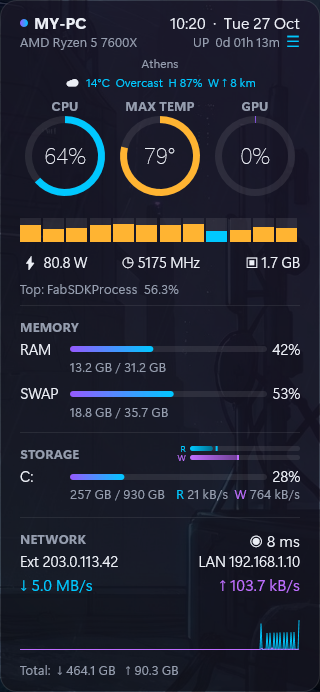
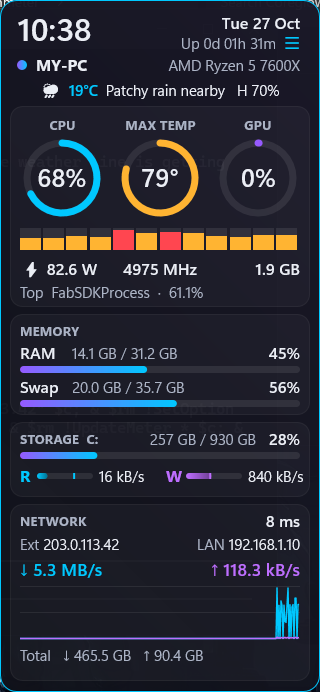
Left: Coreglow1 · Right: Coreglow2
Two skins
| Skin | Load | Style |
|---|---|---|
| Coreglow1 | Coreglow1\Coreglow1.ini |
The original: compact rings, glowing bars, divider lines |
| Coreglow2 | Coreglow2\Coreglow2.ini |
Large-type card layout with the same data and size (320 × 691). Larger, higher-contrast text for comfortable reading on Full HD, round-capped rings, big clock |
Each skin is its own folder with its own @Resources (variables, accent preset, theme files, collapse state), so you can install, load and customize either one, or both, independently.
Features
| 🔥 CPU | Usage ring, max temperature ring (green → amber → red), package power (W), clock (MHz), CPU name |
| 🧵 Per-thread load | One bar per logical processor. Adapts to any CPU automatically and turns color with load |
| 🎮 GPU | Usage ring and dedicated VRAM in use, read from Windows counters with no extra software |
| 🧠 Memory | RAM and swap/commit bars with used / total |
| 💾 Storage | C: drive usage plus live read/write speed and R/W activity bars |
| 🌐 Network | External and LAN IP, adapter, ↓/↑ speed, ping, live traffic graph, total traffic |
| 📶 Wi-Fi | Shown only while Wi-Fi is connected: signal bars, SSID and signal in dBm. Hover for %, band, security and link speed |
| 🔋 Battery | Shown only on devices with a battery: charge icon, %, On battery / On AC power. Turns amber below 30% and red below 10%. Click for Power settings |
| 🌤️ Weather | Icon, temperature, conditions, humidity and wind (direction arrow + Beaufort force), icons and values colored green / yellow / orange / red by severity like weather alerts, from Open-Meteo. Location from Windows Location Service (or a city you set). Hover for feels-like |
| ⏱️ System | Clock and date, Windows uptime, top CPU process |
| 📊 Tooltips | Min, max and 1-hour average for CPU and temperature |
| 🎨 Look & feel | Vector Shape meters, gradients, rounded corners, hover glow, collapsible panel (☰), automatic light/dark theme that follows Windows, accent button (click the header dot) + presets in the right-click menu, themed hover cards (follow the accent and light/dark theme) instead of the plain Windows tooltips |
| 🖱️ Click actions | CPU % → Task Manager sorted by CPU · GPU % → by GPU · RAM → by Memory · C: → Explorer · Network → Settings · Weather → forecast |
Requirements
| Software | Purpose |
|---|---|
| Rainmeter 4.5.6+ | Runs the skin |
| Core Temp | CPU temperature, power, clock and name. Must be running |
Core Temp Rainmeter plugin (CoreTemp.dll) |
Lets Rainmeter read Core Temp. Find it on the Core Temp site under Add-ons |
Everything else (UsageMonitor, PingPlugin, WebParser) comes with Rainmeter.
Installation
Option 1: installer (recommended)
- Download
Coreglow1_x.y.rmskinand/orCoreglow2_x.y.rmskinfrom the Releases page. - Double-click it, then click Install. Each installer only touches its own skin folder.
Option 2: manual
- Copy
Coreglow-backup/Coreglow1and/orCoreglow-backup/Coreglow2to%USERPROFILE%\Documents\Rainmeter\Skins\. - Rainmeter tray icon → Refresh all → Manage → Coreglow1 → Coreglow1.ini (or Coreglow2 → Coreglow2.ini) → Load.
See INSTALL.md for details and troubleshooting.
Customization
Right-click the skin → Edit variables, or edit that skin's @Resources/Variables.inc:
PW=320                     ; skin width in pixels (bars scale with it)
Accent1=0,200,255,255      ; gradient start (cyan)
Accent2=150,90,255,255     ; gradient end (violet)
TempWarn=60                ; °C → amber
TempHot=80                 ; °C → red
WeatherLoc=                ; empty = Windows Location Service, or a place name (Athens)
WeatherUnits=m             ; m = metric, u = imperial (°F, mph), ms = metric with wind in m/s
Light and dark colors live in @Resources/Theme1.inc and Theme0.inc. Coreglow2 adds its own overrides in @Resources/Coreglow2/.
Note:
Coreglow1.iniandCoreglow2.iniare saved as UTF-16 LE so that the symbols render. Keep that encoding when you edit them.
Building the installer
.\tools\sync.ps1                                        # copy both live skins from Documents\Rainmeter\Skins into the repo
.\tools\build-rmskin.ps1 -Skin Coreglow1 -Version 1.9.1   # → dist\Coreglow1_1.9.1.rmskin
.\tools\build-rmskin.ps1 -Skin Coreglow2 -Version 1.1.1   # → dist\Coreglow2_1.1.1.rmskin
Roadmap
See ROADMAP.md. Next up: GPU temperature via HWiNFO, a 3-day forecast, a settings panel and high-DPI scaling.
Accent presets
Click the glowing dot in the top-left of the header to cycle the gradient: Coreglow (cyan/violet, default) → Emerald → Sunset → Rose → Mono. Hovering shows a ring around the dot.
You can also pick one directly: right-click the skin → Accent: …. Presets recolor the rings, bars, network graph and ↓/↑ speeds.
The choice is saved to that skin's @Resources\Variables.inc and survives refreshes and reboots. Custom colors (Accent1, Accent2, DownColor, UpColor as R,G,B,A) still work via Edit variables.
Credits
- Rainmeter and its documentation
- Core Temp by Arthur Liberman
- Weather by Open-Meteo
- External IP by ipify
License
MIT © 2026 Stavros Antoniou