

Catalog · How the catalog works
git-changed-copier

Copy Changed Git Files
- ★ 1 on GitHub
Anyone may press Interesting, signed in or not. It helps others find this project.
README
Copy Changed Git Files
A simple Windows GUI tool (built with Lazarus/Free Pascal) with three features:
- Copy Changed Files — extract every file changed between a Git tag and
HEAD(optionally filtered by extension) and copy them to a target folder, preserving folder structure. Ideal for exporting the change set between two releases. - Generate Single SQL File — consolidate a set of
.sqlscripts into one ordered file, driven by small JSON config files, so a whole release can be run as a single script per database. - Run On Databases — run a
.sqlfile against every database listed in an environment JSON viasqlcmd, reporting per-database success/error counts so you can fix and re-run.
✨ Features
- Compare a Git working directory to a tag (
git diff --name-only <tag> HEAD) - Filter files by extension (e.g.
*.sql; blank,*or*.*= all files) - Copy changed files while preserving folder structure
- Prevent overwriting if the target folder already exists and contains files
- Add dependent-module files — for every changed file under a main folder, also copy the same-named file from one or more dependent folders (see below)
- Consolidate ordered
.sqlscripts into a single file for a named environment - Export the copied file list to a
.csv - Settings are automatically saved to an
.inifile next to the executable
🧰 Requirements
- Git installed and available in the system
PATH - Windows
- Lazarus (Free Pascal) to build from source
- For Run On Databases: the SQL Server command-line tool
sqlcmdinstalled and on thePATH
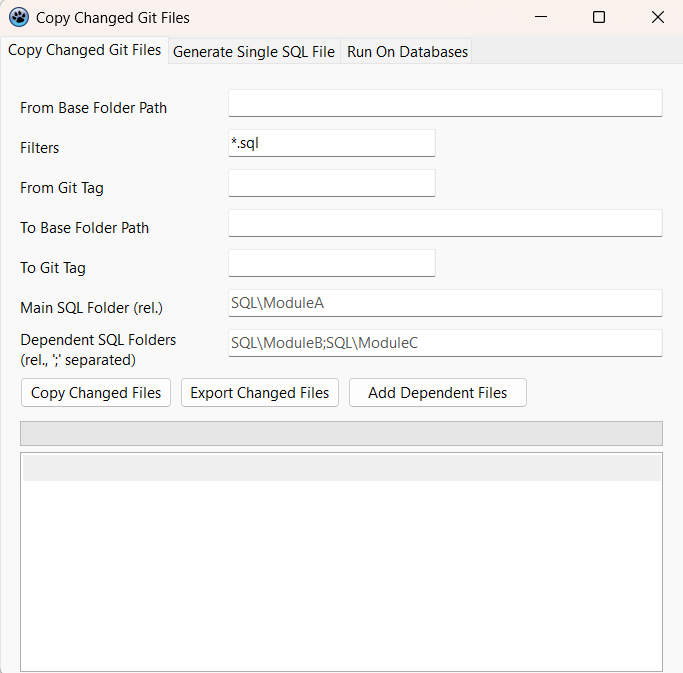
🛠️ Tab 1 — Copy Changed Files
📥 Download the latest .exe from the
Releases page and run it —
no installation required.
| Field | Meaning |
|---|---|
| From Base Folder Path | Root of the Git working directory (the repo root) |
| Filters | Extension to include, e.g. *.sql (blank / * / *.* = all files) |
| From Git Tag | Older tag to compare from, e.g. v1.0.0 |
| To Base Folder Path | Root folder where copied files are written |
| To Git Tag | Sub-folder name created under the base folder, e.g. v1.1.0 |
| Main SQL Folder (rel.) | Repo-relative folder holding the primary scripts, e.g. SQL\ModuleA |
Dependent SQL Folders (rel., ; separated) |
Repo-relative folders that hold module-specific copies of the same objects, e.g. SQL\ModuleB;SQL\ModuleC |
- Copy Changed Files — runs the diff, copies matching files to
To Base Folder Path\To Git Tag, and lists them in the grid. - Add Dependent Files — for each changed file under the Main SQL Folder, finds files with the same name in the Dependent SQL Folders and copies those too. This covers the case where a dependent module keeps its own copy of an object that was not changed in Git but must still be redeployed because the main copy changed.
- Export Changed Files — saves the current list in the grid to a
.csv.
Dependent-file name matching ignores a leading run-order prefix — 1–2 digits
followed by _ (e.g. 1_myview.sql) — on either side, so 0_myview.sql matches
myview.sql. Longer numeric prefixes are kept intact, so date-stamped scripts
(e.g. 20240115_...) only match files with the identical stamp.
🧾 Tab 2 — Generate Single SQL File
Consolidates the .sql scripts for a named environment into one ordered .sql
file that you can run once per database.
This tab reuses the Copy Changed Files tab's settings and shows them read-only so you can review before generating. The source folder and output location are both derived from them — you don't pick them here:
- SQL source folder (read-only) =
<To Base Folder Path>\<To Git Tag>\SQL— the change set produced by Tab 1. - Output file (read-only, shown as Will save as) = saved into
<To Base Folder Path>\<To Git Tag>\with an audit-friendly name:<ToTag>_<Environment>_from_<FromTag>.sql.
| Field | Meaning |
|---|---|
| Repository / From tag / To tag / SQL source folder | Read-only, mirrored from Tab 1 for review. |
| Environment File | Full path to an environment JSON file (see below). Script-set definitions are read automatically from a Scripts\ folder next to it. |
| Passes | How many times to emit the whole ordered set (default 1). |
| Will save as | Read-only, the computed output path. |
Click Generate Single File — it writes straight to the computed path (asking before overwriting an existing file) and pre-fills the Run On Databases tab with the result. Only folders that actually exist under the SQL source folder are included, so a changed- files tree yields a file with just those scripts, in the correct order. The generated file starts with an audit header recording the repository, from/to tags, environment, target databases, script order, timestamp and pass count.
How files are ordered
- The environment file lists script sets in run order (
Scripts). - Each script set maps to a script-set definition file that names a module folder
(
Name) and lists its sub-folders in run order (Folders). - Within each sub-folder,
*.sqlfiles are collected non-recursively and sorted by file name. Prefixing files with0_,1_, … forces the order within a folder. - Each file is written as its own
GObatch, with a-- ===== <path> =====comment header. Nothing is wrapped in a transaction.
Config file layout
<Environment File>            e.g.  C:\deploy\config\Production.json
<its folder>\Scripts\*.json         C:\deploy\config\Scripts\Core.json
                                     C:\deploy\config\Scripts\ModuleA.json
Environment file — Production.json
Lists the script sets to run, in order. Databases is informational (copied into the
generated file's header comment); the tool produces one file you run against each DB.
{
    "Databases": "db_one, db_two",
    "Scripts": "Core,ModuleA"
}| Key | Required | Meaning |
|---|---|---|
Scripts |
yes | Comma-separated script-set names, in run order. Each name resolves to Scripts\<name>.json. |
Databases |
no | Comma-separated database names, shown in the generated file header. |
Only the
Scriptskey is read. AnyScripts2/Scripts3keys are ignored.
Script-set definition — Scripts\Core.json
{
    "Name": "Core",
    "Folders": "Tables,Views,Functions,Stored Procedures"
}| Key | Required | Meaning |
|---|---|---|
Name |
yes | Module folder name under the SQL Folder (i.e. SQL Folder\<Name>). |
Folders |
yes | Comma-separated sub-folder names, in run order. Spaces in names are allowed (e.g. Stored Procedures). |
Resulting folder lookup
For each script set, for each folder, the tool reads *.sql from:
<SQL Folder>\<Name>\<Folder>\*.sqlExample — with SQL Folder = C:\deploy\SQL, the config above reads:
C:\deploy\SQL\Core\Tables\*.sql
C:\deploy\SQL\Core\Views\*.sql
C:\deploy\SQL\Core\Functions\*.sql
C:\deploy\SQL\Core\Stored Procedures\*.sql
C:\deploy\SQL\ModuleA\...          (folders from Scripts\ModuleA.json)
Passes & error handling
Because every file becomes a separate GO batch, a batch that fails (for example, a
view whose dependency has not been created yet) is reported by the SQL client but
execution continues with the next batch. Set Passes to 2 or 3 to emit the whole
ordered set multiple times so forward dependencies resolve in a single execution — or
leave it at 1 and run the generated file more than once.
▶️ Tab 3 — Run On Databases
Runs a .sql file against every database listed in an environment file's
Databases field, using sqlcmd.
| Field | Meaning |
|---|---|
| SQL Server | Server / instance, e.g. localhost\instance or 10.0.0.5 |
| Windows Authentication | Tick to connect with the current Windows account (sqlcmd -E). Untick to use User + Password (SQL login). |
| User / Password | SQL login credentials (ignored when Windows Authentication is ticked) |
| Environment File | An environment JSON (see Tab 2). Its Databases value (comma-separated) is the list of databases to run against. |
| SQL File to Run | The .sql file to execute — typically the file produced by Tab 2. |
Click Run on All Databases. For each database the tool runs
sqlcmd -S <server> [-E | -U <user>] -d <db> -i <file> -f 65001 and:
- shows a row in the results grid with OK / ERROR and the error count;
- writes the full
sqlcmdoutput for any failed database to the log below, so you can read theMsg … Level … Line …errors, fix the SQL, and run again.
The password is passed to sqlcmd via the SQLCMDPASSWORD environment variable, so it
never appears on the command line. sqlcmd is not run with -b, so a failing batch
is reported but execution continues to the next GO batch (and the next database).
Nothing is wrapped in a transaction.
Security note: so the fields are remembered between runs, the SQL password is stored in plain text in
ChangedGitFiles.ininext to the executable. Clear the Password field before closing if you do not want it saved.
📁 INI File Settings
On close, the app saves the last-used settings to ChangedGitFiles.ini next to the
executable and reloads them on start.
🖼️ UI Preview
📦 Build From Source
- Open the project
.lpifile in Lazarus - Compile and run
📄 License
This project is open-source under the MIT License.