

minimal-desktop-setup

Minimal Windows 11 desktop setup using Rainmeter — monochrome aesthetic with Mond clock and SmallCleanWeather widget
- Archived · last change 5-28-2026
- ★ 1 on GitHub
README
Minimal Desktop Setup
A clean, minimal Windows 11 desktop built around a monochrome aesthetic — dark sand dunes wallpaper, a geometric clock, and a compact live weather widget, all tuned to sit quietly on screen without visual clutter.
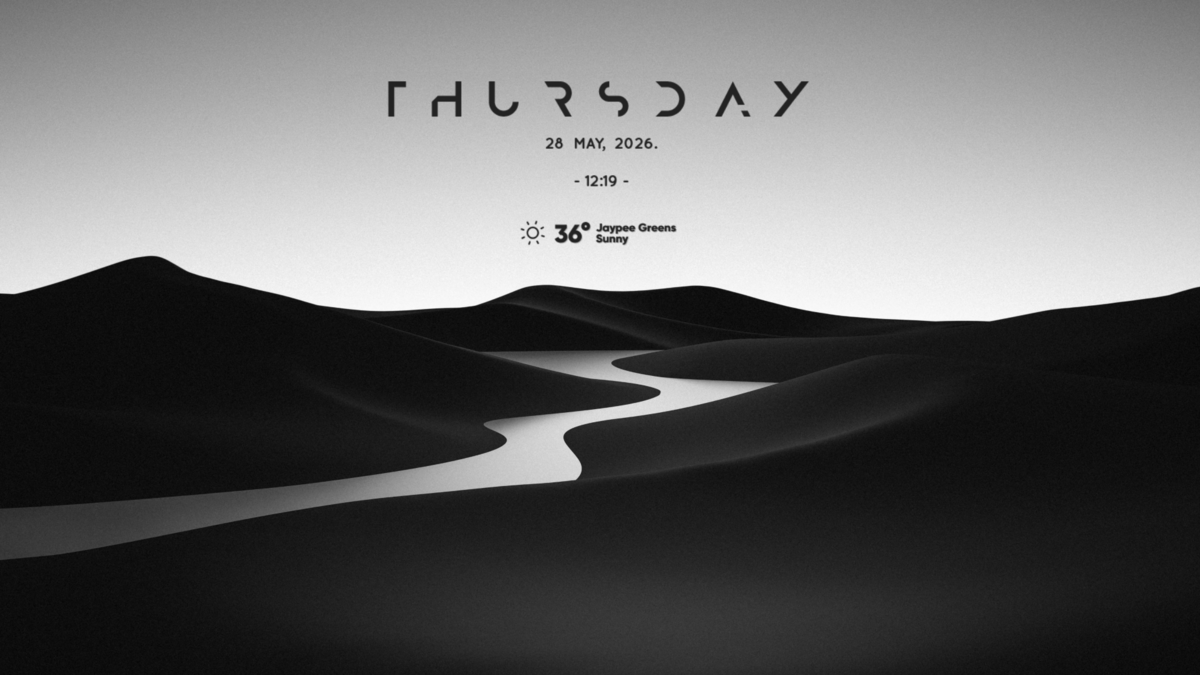
What You're Looking At
| Element | Tool | Credit |
|---|---|---|
| Desktop customization engine | Rainmeter | Rainmeter Development Team |
| Clock & date widget | Mond | hiphopium on DeviantArt |
| Weather widget | Small Clean Weather Animated | zivallh (Abruzzi) on DeviantArt |
| Weather data | The Weather Channel API | IBM / The Weather Company |
| Wallpaper | wallpaper/black-and-white-3840x2160-21293.jpg (included) |
Unknown original source — 4K B&W desert dunes |
Prerequisites
- Windows 10 or 11
- Rainmeter 4.5 or later (free, open source)
- A weather API key from The Weather Channel API (free tier available with registration)
- Your location's Latitude and Longitude — find yours at nominatim.openstreetmap.org
Installation Guide
Step 1 — Install Rainmeter
Download and install Rainmeter from the official site: **[https://www.rainmeter.net/](https://www.rainmeter.net/)**
Run the installer with default settings. Rainmeter will launch automatically.
Step 2 — Set the Wallpaper
- Copy
wallpaper/black-and-white-3840x2160-21293.jpganywhere on your machine - Right-click it → Set as desktop background
- In Display Settings → Personalization → set fit to Fill or Fit
Step 3 — Install the Mond Skin (Clock & Date)
- Download Mond from DeviantArt (by hiphopium): **[https://www.deviantart.com/hiphopium/art/Mond-862450046](https://www.deviantart.com/hiphopium/art/Mond-862450046)**
- Double-click the downloaded
.rmskinfile — Rainmeter's installer opens automatically - Click Install
- In Rainmeter's Manage window (right-click tray icon → Manage), expand Mond → Clock → click Load
Step 4 — Install the SmallCleanWeather Skin (Weather Widget)
- Download Small Clean Weather Animated from DeviantArt (by zivallh): **[https://www.deviantart.com/zivallh/art/Small-Clean-Weather-Animated-847002564](https://www.deviantart.com/zivallh/art/Small-Clean-Weather-Animated-847002564)**
- Double-click the
.rmskinfile and install - In Manage → expand SmallCleanWeather → load SmallCleanWeather Location.ini
Step 5 — Get a Weather API Key
- Go to The Weather Channel API and register for a free developer account
- Copy your API key — you'll need it in the next step
Alternative: If the Weather Channel API is unavailable in your region, OpenWeatherMap offers a free current weather API. Note that using OWM requires modifications to the measures file (different JSON format).
Step 6 — Apply the Configuration Files
This repo contains the already-tuned configuration files. Copy them over the defaults:
config/Mond/@Resources/Variables.inc
  → Documents\Rainmeter\Skins\Mond\@Resources\Variables.inc

config/SmallCleanWeather/SmallCleanWeather Location.ini
  → Documents\Rainmeter\Skins\SmallCleanWeather\SmallCleanWeather Location.ini

config/SmallCleanWeather/@Resources/Variables.inc
  → Documents\Rainmeter\Skins\SmallCleanWeather\@Resources\Variables.inc

config/SmallCleanWeather/@Resources/WeatherComJSONVariables.inc
  → Documents\Rainmeter\Skins\SmallCleanWeather\@Resources\WeatherComJSONVariables.inc
On OneDrive-linked machines, the Rainmeter Skins folder is typically at:
C:\Users\<YourName>\OneDrive\Documents\Rainmeter\Skins\
Step 7 — Set Your Location and API Key
Open config/SmallCleanWeather/@Resources/WeatherComJSONVariables.inc in Notepad and edit:
Latitude=28.4670734        ; your latitude
Longitude=77.5137649       ; your longitude
APIKey=YOUR_API_KEY_HERE   ; paste your Weather Channel API key
LocationName=Your City     ; displayed in the widget (hardcoded fallback)
Find your coordinates:
- Google Maps: right-click any point → the lat/long appears at the top
- Or use Nominatim
Step 8 — Position the Widgets
After refreshing the skins, drag each widget to your preferred position. For the exact centered layout shown in the preview (tested on 1536×864):
Open C:\Users\<YourName>\AppData\Roaming\Rainmeter\Rainmeter.ini and set:
[Mond\Clock]
WindowX=408
WindowY=92

[SmallCleanWeather]
WindowX=688
WindowY=258
For other resolutions, center formula:
WindowX (Clock)=(ScreenWidth / 2) - 360WindowX (Weather)=(ScreenWidth / 2) - 80
Configuration Details
What Was Tuned
Mond Clock (config/Mond/@Resources/Variables.inc):
TextColor=25,25,25,240 ; near-black text, matches the wallpaper's light skySmallCleanWeather (config/SmallCleanWeather/@Resources/Variables.inc):
FontColor=25,25,25,240 ; same near-black tone as the clockSmallCleanWeather Layout (config/SmallCleanWeather/SmallCleanWeather Location.ini):
Scale=0.6                 ; 40% smaller than default — matches date/time visual weight
Update=30                 ; 30ms update enables smooth icon animation
Animation — The Sergey animated icon set cycles through 90 frames at 30ms intervals (~33fps). The Counter % 90 formula ensures all frames are used.
Font Reference
| Widget | Element | Font |
|---|---|---|
| Mond | Day name (THURSDAY) | Anurati — bundled with Mond |
| Mond | Date & Time | Quicksand — bundled with Mond |
| Weather | Temperature | Gilroy ExtraBold — bundled with SmallCleanWeather |
| Weather | Location & Condition | Gilroy ExtraBold — bundled with SmallCleanWeather |
All fonts install automatically when you install the skins. No manual font installation needed.
Color Logic
The wallpaper transitions from light gray (sky, top) to near-black (sand, bottom). Both widgets sit in the light zone, so dark text (25,25,25,240) provides strong contrast without harsh pure black.
Tips & Customization
Resize any widget on the fly: Hover over a widget and use the mouse scroll wheel to scale it up or down. The change is saved automatically.
Toggle Celsius / Fahrenheit: Right-click the weather widget → Celsius or Fahrenheit.
Toggle weather details: Click the temperature number to expand/collapse feels-like temperature, humidity, wind, UV index, and visibility.
Change your location:
Edit WeatherComJSONVariables.inc → update Latitude, Longitude, and LocationName → right-click widget → Refresh Skin.
Change font color:
Right-click SmallCleanWeather → Change Color — opens the bundled color picker. You can also directly edit FontColor= in Variables.inc.
Dark text not readable on your wallpaper?
Change FontColor and TextColor to 255,255,255,240 (white) in the respective Variables.inc files.
Widget flickers during startup: This is normal — the weather widget fetches live data and populates within 2–5 seconds of loading.
Weather API quota:
The default UpdateRate=200 (200 ticks × 1s = ~3 min) keeps API calls well within free tier limits. You can raise it to 600 for 10-minute updates.
Repo Structure
minimal-desktop-setup/
├── README.md
├── preview/
│   └── desktop.png                        � Final desktop screenshot
├── wallpaper/
│   └── black-and-white-3840x2160-21293.jpg � 4K B&W sand dunes (4K)
└── config/
    ├── Mond/
    │   └── @Resources/
    │       └── Variables.inc              � TextColor tuned to 25,25,25,240
    └── SmallCleanWeather/
        ├── SmallCleanWeather Location.ini � Scale=0.6, animation fix, layout
        └── @Resources/
            ├── Variables.inc              � FontColor tuned
            └── WeatherComJSONVariables.inc � API key + coordinates template
Credits & Licenses
This setup is built entirely on the work of the following creators. Please support them:
- Rainmeter — rainmeter.net — GNU GPL v2 — by the Rainmeter Development Team
- Mond skin — DeviantArt — by hiphopium (Connect-R)
- Small Clean Weather Animated — DeviantArt — by zivallh (Abruzzi)
- Weather data — The Weather Channel API — by IBM / The Weather Company
- Anurati font — Font Squirrel / author — by Emmeran Richard
- Quicksand font — Google Fonts — by Andrew Paglinawan
Note: This repository only contains tuned configuration files and a wallpaper of unknown original authorship. The Rainmeter skins themselves are the property of their respective creators and must be downloaded from their official DeviantArt pages. Do not redistribute
.rmskinpackages.