

PentePerceptronViewer

A companion project to the Perceptron Pente program that displays the Perceptron matching patterns loaded from a JSON text file previously written by the Perceptron Pente program.
- Active · last change 4-13-2026
- ★ 1 on GitHub
README
Pente Perceptron Viewer
Version 2.0.0+20260411 (Version Release Notes)
The Pente Perceptron Viewer is a companion project for the Perceptron Pente program.
The Pente Perceptron Viewer displays the Perceptron matching patterns loaded from a JSON text file previously written by the Perceptron Pente program.
About the Software
The software is a self-contained executable program, written in Free Pascal, that runs on Microsoft Windows or Ubuntu Linux (and presumably other Linux distributions).
(No separate run-time environment is required to run the program.) The Lazarus Integrated Development Environment was used to develop the program. (Both Free Pascal and the Lazarus IDE are free open-source software products.)
Downloading and Running the Program
Microsoft Windows
You can run the Pente Perceptron Viewer program on Microsoft Windows as follows:
- Download the PentePerceptronViewer.exe binary executable file from the bin sub-folder from this GitHub.com page.
- To uninstall the program, simply delete the PentePerceptronViewer.exe file.
Ubuntu Linux
You can run the Pente Perceptron Viewer program on Ubuntu Linux (and presumably other Linux distributions) as follows:
-
Download the PentePerceptronViewer binary executable file (with no file extension) from the bin sub-folder from this GitHub.com page.
-
Ensure the PentePerceptronViewer file has the executable permission. From a Files window, right-click the file, select Properties, and use the Permissions tab to enable the Execute permission. To do this in a Terminal window, use the following command:
chmod +x PerceptronPente
-
To uninstall the program, simply delete the PentePerceptronViewer binary executable file.
Running the Program
In a file folder viewer, double-click the downloaded copy of PentePerceptronViewer.exe (on Windows) or PentePerceptronViewer (on Linux) to start the program.
When the program starts it displays the Pente Perceptron Viewer form.
Here is an image of the Perceptron Pente form while examining Perceptrons loaded from a file:
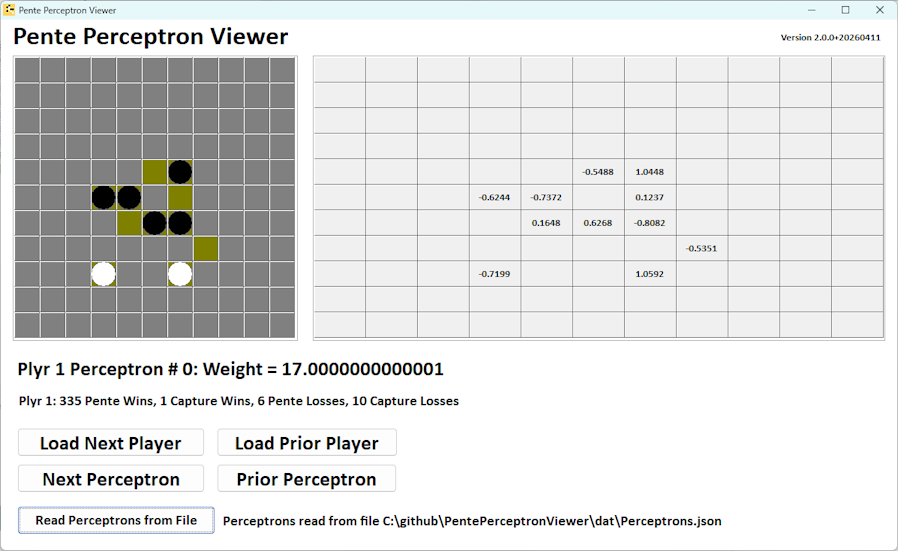
The Form contains these elements:
- The 11x11 Pattern Match grid.
- The corresponding 11x11 grid showing pattern match weights for each position.
- Click the Load Next Player button to load the next tournament player's first Perceptron pattern into the grids.
- Click the Load Prior Player button to load the prior tournament player's first Perceptron pattern into the grids.
- Clic the Next Perceptron or Prior Perceptron button to sequence through the current player's Perceptron set.
- Click the Read Perceptrons from File button to load the players' Perceptron sets from a previously saved JSON text file.
Interpreting the Perceptron display grid
During Perceptron Pente game play, each Perceptron pattern is evaluated against all empty Game Board cells, with the center Pattern Match cell positioned over the Game Board cell being evaluated.
The neighboring Game Board cell contents are evaluated against the corresponding offset Pattern Match position as follows:
- Pattern Match offsets that fall off the Game Board are ignored.
- A gray Pattern Match position indicates a Do Not Care value for the corresponding Game Board cell.
- An olive Pattern Match position indicates a match on an empty Game Board cell.
- A White position indicates a match if the corresponding Game Board cell matches the current player.
- A Black position indicates a match if the corresponding Game Board cell matches the opponent player.
- Each matching cell has its corresponding Pattern Match cell weight accumulated for the Perceptron vs. the Game Board cell being evaluated.
- The accumulated cell weights are multiplied by the Perceptron weight.
- All of the player's other Perceptrons are evaluated against the Game Board empty cell being evaluated.
- The total of all the Perceptron evalation values are assigned as the move weight for the Game Board cell.
- After all Game Board empty cells are evaluated, the player places its piece in the Game Board cell that received the highest move weight.
Source code compilation notes
Download the Lazarus IDE, including Free Pascal, from here:
After installing the Lazarus IDE, clone this GitHub repository to your local disk. Then double-click on the src\PentePerceptronViewer.lpr project file to open it in Lazarus.
Note: Using the debugger in the Lazarus IDE on Windows 10 might require the following configuration adjustment:
When Lazarus includes debugging information the executable file is relatively large. When ready to create a release executable, the file size can be significantly reduced by selecting the menu item Project | Project Options ... and navigating to the Compile Options | Debugging tab in the resulting dialog window. Clear the check-mark from the Generate info for the debugger option and then click the OK button. Then rebuild the executable using the Run | Build menu item (or using the shortcut key-stroke Shift-F9).
Release Notes
Version 2.0.0
- Support the multi-player tournament structure of the JSON file as written by PerceptronPente Version 2.0.0.
Version 1.0.1
- Revised formatting of Perceptron weight value.
Version 1.0.0
- The initial version of the software.