

Catalog · How the catalog works
fpc-gba-prototype

FPC targeting GameBoy Advance prototype
- ★ 1 on GitHub
Anyone may press Interesting, signed in or not. It helps others find this project.
README
Installation Setup
-
Install FPC GBA cross-compiler from here: https://www.freepascal.org/download.html
- The version that I use is FPC 3.0.0
-
Download & install DevkitPro from here: https://github.com/devkitPro/installer/releases
-
Set up a compile script with the proper flags (save it as
compile.bat)E:\fpc-arm-gba\bin\i386-win32\fpc.exe -Parm -Tgba -XParm-none-eabi- -Fl"E:\devkitPro\devkitARM\arm-none-eabi\lib" .\game.pasThe path that I use for FPC is
E:\fpc-arm-gba\and the path for DevkitPro isE:\devkitPro\The
-Floption is required because FPC cross-compiler can't findlibsysbase.a -
Get a GBA emulator: mGBA, VisualBoyAdvance-M or No$GBA
If you want a debugger, No$GBA is a good option
BMP Extractor
This tool helps with extracting a PNG image to raw binary files: palette.bin and sprite.bin, which can be used with arm-none-eabi-objcopy later
About make_obj.bat
One line looks like this:
E:\fpc-arm-gba\bin\i386-win32\arm-none-eabi-objcopy.exe -I binary -O elf32-littlearm -B arm --rename-section .data=.rodata sprite.bin sprite.o-I binary - The input format is raw binary
- This treats the
.binfile (sprite.bin) as pure data
-O elf32-littlearm - The output format is ELF for 32-bit ARM (little-endian)
- This creates an object file that the linker can use
- "little-endian" means least significant byte first (the standard format for GBA / ARM)
-B arm - The target architecture is ARM
--rename-section .data=.rodata - This puts the data in the read-only section
- By default,
objcopyputs it in.data, which is writable & not what we expect - But with
--rename-section, the data gets placed in ROM instead of RAM
Why this matters? The GBA has only 256KB of RAM but 32MB of ROM space, so it's better to keep both the palette & sprite data in ROM
And then, the last 2 arguments: sprite.bin sprite.o - these are the input and the output filenames
Prototype Order
Mode 3
First is the prototype
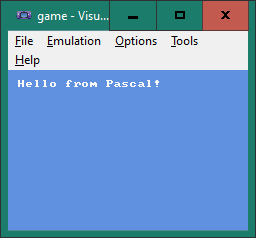
Second is the fontdata_embed
Third is the t_counter
All the 3 demos above use Mode 3, which is excellent for displaying a still screen / image
Mode 4
First is mode_4_starter
Second is mode_4_pset, which demonstrates a moving square across the screen
Third is mode_4_buttons
Fourth is mode_4_sprite, which demonstrates how to load a palette file and a sprite file