

Mandelbrot

Mandelbrot Set Viewer Written in Pascal
- Quiet · last change 8-6-2024
- ★ 1 on GitHub
README
Mandelbrot Set Viewer Written in Pascal
Version 1.0.2+20240805 (Version Release Notes)
This is an open source interactive graphic viewer for the Mandelbrot Set.
The viewer allows zooming in and out of the Mandelbrot Set, including re-centering on different areas of the set.
The view also allows selection of alternate color gradients for the Mandelbrot Set.
About the Software
The software is a self-contained executable program, written in Free Pascal, that runs on Microsoft Windows or Ubuntu Linux (and presumably other Linux distributions). (No separate run-time environment is required to run the program.) The Lazarus Integrated Development Environment was used to develop the program. (Both Free Pascal and the Lazarus IDE are free open-source software products.)
Downloading and Running the Program
Microsoft Windows
You can run the Mandelbrot Set viewer program on Microsoft Windows as follows:
- Download the Mandelbrot.exe binary executable file from the bin sub-folder from this GitHub.com page.
- To uninstall the program, simply delete the Mandelbrot.exe file.
Ubuntu Linux
You can run the Mandelbrot Set viewer program on Ubuntu Linux (and presumably other Linux distributions) as follows:
-
Download the Mandelbrot binary executable file (with no file extension) from the bin sub-folder from this GitHub.com page.
-
Ensure the Mandelbrot file has the executable permission. From a Files window, right-click the file, select Properties, and use the Permissions tab to enable the Execute permission. To do this in a Terminal window, use the following command:
chmod +x Mandelbrot
-
To uninstall the program, simply delete the Mandelbrot binary executable file.
Running the Program
Double-click the downloaded copy of Mandelbrot.exe (on Windows) or Mandelbrot (on Linux) to start the viewer.
When the program starts it displays the Mandelbrot Set viewer form.
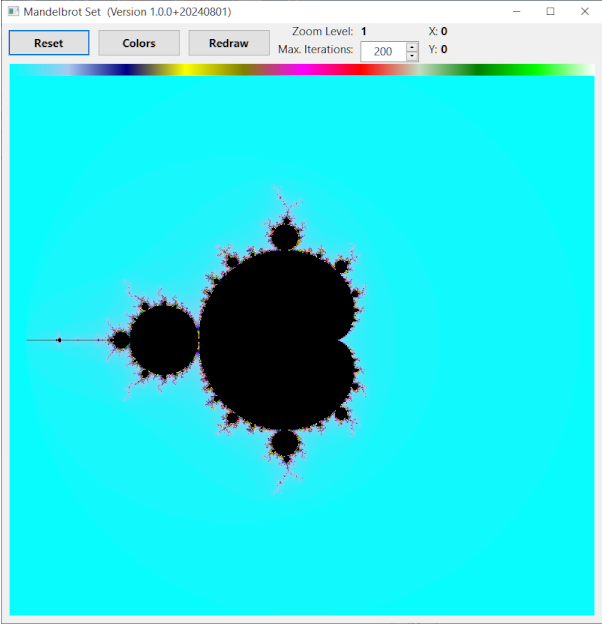
The viewer form contains these elements:
- Reset button: Click this to re-initialize the viewer to show the full Mandelbrot Set after zooming in or and around the viewing area.
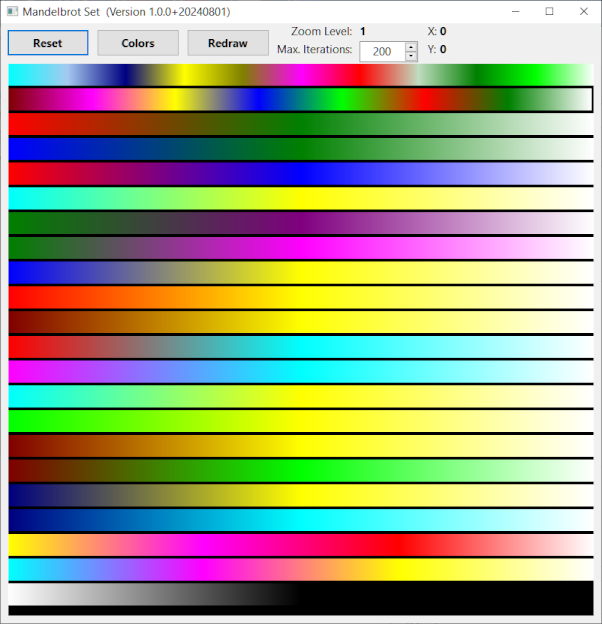
- Colors button: Click this to display a set of various color gradients. Click on any of the displayed color gradients to select it and the trigger a redraw of the Mandelbrot Set.
- Redraw button: Click this to redraw the Mandelbrot Set after changing the size of the viewer form or the Max. Iterations value.
- Zoom Level label indicates the current level of zoom in or out of the display.
- X and Y labels indicate the current coordinates of the center of the displayed image.
- Max. Iterations spin edit: Click the up or down arrows on this control to change the maximum number of iterations used to deteermine each pixel color of the image. You can also type a value between 10 and 10000 directly into this control. After changing the value, click the Redraw button to regenerate the image.
- The graphic display area contains the rendition of the Mandelbrot set, along with the currently selected color gradient at the top if the display area.
Here is an image of the viewer form.
Here is an example of the color gradient selection display. (Note that the actual color gradients may be different than this example.)
Resizing the Viewer Form
The initial size of the Main Form is designed to fit within an 800 by 600 monitor window.
To enlarge the form, drag its boundary or simply click the maximize icon (small square in the upper right of the title bar).
Then click the Redraw button to adjust the graphic viewer area to match the enlarged form. (The Reset button also adjusts the graphic viewer are to match the resized form.)
Zooming In on a Region of the Mandelbrot Set
Click with the left mouse button anywhere within the graphic viewer are to zoom into the image, centered on that point.
Click with the right mouse button anywhere within the graphic viewer to zoom back out, centered on that point.
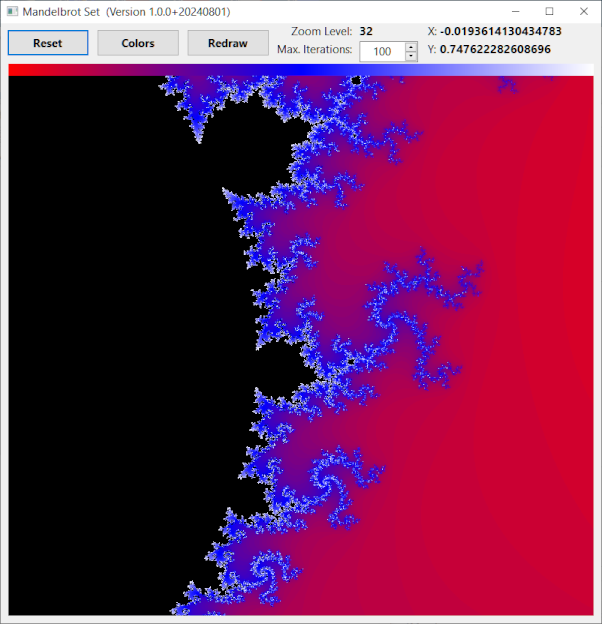
Here is an example of the view that has been zoomed in several times on a specific area, and with an alternate color gradient selected.
Source code compilation notes
Download the Lazarus IDE, including Free Pascal, from here:
After installing the Lazarus IDE, clone this GitHub repository to your local disk. Then double-click on the src\Mandelbrot.lpr project file to open it in Lazarus.
Note: Using the debugger in the Lazarus IDE on Windows 10 might require the following configuration adjustment:
When Lazarus includes debugging information the executable file is relatively large. When ready to create a release executable, the file size can be significantly reduced by selecting the menu item Project | Project Options ... and navigating to the Compile Options | Debugging tab in the resulting dialog window. Clear the check-mark from the Generate info for the debugger option and then click the OK button. Then rebuild the executable using the Run | Build menu item (or using the shortcut key-stroke Shift-F9).
Release Notes
Version 1.0.2
Show hourglass cursor and process user interface event messages while generating graphic bitmap.
Re-center graphic image when redrawing after the form is resized.
Version 1.0.1
Replaced 32-bit Windows binary executable with 64-bit version, using Lazarus IDE version 3.4 and Free Pascal compiler version 3.2.2.
Version 1.0.0
This is the initial version of the software.