

Catalog · How the catalog works
CheckTreeView

Windows-native TTreeView extension to add tristate checkboxes
- ★ 13 on GitHub
Anyone may press Interesting, signed in or not. It helps others find this project.
README
Introduction
This library provides an easy way to add tristate checkboxes (checked, unchecked, partial) to your existing TTreeView Delphi VCL control, using native Windows API (Windows Vista an up. Sorry, XP folks).
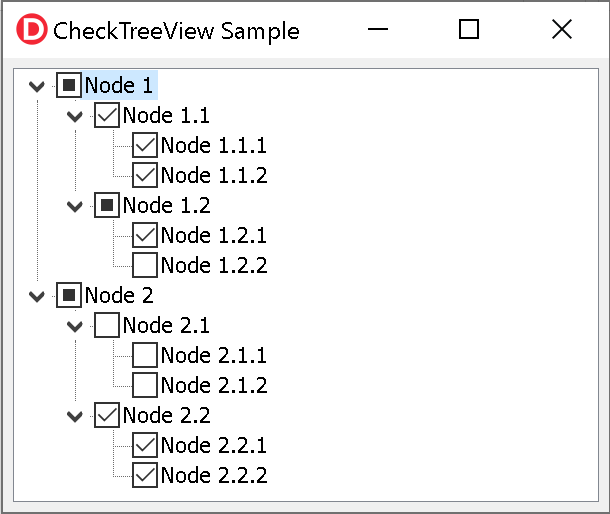
To use it, just add the unit CheckTreeView to your form unit:
uses {...}, CheckTreeView;It contains a class helper for the TTreeView component, so it will add methods to any existing TTreeView component you might have in your form.
Enabling tristate checkboxes
Just call EnableTristateCheckboxes method:
TreeView1.EnableTristateCheckboxes;This is enough to add checkboxes to all nodes, and change the node check state when users clicks the checkbox or press space key when a node is selected.
Reading or changing the check state of a node
You can use CheckState property of a node to read or modify the state of the checkbox:
  Node := TreeView1.Selected;
  case Node.CheckState of
    csUnchecked: Node.Text := 'unchecked';
    csChecked: Node.Text := 'checked';
    csPartial: Node.Text := 'partial';
end; TreeView1.Selected.CheckState := csChecked;Automatic check states
If you want the TTreeView control to perform these operations automatically when the user checks/unchecked a node:
- Check/uncheck all child items of the modified node;
- Update the parent node check state based on the check state of the child nodes;
- Allow just check/uncheck state for the modified node.
Then add OnMouseDown and OnKeyPress event handlers for your TTreeView component and add the following code:
procedure TForm6.TreeView1KeyPress(Sender: TObject; var Key: Char);
begin
  TreeView1.HandleKeyPress(Key);
end;

procedure TForm6.TreeView1MouseDown(Sender: TObject; Button: TMouseButton; Shift: TShiftState; X, Y: Integer);
begin
  TreeView1.HandleMouseDown(Button, Shift, X, Y);
end;