

Catalog · How the catalog works
AI-Assistant-for-Delphi

AI assistant plugin for the Delphi IDE
- ★ 25 on GitHub
Anyone may press Interesting, signed in or not. It helps others find this project.
README
CyAIAssistant — AI Coding Assistant for the Delphi IDE
CyAIAssistant is an Open Tools API plugin for Delphi 10.4+ that brings AI-assisted coding directly into the IDE. Select code, describe what you need, and get a result — without leaving the editor.
Why This Exists
This plugin is a personal learning project. The goal was to explore different ways to integrate AI into a real Delphi development workflow — not just as a chat window, but as something that actually operates on source files and fits naturally into the way the IDE works.
Several approaches are covered:
- Direct API calls — sending code to Anthropic Claude, OpenAI, Groq, Mistral, Gemini or a local Ollama instance and applying the result inside the IDE
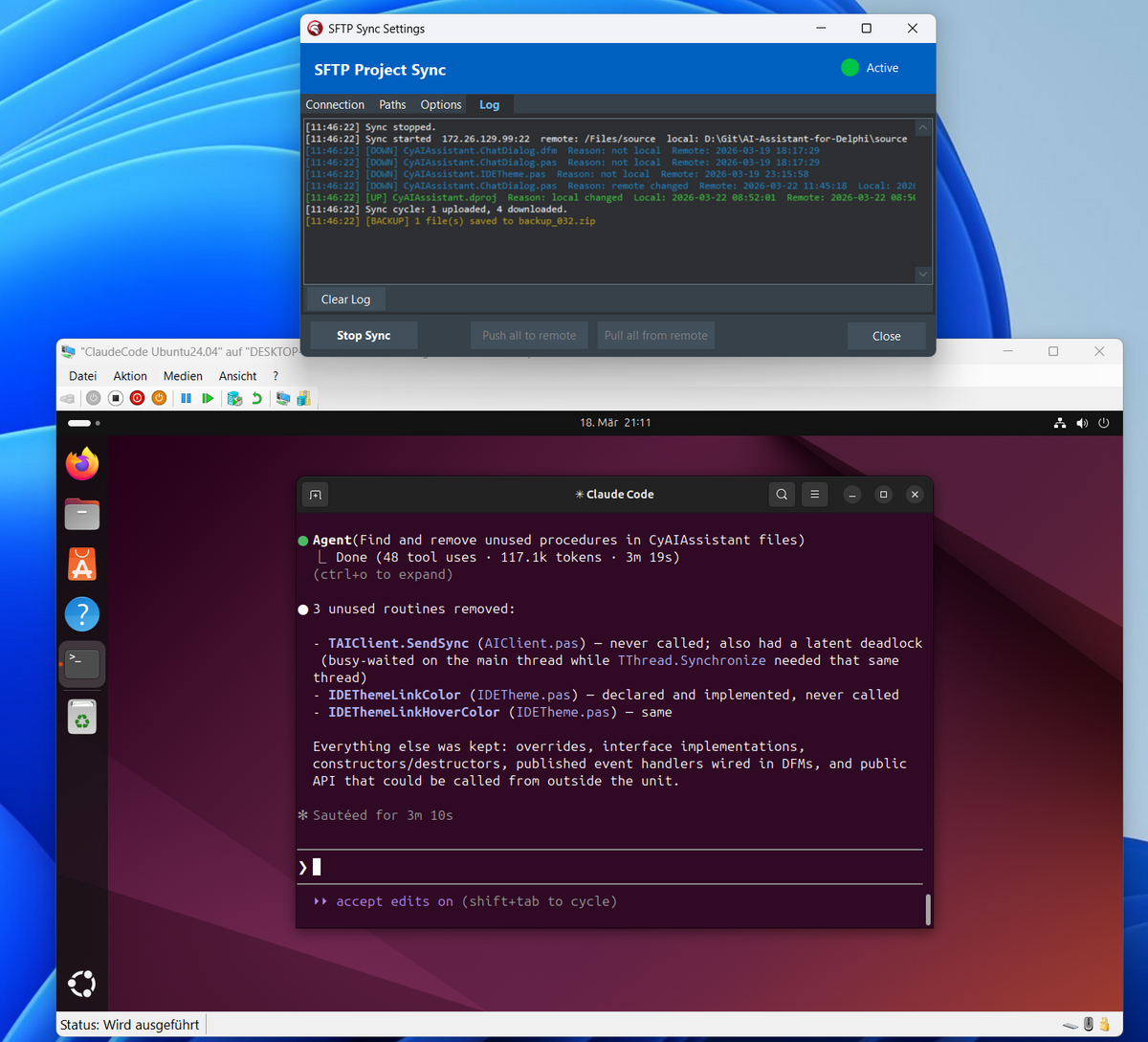
- Agentic AI via Claude Code — running Claude Code in an isolated VM, letting it operate freely on a copy of the source code, and syncing results back to the development machine over SFTP
The SFTP sync feature was built specifically for the Claude Code use case. Rather than giving an agentic AI direct access to the development machine, the project files are mirrored to a VM over SFTP. Claude Code runs inside the VM, makes changes, and those changes are automatically detected and synced back. The development machine and the AI remain isolated from each other — the SFTP connection is the only bridge.
Features
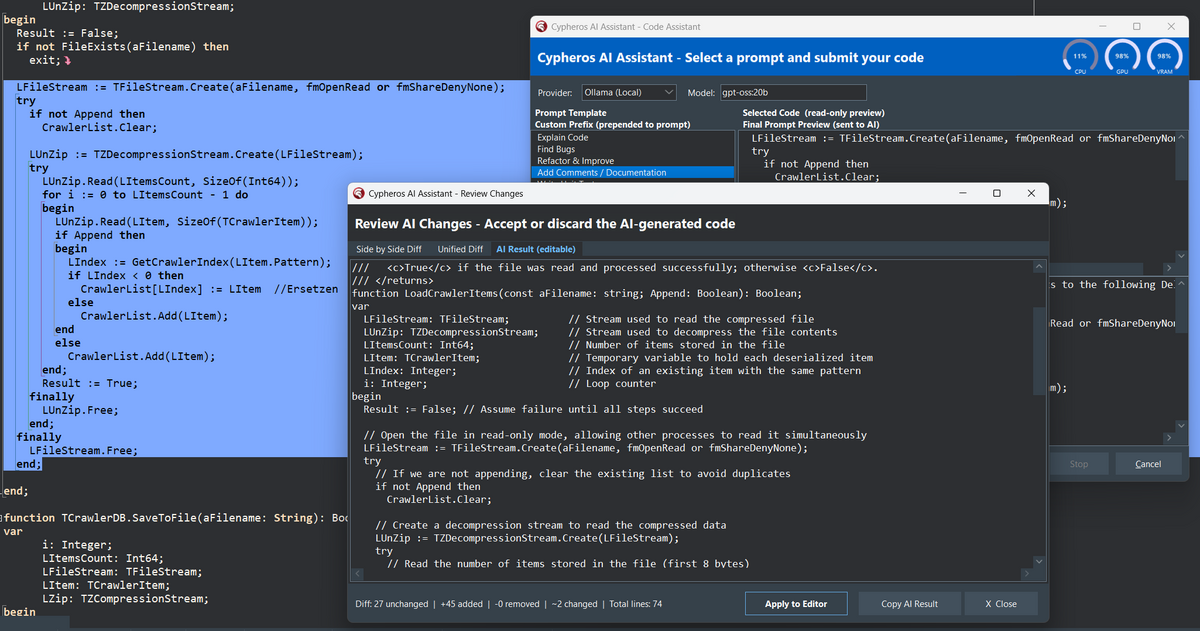
Code Assistant — Refactor & Transform Selected Code
Select any code in the editor, open the Code Assistant, and apply an AI transformation.
- Built-in prompt library — common tasks like Add XML doc comments, Write unit tests, Refactor to use generics, Convert to async, and more, ready with a single click
- Custom prefix — prepend your own instructions to any built-in prompt for fine-grained control
- Side-by-side diff viewer — before anything is written back, a diff shows exactly what changed, with a unified diff and an editable result view
- Apply or discard — one click to apply the result to the editor, or close without touching your code
- Menu entry is only enabled when a source file is open in the editor
Code Completion — Inline AI Completion at the Cursor
Press Ctrl+Alt+Space (or use the right-click menu) to let a local Ollama model complete the code at the cursor position.
- Ollama-only — runs entirely on the local machine, nothing leaves the development PC
- Dedicated completion model — a separate model can be configured for completion, independent of the chat model; smaller, faster models work best
- Enable / disable toggle — the feature is off by default and can be switched on in Settings → Ollama
- Cancel with Escape — press Esc at any time to abort a running completion
- Model suitability indicator — the Settings dialog shows a colour-coded rating next to each model selector so it is immediately clear whether a model is suited for completion or chat-based code generation
- Garbage detection: if the model generates an entire unit definition instead of a short completion, the result is rejected and the editor is left untouched
- Post-processing strips markdown code fences and common explanation text that some models add around their output
Recommended completion models (via ollama pull)
| Model | Size | Notes |
|---|---|---|
qwen2.5-coder:1.5b |
~1 GB | Fastest, good for simple completions |
qwen2.5-coder:7b |
~5 GB | Best balance of speed and quality |
starcoder2:3b |
~2 GB | Purpose-built for completion |
codellama:7b |
~4 GB | Classic, reliable |
Note:
deepseek-coderand general chat models (llama, mistral, phi…) tend to generate explanatory prose or entire unit definitions instead of inline completions and are not recommended for this feature.
Translate — Translate Comments and Strings with a Local Model
Select any text in the editor (a comment, a string literal, a doc block) and translate it to one of 14 languages — entirely on-device via Ollama, without sending anything to a cloud provider.
- 14 languages — German, English, French, Spanish, Italian, Danish, Dutch, Portuguese, Russian, Polish, Swedish, Turkish, Chinese (Simplified), Japanese
- Ollama-only — uses a dedicated translation model separate from the code-assistant and completion models; nothing leaves the machine
- Two entry points — right-click the editor selection, or use Tools → Cypheros AI Assistant → Translate…
- Result dialog — shows the translation as soon as the model responds; supports Copy to Clipboard and Replace Selection (overwrites the original selected text in the editor)
- Cancel-safe — uses its own
FTranslateClientinstance, so translation and code completion can be cancelled independently - The translation model is configured separately in Settings → Ollama (Local) → Translation Model; it can be any Ollama model but purpose-built multilingual models give the best results
Recommended translation models (via ollama pull)
| Model | Notes |
|---|---|
translategemma |
Default; compact and fast |
aya / aya-expanse |
Strong multilingual coverage |
qwen2.5:7b / qwen2.5:14b |
Excellent for Asian languages |
mistral:7b |
Good general-purpose multilingual |
llama3.1:8b |
Solid for European languages |
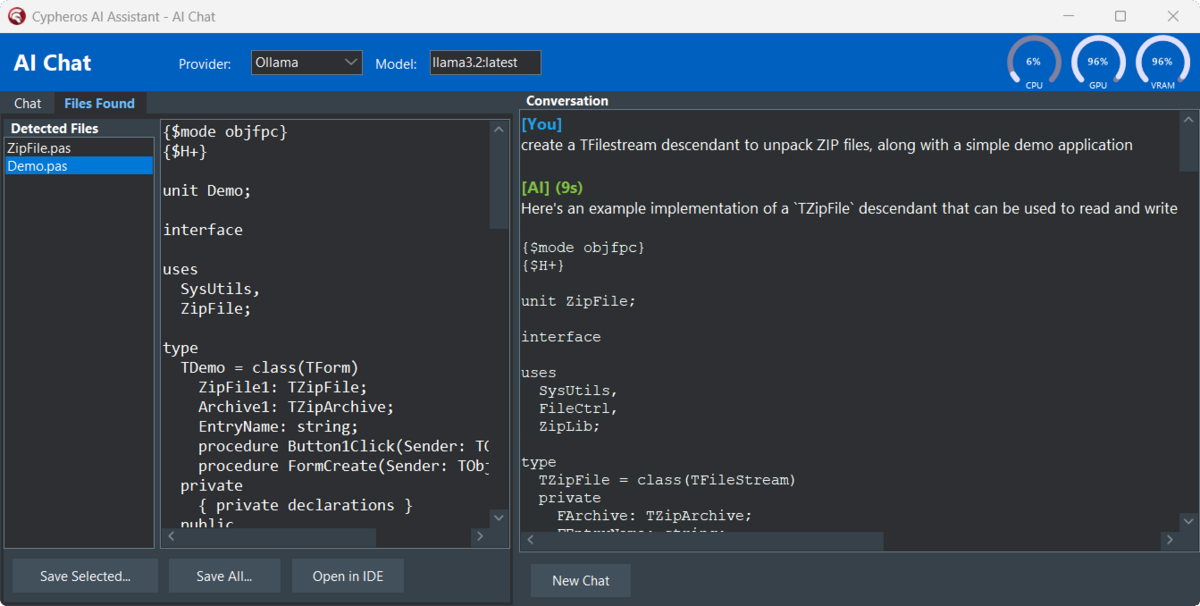
AI Chat — Multi-Turn Conversation
A persistent chat window for open-ended work with the AI.
- Full multi-turn conversation history — the AI remembers what was said earlier in the session
- Automatic file detection — when the AI generates Delphi source files, they are automatically extracted and listed
- Save individual files or save all to a folder with a single click
- Open in IDE — detected files can be saved and immediately opened in the Delphi editor
- Stop button — cancel a running request at any time
Unit / Class Assistant — Generate Complete Units from a Description
Describe what you need and let the AI write the whole unit.
- Choose from predefined styles: Full Unit, Class Only, Interface + Stub, Unit Tests, or Free Prompt
- Preview the generated code before creating the unit
- Create Unit in IDE — injects the generated code directly into a new editor window
- Editable result — tweak the AI output in-place before accepting it
CPU & GPU Usage Graphs (Local Model Monitoring)
When using a local Ollama model, the Chat, Code Assistant and Unit/Class Assistant dialogs display a live system usage panel at the bottom of the window.
- CPU usage — percentage updated every second
- GPU usage — percentage of GPU compute utilisation (hardware GPUs only, software renderers excluded)
- VRAM usage — dedicated video memory used vs. total, shown as a percentage and in MB
- Monitoring runs on a background thread so the UI stays responsive during AI inference
- The panel is always visible when a dialog is open, regardless of the active provider — useful for spotting when the local GPU is saturated
This makes it easy to see in real time whether the model is running on the GPU or falling back to CPU, and how much VRAM headroom is left for larger models.
SFTP Sync — Isolated AI Agent Workflow
This is the centrepiece of the Claude Code integration. The sync engine mirrors the active Delphi project to a remote directory over SFTP and keeps both sides in sync bidirectionally.
How it works
- On start, all project files matching the configured extensions are uploaded to the remote folder
- A background task runs on a configurable interval (default: 5 seconds)
- Each cycle connects to the SFTP server, collects a file list with timestamps from both sides, compares them, and copies newer files in either direction
- A local file watcher (
FindFirstChangeNotification) triggers an immediate extra cycle whenever a project file is saved locally, so edits reach the remote side within about half a second - A timestamp cache persists across stop/start cycles (stored in
CyAiAssistant.sync) so the engine never re-syncs files that are already in sync
Why SFTP for Claude Code?
Claude Code is a powerful agentic tool — it reads, writes and refactors files autonomously. That capability is exactly what makes direct access to the development machine undesirable during experimentation. The SFTP sync solves this by:
- Keeping Claude Code fully confined inside a VM
- Giving it a working copy of exactly the files it needs, nothing more
- Automatically reflecting its changes back to the development machine
- Allowing the developer to review diffs in the IDE before using any AI-generated code
The result is a workflow where Claude Code can do deep multi-file refactoring inside the VM while the developer retains full control over what gets applied to the real project.
Settings
All SFTP settings are stored in CyAiAssistant.sync in the project folder — not in the registry — so the configuration travels with the project and can be committed to version control (with the password field cleared).
| Setting | Description |
|---|---|
| Host / Port | SFTP server address |
| Username / Password | Credentials (or private key path for key-based auth) |
| Local folder | Project folder to sync (auto-detected from the open IDE project) |
| Remote folder | Target path on the SFTP server |
| Interval | Sync cycle interval in seconds |
| Include subdirectories | Whether to recurse into subdirectories |
| Watched extensions | Which file types to sync (space or comma separated, e.g. .pas .dfm .dproj) |
| Remote file permissions | Unix permission bits applied to uploaded files and created directories |
Settings Dialog
All AI provider configuration in one place:
- API keys and endpoints for each provider
- Model selection with editable model name per provider
- Ollama model browser — load available local models and test connectivity; three independent model slots: Code Assistant, Code Completion, and Translation
- Custom Prompt Manager — create, edit, reorder and delete your own named prompts
- Global defaults: max tokens, temperature
AI Providers
| Provider | Notes |
|---|---|
| Anthropic Claude | claude-opus-4.6, claude-sonnet-4.6, and others |
| OpenAI | gpt-4o, gpt-4-turbo, and others |
| Ollama | Any locally hosted model — fully offline, nothing leaves the machine, deepseek-coder:latest, llama3.2:latest, qwen3-coder:30b, gpt-oss:20b and others |
| Groq | llama3.3-70b, gpt-oss 120B, and others |
| Mistral AI | mistral-large, codestral, and others |
| Gemini | gemini-2.5-flash, gemini-2.5-pro, and others |
| z.ai GLM | glm-5.1, glm-4.7, and others |
IDE Theme Integration
CyAIAssistant follows the active Delphi IDE theme automatically. Full support for dark and light themes — link colors, panel backgrounds and labels all adapt. No jarring white windows in a dark IDE.
Requirements
- Delphi 10.4 Sydney or later
- Windows 10 / 11
- An API key for at least one supported provider, or a locally running Ollama instance for fully offline use
- For SFTP sync: an SFTP server accessible from the development machine (a Linux VM with OpenSSH works well)
Dependencies
- SSH-Pascal — SSH/SFTP library used by the sync engine ('libssh2.pas', 'libssh2_sftp.pas', 'SftpClient.pas', 'SocketUtils.pas', 'Ssh2Client.pas'). All needed files included in the source folder.
Installation
- Clone or download this repository
- Open
CyAIAssistant.dpkin Delphi - Right-click the package in the Project Manager and choose Install
- The Cypheros AI Assistant menu entry appears under Tools in the IDE
- Open Tools → Cypheros AI Assistant → Settings and enter your API key(s)
- The libssh2.dll file required for SFTP sync is copied to the Bpl directory during installation. If you don't want this to happen, disable the post-build event
Usage
| Task | How |
|---|---|
| Refactor or transform selected code | Select code → Tools → Cypheros AI Assistant → Code Assistant |
| Translate a comment or string | Select text → right-click → Translate… → pick language, or Tools → Cypheros AI Assistant → Translate… |
| Open AI chat | Tools → Cypheros AI Assistant → AI Chat |
| Generate a new unit or class | Tools → Cypheros AI Assistant → Unit/Class Assistant |
| Configure SFTP sync | Tools → Cypheros AI Assistant → SFTP Sync (requires an open project) |
| Configure providers and prompts | Tools → Cypheros AI Assistant → Settings |
The Claude Code VM Workflow in Practice
+-------------------------+        SFTP         +-------------------------+
|   Development Machine   | <-----------------> |          VM             |
|                         |                     |                         |
|  Delphi IDE             |   project files     |  Claude Code            |
|  CyAIAssistant plugin   | <-- sync ---------> |  (isolated, no access   |
|  Source code (master)   |                     |   to dev machine)       |
+-------------------------+ +-------------------------+- Open project in Delphi IDE
- Open SFTP Sync, configure the VM address and remote path, click Start Sync
- The plugin uploads all project files to the VM
- Inside the VM, run Claude Code on the synced folder — give it a task
- Claude Code edits files freely inside the VM
- CyAIAssistant detects the changes and syncs them back to the development machine within seconds
- Review the changes in the IDE — use the diff viewer or the normal editor — and decide what to keep
Privacy
- Your code is sent to the AI provider you configure. Review the privacy policy of your chosen provider before use.
- Using Ollama keeps all data local — nothing leaves your machine.
- When using the SFTP sync + VM approach, your source code only travels to your own VM and back — Claude Code has no access to your infrastructure or other source code (if configured correctly).
- API keys are stored in the Windows registry under
HKCU\Software\Cypheros\CyAIAssistantand are never transmitted anywhere other than the configured API endpoint.
License
CyAIAssistant is released under the GNU General Public License v2.0.
SSH-Pascal library files are released under the MIT License.
About
Developed by Cypheros as a personal exploration of AI-assisted Delphi development.