

Catalog · How the catalog works
ETCutoutAnimator

Cutout animator tool derived from cutout plugin for etedit
- ★ 2 on GitHub
Anyone may press Interesting, signed in or not. It helps others find this project.
README
Cutout Animator — Operating Guide
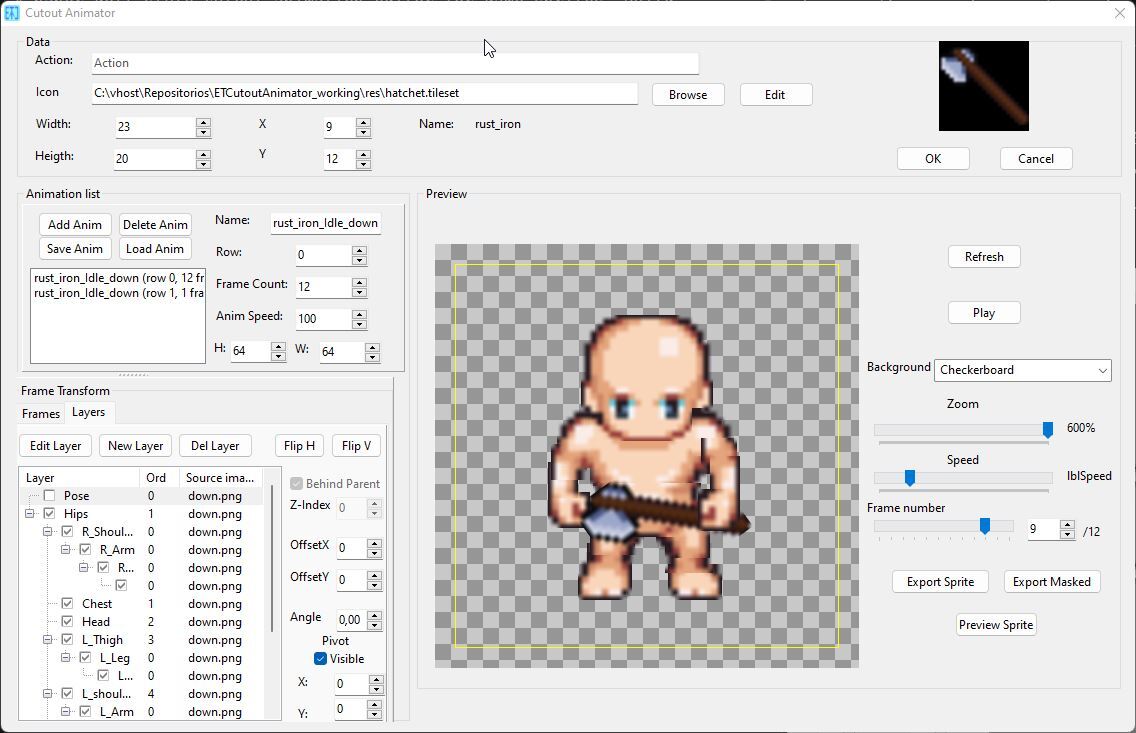
A paper-doll style cutout animation editor for game sprites. Build characters or objects from layered tiles, pose them per frame, and export tightly-packed spritesheets with metadata for your game engine.
Quick Start
-
Open the animator — from the Object Editor, select an object, click Edit Animations (or run the standalone
CutoutAnimator.exe). -
Load a tileset — click Browse to pick a
.tileset/ image file. Pick a tile from the sprite picker → it becomes the first layer.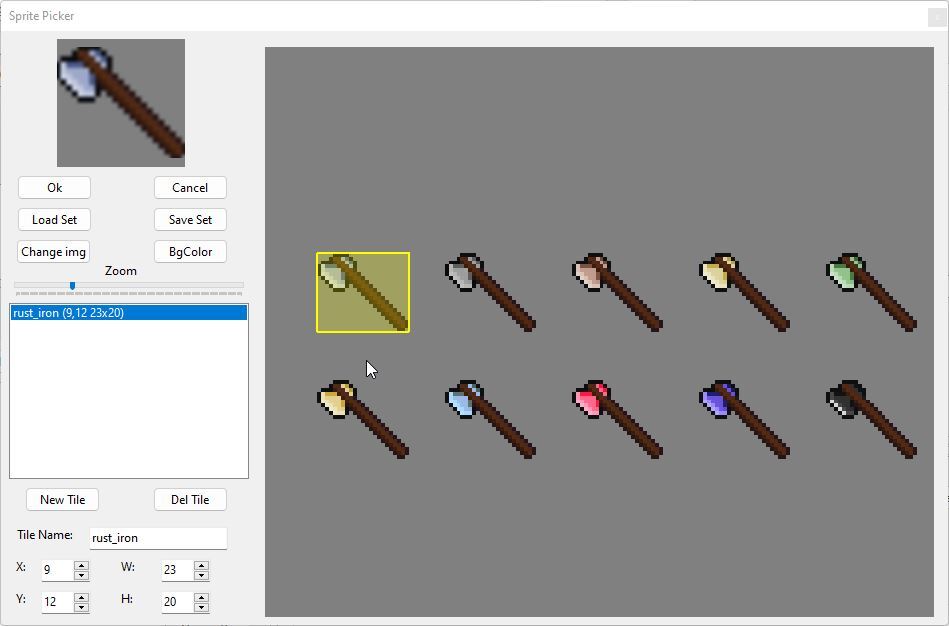
-
Add layers — click New Layer to pick another tile. Each layer is a body part (arm, leg, head, weapon, etc.).
-
Arrange layers — drag layers in the tree to reorder or nest them. Drop ON a layer to make it a child (limb pinned to a joint).
-
Pose — set Offset X/Y, Angle, Pivot X/Y per layer. Children inherit the parent's transform (rotate the torso → arms swing with it).
-
Add frames — click Dup Frame to copy the current pose, then tweak it for the next animation step.
-
Export — click Export SprSet for a full spritesheet PNG + JSON, or Export MskSet for an icon-only masked sheet.
The Layer Tree (VirtualStringTree)
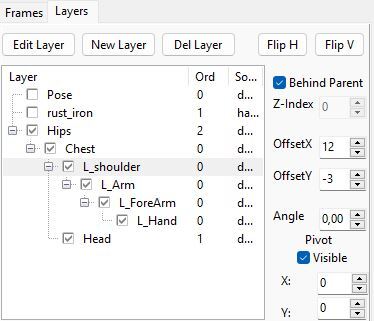
The tree on the left shows all layers in the current frame.
| Action | How |
|---|---|
| Select a layer | Click it (parent or child) |
| Reorder siblings | Drag a layer above/below another |
| Make a child | Drag a layer ONTO another (drop on the node) |
| Move to root | Drag a layer to empty space |
| Toggle visibility | Click the checkbox |
| Delete | Select, click Del Layer |
Draw order = tree order
Layers are drawn top-to-bottom in the tree. The first layer is drawn first (appears behind), the last is drawn last (appears in front). Drag to reorder.
"Behind Parent" checkbox
For side-view characters: check Behind Parent on a child layer (e.g. back arm) to draw it BEHIND its parent (torso) instead of on top. The child still inherits the parent's transform — it's purely a draw-order override.
Layer Properties
When a layer is selected, the right panel shows its properties:
| Field | What it does |
|---|---|
| Offset X / Y | Position relative to parent (or frame center for roots) |
| Angle | Rotation in degrees (around the pivot) |
| Pivot X / Y | Rotation pivot in tile-local coordinates (0,0 = top-left) |
| Flip H | Mirror the tile left/right |
| Flip V | Mirror the tile up/down |
| Behind Parent | Draw this layer behind its parent (child layers only) |
Pivot marker
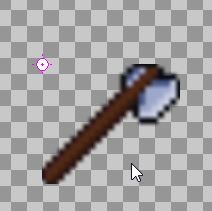
A magenta crosshair shows the selected layer's pivot point in the preview. Toggle visibility with the Pivot Vis checkbox. The marker is a visual aid only — it's not part of the exported spritesheet.
Transform inheritance
Children inherit their parent's transform:
- Offset: a child's offset is relative to the parent's position
- Angle: a child's angle ADDS to the parent's angle
- Rotation: when a parent rotates, children swing around the parent's pivot
Example: rotate the torso 30° → the arm (child) swings 30° around the torso's pivot, plus any additional angle you set on the arm itself.
Frames
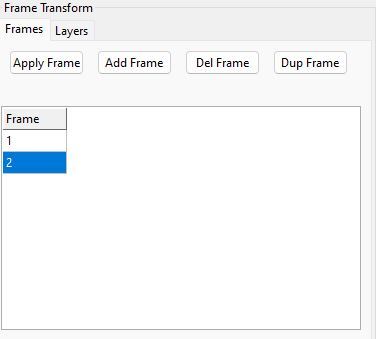
Each animation has one or more frames. A frame is a complete pose (a snapshot of all layer positions/angles).
| Button | Action |
|---|---|
| Add Frame | Append an empty frame |
| Dup Frame | Duplicate the current frame (copy all layers + transforms) |
| Del Frame | Delete the current frame |
Workflow
- Build the resting pose in frame 0
- Click Dup Frame → frame 1 is an exact copy
- Adjust a few layers (e.g. raise the arm)
- Click Dup Frame again → frame 2 copies frame 1
- Continue for the full animation
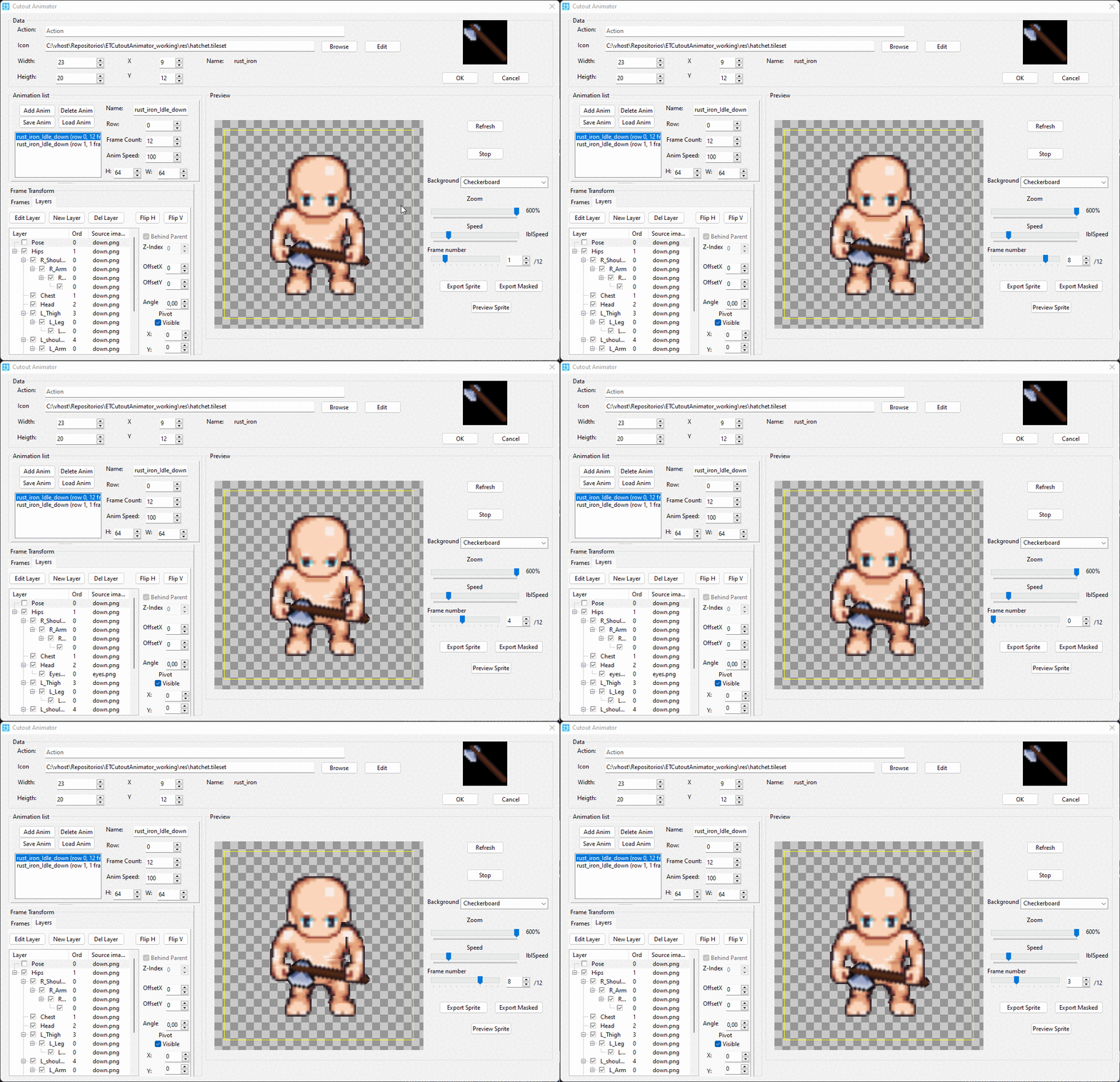
Use the frame trackbar or spin edit to step through frames. Click Play to preview the animation at the recorded speed.
Animations
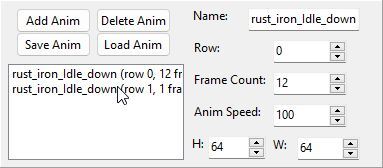
An animation is a sequence of frames played at a specific speed. Each animation becomes one row in the exported spritesheet.
| Button | Action |
|---|---|
| Add Anim | Create a new empty animation |
| Delete Anim | Delete the current animation |
| Load Anim | Load a .anim file (replaces current animation) |
| Save Anim | Save the current animation to a .anim file |
Animation properties
| Field | What it does |
|---|---|
| Name | Animation name (e.g. "walk", "attack") |
| Row | Row index in the exported spritesheet |
| Frame Count | Number of frames |
| Frame W / H | Per-frame dimensions (pixels) |
| Speed (ms) | Milliseconds per frame (100 = 10 FPS) |
Each animation can have different frame dimensions — the spritesheet packs them tightly with per-animation metadata in the JSON.
Export
Export SprSet (full spritesheet)
Composites all layers for every frame of every animation into a single PNG. Each animation = one row, each frame = one column. Tightly packed — no gaps between frames.
Also writes a .spritesheet JSON file with per-animation metadata:
frame count, frame size, speed, row position.
Export MskSet (action icon masked)
Renders only the layers matching the "action icon" tile (the tile loaded via Browse / Edit), masked by overlapping layers. Useful for generating item sprites that show only the item, cut out where other layers (hands, equipment) cover it.
Preview Sprite
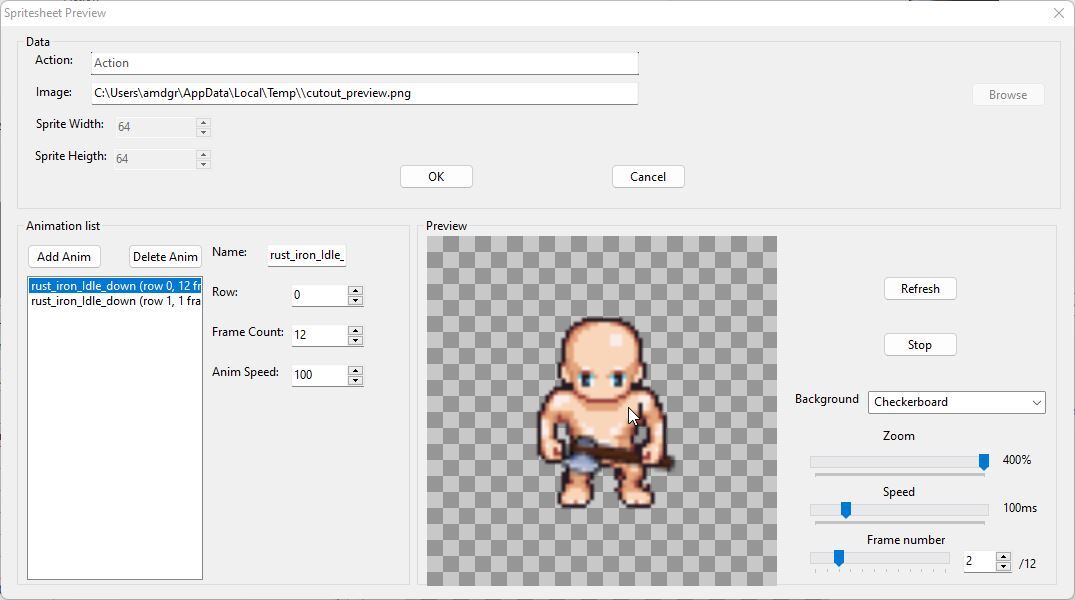
Renders a full spritesheet to a temp file and opens the Spritesheet Preview dialog. Step through frames, play animations, verify the export before saving to a final path.
Spritesheet Format
PNG layout
?????????????????????????????????????????????????????????????????????????????????????????????????????????????????????????????????
??? frame0 ??? frame1 ??? frame2 ??? ... ??? frameN ???  ??? animation 0 (row 0)
?????????????????????????????????????????????????????????????????????????????????????????????????????????????????????????????????
??? frame0 ??? frame1 ??? frame2 ??? ... ??? frameN ???  ??? animation 1 (row 1)
?????????????????????????????????????????????????????????????????????????????????????????????????????????????????????????????????
??? ...                                       ???
?????????????????????????????????????????????????????????????????????????????????????????????????????????????????????????????????- Each animation occupies one row (by
RowIndex) - Frames are placed edge-to-edge (no gaps)
- Different animations can have different frame sizes
- Sheet width = max(frameW × frameCount) across all animations
- Sheet height = sum of all frameH
JSON metadata (.spritesheet)
{
  "cellW": 48,
  "cellH": 48,
  "columns": 8,
  "rows": 3,
  "sheetW": 288,
  "sheetH": 144,
  "image": "spritesheet.png",
  "animations": [
    {
      "name": "walk",
      "row": 0,
      "frameCount": 8,
      "frameW": 32,
      "frameH": 48,
      "speedMs": 100,
      "rowY": 0,
      "frameX": 0
    }
  ]
}
Reading a frame in your game engine
For animation i, frame j:
X = frameX + j * frameW
Y = rowY
W = frameW
H = frameH
Like reading a fixed-stride sequential register file — one stride per animation.
File Formats
| Extension | Description |
|---|---|
.anim |
Single animation (JSON): frames, layers, transforms |
.png |
Spritesheet image |
.spritesheet |
Spritesheet metadata (JSON) |
.objs |
Object editor file (contains object definitions + action references) |
.tileset |
Tileset descriptor (JSON, for the sprite picker) |
Tips
- Start simple — build a front-facing character first (all children on top of the body), then tackle side-view (uses "Behind Parent").
- Set pivots at joints — for an arm, put the pivot at the shoulder; for a leg, at the hip. Rotation then looks natural.
- Duplicate frames — always duplicate the previous frame and tweak, rather than rebuilding poses from scratch.
- Hide layers while editing — uncheck a layer's visibility checkbox to see what's behind it. Children inherit invisibility.
- Zoom for precision — use the zoom trackbar when fine-tuning offsets. The layout scales uniformly (tiles + offsets together).
- Test with Preview Sprite — before exporting to a final path, use Preview Sprite to verify the animation plays correctly in the spritesheet dialog.
Standalone Executable
The animator can run as a standalone .exe (no plugin host required).
- OK — saves all animations to their
.animfiles, stays open - Cancel — exits the application
- Load Anim — opens a
.animfile - Save Anim — saves the current animation
The standalone is useful for building animations without launching the full object editor. All features (layer editing, preview, export) work identically to the plugin version.
☕ VCoffee
💎 Crypto
Ethereum / BSC / Polygon: