Catalog · How the catalog works
sonar-delphi-sample-project

Sample project to get up and running on SonarQube with Delphi
- ★ 2 on GitHub
Anyone may press Interesting, signed in or not. It helps others find this project.
README
sonar-delphi-sample-project
Sample project created by: integrated-application-development
IntegraDev has greatly extended the sonar-delphi plugin for SonarQube. Please add a Star to their repo! Note that their repo supercedes the official repo by Embarcadero, found at: https://github.com/Embarcadero/SonarDelphi (they make that clear in their readme.)
The integra-dev folder in this repo has their demo project which can assist your integration of Delphi and SonarQube.
Their project was originally published in a thread on the Sonar community when they were initially requesting the addition of their SonarDelphi plugin to the SonarQube Marketplace
Information from their message:
Testing
This part was a little awkward to figure out, since you guys wouldn’t have access to the Delphi standard library.
What I’ve done:
- Stubbed out a bare-minimum standard library
- Written a small sample project that triggers a lot of sonar issues and relies only upon the stubbed standard library
- Zipped them both up with a
sonar-project.propertiesat the root configuring things properly
Testing steps are nice and simple:
- Extract sonar-delphi-sample-project
cd sonar-delphi-sample-projectsonar-scanner
Once your SonarQube server is up and running (they offer a Community Edition that is free to use), you will need to install the Sonar Scanner on your CIServer, or simply on your dev machine (wherever you want to analyze the source.)
SonarQube has a few different scanners available: .NET, NPM, Maven, Gradle, and CLI which is the scanner to use when there is no specific scanner for your build system. Their doc page has a link to download a Windows x64 installer zip.
Scanner Install Steps
Ensure Java Is Available
- Download from: https://adoptium.net/en-GB/temurin/releases/?version=21
- Latest version currently is
OpenJDK21U-jdk_x64_windows_hotspot_21.0.6_7.zip
- Latest version currently is
- Unzip to your desired working folder: (for example)
S:\sonar\java - Add the bin folder to your PATH:
S:\sonar\java\bin - Add system environment variable:
JAVA_HOME=S:\sonar\java - Verify via:
java --version
- You should see something like:
openjdk 21.0.6 2025-01-21 LTS
OpenJDK Runtime Environment Temurin-21.0.6+7 (build 21.0.6+7-LTS)
OpenJDK 64-Bit Server VM Temurin-21.0.6+7 (build 21.0.6+7-LTS, mixed mode, sharing)
Unzip Scanner
- Unzip the scanner's install zip to your desired working folder: (for example)
S:\sonar\scanner- Note: the latest version currently is
sonar-scanner-cli-7.0.2.4839-windows-x64.zip
- Note: the latest version currently is
Configure Scanner
- Edit the file
S:\sonar\scanner\conf\sonar-scanner.propertiesto inform the scanner how to contact your SonarQube host.- For example:
sonar.host.url=http://192.168.1.109:9000
- For example:
- Add the scanner's "bin" folder to your PATH
- For example:
setx /M PATH "%PATH%;F:\Sonar\scanner\bin
- For example:
Verify Scanner
- Verify operation at a command prompt:
sonar-scanner --version - You should see something like:
20:57:56.320 INFO Scanner configuration file: F:\Sonar\scanner\bin..\conf\sonar-scanner.properties
20:57:56.320 INFO Project root configuration file: NONE
20:57:56.335 INFO SonarScanner CLI 7.0.2.4839
20:57:56.335 INFO Java 17.0.13 Eclipse Adoptium (64-bit)
20:57:56.335 INFO Windows 10 10.0 amd64
Assign Credentials
- Create a user token to be used by the Scanner to access your server.
- Logon to your SonarQube server, click on User, My Account->Security->Generate Tokens:
- Name:
yourdesiredname - Type:
User Token - Expires in:
1 Year(or whatever you like) Generate
- Name:
- Logon to your SonarQube server, click on User, My Account->Security->Generate Tokens:
- Make a copy of the generated token
- There are different ways to inform the scanner about your token, one of the easiest is to simply create another new system environment variable:
SONAR-TOKEN=squ_23001104021404800080282048240asfasfd92432923
Scan The Sample Project
- At a command prompt in the sample project folder, simply run
sonar-scanner - You should see a screenful of text scroll by as it works, ending with something like:
21:18:14.163 INFO  SCM Publisher No SCM system was detected. You can use the 'sonar.scm.provider' property to explicitly specify it.
21:18:14.179 INFO  CPD Executor Calculating CPD for 3 files
21:18:14.179 INFO  CPD Executor CPD calculation finished (done) | time=0ms
21:18:14.319 INFO  Analysis report generated in 140ms, dir size=248.6 kB
21:18:14.366 INFO  Analysis report compressed in 32ms, zip size=32.8 kB
21:18:15.195 INFO  Analysis report uploaded in 829ms
21:18:15.195 INFO  ANALYSIS SUCCESSFUL, you can find the results at: http://192.168.1.109:9000/dashboard?id=sonar-delphi-sample-project
21:18:15.195 INFO  Note that you will be able to access the updated dashboard once the server has processed the submitted analysis report
21:18:15.195 INFO  More about the report processing at http://192.168.`.109:9000/api/ce/task?id=a3c50450-4c08-4925-918d-5f9f6a448d27
21:18:15.210 INFO  Analysis total time: 6.859 s
21:18:15.210 INFO  SonarScanner Engine completed successfully
21:18:15.257 INFO  EXECUTION SUCCESS
21:18:15.257 INFO  Total time: 17.469s
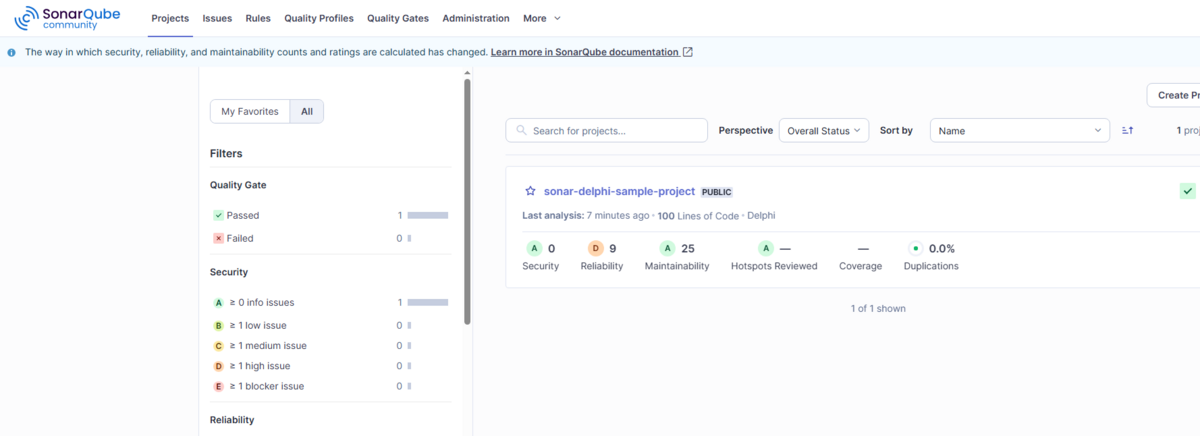
Logon to your SonarQube server and you should now see the project details. You can configure your own Delphi projects using the sample project as a guide. You can also reference their help page