x16-hello-cc65

"Hello World" examples using assembly and C with cc65 and the Commander X16
- Quiet · last change 5-20-2023
- ★ 20 on GitHub
README
x16-hello-cc65
This project contains "Hello World" examples for the Commander X16 using assembly and C with the cc65 toolchain. This README also serves as general instructions for setting up a development environment. Most of this only has to be done once, and then you'll be all set to build any cc65 project, either of your own creation or any open source one, including the Commander X16 emulator itself!
How you build your code is different depending on what platform you are running. At this point, Windows is supported through Cygwin, and Linux is supported with special instructions here for Debian/Ubuntu distributions.
Building with Windows (Cygwin)
The build toolchain for this project requires a GNU environment, which is natively available on most Linux and Unix (include Mac) platforms. For Windows, you will need a program called Cygwin that will provide a GNU userspace in Windows that will give you a Unix-like environment for development.
Installing and Configuring Cygwin
First, you will need to download the Cygwin setup program from here: https://cygwin.com/setup-x86_64.exe
When you run the program, it will ask you which packages you want to install. Make sure the following packages are selected:
- git
- gcc-core
- make
Then, when Cygwin is installed, open the Cygwin Terminal program (you can specify to have a shortcut put on your desktop during the install) and cd to whatever directory you want to maintain your workspace. In Cygwin, the drive letters are also second-level directories, so your C drive is /cygdrive/c/ and your D drive is /cygdrive/d/, etc. If my Windows username is Fred and I want to put a "workspace" directory in my profile alongside my "Documents" directory, I can do the following:
$ cd /cygdrive/c/Users/Fred
$ mkdir workspace
$ cd workspace
There, you can use git to clone this repository with the following command:
$ git clone https://github.com/SlithyMatt/x16-hello-cc65.gitYou will also need to clone the cc65 repo:
$ git clone https://github.com/cc65/cc65.gitNow, you can first test your new build environment by building cc65:
$ cd cc65
$ make
This should create a "bin" subdirectory with all the cc65 tools you will need, like ca65.exe. You can either add this cc65/bin directory to your path, or add symbolic links within Cygwin in /usr/bin.
cc65 Option 1: Changing Path
Open up your Environment Variables control panel in your settings (you can find it by searching for "env"). Select the "Path" variable and click the "Edit..." button.
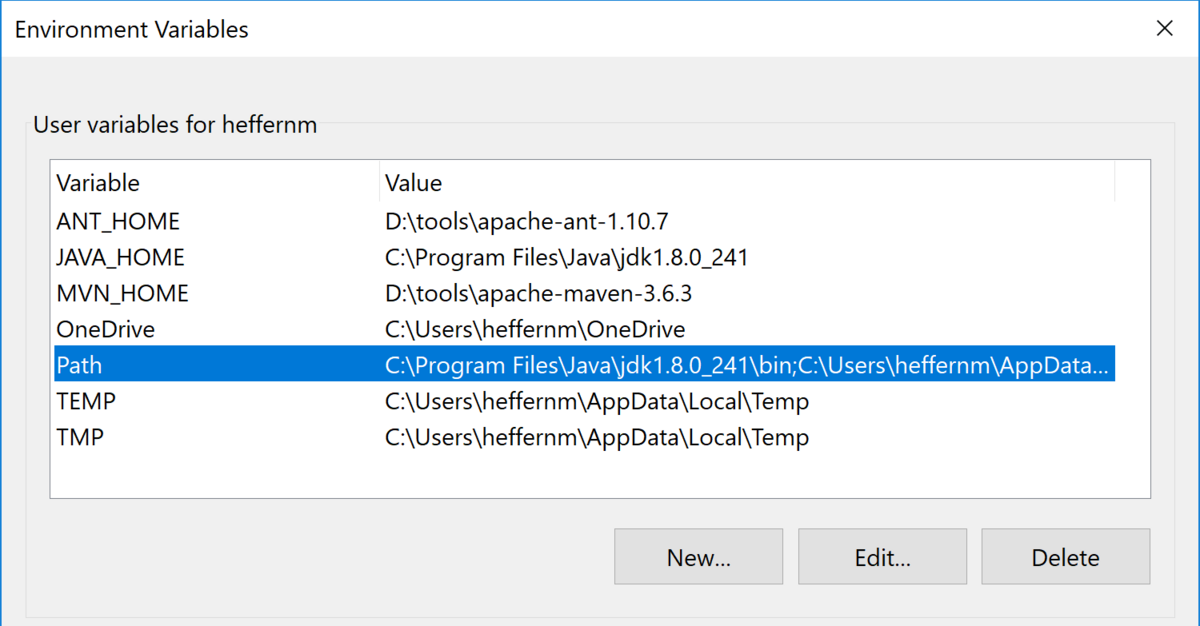
Then, in the editor dialog that pops up, add a new entry for your cc65/bin directory. You can find it by clicking on the "Browse..." button.
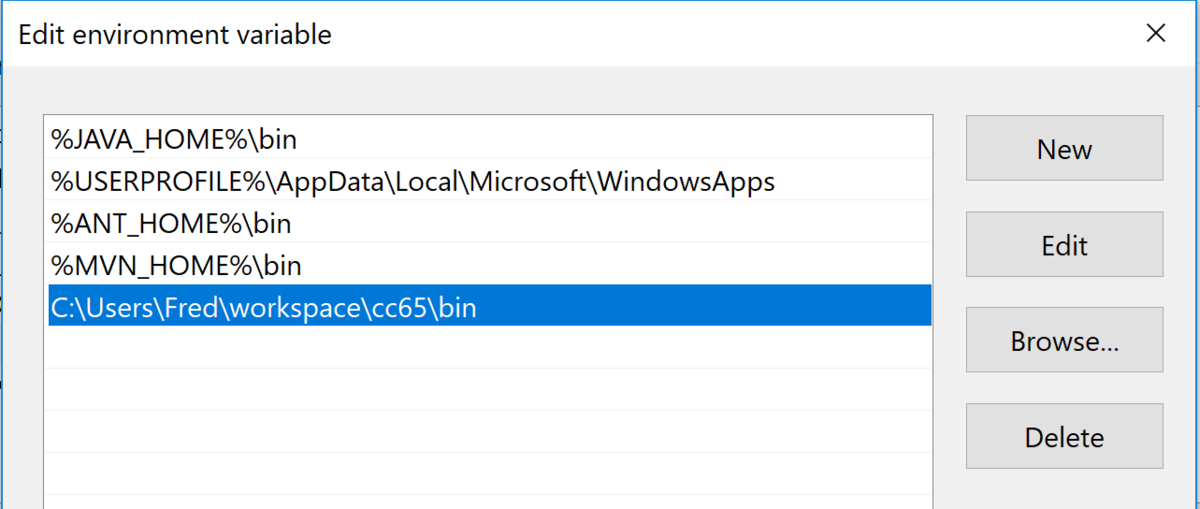
Then click the "OK" button. You should be all set to run the cc65 tools from anywhere on Windows. If your Cygwin Terminal was left open during this change, you will need to close it and reopen it for the new environment to take effect.
cc65 Option 2: Adding Symbolic Links
You can just add the cc65 tools that you need for the build as symbolic links to your Cygwin /usr/bin directory, which is already on the Cygwin bash path, but will not be on your general Windows path.
Simply create the following links (you don't need to worry about superuser privileges in Cygwin):
$ cd /usr/bin
$ ln -s /cygdrive/c/Users/Fred/workspace/cc65/bin/ca65.exe
$ ln -s /cygdrive/c/Users/Fred/workspace/cc65/bin/cc65.exe
$ ln -s /cygdrive/c/Users/Fred/workspace/cc65/bin/cl65.exe
Your environment should be all set now.
Building in Cygwin
Now, just go back to the root directory of this project and run the make utility.
$ cd /cygdrive/c/Users/Fred/workspace/x16-hello-cc65
$ make
And that's it! All the programs should be built.
Building with Debian/Ubuntu Linux
Chances are, you have most of what you need already in Linux, but to be sure, you can install all of the required packages in one command:
$ sudo apt-get install git build-essentialThen, you should create a workspace directory to hold all of your local repo clones, like ~/workspace.
$ cd
$ mkdir workspace
$ cd workspace
There, you can use git to clone this repository with the following command:
$ git clone https://github.com/SlithyMatt/x16-hello-cc65You will also need to clone the cc65 repo:
$ git clone https://github.com/cc65/cc65.gitNow, you can first test your new build environment by building cc65:
$ cd cc65
$ make
This should create a "bin" subdirectory with all the cc65 tools you will need, like ca65.exe. You will need to add this directory to your PATH by adding the following line to ~/.bashrc:
export PATH=$PATH:$HOME/workspace/cc65/binTo make this environment take hold, you will need to close and reopen your terminal. Then, you can go ahead and build this project using the make tool.
$ cd ~/workspace/x16-hello-cc65
$ make
And that's it! All the programs should be built.
Troubleshooting
If your build doesn't seem to work as intended, there is a "clean" make target at every level. You can always cd to the root of your project workspace and do this to make sure everything is built clean:
make clean
make
Running
If you do the top-level build, there will be three different X16 programs built:
- asm/HELLOASM.PRG - Prints "HELLO, WORLD!" using only assembly language
- c/HELLOC.PRG - Prints "HELLO, WORLD!" using only C
- mixed/HELLOMIX.PRG - Prints "HELLO, WORLD!" using a mix of C and assembly
You can cd into any of these directories and run these programs with the X16 emulator either from the host command line, or from the BASIC prompt in the emulator.
For example, here's how to run the assembly version from the host command line:
$ cd asm
$ x16emu -prg HELLOASM.PRG
Then in the emulator at the READY. prompt:
READY.
RUN
Or, just load it from within the emulator. So first, just launch the emulator from the directory containing the program:
$ cd asm
$ x16emu
Then in the emulator at the READY. prompts:
READY.
LOAD "HELLOASM.PRG"

READY.
RUN
And that's it! You can try adding your own assembly and/or C code to these three examples and try it out by simply rebuilding using make. To speed things up, just call make from the subdirectory where you made the change.
Better yet, please use this as a template for your own application. Just be aware that if you use C, your main will have to be implemented in C and then all assembly either linked in, or inlined.
For more information on how to write code for cc65, check out the documentation.
See video on YouTube: