

Catalog · How the catalog works
Dam

- ★ 2 on GitHub
Anyone may press Interesting, signed in or not. It helps others find this project.
README
Dam
Delphi Message Dialogs with Formatted Text
- What's New
- Introduction
- Screenshots
- How to install
- Supported Languages
- How to use
- TDam properties
- TDamMsg properties
- Quick Messages
- How to change Language file
- History
What's New
-
02/11/2019
- Include auto install app
-
02/08/2019
- The component had to be adapted because of a name change in the dependent HTML component. Please check the dependency component page to correct uninstall older version and update to the new version. :warning:
-
02/07/2019
- Add Win64 support (library folders changed!) :warning:
-
02/06/2019
- Add new property AutoWidth to allow message form auto stretch horizontally according message text.
- Add new property CenterButtons to arrange buttons on center at message form, otherwise they will be right-aligned.
-
02/05/2019
Add new properties MessageColor and ButtonsColor on TDam component, to allow message dialog customization.
Introduction
Almost every application you build, you need to add message dialogs.
Delphi provides you a few options, like ShowMessage, MessageDlg and MessageBox.
As your project gets bigger, the dialogs may mess up your code, mainly if you need to write many lines in the messages, with many parameters.
If you need to format some part of the message, you need to add labels in a custom form. This is could be really bad.
Look at this message:
begin
  ShowMessage('The task was scheduled to run at the time: '+aTime+'.'+#13#10+
    #13#10+
    'Please, check the schedule at main board.'+
    ' If you want to change schedule, find by ID #'+IntToStr(IDNumber)+'.'+#13#10+
    #13#10+
    'This task was created by user '+aUserName+'. Only this user can edit this task profile.');
end;
So, I think this is really ugly, don't you think? :persevere:
And if I tell you this can be written much more beautiful: :smile:
begin
  InfoTaskScheduled([aTime, IDNumber, aUserName]);
end;
This component allows you to manage all your application messages in a "container". You can create the message dialog with a wizard creator, allowing you to format the message (bold, italic, underline, font name, font size, text background color, align center, align right, use tab alignment, clickable links, etc).
You can specify the message buttons, the icon, the form title, and much more.
Then you specify a name for the message. So, you can call the message at any part of your application, just calling the method by the message name!
If you specify parameters in the message text, then when you call the message method, you can specify parameters that will be replaced in the text.
Please read carefully this documentation to know how this component works. :grin:
Screenshots
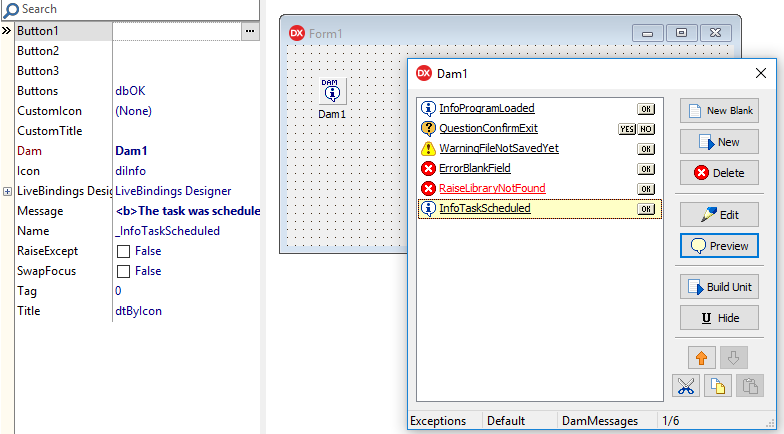
The Dam container listing all messages created, stored at DFM:
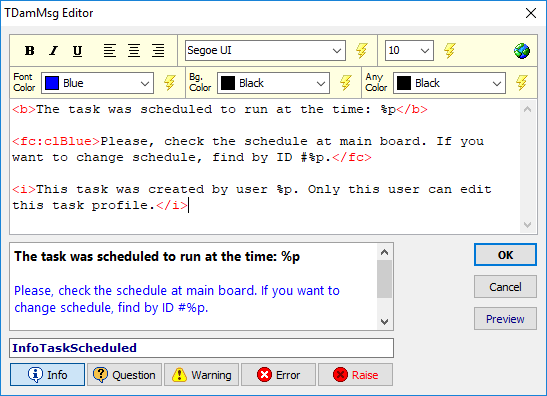
The Message Wizard Creator, to customize the message dialog:
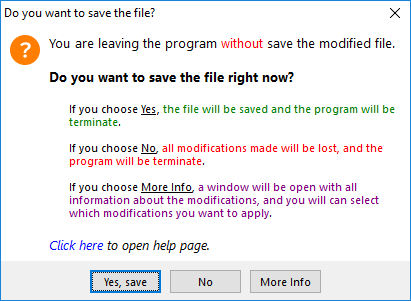
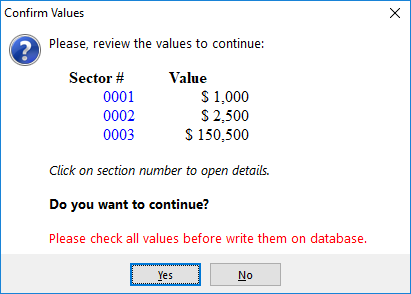
The Message Dialog: :stuck_out_tongue:
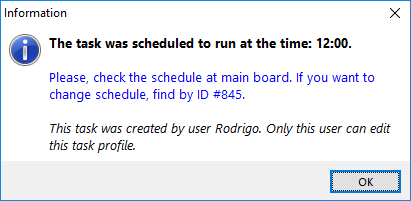
The shortcut
CTRL+Cis available on message form to copy the message to clipboard.
How to install
-
First you need to install my DzHTMLText component. Get it here: https://github.com/digao-dalpiaz/DzHTMLText
This is a label with HTML formatting component. The messages uses this component to display formatted text.
Auto install
Close Delphi IDE and run CompInstall.exe app to auto install component into Delphi.
Manual install
- Open Dam.groupproj in the Delphi.
- Ensure Win32 Platform and Release config are selected at both packages.
- Right-click at root item in the tree and choose Build All.
- If you want to use 64 bit platform, select this platform at DamPackage and do a new Build in this package.
- Right-click at DamDesignPackage and choose Install.
- Add "Win32\Release" sub folder to Delphi Library Path (Tools\Options), on 32-bit option. If you will use 64 bit platform, add "Win64\Release" sub folder on 64-bit option.
- Run AfterBuild.bat to publish DFM and RES to Release folders.
Supports Delphi XE2..Delphi 10.3 Rio
Supported Languages
At this time, the following languages are available for messages:
- English
- Portuguese
- Spanish
- German
- Italian
- Chinese
- Japanese
- Greek
- Russian
- French
The language set the caption of buttons in the message dialogs, like OK, Cancel, Yes, No, and the title of the form, when Information, Question, Warning, Error and Message (custom). The form title can be changed in the message properties and can be automatically set by other objects, like parent form title, main form title and application title.
You can open an issue to send me a new language translation or correct current translation
How to use
The main idea is to drop one TDam in the main form, or main data module. The TDam is a container that have all TDamMsg (message dialog).
To manage messages, just double-click at the TDam component, or right-click and choose Manage Dam Messages.
But how to call the messages?
The TDam has a property called DamUnitName. Here you define a unit name to contain all message methods. When you use the function Build Unit, the component will create this unit automatically at project folder with the methods based in all created messages (with the same name as the message name).
So, at any unit, you just add a uses to this unit, and call the message you want by message name. If the message has parameters, the method will be declared automatically asking for parameters in an array.
Yeah, but if I am at the same unit that is the TDam and TDamMsg messages, if I call method by message name, the Delphi think I'm referring the object of message!
This is true, and because of that, the component has a object hidden function. You only need to name the message starting with _. So the unit builder will remove this character to name the method and the Delphi will not confuse the two things.
I recommend you to create all messages named starting with the _ character.
If you use the wizard, the name will be automatically start with this character.
There is a button on the Dam manager to hide/un-hide all selected messages.
Remember, every time you change the messages, you need to rebuild the unit. Just click the button Build Unit to update.
OK, but I don't want to use this unit! Is there another method?
Yes, of course. You can call the message by using the functions of TDamMsg object. Just use the message object Run or RunAsBool functions. In this case I recommend you to not hide the message, so you can call by the object name as is.
But I honestly recommend you to use the unit as it will make much more sense. :wink:
Can I use more than one TDam container in my application?
Yes, you can. The TDam allows you to define some configurations, like the message font and sounds. So you may have more than one TDam to have this group of configuration. Besides that, you can use various TDam to group messages by category. You can put TDam in specific forms, either, but remember that the container needs to exist to fire the messages, of course.
If you are using more than one TDam, I recommend you to set the same DamUnitName at all TDam components, so when you call Build Unit button, it will be generated a single unit with all messages of all TDam containers. So you can use this single unit at all other units of your project to call any message.
Message result codes:
If you call message by method of message name, the method will be a procedure if message has only one button.
If message has two or three buttons, the method will be a function. When it has two buttons, the function will always return boolean value, retuning true if first button on the left was clicked, or returning false if second button (last button on the right) was clicked.
When message has three button, the function returns integer value 1, 2 or 3, depending on which button was pressed in the message dialog. The first button is the left one; the second is the middle button; the third button is the right button.
So, when using three buttons, you can use a variable or even a case:
case QuestionSaveFile([aFileName]) of
  1: DoSaveFile; //Yes button
  2: {continue}; //No button
  3: Abort; //Cancel button
end;
TDam properties
AutoWidth: Boolean = Set the dialog form to auto stretch horizontally according to the message text. There is a minimum and maximum fixed limits to the message form.
CenterButtons: Boolean = Define if the buttons at message form will be aligned at center. If this property is false, the buttons will be aligned at right of form.
DamDefault: Boolean = Defines if this TDam will be used to fire quick messages (please read Quick Messages section). You only can have one defined as Default in the application.
DamUnitName: String = Specify the unit name to be created with all message methods in the project folder. Do not specify file extension, because the component will complete the name automatically with ".pas" extension.
HandleExceptions: Boolean = Defines this TDam to handle all application exceptions, showing the error message with the same dialog as all other Dam messages. Only one TDam can be set to handle exceptions in the application.
Language: TDamLanguage = Defines the language used by message buttons and message form title. When you place an instance of TDam component, this property will be initialized according to the system current language. If there is no language available according to the system, English language will be set. This property has no default value, precisely because it should store the language being defined.
MessageFont: TFont = Defines the text font of messages
PlaySounds: Boolean = Enabled system sounds when showing messages of kind Warning, Question and Error.
MessageColor: TColor = Define background color of message area on message dialog.
ButtonsColor: TColor = Define background color of buttons area on message dialog.
TDamMsg properties
Button1: String = Caption of Button 1 on message dialog. Available when Buttons=dbOne/dbTwo/dbThree.
Button2: String = Caption of Button 2 on message dialog. Available when Buttons=dbTwo/dbThree.
Button3: String = Caption of Button 3 on message dialog. Available when Buttons=dbThree.
Buttons: TDamMsgButtons = Defines the buttons in the message dialog:
- dbOK: Defines one button OK
- dbYesNo: Defines two buttons Yes/No
- dbOne: Defines one button by Button1 defined caption
- dbTwo: Defines two buttons by Button1 and Button2 defined captions
- dbThree: Defines three buttons by Button1, Button2 and Button3 defined captions
CustomIcon: TIcon = Defines a custom icon to show in the message dialog. This icon only is shown when Icon=diCustom.
CustomTitle: String = Defines a custom title for message form. This caption is only used then Title=dtCustom.
Icon: TDamMsgIcon = Defines the icon in the message dialog:
- diApp: The application icon
- diInfo: The information system icon
- diQuest: The question system icon
- diWarn: The warning system icon
- diError: The error system icon
- diCustom: The icon is defined in the CustomIcon property
Message: String = The message text. Please use the message wizard creator for text formatting or read the HTLabel documentation. The parameters replaceable are defined by %p at message text. Use the parameters at array in the message method in the same order as specified in the message text. You can also specify the literal {except} to catch current exception message and replace at this variable in the message text (please, see exception examples).
Name: String = Message object name. If then name starts with _ character, means the message is hidden, so the Delphi will not think you are calling this object when you call the method of message having the same name.
RaiseExcept: Boolean = Set this message as a RAISE message. When you call this message, will be raised an exception with the message text. In this case, you need to use at least one TDam with HandleExceptions=True, otherwise the message will not be formatted with Dam customization.
SwapFocus: Boolean = By default, when a message is fired, always the first button on the left will start with focus. If you enable this option, this message will start the focus at last button (the button at right).
Title: TDamMsgTitle = Defines the message form title
- dtApp: The title is the same as application title
- dtParentForm: The title is the same as parent form title
- dtMainForm: The title is the same as main form title
- dtByIcon: The title is defined by Icon property (this uses language resource)
- dtCustom: The title is defined by CustomTitle property
Quick Messages
procedure MsgInfo(const Msg: String; const Params: TDamParams = nil); //message with Information icon
procedure MsgWarn(const Msg: String; const Params: TDamParams = nil); //message with Warning icon
procedure MsgError(const Msg: String; const Params: TDamParams = nil); //message with Error icon
function MsgQuest(const Msg: String; const Params: TDamParams = nil): Boolean; //message with Question mark icon
procedure MsgRaise(const Msg: String; const Params: TDamParams = nil); //message with Error icon (this raises an exception)

procedure ShowErrorMsg; //show current error message
function CaptureErrorMsg: String; //get current error message
These methods are available globally, at unit DamUnit or at unit name you have specified in the DamUnitName property.
You can show quick messages directly on the code, just typing the messages and parameters you like.
These methods will use the TDam container that is defined as Default. So you need to have one TDam available with
DamDefaultproperty set to True.
The function MsgQuest results true if Yes button was pressed, or returns false if No button was pressed.
The method ShowErrorMsg shows the currently exception. You can use this as try..except block.
The function CaptureErrorMsg allows you to get the error message on current exception. You should use this at try..except block.
Exception catch example:
try
  DoSomeStuff;
except
  ShowErrorMessage; //will show error message dialog using Dam concept
end;try
DoSaveFile;
except
MsgError('Fatal error saving file: %p', [CaptureErrorMsg]);
end;If you specify literal {except} at message text, this will be replaced by the current error message:
try
  DoSaveFile;
except
  MsgError('Fatal error saving file: {except}'); //don't need to use CaptureErrorMsg function!
end;
You can also re-raise an exception:
try
  DoSaveFile;
except
  MsgRaise('Fatal error saving file: {except}'); //re-raise a new exception with better text message
end;
How to change Language file
There is a file called DamLang.ini, which has all strings used on the component. If you want to change some text on this file, you will need to run "Build Dam Resource.bat" after that. This batch will create a new file "Dam_Resource.res" at the same folder (the source folder).
After that, please run the "AfterBuild.bat" to publish this new resource file to the "Lib" folder.
If you want to add new language, some changes in the code will be needed. So, please, open a new issue and post the language strings you want, then I will apply in the component.
History
The design of this component came about around 2005 when I checked the need to create standardized dialog boxes for my applications.
At that time, I called the component of "Better Dialog", which in Portuguese would be DM (Diálogo Melhor).
After a while, the project came to contain a new structure with the container. Then I renamed the component to "Even Better Dialog", which in Portuguese is DAM (Diálogo Ainda Melhor). :laughing:
So the name of the component ended up staying as Dam.
Today I use this component in almost all my Delphi applications. :wink: