

Catalog · How the catalog works
FMXFormDocking

Delphi Firemonkey Form Docking for Windows and Mobile Apps
- ★ 2 on GitHub
- ✦ 1 finds this interesting
Anyone may press Interesting, signed in or not. It helps others find this project.
README
Background
When working with mobile applications, trying to place all your code on one form can become cumbersome. So to overcome this you will need to create forms and dock forms onto a main form permanently or temporarily. If you believed that FMX form Docking is the same as VCL, then this blog will help you to make the new implementation easier because the FMX method is a lot different from the VCL method.
IDE
Tokyo 10.2 used, this should be backwards compatible to Post XE4 versions.
Scope
Dock different forms to a specific tab-item in the tab-control of a form and free them when required.
Requirements
Standard FMX Library.
Difficulty level - Low.
Method
How does it work?
- The Form to be ‘Docked to’ must have a Tlayout or Tpanel or similar which becomes the Parent object to be docked to.
- The Form to be ‘Dockedfrom’ must have a Tlayout or Tpanel or similar which becomes the Child of the Parent.
- All the children ( Tedits, Tbuttons,Tlabels, etc) of the ‘DockedFrom’ form become the children of the Parent and are added in the order in which they were created at design time.
So if you will be reusing the ‘Dockedto’ as the parent to add and remove different forms,
a new step will need to be added else further docking will result in the loaded form’s children being overlaid on each other resulting in an unusable mess.
Lets name the ‘Dockedto’ Tlayout object as DockedLayout and we will refer to it as this.
- Before loading a form to the DockedLayout, we need to check if an existing form has been loaded. These would be children of the DockedLayout. We use the method ‘Childrencount ‘ and check if the count is greater than 0. If true then the docked children are removed.
- The principle for removing the children is LIFO - Last in first out and the child items are removed one at a time from the Dockedlayout.
- To remove the Children we need to call the correct method for the platform to free each child.
- So we use If Def’s to call different methods for freeing the children for the different Platforms.
- To remove Android or IOS children, the disposeof method is used and for Windows, the free method will remove the child.
- Now that the previous forms children have been freed, can we now create the form and add.
- To add, make the ‘dockedfrom’form’s Tlayout that contains its children, the dockedlayout’s children.
- We now have a docked method implementation that works on Android, Windows and IOS.
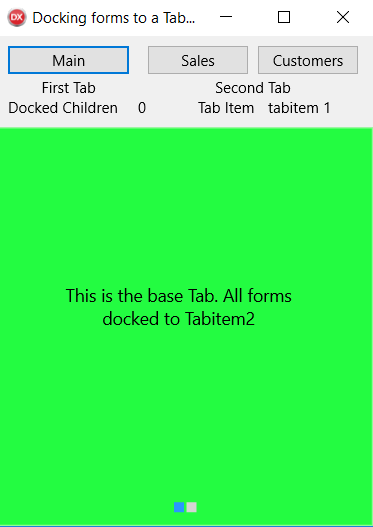
Lets take a look at the downloadable example code used for docking a Salesform to the Main Form :-
procedure Tfmmain.SalesClick(Sender: TObject);
var
i:integer;
childform:Tfmsales; // sets a child form of the form Sales
begin
DockLayout.ClipChildren:= true;
if DockLayout.childrencount > 0 then
begin
for i := (DockLayout.childrencount - 1) downto 0 do
begin
{$IF DEFINED(IOS) or DEFINED(ANDROID)}
DockLayout.Children.items[i].Disposeof; // frees any children if already set
{$ELSE} // Windows
DockLayout.Children.items[i].Free; // frees any children if already set
{$ENDIF}
end; //frees the existing loaded form
end;
label3.Text:= '0';
childform:= Tfmsales.Create(self); //Creates the childform.
childform.layoutsales.Parent:= Self.DockLayout; //set childform to the parent
tabcontrol1.activetab:= tabitem2;
label3.text:=DockLayout.childrencount.tostring;
end;
The two different Docked Forms…
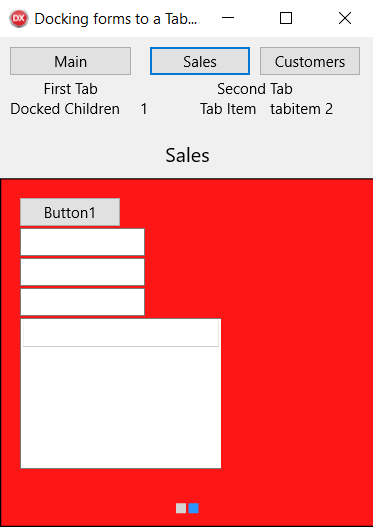
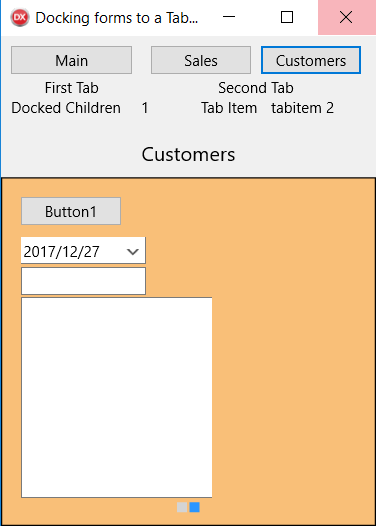
It is really is easy once you understand the Parent / Child relationship.
Happy Coding