

Catalog · How the catalog works
PerceptronPente

Experimental approach to use pattern matching with adaptive learning to train a computer to play Pente board game.
- ★ 3 on GitHub
Anyone may press Interesting, signed in or not. It helps others find this project.
README
Perceptron Pente
Version 2.2.0+20260927 (Version Release Notes)
Perceptron Pente is an open source implementation of the Pente board game that uses simplified neural network inspired artificial intelligence pattern matching.
The game can be played by two human players, by a human against the computer, or by several computer players in a randomized tournament format.
The pattern matching appproach is loosely based on the Single Layer Perceptron developed during early research into neural networks.
For each computer player within the current game, a set of Perceptron pattern match definitions are used to assign a numerical weight to each open board position. During each computer player move, the computer places its piece on the board position with the highest weight.
After each game ends, the program performs partial mutations on some of the players' Perceptron sets. The type of mutations differ for the winning vs. the losing player. One aspect of the mutation algorithm increases the weighting preference for the most used Perceptron after a winning game.
The goal is to slowly accumulate beneficial mutations that improve the strength of one or more computer players over time. The program supports unattended sessions of multiple Auto Play games between several computer players, usin a randomly selected pair for each game.
To support this long-term strategy across multiple sessions, the program allows the current state of the players' Perceptron sets to be saved to a JSON text file. The program can reload a previously saved JSON file to continue evolving the computer players' Perceptron sets.
Note: When loading a JSON file previosly saved by Version 1 of the software, the current version loads the prior White player as Plyr 1, the prior Black player as Plyr 2, and randomly generates additional players to complete the tournament roster.
The Pente Perceptron Viewer is a companion project that displays the Perceptron matching patterns loaded from a JSON text file previously written by the Perceptron Pente program.
The program allows the human player to play against either of the current computer players. This allows independent assessment of the computer player strengths. It may also provide forcing feedback to influence the computer's Perceptron set mutations.
About the Software
The software is a self-contained executable program, written in Free Pascal, that runs on Microsoft Windows or Ubuntu Linux (and presumably other Linux distributions).
(No separate run-time environment is required to run the program.) The Lazarus Integrated Development Environment was used to develop the program. (Both Free Pascal and the Lazarus IDE are free open-source software products.)
Downloading and Running the Program
Microsoft Windows
You can run the Perceptron Pente program on Microsoft Windows as follows:
- Download the PerceptronPente.exe binary executable file from the bin sub-folder from this GitHub.com page.
- To uninstall the program, simply delete the PerceptronPente.exe file.
Ubuntu Linux
You can run the Perceptron Pente program on Ubuntu Linux (and presumably other Linux distributions) as follows:
-
Download the PerceptronPente binary executable file (with no file extension) from the bin sub-folder from this GitHub.com page.
-
Ensure the PerceptronPente file has the executable permission. From a Files window, right-click the file, select Properties, and use the Permissions tab to enable the Execute permission. To do this in a Terminal window, use the following command:
chmod +x PerceptronPente
-
To uninstall the program, simply delete the PerceptronPente binary executable file.
Running the Program
In a file folder viewer, double-click the downloaded copy of PerceptronPente.exe (on Windows) or PerceptronPente (on Linux) to start the program.
When the program starts it displays the Perceptron Pente form.
Here is an image of the Perceptron Pente form during a game
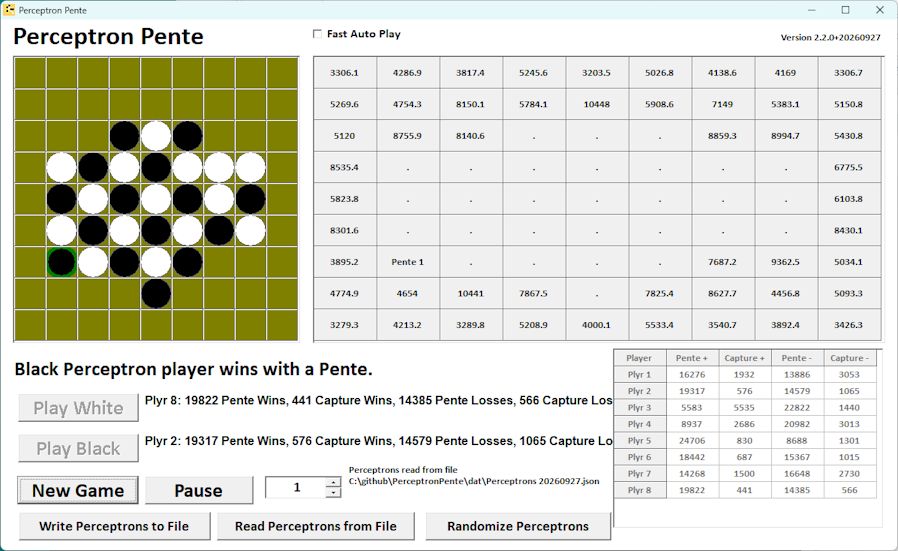
The Form contains these elements:
- The 9x9 Game Board. Left-click on any cell to make a manual move for White. Right-click on any cell to make a manual move for Black.
- The corresponding 9x9 grid showing cell move weights based on Perceptron matching scores.
- A text label showing the most recent game winner.
- Click the Play White button to have the computer make a move for White based on Perceptron pattern matching. The Wins and Losses statistics for White appear next to this button.
- Click the Play Black button to have the computer make a move for Black based on Perceptron pattern matching. The Wins and Losses statistics for Black appear next to this button.
- Click tne New Game button to clear the Game Board to start a new game. Two computer players are randomly selected from the roster of tournament players.
- Click the Auto Play button to have the computer play both players agains each other until one wins. The spin edit control determines how many successive Auto Play games to play. Type a number, or use the up or down arrow to set the value.
- Click the Write Perceptrons to File button to save the current Perceptron sets for all tournament players to a JSON text file. A file save dialog will appear.
- Click the Read Perceptrons from File button to load all tournament players' Perceptron sets from a previously saved JSON text file. (The dat sub-folder contains a pre-evolved JSON text file.)
- Click the Randomize Perceptrons button to generate new random Perceptron sets for all tournament players.
- A small grid showing the current roster of tournament computer players and their associated win/loss statistics.
When the program first starts, the Randomize Perceptrons feature is automatically executed. You may wish to reload the player Perceptron sets from a previously saved JSON text file.
Notes on Auto Play:
- While an Auto Play session is in progress. the Auto Play button changes into a Pause button.
- As each game completes, the winnning move (if the game is not a draw) is highlighted with a green border. A slight pause occurs before the next game to allow for visual review of the game results. However, if Fast Auto Play is checked, each successive game starts immediately.
- Click the Pause button to suspend the Auto Play session. The button returns to Auto Play.
- You can finish the paused game using manual moves in the Game Board, or by clicking the Play White or Play Black buttons, to continue additional turns in the current game. Click the Auto Play button to resume automatic play.
- The spin edit control may not accept typed values on Ubuntu Linux, due to a GTK Toolkit incompatibility. You can still use the up or down arrow to set the number of Auto Play games.
Source code compilation notes
Download the Lazarus IDE, including Free Pascal, from here:
After installing the Lazarus IDE, clone this GitHub repository to your local disk. Then double-click on the src\PerceptronPente.lpr project file to open it in Lazarus.
Note: Using the debugger in the Lazarus IDE on Windows 10 might require the following configuration adjustment:
When Lazarus includes debugging information the executable file is relatively large. When ready to create a release executable, the file size can be significantly reduced by selecting the menu item Project | Project Options ... and navigating to the Compile Options | Debugging tab in the resulting dialog window. Clear the check-mark from the Generate info for the debugger option and then click the OK button. Then rebuild the executable using the Run | Build menu item (or using the shortcut key-stroke Shift-F9).
Release Notes
Version 2.2.0
- Outline the winning move with a green border.
- Provided an additional Perceptrons data file Perceptrons 20260927.json resulting from many AutoPlay tournament rounds.
Version 2.1.0
- Added a check box option for Fast Auto Play to skip the short delay between games to support faster evolution of Perceptron players. (The delay normally occurs during Auto Play to allow the user to quickly review the results of each game.
Version 2.0.0
- Support a multi-player tournament, with 8 computer players, rather than the simple White vs. Black structure of Version 1.
- Correct the message displayed by the Write Perceptrons to File button to correctly show the selected JSON output file name.
Version 1.0.6
- Added small amount of random noise when comparing pattern match weights.
- Adjust "unused" Perceptron weights after win or loss.
- Focus Perceptron pattern match cells closer to center.
- Combine multiple Perceptron match weights when evaluating each board cell for a move.
- Make the first Auto Play move at the center board cell.
Version 1.0.5
- Apply Perceptron weight when evaluating pattern matches.
- Revise Perceptron weight adjustment formulas.
- Increase maximum AutoPlay count from 1000 to 10000.
- Pause 5 seconds between AutoPlay games to allow visual review of win.
Version 1.0.4
- Adjusted Perceptron randomization and mutation logic.
Version 1.0.3
- Revised program icon.
- Corrected JSON text file output match cell indexing to include full Perceptron pattern.
Version 1.0.2
- Avoid main thread hang by using background thread for Auto Play.
- Allow Pause of Auto Play.
- Include pre-evolved Perceptrons JSON text file in the dat folder.
- Include the Windows and Linux executable files in the bin folder.
Version 1.0.1
(Flawed patch version revoked from formal release.)
Version 1.0.0
- The initial version of the software.