

Catalog · How the catalog works
BlueshModified

A modified Rainmeter skin originally created by ApexXx-SenSei
- ★ 4 on GitHub
Anyone may press Interesting, signed in or not. It helps others find this project.
README
Bluesh Modified
A modified Rainmeter skin originally created by ApexXx-SenSei.
Preview
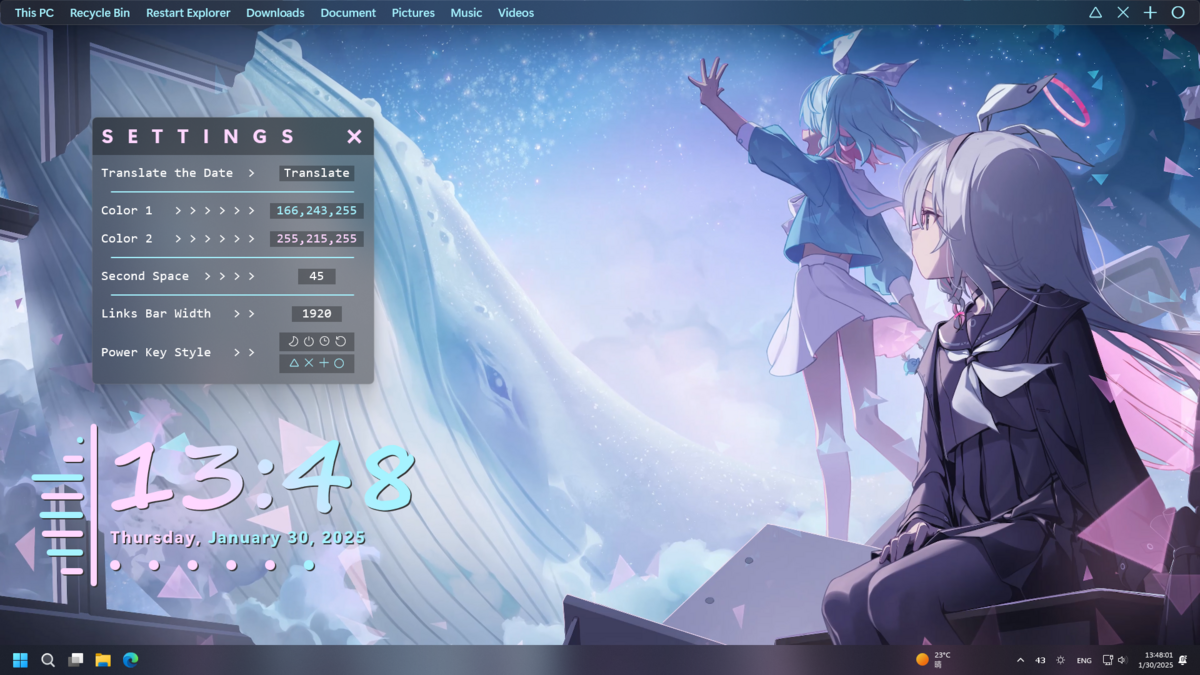
Artwork by HJ_penguin
Used Plugins
FAQ
- How to change the widget size?
- Adjust it with scroll wheel.
- What does the translate button do?
- You can change the display name of weekday and month by the translate function.
- For example,
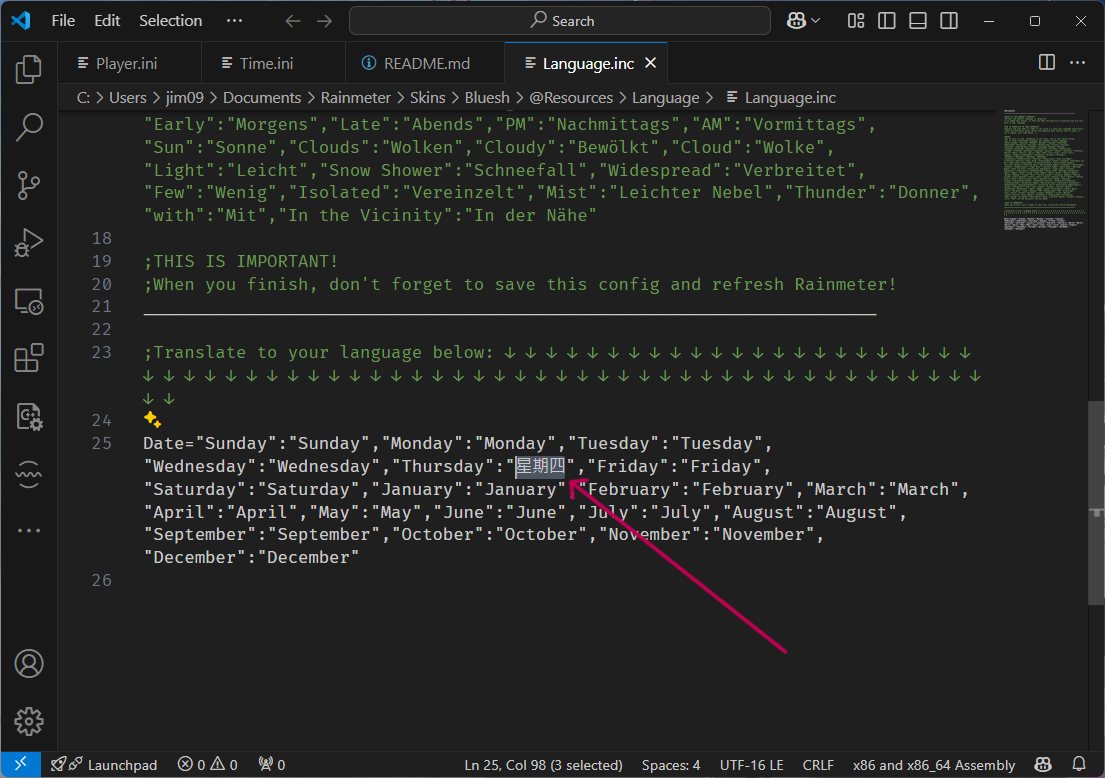
- Save the file and refresh all skin.
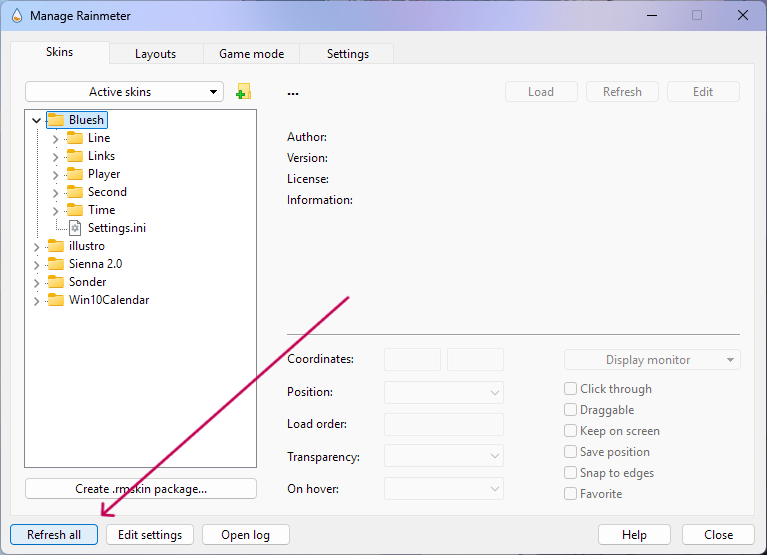
- Done.

- Why the power buttons aren't showing?
- If you are using Windows 10, you will see this:
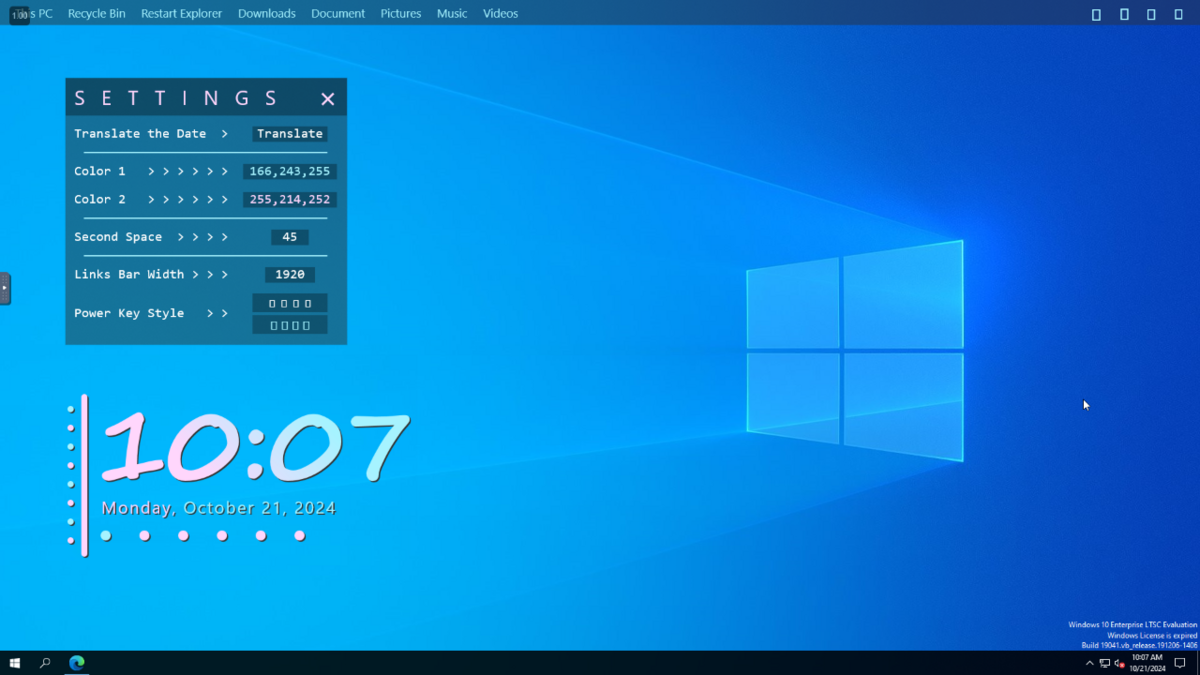
- Just find
Segoe Fluent Iconsand replace it withSegoe MDL2 Assetsin theBluesh\Links\Links.inifile. - Done.

- If you are using Windows 10, you will see this:
- Can I make the sleep button turn off my screen instead of sleeping my computer?
- Sure, just change the
[Sleep1]section in theBluesh\Links\Links.inifile or add a new button with following code. (May not work on most laptops.)
[ScreenOff1] Meter=String MeterStyle=StylePowerStyle1 X=(32*#Scale#)r Y=0r Text="[\xEA14]" LeftMouseUpAction=[#@#Addons\nircmd.exe monitor off] - Sure, just change the
- Why my shortcuts aren't working?
- In order to make those shortcuts work, you need to change the paths in the
Bluesh\Links\Links.inifile. - For example, click the edit button first.
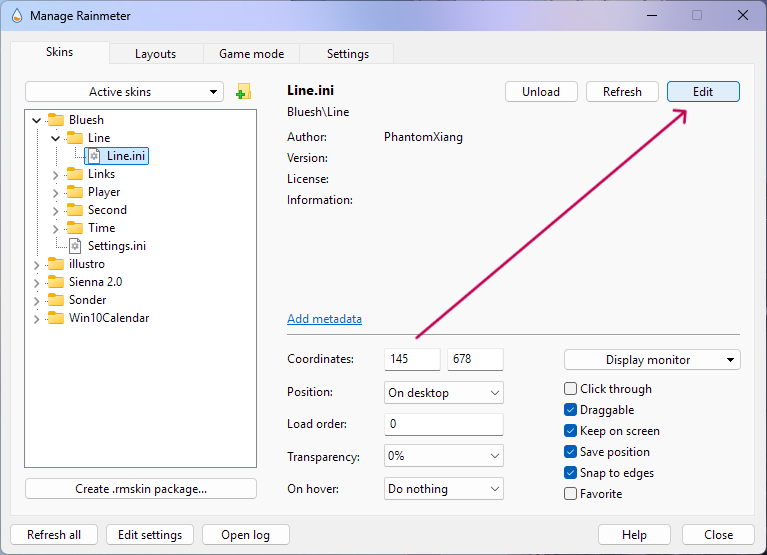
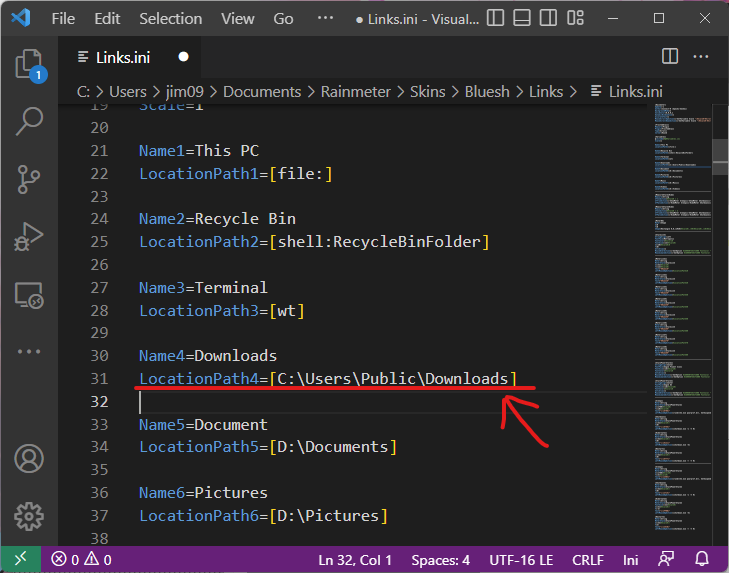
- Change the shortcut name and path to whatever you want.
- You can also add a new shortcut by adding these lines.
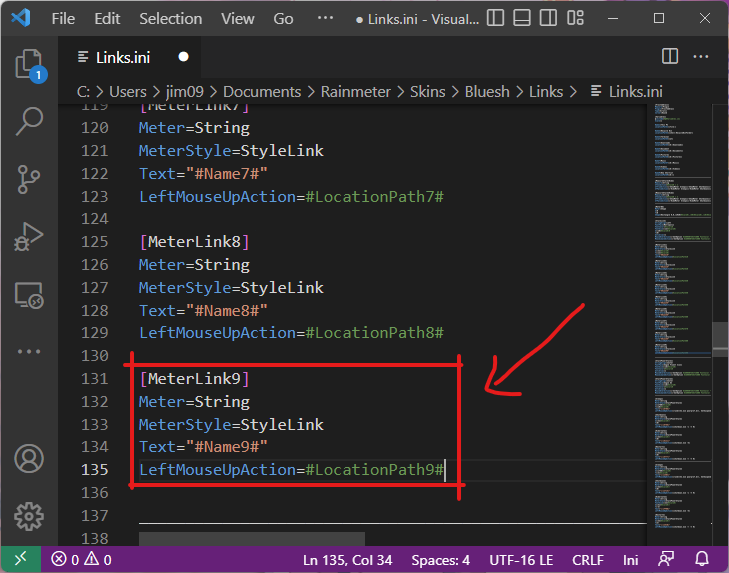
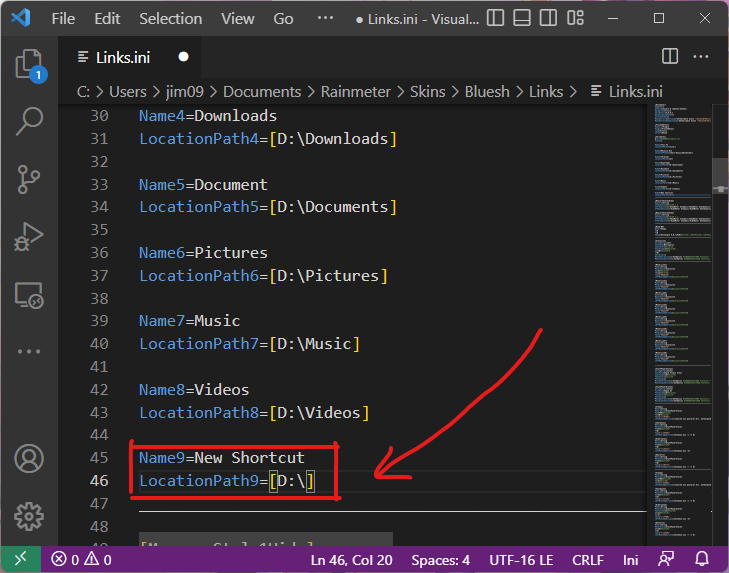
- Don't forgot to save and refresh.
- Done.\
- In order to make those shortcuts work, you need to change the paths in the
- How to read the second dots?
- The second dots are displayed in binary-coded sexagesimal, the leftmost bit is the most significant one.
- For example, the time in the following imange is 17:49:51.\
- It's originally created by FlyingHyrax.
Known Issues
The Rainmeter AudioLevel plugin prevents the computer from auto sleeping. Sadly, there is nothing I can do.
Workaround:
- Open Group Policy Editor:
- Press
Windows + R, typegpedit.msc, and press Enter.
- Press
- Navigate to the Sleep Settings:
- Go to
Computer Configuration>Administrative Templates>System>Power Management>Sleep Settings.
- Go to
- Configure the setting:
- Find and double-click on "Allow applications to prevent automatic sleep (plugged in)".
- Set it to Disabled.
- Apply and restart your computer.