

Catalog · How the catalog works
sharedMemoryClient

Dynamic link library with functions for creation, manipulation, reading, and writing in Shared Memories (Inter-process Communication - IPC). The entire creation process and errors found and resolved are documented.
- ★ 3 on GitHub
Anyone may press Interesting, signed in or not. It helps others find this project.
README
SharedMemoryClient
SMClient is a project that offers dynamic link libraries (*.dll) with functions for creating, reading, writing, and releasing virtual memories. Shared Memories is a type of Inter-process Communication (IPC) that allows two or several programs to access a memory location making it possible to transfer data between processes and/or between applications.
Content
The project is split into two parts: Executable files that are ready to be used.
- Admin Panel
- Libraries
- Help & Examples
Source codes that can be studied and modified.
- Src
- SMPanel
- SMClient
Quick Start
To perform a quick test of Shared Memory Client we need:
- The shared memory creation and management panel (Admin Panel)
- The dynamic link library (Libraries)
- Sample codes in the language or application we want (Help & Examples)
Usage
We will review an example where Matlab stores two values (Integer and Floating) in the Shared Memory, and then reading those values from a C# project.
In the folder called Libraries, you will find a compiled library for 32-bits (compiled and tested in calling convention stdcall, fastcall, and cdecl) and 64-bits, all the information about compatibility of the library with different languages programming and application can be reviewed in the Wiki - here.
Administration Panel
Once we have downloaded the necessary folders and files, the first task is to run the panel for creating shared memories "Admin Panel\smProject.exe". In this administration panel, we can perform the following actions:
- Specify the shared memories that we want to create, for which we need to establish: Name of the shared memory (Name), number of values to be stored (Quantity), and the type of value to be stored (Type).
- Create and release the specified shared memories.
- View the data that is stored in the shared memories.
- Save and load our memories configurations.
For quick use of the examples, you should load the sample memory scheme "File-> Open" (the name of the file is "exampleCreation.sav") and then initialize the memories in "Memories-> create memories."
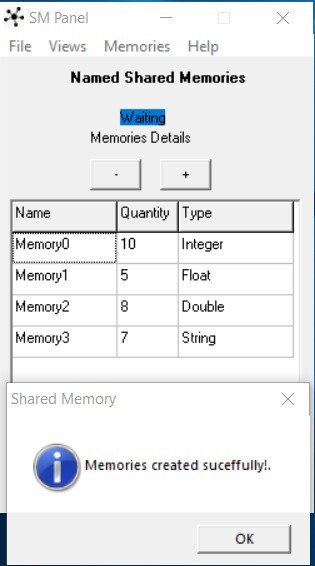
NOTE: If we want to visualize the data found in the shared memories, we can open the viewer in "Views-> Visualize".
Client library
The next step is to choose which programming language or application we want to test reading and writing in shared memories, the available examples are:
NOTE: All examples are fully documented, here is only a small explanation so that the reader can appreciate how the use is.
- C# (Visual Studio Standard and Unity3D)
- C/C++
- Excel
- Java
- Matlab
- Python
- Visual basic
NOTE: In all the examples the steps to follow are the same:
- First we need to Load de Dynamic Link Library (For 32-bits or 64-bits) depending on your application. The library (*.dll file) must be stored in the same place as the executable or it can be in the System32 folder.
- Then we must open the shared memory by calling the openMemory function, specifying the name of the memory and the type of memory (Integer = 1; Floating = 2; Double = 3; Char[64] = 4). We must open all the memories needed to work.
- Once the memory(s) are open, we can read and/or write to it using the function corresponding to each type of variable (Integer, float, double, char *).
A more detailed explanation about the functions can be found in the source code file or in the Wiki - Clic here.
Matlab Example
Example of using the dynamic link library in Matlab.
- Loading the Dynamic Link Library.
If we want to use a 64-bit Matlab, we load "smClient64.dll", the library must be either, in the path that is exploring Matlab, in a Windows installation folder or in a folder added to the operating system PATH. The file "smClient.h" must be in the path that is exploring Matlab.
- smClient64.dll is located in "Libraries\64Bits\smClient64.dll"
- smClient.h is located in "Help & Examples\Matlab\smClient.h"
In our example, the library and the header files will be in the Desktop, path that Matlab need to explore.
For more information you can check the Matlab.m sample file.
NOTE: If you have any message such us "No supported compiler was found", or any problem, you can check the help on the Wiki page - Clic here.
loadlibrary('smClient64.dll','smClient.h')- Then, we need to open the memory or the shared memories we want to work with. For example, open an Integer memory (1 means Integer Memory). If the shared memory is opened correctly, the value zero (0) is returned.
calllib('smClient64','openMemory','Memory0',1)Open a Float memory (2 means Float Memory)
calllib('smClient64','openMemory','Memory1',2)- We can read and/or write in memory.
Write the value 30 in the memory "Memory0" (position 2)
We can verify that the value was written correctly by displaying in the Shared Memories Administration Panel.
calllib('smClient64','setInt','Memory0',2,30)Write in the memory "Memory1" in position 1 the value 30.1204
calllib('smClient64','setFloat','Memory1',1,30.1204)C# Example
Example of using the dynamic link library in C # project of console type, we will use Visual Studio 2017.
- Load the Dynamic Link Library and all the functions that we are going to use. The first step is to specify the location of the library. In our case we have the library stored on the desktop.
Then, to access each of the functions of the dynamic link library, c# needs to know how to access to these ones. For this reason, we declare the function structure: we will use the functions of "Open a memory", "read an integer value", "read a floating value", and the last function to "free views".
using System;
using System.Runtime.InteropServices;
namespace test
{
    class Program
    {
        const string dllPath = "C:\\Users\\Eros\\Desktop\\smClient64.dll"; //Dll Path

        [DllImport(dllPath)]
        static extern int openMemory(String name, int type);

        [DllImport(dllPath)]
        static extern int getInt(String memName, int position);

        [DllImport(dllPath)]
        static extern float getFloat(String memName, int position);

        [DllImport(dllPath)]
        static extern void freeViews();

        static void Main(string[] args)
        {
        }
    }
}- Consequently, we need to open the memory or the shared memories we want to work with. Open an Integer memory (1 means Integer-type Memory) and the float memory (2 means Floating-type memory). If the shared memory is opened correctly, the value zero (0) is returned. We add this code to the static void Main(string[] args) function. So far, the execution must have no errors.
int retOpen = openMemory("Memory0", 1);
Console.WriteLine(retOpen);

retOpen = openMemory("Memory1", 2);
Console.WriteLine(retOpen);
NOTE: If we get an error of type System.BadImageFormatException when we try to run the example, the reason is possibly because the architecture of our library does not correspond to that the IDE wants to compile.Check the documentation on our wiki to fix it.
- Now we can Write/Read in the shared memories.
The codes used for getting the values which were saved from Matlab are these.
Read in the Integer memory "Memory0" in position 2.
int intValue = getInt("Memory0", 2);
Console.WriteLine(intValue);
Read in the Float memory "Memory1" in position 1.
float floatValue = getFloat("Memory1", 1);
Console.WriteLine(floatValue);
Now, just run our example and visualize the data that Matlab shared with us. If the window closes without giving us the opportunity to view the data, we should only put a little pause at the end of our example and then we can release the views that were created towards shared memories.
Console.ReadLine();
freeViews();
Result
Following the steps correctly, Matlab stores numbers in an Integer type memory and also floating numbers in a floating type memory. In the same way, these values are read in Unity3D/C#.
Note: For more information on the available functions, you can read the Wiki page or in the example codes, where the respective explanations to each code fragment are commented.
Wiki
All the necessary information is documented in the source codes of the examples, but if you want to review some more documentation about the project, you can check the Wiki page here