

Catalog · How the catalog works
NppESPHome-Plugin

A Notepad++ plugin to directly interact with ESPHome and manage related projects in Windows environment.
- ★ 5 on GitHub
Anyone may press Interesting, signed in or not. It helps others find this project.
README
NppESPHome Plugin
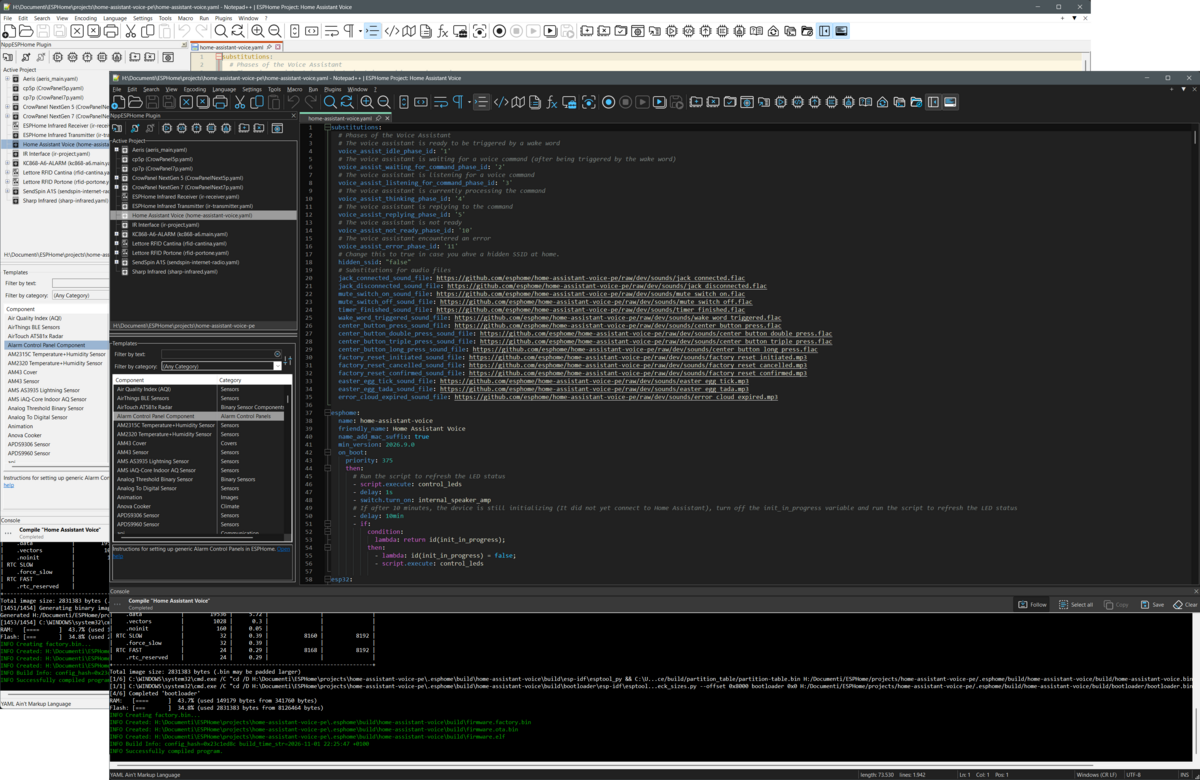
NppESPHome is a Windows plugin written in Delphi that integrates common ESPHome workflows into Notepad++. It manages multiple projects and their related files, builds project-specific ESPHome command lines, provides configurable native toolbars, inserts reusable YAML snippets from an XML template library, and can run ESPHome in an interactive dockable console backed by Windows ConPTY.
The plugin is a front end for the ESPHome command-line tools. It does not replace ESPHome and does not include the ESPHome runtime.
Highlights
- Multiple ESPHome projects with a persistent current-project selection
- Recursive YAML/include validation and extraction of project metadata
- Automatic dependency discovery plus unrestricted manual dependency management
- Direct Run, Compile, Upload, Logs, Clean, and Clean-All commands
- Interactive dockable console with ANSI colors, UTF-8 output, keyboard input, live status, elapsed time, and process controls
- Automatic external-console fallback when ConPTY is unavailable or the dockable console is hidden
- Per-project command, target, auto-save, and console options
- Dockable project and template window synchronized with the active document
- XML-based, searchable, and editable YAML template library
- Configurable Notepad++ toolbar with persistent order and visibility
- Light and Dark mode integration, including toolbar icon-set changes
- Shortcuts for ESPHome documentation, upgrade, terminal, and File Explorer
Requirements
- Windows
- Notepad++ with the same architecture as the plugin DLL (
Win32orWin64) - ESPHome installed and
esphome.exeavailable through the WindowsPATH - Notepad++ 8.0 or newer for custom toolbar configuration
The integrated console uses the Windows Pseudoconsole API (ConPTY), available on Windows 10 version 1809 and newer. On systems without ConPTY, or when the dockable console is hidden, commands continue to work in a standard external Windows console.
The presence of esphome.exe is checked when an ESPHome command is invoked.
The Upgrade ESPHome utility first looks for pip.exe beside the detected
ESPHome executable, so the matching Python environment is preferred. It falls
back to a pip.exe available through the PATH.
See the ESPHome installation guide and the Notepad++ manual plugin installation guide.
Installation
- Download the DLL for the architecture of your Notepad++ installation from
the
Bindirectory. - Create a plugin subdirectory named
NppESPHomebelow the Notepad++ plugin directory. - Copy the DLL to:
<Notepad++>\plugins\NppESPHome\NppESPHome.dll - Restart Notepad++.
The plugin creates its INI and template files in the configuration directory provided by Notepad++ rather than beside the installed DLL.
Getting Started
- Choose Plugins → NppESPHome → Add Project and select an existing ESPHome YAML project file. Enable Add dependencies automatically in the file dialog if the referenced local files should be registered immediately.
- Use Select Project to make one of the known projects current. The dialog shows a compact friendly-name list and the full path of the selected YAML file separately.
- Open Configure Project to select command, target, auto-save, and console options.
- On the Project configuration page, use Auto to discover referenced files, Add to register any other file manually, or Clear all to remove every dependency association without deleting files from disk.
- Enable Show/Hide ESPHome Console if you want commands to run in the integrated docking form.
- Execute an ESPHome command from the plugin menu, the Notepad++ toolbar, or the dockable project window.
- Double-click a template to insert its YAML at the current editor selection.
Removing a project or dependency removes only its registration from the plugin; it never deletes the underlying file.
Project Model
When a project is added, the plugin parses the main YAML file and recursively
follows local YAML !include directives and local packages. It accepts the
project when the resulting configuration contains:
- a non-empty
esphome.name; - one supported top-level platform:
esp32,esp8266,bk72xx,ln882x,rp2040,rtl87xx, orhost.
Values referenced as $name or ${name} are resolved from substitutions,
including nested substitutions and variables supplied by include mappings.
Package defaults fill missing values without overriding values inherited from
the main project. Local include paths are resolved relative to the file that
contains them; missing files, circular include chains, and YAML parsing errors
invalidate the project. Empty included package files are accepted as valid
no-ops, matching ESPHome behavior. Top-level hidden blocks and !remove
directives are respected.
The parser extracts the friendly name, microcontroller family and variant,
board, framework, and the presence of Wi-Fi, Ethernet, Web Server, the native
ESPHome API, MQTT, OTA, captive portal, and logger components. When an ESP32
variant is omitted, it can also be inferred from the board name. If
esphome.friendly_name is absent, the project name is used for display. The
configuration header presents the available values and enabled features as
compact, dynamically arranged badges.
Automatic dependency discovery deliberately uses an inclusion list:
- local
!includeand package files:.yamland.yml; esphome.includesandesphome.includes_c: C/C++ headers, sources, template files, and include fragments;web_server.css_includeandweb_server.js_include:.css,.js, and.mjs;- local
external_components: Python and C/C++ source files from the selected component directories; - existing local
.txtand.csvfiles referenced by the configuration.
Secrets, certificates, keys, SVG files, remote sources, unresolved dynamic paths, and unsupported binary assets are not added automatically. YAML files are placed first, followed by the other files in discovery order, with duplicates removed. This whitelist applies only to automatic discovery: manual Add remains unrestricted and can register any existing file.
Each known project can have an arbitrary list of dependency files. The docked tree displays those files below their owning project, can open the complete set in one action, and can save them together before running ESPHome.
Activating either a main YAML file or one of its registered dependencies makes the owning project current. The selection in the docked tree, command state, plugin menu, toolbar, and project suffix in the Notepad++ title are updated accordingly.
ESPHome Commands
Every command runs in the current project's directory and passes the absolute
project filename to esphome.exe.
| Command | Generated ESPHome command | Project-specific options |
|---|---|---|
| Run | run |
Target device, --reset, --no-logs, --no-states, extra parameters |
| Compile | compile |
--only-generate, extra parameters |
| Upload | upload |
Target device, extra parameters |
| Logs | logs |
Target device, --reset, --no-states, extra parameters |
| Clean | clean |
Extra parameters |
| Clean-All | clean-all |
Requires explicit confirmation |
The selected ESPHome log level is added before the command with -l and can be
Critical, Error, Warning, Info, Debug, or Default. A
separate global extra-parameters field is also inserted before the command;
Run, Compile, Upload, Logs, and Clean also have their own
additional-parameters fields.
Target Device
The target is stored per project and can be:
- None, which leaves target selection to ESPHome;
- one of the Windows serial
COMports listed from the system registry; - OTA, which generates
--device OTA.
The plugin enumerates serial ports when the configuration form is opened. It does not scan the network for ESPHome nodes.
Auto-Save
Before starting a command, the plugin can save:
- nothing;
- only the current project's main file;
- the project file and all registered dependencies;
- every open Notepad++ document.
Dockable Interactive Console
The ESPHome console is a separate Notepad++ docking form. Its visibility is controlled from Plugins → NppESPHome → Show/Hide ESPHome Console and is restored between Notepad++ sessions.
When this window is visible and ConPTY is supported, ESPHome commands run in
the integrated console. The plugin starts cmd.exe with /c, hosts it in a
Windows pseudoconsole, and keeps both output and keyboard input connected to
the docking form. Starting another integrated command replaces the current
integrated session.
Output and Terminal Behavior
The terminal view provides:
- UTF-8 decoding across asynchronous output chunks;
- the standard 16 ANSI colors, xterm 256-color sequences, and 24-bit RGB foreground/background colors;
- common SGR text attributes such as bold, italic, underline, and inverse;
- handling for the cursor, carriage-return, line-feed, erase-line, and other ANSI/VT sequences commonly produced by ESPHome and its build tools;
- automatic ConPTY resizing when the docking form changes size;
- horizontal and vertical scrollbars with word wrapping intentionally disabled;
- optional automatic following of the newest output, suspended when the user scrolls back and resumed with the Follow button;
- a bounded scrollback buffer: after roughly two million characters, the oldest portion is removed in line-aligned blocks.
The console is interactive. Normal text is sent to the pseudoconsole together
with Enter, Backspace, Tab, navigation keys, Insert/Delete, Page Up/Down, and
the function keys. Ctrl+V pastes clipboard text into the running process.
Ctrl+C copies an existing selection; without a selection, it sends the
interrupt character to ESPHome.
Header, Status, and Controls
The console header shows the current command and project, for example
Logs "Living Room". Its default title is Console, which is restored by
Clear.
The secondary status line reports Ready, Running, Completed, Stopped, startup failures, and non-zero exit codes. While a command is running it also shows elapsed time and a three-bar activity animation. Stopped and error states use the same red visual treatment.
The header toolbar contains:
- Select all, which selects the complete terminal contents;
- Copy, enabled only when text is selected and briefly changed to Copied after use;
- Save, which writes the rendered plain-text output to a user-selected UTF-8 log file;
- Follow, which enables or pauses automatic scrolling to new output;
- Clear, which clears the view and resets the ANSI parser without changing the state of a process that is still running;
- Stop, visible only for a running integrated command and used to close the current pseudoconsole session.
Integrated-console colors, font, font size, scrollback size, and Clear output before each command are stored separately for each project.
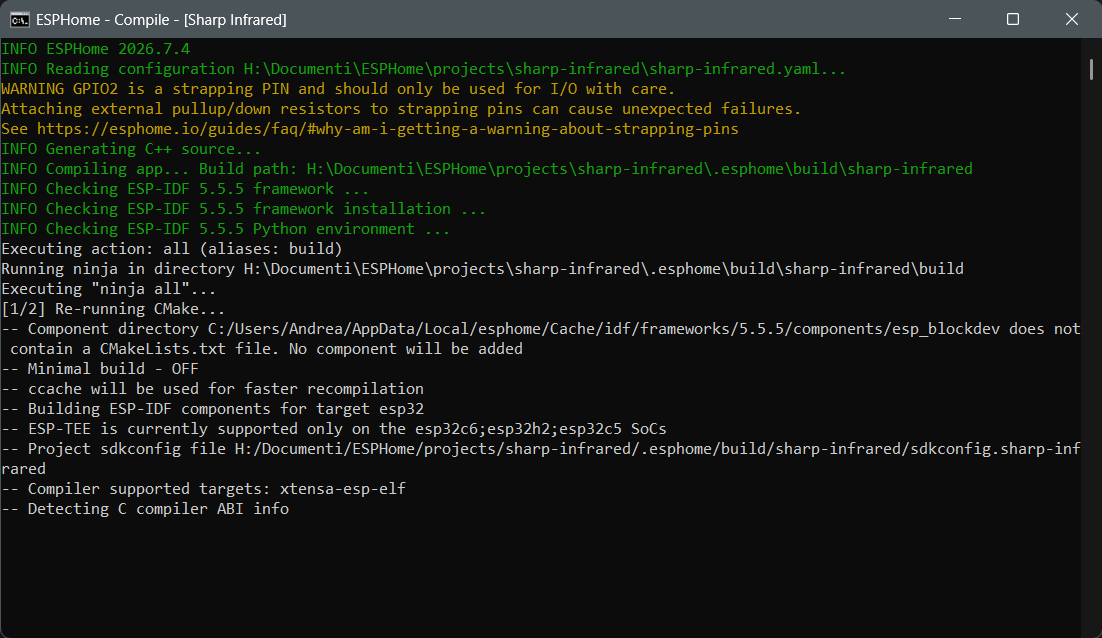
External Console Fallback
The plugin uses its original external Windows console when:
- the dockable console is hidden;
- ConPTY is not available on the current Windows version; or
- creation of the integrated session fails.
The per-project console-window options apply to this fallback:
- close after a successful command and pause on failure, or remain open;
- keep the window always on top;
- let Windows position it, center it, or place it in any screen corner;
- select the monitor used for placement;
- enable Solo Mode, which terminates the previous plugin-launched external console before starting another one.
The integrated console always invokes cmd.exe /c without appending
|| pause; completion and errors are represented by its own status line. The
plugin stops its active integrated session and its last tracked external
ESPHome process when Notepad++ shuts down.
Dockable Project and Template Window
The main plugin window is a Notepad++ docking form, not a separate project editor. It contains two resizable areas.
Projects
The project tree provides:
- project roots with platform-specific icons;
- dependency children with file-type icons;
- selection and opening of the represented file;
- add/remove project and dependency actions;
- project configuration and open-all-files actions;
- direct ESPHome command buttons;
- shortcuts to a terminal and File Explorer in the project directory.
The window visibility and the project/template splitter height are persisted. Notepad++ manages the docking side and docking layout.
Templates
Templates are loaded from NppESPHome.xml in the Notepad++ plugin
configuration directory. Each XML component contains:
<Component>
  <Name>Template name</Name>
  <Category>Category</Category>
  <OnlineHelp>https://example.com/help</OnlineHelp>
  <Description>Template description</Description>
  <YAML><![CDATA[
  # YAML inserted into the editor
  ]]></YAML>
</Component>
The browser supports:
- filtering template names as text is typed;
- filtering by category;
- displaying descriptions and optional online-help links;
- inserting UTF-8 YAML at the current selection with a double-click;
- opening the local XML file in Notepad++ for editing;
- manual reload and automatic reload after the XML file is saved;
- downloading or restoring the default XML from this repository after confirmation.
If the local XML file is missing on first load, the plugin offers to download the default template collection.
Configurable Notepad++ Toolbar
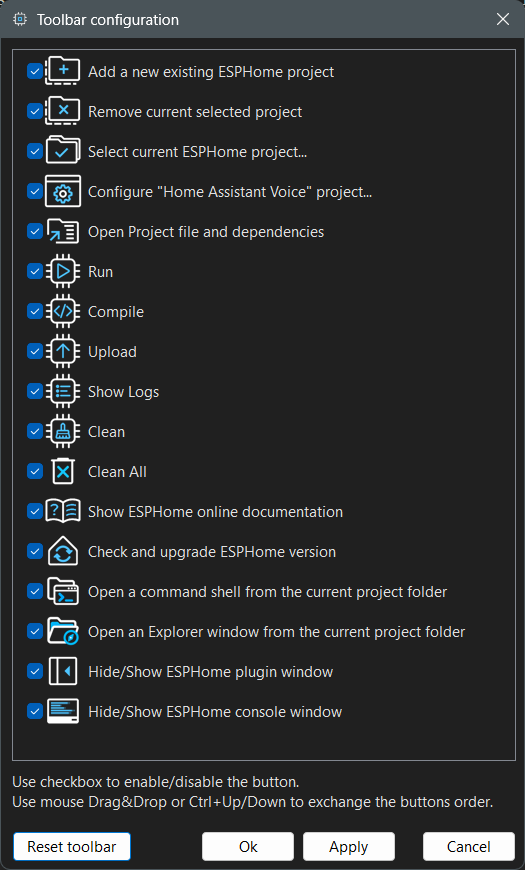
Toolbar customization is available with Notepad++ 8.0 or newer from Plugins → NppESPHome → Configure Toolbar.
The dialog and its image resources belong to NppESPHome. The reusable
TNppPlugin base class owns its command registry and optional toolbar, while
Npp.Toolbar provides layout parsing, stable command IDs,
configuration-string generation/application, and native toolbar
synchronization. Reading and writing NppESPHome.ini remains an explicit
responsibility of NppESPHome.
For every supported plugin command, the dialog can:
- show or hide its toolbar button using a checkbox;
- reorder it with drag and drop;
- move it with
Ctrl+UpandCtrl+Down; - restore the default order and visibility;
- apply and persist changes without restarting Notepad++.
The toolbar rebuild preserves the command association and enabled state. Icons are refreshed when Notepad++ switches between Light and Dark mode or changes among its Fluent UI, Filled Fluent UI, and Standard toolbar icon sets.
Menu Commands and Default Shortcuts
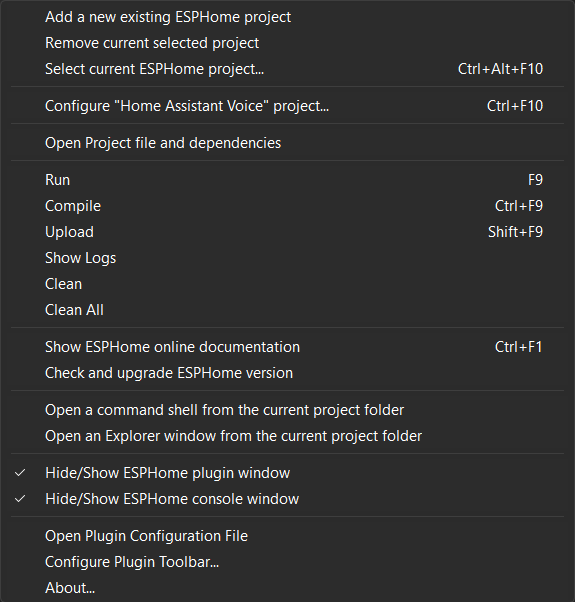
All commands are available below Plugins → NppESPHome. Notepad++ can remap their shortcuts through its Shortcut Mapper; the plugin then refreshes its dynamic Configure Project menu caption.
| Command | Default shortcut |
|---|---|
| Select Project | Ctrl+Alt+F10 |
| Configure Project | Ctrl+F10 |
| Run | F9 |
| Compile | Ctrl+F9 |
| Upload | Shift+F9 |
| ESPHome Documentation | Ctrl+F1 |
Other menu entries include adding/removing projects, opening project files, Logs, Clean, Clean-All, upgrading ESPHome, opening a project terminal or File Explorer, independently showing/hiding the project and console docking forms, opening the plugin configuration file, configuring the toolbar, and About.
The terminal starts in the project directory and receives two convenience environment variables:
ESPHome=<absolute path to esphome.exe>
ESPProject=<absolute path to the current project YAML>
Upgrade ESPHome runs pip.exe install --upgrade esphome, then displays the
installed ESPHome version. It uses the integrated console when that window is
visible and ConPTY is available; otherwise it opens a standard external console
and keeps it open so the output and errors remain readable. ESPHome
Documentation opens the official component documentation in the default
browser.
Configuration and Persistence
The plugin uses the configuration directory reported by Notepad++.
| File | Stored data |
|---|---|
NppESPHome.ini |
Known/current projects, dependencies, per-project command and console options, project/console docking-form visibility, splitter size, and toolbar configuration |
NppESPHome.xml |
User-editable YAML template collection |
Each project is stored in an INI section named with the absolute path of its main YAML file. Removing a project also removes its corresponding settings section. Plugins → NppESPHome → Open Plugin Configuration File saves any pending INI changes, creates the file if necessary, and opens it directly in Notepad++.
Screenshots
Click a preview to open its dedicated large-view page. Each page includes a link back to this README.
| Dockable window | Project selection | Project configuration |
|---|---|---|
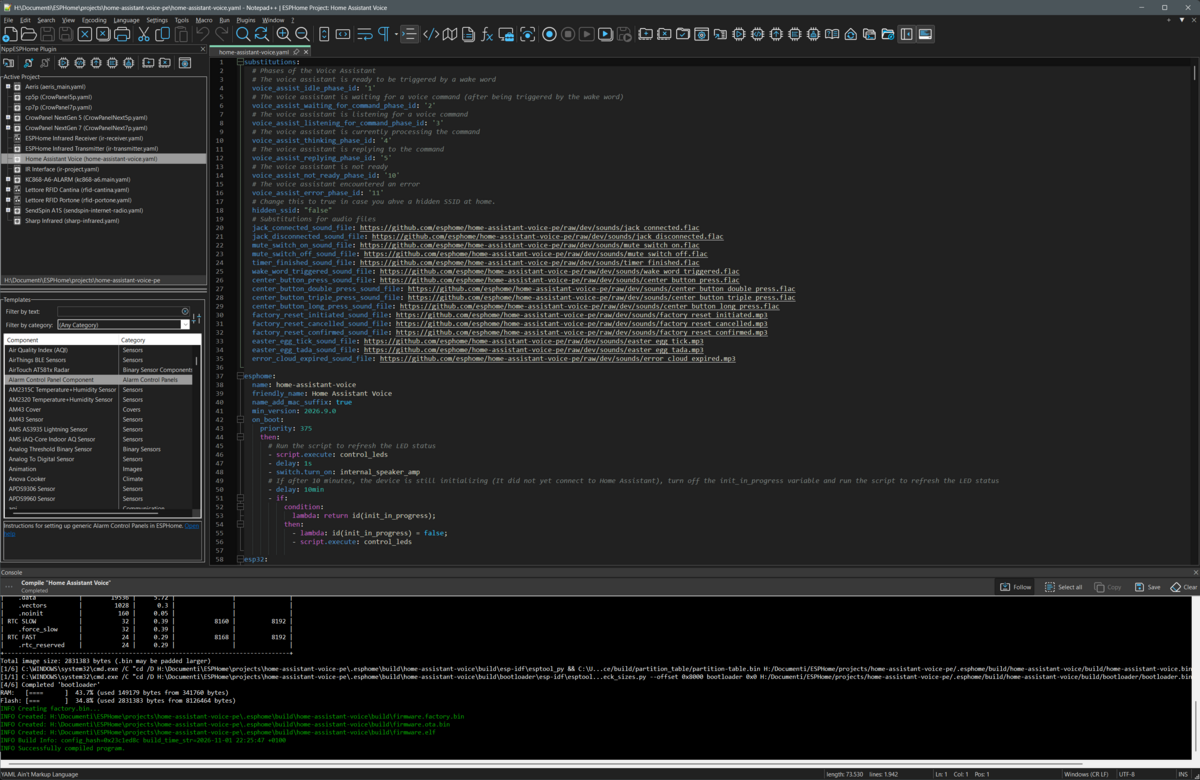 |
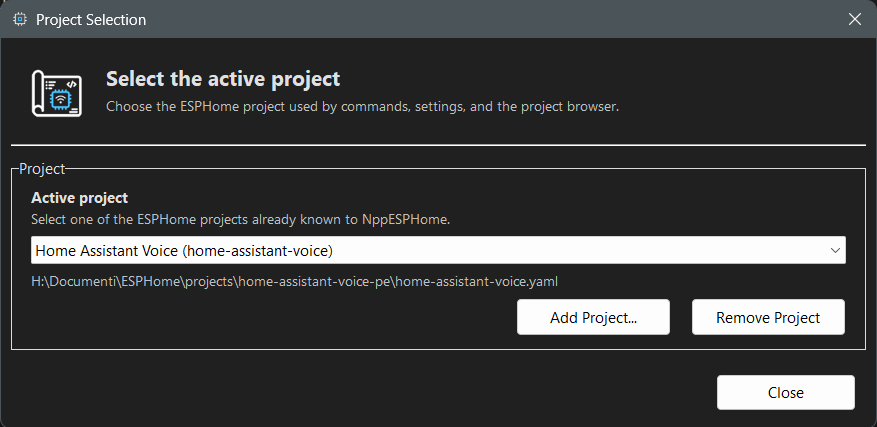 |
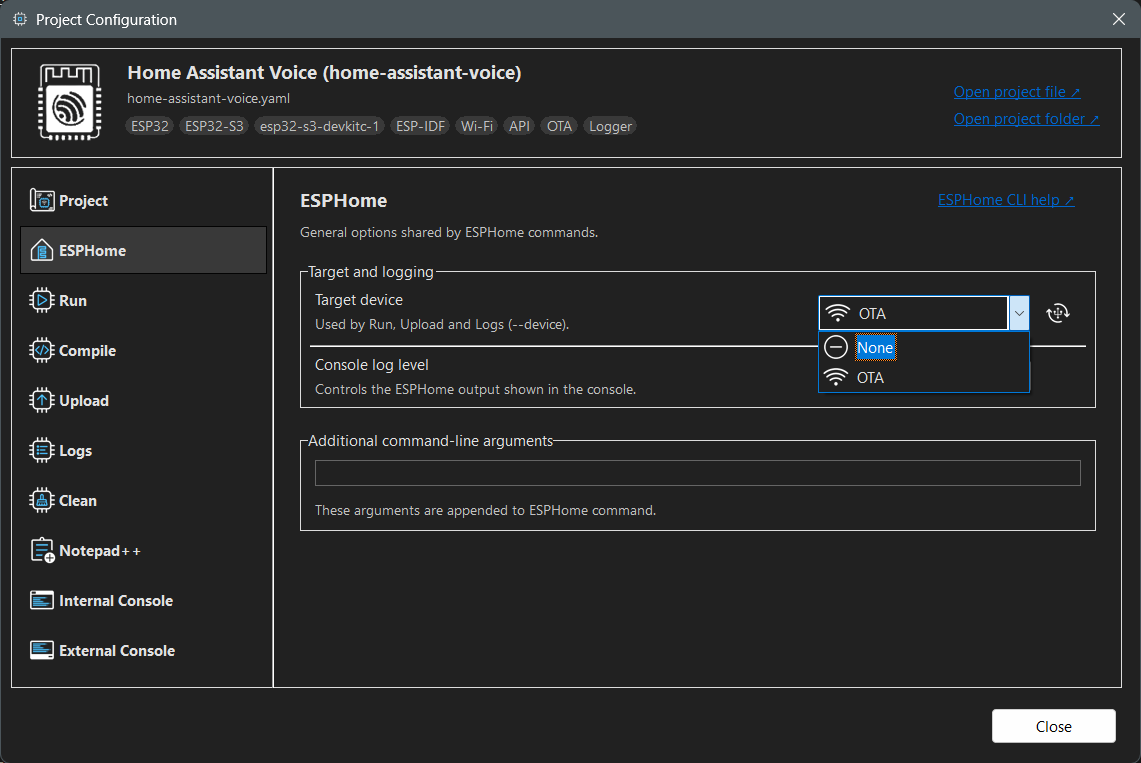 |
| Menu integration | External console fallback | Toolbar configuration |
|---|---|---|
 |
 |
 |
Building from Source
The Delphi project is in Source, with shared Notepad++ plugin base
classes in Lib, bundled third-party source and object files in
External, default snippets in Templates, and
prebuilt DLLs in Bin.
The reusable framework has a dedicated
Lib API and usage guide, including a complete plugin
example, command and toolbar lifecycle, method reference, ownership rules,
normal/docking VCL forms, and integration of an application-owned toolbar
configuration UI.
The current development baseline is:
- Delphi 13.2 / compiler 37.0
- Notepad++ 8.8.3
ESPHome is an external runtime discovered through PATH; the plugin source is
not tied to a specific ESPHome release.
The project builds Win32 and Win64 configurations and adds Lib and
External to the Delphi unit search path.
The Notepad++ plugin base was partially derived from and adapted from NppUISpy 1.2. Third-party libraries and components used by the project include:
- Virtual-TreeView 8.3
- Neslib.Yaml, backed by LibYAML 0.2.5
- JEDI Visual Component Library 3.50
- Task Dialog Message Box with Fluent Interface
Delphi packages that are not bundled in the repository must be installed or available through the compiler's library search path.
Contributing
Bug reports, feature proposals, and pull requests are welcome. For significant changes, opening an issue first makes it easier to agree on behavior and scope.
License
The source code is released under the Mozilla Public License 2.0.
Copyright © 2025–2026 Andrea Tiburzi This Source Code Form is subject to the terms of the Mozilla Public License, v. 2.0. If a copy of the MPL was not distributed with this file, you can obtain one at [http://mozilla.org/MPL/2.0/](http://mozilla.org/MPL/2.0/))