

Catalog · How the catalog works
barev-im

A GUI for the Barev protocol built with Lazarus/Free Pascal.
- ★ 5 on GitHub
Anyone may press Interesting, signed in or not. It helps others find this project.
README

Barev IM [ընկեր]
A graphical user interface for the Barev protocol built on top of the barev-pascal library. (Trying to learn Pascal :D)
Demo
https://github.com/user-attachments/assets/d9de5b59-ab5b-4d9a-a85c-a9dde32503db
Requirements
- Lazarus IDE (or Free Pascal Compiler with LCL)
- barev-pascal library (https://github.com/norayr/barev-pascall
- Yggdrasil network connection
Getting Started
-
Enter Your Details
- Fill in your nickname in the "My Nick" field
- Enter your Yggdrasil IPv6 address in the "My IPv6" field
- Set your listening port in the "My Port" field (default: 5299)
- If running multiple instances on the same machine, use different ports (e.g., 5299, 5300)
- If running in separate Docker containers, all can use 5299
- Click "Connect" to start the client
-
Add Buddies
- Click "Add Buddy" button
- Enter buddy's nickname
- Enter buddy's IPv6 address
- Enter buddy's port (default: 5299)
- The buddy will appear in the buddy list
-
Remove Buddies
- Select a buddy from the list
- Click "Remove Buddy" button
- Confirm deletion
- Buddy will be removed from list and saved configuration
-
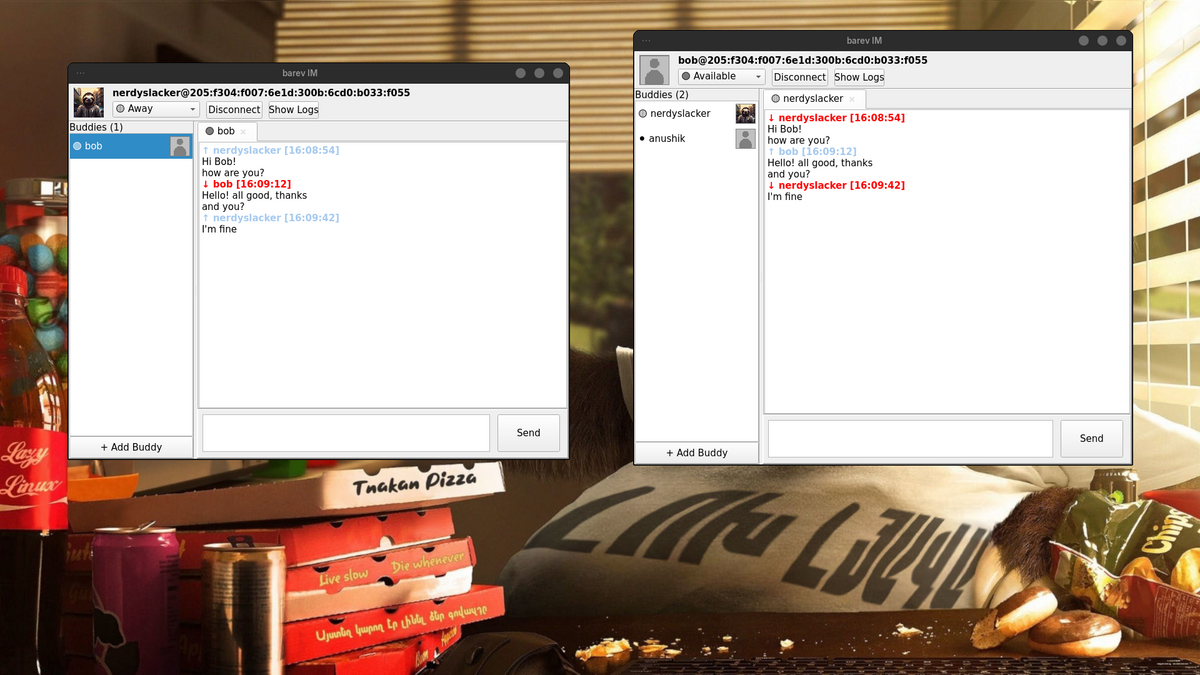
Start Chatting
- Double-click a buddy in the buddy list to connect
- Type your message in the text field at the bottom
- Press Enter or click "Send" to send the message
- Messages appear in the chat window with timestamps
Configuration and Persistence
The application automatically saves your settings to a configuration file:
Linux/Unix: ~/.barev/barev.ini
Configuration File Format
[User]
Nick=nerdyslacker
IPv6=201:87ec:4df2:51d4:7fdd:d63c:95e4:ed6e
Port=5299
AvatarPath=

[Window]
AutoConnect=0

[Contact-0]
Nick=bob
IPv6=0201:87EC:4DF2:51D4:7FDD:D63C:95E4:ED6E
Port=5300
AvatarPath=
Building
Using Lazarus IDE
- Open Lazarus IDE
- Open the project file:
File -> Open -> barevim.lpr - Add the Barev units to your project search path:
Project -> Project Options -> Compiler Options -> Paths- Add the path to the Barev library units
- Build:
Run -> Build(or press Shift+F9) - Run:
Run -> Run(or press F9)
Using Command Line
# Make sure the Barev units are in your unit search path
lazbuild barevim.lpr

# Or with fpc directly
fpc -Fu/path/to/barev/units barevim.lpr