

UnitConv

Converts units of measurement data
- Active · last change 10-29-2025
- ★ 9 on GitHub
README
UnitConv - Unit Conversion Utility
UnitConv is a robust unit conversion application developed using Free Pascal and the Lazarus IDE. It provides a straightforward graphical interface for converting values between various units across different physical quantities. The project is designed with clarity and extensibility in mind, making it a good starting point for developers interested in building similar applications or extending the capabilities of UnitConv.
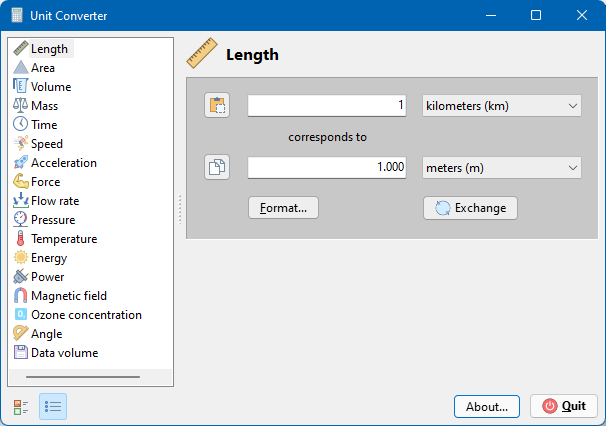
Core Functionality and Features
The primary purpose of UnitConv is to facilitate quick and accurate unit conversions. Key features include:
- Extensive Unit Support: Conversions are available for a comprehensive list of measurement types, ranging from basic physical quantities like Length, Mass, and Time to more specialized areas like Magnetic Field and Ozone Concentration.
- Intuitive User Interface: A list view allows users to select the measurement category, while dropdowns provide easy selection of the source and destination units.
- Real-time Conversion: As the user types a value into the source field, the application automatically calculates and displays the converted result.
- Flexible Formatting Options: Users can customize how numerical results are displayed, controlling the number of decimal places and the use of decimal and thousand separators. This is managed through a dedicated "Format" dialog, implemented in
src/ucFormat.pas. - Clipboard Integration: "Copy" and "Paste" buttons enable seamless transfer of numerical values between the application and other programs. The "Copy" function specifically cleans the number by removing thousand separators for easier pasting elsewhere.
- Unit Swapping: The "Flip" button provides a convenient way to reverse the source and destination units, allowing for quick reciprocal conversions.
- Persistent Settings: The application saves user preferences, including window position, the last selected measurement type and units, and formatting settings, to an INI file (
UnitConv.ini) upon closing. These settings are loaded when the application starts, managed by theReadIniandWriteIniprocedures insrc/ucMain.pas.
Real-World Applications and Problem Solving
UnitConv, while seemingly simple, can be a valuable tool in various practical scenarios. Its core function—converting between different scales and measurement systems—is fundamental in many fields. Here are some ideas for how this project can be used to solve problems in the real world:
- Engineering and Manufacturing:
- Problem: Engineers often work with specifications or designs that use units from different systems (e.g., metric and imperial). Converting measurements accurately is critical for design compatibility and manufacturing precision.
- Solution: Use UnitConv to quickly convert dimensions (Length, Area, Volume), forces, pressures, or flow rates specified in one unit system to another, ensuring that components fit together correctly and systems operate as intended.
- Example: Converting blueprints from feet and inches to meters and millimeters for manufacturing in a facility that uses metric machinery. Converting pressure readings from PSI to Pascal for compatibility with sensor data.
- Science and Research:
- Problem: Scientific data and research papers frequently use a wide variety of units depending on the discipline or historical context. Researchers need to convert data to a consistent system (like SI units) for analysis and comparison.
- Solution: UnitConv can convert scientific measurements such as energy (Joules, eV), magnetic fields (Tesla, Gauss), temperature (°C, °F, K), and fundamental constants used in calculations.
- Example: Converting experimental temperature data recorded in Fahrenheit to Celsius or Kelvin for thermodynamic calculations. Converting energy values from electronvolts to Joules for comparing results with other experiments or theoretical models.
- Cooking and Recipes:
- Problem: Recipes from different regions or sources may use different units for volume or weight (e.g., milliliters vs. fluid ounces, grams vs. pounds). Scaling recipes also requires accurate conversions.
- Solution: Use the Volume and Mass converters to easily adapt recipes.
- Example: Converting liquid measurements from US gallons/fluid ounces to liters/milliliters for a European recipe. Converting ingredient weights from pounds to grams.
- Travel and International Trade:
- Problem: When traveling or dealing with international suppliers/customers, understanding quantities, distances, and prices based on different units is essential. Fuel consumption, speed limits, currency exchange (though not directly supported by current units, the structure allows for such additions), and product dimensions all use varying units globally.
- Solution: UnitConv's Speed, Length, Volume, and Fuel Consumption categories are directly applicable.
- Example: Converting a car's fuel efficiency from miles per gallon (US or UK) to liters per 100 km. Converting distances in miles to kilometers. Understanding product volumes listed in cubic feet in terms of cubic meters.
- Education:
- Problem: Students learning physics, chemistry, or engineering often struggle with unit conversions, which is a fundamental skill.
- Solution: UnitConv can be used as a practical tool for practicing and checking conversion homework problems across various scientific dimensions. Examining the source code (specifically
src/ucGlobal.pas) can also provide concrete examples of the conversion formulas for different unit types. - Example: Converting units for physics problems involving kinematics (Speed, Acceleration), dynamics (Force), energy, or pressure.
- Software Development/System Administration:
- Problem: Understanding and converting data sizes between binary (KiB, MiB, GiB, etc.) and decimal (KB, MB, GB, etc.) standards is crucial for managing storage, network speeds, and file sizes.
- Solution: The Data volume converter directly addresses this.
- Example: Converting a hard drive capacity listed in GB (decimal) to GiB (binary) to understand the actual usable space reported by an operating system, or converting network transfer speeds from MB/s to MiB/s.
- Environmental Monitoring:
- Problem: Environmental data, such as concentrations of pollutants like ozone, may be reported using different units (e.g., g/Nm³, µg/m³, ppm, ppb, Wt%, Vol%). Comparing or aggregating data from different sources requires conversion to a common unit.
- Solution: The Ozone concentration converter provides specific conversions for this domain.
- Example: Converting ozone concentration readings from µg/m³ to g/Nm³ for reporting or regulatory compliance, or converting between weight and volume percentages.
- Astronomy:
- Problem: Distances in astronomy are vast and measured using specialized units that are unfamiliar in everyday contexts (e.g., light-years, astronomical units, parsecs). Understanding the relative scales requires converting between these units and more familiar ones like kilometers.
- Solution: The Length converter includes astronomical units.
- Example: Converting the distance to a star from light-years to astronomical units or parsecs for specific calculations or comparisons of stellar distances.
By providing a centralized and configurable tool for these conversions, UnitConv reduces the potential for errors inherent in manual calculations or relying on unreliable online converters. The clear definition of conversion factors in the src/ucGlobal.pas unit also makes it a potentially useful reference for understanding how specific conversions are defined.
Supported Measurement Types and Units
- Length: meters (m)
- Area: square meters (m²)
- Volume: cubic centimeters (cm³)
- Mass: kilograms (kg)
- Time: seconds (s)
- Speed: meters per second (m/s)
- Acceleration: m/s²
- Force: Newton (N)
- Flow Rate: standard cubic centimeters per minute (sccm)
- Pressure: Pascal (Pa) / N/m² (Based on constant relationships, notably the common factor 1E-5)
- Temperature: Celsius (°C)
- Energy: Joule (J) / Watt seconds (Ws)
- Power: Watt (W) / Joules per second (J/s)
- Magnetic field: Tesla (T)
- Fuel consumption: liters per km (l/km)
- Ozone concentration: grams per normal cubic meter (g/Nm³)
- Angle: degrees
- Data volume: bytes
The src/ucGlobal.pas unit is the central repository for defining the supported measurement types and their corresponding units. The DataItems array, populated by the CreateItems procedure, holds this information. Each entry in DataItems represents a measurement type (e.g., diLength, diMass) and contains a list of TUnitItem records. Each TUnitItem defines a specific unit within that category, including its name and the crucial A, B, C, and D constants used in the conversion mechanism.
For each measurement type, there is an implicit Base Unit. This base unit is the reference point for conversions within that category. The constants A, B, C, D for each specific unit ($U$) are defined relative to this Base Unit. Based on the constants provided in src/ucGlobal.pas, the likely Base Units are:
A comprehensive list of all supported units within these categories, along with their specific A, B, C, D constants, can be found by examining the CreateXXXXItems procedures within the implementation section of src/ucGlobal.pas.
The Conversion Mechanism Explained
The core of the unit conversion is handled by the ConvertUnitFrom and ConvertUnitTo functions in src/ucGlobal.pas, utilizing the A, B, C, D constants defined for each unit. These constants establish the relationship between a specific unit and the Base Unit of its category.
For a given Unit U, the constants A, B, C, and D are defined such that the conversion from a value in Unit U ($V_U$) to its equivalent value in the Base Unit ($V_{Base}$) is calculated by the formula:
$$ V_{Base} = \frac{A \times V_U + B}{C \times V_U + D} $$
The function ConvertUnitFrom(value_in_unit, A, B, C, D) in src/ucGlobal.pas directly implements this formula. It takes a numerical value_in_unit and the constants A, B, C, D for that unit, and returns the converted value in the Base Unit.
The function ConvertUnitTo(value_in_base, A, B, C, D) performs the inverse operation. It takes a value that is already in the Base Unit (value_in_base) and converts it to the specific Unit U defined by the constants A, B, C, D. The formula used for this inverse conversion is:
$$ V_U = \frac{B - D \times V_{Base}}{C \times V_{Base} - A} $$
This formula is derived by rearranging the first equation to solve for $V_U$.
The coefficients A, B, C, and D for each unit conversion are stored in the TUnitItem record:
TUnitItem = record
  Name    : string;
  A,B,C,D : double;
end;
And each data type (Length, Area, etc.) is represented by a TDataItem record:
TDataItem = record
  Name  : string;
  Value : double;
  Units : array of TUnitItem;
  Source: integer; // Index of the source unit in the Units array
  Dest  : integer;   // Index of the destination unit in the Units array
  ImageIndex : integer; // Index for the associated icon
End;
The DataItems array in src/ucGlobal.pas holds all the supported data types and their associated units and conversion parameters. The CreateItems procedure populates this array with the predefined conversions.
For most common linear conversions (where C=0, D=1), the formula simplifies to $V_{Base} = A \times V_U + B$. If B is also 0, then $V_{Base} = A \times V_U$. The coefficient 'A' then represents the scaling factor between the source unit and the basis unit. Temperature conversions (like Fahrenheit to Celsius) are examples where B is non-zero, representing an offset. The acceleration unit "seconds from 0 to 100 km/h" and fuel consumption units illustrate cases where C and D might be non-zero, leading to non-linear or reciprocal relationships.
The Calculate procedure in src/ucMain.pas orchestrates the conversion. When a user enters a value in the "Source" field and selects Source and Destination units:
- The input value (in the Source Unit) is converted to the Base Unit for its category. This is achieved by calling
ConvertUnitFromusing the input value and the A, B, C, D constants associated with the Source Unit. The result is an intermediate value in the Base Unit. - This intermediate value (in the Base Unit) is then converted from the Base Unit to the Destination Unit. This is achieved by calling
ConvertUnitTousing the intermediate value and the A, B, C, D constants associated with the Destination Unit. The result is the final converted value displayed in the "Result" field.
This two-step process, mediated by the Base Unit, simplifies adding new units, as the conversion only needs to be defined relative to the Base Unit, not to every other unit in the category. The generalized formula allows for both simple linear conversions (where C=0, D=1, simplifying to $V_{Base} = A \times V_U + B$) and more complex non-linear or reciprocal relationships. The Calculate procedure also handles potential division-by-zero errors and formats the output using the FormatFloat function before displaying it in edResult.
User Interface Interaction (src/ucMain.pas)
The src/ucMain.pas unit manages the main window of the UnitConv application (TMainForm). It acts as the central controller, responding to user input and updating the display.
Key components and their interactions:
lvDatatypes(TListView): Displays the list of available data types (Length, Area, etc.). When a user selects a data type, thelvDatatypesSelectItemprocedure is called. This procedure updates the header label and image, and importantly, callsPickItem.PickItem(item: TListItem): This procedure is central to selecting a data type. It:- Sets the selected item in
lvDatatypes. - Calls
FillComboto populate thecbSourceUnitsandcbResultUnitscombo boxes with the units relevant to the selected data type. - Sets the initial selected units in the combo boxes based on the
SourceandDestfields of the selectedTDataItem. - Sets the initial value in the
edSourceedit box. - Updates the
HeaderLabelandHeaderImagewith the selected data type's name and icon. - Triggers an initial conversion calculation by calling
Calculate.
- Sets the selected item in
cbSourceUnitsandcbResultUnits(TComboBox): These combo boxes display the available units for the currently selected data type. Changing the selected unit in either combo box triggers thecbSourceUnitsChangeorcbResultUnitsChangeprocedures, which in turn callCalculateto perform the conversion with the new unit selections.edSource(TEdit): The input field where the user enters the value to be converted. TheedSourceChangeprocedure is called whenever the text in this field changes. It attempts to convert the input text to a double-precision floating-point number, updates the "corresponds to" label based on whether the value is 1 or 0, and callsCalculateto perform the conversion.edResult(TEdit): Displays the result of the conversion. TheCalculateprocedure writes the formatted converted value to this field.btnFlip(TBitBtn): Swaps the selected units betweencbSourceUnitsandcbResultUnits. ThebtnFlipClickprocedure handles this action and then callsCalculate.btnCopyandbtnPaste(TSpeedButton): Provide standard copy and paste functionality for theedResultandedSourcefields, respectively.btnCopyClickcopies the result text (removing thousand separators), andbtnPasteClickattempts to paste a numerical value into the source field, showing an error message if the clipboard content is not a valid number.btnFormat(TBitBtn): Opens the format settings dialog (TFormatDlg). ThebtnFormatClickprocedure creates an instance ofTFormatDlgand shows it modally. If the user clicks OK in the format dialog,Calculateis called to refresh the result display with the new formatting.btnAbout(TBitBtn): Opens the about box dialog (TAboutBox). ThebtnAboutClickprocedure creates and shows theTAboutBox.btnExit(TBitBtn): Closes the application.btnLargeIconsandbtnSmallIcons(TSpeedButton): Allow the user to switch the view style of thelvDatatypeslist view between large icons (vsIcon) and small icons (vsReport). ThebtnIconStyleClickedprocedure handles this, and also ensures the column in report view is auto-sized.FormatFloatandFormatFloatToWidthFunctions: These functions are responsible for formatting the resulting double-precision number into a string for display inedResult. They use the format settings (fmtFloat,fmtDecimals, decimal/thousand separators) defined insrc/ucGlobaland configured via theTFormatDlg.FormatFloatToWidthattempts to format the number to fit within the width of the result edit box, switching to exponential notation if necessary.- INI File Handling (
ReadIni,WriteIni,CalcIniName): TheTMainFormincludes procedures to read and write application settings (window position and size, list view width, icon style, and float formatting settings) to an INI file (UnitConv.ini) when the form is created and closed.
The FormActivate and Loaded procedures handle initial setup and constraint calculation to ensure the form is sized appropriately.
Helper Forms
Beyond the main form, UnitConv uses two additional forms for specific tasks:
Format Settings Dialog (src/ucFormat.pas)
The src/ucFormat.pas unit defines the TFormatDlg form, which allows users to customize how the converted numerical result is displayed.
Key components and logic:
- Format Options (
rbFormatAuto,rbFormatExp,rbFormatFixed): Radio buttons within aTGroupBox(rgFormats) allow the user to choose the floating-point display format:fmtStandard(Auto): The application attempts to find the best representation based on the width of the display field (edResult) usingFormatFloatToWidth.fmtExp(Exponential): Displays the number in scientific notation (e.g., 1.23E+05).fmtFixed(Fixed-point): Displays the number with a fixed number of decimal places. Clicking any of these radio buttons updates the enabled state and appearance of theedDecimalsandlblDecimalscontrols via their respectiveOnClickprocedures (rbFormatAutoClick,rbFormatExpClick,rbFormatFixedClick).
- Decimals (
edDecimals,lblDecimals): ATSpinEdit(edDecimals) allows the user to specify the number of decimal places whenfmtExporfmtFixedformats are selected. This control is enabled only for these formats. - Separators (
cbDecimalSeparator,cbThousandSeparator,lblDecimalSeparator,lblTousandsSeparator): Combo boxes allow the user to select the characters used for the decimal point and the thousand separator. Options are predefined insrc/ucGlobal.pas(TDecimalSep,TThousandSep). FormShowProcedure: Initializes the dialog's controls based on the current format settings (fmtFloat,fmtDecimals,decimalSep,thousandSep) stored insrc/ucGlobal.pas.Validate(out AErrMsg: String; out AControl: TWinControl): BooleanFunction: This private function checks the validity of the user's input before closing the dialog. Currently, it only checks if the chosen decimal and thousand separators are the same, which is not allowed. It returnsTrueif valid,Falseotherwise, providing an error message and the control to focus if invalid.btnOK(TButton): When clicked, thebtnOKClickprocedure is executed. It first callsValidate. If validation passes, it updates the global format settings variables (fmtFloat,fmtDecimals,decimalSep,thousandSep) insrc/ucGlobal.pasbased on the user's selections in the dialog controls. It then sets the dialog'sModalResulttomrOK, causing the dialog to close and signaling success back to the main form.btnCancel(TButton): Closes the dialog without applying changes, settingModalResulttomrCancel.
The format settings selected in this dialog are stored persistently in the application's INI file by the WriteIni procedure in src/ucMain.pas and loaded by ReadIni.
About Box Dialog (src/ucAbout.pas)
The src/ucAbout.pas unit defines the TAboutBox form, a standard dialog displaying information about the UnitConv application.
Key components and logic:
- Information Labels (
lblProgName,lblVersion,lblAuthor,lblIcons8): Display static or dynamically generated text providing details such as the program name, version, author, and credits for used resources (like icons). Image1(TImage): Displays the application's icon, scaled to fit.FormCreateProcedure: This procedure is called when the form is created. It:- Loads the application's icon and assigns it to
Image1, selecting the best icon size for the image control's dimensions. - Calls the
GetProgramVersionfunction (defined withinsrc/ucAbout.pas) to get the compiled version string and sets thelblVersion.Captionaccordingly. This function uses theTFileVersionInfoclass (from thefileinfounit, which is not provided in the source) to read version information embedded in the executable.
- Loads the application's icon and assigns it to
GetCompilationTimeFunction: Reads the compile-time stamp embedded in the compiled code via the{$I %DATE%}and{$I %TIME%}directives and parses it into aTDateTimevalue using a predefined format.lblIcons8ClickProcedure: Handles clicks on thelblIcons8label. It calls theOpenURLprocedure (presumably defined elsewhere or a system function wrapper) to open the URL specified in the label'sHintproperty in the user's default web browser. This is used for attribution links.lblIcons8MouseEnterandlblIcons8MouseLeaveProcedures: Implement simple visual feedback by adding or removing an underline style to thelblIcons8font when the mouse cursor enters or leaves the label area.btnOK(TButton): Closes the about box. ThebtnOKClickprocedure sets the dialog'sModalResulttomrOK(though any non-zero value would close a modal dialog).
Building from Source
To compile and run UnitConv from its source code, you will need the following:
- Free Pascal Compiler: A robust, open-source compiler for the Pascal language.
- Lazarus IDE: A free and open-source integrated development environment that uses the Free Pascal compiler. It is designed to be compatible with Delphi.
Once you have Free Pascal and Lazarus installed:
- Open the
UnitConv.lprproject file in the Lazarus IDE. - Lazarus should load the project, including all the units (
src/ucMain.pas,src/ucGlobal.pas,src/ucFormat.pas,src/ucAbout.pas). - Go to the
Runmenu and selectBuild UnitConv. This will compile the project and create the executable file. - You can then run the application directly from Lazarus (
Run -> Run) or execute the generated executable file.
Code Structure and Extensibility
The project is organized into several Pascal units:
UnitConv.lpr: The main program file, handling application initialization and the creation of the main form.src/ucMain.pas: Implements the main window (TMainForm), handling user interactions, managing the list view and comboboxes, triggering calculations, and managing the INI file for settings persistence. It utilizes functions fromsrc/ucGlobal.pasandsrc/ucFormat.pas.src/ucGlobal.pas: A core unit containing global constants, types, and variables. It defines physical constants, identifiers for data types, data structures (TUnitItem,TDataItem), theDataItemsarray holding all supported conversions, and the critical conversion functions (ConvertUnitFrom,ConvertUnitTo). It also manages global variables and procedures related to float formatting. This unit is the key place to add new measurement types or units.src/ucFormat.pas: Implements the formatting dialog (TFormatDlg), allowing users to configure numerical display options. It interacts with the global formatting variables defined insrc/ucGlobal.pas.src/ucAbout.pas: Implements the "About" box (TAboutBox), providing information about the application.
To extend UnitConv with new measurement types or units, you will primarily modify the src/ucGlobal.pas file:
- Add a new constant (
diYourNewType) to the dimension indexConstsection, following the existing pattern (diLength = 0,diArea = 1, etc.). - Update the
diLastanddiCountconstants to reflect the addition. - Define a new procedure (e.g.,
CreateYourNewTypeItems) similar to the existingCreateXXXXItemsprocedures (likeCreateLengthItems,CreateMassItems). This procedure should:- Initialize the corresponding entry in the
DataItemsarray (DataItems[diYourNewType]). - Set its
Name(the display name for the category), initialValue, defaultSourceandDestunit indices, and theImageIndexthat corresponds to an image in the ImageList component on the main form (MainForm) inucMain.lfm. - Use
SetLengthto allocate the required number of elements in theUnitsarray (DataItems[diYourNewType].Units) for all units you plan to add in this category. - Choose a Base Unit for your new category (e.g., the standard SI unit or a commonly used unit that simplifies the definition of constants for others).
- For each unit ($U$) you want to add, determine the constants A, B, C, and D such that the formula $V_{Base} = \frac{A \times V_U + B}{C \times V_U + D}$ holds, where $V_U$ is a value in Unit U and $V_{Base}$ is the equivalent value in the Base Unit. This is the crucial step for defining the conversion logic for the new unit.
- Call the
CreateUnitItemprocedure for each unit, providing thedataID(diYourNewType), a unique zero-basedunitID(corresponding to its position in theUnitsarray), the unitName(e.g., 'your_unit (sym)'), and the calculatedA, B, C, Dconstants.
- Initialize the corresponding entry in the
- Call your new
CreateYourNewTypeItemsprocedure within the mainCreateItemsprocedure to ensure it is executed upon application startup. - (Optional but Recommended) Add corresponding 16x16 and 32x32 pixel images for your new measurement type to the
ImagesImageList component on the main form (MainForm) inucMain.lfm. Ensure theImageIndexyou assigned to your newTDataItemmatches the index of the image in the ImageList. The list view uses these indices. - Recompile the project in Lazarus.
This modular structure, particularly the centralized definition of units and conversion formulas in src/ucGlobal.pas, makes it relatively straightforward to extend the application's capabilities.
Contributing
Contributions are welcome. If you find a bug, have an idea for an improvement, or want to add support for more unit types or units, feel free to contribute by submitting a pull request to the project repository (assuming it's hosted publicly).
License
MIT License
Attributions
- Compiler: Free Pascal (https://www.freepascal.org//
- Integrated development environment: Lazarus (https://www.lazarus-ide.org//
- Icons were provided by Icons8 (https://icons8.com/icons/officee
- Most of the README.md file was written by an AI prototype developed by Joao Schuler using Gemini 2.5 Flash.