Catalog · How the catalog works
The-syntax-diagram-editor

This program is intended for constructing syntactic diagrams using vector graphics.
- ★ 9 on GitHub
Anyone may press Interesting, signed in or not. It helps others find this project.
README
BrakhMen Syntax Diagrams Editor
About the program
In order to get acquainted with the new programming language and write a simple program, the programmer should familiarize himself with the grammatical description of the language. The grammatical description of any programming language includes the alphabet, syntax and semantics.
To describe the rules of programming language syntax, formalized notation systems are used - metalanguage.
There are two main metalanguages:
- Extended Backus-Naur form (EBNF) ;
- Syntax diagrams.
The EBNF language is more stringent and precise, more convenient for representing the syntax in the machine's memory, more compact. Syntax diagrams are more cumbersome, but much clearer and easier to understand.
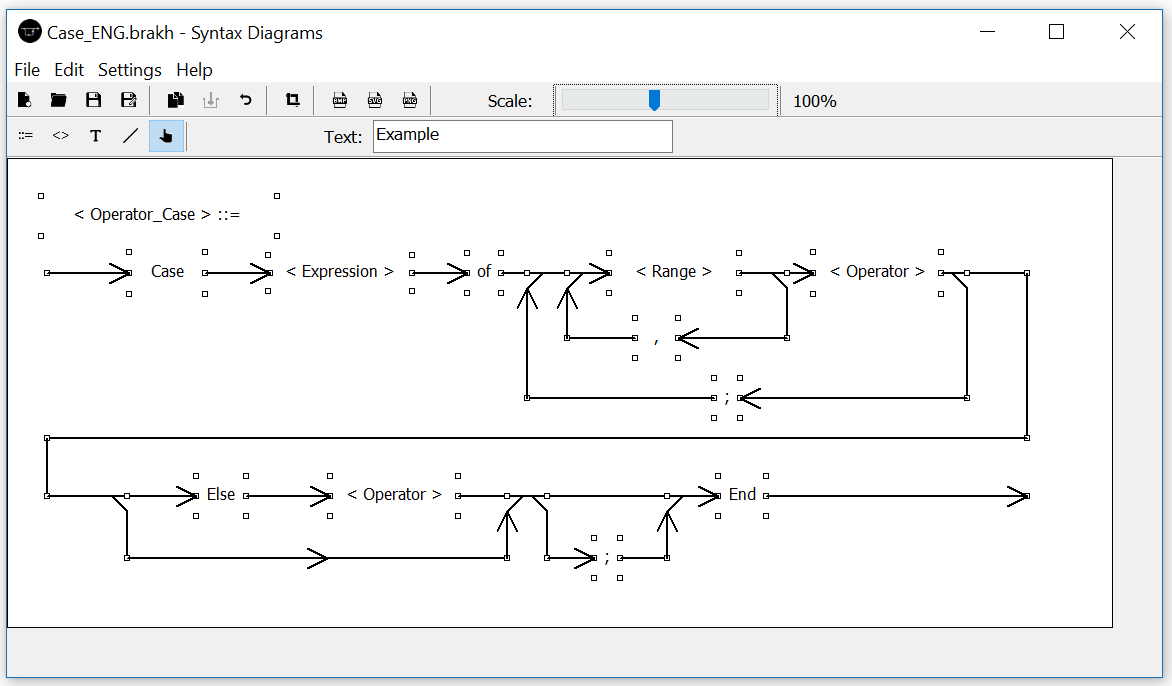
This program is intended for constructing syntactic diagrams using vector graphics.
Functional
- Drawing figures (Text figures, lines)
- Editing figures
- Drawing of lines by the program and magnetization of figures
- Copying figures
- Inserting figures
- Undo changes
- Saving the syntax diagram to a special file (.brakh)
- Opening a syntax diagram from a special file (.brakh)
- Export to raster formats (BMP, PNG)
- Export to Vector Formats (SVG)
- Change the size of the canvas
- Scaling the canvas
How to use
In order to start using the program, you must run the SyntaxDiag.exe file, or open the file with the extension ".brakh" (The extension must be associated with the program in advance). After opening the program, the window shown in the picture below will appear.
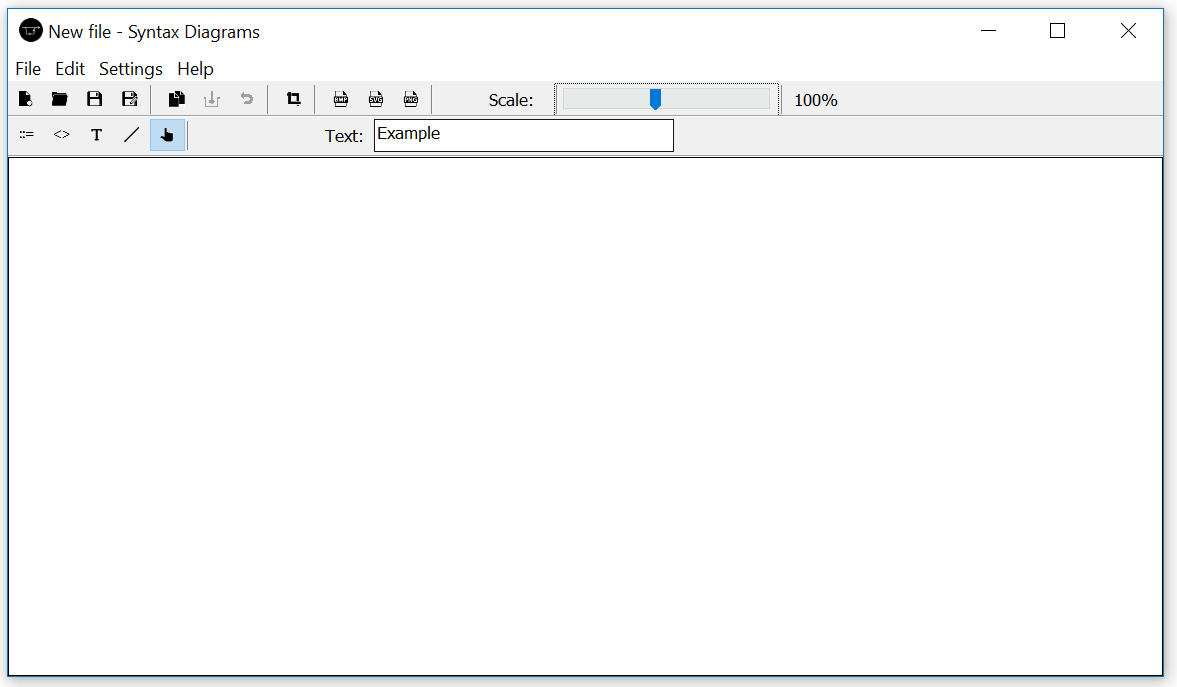
By default, when open, the "Edit" mode is active, in which drawing is prohibited. To switch it, you need to select the appropriate mode by clicking on the corresponding icon in the ToolBar (see the picture below)
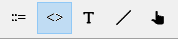
After selecting a mode, you can start drawing (If editing mode is not selected). If the "line" mode is selected, each click on the canvas adds a new point to the line). Pressing the RMB - stops drawing the current shape, otherwise, if one of the drawing modes is selected text figures - each click adds a new figure.
To change the text that will be displayed inside the figure, you need to edit the contents of the text field shown in the picture below

If you select the "Edit" mode (Cursor icon), then when you hover the cursor changes, then you can change the shape by the usual clamping and moving the cursor
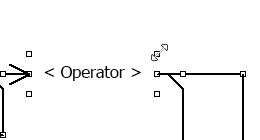
To change the text of an already added shape, you must select the "Edit" mode, click on the shape in which you want to change the text, change the contents of the text field and press Enter.
To change the scale of the image, it is necessary to move the corresponding "slider" in the desired direction. An example of changing the scale is shown in the picture below

Also, the program has a convenient menu and a toolbar, where you can find functions such as
- Opening a file
- Saving the source file
- Export to raster formats
- Export to vector formats
- Creating a new syntax chart
- Copying figures
- Inserting figures
- Cancel changes
- Change the canvas size
- View Help
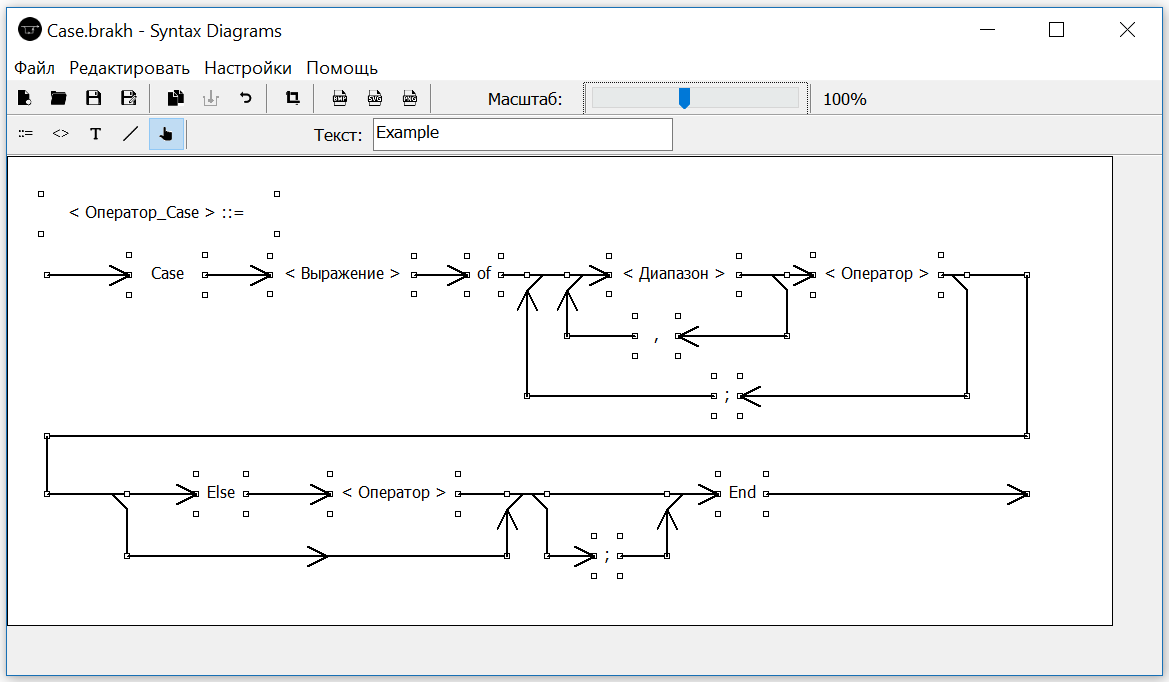
- The change of language (Screenshot of the program with the Russian interface is presented below)