

trndi

Trndi - CGM monitoring app
- Active · last change 11-4-2026
- ★ 13 on GitHub
README
⚠️ Quick intro: Right-click on Trndi's window to open its menu for settings and other options!

Trndi - Your blood sugar partner
Shows your CGM data on Desktops and displays
Supports Nightscout - Dexcom - FreeStyle Libre - Tandem Source - CareLink - xDrip
🪟 Windows - 🍎 macOS - 🐧 Linux - 🥧 RaspberryPi and ARM Linux
Index
- User Manual - Complete guide for end users
- Screenshots
- Introduction
- What differs Trndi from apps?
- Multi-user support
- Usage
- Accessibility
- Installation
- Setup
- Support
- Donate
- Development
- History
- Linux notes
- Settings storage
- Contributing
- Languages / Translations
- License
Screenshots
Windows 11
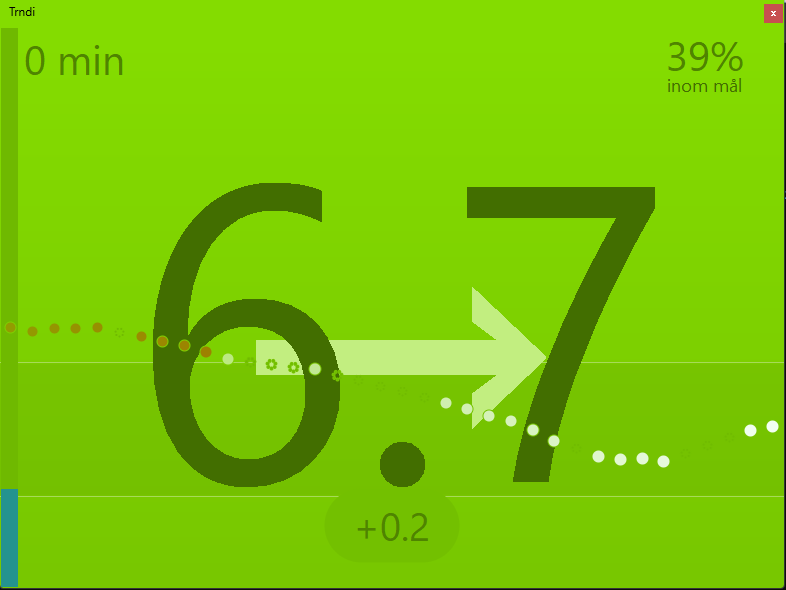
Fedora Linux (KDE)
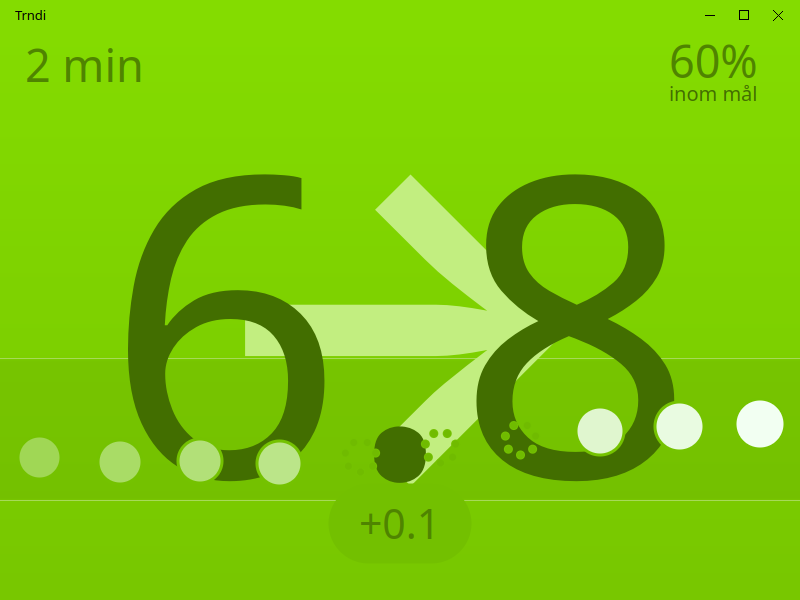
macOS Golden Gate
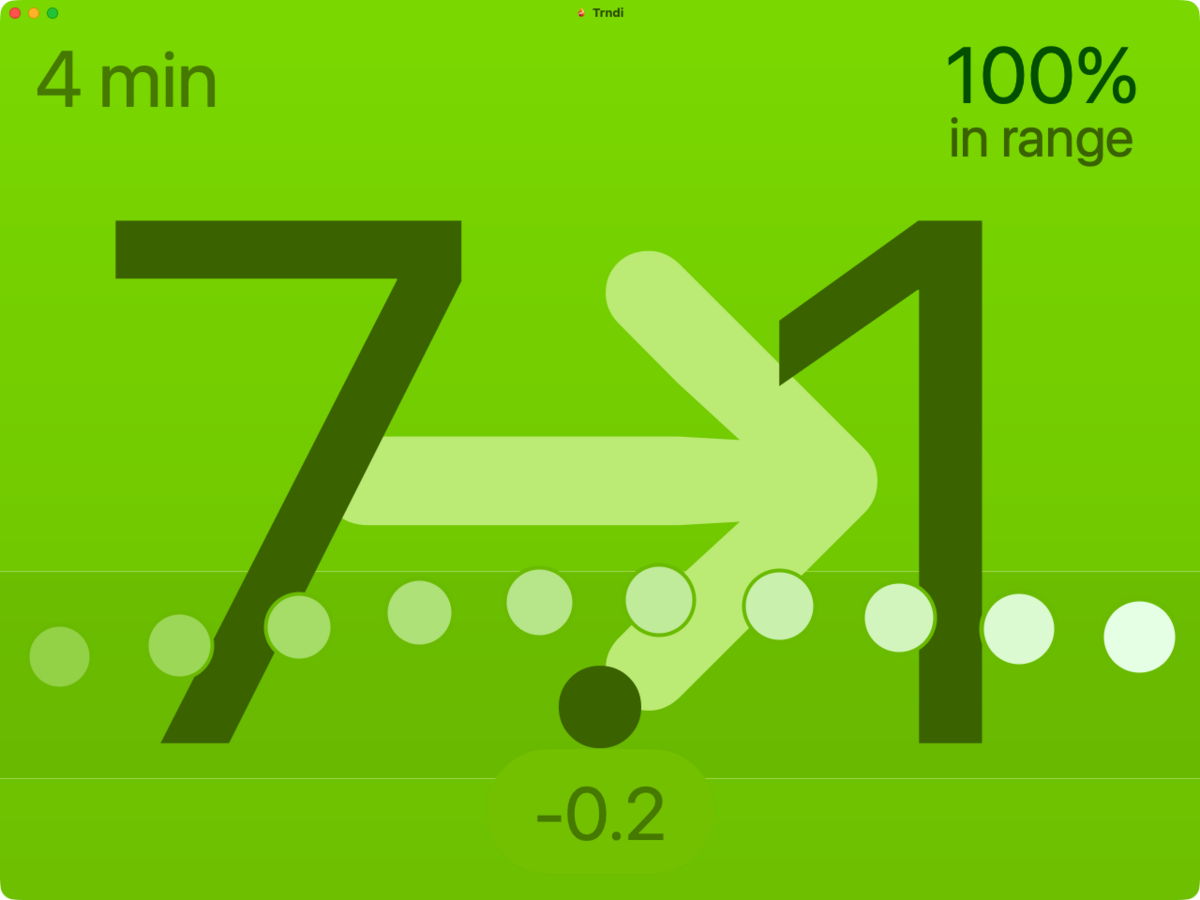
Physical Display
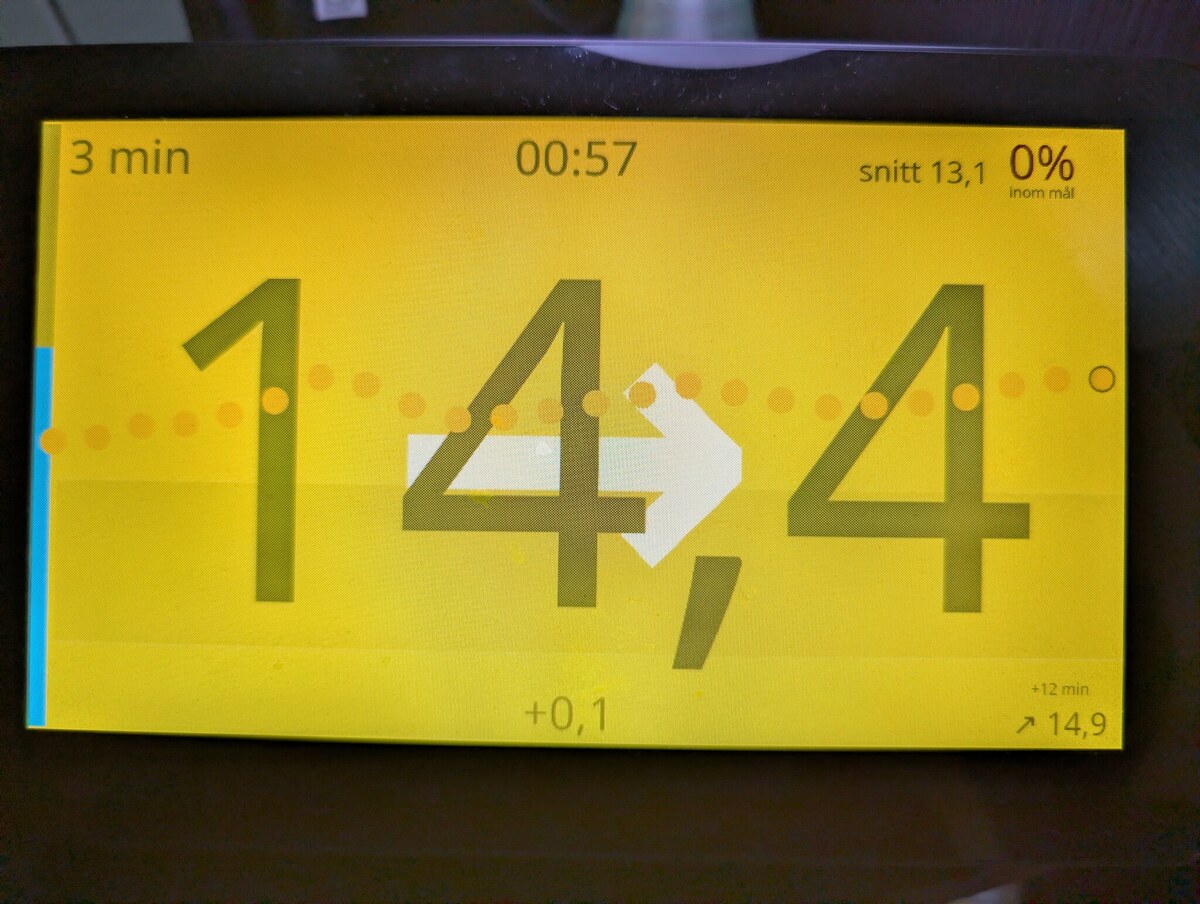
RaspberryPi (with touch screen) - see Guide for RPi display
Introduction
NEW: Join us on Discord
Trndi is a desktop app that shows your blood sugar and graph. It works with Night Scout, Tandem Source, Medtronic CareLink, FreeStyle Libre (via LibreLinkUp) and Dexcom Share at the moment. It also supports the xDrip app, connecting over the local network/WiFi.
Note that due to a bug in Tandem Source, a few users might not receive readings as often as they should. Tandem is supposedly working on solving this!
What differs Trndi from apps?
- Natively runs on your computer without needing installation
- Runs out-of-the-box! Does not depend on other software to be installed (on Linux, this may depend on your distro)
- Supports multiple languages
- Runs on your Raspberry Pi and other arm computers, optionally as a full-screen display — start with
--kioskfor a dedicated always-on screen (fullscreen + keeps the system awake, see the Display guide) - Works on touch-screen devices, such as a RaspberryPi with screen
- Supports modern _JavaScript extensions, among other things, there are official extensions for:
- IFTTT
- Discord
- Why not add your own project?
- Small and portable
- Supports dark and light color modes
- Displays your readings in a trend graph
- Free and open source
- Integrates with Windows, macOS and Linux special features such as the macOS dock, Windows taskbar and Linux notifications.
- Supports low, normal and high blood sugar colors. But also custom ranges such as "normal, but on the edge to high"
- Offers a WebAPI for other clients to access glucose data, with a live event stream so they never need to poll, and a built-in web dashboard (open
http://localhost:8080/when the API is on) with the reading, a history graph, alert snoozing and basic settings. The API also speaks Nightscout's format, so apps and watch faces made for Nightscout can read from Trndi - Supports experimental predictions
- Supports Razer Chroma on Windows and Linux
- Native proxy support on Windows, Linux, BSD and Haiku — a proxy you configure is used exclusively, never bypassed. With no proxy set, Trndi follows the system's own network settings (which is also how macOS is handled)
Multi-user support
Need to see more than one person? Trndi supports parallel users. Setup the users in the settings. User edits are stored when you save the settings window, like everything else.
You need to start Trndi multiple times, each instance lets you choose a user. Just open the app multiple times and select a different account. Users can have different sources and run JavaScript plugins independently.
NOTE: On macOS, to start multiple instances of Trndi you need to run
open -n -a "Trndi", in a Terminal. the -n parameter allows for multiple instances.
To skip the account dialog and run as a plain single-user Trndi on the default account (kiosks, scripted launches), start Trndi with --no-multi.
Usage
⚠️ Right-click on the reading on the screen to access the menu, this is how you control Trndi.
You can see the Common settings guide for information how to configure Trndi with the most common settings.
Accessibility
Trndi includes built‑in accessibility features to make readings easier to see and hear:
- Text-to-speech (TTS) — enable "Announce readings" in Settings to have Trndi speak glucose updates.
- High contrast mode — toggle the high‑contrast theme for improved visibility.
- Adjustable speech voice & rate — choose voice and set speaking rate from Settings.
- Keyboard & screen‑reader friendliness — dialogs and controls expose standard labels and keyboard focus so screen readers can navigate the UI.
- Open links externally — links (Help, documentation) are opened with the system browser.
Installation
Windows
Via Installer (Recommended)
Download TrndiSetup.exe from the latest release and run it.
Portable (No install needed)
Download Trndi-windows-x64.zip from the latest release, extract and run Trndi.exe.
Windows on ARM (aarch64)
The releases above are x64, and Windows 11 on ARM runs them under emulation — so the ordinary download works on an ARM machine, extensions included, and is the path of least resistance.
A native ARM64 build is supported but has to be compiled yourself, the way Haiku and the BSDs are. Two things it needs:
- An FPC that targets
aarch64-win64. 3.2.2 does not; check withfpc -i. InstallAware ships a prebuilt ARM64 Lazarus for it: lazarus-arm64.msi (~1.3 GB, a development build — expect beta quality). Building it yourself means FPC trunk with llvm-mingw or MSYS2's CLANGARM64 rather than plain binutils, since the target assembles with clang; trndi-cli has that recipe. Only the native route is verified for Trndi itself. - The QuickJS libraries for
aarch64-win64, which are committed like every other target's. Rebuild them withexternals/quickjs/build.sh winarm(cross, including from a container that installs nothing on the host) orbuild.sh winhost(natively, in an MSYS2 CLANGARM64 shell).
make and make.ps1 then pick the ARM64 libraries up automatically — both key
off PROCESSOR_ARCHITECTURE, so a native ARM64 shell gets aarch64-win64 and
an emulated x64 shell gets x86_64-win64, which is the correct answer in each
case since that is also what lazbuild just built.
There is no ARM64 installer: dist/windows_setup.iss is x64 throughout, so a
native ARM64 build is something you run from the build directory rather than
something you package. See
externals/quickjs/README.md for the toolchain
details.
See the specific Windows guide for more specifics.
Linux
Download the appropriate package for your distribution from the latest release:
- Debian/Ubuntu:
trndi_VERSION_amd64.debortrndi_VERSION_arm64.deb— Recommended for best desktop integration - Fedora/RHEL:
trndi-VERSION.x86_64.rpmortrndi-VERSION.aarch64.rpm— Recommended for best desktop integration - AppImage (Universal):
Trndi-x86_64.AppImageorTrndi-aarch64.AppImage— Recommended for Arch, openSUSE, and other distributions - Portable:
Trndi-linux-amd64.ziporTrndi-linux-arm64.zip
See the specific Linux guide for more specifics.
Package Recommendations
Use native packages (.deb/.rpm) when available:
- ✅ Better system integration
- ✅ Desktop extensions (GNOME/KDE) install to system locations automatically
- ✅ Automatic updates via package manager
- ✅ Proper uninstallation support
Use AppImage for other distributions:
- ✅ Works on any Linux distribution
- ✅ No installation required
- ✅ Portable and self-contained
- ℹ️ Desktop extensions need manual installation (see below)
Using AppImage
# Download the AppImage for your architecture
wget https://github.com/slicke/trndi/releases/latest/download/Trndi-x86_64.AppImage

# Make it executable
chmod +x Trndi-x86_64.AppImage

# Run it
./Trndi-x86_64.AppImage
Linux desktop indicators (optional)
- GNOME: includes a GNOME Shell top-bar extension (
trndi-current@slicke.com) that shows the current reading. - KDE Plasma 6: includes a panel widget ("Trndi Current") you can add via Add Widgets.
- Hyprland / sway (Waybar): includes a Waybar custom-module script — see waybar-module/README.md for the config snippet and Hyprland window rules.
Both indicators read the same cache file: ${XDG_CACHE_HOME:-$HOME/.cache}/trndi/current.txt.
Both offer the same settings — update interval, hide threshold, trend arrow and a "reading age" display. Configure the GNOME extension from the Extensions app (or gnome-extensions prefs trndi-current@slicke.com), and the plasmoid via its Configure dialog.
Installation:
- DEB/RPM packages: installed system-wide for you (to
/usr/share/gnome-shell/extensions/and/usr/share/plasma/plasmoids/) - From a source checkout: run the installer next to each indicator —
./gnome-shell-extension/install.shor./kde-plasmoid/install.sh(add--systemfor all users,--uninstallto remove) - AppImage: Extensions are bundled but require manual installation:
# Extract AppImage to access extensions
./Trndi-x86_64.AppImage --appimage-extract

# GNOME: Copy to extensions directory
mkdir -p ~/.local/share/gnome-shell/extensions
cp -r squashfs-root/usr/share/trndi/gnome-shell-extension/trndi-current@slicke.com \
  ~/.local/share/gnome-shell/extensions/
# GNOME: compile the settings schema (optional; defaults are used without it)
glib-compile-schemas ~/.local/share/gnome-shell/extensions/trndi-current@slicke.com/schemas
# GNOME: enable / reload the extension
# - Use the Extensions app or run:
#   gnome-extensions enable trndi-current@slicke.com
# - If using Xorg: press Alt+F2, type r and Enter to reload GNOME Shell
# - If using Wayland: log out and log in to apply the extension

# KDE: Copy to plasmoids directory
mkdir -p ~/.local/share/plasma/plasmoids
cp -r squashfs-root/usr/share/trndi/kde-plasmoid/com.slicke.trndi.current \
  ~/.local/share/plasma/plasmoids/
# KDE: restart Plasma and add widget
# - Restart (optional): kquitapp6 plasmashell &&  plasmashell (Plasma 5) or log out/in
# - Add the "Trndi Current" widget via *Add Widgets*
Turning it on — installing (any of the ways above) is not enough; each user activates the indicator themselves:
- GNOME: reload the Shell first so it discovers the extension — log out and back in on Wayland, or
Alt+F2,r, Enter on Xorg — then enable it in the Extensions app or withgnome-extensions enable trndi-current@slicke.com. (install.shtries to enable it for you, but on a first install the Shell has not rescanned yet, so the enable comes after the reload.) - KDE Plasma: right-click the panel → Add Widgets… → search for "Trndi Current" and drag it onto the panel.
The indicators only show a value while Trndi is running — they hide themselves when the cache file goes stale (by default after 11 minutes, configurable).
macOS
Download Trndi-macos-silicon.dmg from the latest release.
Note: After opening, you need to remove the quarantine attribute:
xattr -c /path/to/Trndi.appSee the specific macOS guide for more specifics.
Haiku
Trndi can be built for Haiku OS using Lazarus.
Requirements:
- Free Pascal Compiler:
pkgman install fpc - Lazarus build tools:
pkgman install lazarus_bin - OpenSSL for HTTPS support:
pkgman install openssl - Linker libraries:
pkgman install gcc_syslibs_devel libiconv_devel - For JavaScript extensions only:
pkgman install cmake gcc make - At least 2 GB of RAM — the compiler needs it at the resource-compilation step, see the build guide
Building from source:
# Install dependencies
pkgman install fpc lazarus_bin openssl gcc_syslibs_devel libiconv_devel

# Clone and build
git clone https://github.com/slicke/trndi.git
cd trndi

# Use the included Makefile rather than calling lazbuild directly for simplicity.
# Builds without JavaScript extension support
make noext
With JavaScript extensions: x86_64 binaries are committed, so a plain
make builds with extensions enabled and nothing else is needed. To rebuild
them — on another architecture, or to move to a newer quickjs-ng — build the
engine and the ABI shim together, or just the shim against Haiku's own
quickjs-ng package:
externals/quickjs/build.sh haiku          # engine + shim into externals/quickjs/prebuilt/
# ...or, using the packaged engine:
pkgman install quickjs_ng quickjs_ng_devel
make shim
make puts the libraries both beside build/Trndi and in build/lib/. Haiku's
runtime_loader searches %A/lib (a lib/ subdirectory beside the app) rather
than the executable's own directory, so the copy in lib/ is what the default
search path finds; the ones beside the binary are reached through the
executable's rpath.
See externals/quickjs/README.md for the trade-off between the two.
Set your time zone first. A fresh Haiku install runs on GMT until you pick a zone in Preferences > Time, and Haiku is where Trndi gets its offset from. Leave it on GMT in a zone that is not GMT and Trndi connects and shows a reading, but every reading looks as many hours old as you are from GMT — so the trend dots stay empty and Trndi reports that nothing has arrived for that many hours. It looks like a sensor or backend problem; it is the clock.
Features on Haiku:
- Native notification support (via
notify-sendif available) - Text-to-speech support (via
espeakif available) - Settings stored in
~/config/settings/Trndi/trndi.ini - HTTP/HTTPS support via FPC's TFPHTTPClient
BSD
Trndi can be built for FreeBSD, OpenBSD, and NetBSD using Lazarus.
Requirements:
- Free Pascal Compiler
- Lazarus build tools
- libcurl for HTTP/HTTPS support
- OpenSSL
- GNU make — the
Makefileuses GNU extensions, so build withgmake, not BSDmake - For JavaScript extensions on FreeBSD:
cmake(see below)
Building from source:
# Install dependencies (FreeBSD example)
pkg install fpc lazarus curl openssl gmake

# Clone and build
git clone https://github.com/slicke/trndi.git
cd trndi
# Use the included Makefile rather than calling lazbuild directly
gmake noext
With JavaScript extensions (FreeBSD): x86_64 binaries are committed, so
gmake builds with extensions enabled. They are FreeBSD-native and cannot be
borrowed from another platform — a native FreeBSD build links libc.so.7 and
cannot load a Linux .so — and they carry an ABI note for the release they
were built on (currently 15.1), which an older FreeBSD may refuse. To rebuild
them, note that ports carries lang/quickjs (Bellard's), a different engine
from the quickjs-ng this binding targets, so both halves come from source:
pkg install cmake
externals/quickjs/build.sh freebsd     # engine + shim into externals/quickjs/prebuilt/
On OpenBSD and NetBSD use gmake noext. Extensions there need the same
per-platform build as FreeBSD, and nobody has run it — including whether
$ORIGIN in the rpath is honoured, which is what lets the libraries travel
beside the executable. Adding either is a build.sh branch and a test on the
target, not a port.
Features on BSD:
- Native notification support (via
notify-sendif available) - Text-to-speech support (via
espeakif available) - Settings stored in
~/.config/Trndi.cfg - HTTP/HTTPS support via libcurl
Setup
Right click or click/hold the reading (or "Setup" text) and choose settings to access settings.
- For NightScout, settings will be fetched from your server and auto-applied. See the Nightscout setup guide for which of the two drivers to pick, and what each one reads from your site.
- For Dexcom, see the Dexcom setup guide. The backend does not support all features, but this can be fixed with some manual work.
- For Tandem, see the Tandem setup guide. The backend does not support all features, but this can be fixed with some manual work.
- For CareLink (Medtronic), see the CareLink setup guide. A one-time browser login is required; Trndi then keeps the session alive automatically.
- For FreeStyle Libre, see the LibreLinkUp setup guide. Trndi signs in as a LibreLinkUp follower, so sharing must be set up first.
- For xDrip, you need to turn on the local web server and use that IP/password
- For other backends, feel free to contribute a api driver. See API Drivers
- For HTTP API access, see the Web API documentation to expose glucose data to other applications
NOTE To receive notifications see here
See a box instead of an icon? On Debian systems, you may need to install a graphic font. Trndi prefers
fonts-noto-emoji(monochrome — it scales cleanly and gets tinted per icon), and falls back tofonts-noto-color-emojior Symbola if that is the one you have.
Which backend should I use?
Backends are explained here.
Support
Join us on Discord to discuss issues or new features
Donate
If Trndi is useful to you, consider supporting its development:
Development
Development tools can be obtained via most distros package managers:
- Fedora/RHEL:
dnf install lazarus - Ubuntu/Debian:
apt install lazarus - FreeBSD:
pkg install editors/lazarus
Building
GUI
Use the Lazarus IDE to build and/or develop the app, set release target in the Project Options.
Command line
Linux / Haiku / BSD (recommended)
Build development:
make debugBuild release:
makeBuild release without extensions support:
This builds without the QuickJS engine
make noext

Build to a release folder:
```bash
make OUTDIR=output_directory
macOS / Windows
Windows (PowerShell):
- Prefer the included
make.ps1helper for convenience. It wrapslazbuildand provides shortcuts:./make.ps1or./make.ps1 release-> builds Release vialazbuild(-dRelease)./make.ps1 debug-> builds Debug vialazbuild(-dDebug)./make.ps1 noext-> builds the "No Ext (Release)" mode./make.ps1 help-> show usage
- Like
make, the build targets stage the result inbuild/(Trndi.exe,lang/, and the QuickJS DLLs for Extensions modes); setOUTDIRto stage elsewhere.
macOS / (also usable on Windows if you prefer):
Build development:
lazbuild Trndi.lpiBuild release:
lazbuild --build-mode="No Ext (Release)" Trndi.lpiBuild to a release folder:
lazbuild -B output_directory Trndi.lpiMakefile
Linux, BSD and Haiku use make, for macOS substitute make with gmake
There is a convenience Makefile that wraps lazbuild with common targets:
make(default: release)make debugmake build(honorsWIDGETSETandBUILD_MODE)make testmake list-modes— list available build modes inTrndi.lpimake noext— build without JavaScript extension support (no QuickJS libraries needed)make noext-release/make noext-debug— same asnoextbut force build modemake cleanmake distclean—cleanplus the built binaries,link*.res, heaptrc/log output,build/,lib/and Lazarusbackup/dirsmake.ps1(Windows PowerShell helper) — run./make.ps1 helpfor shortcuts (release,debug,noext)
Defaults by platform:
- Linux: forces the
Qt6build modes by default (e.g.Qt6 (Release)) - Windows / macOS: prefers native
Extensions (Release)/No Extensions (Release)(respectively) style builds for release targets
If lazbuild is not on your PATH, the Makefile looks for it in the two
places that commonly leave it off PATH: /Applications/lazarus/lazbuild
(the macOS installer) and ~/fpcupdeluxe/lazarus/lazbuild
(fpcupdeluxe keeps its whole
toolchain inside its install directory, on Linux as well as macOS). An
fpcupdeluxe install in another directory, or any other location, is pointed
out with LAZBUILD:
LAZBUILD=/opt/fpcupdeluxe/lazarus/lazbuild makeWIDGETSET does not need to be set — it already defaults to cocoa on macOS
and qt6 on Linux. On Windows the Makefile finds C:/lazarus/lazbuild.exe by
itself; make.ps1 does the same and also falls back to
C:\fpcupdeluxe\lazarus\lazbuild.exe, putting fpcupdeluxe's
fpc\bin\<cpu>-win64 on PATH for the run when no fpc is on it.
Examples:
make            # on Linux -> Qt6 (Release) (artifacts placed in the 'build/' directory)
make noext      # on Linux -> Qt6 (Release), no JavaScript extension support
make BUILD_MODE=Debug    # chooses Qt6 (Debug) on Linux, Extensions (Debug) on macOS/Windows
make list-modes # show exact LPI targets if you want to pick one explicitly
Note: By default make build writes build artifacts into $(OUTDIR) (default: build/). You can override this by setting OUTDIR=... on the make command line if you prefer a different location.
On Linux the Makefile needs gcc installed — not to compile Pascal, but to
locate libgcc.a. FPC links -lgcc, and that file lives in GCC's
version-specific directory (/usr/lib/gcc/<triple>/<major>/), which ld does
not search on its own. Distributions differ in whether their /etc/fpc.cfg
points there; where it does not — Fedora, for instance — a build fails with
/usr/bin/ld.bfd: cannot find -lgcc. make therefore asks the installed
compiler for the path (gcc -print-libgcc-file-name) and passes it to
lazbuild, so a GCC major upgrade needs no change anywhere. Override it with
LIBGCC_DIR=/some/path, or set LIBGCC_DIR= (empty) to leave the linker
untouched.
History
Trndi2 (and later) is a rewrite, less bloated, version of Trndi 1, which was never released publicly. Trndi 1 was originally called Dexmon (and only did Dexcom). The original idea spawns from an old app called TrayTrend which I made with a similar purpose.
Testing
Trndi is actively tested on Windows (x64), Fedora Linux (amd64), Debian Linux (arm64 / Raspberry Pi). Windows on ARM (aarch64) has been built and run natively, extensions included, but is not part of the regular testing rounds.
Linux notes
If Trndi will not start on Linux, the cause is almost always the same one: the Qt6Pas library is missing. Trndi's Linux builds use the Qt6 widgetset, which needs Qt6 itself (both are normally already present on a Qt-based desktop) plus this Pascal binding on top of it.
Installing Qt6Pas
The .deb and .rpm packages recommend it rather than depending on it, so
apt and dnf install it automatically where the distribution ships it and install
Trndi anyway where it does not. That is deliberate: a hard dependency would make
the packages refuse to install on the releases listed as "not packaged" below,
where people install the library by hand. The AppImage and the portable .zip
are not self-contained and never pull it in.
| Distribution | Install it with |
|---|---|
| Debian 13 (trixie) and newer | sudo apt install libqt6pas6 |
| Debian 12 (bookworm) | Not packaged — use the upstream .deb |
| Ubuntu 25.04 and newer | sudo apt install libqt6pas6 |
| Ubuntu 24.04 LTS and older | Not packaged — use the upstream .deb |
| Raspberry Pi OS (trixie) | sudo apt install libqt6pas6 |
| Raspberry Pi OS (bookworm) | Not packaged — use the upstream arm64 .deb |
| Fedora 43 and newer | sudo dnf install qt6pas |
| RHEL / AlmaLinux / Rocky 10 | sudo dnf install qt6pas (needs EPEL enabled) |
| Arch, Manjaro, EndeavourOS | sudo pacman -S qt6pas |
| openSUSE | sudo zypper install libQt6Pas6 — if zypper cannot find it, the package lives in devel:languages:pascal on the openSUSE Build Service |
| Gentoo | sudo emerge dev-libs/libqt6pas |
| Anything else | Search your package manager for qt6pas, libqt6pas6 or the soname libQt6Pas.so.6 |
Add the matching -dev/-devel package (libqt6pas-dev, qt6pas-devel) only
if you intend to build Trndi yourself; running it does not need the headers.
If your distribution does not package it
The library's own project publishes prebuilt packages for every release:
- github.com/davidbannon/libqt6pas/releases/latest
—
.debfor amd64 and arm64,.rpmfor x86_64, and a plain tarball.
Install one the same way you installed Trndi, for example:
sudo apt install ./libqt6pas6_*_amd64.deb     # Debian, Ubuntu, Raspberry Pi OS
sudo dnf install ./libqt6pas6-*.x86_64.rpm    # Fedora, RHEL and relatives
These need Qt6 6.2.4 or newer and glibc 2.34 or newer, so they will not work on releases older than roughly Ubuntu 22.04 or Fedora 36. openSUSE users have to import the packager's signing key before the RPM will install.
Checking whether it is there
ldconfig -p | grep -i qt6pas     # prints the library path if it is installed
ldd ./Trndi | grep -i 'not found'   # lists anything else Trndi is missing
Settings storage
Trndi stores settings per platform in the standard location:
- Windows: Registry under HKCU\Software\Trndi
- macOS: NSUserDefaults (Preferences), typically domain com.slicke.Trndi (often stored in ~/Library/Preferences/com.slicke.Trndi.plist)
- Linux: Lazarus GetAppConfigFile path, typically ~/.config/Trndi.cfg in section [trndi]
On Linux, this is a single INI file consistently used for Get/Set/Delete operations — no legacy paths or multiple files.
Contributing
Contributions are welcome. Please read CONTRIBUTING for coding style, PasDoc guidelines, and how to generate the developer docs for native, extensions, and API units.
If you're adding or modifying an API driver, start with the API guide for the contract and examples, then follow the API section in CONTRIBUTING.
See also BUILDING.md
Languages / Translations
To contribute a translation, check out LANGUAGES.md.
License
Trndi is free software, licensed under the GNU General Public License, version 3 — see LICENSE.md.
Trndi is not a medical device. Additional terms under GPLv3 section 7 disclaim warranty and liability; read DISCLAIMER.md before using it, and never make medical decisions based on this app.
Trndi bundles third-party components under MIT, LGPL, and other GPL-compatible licenses. They are inventoried in THIRD-PARTY.md.