

Catalog · How the catalog works
SSE-Demo

A demo of the HTTP SSE protocol
- ★ 13 on GitHub
Anyone may press Interesting, signed in or not. It helps others find this project.
README
RAD Studio SSE Demo (Server-Sent Events)
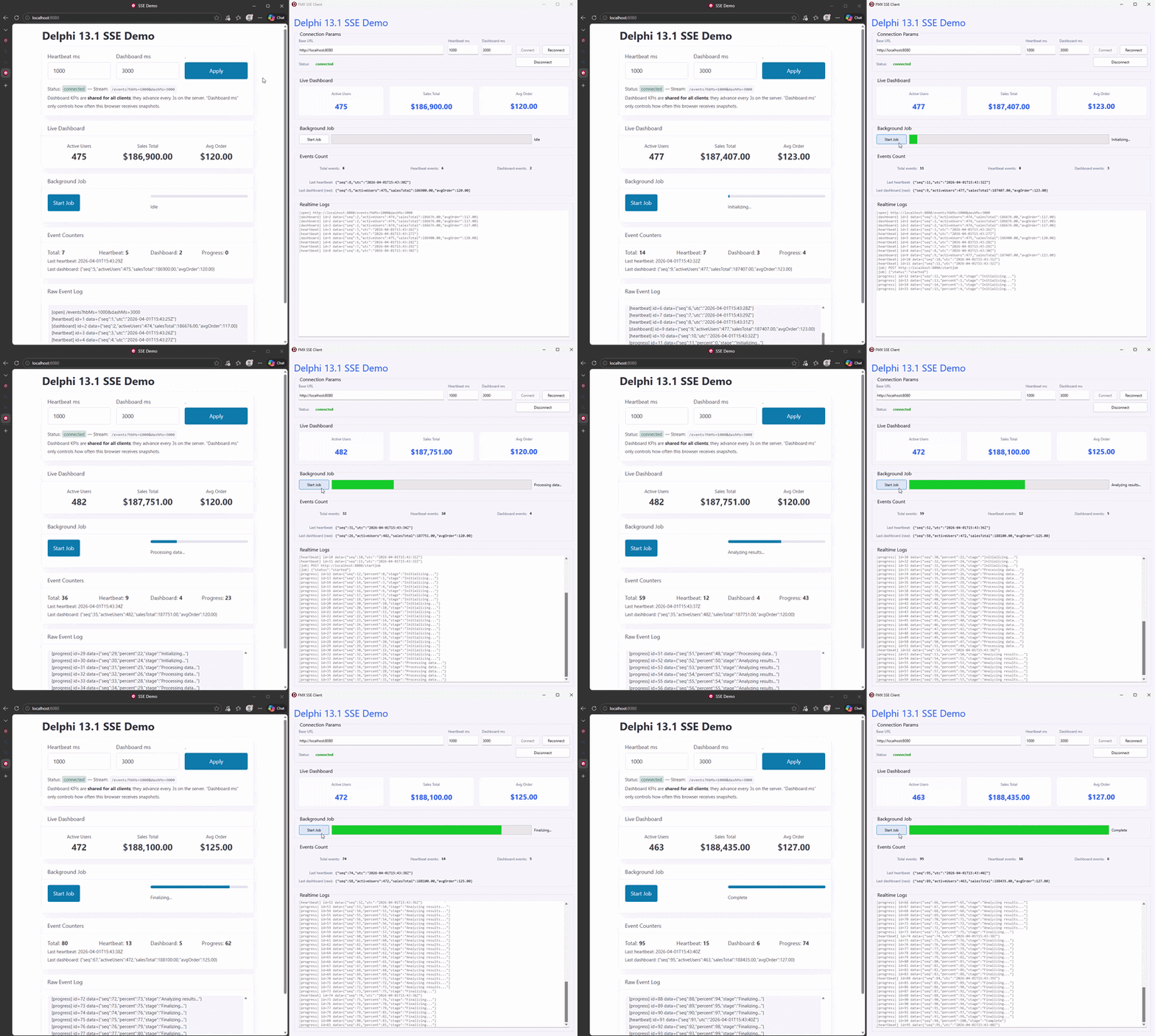
This repository contains a technical showcase demonstrating how to implement and consume Server-Sent Events (SSE) in Delphi. It highlights how a single WebBroker server can simultaneously push real-time data to both Web browsers and native applications via SSE.
The demo consists of two main projects:
- SSEServer: A console WebBroker server that hosts the web application and broadcasts SSE events.
- FMXSSEClient: A native FireMonkey desktop application that consumes the same SSE stream.
Features Demonstrated
- Real-time Server-Sent Events (SSE) using Delphi's
Web.WebBrokerandTWebResponseStream. - Background Job Progress: Simulates a long-running process on the server pushing percent progress to the clients.
- Throttling & Cadence: Setting intervals via URL parameters (
hbMsanddashMs) so clients control their update frequency. - Cross-Platform Clients: Shows the same SSE technology integrated into a Web page via
EventSourceand natively into Delphi usingTHTTPEventSource.
How to Run
1. Start the Server
- Open
SSEDemo.groupprojin Delphi. - Compile and Run the SSEServer project.
- The server runs as a console application. By default, it will start HTTP services on port
8080. - In the server console window, type
startto run the service.
2. Run the Clients
You have two ways to see the demo working (and you can run multiple at the same time!):
Option A: The Web Version
- With the server running, open a web browser.
- Navigate to
http://localhost:8080. - You will see a web dashboard demonstrating the live Dashboard KPIs, background job controls, and an event log.
Option B: The FireMonkey (FMX) Client
- In Delphi, compile and run the FMXSSEClient project.
- Once the app opens, click Connect.
- It will connect to the same
localhost:8080server and display the identical live metrics natively.
Pushing Data
- Try opening a web client and the FMX client side-by-side.
- Click the "Start Job" button on either client. You will see both clients update their progress bars in real-time as the server broadcasts the job's progress.