

Windows Subsystem for Linux: what changed
Revision 1 to 2. Removed lines have a minus sign; added lines have a plus sign.
| Old | New | Line | |
|---|---|---|---|
| 1 | 1 | Microsoft introduced a certain compatibility functionality in order to run ELF binaries under Windows 10. | |
| 2 | 2 | ||
| 3 | 3 | ## WSL1 | |
| 4 | 4 | ||
| 5 | 5 | WSL1 is implemented as Microsoft developed Linux-kernel-compatible execution environment. This is not an actual Linux kernel, but only its substitute, which provides the most common functionality. | |
| 6 | 6 | ||
| 7 | 7 | The functionality is ENOUGH to run FPC without modifications. | |
| 8 | 8 | ||
| 9 | 9 | ### Installing WSL and FPC | |
| 10 | 10 | ||
| 11 | 11 | Microsoft provides a number of Linux distros through Microsoft Store application. The following steps are using Ubuntu 16.4 LTS distro: | |
| 12 | 12 | ||
| 13 | 13 | - Install WSL | |
| 14 | 14 | - you can either install WSL through Powershell (as suggested in Microsoft documentation OR you can install via "Turn Windows features on or off") | |
| 15 | 15 | ||
| 16 | 16 | ||
| 17 | 17 | ||
| 18 | 18 | You can run control panel (press Win+R type in "control" and press enter) and search for "windows features" in order to bring the dialog up. The link is also available in "Add and Remove programs" section of control panel). | |
| 19 | 19 | ||
| 20 | 20 | 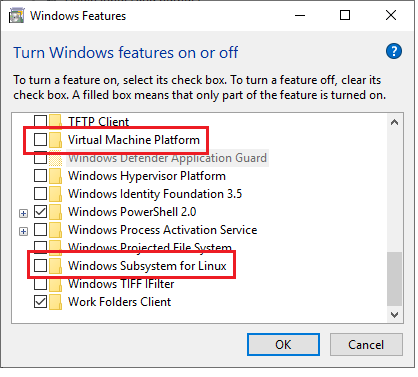 | |
| 21 | 21 | ||
| 22 | 22 | Note: WSL1 only requires "Windows subsystem for Linux" to be installed. | |
| 23 | 23 | ||
| 24 | 24 | "Virtual Machine Platform" is only requires for WSL2. | |
| 25 | 25 | ||
| 26 | 26 | - Install and Run Ubuntu distro | |
| 27 | 27 | - Update the system | |
| 28 | 28 | ||
| 29 | 29 | ||
| 30 | 30 | Run the following commands on Linux command-line | |
| 31 | 31 | ||
| 32 | - | ||
| 33 | - | ||
| 32 | + | ```text | |
| 33 | + | sudo apt-get update | |
| 34 | + | sudo apt-get upgrade | |
| 35 | + | ``` | |
| 34 | 36 | ||
| 35 | 37 | ### Running the test app from Windows | |
| 36 | 38 | ||
| 37 | 39 | The "wsl" utility can be used to run Linux (x86_64) targets on Windows. If you used the example above to compile the application, then you should be able to run as following, from Windows command-line | |
| 38 | 40 | ||
| 39 | - | ||
| 40 | - | ||
| 41 | + | ```text | |
| 42 | + | cd c:\testrun | |
| 43 | + | wsl ./testrun | |
| 44 | + | ``` | |
| 41 | 45 | ||
| 42 | 46 | ||
| 43 | 47 | output | |
| 44 | 48 | ||
| 45 | - | ||
| 49 | + | ```text | |
| 50 | + | hello world | |
| 51 | + | ``` | |
| 46 | 52 | ||
| 47 | 53 | ### Running (linux) FPC from Windows | |
| 48 | 54 | ||
| 49 | 55 | Similar to the sample application, FPC itself can also be ran from Windows. | |
| 50 | 56 | ||
| 51 | 57 | Here's an example create a folder in Windows, and create a file there test.pas. Edit the file (i.e. using notepad) and put the following code: | |
| 52 | 58 | ||
| 53 | 59 | ``` pascal | |
| 54 | 60 | procedure RunLoop; | |
| 55 | 61 | var | |
| 56 | 62 | i : integer; | |
| 57 | 63 | begin | |
| 58 | 64 | for i:=1 to 10 do | |
| 59 | 65 | write(i,' '); | |
| 60 | 66 | writeln; | |
| 61 | 67 | end; | |
| 62 | 68 | ||
| 63 | 69 | begin | |
| 64 | 70 | {$ifdef mswindows} | |
| 65 | 71 | writeln('windows'); | |
| 66 | 72 | {$endif} | |
| 67 | 73 | {$ifdef linux} | |
| 68 | 74 | writeln('linux'); | |
| 69 | 75 | {$endif} | |
| 70 | 76 | writeln('hello world'); | |
| 71 | 77 | writeln(sizeof(Pointer)); | |
| 72 | 78 | RunLoop; | |
| 73 | 79 | end. | |
| 74 | 80 | ``` | |
| 75 | 81 | ||
| 76 | 82 | Run the following commands from command line. Note, that the use of "WSL" is critical (otherwise you'll get a windows binary). (Running the command-line requires both WSL installed and FPC for the distro installed) | |
| 77 | 83 | ||
| 78 | - | ||
| 79 | - | ||
| 84 | + | ```text | |
| 85 | + | wsl fpc ./test | |
| 86 | + | wsl ./test | |
| 87 | + | ``` | |
| 80 | 88 | ||
| 81 | 89 | You should see in command-line the following output: | |
| 82 | 90 | ||
| 83 | - | ||
| 84 | - | ||
| 85 | - | ||
| 86 | - | ||
| 91 | + | ```text | |
| 92 | + | linux | |
| 93 | + | hello world | |
| 94 | + | 8 | |
| 95 | + | 1 2 3 4 5 6 7 8 9 10 | |
| 96 | + | ``` | |
| 87 | 97 | ||
| 88 | 98 | Indicating the binary was built for linux 64-bit system | |
| 89 | 99 | ||
| 90 | 100 | ### Running (linux) Gdb from Windows | |
| 91 | 101 | ||
| 92 | 102 | WSL1 provides enough functionality in order for GDB to run. | |
| 93 | 103 | ||
| 94 | 104 | However, GDB itself is not installed by default (on Ubuntu 16.4 distro) and needs to be installed prior to use | |
| 95 | 105 | ||
| 96 | - | ||
| 106 | + | ```text | |
| 107 | + | wsl sudo apt-get install gdb | |
| 108 | + | ``` | |
| 97 | 109 | ||
| 98 | 110 | Recompile the existing sample program with Dwarf2 enabled. | |
| 99 | 111 | ||
| 100 | - | ||
| 112 | + | ```text | |
| 113 | + | wsl fpc -gw2 test.pas | |
| 114 | + | ``` | |
| 101 | 115 | ||
| 102 | 116 | (you should see the size of the executable increasing) | |
| 103 | 117 | ||
| 104 | 118 | Run GDB for the compiledexecutable. | |
| 105 | 119 | ||
| 106 | - | ||
| 120 | + | ```text | |
| 121 | + | wsl gdb test | |
| 122 | + | ``` | |
| 107 | 123 | ||
| 108 | 124 | you should see: | |
| 109 | 125 | ||
| 110 | - | ||
| 111 | - | ||
| 112 | - | ||
| 113 | - | ||
| 114 | - | ||
| 115 | - | ||
| 116 | - | ||
| 117 | - | ||
| 118 | - | ||
| 119 | - | ||
| 120 | - | ||
| 121 | - | ||
| 122 | - | ||
| 123 | - | ||
| 124 | - | ||
| 125 | - | ||
| 126 | + | ``` pascal | |
| 127 | + | C:\testbuild>wsl gdb test | |
| 128 | + | GNU gdb (Ubuntu 7.11.1-0ubuntu1~16.5) 7.11.1 | |
| 129 | + | Copyright (C) 2016 Free Software Foundation, Inc. | |
| 130 | + | License GPLv3+: GNU GPL version 3 or later <http://gnu.org/licenses/gpl.html> | |
| 131 | + | This is free software: you are free to change and redistribute it. | |
| 132 | + | There is NO WARRANTY, to the extent permitted by law. Type "show copying" | |
| 133 | + | and "show warranty" for details. | |
| 134 | + | This GDB was configured as "x86_64-linux-gnu". | |
| 135 | + | Type "show configuration" for configuration details. | |
| 136 | + | For bug reporting instructions, please see: | |
| 137 | + | <http://www.gnu.org/software/gdb/bugs/>. | |
| 138 | + | Find the GDB manual and other documentation resources online at: | |
| 139 | + | <http://www.gnu.org/software/gdb/documentation/>. | |
| 140 | + | For help, type "help". | |
| 141 | + | Type "apropos word" to search for commands related to "word"... | |
| 142 | + | Reading symbols from test...done. | |
| 143 | + | ``` | |
| 126 | 144 | ||
| 127 | 145 | at the initial-load place a breakpoint within the runloop procedure: | |
| 128 | 146 | ||
| 129 | - | ||
| 147 | + | ```text | |
| 148 | + | (gdb) b test.pas:6 | |
| 149 | + | ``` | |
| 130 | 150 | ||
| 131 | 151 | resulting in: | |
| 132 | 152 | ||
| 133 | - | ||
| 153 | + | ```text | |
| 154 | + | Breakpoint 1 at 0x4001e6: file test.pas, line 6. | |
| 155 | + | ``` | |
| 134 | 156 | ||
| 135 | 157 | and proceed with the execution: | |
| 136 | 158 | ||
| 137 | - | ||
| 138 | - | ||
| 139 | - | ||
| 140 | - | ||
| 141 | - | ||
| 159 | + | ``` pascal | |
| 160 | + | (gdb) r | |
| 161 | + | Starting program: /mnt/c/testbuild/test | |
| 162 | + | linux | |
| 163 | + | hello world | |
| 164 | + | 8 | |
| 142 | 165 | ||
| 143 | - | ||
| 144 | - | ||
| 145 | - | ||
| 166 | + | Breakpoint 1, RUNLOOP () at test.pas:6 | |
| 167 | + | 6 write(i,' '); | |
| 168 | + | (gdb) | |
| 169 | + | ``` | |
| 146 | 170 | ||
| 147 | 171 | at this point you can do all typical Gdb actions you need to do. I.e. researching stack: | |
| 148 | 172 | ||
| 149 | - | ||
| 150 | - | ||
| 151 | - | ||
| 173 | + | ```text | |
| 174 | + | (gdb) bt | |
| 175 | + | #0 RUNLOOP () at test.pas:6 | |
| 176 | + | #1 0x00000000004002fa in main () at test.pas:19 | |
| 177 | + | ``` | |
| 152 | 178 | ||
| 153 | 179 | or terminating the exectuion | |
| 154 | 180 | ||
| 155 | - | ||
| 181 | + | ```text | |
| 182 | + | (gdb) q | |
| 183 | + | ``` | |
| 156 | 184 | ||
| 157 | 185 | ## WSL2 | |
| 158 | 186 | ||
| 159 | 187 | WSL2 is a different approach, that's implemented using an actual Linux kernel running in a virtual machine. Namely the entire Linux kernel functionality is available (... and the sky is limit!). Microsoft also addressed some performance issues when writing files to NTFS. | |
| 160 | 188 | ||
| 161 | 189 | ### Installing | |
| 162 | 190 | ||
| 163 | 191 | - You need to have both "Windows Subsystem for Linux" and "Virtual Machine Platform" installed | |
| 164 | 192 | - (Summer 2019) you need to be subscribed (it's free) for Windows Insider Preview program and use "FAST" (instead of "Slow) option of getting updates. | |
| 165 | 193 | - That will allow you to install the "preview" edition of Windows with WSL2 available. | |
| 166 | 194 | - Install and initialize a desired Linux distro from Microsoft Online store | |
| 167 | 195 | - Switch the distro to use version 2, by running the following command-line: | |
| 168 | 196 | ||
| 169 | - | ||
| 197 | + | ```text | |
| 198 | + | wsl --set-version Ubuntu-16.04 2 | |
| 199 | + | ``` | |
| 170 | 200 | ||
| 171 | 201 | ||
| 172 | 202 | if you running into troubles switching to Version 2, see below. | |
| 173 | 203 | ||
| 174 | 204 | The process of setting a version takes about a couple of minutes so be patient. | |
| 175 | 205 | ||
| 176 | 206 | #### Unable to switch to version 2 | |
| 177 | 207 | ||
| 178 | 208 | If you're getting this error | |
| 179 | 209 | ||
| 180 | - | ||
| 181 | - | ||
| 210 | + | ```text | |
| 211 | + | The requested operation could not be completed due to a virtual disk system limitation. | |
| 212 | + | Virtual hard disk files must be uncompressed and unencrypted and must not be sparse. | |
| 213 | + | ``` | |
| 182 | 214 | ||
| 183 | 215 | There are 2 ways you should be able to resolve this: | |
| 184 | 216 | ||
| 185 | 217 | - Either manually remove "Compressed" flag from the distro folder, which usually resides at: | |
| 186 | 218 | ||
| 187 | - | ||
| 219 | + | ```text | |
| 220 | + | %localappdata%\Packages\CanonicalGroupLimited.UbuntuonWindows_xxxxxxx | |
| 221 | + | ``` | |
| 188 | 222 | ||
| 189 | 223 | 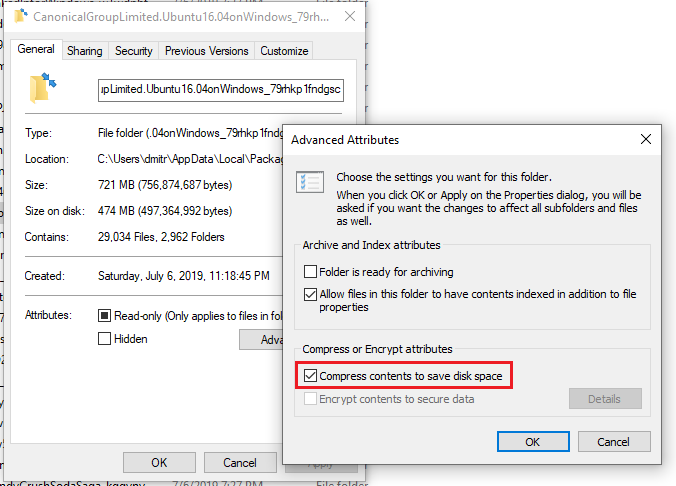 | |
| 190 | 224 | ||
| 191 | 225 | - or try to disable compression and encryption for the entire disk. The following commands must be ran in "Administrator" mode (and would require a reboot) | |
| 192 | 226 | ||
| 193 | - | ||
| 194 | - | ||
| 227 | + | ```text | |
| 228 | + | fsutil behavior set disableencryption 1 | |
| 229 | + | fsutil behavior set disablecompression 1 | |
| 230 | + | ``` | |
| 195 | 231 | ||
| 196 | 232 | See more at: <https://github.com/microsoft/WSL/issues/4103> | |
| 197 | 233 | ||
| 198 | 234 | If you're getting an error of Timeout - try to restart the PC. | |
| 199 | 235 | ||
| 200 | 236 | ### Using FPC | |
| 201 | 237 | ||
| 202 | 238 | The process of installation and use of FPC is identical to the described in WSL1. (The installation isidentical to an actual Linux or Linux running in a 3d party Virtual Machine) | |
| 203 | 239 | ||
| 204 | 240 | No additional changes are needed for FPC itself in order to run and compile from WSL2. | |
| 205 | 241 | ||
| 206 | 242 | ### Using GDB | |
| 207 | 243 | ||
| 208 | 244 | In general the installation of GDB is similar to WSL1. | |
| 209 | 245 | ||
| 210 | 246 | It seems like there were changes in pipe handling in Gdb, compared to WSL1. | |
| 211 | 247 | ||
| 212 | 248 | Thus running | |
| 213 | 249 | ||
| 214 | - | ||
| 250 | + | ```text | |
| 251 | + | wsl gdb application_name | |
| 252 | + | ``` | |
| 215 | 253 | ||
| 216 | 254 | would still work, but sometimes pipe communication might fail and you would not see a GDB prompt. | |
| 217 | 255 | ||
| 218 | 256 | On the other hand, if a user tries to use gdb directly from wsl.exe shell, it works just fine. | |
| 219 | 257 | ||
| 220 | 258 | ## Running ELF binaries from Windows app | |
| 221 | 259 | ||
| 222 | 260 | Any windows application can run ELF binary using "wsl.exe". | |
| 223 | 261 | ||
| 224 | 262 | Windows itself would not recognize ELF executable as an executable. Thus an attempt to open it would make Windows prompt the user for the host application to be specified. There's not special Windows API yet to run them. So far the only way of running an ELF binary is using "wsl.exe". | |
| 225 | 263 | ||
| 226 | 264 | That means that a desired Linux distro(s) needs to be installed. (and preferably one of them selected as default) | |
| 227 | 265 | ||
| 228 | 266 | ### Using WSL.exe | |
| 229 | 267 | ||
| 230 | 268 | Running ELF binary with WSL.exe requires an explicit call to "wsl.exe" and passing ELF binary as a parameter, as well as any additional parameters. | |
| 231 | 269 | ||
| 232 | 270 | That typically involves creating a process with StdOut/StrErr redirected to pipes (either by using WinAPI directory or [[TProcess]]). | |
| 233 | 271 | ||
| 234 | 272 | **Caveat**: there seems to be some special handling of Pipe-redirected output in WSL itself. The launched WSL might not terminate until it receives something on the input buffer. It might also skip some output, if the launching application is "sleeping" for too long. Thus the typical wait for output period should be minimal. | |
| 235 | 273 | ||
| 236 | 274 | ``` pascal | |
| 237 | 275 | p := TProcess.Create(nil); | |
| 238 | 276 | try | |
| 239 | 277 | p.Executable := 'wsl.exe'; | |
| 240 | 278 | p.Parameters.Add('ls'); // running ls utility | |
| 241 | 279 | p.Parameters.Add('-l'); // with -l parameter | |
| 242 | 280 | p.Options := [poUsePipes]; | |
| 243 | 281 | ||
| 244 | 282 | while (p.Running) or (p.Output.NumBytesAvailable > 0) do | |
| 245 | 283 | begin | |
| 246 | 284 | if p.Running and (p.Output.NumBytesAvailable = 0) then | |
| 247 | 285 | begin | |
| 248 | 286 | s:=#0; // writing anything to the input | |
| 249 | 287 | p.Input.Write(s, length(s)); | |
| 250 | 288 | Sleep(1); // the shortest sleep possible | |
| 251 | 289 | end; | |
| 252 | 290 | ||
| 253 | 291 | sz := p.Output.NumBytesAvailable; | |
| 254 | 292 | if sz>0 then begin | |
| 255 | 293 | SetLength(s, sz); | |
| 256 | 294 | sz := p.Output.Read(s[1], sz); | |
| 257 | 295 | if sz < length(s) then SetLength(s, sz); | |
| 258 | 296 | write(s); | |
| 259 | 297 | end; | |
| 260 | 298 | end; | |
| 261 | 299 | ||
| 262 | 300 | finally | |
| 263 | 301 | p.Free; | |
| 264 | 302 | end; | |
| 265 | 303 | ``` | |
| 266 | 304 | ||
| 267 | 305 | It also doesn't seem that WSL is returning the exit code back. | |
| 268 | 306 | ||
| 269 | 307 | One can refer to the full code example of "wslwrap" application: <https://github.com/skalogryz/wslwrap> | |
| 270 | 308 | ||
| 271 | 309 | ## Lazarus | |
| 272 | 310 | ||
| 273 | 311 | ### Using Lazarus from WSL | |
| 274 | 312 | ||
| 275 | 313 | WSL itself comes without graphical support by default. Yet it should be possible to install X-Windows server on Windows 10 machine itself, and configure WSL distro to use Windows 10 as its windows server. | |
| 276 | 314 | ||
| 277 | 315 | That also should open an option for developing and debugging Linux GUI applications using WSL. | |
| 278 | 316 | ||
| 279 | 317 | ### Using WSL FPC and GDB from Windows | |
| 280 | 318 | ||
| 281 | 319 | As long as Lazarus is capable of "prefixing" every FPC (and Gdb) commands with "wsl" - forcing the Windows Subsystem for Linux to execute, it should be capable of producing native (command-line) executables. | |
| 282 | 320 | ||
| 283 | 321 | It's likely Lazarus on Windows would also need to substitute the proper file path when dealing with WSL-ed projects. | |
| 284 | 322 | ||
| 285 | 323 | ### Quick and Dirty - Using WSL FPC from Windows | |
| 286 | 324 | ||
| 287 | 325 | **Dislaimer**: the proper solution might require additional work on IDE side. While the compiler doesn't need to be changed at all. It's possible to create a WSL compiler in order to by-pass Lazarus limitations, without a need of building a special cross-compiler. | |
| 288 | 326 | ||
| 289 | 327 | - before begin, make sure you've FPC installed on WSL (linux) side. | |
| 290 | 328 | - Build wslwrap application (https://github.com/skalogryz/wslwrap) | |
| 291 | 329 | - Rename wslwrap to ppcwsl_fpc.exe (a name can also follow FPC cross-compiler name convention, in this case the result might be even better) | |
| 292 | 330 | ||
| 293 | 331 | ||
| 294 | 332 | The such name has two purposes: | |
| 295 | 333 | ||
| 296 | 334 | 1\) it starts with "ppc". Lazarus verifies the compiler executable to start with either "ppc" or "fpc", otherwise it would produce (a lot of annoying) warnings | |
| 297 | 335 | ||
| 298 | 336 | 2\) "_fpc" part enforces the use of "fpc" executable on WSL side (this is "wslwrap" feature) | |
| 299 | 337 | ||
| 300 | 338 | - Place the executable to your lazarus fpc configuration folder. (next to the current fpc.exe) | |
| 301 | 339 | - In Lazarus IDE options change "Compiler executable" to the new ppcwsl_fpc.exe. | |
| 302 | 340 | ||
| 303 | 341 | ||
| 304 | 342 | The IDE would complain about "fpc.cfg" missing - ignore it. | |
| 305 | 343 | ||
| 306 | 344 | 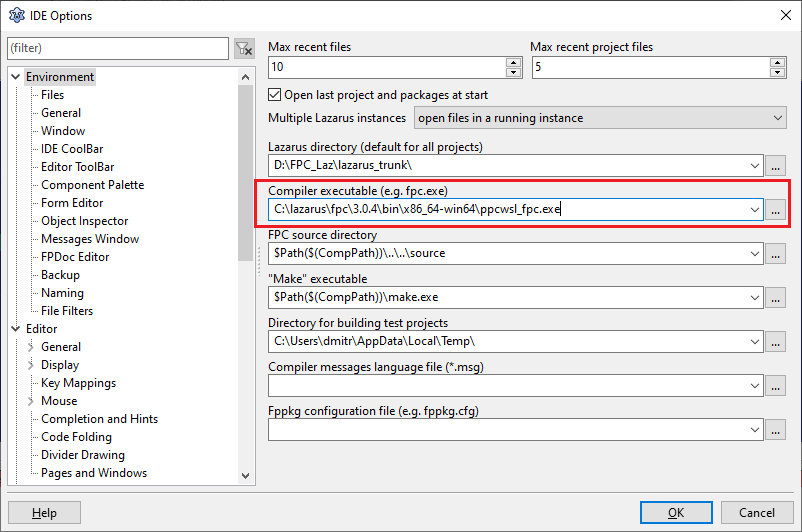 | |
| 307 | 345 | ||
| 308 | 346 | - Start a new (non GUI) project, i.e. with the following code | |
| 309 | 347 | ||
| 310 | - | ||
| 311 | - | ||
| 312 | - | ||
| 348 | + | ``` pascal | |
| 349 | + | begin | |
| 350 | + | writeln('hello world'); | |
| 351 | + | end. | |
| 352 | + | ``` | |
| 313 | 353 | ||
| 314 | 354 | - Change project settings to: | |
| 315 | 355 | ||
| 316 | 356 | ||
| 317 | 357 | Target OS = Linux | |
| 318 | 358 | ||
| 319 | 359 | Target CPI = x86_64 | |
| 320 | 360 | ||
| 321 | 361 | - Compile the project | |
| 322 | 362 | - In the project folder you should see the ELF executable showing up. You should be able to execute it using "wsl.exe" | |
| 323 | 363 | ||
| 324 | 364 | 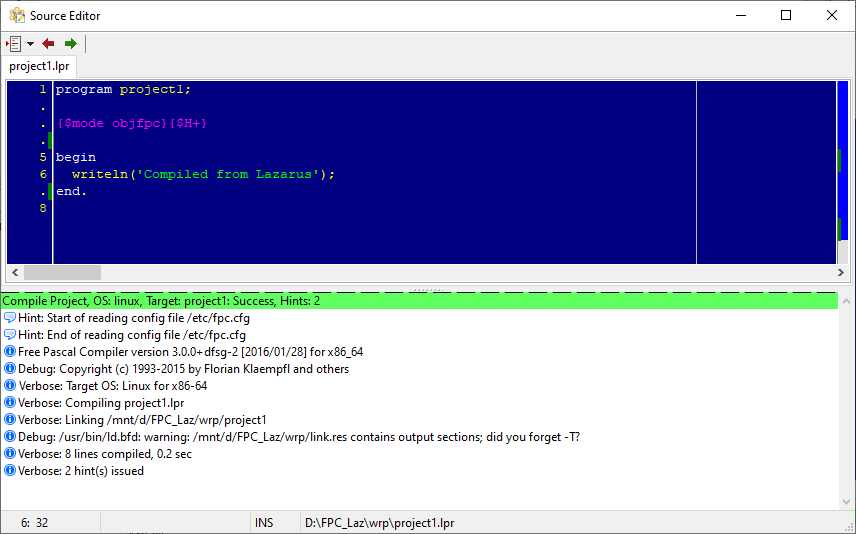 | |
| 325 | 365 | ||
| 326 | 366 | In order to rollback, simply restore the original FPC configuration in the IDE option. | |
| 327 | 367 | ||
| 328 | 368 | ## See Also | |
| 329 | 369 | ||
| 330 | 370 | - <https://docs.microsoft.com/en-us/windows/wsl/about> - official Microsoft WS documentation | |
| 331 | 371 | - <https://en.wikipedia.org/wiki/Windows_Subsystem_for_Linux> wikipedia | |
| 332 | 372 | - <https://virtualizationreview.com/articles/2017/02/08/graphical-programs-on-windows-subsystem-on-linux.aspx-> running WSL programs using X-Windows server installed on native Windows 10. | |
| 333 | 373 | ||
| 334 | 374 | --- | |
| 335 | 375 | *From the Free Pascal wiki, page "Windows Subsystem for Linux", as it stood on 2019-12-14 after a change by Bart, out of the wiki's dump of 2024-05-26. Copyright stays with the author who wrote it, according to the old wiki's [[Licensing]] page. If you have concerns about this material, [message the admin](/wiki-contact).* | |
| 336 | 376 | Category: Linux | |
| 337 | 377 | Category: Windows |