

Windows Icon: what changed
Revision 0 to 1. Removed lines have a minus sign; added lines have a plus sign.
Title: Windows Icon
| Old | New | Line | |
|---|---|---|---|
| 1 | + | *(Windows only)* | |
| 2 | + | ||
| 3 | + | ## Icon Editor | |
| 4 | + | ||
| 5 | + | Those are programs that you can use on design time of your icon: | |
| 6 | + | ||
| 7 | + | - [[Lazarus Image Editor]] *Open source* and written in Lazarus | |
| 8 | + | - [[LazPaint]] *Open source* and written in Lazarus | |
| 9 | + | - [Greenfish Icon Editor Pro](http://greenfishsoftware.blogspot.nl/2012/07/greenfish-icon-editor-pro.html) *Freeware* | |
| 10 | + | - [GIMP](http://gimp.org/) *Open source* | |
| 11 | + | - [Inkscape](http://inkscape.org/) *Open source* | |
| 12 | + | ||
| 13 | + | With *LazPaint*, *GIMP*, *Inkscape* or the application you want design the icon. With *Lazarus Image Editor* or *Greenfish Icon Editor Pro* save as .ico format. | |
| 14 | + | ||
| 15 | + | ## Default Set | |
| 16 | + | ||
| 17 | + | The default set contains the icon sizes that work in Windows in a DPI setting of 96 (100% - Default). | |
| 18 | + | ||
| 19 | + | - 16x16: Displayed on the task bar, lists and headers | |
| 20 | + | - 32x32: Displayed on the desktop, control panel | |
| 21 | + | - 48x48: Displayed in Explorer when thumbnail or titles view is selected | |
| 22 | + | - 256x256: Windows Vista+ | |
| 23 | + | ||
| 24 | + | **16x16:** This is used for Windows Explorer "*Detail view*", "*List view*", "*Small icons*", it is the application icon in a window and the icon in the notification area. | |
| 25 | + | ||
| 26 | + | **32x32:** This is used for Windows Explorer "*Content view*", desktop "*Small icons*", application icon in taskbar and start menu icons. | |
| 27 | + | ||
| 28 | + | **48x48:** This is used for Windows Explorer "*Mosaic view*", "*Medium size icon*" and desktop "*Medium size icon*". | |
| 29 | + | ||
| 30 | + | **256x256:** This is used for Windows Explorer "*Big icons*" and desktop "*Big icons*". | |
| 31 | + | ||
| 32 | + | Also the 256x256 icon is scaled, depending of the OS needs, to intermediate sizes between 48x48 and 256x256. | |
| 33 | + | ||
| 34 | + | ## DPI Modes | |
| 35 | + | ||
| 36 | + | The default set is for 96 DPI, but if you are running in [[High DPI]] you need bigger icons, scaled depending on the DPI setting. | |
| 37 | + | ||
| 38 | + | **120 DPI (125%):** | |
| 39 | + | ||
| 40 | + | - *16x16* \> 20x20 | |
| 41 | + | - *32x32* \> 40x40 | |
| 42 | + | - *48x48* \> 60x60 | |
| 43 | + | - 256x256 | |
| 44 | + | ||
| 45 | + | **144 DPI (150%):** | |
| 46 | + | ||
| 47 | + | - *16x16* \> 24x24 | |
| 48 | + | - *32x32* \> 48x48 | |
| 49 | + | - *48x48* \> 72x72 | |
| 50 | + | - 256x256 | |
| 51 | + | ||
| 52 | + | **192 DPI (200%):** | |
| 53 | + | ||
| 54 | + | - *16x16* \> 32x32 | |
| 55 | + | - *32x32* \> 64x64 | |
| 56 | + | - *48x48* \> 96x96 | |
| 57 | + | - 256x256 | |
| 58 | + | ||
| 59 | + | The most used High DPI settings are 120 & 144. If you want **quality icons** in **High DPI** you must include in your set: | |
| 60 | + | ||
| 61 | + | ``` pascal | |
| 62 | + | 16x16 ; 32x32 ; 48x48 ; 256x256 // Default set 96 DPI | |
| 63 | + | 20x20 ; 40x40 ; 60x60 // Additional used in 120 DPI | |
| 64 | + | 24x24 ; 72x72 // Additional used in 144 DPI | |
| 65 | + | ``` | |
| 66 | + | ||
| 67 | + | If you include only the **default set** your image icons will be **scaled by the OS** to the needed size but **loss of quality** will occur. | |
| 68 | + | ||
| 69 | + | *Image: icon set comparison in High DPI.* | |
| 70 | + | ||
| 71 | + | 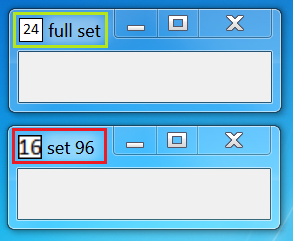 | |
| 72 | + | ||
| 73 | + | *Top:* full icon set for High DPI. Quality icon. | |
| 74 | + | ||
| 75 | + | *Bottom:* icon set for 96 DPI. Pixelated icon. | |
| 76 | + | ||
| 77 | + | ## External Links | |
| 78 | + | ||
| 79 | + | - [Microsoft: Windows Icons](https://docs.microsoft.com/en-us/windows/desktop/uxguide/vis-icons) Design Concepts and Guidelines. | |
| 80 | + | ||
| 81 | + | (*Note*: In this article some things may differ to those explained in our article which was written based on tests in Windows 7). | |
| 82 | + | ||
| 83 | + | --- | |
| 84 | + | *From the Free Pascal wiki, page "Windows Icon", as it stood on 2020-03-04 after a change by Trev, out of the wiki's dump of 2024-05-26. Copyright stays with the author who wrote it, according to the old wiki's [[Licensing]] page. If you have concerns about this material, [message the admin](/wiki-contact).* | |
| 85 | + | Category: Windows | |
| 86 | + | Category: Windows Widgetsets |