

Windows CE Interface: what changed
Revision 1 to 2. Removed lines have a minus sign; added lines have a plus sign.
| Old | New | Line | |
|---|---|---|---|
| 1 | 1 | ## Introduction | |
| 2 | 2 | ||
| 3 | 3 | The Windows CE Interface was started by Felipe Monteiro de Carvalho and latter extended by Roozbeh and other contributors. Development of the interface was started in 2006, when the Windows CE FPC compiler was still under development. In 2007 a stable compiler was released, which made it possible to release a WinCE add-on installer for the Lazarus 0.9.24 release. | |
| 4 | 4 | ||
| 5 | 5 | Because of the bad experience with code sharing between similar interfaces in the past with the gtk/gtk2 interface, it was decided to start a clean code for WinCE. Because the APIs are very similar, a lot of the code of the WinCE interface is copied from the Win32/64 Interface. | |
| 6 | 6 | ||
| 7 | 7 | ## Setting Up the Windows CE interface | |
| 8 | 8 | ||
| 9 | 9 | To set up the Windows CE interface you will need to either use the add-on installer or set up the interface manually. Both options are described below in detail. Using the add-on installer is, of course, much easier. | |
| 10 | 10 | ||
| 11 | 11 | ### Using the stable add-on installer (Recommended Method) | |
| 12 | 12 | ||
| 13 | 13 | With the first stable release of Free Pascal for Windows CE the installation of a WinCE development environment was never easier. The step-by-step guide below is all you need to install and configure Lazarus to compile wince applications. | |
| 14 | 14 | ||
| 15 | 15 | Step-by-step guide: | |
| 16 | 16 | ||
| 17 | 17 | - Install the latest Lazarus on Windows normally from SourceForge: <http://sourceforge.net/project/showfiles.php?group_id=89339> | |
| 18 | 18 | ||
| 19 | 19 | - Download and install the add-on installer (cross-arm-wince) for the same Lazarus version you just downloaded. It's on the same Source Forge Download page. | |
| 20 | 20 | ||
| 21 | 21 | - You can now compile arm-wince application from within Lazarus by changing in the compiler options: | |
| 22 | 22 | - *Project -\> Project Options -\> Compiler Options -\> Paths -\> LCL Widget Type: wince* or maybe *Project -\> Project Options -\> Compiler Options -\> Paths -\> Select another widget set (Macro LCLWidgetType) --\> Add --\> Set LCLWidgetType --\> Value "wince"* | |
| 23 | 23 | - ''Project -\> Project Options -\> Compiler Options -\> Config and Target -\> Target OS: wince | |
| 24 | 24 | - ''Project -\> Project Options -\> Compiler Options -\> Config and Target -\> Target CPU Family: arm | |
| 25 | 25 | ||
| 26 | 26 | - To reduce build filesize, in the *Project -\> Project Options -\> Compiler Options -\> Debugging* section, check *Strip symbols from executable (-Xs)* and uncheck all the rest. | |
| 27 | 27 | ||
| 28 | 28 | ### Using the snapshot add-on installer | |
| 29 | 29 | ||
| 30 | 30 | Instead of using the stable release, it's also possible to use the latest development version of the Windows CE interface through the daily snapshot. It's untested, but may be helpful if you need fixes which were added after the latest stable release and consider building everything yourself too hard or too much work. | |
| 31 | 31 | ||
| 32 | 32 | Step-by-step guide: | |
| 33 | 33 | ||
| 34 | 34 | - Install the latest Lazarus snapshot on Windows normally from here. Make sure you choose a Win32 snapshot with the exact same FPC version as the WinCE snapshot: <http://www.hu.freepascal.org/lazarus/> | |
| 35 | 35 | ||
| 36 | 36 | - Download and install the add-on installer for the same Free Pascal version you just downloaded. It's on the same page. | |
| 37 | 37 | ||
| 38 | 38 | - The rest of the steps are similar to the step-by-step guide using the stable add-on installer. | |
| 39 | 39 | ||
| 40 | 40 | ### Setting up the Windows CE interface manually | |
| 41 | 41 | ||
| 42 | 42 | To verify which FPC-version can be used with each Lazarus version please check [[LCL Internals|LCL_Internals#Minimum_Toolkit_versions]]. | |
| 43 | 43 | ||
| 44 | 44 | Here are instruction to set up the Windows CE interface manually: | |
| 45 | 45 | ||
| 46 | 46 | **Step 1** - To start with you will need to recompile the compiler on Windows to create a Windows CE - ARM Cross-compiler. There are instructions here: [[WinCE port]]. | |
| 47 | 47 | ||
| 48 | 48 | - Use TortoiseSVN to checkout the latest 2.2.5: <http://svn.freepascal.org/svn/fpc/branches/fixes_2_2/> | |
| 49 | 49 | ||
| 50 | 50 | - Then create a batch script like this one to build your compiler starting from your installed FPC 2.2.4 (either from Lazarus or from separate install): | |
| 51 | 51 | ||
| 52 | 52 | cd compiler | |
| 53 | 53 | PATH=C:\Programas\lazarus220\fpc\2.2.4\bin\i386-win32 | |
| 54 | 54 | make cycle CPU_TARGET=arm OS_TARGET=wince | |
| 55 | 55 | cd .. | |
| 56 | 56 | pause | |
| 57 | 57 | ||
| 58 | 58 | **Step 2** - You also need to compile the FCL (Free Component Library) with the newly built compiler. Instructions [[WinCE port|here]]. | |
| 59 | 59 | ||
| 60 | 60 | - The following clever batch script makes this easier (don't forget to fix the paths to match those on your machine). OPT="-FU... will put all compiled units on the same place, which is very convenient, (but can cause [problems](http://bugs.freepascal.org/view.php?id=11347). It is better to use a make clean all install instead): | |
| 61 | 61 | ||
| 62 | 62 | cd packages | |
| 63 | 63 | PATH=C:\Programas\lazarus220\fpc\2.2.5\bin\i386-win32 | |
| 64 | 64 | make clean all CPU_TARGET=arm OS_TARGET=wince PP=ppcrossarm.exe OPT="-FUC:\Programas\lazarus220\fpc\2.2.5\units\arm-wince" | |
| 65 | 65 | cd .. | |
| 66 | 66 | pause | |
| 67 | 67 | ||
| 68 | 68 | **Step 3** - Put the batch file below on the root of your subversion Lazarus directory and run it | |
| 69 | 69 | ||
| 70 | 70 | PATH=C:\Programas\lazarus22\fpc\2.2.5\bin\i386-win32;c:\Programas\arm | |
| 71 | 71 | make lcl LCL_PLATFORM=wince PP=ppcrossarm.exe CPU_TARGET=arm OS_TARGET=wince | |
| 72 | 72 | pause | |
| 73 | 73 | ||
| 74 | 74 | This should compile LCL for Windows CE. | |
| 75 | 75 | ||
| 76 | 76 | **Step 4** - Cross-compile the LazarusPackageIntf in order to be able to use 3rd party visual components. Go to lazarus\packager\registration and do: | |
| 77 | 77 | ||
| 78 | 78 | PATH=C:\Programas\lazarus22\fpc\2.2.5\bin\i386-win32;c:\Programas\arm | |
| 79 | 79 | make PP=ppcrossarm.exe CPU_TARGET=arm OS_TARGET=wince | |
| 80 | 80 | pause | |
| 81 | 81 | ||
| 82 | 82 | NOTE: you need to specify \$(LazarusDir)\packager\units\\\$(TargetCPU)-\$(TargetOS)\\ into your project's unit path (adding FCL as requirement should do that). | |
| 83 | 83 | ||
| 84 | 84 | **Step 5** - Now you can use the Lazarus IDE to design, compile and debug your applications. | |
| 85 | 85 | ||
| 86 | 86 | - You can also use scripts similar to the one below for compiling your applications: | |
| 87 | 87 | ||
| 88 | 88 | PATH=C:\Programas\lazarus22\fpc\2.2.5\bin\i386-win32;c:\Programas\arm | |
| 89 | 89 | ppcrossarm.exe -Twince -FuC:\Programas\fpc\rtl\units\arm-wince -FDC:\Programas\arm -XParm-wince- test.pas | |
| 90 | 90 | ppcrossarm.exe -Twince -FuC:\programas\lazarus\lcl\units\arm-wince -FuC:\programas\lazarus\lcl\units\arm-wince\wince -FuC:\Programas\fpc\rtl\units\arm-wince -FDC:\Programas\arm -XParm-wince- windowtest.pas | |
| 91 | 91 | pause | |
| 92 | 92 | ||
| 93 | 93 | ### Compiling Windows CE project files with Lazarus IDE | |
| 94 | 94 | ||
| 95 | 95 | NOTE: recently a "wincemenures.or" file is reported missing on linking. You just need to copy this file from "lazarus/lcl/interfaces/wince" to "lazarus/lcl/units/arm-wince" and everything will be fine. | |
| 96 | 96 | ||
| 97 | 97 | Everything is just as you do with other interfaces and OSes. Make sure you have selected wince as widgetset in in **Compiler Options-\>Paths** and in **Code** tab page select **WinCE** as target os and **arm** as Target CPU. | |
| 98 | 98 | ||
| 99 | 99 | If you compiled your own compiler or installed it without using the Lazarus add-on installer, you also need to change **compiler path** in **Environment options** to point to your ppcrossarm.exe compiler. In other cases the compiler should already be set to the correct one, which is fpc.exe, which is a front end which chooses the correct back end compiler for the target CPU. In this case the path will be similar to C:\lazarus\fpc\2.2.2\bin\i386-win32\fpc.exe varying with the version of your installed FPC. | |
| 100 | 100 | ||
| 101 | 101 | Now, the IDE is ready to compile your files. | |
| 102 | 102 | ||
| 103 | 103 | ### Debugging Windows CE software on the Lazarus IDE | |
| 104 | 104 | ||
| 105 | 105 | You can also debug applications created within Lazarus IDE. | |
| 106 | 106 | ||
| 107 | 107 | **Step 1** - In Lazarus IDE go to the menu **Environment-\>Debugger Options**. Change the debugger path to the directory with gdb for wince.you can get it from here <ftp://ftp.freepascal.org/pub/fpc/contrib/cross/gdb-6.4-win32-arm-wince.zip> | |
| 108 | 108 | ||
| 109 | 109 | Also read the notes on <http://bugs.freepascal.org/view.php?id=21061> for information on additional setup. | |
| 110 | 110 | ||
| 111 | 111 | And you also need to have ActiveSync installed for gdb to work. You can get ActiveSync here: <http://www.microsoft.com/windowsmobile/en-us/help/synchronize/activesync45.mspx> | |
| 112 | 112 | ||
| 113 | 113 | **Step 2** - If you are using Microsoft Device Emulator Preview, launch(or restore)it. Make sure you've started emulator with 128MB of RAM. Select a path for shared folders in emulator, add copy command to your .bat file used for building your application to copy the compiled exe file to your shared path. (as you can see in my .bat file). Here is a .bat file you can use to launch the emulator with 128 of ram. | |
| 114 | 114 | ||
| 115 | 115 | start deviceemulator.exe ".\ppc_2003_se\PPC_2003_SE_WWE_ARMv4.bin" /memsize 128 /skin | |
| 116 | 116 | ".\ppc_2003_se\PocketPC_2003_Skin.xml" | |
| 117 | 117 | ||
| 118 | 118 | After that, just do 'save and exit' whenever you want to quit emulator and, launch it again from shortcuts created in your start menu. (The shortcuts with '(restore)'). | |
| 119 | 119 | ||
| 120 | 120 | **Step 3** - Run Device Emulator Manager and in available emulators right click on the name of emulator and do cradle. Now Microsoft ActiveSync will be launched. If not in Microsoft ActiveSync, Go to the menu **File-\>Get connected**. If ActiveSync still doesn't recognize the emulator, Uncradle and Cradle the emulator again. | |
| 121 | 121 | ||
| 122 | 122 | **Step 4 - Optional** - This step is optional and if you don't do it, gdb will do this for you, but it might take some 5 minutes to do it. Copy your executable file with File Explorer program in your emulator to the directory "\gdb". If there is no gdb directory in the root folder, create it. | |
| 123 | 123 | ||
| 124 | 124 | **Step 5** - Now you can safely debug your application.gdb for wince will be launched.it will copy arm-wince-pe-stub.exe to \gdb folder and check if your application.exe file is there and will launch the program. If you encountered an error a) make sure the \gdb folder is created and b) that both arm-wince-pe-stub.exe and your .exe file are present. Also most of the times because of big size of a .exe file, you can not copy that into your \gdb file. So, you'll have to call Microsoft Device Emulator Preview with 128mg ram instead of the default 64mg ram. | |
| 125 | 125 | ||
| 126 | 126 | **Known bugs** | |
| 127 | 127 | ||
| 128 | 128 | There are some known issues with debugging, for which some have a work-around. Please read the bug tracker: [1](http://bugs.freepascal.org/view.php?id=21061) and [2](http://bugs.freepascal.org/view.php?id=24126) | |
| 129 | 129 | ||
| 130 | 130 | **Some Hints** | |
| 131 | 131 | ||
| 132 | 132 | 1. You can change the remote directory from /gdb to yours by add gdb parameter --eval-command="set remotedirectory ... | |
| 133 | 133 | ||
| 134 | 134 | --eval-command="set remotedirectory \Storage Card\Program Files\My Program\bin" | |
| 135 | 135 | ||
| 136 | 136 | 1. You can reduce the size of .exe file by checking "Use external gdb file debug symbols file -Xg", and "Strip Symbols -Xs", the file myapp.gdb will be generated which can then be used with gdb. | |
| 137 | 137 | ||
| 138 | 138 | ### Installing and Using the Pocket PC Emulator | |
| 139 | 139 | ||
| 140 | 140 | #### Windows Mobile 5.0 Emulator | |
| 141 | 141 | ||
| 142 | 142 | 1 - You can download a Pocket PC Emulator from Microsoft [here](http://www.microsoft.com/downloads/details.aspx?FamilyId=C62D54A5-183A-4A1E-A7E2-CC500ED1F19A&displaylang=en). First, download and install the file V1Emulator.zip. | |
| 143 | 143 | ||
| 144 | 144 | 2 - Next, be careful that there is a wrong information on the website. It will say that you need to install the Virtual Machine Network Driver, but the link provided on the website is broken. Instead, download Virtual PC 2007 [here](http://www.microsoft.com/downloads/details.aspx?FamilyID=04d26402-3199-48a3-afa2-2dc0b40a73b6&DisplayLang=en). This will install the necessary driver too. | |
| 145 | 145 | ||
| 146 | 146 | 3 - Now, go back to the first website and download and install the efp.msi file | |
| 147 | 147 | ||
| 148 | 148 | Now you should have a fully functional PocketPC Emulator which can be utilized together with Lazarus to develop applications. | |
| 149 | 149 | ||
| 150 | 150 | To run a Lazarus application on the emulator you can either use GDB via ActiveSync, or you can also just execute it directly. | |
| 151 | 151 | ||
| 152 | 152 | #### Windows Mobile 6.5 in Windows Vista or superior | |
| 153 | 153 | ||
| 154 | 154 | 1 - Download and install the [Microsoft Device Emulator 3.0](http://www.microsoft.com/downloads/details.aspx?familyid=A6F6ADAF-12E3-4B2F-A394-356E2C2FB114&displaylang=en) | |
| 155 | 155 | ||
| 156 | 156 | 2 - Download and install the [Windows Mobile 6.5 Developer Tool Kit (with localized Images)](http://www.microsoft.com/downloads/details.aspx?displaylang=en&FamilyID=20686a1d-97a8-4f80-bc6a-ae010e085a6e) | |
| 157 | 157 | ||
| 158 | 158 | 3 - There is no more ActiveSync in Vista or newer. For newer Windows version it is named "Windows Mobile Device Center. So, download and install it (this download requires the Genuine Windows check): | |
| 159 | 159 | ||
| 160 | 160 | 3.1 - For Windows Vista or higher (32-bits): <http://www.microsoft.com/en-us/download/details.aspx?id=14> | |
| 161 | 161 | ||
| 162 | 162 | 3.2 - For Windows Vista or higher (64-bits): <http://www.microsoft.com/en-us/download/details.aspx?id=3182> | |
| 163 | 163 | ||
| 164 | 164 | For information about cradling and connecting to a network, read: [3](http://www.petenetlive.com/KB/Article/0000241.htm) | |
| 165 | 165 | ||
| 166 | 166 | ##### Connecting the Windows Mobile 6.5 emulator in Vista or Superior to the computer | |
| 167 | 167 | ||
| 168 | 168 | To connect the emulator to the computer, follow these steps: | |
| 169 | 169 | ||
| 170 | 170 | 1 - Start the Emulator | |
| 171 | 171 | ||
| 172 | 172 | 2 - Start the Device Emulator Manager. Previously it had a nice start menu icon, but in Vista+ it is well hidden. You have to run the file dvcemumanager.exe, which is probably located in C:\Program Files\Microsoft Device Emulator\1.0 | |
| 173 | 173 | ||
| 174 | 174 | 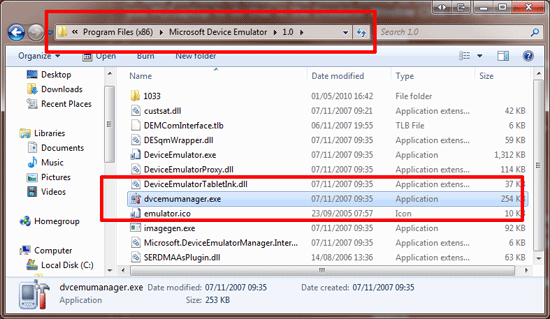 | |
| 175 | 175 | ||
| 176 | 176 | 3 - You will see the devices GUID \> Right click it and select "Cradle". | |
| 177 | 177 | ||
| 178 | 178 | 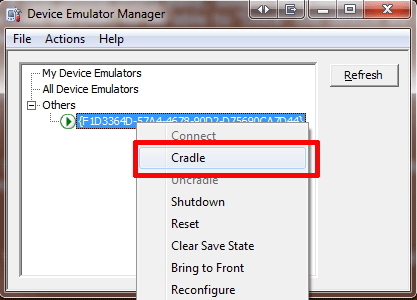 | |
| 179 | 179 | ||
| 180 | 180 | 4 - Run the "Windows Mobile Device Center". It should have a start menu icon by now. When it opens, select "Mobile Device Settings" and change the "Allow connections to one of the following" from "Bluetooth" to "DMA" | |
| 181 | 181 | ||
| 182 | 182 | 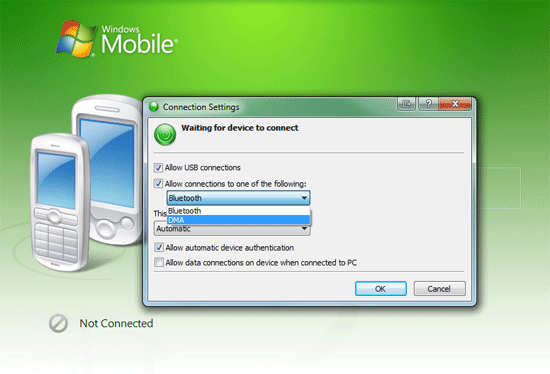 | |
| 183 | 183 | ||
| 184 | 184 | After closing the dialog it should then connect. | |
| 185 | 185 | ||
| 186 | 186 | ##### Setting up a shared folder in the emulator | |
| 187 | 187 | ||
| 188 | 188 | The shared folder is a folder in your computer which is mounted in the device with the path "\Storage Card\\" and it works in the device as if it was a memory card. To set this up, click in File -\> Configure in the emulator and set the path to the folder, as shown in the screen shot below: | |
| 189 | 189 | ||
| 190 | 190 | 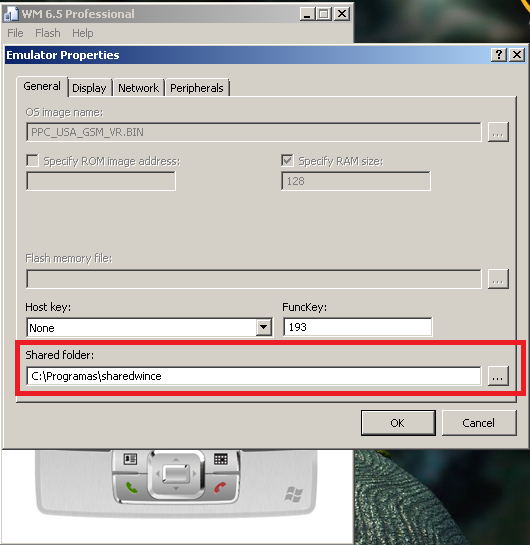 | |
| 191 | 191 | ||
| 192 | 192 | #### Links to Emulators and Images | |
| 193 | 193 | ||
| 194 | 194 | ##### Emulators | |
| 195 | 195 | ||
| 196 | 196 | [Microsoft Device Emulator 2.0](http://www.microsoft.com/downloads/details.aspx?displaylang=en&FamilyID=dd567053-f231-4a64-a648-fea5e7061303) | |
| 197 | 197 | ||
| 198 | 198 | [Microsoft Device Emulator 3.0](http://www.microsoft.com/downloads/details.aspx?familyid=A6F6ADAF-12E3-4B2F-A394-356E2C2FB114&displaylang=en) | |
| 199 | 199 | ||
| 200 | 200 | ##### Images | |
| 201 | 201 | ||
| 202 | 202 | [Windows Mobile 6.0 Localized Emulator Images](http://www.microsoft.com/downloads/details.aspx?familyid=38C46AA8-1DD7-426F-A913-4F370A65A582&displaylang=en) | |
| 203 | 203 | ||
| 204 | 204 | [Windows Mobile 6.1 Emulator Images (USA only)](http://www.microsoft.com/downloads/details.aspx?familyid=3D6F581E-C093-4B15-AB0C-A2CE5BFFDB47&displaylang=en) | |
| 205 | 205 | ||
| 206 | 206 | [Windows Mobile 6.1.4 Emulator Images (USA only)](http://www.microsoft.com/downloads/details.aspx?familyid=1A7A6B52-F89E-4354-84CE-5D19C204498A&displaylang=en) | |
| 207 | 207 | ||
| 208 | 208 | [Windows Mobile 6.5 Developer Tool Kit (with localized Images)](http://www.microsoft.com/downloads/details.aspx?displaylang=en&FamilyID=20686a1d-97a8-4f80-bc6a-ae010e085a6e) | |
| 209 | 209 | ||
| 210 | 210 | #### Running an application on the emulator | |
| 211 | 211 | ||
| 212 | 212 | 1 - Go the the Windows Programs Menu --\> "Windows Mobile Emulator Images" --\> "PocketPC" | |
| 213 | 213 | ||
| 214 | 214 | 2 - If you never configured your shared folder for the emulator, do so now, by clicking on the menu File --\> Configure once the emulator opens. Set it to a folder where you can access your Windows CE executable created with Lazarus. | |
| 215 | 215 | ||
| 216 | 216 | 3 - On the emulator click: Start --\> Programs. Now select "File Explorer". Then select "Storage Card". Navigate until you find your executable and double click it to execute it. | |
| 217 | 217 | ||
| 218 | 218 | ## How to add a new control | |
| 219 | 219 | ||
| 220 | 220 | For example TButton. | |
| 221 | 221 | ||
| 222 | 222 | TButton is defined in lcl/buttons.pp. This is the platform independent part of the LCL, which is used by the normal LCL programmer. | |
| 223 | 223 | ||
| 224 | 224 | Its widgetset class is in lcl/widgetset/wsbuttons.pp. This is the platform independent base for all widgetsets (qt, carbon, gtk, win32, ...). | |
| 225 | 225 | ||
| 226 | 226 | It's wince interface class is in lcl/interfaces/wince/wincewsbuttons.pp: | |
| 227 | 227 | ||
| 228 | - | ||
| 229 | - | ||
| 230 | - | ||
| 231 | - | ||
| 232 | - | ||
| 233 | - | ||
| 228 | + | ``` pascal | |
| 229 | + | TWinCEWSButton = class(TWSButton) | |
| 230 | + | private | |
| 231 | + | protected | |
| 232 | + | public | |
| 233 | + | class function CreateHandle(const AWinControl: TWinControl; const AParams: TCreateParams): TLCLIntfHandle; override; | |
| 234 | + | end; | |
| 235 | + | ``` | |
| 234 | 236 | ||
| 235 | 237 | Every WS class, that actually implements something, must be registered. See the initialization section at the end of the wincewsXXX.pp unit: | |
| 236 | 238 | ||
| 237 | - | ||
| 239 | + | ```text | |
| 240 | + | RegisterWSComponent(TButton, TWinCEWSButton); | |
| 241 | + | ``` | |
| 238 | 242 | ||
| 239 | 243 | Also notice that DestroyHandle should be implemented to clean up memory utilized by the control. | |
| 240 | 244 | ||
| 241 | 245 | ## Gallery | |
| 242 | 246 | ||
| 243 | 247 | Below are screenshots of applications created with Lazarus for Windows CE: | |
| 244 | 248 | ||
| 245 | 249 | Virtual Moon Atlas - A free software for Moon observation or survay ( <http://ap-i.net/avl/en/start> ): | |
| 246 | 250 | ||
| 247 | 251 | 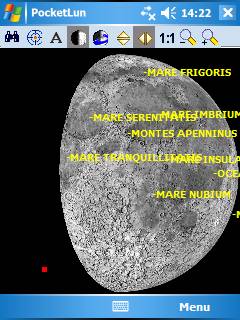 | |
| 248 | 252 | ||
| 249 | 253 | LazCalendar - A simple calendar application: | |
| 250 | 254 | ||
| 251 | 255 | 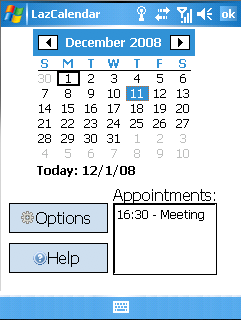 | |
| 252 | 256 | ||
| 253 | 257 | [[germesorders]] - A simple database application using sqlite and RxLib | |
| 254 | 258 | ||
| 255 | 259 | 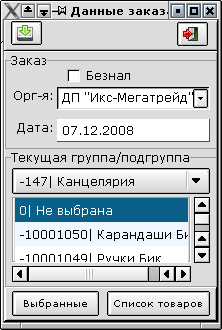 | |
| 256 | 260 | ||
| 257 | 261 | [ZzOo](http://deprecated.cocea.biz/blog1.php/2008/08/26/mobile-fun), pronounced /'zi:zu:/, is a free Western Zodiac sign finder. You can install it directly and free of charge on your mobile phone by visiting the [GetJar](http://www.getjar.com/mobile/51934/zzoo/) app store. | |
| 258 | 262 | ||
| 259 | 263 | 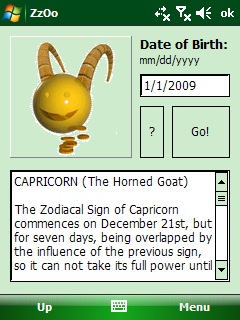 | |
| 260 | 264 | ||
| 261 | 265 | [Mini SQLite Viewer](https://sourceforge.net/projects/sqlviewer.minilib.p) - Simple SQlite viewer/manager for WinCE and Win32 | |
| 262 | 266 | ||
| 263 | 267 | 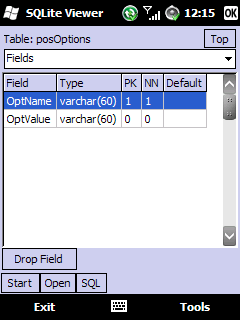 | |
| 264 | 268 | ||
| 265 | 269 | [STAR Manager](http://yk-cv.com/software-developing/?id=starmgr) - advanced system manager that allows to adjust backligth and sound volume of ARM processor-based WinCE device, set desktop wallpapers, controll and manage system pocesses and memory load, contol battery charge and see device configuration. | |
| 266 | 270 | ||
| 267 | 271 | 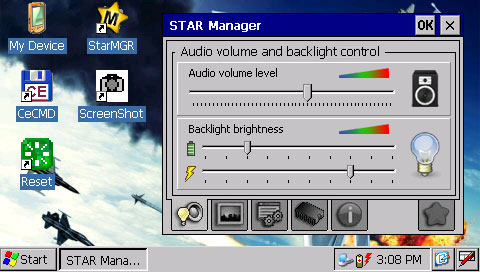 | |
| 268 | 272 | ||
| 269 | 273 | ### Wireless Orders for Mini Bar Cafe | |
| 270 | 274 | ||
| 271 | 275 | Win32 TCP/IP Application Server, Win32 TCP/IP Client, WinCE TCP/IP Client. Using Lazarus and lNet we develop wireless ordering system for Mini Bar - Cafe. Print receipts directly to Cash Mashine. | |
| 272 | 276 | ||
| 273 | 277 | More Info ( <http://www.cforce.gr/orders.htm> ) Demo ( <http://www.cforce.gr/downloads/setupwodemo.exe> ) | |
| 274 | 278 | ||
| 275 | 279 | 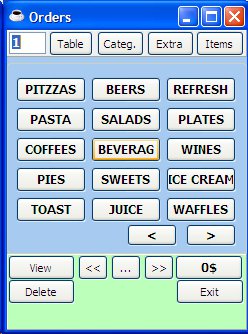 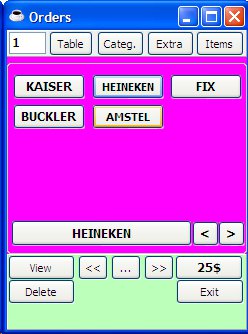 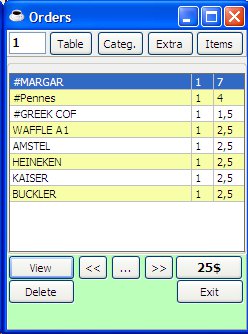 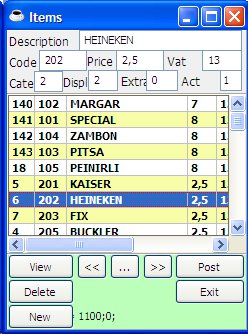 | |
| 276 | 280 | ||
| 277 | 281 | ## See Also | |
| 278 | 282 | ||
| 279 | 283 | - [[Windows CE Development Notes|Windows CE Interface Development notes]] | |
| 280 | 284 | - Alternative Lazarus Windows CE tutorial using Win64 | |
| 281 | 285 | - [[Roadmap|Roadmap for the Windows CE interface]] | |
| 282 | 286 | - Mini framework for WindowsCE applications: [pkMiniGUI.pas](http://ccrdude.net/files/fpc/pkMiniGUI.pas) [Documentation](http://ccrdude.net/docs/pkCEStuff.htm) | |
| 283 | 287 | - [[KOL-CE|WinCE port of KOL GUI library]] - compact applications for WinCE/Win32. | |
| 284 | 288 | - [[WinCE port]] - About the compiler specific parts of the port | |
| 285 | 289 | ||
| 286 | 290 | --- | |
| 287 | 291 | *From the Free Pascal wiki, page "Windows CE Interface", as it stood on 2020-08-09 after a change by Trev, out of the wiki's dump of 2024-05-26. Copyright stays with the author who wrote it, according to the old wiki's [[Licensing]] page. If you have concerns about this material, [message the admin](/wiki-contact).* | |
| 288 | 292 | Category: WinCE | |
| 289 | 293 | Category: Windows Widgetsets |