

Windows CE Interface/pt: what changed
Revision 0 to 1. Removed lines have a minus sign; added lines have a plus sign.
Title: Windows CE Interface/pt
| Old | New | Line | |
|---|---|---|---|
| 1 | + | ## Configurando a interface do Windows CE | |
| 2 | + | ||
| 3 | + | Para configurar a interface Windows CE você vai precisar usar ou o instalador add-on ou configurar a interface manualmente. As duas opções são detalhadas a seguir. Usar o instalador add-on é evidentemente muito mais fácil. | |
| 4 | + | ||
| 5 | + | ### Usando o instalador add-on | |
| 6 | + | ||
| 7 | + | Guia passo-a-passo: | |
| 8 | + | ||
| 9 | + | - Instale o Lazarus no Windows normalmente. | |
| 10 | + | ||
| 11 | + | - Baixe e instalee o instalador add-on para o Lazarus no Windows de [Lazarus Testing](http://sourceforge.net/project/showfiles.php?group_id=89339&package_id=93599) no sourceforge. | |
| 12 | + | - Você pode compilar aplicações Win32 Arm-WinCE de dentro do Lazarus modificando nas opções do compilador : | |
| 13 | + | - Widget set | |
| 14 | + | - SO Alvo | |
| 15 | + | - CPU Alvo | |
| 16 | + | ||
| 17 | + | Nota: certifique-se de que ambos os instaladores têm a mesma versão do FPC. | |
| 18 | + | ||
| 19 | + | ### Configurando a interface Windows CE manualmente | |
| 20 | + | ||
| 21 | + | O compilador e a biblioteca Run-Time para Windows CE estão disponíveis somente na divisão de desenvolvimento do FreePascal, a versão 2.1.x. Os snapshots do Lazarus vêm com esta versão do FreePascal. | |
| 22 | + | ||
| 23 | + | **Passo 1** - Para começar você vai precisar recompilar o compilador no Windows para criar um cross-compilador Windows CE - ARM. Há instruções aqui: [[fpc:WinCE port|WinCE_port]]. | |
| 24 | + | ||
| 25 | + | **Passo 2** - Você também precisa compilar a FCL (Free Component Library) com o compilador recém-criado. Instruções [[fpc:WinCE port|aqui]]. | |
| 26 | + | ||
| 27 | + | **Passo 3** - Ponha o arquivo batch abaixo na raiz do seu diretório de subversão do Lazarus e execute-o. | |
| 28 | + | ||
| 29 | + | PATH=C:\Programas\lazarus\pp\bin\i386-win32;c:\Programas\arm | |
| 30 | + | make lcl LCL_PLATFORM=wince PP=ppcrossarm.exe CPU_TARGET=arm OS_TARGET=wince | |
| 31 | + | ||
| 32 | + | Isto deve compilar a LCL para Windows CE. | |
| 33 | + | ||
| 34 | + | **Passo 4** - Cross-compile o LazarusPackageIntf de modo que possa usar componentes visuais de terceiros. Vá a lazarus\packager\registration e faça: | |
| 35 | + | ||
| 36 | + | PATH=C:\Programas\lazarus\pp\bin\i386-win32;c:\Programas\arm | |
| 37 | + | make PP=ppcrossarm.exe CPU_TARGET=arm OS_TARGET=wince | |
| 38 | + | ||
| 39 | + | NOTA: you need to specify \$(LazarusDir)\packager\units\\\$(TargetCPU)-\$(TargetOS)\\ into your project's unit path (adding FCL as requirement should do that). | |
| 40 | + | ||
| 41 | + | **Step 5** - Now you can use Lazarus IDE to design,compile and debug your applications. | |
| 42 | + | ||
| 43 | + | - You can also use scripts similar to this for compiling your applications: | |
| 44 | + | ||
| 45 | + | PATH=C:\Programas\lazarus\pp\bin\i386-win32;c:\Programas\arm | |
| 46 | + | ppcrossarm.exe -Twince -FuC:\Programas\fpc\rtl\units\arm-wince -FDC:\Programas\arm -XParm-wince- test.pas | |
| 47 | + | ppcrossarm.exe -Twince -FuC:\programas\lazarus\lcl\units\arm-wince -FuC:\programas\lazarus\lcl\units\arm-wince\wince -FuC:\Programas\fpc\rtl\units\arm-wince -FDC:\Programas\arm -XParm-wince- windowtest.pas | |
| 48 | + | ||
| 49 | + | ### Compiling Windows CE project files with Lazarus IDE | |
| 50 | + | ||
| 51 | + | NOTE: recently a "wincemenures.or" file is reported missing on linking. You just need to copy this file from "lazarus/lcl/interfaces/wince" to "lazarus/lcl/units/arm-wince" and everything will be fine. | |
| 52 | + | ||
| 53 | + | Everything is just as you do with other interfaces and OSes. Make sure you have selected wince as widgetset in in **Compiler Options-\>Paths** and in **Code** tab page select **WinCE** as target os and **arm** as Target CPU. You also need to change **compiler path** in **Environment options** to point to your ppcrossarm.exe compiler. | |
| 54 | + | ||
| 55 | + | Now IDE is ready to compiler your files. | |
| 56 | + | ||
| 57 | + | ### Debugging Windows CE software on the Lazarus IDE | |
| 58 | + | ||
| 59 | + | You can also debug applications created within Lazarus IDE. | |
| 60 | + | ||
| 61 | + | **Step 1** - In Lazarus IDE go to the menu **Environment-\>Debugger Options**. Change the debugger path to the directory with gdb for wince.you can get it from here <ftp://ftp.freepascal.org/pub/fpc/contrib/cross/gdb-6.4-win32-arm-wince.zip> | |
| 62 | + | ||
| 63 | + | **Step 2** - If you are using Microsoft Device Emulator Preview, launch(or restore)it.Make sure you've started emulator with 128mg of ram.Select a path for shared folders in emulator, add copy command to your .bat file used for building your application to copy the compiled exe file to your shared path.(as you can see in my .bat file).Here is a .bat file you can use to launch emulator with 128 of ram. | |
| 64 | + | ||
| 65 | + | start deviceemulator.exe ".\ppc_2003_se\PPC_2003_SE_WWE_ARMv4.bin" /memsize 128 /skin | |
| 66 | + | ".\ppc_2003_se\PocketPC_2003_Skin.xml" | |
| 67 | + | ||
| 68 | + | After that just do 'save and exit' whenever you want to quit emulator,and launch it again from shortcuts created in your start menu.(the shortcuts with '(restore)'). | |
| 69 | + | ||
| 70 | + | **Step 3** - Run Device Emulator Manager and in available emulators right click on the name of emulator and do cradle.Now Microsoft ActiveSync will be launched.If not in Micrososft ActiveSync Go to the menu **File-\>Get connected**.If still ActiveSync doesn't recognize the emulator.Uncradle and Cradle the emulator again. | |
| 71 | + | ||
| 72 | + | **Step 4** - Copy that file with File Explorer program in your emulator to \gdb directory.If it is your first time running emulator you have to create a gdb directory in 'My Pocket PC' folder which is your root(\\) folder.(To make things even faster for your each build,with file explorer go to your shared folder,press ctrl+c in your exe file,go to \gdb folder and each time before you try to debug your application just press ctrl+v) | |
| 73 | + | ||
| 74 | + | **Step 5** - Now you can safely debug your application.gdb for wince will be launched.it will copy arm-wince-pe-stub.exe to \gdb folder and check if your application.exe file is there and will launch the program. If you encountered an error make sure the \gdb folder is created,arm-wince-pe-stub.exe and you exe file is there.Also most of the times because of big size of exe file you can not copy that into your \gdb file.So you have to call Microsoft Device Emulator Preview with 128mg of ram instead of default 64mg ram. | |
| 75 | + | ||
| 76 | + | **Some Hints** | |
| 77 | + | ||
| 78 | + | 1\. Programs remain in memory still after exiting from them. So you can't overwrite the .exe file. You have to use tools like Process Viewer from Microsoft which remotely shows all processes and allow you to kill them. Or use process killers inside the emulator. Process Explorer is another good option. One can get it from <http://madebits.com> | |
| 79 | + | ||
| 80 | + | 2\. Each time you are done with debugging your program don't exit from program.Do program Reset and then Debugger reset. Note that sometimes still program remain in memory,so you also have to kill the process too. | |
| 81 | + | ||
| 82 | + | ### Installing and Using the Pocked PC Emulator | |
| 83 | + | ||
| 84 | + | 1 - You can download a Pocket PC Emulator from Microsoft [here](http://www.microsoft.com/downloads/details.aspx?FamilyId=C62D54A5-183A-4A1E-A7E2-CC500ED1F19A&displaylang=en). First, download and install the file V1Emulator.zip. | |
| 85 | + | ||
| 86 | + | 2 - Next, be careful that there is a wrong information on the website. It will say that you need to install the Virtual Machine Network Driver, but the link provided on the website is broken. Instead, download Virtual PC 2007 [here](http://www.microsoft.com/downloads/details.aspx?FamilyID=04d26402-3199-48a3-afa2-2dc0b40a73b6&DisplayLang=en). This will install the necessary driver too. | |
| 87 | + | ||
| 88 | + | 3 - Now, go back to the first website and download and install the efp.msi file | |
| 89 | + | ||
| 90 | + | Now you should have a fully functional PocketPC Emulator which can be utilized together with Lazarus to develop applications. | |
| 91 | + | ||
| 92 | + | To run a Lazarus application on the emulator you can either use GDB via ActiveSync, or you can also just execute it directly. | |
| 93 | + | ||
| 94 | + | #### Running an application on the emulator | |
| 95 | + | ||
| 96 | + | 1 - Go the the Windows Programs Menu --\> "Windows Mobile Emulator Images" --\> "PocketPC" | |
| 97 | + | ||
| 98 | + | 2 - If you never configured your shared folder for the emulator, do so now, by clicking on the menu File --\> Configure once the emulator opens. Set it to a folder where you can access your Windows CE executable created with Lazarus. | |
| 99 | + | ||
| 100 | + | 3 - On the emulator click: Start --\> Programs. Now select "File Explorer". Now select "Storage Card". Navigate until you find your executable and double click it to execute it. | |
| 101 | + | ||
| 102 | + | ## Screenshots | |
| 103 | + | ||
| 104 | + | An example of Lazarus+WinCE and the Free Pascal software used to test the cross compiler: | |
| 105 | + | ||
| 106 | + | 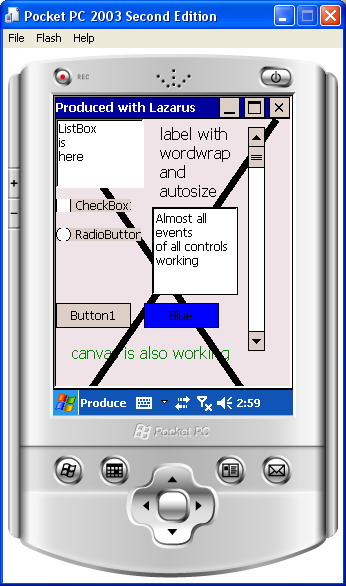 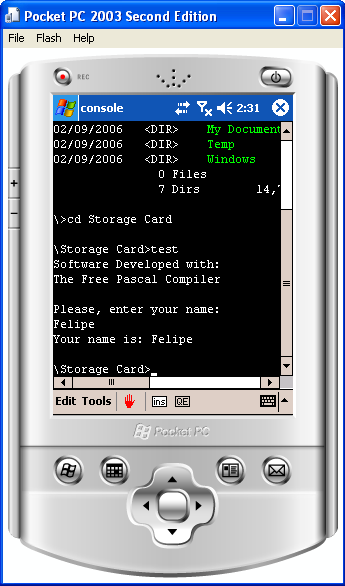 | |
| 107 | + | ||
| 108 | + | ## How to add a new control | |
| 109 | + | ||
| 110 | + | For example TButton. | |
| 111 | + | ||
| 112 | + | TButton is defined in lcl/buttons.pp. This is the platform independent part of the LCL, which is used by the normal LCL programmer. | |
| 113 | + | ||
| 114 | + | Its widgetset class is in lcl/widgetset/wsbuttons.pp. This is the platform independent base for all widgetsets (qt, carbon, gtk, win32, ...). | |
| 115 | + | ||
| 116 | + | It's wince interface class is in lcl/interfaces/wince/wincewsbuttons.pp: | |
| 117 | + | ||
| 118 | + | ` TWinCEWSButton = class(TWSButton)`\ | |
| 119 | + | ` private`\ | |
| 120 | + | ` protected`\ | |
| 121 | + | ` public`\ | |
| 122 | + | ` class function CreateHandle(const AWinControl: TWinControl; const AParams: TCreateParams): TLCLIntfHandle; override;`\ | |
| 123 | + | ` end;` | |
| 124 | + | ||
| 125 | + | Every WS class, that actually implements something must be registered. See the initialization section at the end of the wincewsXXX.pp unit: | |
| 126 | + | ||
| 127 | + | ` RegisterWSComponent(TButton, TWinCEWSButton);` | |
| 128 | + | ||
| 129 | + | Also notice that DestroyHandle should be implemented to clean up memory utilized by the control. | |
| 130 | + | ||
| 131 | + | ## See Also | |
| 132 | + | ||
| 133 | + | - [[Windows CE Development Notes|Windows CE Interface Development notes]] | |
| 134 | + | ||
| 135 | + | - Alternative Lazarus Windows CE tutorial using Win64 | |
| 136 | + | ||
| 137 | + | - [[Roadmap|Roadmap for the Windows CE interface]] | |
| 138 | + | ||
| 139 | + | - Mini framework for WindowsCE applications: [pkMiniGUI.pas](http://ccrdude.net/files/fpc/pkMiniGUI.pas) [Documentation](http://ccrdude.net/docs/pkCEStuff.htm) | |
| 140 | + | ||
| 141 | + | ## Downloads | |
| 142 | + | ||
| 143 | + | - An add-on installer for the Lazarus windows installer based on fpc 2.1.1: <ftp://ftp.hu.freepascal.org/pub/lazarus/cross/>. These files are mirrored at <http://michael-ep3.physik.uni-halle.de/Lazarus/cross/> Details can be found at <http://www.mail-archive.com/lazarus@miraclec.com/msg12909.html> Thanks to Vincent Snijders. | |
| 144 | + | ||
| 145 | + | --- | |
| 146 | + | *From the Free Pascal wiki, page "Windows CE Interface/pt", as it stood on 2015-07-20 after a change by FTurtle, out of the wiki's dump of 2024-05-26. Copyright stays with the author who wrote it, according to the old wiki's [[Licensing]] page. If you have concerns about this material, [message the admin](/wiki-contact).* | |
| 147 | + | Category: WinCE/pt |