

TsWorksheetGrid: what changed
Revision 0 to 1. Removed lines have a minus sign; added lines have a plus sign.
Title: TsWorksheetGrid
| Old | New | Line | |
|---|---|---|---|
| 1 | + | ## Overview | |
| 2 | + | ||
| 3 | + | `TsWorksheetGrid` is a specialized grid component which interfaces to a `TsWorksheet` from the [[FPSpreadsheet]] library and displays spreadsheet data files like in a conventional [[Grids Reference Page|TStringGrid]]. | |
| 4 | + | ||
| 5 | + | 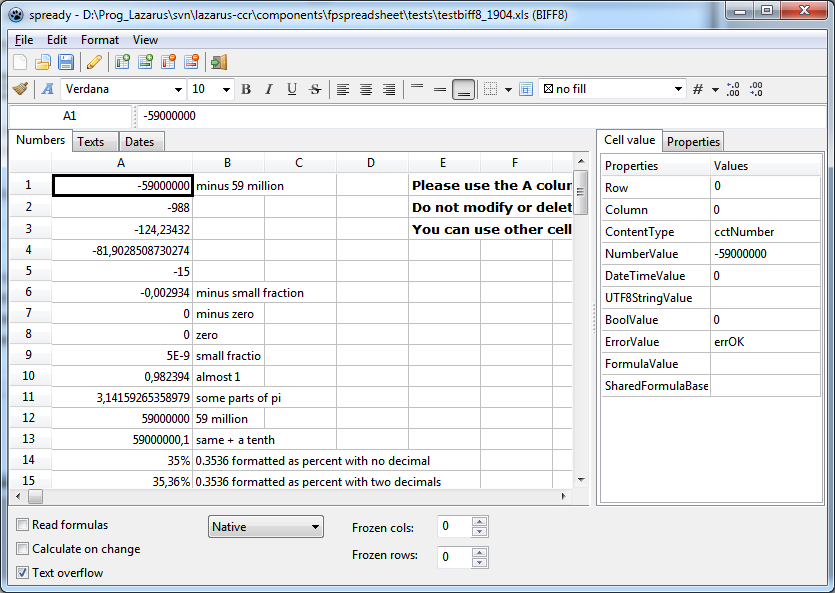 | |
| 6 | + | ||
| 7 | + | ## Programming interface | |
| 8 | + | ||
| 9 | + | `TsWorksheetGrid` inherits from TCustomGrid and behaves much like a standard [[Grids Reference Page|TStringGrid]]. The main difference is that the grid itself does not store data, but data are stored in a `TWorksheet` of [[FPSpreadsheet]]. The worksheet can be accessed by using the property `Worksheet` of the grid. Similarly, `Workbook` allows to access the entire workbook to which the worksheet belongs. | |
| 10 | + | ||
| 11 | + | A variety of properties are available to access cells, their values and attributes, in a StringGrid-like way, such as writing a cell value by means of `Grid.Cells[ACol, ARow] := 1.234`. The cells are identified in these properties by means of the cell's column and row indexes. Please note that the indexes are passed in the order "column first / row last", and they include the indexes occupied by the fixed cells, i.e. the top/left data cell has the indexes col=1 and row=1. This is different from fpspreadsheat where the indexes always start at 0 and are passed to functions in the opposite order "row first / column last". | |
| 12 | + | ||
| 13 | + | ### Access to cell values | |
| 14 | + | ||
| 15 | + | The property `Cells[ACol, ARow]` provides access to the data in a cell given by its column and row indexes. This is similar to `TStringGrid`. Unlike `TStringGrid` which works with strings only, `TsWorksheetGrid`, however, accepts numbers, dates, booleans, and formulas as well. For this reason, the data type of `Cells` is a `variant`. | |
| 16 | + | ||
| 17 | + | #### Writing of cell values | |
| 18 | + | ||
| 19 | + | Use this code to write data to a cell in a `TsWorksheetGrid` named `Grid` for simplicity: | |
| 20 | + | ||
| 21 | + | ``` pascal | |
| 22 | + | // Write a string | |
| 23 | + | Grid.Cells[1, 1] := 'This is a string'; | |
| 24 | + | // Write a string with embedded HTML codes | |
| 25 | + | Grid.Cells[1, 2] := 'Chemical formula of <b>water</b>: H<sub>2</sub>O'; | |
| 26 | + | // Write a number | |
| 27 | + | Grid.Cells[1, 3] := 1.2345; | |
| 28 | + | // Write a date | |
| 29 | + | Grid.Cells[1, 4] := EncodeDate(2016, 1, 18); | |
| 30 | + | // Write a formula | |
| 31 | + | Grid.Cells[1, 5] := '=A3+2'; | |
| 32 | + | // etc. | |
| 33 | + | ``` | |
| 34 | + | ||
| 35 | + | > **Note:** A text assigned to a cell can contain embedded simple HTML codes to change the font for particular words or characters. | |
| 36 | + | ||
| 37 | + | #### Reading of cell values | |
| 38 | + | ||
| 39 | + | In the same way, cell values can be read into variables of decidated types: | |
| 40 | + | ||
| 41 | + | ``` pascal | |
| 42 | + | var | |
| 43 | + | str: String; | |
| 44 | + | x: Double; | |
| 45 | + | begin | |
| 46 | + | str := Grid.Cells[1, 1]; // Variable "str" will contain the value "This is a string" | |
| 47 | + | x := Grid.Cells[1, 2]; // x will be 1.2345 | |
| 48 | + | str := Grid.Cells[1, 2]; // Although the cell contains a number it is converted to the string "1.2345" | |
| 49 | + | end; | |
| 50 | + | ``` | |
| 51 | + | ||
| 52 | + | #### Comparing cell values | |
| 53 | + | ||
| 54 | + | Since the Cells property is a variant it is a bit more difficult to compare string values. Use the string-to-variant conversion function `VarToStr()` provided by unit `variants`. | |
| 55 | + | ||
| 56 | + | ``` pascal | |
| 57 | + | // This straightforward comparison will fail: | |
| 58 | + | // if Grid.Cells[1,1] = 'This is a string' then ... | |
| 59 | + | ||
| 60 | + | // Use this instead: | |
| 61 | + | if VarToStr(Grid.Cells[1,1]) = 'This is a string' then ... | |
| 62 | + | ``` | |
| 63 | + | ||
| 64 | + | Numerical values often can be compared without an explicit conversion: | |
| 65 | + | ||
| 66 | + | ``` pascal | |
| 67 | + | if Grid.Cells[1,2] = 1.2345 then ... | |
| 68 | + | ``` | |
| 69 | + | ||
| 70 | + | ### Formulas in cells | |
| 71 | + | ||
| 72 | + | Since the `TsWorksheetGreed` works on top of a spreadsheet all formulas supported by [[FPSpreadsheet]] can be entered. See [[FPSpreadsheet: List of formulas|this document]] for a complete list of supported formulas. | |
| 73 | + | ||
| 74 | + | The formula string must begin with the character "=". Cell references must follow Excel's "A1" notation, i.e. column index must be characters "A".."Z" , and row index is a 1-based integer. If there are more than 26 columns then two (or three) characters can be used. | |
| 75 | + | ||
| 76 | + | In case of a cell range, the coordinates of the top-left and bottom-right corners of the cell rectangle must be separated by a colon, e.g. '=SUM(A1:C10)' calculates the sum of the values in the cell rectangle extending from A1 to C10. | |
| 77 | + | ||
| 78 | + | Formulas referring to cells in other sheets can be used by following the Excel syntax: specify the sheet name followed by a "!" in front of the cell addresses, e.g. '=Sheet3!A1' or '=SUM(Sheet3:Sheet4!A1:C10)'. | |
| 79 | + | ||
| 80 | + | Note that formulas are not automatically calculated by default. In order to activate automatic calculation of formulas set the grid property `AutoCalc` to true, or set the option `boAutoCalc` of the workbook used by the grid. "Automatic calculation" means that all formulas in the entire worksheet are recalculated whenever the content of any cell changes. Therefore, it is not required that the cells addressed by the formula already have values when the formula is entered. | |
| 81 | + | ||
| 82 | + | ``` pascal | |
| 83 | + | // Enable automatic calculation of formulas | |
| 84 | + | Grid.AutoCalc := true; | |
| 85 | + | // or: Grid.Workbook.Options := Grid.Workbook.Options + [boAutoCalc]; | |
| 86 | + | ||
| 87 | + | // Enter cells | |
| 88 | + | Grid.Cells[1,1] := 1; // this is cell A1 | |
| 89 | + | Grid.Cells[1,2] := 2; // this is cell A2 | |
| 90 | + | ||
| 91 | + | // Enter formula | |
| 92 | + | Grid.Cells[1,3] := '=A1+A2'; // Calculates the sum of the values in A1 and A2 | |
| 93 | + | ||
| 94 | + | // Another formula in Cell B3 | |
| 95 | + | Grid.Cells[2,3] := '=B1*B2'; // It does not matter that the cells B1 and B2 do not exist, yet. | |
| 96 | + | ||
| 97 | + | // Enter cells needed by the formula | |
| 98 | + | Grid.Cells[2,1] := '=A3'; // Use the result of the previous formula | |
| 99 | + | Grid.Cells[2,2] := 10; | |
| 100 | + | ``` | |
| 101 | + | ||
| 102 | + | ### Cell formatting | |
| 103 | + | ||
| 104 | + | Cell attributes can be attached to each cell in a similar way as the cell values. There is a set of grid properties representing each attribute: | |
| 105 | + | ||
| 106 | + | - `BackgroundColor[ACol, ARow: Integer]: TsColor` - specifies the background color of the cell. `TsColor` is an integer containing the rgb components of the color. Unit `fpsTypes` provides a list of constants for a large number of predefined colors; the colors defined by the standard unit `Graphics` can be used as well (except for the system color values). | |
| 107 | + | - `CellBorder[ACol, ARow: Integer]: TsCellBorders` - specifies which cell edges will be decorated by a border. Use the set values `[cbEast, cbWest, cbNorth, cbSouth]` for the right, left, top and border edges, respectively. | |
| 108 | + | - `CellBorderStyle[ACol, ARow: Integer; ABorder: TsCellBorder]: TsCellBorderStyle` - specifies the style to be used for the cell border line given in the parameter `ABorder`. The `TsCellBorderStyle` is a record containing information on the line style and line color. Note that the set `CellBorder[ACol, ARow]` must contain the element `ABorder` in order to activate this border line. | |
| 109 | + | - `CellFont[ACol, ARow: Integer]: TFont` - describes the font used when painting the cell text. Elements of the font can be changed separately by these properties: | |
| 110 | + | - `CellFontColor[ACol, ARow: Integer]: TsColor` - identifies the text color. See "BackgroundColor" above for a description of the TsColor type. | |
| 111 | + | - `CellFontName[ACol, ARow: Integer]: String` - is the name of the font. | |
| 112 | + | - `CellFontSize[ACol, ARow: Integer]: Single` - is the point size of the font (1 pt = 1/72 inch). | |
| 113 | + | - `CellFontStyle[ACol, ARow: Integer]: TsFontStyles` - is a set containing elements for using a bold, italic, underlined, or striked-out font. | |
| 114 | + | - `HorAlignment[ACol, ARow: Integer]: TsHorAlignment` - allows to modify the horizontal alignment of the cell text (`haLeft`, `haCenter`, or `haRight`). | |
| 115 | + | - `NumberFormat[ACol, ARow: Integer]: String` - is an Excel-compatible number format string, e.g. `'0.000'` for displaying a number value with 3 decimal places. The number format is important if numbers are to be displayed as date or time values. | |
| 116 | + | - `TextRotation[ACol, ARow: Integer]: TsTextRotation` - must be used for rotating the text within the cell. The type `TsTextRotation` provides `trHorizontal`, `rt90DegreeClockwiseRotation`, `rt90DegreeCounterClockwiseRotation`, and `rtStacked`. | |
| 117 | + | - `VertAlignment[ACol, ARow: Integer]: TsVertAlignment` - allows to modify the horizontal alignment of the cell text (`vaTop`, `vaCenter`, or `vaBottom`). | |
| 118 | + | - `Wordwrap[ACol, ARow: Integer]: Boolean` - activates word-wrapping of text which is longer than the width of a cell (or the height if rotated text is used). | |
| 119 | + | ||
| 120 | + | These properties can also be accessed for a range of cells specified by the indexes of the left column, top row, right column and bottom row of the cell block. Since these properties are related to several cells they are spelled in plural form (with appended "s"): | |
| 121 | + | ||
| 122 | + | - `BackgroundColors[ALeft, ATop, ARight, ABottom: Integer]: TsColor` | |
| 123 | + | - `CellBorders[ALeft, ATop, ARight, ABottom: Integer]: TsCellBorders` | |
| 124 | + | - `CellBorderStyles[ALeft, ATop, ARight, ABottom: Integer; ABorder: TsCellBorder]: TsCellBorderStyle` | |
| 125 | + | - `CellFonts[ALeft, ATop, ARight, ABottom: Integer]: TFont` | |
| 126 | + | - `CellFontColors[ALeft, ATop, ARight, ABottom: Integer]: TsColor` | |
| 127 | + | - `CellFontNames[ALeft, ATop, ARight, ABottom: Integer]: String` | |
| 128 | + | - `CellFontStyles[ALeft, ATop, ARight, ABottom: Integer]: TsFontStyles` | |
| 129 | + | - `CellFontSizes[ALeft, ATop, ARight, ABottom: Integer]: Single` | |
| 130 | + | - `HorAlignments[ALeft, ATop, ARight, ABottom: Integer]: TsHorAlignment` | |
| 131 | + | - `NumberFormats[ALeft, ATop, ARight, ABottom: Integer]: String` | |
| 132 | + | - `TextRotations[ALeft, ATop, ARight, ABottom: Integer]: TsTextRotation` | |
| 133 | + | - `VertAlignments[ALeft, ATop, ARight, ABottom: Integer]: TsVertAlignment` | |
| 134 | + | - `Wordwraps[ALeft, ATop, ARight, ABottom: Integer]: Boolean` | |
| 135 | + | ||
| 136 | + | If properties to be read do not have identical values within the cell block then a neutral or default value is returned. | |
| 137 | + | ||
| 138 | + | **Example** | |
| 139 | + | ||
| 140 | + | This example adds a formula for today's date to cell A1, formats the cells to display the number as a date and selects a white, italic font on lightgray background. A red dotted border is drawn around the cell. | |
| 141 | + | ||
| 142 | + | ``` pascal | |
| 143 | + | const | |
| 144 | + | RED_DOTTED_BORDER: TsBorderStyle = (LineStyle: lsDotted; Color: scRed); | |
| 145 | + | ||
| 146 | + | // Set cell content | |
| 147 | + | Grid.Cells[1,1] := '=TODAY()'; | |
| 148 | + | ||
| 149 | + | // Format as date | |
| 150 | + | Grid.Numberformat[1,1] := 'yyyy/mm/dd'; | |
| 151 | + | ||
| 152 | + | // Select background color | |
| 153 | + | Grid.BackgroundColor[1,1] := scSilver; | |
| 154 | + | ||
| 155 | + | // Select format | |
| 156 | + | Grid.FontColor[1,1] := scWhite; | |
| 157 | + | Grid.FontStyle[1,1] := [fssItalic]; | |
| 158 | + | ||
| 159 | + | // Activate cell borders | |
| 160 | + | Grid.Border[1,1] := [cbEast, cbWest, cbNorth, cbSouth]; | |
| 161 | + | ||
| 162 | + | // Determine how cell borders will be drawn | |
| 163 | + | Grid.BorderStyle[1,1, cbEast] := RED_DOTTED_BORDER; | |
| 164 | + | Grid.BorderStyle[1,1, cbWest] := RED_DOTTED_BORDER; | |
| 165 | + | Grid.BorderStyle[1,1, cbNorth] := RED_DOTTED_BORDER; | |
| 166 | + | Grid.BorderStyle[1,1, cbSouth] := RED_DOTTED_BORDER; | |
| 167 | + | ``` | |
| 168 | + | ||
| 169 | + | Defining cell borders for a larger cell block by using these properties is a bit cumbersome because different styles may have to be used for the corder, border and inner cells. To simplyfy this task, the grid provides a method `ShowCellBorders` which gets the coordinates of the cell block and the styles of the left, top, right, bottom outer, and horizontal and vertical inner border lines. Use the constant `NO_CELL_BORDER` of no border line should be drawn at the specific location: | |
| 170 | + | ||
| 171 | + | ``` pascal | |
| 172 | + | const | |
| 173 | + | THICK_CELL_BORDER: TsCellBorderStyle = (LineStyle: lsThick; Color: clBlack); | |
| 174 | + | DOTTED_CELL_BORDER: TsCellBorderStyle = (LineStyle: lsDotted; Color: clSilver); | |
| 175 | + | ||
| 176 | + | // Draw a thick border around the block A1:C3, no inner border | |
| 177 | + | Grid.ShowCellBorders(1,1, 3,3, // left, top, right, bottom coordinates of cell block | |
| 178 | + | THICK_CELL_BORDER, THICK_CELL_BORDER, THICK_CELL_BORDER, THICK_CELL_BORDER, // outer border styles | |
| 179 | + | NO_CELL_BORDER, NO_CELL_BORDER // inner border styles | |
| 180 | + | ); | |
| 181 | + | ||
| 182 | + | // Draw a thick border around the block A1:C3, dotted gray horizontal inner lines | |
| 183 | + | Grid.SetCellBorders(1,1, 3,3, | |
| 184 | + | THICK_CELL_BORDER, THICK_CELL_BORDER, THICK_CELL_BORDER, THICK_CELL_BORDER, | |
| 185 | + | DOTTED_CELL_BORDER, NO_CELL_BORDER | |
| 186 | + | ); | |
| 187 | + | ``` | |
| 188 | + | ||
| 189 | + | ### Cell comments | |
| 190 | + | ||
| 191 | + | Comments can be added to each cell by using the grid's property `CellComment[ACol, ARow: Integer]: String`. Cells containing a comment are marked with a red triangle in the upper right corner of a cell. If the mouse is moved into a cell with a comment a popup window appears to display the comment. | |
| 192 | + | ||
| 193 | + | > **Note:** For the popup window to show up it is required to add the flag `goCellHints` to the grid's `Options`, and the standard grid property `ShowHint` must be true. Otherwise the popup windows will not appear. | |
| 194 | + | ||
| 195 | + | **Example:** | |
| 196 | + | ||
| 197 | + | ``` pascal | |
| 198 | + | Grid.Cells[1,1] := '=pi()'; | |
| 199 | + | Grid.CellComment[1,1] := 'The number pi is needed to calculate the area and circumference of a circle.'; | |
| 200 | + | ``` | |
| 201 | + | ||
| 202 | + | ### Hyperlinks in cells | |
| 203 | + | ||
| 204 | + | Cells with attached hyperlinks allow the user to navigate to other cells or other documents by clicking on the cell. Hyperlinks can be accessed by using the property `Hyperlink[ACol, ARow: Integer: String`. The hyperlink string contains the hyperlink target and an optional tooltip text which is separated by means of a bar character ("\|"). Internal targets are already handled by the grid, but for navitation to the hyperlink an event handler for `OnClickHyperlink` must be provided. To distinguish normal cell clicks from hyperlink clicks the mouse must be held down for fractions of a second before the hyperlink is executed. | |
| 205 | + | ||
| 206 | + | **Example:** | |
| 207 | + | ||
| 208 | + | ``` pascal | |
| 209 | + | // Example for adding an external hyperlink | |
| 210 | + | Grid.Cells[1,1] := 'Lazarus'; | |
| 211 | + | Grid.Hyperlink[1,1] := 'www.lazarus-ide.org|Open Lazarus web site'; | |
| 212 | + | ||
| 213 | + | // Example for adding an internal hyperlink | |
| 214 | + | Grid.Cells[2,2] := 'Summary'; | |
| 215 | + | Grid.Hyperlink[2,2] := '#Sheet2!B10|Go to the summary starting at cell B10 of sheet2'; | |
| 216 | + | ||
| 217 | + | // Example for an OnClickHyperlink event handler needed for external hyperlinks | |
| 218 | + | uses | |
| 219 | + | ..., uriparser; | |
| 220 | + | ||
| 221 | + | procedure TForm1.GridOnClickHyperlink(Sender: TObject; const AHyperlink: TsHyperlink); | |
| 222 | + | begin | |
| 223 | + | var | |
| 224 | + | uri: TUri; | |
| 225 | + | begin | |
| 226 | + | uri := ParseURI(AHyperlink.Target); | |
| 227 | + | case Lowercase(uri.Protocol) of | |
| 228 | + | 'http', 'https', 'ftp', 'mailto', 'file': | |
| 229 | + | OpenUrl(AHyperlink.Target); | |
| 230 | + | else | |
| 231 | + | ShowMessage('Hyperlink ' + AHyperlink.Target + ' clicked'); | |
| 232 | + | end; | |
| 233 | + | end; | |
| 234 | + | ``` | |
| 235 | + | ||
| 236 | + | > **Note:** Follow the instructions above to show the tooltip text as a popup window. | |
| 237 | + | ||
| 238 | + | ### Merged cells | |
| 239 | + | ||
| 240 | + | A rectangular group of cells can be merged to a single block. The content of the top/left cell of this block is displayed across all the combined cells, the content of the other cells is ignored. | |
| 241 | + | ||
| 242 | + | Use the method `MergeCells` to perform this operation. As parameters, it requires the left, top, right and bottom coordinates of the cell range to be merged. They also can be combined into a a `TRect` record. The method `Unmerge` splits a previously merged block again in the individual cells, here the coordinates of a single cell from the merged range is sufficient. | |
| 243 | + | ||
| 244 | + | ``` pascal | |
| 245 | + | // Example for merging | |
| 246 | + | Grid.MergeCells(1,1, 3,1); // Combine the first 3 cells of the first row | |
| 247 | + | Grid.Cells[1,1] := 'Summary'; // Write the text "Summary" across the 3 cells | |
| 248 | + | Grid.HorAlignment[1,1] := haCenter; // and center it. | |
| 249 | + | ||
| 250 | + | // Example for unmerging | |
| 251 | + | Grid.UnmergeCells(1,1); // Splits the merged block (1,1..3,1) | |
| 252 | + | ``` | |
| 253 | + | ||
| 254 | + | ### Column widths and row heights | |
| 255 | + | ||
| 256 | + | Column widths and row heights can be changed for all cells by setting the `DefaultColWidth` and `DefaultRowHeight`. This works also in design mode. In addition, the widths and heights of particular columns and rows can be modified by the properties `ColWidths[ACol]` and `RowHeights[ARow]`. These values must be given in pixels. | |
| 257 | + | ||
| 258 | + | ``` pascal | |
| 259 | + | Grid.DefaultColWidth := 80; // This is the width of all columns | |
| 260 | + | Grid.ColWidths[10] := 10; // except for column #10 which is only 10 pixels wide. | |
| 261 | + | ||
| 262 | + | Grid.DefaultRowHeight := 20; // All rows are 20 pixels high | |
| 263 | + | Grid.RowHeights[2] := 4; // Row #2 serves as a spacer and is only 4 pixels high. | |
| 264 | + | ``` | |
| 265 | + | ||
| 266 | + | ### Worksheet and cell protection | |
| 267 | + | ||
| 268 | + | The worksheet grid supports protection at the worksheet and cell level. This way, for example, an entire worksheet can be protected from changes by the user except for some specific cells. For this purpose you must follow the same inverted logic used also by Excel and LibreOffice Calc: Protect the entire worksheet, and then remove the protection from the writeable cells. In the following code snipped editing is allowed only in cells A1 and C2:C5: | |
| 269 | + | ||
| 270 | + | ``` pascal | |
| 271 | + | // Protect the worksheet | |
| 272 | + | Grid.Worksheet.Protection := DEFAULT_SHEET_PROTECTION; | |
| 273 | + | Grid.Worksheet.Protect(Checkbox1.Checked); | |
| 274 | + | ||
| 275 | + | // Unprotect the writeable cells A1 and C2:C5 | |
| 276 | + | Grid.CellProtection[1, 1] := []; | |
| 277 | + | Grid.CellProtections[3, 2, 3, 5] := []; | |
| 278 | + | ``` | |
| 279 | + | ||
| 280 | + | For further details on all protection options see the main [[FPSpreadsheet|FPSpreadsheet documentation]]. | |
| 281 | + | ||
| 282 | + | ### New grid properties | |
| 283 | + | ||
| 284 | + | In addition to the properties inherited from its ancestors `TCustomDrawGrid` and `TCustomGrid`, the `TsWorksheetGrid` introduces the following new **published properties**: | |
| 285 | + | ||
| 286 | + | - **AllowDragAndDrop** (boolean): Cells can be dragged to a new location if this option is active. Move the mouse cursor to the border of the cells to be dragged until the mouse cursor becomes a four-sided arrow, and then begin dragging. If the dragged cell is referenced by a formula the formula is NOT updated - this behavior is different from Excel but agrees with Open/LibreOffice Calc. | |
| 287 | + | - **AutoCalc** (boolean): Formulas in the grid are automatically recalculated whenever cell content changes. | |
| 288 | + | - **AutoExpand** (set of `aeData, aeNavigation, aeDefault`): | |
| 289 | + | - If the option `aeData` is contained in the set `AutoExpand` then the grid automatically expands if cells are written outside the predefined range. | |
| 290 | + | - If `AutoExpand` contains the option `aeNavigation` then the user can *navigate* outside the predefined cell range; new rows and columns are automatically added to the grid (but not to the underlying worksheet). If a file is loaded into the grid then grid dimensions are automatically expanded to the range needed for the worksheet. | |
| 291 | + | - The option `aeDefault` comes into play if a grid is smaller than the DEFAULT_COL_COUNT and DEFAULT_ROW_COUNT default values. If this option is included the grid is automatically expanded to this default size. On the other hand, if ony a given number of rows and columns should be contained in the grid the option `aeDefault` must be **removed before** setting `RowCount`/`ColCount`. | |
| 292 | + | - **EditorLineMode** determines whether the grid's cell editor supports only single lines (`elmSingleLine`) or multiple lines (`elmMultiLine`). In the latter case, you can press CTRL+ENTER in order to begin a new line during editing a cell. | |
| 293 | + | - **FrozenBorderPen**: if the grid has frozen panes (see `FrozenCols` and `FrozenRows`) a separating line is drawn out the edge of the last frozen row and column. The property `FrozenBorderPen` determines how this line is drawn. Set `FrozenBorderPen.Style = psClear` to hide these lines. | |
| 294 | + | - **FrozenCols** and **FrozenRows** (integer): determines the number of non-scrolling columns (rows) at the left (top) of the grid. Technically these are custom-drawn fixed columns (rows) of the ancestor. Note that the user cannot navigate or edit cells within this range. | |
| 295 | + | - **ReadFormulas** (boolean): Reads formulas from the input files. Since fpspreadsheet does not support all formulas available in the Office spreadsheet applications there is a chance that reading of a file may crash due to formulas; in this case, reading of formulas can be disabled. | |
| 296 | + | - **SelectionPen** (TPen): determines how the border of the selected cell is painted. By default, the selected cell is outlined by a 3-pixel-wide black line. | |
| 297 | + | - **ShowGridLines** (boolean): allows to turn off the grid lines | |
| 298 | + | - **ShowHeaders** (boolean): can be used to turn off the column and row headers ('A', 'B', 'C', ..., '1', '2', '3'). The property **DisplayFixedColRow** has the same effect, but is deprecated now. | |
| 299 | + | - **TextOverflow** (boolean): If this property is on then long text content is allowed to extend into adjacent cells if these are empty. Note that numerical data cells are rounded such that the cell does not overflow. | |
| 300 | + | - **WorkbookSource** (TsWorkbookSource): links to the workbook source which provides the data. If empty, the grid uses an internal workbook source. | |
| 301 | + | ||
| 302 | + | **Events** | |
| 303 | + | ||
| 304 | + | - **OnClickHyperlink**: This event fires whenever the user clicks a cell with an embedded hyperlink. Since clicking a cell normally would bring a cell into edit mode it is necessary to hold the mouse key down for about half a second to trigger the hyperlink event. | |
| 305 | + | ||
| 306 | + | ### Recommended property values | |
| 307 | + | ||
| 308 | + | In order to set up the grid to behave similar to the well-known Office applications we recommend the following grid property settings. It should be emphasized, though, that differences in usage do exist and cannot be removed without a major re-write of the inherited grid infrastructure: | |
| 309 | + | ||
| 310 | + | - `AutoAdvance = aaDown`: The ENTER key advances the selected cell to the next lower cell. | |
| 311 | + | - `AutoCalc = true`: Automatically calculate formulas | |
| 312 | + | - `AutoEdit = true`: For editing a cell, just begin typing. Alternatively you can begin edit mode by pressing F2. | |
| 313 | + | - `AutoExpand = [aeData, aeNavigation, aeDefault]`: Don't restrict usage of the grid to the predefined grid dimensions, for an Excel-like user-interface with an "infinite" worksheet. | |
| 314 | + | - `EditorLineMode = elmMultiLine`: Activate cell editor supporting multiple lines during editing. | |
| 315 | + | - `MouseWheelOption = mwGrid`: The mouse wheel scrolls the grid, not the selected cell. | |
| 316 | + | - `Options`: add these flags to the standard options inherited from TCustomGrid: | |
| 317 | + | - `goColSizing`: the user can change a column width by dragging the vertical separating line between two column header cells | |
| 318 | + | - `goRowSizing`: the user can change a row height by dragging the horizontal separating line between two row header cells | |
| 319 | + | - `goDblClickAutosize`: a double-click on a separating line between two column or row header cells resizes the column width or row height to its optimum value. | |
| 320 | + | - `goEditing`: puts the grid into edit mode (same as `AutoEdit`) | |
| 321 | + | - `goThumbTracking`: immediate scrolling of the grid while the scrollbar is dragged with the mouse (if this option is off scrolling occurs at the moment when the mouse button is released). | |
| 322 | + | - `TextOverflow = true`: allow long cell text flow into empty adjacent cells | |
| 323 | + | ||
| 324 | + | ## See also | |
| 325 | + | ||
| 326 | + | - [[FPSpreadsheet tutorial: Writing a mini spreadsheet application]] | |
| 327 | + | - [[FPSpreadsheet|API documentation of FPSpreadsheet]] | |
| 328 | + | - [[RPN Formulas in FPSpreadsheet|RPN formulas in FPSpreadsheet]] | |
| 329 | + | - [[FPSpreadsheet: List of formulas]] | |
| 330 | + | - [[Grids Reference Page|Grids reference page]] | |
| 331 | + | ||
| 332 | + | --- | |
| 333 | + | *From the Free Pascal wiki, page "TsWorksheetGrid", as it stood on 2023-12-19 after a change by Wp, out of the wiki's dump of 2024-05-26. Copyright stays with the author who wrote it, according to the old wiki's [[Licensing]] page. If you have concerns about this material, [message the admin](/wiki-contact).* |