

TortoiseSvn: what changed
Revision 0 to 1. Removed lines have a minus sign; added lines have a plus sign.
Title: TortoiseSvn
| Old | New | Line | |
|---|---|---|---|
| 1 | + | ## Usage | |
| 2 | + | ||
| 3 | + | TortoiseSVN integrates itself with Windows Explorer. After installation, all commands are available from inside Windows Explorer through right-clicking on a directory or file. | |
| 4 | + | ||
| 5 | + | Check out a working copy using TortoiseSVN, go to Run and paste the command below: | |
| 6 | + | ||
| 7 | + | `tsvn:https://svn.freepascal.org/svn/lazarus/trunk` | |
| 8 | + | ||
| 9 | + | To get Lazarus for the first time: | |
| 10 | + | ||
| 11 | + | - Open Windows Explorer | |
| 12 | + | - Create a directory where you want to put the files from the SVN server | |
| 13 | + | - Right click on the newly created directory | |
| 14 | + | - Select *SVN Checkout...* on the popup menu | |
| 15 | + | ||
| 16 | + | 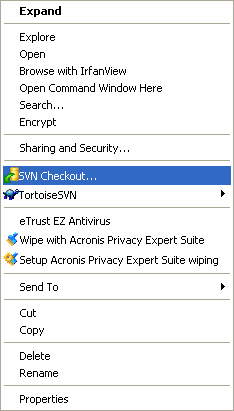 | |
| 17 | + | ||
| 18 | + | - In the next dialog you enter the URL for Lazarus server source: | |
| 19 | + | ||
| 20 | + | `https://svn.freepascal.org/svn/lazarus/trunk` | |
| 21 | + | ||
| 22 | + | - Watch how TortoiseSVN imports the file tree from the server. This can take some time to complete. | |
| 23 | + | ||
| 24 | + | To update Lazarus sources: | |
| 25 | + | ||
| 26 | + | - Open Windows Explorer | |
| 27 | + | - Right click on the source directory | |
| 28 | + | - Select *SVN Update* on the popup menu | |
| 29 | + | ||
| 30 | + | 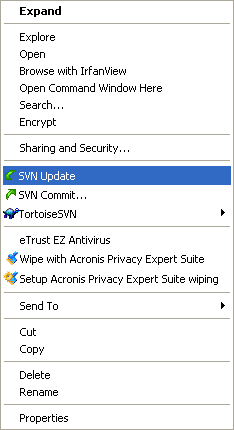 | |
| 31 | + | ||
| 32 | + | ## Troubleshooting | |
| 33 | + | ||
| 34 | + | TortoiseSvn includes a svn command line version, too. If you get an error | |
| 35 | + | ||
| 36 | + | - svn command not found | |
| 37 | + | ||
| 38 | + | or similar then most probably you do not have svn.exe in your PATH environment variable. The following steps should fix this problem: | |
| 39 | + | ||
| 40 | + | ### Temporarily add svn directory to path | |
| 41 | + | ||
| 42 | + | 1. Locate svn.exe using the Find Files feature of your Start menu. | |
| 43 | + | 2. Once you have located svn.exe you need to add the directory it is in to your PATH. | |
| 44 | + | ||
| 45 | + | As an example: From the command prompt type: | |
| 46 | + | ||
| 47 | + | ```dos | |
| 48 | + | set PATH=%PATH%;"C:\Program Files\TortoiseSVN\" | |
| 49 | + | ``` | |
| 50 | + | ||
| 51 | + | > **Note:** The directory containing svn.exe might not be the same on your computer as the one used in this document. It is used here only as an example. | |
| 52 | + | ||
| 53 | + | ### Permanently add svn directory to path | |
| 54 | + | ||
| 55 | + | While this section is optional, it saves you from changing the path all the time. You can add this directory to your PATH by: | |
| 56 | + | ||
| 57 | + | 1. Right-Clicking on "My Computer" | |
| 58 | + | 2. Select "Properties" | |
| 59 | + | 3. Choose the "Advanced" tab. | |
| 60 | + | 4. Click the "Environment Variables" button. | |
| 61 | + | 5. Locate the "Path" line in "System Variables" and add: ;"C:\Program Files\TortoiseSVN\\" to the end. | |
| 62 | + | ||
| 63 | + | > **Note:** Your directory containing svn.exe might not be the same on your computer as the one used in this document. It is used here only as an example. | |
| 64 | + | ||
| 65 | + | --- | |
| 66 | + | *From the Free Pascal wiki, page "TortoiseSvn", as it stood on 2018-12-30 after a change by Thaddy, out of the wiki's dump of 2024-05-26. Copyright stays with the author who wrote it, according to the old wiki's [[Licensing]] page. If you have concerns about this material, [message the admin](/wiki-contact).* | |
| 67 | + | Category: Install | |
| 68 | + | Category: Revision control |