

TStringGrid: what changed
Revision 1 to 2. Removed lines have a minus sign; added lines have a plus sign.
| Old | New | Line | |
|---|---|---|---|
| 1 | 1 | **TStringGrid**  is a component on the [[Additional tab]] of the [[Component Palette]]. A stringgrid provides a tabular display of textual information that may be edited as well. | |
| 2 | 2 | ||
| 3 | 3 | ## Example StringGrid Program | |
| 4 | 4 | ||
| 5 | 5 | To create this example create a new project in Lazarus. Select TStringGrid to add to the form, by clicking the TStringGrid component from the menu area or component window, then click on the form. In this case 2 [[TButton|TButtons]] were also selected and dropped onto the form as shown. In this example it is also necessary to select a [[TOpenDialog]] component and drop it onto the form. | |
| 6 | 6 | ||
| 7 | 7 | 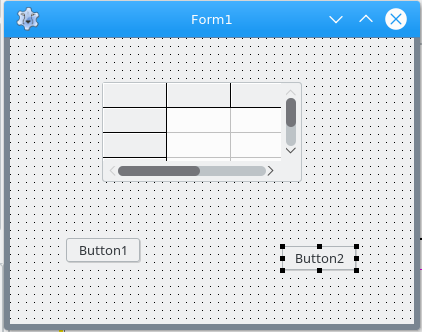 | |
| 8 | 8 | ||
| 9 | 9 | ## Adjusting Columns & Changing Their Properties | |
| 10 | 10 | ||
| 11 | 11 | Columns can be easily by added by right mouse clicking 'Columns: TGridColumns': | |
| 12 | 12 | ||
| 13 | 13 | 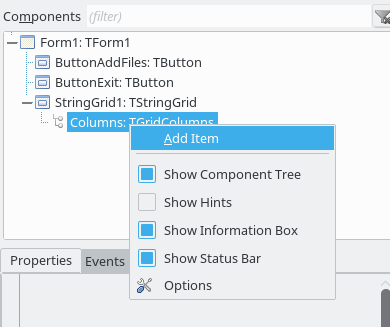 | |
| 14 | 14 | ||
| 15 | 15 | By selecting AddItem, a new column is shown below. Under the Properties tab of the Object Inspector a new list of Properties and Events relating to that column are then shown. From here the Names of the columns are set along with the width. When finished, the TreeView looks like this: | |
| 16 | 16 | ||
| 17 | 17 | 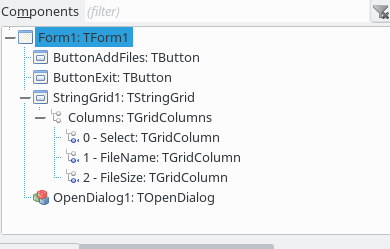 | |
| 18 | 18 | ||
| 19 | 19 | In this example, Button1's name was changed to ButtonAddFiles and Button2's name was changed to ButtonExit. The StringGrid1 was stretched out and the buttons were aligned as shown. Note that there is a row and a column that are of a different color. That state illustrates the concept that this row and column could be for title labels for their respective column or row. Of course this default state can be changed simply by changing the 'FixedCols' or 'FixedRows' in the Object Inspector. | |
| 20 | 20 | ||
| 21 | 21 | 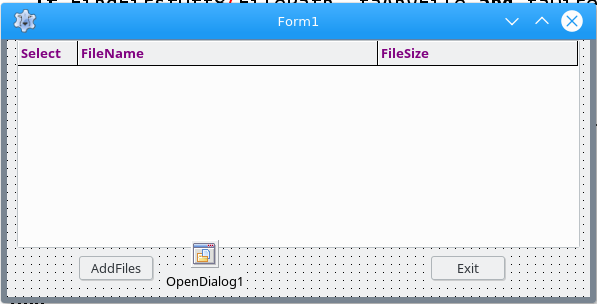 | |
| 22 | 22 | ||
| 23 | 23 | You can see in this case that the title lines have been changed and the StringGrid1 component has been anchored. This was achieved by taking two steps. The first one involves looking at the Object Inspector and selecting various properties as needed. One step that should be taken when starting out is to carefully note the default properties. When you have made numerous changes and need to go back, it is much easier if you know what their state was when you started or at various points along the way. The state of these properties in the last image illustrates only a single fixed row with column titles. This state illustrates: | |
| 24 | 24 | ||
| 25 | - | ||
| 26 | - | ||
| 27 | - | ||
| 28 | - | ||
| 29 | - | ||
| 30 | - | ||
| 31 | - | ||
| 32 | - | ||
| 25 | + | ```text | |
| 26 | + | FixedCols[0], | |
| 27 | + | FixedRows[1], | |
| 28 | + | HeaderHotZones[gzFixedCols], | |
| 29 | + | HeaderPushZones[gzFixedCols], | |
| 30 | + | Options[goFixedVertLine,goFixedHorzLine,goVertLine,goHorzLine,goRangeSelect,goSmoothScroll], | |
| 31 | + | TitleFont[Color[clPurple]], | |
| 32 | + | Style[fsBold], and | |
| 33 | + | RowCount = 1. | |
| 34 | + | ``` | |
| 33 | 35 | ||
| 34 | 36 | After viewing your work by clicking the Run button on Lazarus you may find it desirable to change these properties. In this case, the additional properties of ColClickSorts and AlternateColor were selected. | |
| 35 | 37 | ||
| 36 | 38 | The second thing that can be done is to use the Anchor Editor (View--\>AnchorEditor) to link the sides of the StringGrid to the main form. | |
| 37 | 39 | ||
| 38 | 40 | ## Using Available Predefined Properties | |
| 39 | 41 | ||
| 40 | 42 | At the bottom of the Object Inspector you can find useful information about the properties shown as seen in this example: | |
| 41 | 43 | ||
| 42 | 44 | 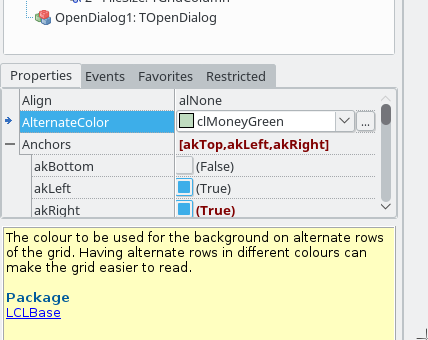 | |
| 43 | 45 | ||
| 44 | 46 | To add information to the StringGrid1 component, it is necessary to either add data from a TStream, LoadCVSFile, link the grid to a database or other similar actions. If linking to a database there are other components that should be considered like the TDBGrid. Other components such as the OpenDialog may also assist using methods like the LoadCVSFile. In many cases, it is necessary to either directly link data to given cells or ranges. In our example, we will use the InsertRowWithValues method. It is now necessary to add to the ButtonAddFiles an Event by clicking the Events tab of the Object Inspector and selecting the 'OnClick' event. | |
| 45 | 47 | ||
| 46 | 48 | 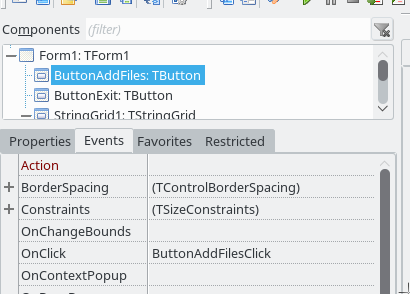 | |
| 47 | 49 | ||
| 48 | 50 | ## Program Block To Add Data To The StringGrid | |
| 49 | 51 | ||
| 50 | 52 | By clicking on the OnClick the SourceEditor should have added a code block for the ButtonAddFilesClick procedure. To this you should add the following code: | |
| 51 | 53 | ||
| 52 | 54 | ``` pascal | |
| 53 | 55 | uses | |
| 54 | 56 | Classes, SysUtils, FileUtil, Forms, Controls, Graphics, Dialogs, StdCtrls, | |
| 55 | 57 | Grids, LazFileUtils, LazUtf8; | |
| 56 | 58 | . . . . | |
| 57 | 59 | types | |
| 58 | 60 | { TForm1 } | |
| 59 | 61 | TForm1 = class(TForm) | |
| 60 | 62 | ButtonAddFiles : TButton; | |
| 61 | 63 | . . . . | |
| 62 | 64 | procedure ButtonAddFilesClick(Sender : TObject); | |
| 63 | 65 | procedure ButtonExitClick(Sender : TObject); | |
| 64 | 66 | . . . . | |
| 65 | 67 | var | |
| 66 | 68 | Form1 : TForm1; | |
| 67 | 69 | implementation | |
| 68 | 70 | {$R *.lfm} | |
| 69 | 71 | { TForm1 } | |
| 70 | 72 | procedure TForm1.ButtonExitClick(Sender : TObject); | |
| 71 | 73 | begin | |
| 72 | 74 | Close; | |
| 73 | 75 | end; | |
| 74 | 76 | . | |
| 75 | 77 | procedure TForm1.ButtonAddFilesClick(Sender : TObject); | |
| 76 | 78 | var | |
| 77 | 79 | FilePathName : string; | |
| 78 | 80 | begin | |
| 79 | 81 | if OpenDialog1.Execute then | |
| 80 | 82 | FilePathName := OpenDialog1.Filename; | |
| 81 | 83 | AddFilesToList(FilePathName); | |
| 82 | 84 | end; | |
| 83 | 85 | ``` | |
| 84 | 86 | ||
| 85 | 87 | The procedure for closing the application is shown for completeness. In the ButtonAddFilesClick procedure we now use the OpenDialog1 and select the Execute method. If is shown in a if - then statement where the boolean property of execute is tested. This method by default is true so the following line then when executed gives the OpenDialog1 property 'FileName' to our variable 'FilePathName'. | |
| 86 | 88 | ||
| 87 | 89 | In the last line of procedure a new procedure is shown for 'AddFilesToList'. We now need to create this procedure. In the type declaration under either 'Public' or 'Private' we need to add this new procedure. Under implementation, the code block for the procedure is created. In this example we are going to use the files of a DVD as can be seen in this illustration: | |
| 88 | 90 | ||
| 89 | 91 | 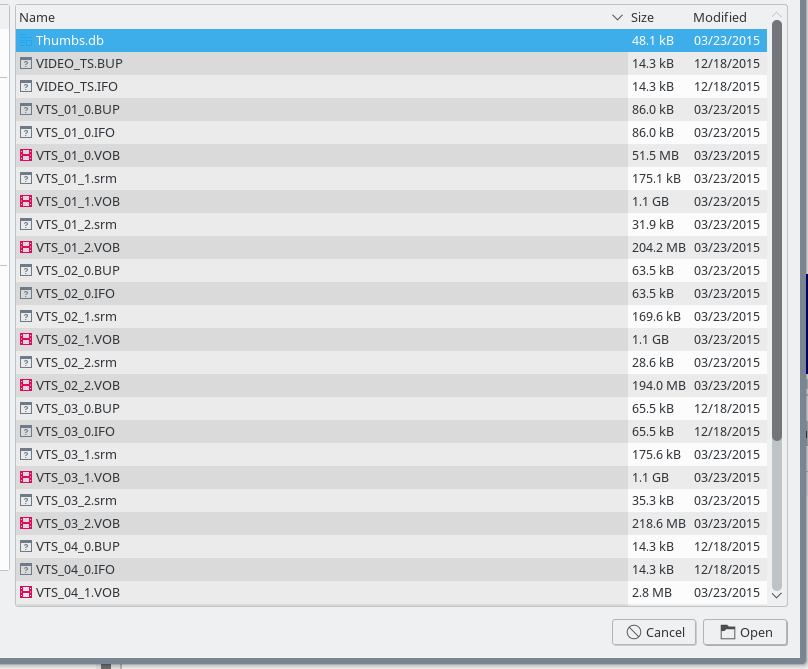 | |
| 90 | 92 | ||
| 91 | 93 | We want these files to be listed upon StringGrid1. | |
| 92 | 94 | ||
| 93 | 95 | ``` pascal | |
| 94 | 96 | Type | |
| 95 | 97 | . . . . | |
| 96 | 98 | private | |
| 97 | 99 | procedure AddFilesToList(FilePathName : String); | |
| 98 | 100 | . . . . | |
| 99 | 101 | procedure TForm1.AddFilesToList(FilePathName : String); | |
| 100 | 102 | var | |
| 101 | 103 | D, R, K : integer; | |
| 102 | 104 | FileName, FilePath : string; | |
| 103 | 105 | SearchRec1, SearchRec2 : TSearchRec; | |
| 104 | 106 | FileListVideo, FileListVst : TStringList; | |
| 105 | 107 | begin | |
| 106 | 108 | FileListVideo := TStringList.Create; | |
| 107 | 109 | FileListVst := TStringList.Create; | |
| 108 | 110 | FileName := ExtractFileName(FilePathName); | |
| 109 | 111 | FilePath := ExtractFilePath(FilePathName); | |
| 110 | 112 | FileListVideo := FindAllFiles(FilePath,'VIDEO_TS.*',true, faDirectory); | |
| 111 | 113 | R := 1; | |
| 112 | 114 | K := 0; | |
| 113 | 115 | for D := 0 to FileListVideo.Count -1 do | |
| 114 | 116 | begin | |
| 115 | 117 | if FindFirstUtf8(FilePath, faAnyFile and faDirectory, SearchRec1)=0 then | |
| 116 | 118 | begin | |
| 117 | 119 | repeat | |
| 118 | 120 | With SearchRec1 do | |
| 119 | 121 | begin | |
| 120 | 122 | FileName := ExtractFileName(FileListVideo.Strings[D]); | |
| 121 | 123 | K := FileSizeUtf8(FileListVideo.Strings[D]); | |
| 122 | 124 | StringGrid1.InsertRowWithValues(R,['0', FileName, IntToStr(K)]); | |
| 123 | 125 | R := R + 1; | |
| 124 | 126 | end; | |
| 125 | 127 | until FindNextUtf8(SearchRec1) <> 0; | |
| 126 | 128 | end; | |
| 127 | 129 | FindCloseUtf8(SearchRec1); | |
| 128 | 130 | end; | |
| 129 | 131 | . | |
| 130 | 132 | FileListVst := FindAllFiles(FilePath, 'VTS_*.*', true, faDirectory); | |
| 131 | 133 | K := 0; | |
| 132 | 134 | for D := 0 to FileListVst.Count -1 do | |
| 133 | 135 | begin | |
| 134 | 136 | if FindFirstUtf8(FilePath, faAnyFile and faDirectory,SearchRec2)=0 then | |
| 135 | 137 | begin | |
| 136 | 138 | repeat | |
| 137 | 139 | With SearchRec2 do | |
| 138 | 140 | begin | |
| 139 | 141 | FileName := ExtractFileName(FileListVst.Strings[D]); | |
| 140 | 142 | K := FileSizeUtf8(FileListVst.Strings[D]); | |
| 141 | 143 | StringGrid1.InsertRowWithValues(R,['1', FileName, IntToStr(K)]); | |
| 142 | 144 | R := R + 1; | |
| 143 | 145 | end; | |
| 144 | 146 | until FindNextUtf8(SearchRec2) <> 0; | |
| 145 | 147 | end; | |
| 146 | 148 | FindCloseUtf8(SearchRec2); | |
| 147 | 149 | end; | |
| 148 | 150 | StringGrid1.SortColRow(true, 1,1,StringGrid1.RowCount-1); | |
| 149 | 151 | FileListVst.Free; | |
| 150 | 152 | FileListVideo.Free; | |
| 151 | 153 | end; | |
| 152 | 154 | ``` | |
| 153 | 155 | ||
| 154 | 156 | This example uses the methods 'FindAllFiles' from 'FileUtils' and 'FindFirstUtf8', 'FindNextUtf8' and 'FindCloseUtf8' from 'LazFileUtils'. | |
| 155 | 157 | ||
| 156 | 158 | ## CheckBox Column | |
| 157 | 159 | ||
| 158 | 160 | One feature that can be very helpful in applications of the TStringGrid is having a checkbox column that either a user can click to signify their selection or used to show a certain state for some property. Adding this type of column is illustrated in this code. In the method 'InsertRowWithValues', the first column has '0' shown in the first part of the code when files containing 'VIDEO_TS*' are being selected. The '0' is illustrating the boolean state of a checkbox with 1 being checked and 0 unchecked. In selecting from the Object Inspector under StringGrid1--\>Columns: TGridColumns--\>0-Select in the TreeView, the ValueChecked and ValueUnchecked are shown. You can use other numbers, or have added code to change the state. | |
| 159 | 161 | ||
| 160 | 162 | ## InsertRowWithValues Method | |
| 161 | 163 | ||
| 162 | 164 | In this example the method InsertRowWithValues is used to add data to our StringGrid1 component. Each column's data is entered followed by a comma. It may be necessary to use typecasting functions to get data into a string format. Variables can be referenced, or simply shown as text as our '0' and '1' are for checkbox column. | |
| 163 | 165 | ||
| 164 | 166 | 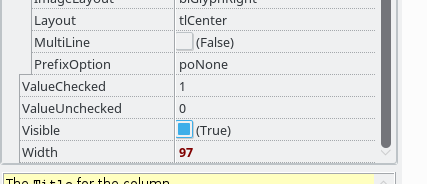 | |
| 165 | 167 | ||
| 166 | 168 | Upon running our new application and clicking the button 'AddFiles' a dialog box opens allowing us to select file(s) to be added. If you click on a column header, StringGrid1 is sorted in the direction as shown by the green arrow. The result should be as shown in the following illustration: | |
| 167 | 169 | ||
| 168 | 170 | 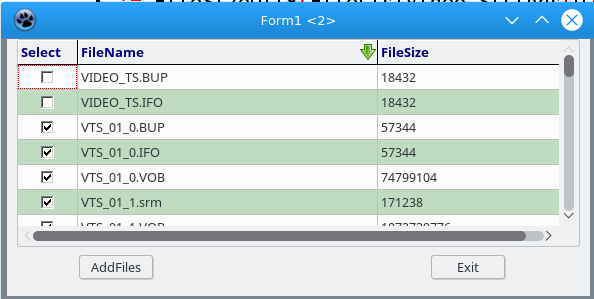 | |
| 169 | 171 | ||
| 170 | 172 | Depending on your needs other properties can be selected to allow editing, resizing columns, etc. | |
| 171 | 173 | ||
| 172 | 174 | ## Content based row background coloring | |
| 173 | 175 | ||
| 174 | 176 | With PrepareCanvas event, you can alter the background color of every row based on the row's text content. | |
| 175 | 177 | ||
| 176 | 178 | 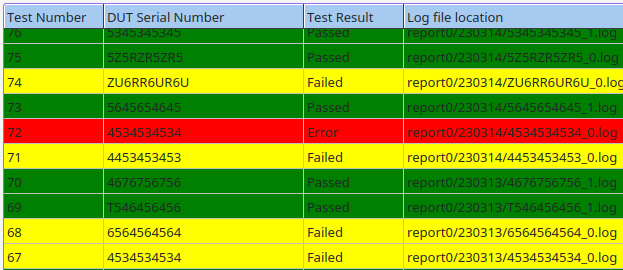 | |
| 177 | 179 | ||
| 178 | 180 | ``` pascal | |
| 179 | 181 | const | |
| 180 | 182 | csPASSED = 'Passed'; | |
| 181 | 183 | csFAILED = 'Failed'; | |
| 182 | 184 | csERROR = 'Error'; | |
| 183 | 185 | ||
| 184 | 186 | procedure TForm1.StatisticsGridPrepareCanvas(Sender: TObject; aCol, | |
| 185 | 187 | aRow: Integer; aState: TGridDrawState); | |
| 186 | 188 | begin | |
| 187 | 189 | if not(sender is TStringGrid) then Exit; | |
| 188 | 190 | ||
| 189 | 191 | if (sender as TStringGrid).Rows[aRow].Text.Contains(csERROR) then begin | |
| 190 | 192 | (sender as TStringGrid).Canvas.Brush.Color := clRed; | |
| 191 | 193 | end else if (sender as TStringGrid).Rows[aRow].Text.Contains(csFAILED) then begin | |
| 192 | 194 | (sender as TStringGrid).Canvas.Brush.Color := clYellow; | |
| 193 | 195 | end else if (sender as TStringGrid).Rows[aRow].Text.Contains(csPASSED) then begin | |
| 194 | 196 | (sender as TStringGrid).Canvas.Brush.Color := clGreen; | |
| 195 | 197 | end; | |
| 196 | 198 | end; | |
| 197 | 199 | ``` | |
| 198 | 200 | ||
| 199 | 201 | ## See also | |
| 200 | 202 | ||
| 201 | 203 | - [[TDrawGrid]] | |
| 202 | 204 | - [[TDBGrid]] | |
| 203 | 205 | - [[Grids Reference Page]] (for more details on grids in Lazarus) | |
| 204 | 206 | ||
| 205 | 207 | --- | |
| 206 | 208 | *From the Free Pascal wiki, page "TStringGrid", as it stood on 2023-05-17 after a change by Bart, out of the wiki's dump of 2024-05-26. Copyright stays with the author who wrote it, according to the old wiki's [[Licensing]] page. If you have concerns about this material, [message the admin](/wiki-contact).* |