

TImageList: what changed
Revision 1 to 2. Removed lines have a minus sign; added lines have a plus sign.
| Old | New | Line | |
|---|---|---|---|
| 1 | 1 | **TImageList**  is a component that provides a list of images that can be shared between other components like [[TMainMenu]]/[[TMenuItem]], [[TToolBar]]/[[TToolButton]], [[TActionList]], [[TBitBtn]] or [[TSpeedButton]]. All images have the same size as specified by the `Width` and `Height` property of `TImageList`. A component needing an image specifies this by means of its `ImageIndex` property. | |
| 2 | 2 | ||
| 3 | 3 | ## Multiple-resolution TImageList in Lazarus 1.9 and newer | |
| 4 | 4 | ||
| 5 | 5 | In Lazarus 1.9 the TImageList was rewritten to support multiple resolutions of one image. | |
| 6 | 6 | ||
| 7 | - | ||
| 8 | - | ||
| 9 | - | ||
| 10 | - | ||
| 7 | + | 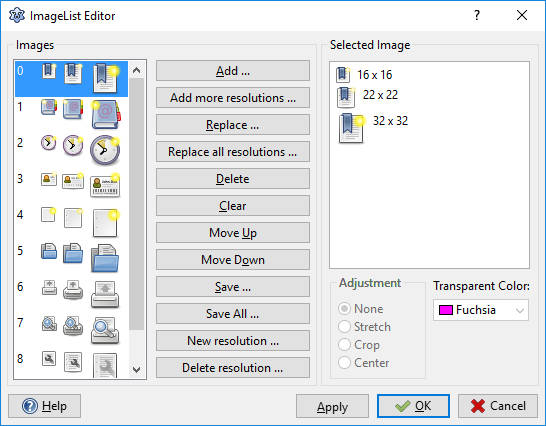 | |
| 11 | 8 | ||
| 12 | 9 | Every LCL control that supports an `ImageList` has now a new `ImagesWidth` property to decide what custom width at 96 PPI (100% scale) is to be used. Example: TToolBar.Images/ImageWidth, TListView.LargeImages/LargeImagesWidth. | |
| 13 | 10 | ||
| 14 | 11 | Set the `Scaled` property to True and the image list will automatically pick up the scaled image in your High-DPI aware LCL application (provided that the option "Use LCL Scaling" has been checked in the project options). | |
| 15 | 12 | ||
| 16 | 13 | ### Demo applications | |
| 17 | 14 | ||
| 18 | 15 | There are 2 demo applications in Lazarus sources: | |
| 19 | 16 | ||
| 20 | 17 | - examples/imagelist_highdpi_designtime | |
| 21 | 18 | - examples/imagelist_highdpi_runtime | |
| 22 | 19 | ||
| 23 | 20 | ### Changes affecting backwards compatibility | |
| 24 | 21 | ||
| 25 | 22 | #### Add method | |
| 26 | 23 | ||
| 27 | 24 | - Old behavior: the image got sliced if too big or extended if too small. | |
| 28 | 25 | - New behavior: the image is scaled to all resolutions in the image list. | |
| 29 | 26 | - Reason: Image List now supports multiple resolutions. | |
| 30 | 27 | - Remedy: use AddSliced (if the image consists of several icons to be added) or AddSlice (if one image from a custom rect has to be added - also rect outside the image is supported). | |
| 31 | 28 | ||
| 32 | 29 | ### How to create a multi-resolution ImageList in the application | |
| 33 | 30 | ||
| 34 | 31 | - In the first step you must tell the Imagelist which image sizes are needed. | |
| 35 | 32 | - Decide on the basic image size, usually 16x16. This is used at 96ppi screen resolution (in Windows: 100%). | |
| 36 | 33 | - If your application will also run at 144ppi (150%) or 192ppi (200%), it will also need images at 24x24 and 32x32 (24 = 150% of 16, 32 = 200% of 16). | |
| 37 | 34 | - In the case that some controls require a larger image size at 96pp, say 32x32, you should also prepare the imagelist for these scaled sizes, i.e. size 48 (=150% of 32) and 64 (=200% of 32) in this example. | |
| 38 | 35 | - Click on the **New resolutions** button and specify each of these extra sizes (only the width must be entered). The 16x16 size does not need to be added by the **New resolutions** button because it is already known from the `Imagelist.Width` and `.Height` properties. | |
| 39 | 36 | ||
| 40 | 37 | - In the next step you add the images themselves. | |
| 41 | 38 | - Click on the **Add more resolutions** button. | |
| 42 | 39 | - Navigate to the folder in which your images are stored (The png image format is highly recommended). Lazarus 2.3+, for example, has the *images/general_purpose* folder in its installation directory which is full of free png images designed for typical applications (thanks to Roland Hahn...). (svg master files can be found at <https://sourceforge.net/p/lazarus-ccr/svn/HEAD/tree/image_sources/lazarus/images/general_purpose/>). | |
| 43 | 40 | - Multi-select all sizes of the image that you want to load. | |
| 44 | 41 | - *OK* loads the images into the image list editor; missing sizes will be scaled down from larger sizes in surprisingly good quality. | |
| 45 | 42 | - Repeat with the other motives that you need. | |
| 46 | 43 | - Add only images that you need - they require a fairly large amount of memory. | |
| 47 | 44 | - If you wonder about the difference between the **Add** and **Add more resolutions** buttons: When you click **Add** only a single image can be selected, and the other sizes are extrapolated from it. **Add more resolutions**, on the other hand, allows multi-selection so that the individual images of the specific size can be selected. | |
| 48 | 45 | - The **Replace** and **Replace all resolutions** buttons allow to replace the image selected in the imagelist editor by another motif. | |
| 49 | 46 | - **Delete** removes all sizes of the image selected in the imagelist. | |
| 50 | 47 | - **Clear** erases the entire imagelist. | |
| 51 | 48 | ||
| 52 | 49 | - If you draw the images yourself, you may skip all the intermediate sizes. The minimum is to draw the largest images that you need; the smaller ones are scaled down automatically upon loading. However, the smallest image (16x16), sometimes also 24x24, appears a bit fuzzy; therefore, it is recommended to provide special versions of these sizes as well. It is maybe a good idea to draw the images in vector format (svg, using Inkscape) and to export to the needed size in png format. | |
| 53 | 50 | ||
| 54 | 51 | - Finally select the controls which require the non-standard default size and set their `ImagesWidth` to the corresponding value. In case of a `TListView` having a `SmallImages` and a `LargeImages` property, for example, set the `LargeImagesWidth` to 32; the `SmallImagesWidth` can stay at its default value, 0, because it is interpreted as the default size defined by the `Imagelist.Width`. | |
| 55 | - | ||
| 52 | + | - In order to activate automatic scaling of image sizes according to the current resolution of the monitor you must set the `Scaled` property of the Imagelist to `true`. Usually you should also provide a handler for the Imagelist event `OnGetWidthForPPI` to define that images should be scaled also for intermediate resolutions which were not added explictly in the "New resolutions" step above. (Otherwise only the next-smaller predefined image sizes will be used). | |
| 56 | 53 | ||
| 57 | 54 | ``` Pascal | |
| 58 | 55 | procedure TForm1.ImageList1GetWidthForPPI(Sender: TCustomImageList; | |
| 59 | 56 | AImageWidth, APPI: Integer; var AResultWidth: Integer); | |
| 60 | 57 | begin | |
| 61 | 58 | AResultWidth := AImageWidth * APPI div 96; | |
| 62 | 59 | end; | |
| 63 | 60 | ``` | |
| 64 | 61 | ||
| 65 | 62 | ## High-DPI alternative for Lazarus 1.8 and older: resize all images in TImageList | |
| 66 | 63 | ||
| 67 | 64 | This is useful for example for [[High DPI]] scaling to get icons with higher resolution for TActionList, TMainMenu and TToolBar. Note: This may not work correctly with all widgetsets on all platforms. Note also: This code is not required for Laz 1.9+. | |
| 68 | 65 | ||
| 69 | 66 | ``` pascal | |
| 70 | 67 | procedure ScaleImageList(ImgList: TImageList; NewWidth, NewHeight: Integer); | |
| 71 | 68 | var | |
| 72 | 69 | TempImgList: TImageList; | |
| 73 | 70 | TempBmp1: TBitmap; | |
| 74 | 71 | TempBmp2: TBitmap; | |
| 75 | 72 | I: Integer; | |
| 76 | 73 | begin | |
| 77 | 74 | TempImgList := TImageList.Create(nil); | |
| 78 | 75 | TempBmp1 := TBitmap.Create; | |
| 79 | 76 | TempBmp1.PixelFormat := pf32bit; | |
| 80 | 77 | TempBmp2 := TBitmap.Create; | |
| 81 | 78 | TempBmp2.PixelFormat := pf32bit; | |
| 82 | 79 | TempBmp2.SetSize(NewWidth, NewHeight); | |
| 83 | 80 | try | |
| 84 | 81 | TempImgList.Width := NewWidth; | |
| 85 | 82 | TempImgList.Height := NewHeight; | |
| 86 | 83 | ||
| 87 | 84 | for I := 0 to ImgList.Count - 1 do begin | |
| 88 | 85 | // Load image for given index to temporary bitmap | |
| 89 | 86 | ImgList.GetBitmap(I, TempBmp1); | |
| 90 | 87 | ||
| 91 | 88 | // Clear transparent image background | |
| 92 | 89 | TempBmp2.Canvas.Brush.Style := bsSolid; | |
| 93 | 90 | TempBmp2.Canvas.Brush.Color := TempBmp2.TransparentColor; | |
| 94 | 91 | TempBmp2.Canvas.FillRect(0, 0, TempBmp2.Width, TempBmp2.Height); | |
| 95 | 92 | ||
| 96 | 93 | // Stretch image to new size | |
| 97 | 94 | TempBmp2.Canvas.StretchDraw(Rect(0, 0, TempBmp2.Width, TempBmp2.Height), TempBmp1); | |
| 98 | 95 | TempImgList.Add(TempBmp2, nil); | |
| 99 | 96 | end; | |
| 100 | 97 | ||
| 101 | 98 | ImgList.Assign(TempImgList); | |
| 102 | 99 | finally | |
| 103 | 100 | TempImgList.Free; | |
| 104 | 101 | TempBmp1.Free; | |
| 105 | 102 | TempBmp2.Free; | |
| 106 | 103 | end; | |
| 107 | 104 | end; | |
| 108 | 105 | ``` | |
| 109 | 106 | ||
| 110 | 107 | ## Example with ComboBox | |
| 111 | 108 | ||
| 112 | 109 | To use TImageList, drop an TImageList object onto the form. In this example we need six images. | |
| 113 | 110 | ||
| 114 | 111 | All images must be the same size. If two sizes of image are to be used, then two TImageLists must be used. | |
| 115 | 112 | ||
| 116 | 113 | Set the height and width of the images in the Object Inspector; In this case 50px wide by 18px high. | |
| 117 | 114 | ||
| 118 | 115 | Set Style to csOwnerDrawFixed. | |
| 119 | 116 | ||
| 120 | 117 | Double-click on the TImageList icon to open the TImageList editor. Make sure that the icons show correctly when selected. If they are smaller than expected, check the size in the Object Inspector \<F11\>. You may have to reload the images. | |
| 121 | 118 | ||
| 122 | - | ||
| 123 | - | ||
| 124 | - | ||
| 125 | - | ||
| 119 | + | 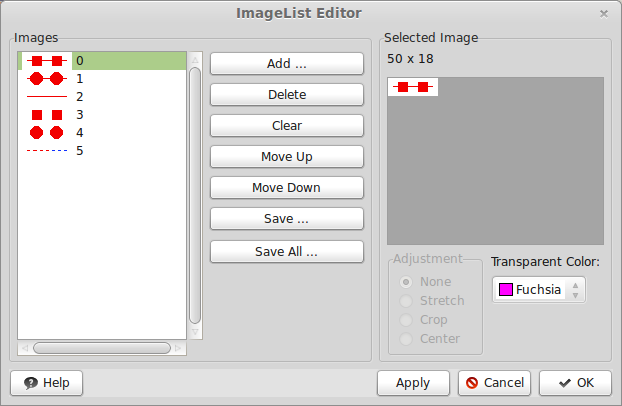 | |
| 126 | 120 | ||
| 127 | 121 | Place a ComboBox on the form and name it cbSymbols. | |
| 128 | 122 | ||
| 129 | 123 | In the FormCreate event enter: | |
| 130 | 124 | ||
| 131 | 125 | ``` pascal | |
| 132 | 126 | cbSymbols.Items.Clear; | |
| 133 | 127 | for I := 0 to 5 do | |
| 134 | 128 | cbSymbols.Items.Add(''); | |
| 135 | 129 | cbSymbols.ItemIndex := 0; | |
| 136 | 130 | ``` | |
| 137 | 131 | ||
| 138 | 132 | This will write 6 blank entries, and select the first. | |
| 139 | 133 | ||
| 140 | 134 | In the OnDrawItem event for cbSymbols place the following code: | |
| 141 | 135 | ||
| 142 | 136 | ``` pascal | |
| 143 | 137 | procedure TMyForm.cbSymbolsDrawItem( | |
| 144 | 138 | aControl: TWinControl; | |
| 145 | 139 | iIndex: Integer; | |
| 146 | 140 | aRect: TRect; | |
| 147 | 141 | aState: TOwnerDrawState ); | |
| 148 | 142 | var | |
| 149 | 143 | cnv: TCanvas; | |
| 150 | 144 | begin | |
| 151 | 145 | if not (aControl is TComboBox) then exit; | |
| 152 | 146 | cnv := TComboBox( aControl ).Canvas; | |
| 153 | 147 | Imagelist1.Draw( cnv, aRect.Left+2, aRect.Top+2, iIndex ); | |
| 154 | 148 | end; | |
| 155 | 149 | ``` | |
| 156 | 150 | ||
| 157 | 151 | The adjustments (+2) are to center the image in the item, if necessary. | |
| 158 | 152 | ||
| 159 | - | ||
| 160 | - | ||
| 161 | - | ||
| 162 | - | ||
| 153 | + | 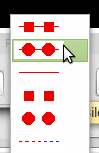 | |
| 163 | 154 | ||
| 164 | 155 | ## Example with SpeedButton | |
| 165 | 156 | ||
| 166 | 157 | Add images to the ImageList1 like in the previous example and use: | |
| 167 | 158 | ||
| 168 | 159 | ``` pascal | |
| 169 | 160 | ImageList1.GetBitmap(iIndex,SpeedButton1.Glyph); | |
| 170 | 161 | ``` | |
| 171 | 162 | ||
| 172 | 163 | ## See also | |
| 173 | 164 | ||
| 174 | 165 | - [[doc:lcl//controls/timagelist.html|TImageList doc]] | |
| 175 | 166 | - [[TImage]] | |
| 176 | 167 | ||
| 177 | 168 | --- | |
| 178 | 169 | *From the Free Pascal wiki, page "TImageList", as it stood on 2023-12-22 after a change by Wp, out of the wiki's dump of 2024-05-26. Copyright stays with the author who wrote it, according to the old wiki's [[Licensing]] page. If you have concerns about this material, [message the admin](/wiki-contact).* |