

Step-by-step instructions for creating multi-language applications: what changed
Revision 1 to 2. Removed lines have a minus sign; added lines have a plus sign.
| Old | New | Line | |
|---|---|---|---|
| 1 | 1 | ## Introduction | |
| 2 | 2 | ||
| 3 | 3 | Preparing applications for several languages has always been a bit of a mystery to me - until I finally tried. Then I found out that is is amazingly simple once I understood the first steps. I'd like to share this information with interested users of Lazarus. | |
| 4 | 4 | ||
| 5 | 5 | You may jump right in. But it may be a good idea to learn something about the basic ideas behind that architecture. Therefore I'd urge you to read the wiki articles [[Localization]] and/or [[Translations / i18n / localizations for programs]] which explain the basic fundamentals behind the scene. | |
| 6 | 6 | ||
| 7 | 7 | ## Getting started | |
| 8 | 8 | ||
| 9 | 9 | Before starting, I'd like to mention that this tutorial was initially written for Lazarus version 1.2 and now is being updated to version 3.0. There will be some notes here and here to identify the differences between the versions. | |
| 10 | 10 | ||
| 11 | - | ||
| 12 | - | ||
| 13 | - | ||
| 14 | - | ||
| 11 | + | 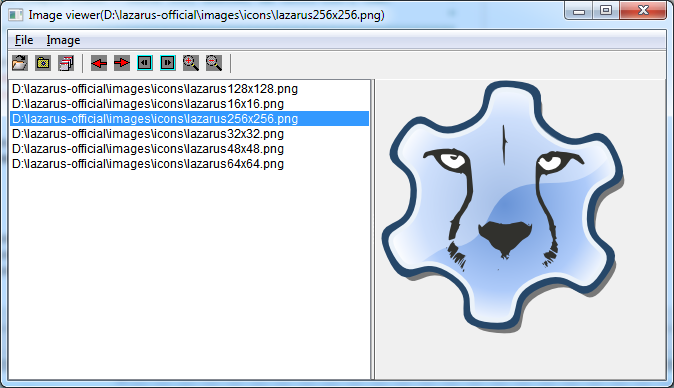 | |
| 15 | 12 | ||
| 16 | 13 | At first, we need an application that we want to translate. Looking through the example projects that come with Lazarus I found that `examples\imgviewer` may be a decent demo project. In order to keep the original, copy the entire project folder into a separate directory, e.g. `imgviewer_multilanguage`. Open the project file `imgview.lpi`, compile and run it. You'll see a typical application with a menu and some controls to show a file list and the selected image. | |
| 17 | 14 | ||
| 18 | 15 | Let's convert this application to support translation into German. | |
| 19 | 16 | ||
| 20 | 17 | ## GUI Design | |
| 21 | 18 | ||
| 22 | 19 | During design of the GUI it shall be considered, that a string will have a different length in each language. That is why all components must have the *Autosize* property set to *True*. It is normal to expect that in some languages strings might be some 50% longer, but even 200% is not much unusual. | |
| 23 | 20 | ||
| 24 | 21 | The GUI dimensions must consider the display of the device on which the application will be run. For a PC if a form is not scrollable, it shall not be greater that 1024x600 pixels (10" netbook display). This means that if only single-line string components are used, they shall fit properly in a 700x600 form, so when the form is enlarged to 1024x600 it shall be sufficient for other languages. | |
| 25 | 22 | ||
| 26 | 23 | If several vertically positioned buttons are used and they are expected to equal width, besides *Autosize= True* they shall have *.Constraints.MinWidth* set to a significantly high value. | |
| 27 | 24 | ||
| 28 | 25 | In order to prevent components from overlapping, [[Anchor Sides|anchoring]] shall be used. | |
| 29 | 26 | ||
| 30 | 27 | Labels are often positioned to the left of the controls they belong to. In this case, precautions have to be taken to avoid that they extend into the control if they become too long. One option would be to allow multi-line labels by setting their WordWrap property to true (and AutoSize to false). Alternatively, single-line labels could be placed above the controls. | |
| 31 | 28 | ||
| 32 | 29 | ## Enable translations | |
| 33 | 30 | ||
| 34 | 31 | Only one modification of the project is required to enable translation. It is found in the project options as item "i18n". Strange word, isn't it? It is the abbreviation for "internationalization" and stands for "18 letters between the i and the n". | |
| 35 | 32 | ||
| 36 | 33 | Put a checkmark in the checkbox `Enable i18n`. This activates the `i18n Options` underneath. Enter the name for the `PO Output Directory` (use **locale** or **languages** as directory, so later it would be found automatically). This is the folder where the files with translated texts will be stored. As you will see later, the translation files will have the extension .po ("Portable Object"). Let's use the folder `languages`. Note that this folder is relative to the folder containing the exe file. Be sure to keep this structure if you should later copy the exe to somewhere else. | |
| 37 | 34 | ||
| 38 | - | ||
| 39 | - | ||
| 40 | - | ||
| 41 | - | ||
| 35 | + | 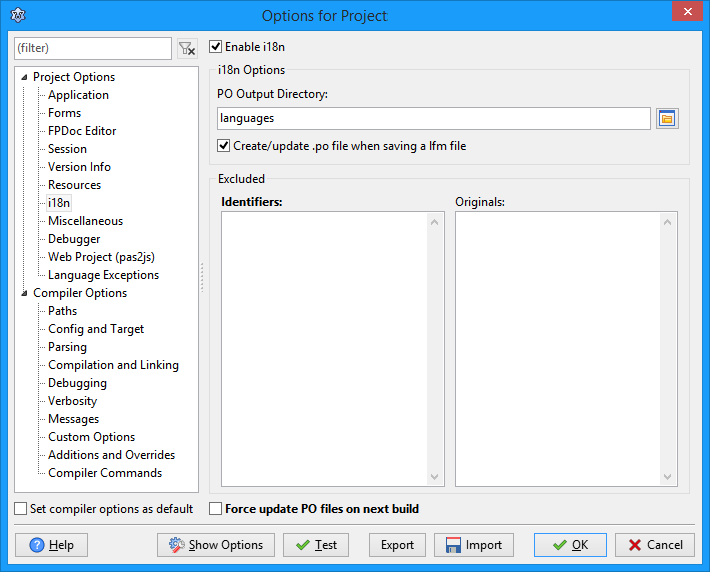 | |
| 42 | 36 | ||
| 43 | 37 | Keep the checkbox `Create/update .po file when saving a lfm file` checked - this updates the translation "master" file whenever you save - see below. | |
| 44 | 38 | ||
| 45 | 39 | If you compile the project again, you'll find two changes in the project folder: At first there is a new file with the extension `.lrj` (in older versions than v1.8 the extension had been `.rst`). This file type collects the resource strings declared in a unit. **Resource strings** are the key elements of the translation system: whenever you want a string to be translated declare it as a `resourcestring`, don't hard-code it, and don't declare it as `const`. | |
| 46 | 40 | ||
| 47 | 41 | As an example: In order to display an error message "File does not exist." don't call the `ShowMessage` procedure like: | |
| 48 | 42 | ||
| 49 | 43 | ``` pascal | |
| 50 | 44 | begin | |
| 51 | 45 | ShowMessage('File does not exist.'); | |
| 52 | 46 | end; | |
| 53 | 47 | ``` | |
| 54 | 48 | ||
| 55 | 49 | but declare the text as a `resourcestring` and use it as a parameter for the `ShowMessage`: | |
| 56 | 50 | ||
| 57 | 51 | ``` pascal | |
| 58 | 52 | resourcestring | |
| 59 | 53 | SFileDoesNotExist = 'File does not exist.'; | |
| 60 | 54 | begin | |
| 61 | 55 | ShowMessage(SFileDoesNotExist); | |
| 62 | 56 | end; | |
| 63 | 57 | ``` | |
| 64 | 58 | ||
| 65 | 59 | In the demo project there are four resourcestring declarations at the beginning of the implementation section of the main form (`frmmain`). In a larger project, it is convenient to collect all resourcestrings in a separate unit; you can access the strings from other forms and units and avoid cross-referencing of units this way. | |
| 66 | 60 | ||
| 67 | 61 | The second modification of the project is a new folder "languages". It contains a file `imgview.pot`. This file was created automatically by Lazarus and contains the resourcestrings in a form ready for translation. The extension `.pot` means "Portable object template" to indicate that it is the "master template" for all languages. To create a German translation from that file create a copy and rename it to `imgview.de.po`. "de" is the language code for "German" in the translation system, accordingly you can use "en" for "English", "ru" for "Russian" etc. See for example [www.science.co.il/Language/Locale-codes.asp](http://www.science.co.il/Language/Locale-codes.asp) for a list of all language codes. And don't forget to change the extension which must `.po` now, rather than `.pot`. Note that the translation template had the extension `.po` until about v2.0 where the `.pot` extension was introduced. | |
| 68 | 62 | ||
| 69 | 63 | We could open `imgview.de.po` and add translations in a straighforward way. But there is an even simpler way as we will see later. Before doing that let's apply another modification to the demo project. | |
| 70 | 64 | ||
| 71 | 65 | ## Use LCLTranslator unit | |
| 72 | 66 | ||
| 73 | 67 | So far, the po files only contain resourcestrings that are explicitly declared as such. There are, however, a lot of other strings in our application which are not yet covered, like the entire menu and submenus, texts in labels or listboxes, etc. | |
| 74 | 68 | ||
| 75 | 69 | There is an extremely easy way to include the strings of the user interface into the translation system: Simply add the unit `LCLTranslator` to the main form's uses clause. When the project is compiled after this modification you'll find all strings in the po file. | |
| 76 | 70 | ||
| 77 | - | ||
| 78 | - | ||
| 79 | - | ||
| 80 | - | ||
| 71 | + | 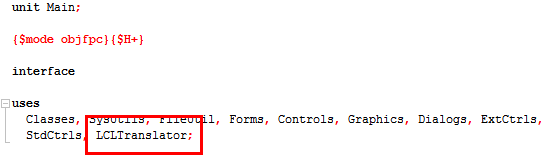 | |
| 81 | 72 | ||
| 82 | 73 | > **Note:** In Lazarus versions older than 1.4 this functionality resides in unit `DefaultTranslator.pas`. | |
| 83 | 74 | ||
| 84 | 75 | ### Excluding Controls | |
| 85 | 76 | ||
| 86 | 77 | To exclude some controls from automatic translation, you can add the full path to the text/caption of this control (e.g. "tmainform.ecit1.text") to the "Exclude" box in project options, *i18n* page. | |
| 87 | 78 | ||
| 88 | 79 | ## Translating | |
| 89 | 80 | ||
| 90 | 81 | For translation we could edit the po files directly by using a standard text editor. But it is more conventient to use a separate program optimized for this purpose. Good candidates are: | |
| 91 | 82 | ||
| 92 | 83 | - [poedit](https://poedit.net/download) (old link [poedit](http://sourceforge.net/projects/poedit/)) | |
| 93 | 84 | - [POEditor](https://poeditor.com/) or | |
| 94 | 85 | - [Better PO Editor](http://sourceforge.net/projects/betterpoeditor/). | |
| 95 | 86 | ||
| 96 | 87 | I'll be using `poedit` here. | |
| 97 | 88 | ||
| 98 | 89 | Install this program. If not done before, copy `imgviewer.pot` and rename it to `imgviewer.de.po`. Open `imgviewer.de.po` in `poedit`. | |
| 99 | 90 | ||
| 100 | 91 | `poedit` shows a list of all resourcestrings: those explicitly declared, and those extracted from lcl controls by the LCLTranslator. Select a string and type its translation into the lower memo. Repeat with all texts. Save. Before saving open then menu item "Catalogue" / "Properties" and check if "Charset" is UTF-8 - poedit sometimes forgets about this correct setting. | |
| 101 | 92 | ||
| 102 | - | ||
| 103 | - | ||
| 104 | - | ||
| 105 | - | ||
| 93 | + | 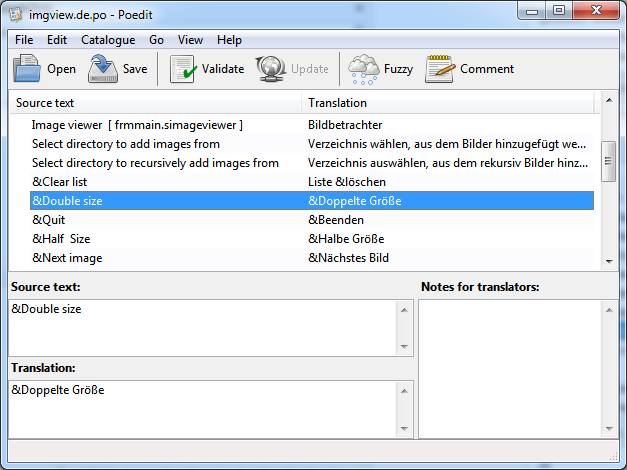 | |
| 106 | 94 | ||
| 107 | 95 | In the same way, you can add more languages: copy the template file and change the file name of the copy to contain the language code and the .po extension, open this po file in `poedit`, add the translations, and save it with the corresponding language code before the po extension. | |
| 108 | 96 | ||
| 109 | - | ||
| 97 | + | Since the test application is hard-coded in English it is very easy to create an English translation file: after coyping `imgview.pot` to `imgview.en.po` and loading that into `poedit`, select each string item and press `Ctrl`+`B` which copys the raw resourcestring value into the translation memo. Save as `imgview.en.po`. | |
| 110 | 98 | ||
| 111 | 99 | In order to force the application to open the German translation at start-up add the line `SetDefaultLang('de')` to the initialization code of the main form unit. If you have several translation and want the application to open in the language of the user's system use an empty string the SetDefaultLang call, or add unit `DefaultTranslator` to the form, in addition to `LCLTranslator`. This way the default language is detected, and the resource strings are replaced by those from the corresponding po file automatically. | |
| 112 | 100 | ||
| 113 | 101 | More about `SetDefaultLang` in the next section... | |
| 114 | 102 | ||
| 115 | 103 | ## Switching languages | |
| 116 | 104 | ||
| 117 | 105 | But what if your PC is not on German language? We can use the Lazarus translation system to switch languages at run-time. | |
| 118 | 106 | ||
| 119 | 107 | First of all, the `LCLTranslator` unit gives access to commandline switches `--lang` or `-l` to override the automatic language detection. For example, | |
| 120 | 108 | ||
| 121 | 109 | ``` pascal | |
| 122 | 110 | imgview.exe --lang de | |
| 123 | 111 | ``` | |
| 124 | 112 | ||
| 125 | 113 | opens the German translation of the program even on an English-speaking system. | |
| 126 | 114 | ||
| 127 | 115 | Of course, changing languages at run-time would be even more favorable. While this was not possible with Lazarus before version 1.2 out of the box, it is no problem with current versions of Lazarus where `LCLTranslator` provides a procedure `SetDefaultLang` for switching between languages upon user request. (In Laz v1.2.x you must "use" unit `DefaultTranslator` rather than `LCLTranslator`.) | |
| 128 | 116 | ||
| 129 | 117 | At first, we need some control in the user interface to switch languages. What about a new menu item "Translation" and a submenu containing the available languages? In the menu designer of the main form add a new item "Translations" and an empty submenu. Then, for each language available, add the name of the corresponding language to the submenu. Of course you can also show a flag icon for each language - free flag icons are available from [1](http://www.famfamfam.com/lab/icons/flags/). In the `OnClick` event handler call `SetDefaultLang` with the language code as a parameter, e.g. | |
| 130 | 118 | ||
| 131 | 119 | ``` pascal | |
| 132 | 120 | procedure TMainForm.MEnglishlanguageClick(Sender: TObject); | |
| 133 | 121 | begin | |
| 134 | 122 | SetDefaultLang('en'); | |
| 135 | 123 | end; | |
| 136 | 124 | ||
| 137 | 125 | procedure TMainForm.MGermanLanguageClick(Sender: TObject); | |
| 138 | 126 | begin | |
| 139 | 127 | SetDefaultLang('de'); | |
| 140 | 128 | end; | |
| 141 | 129 | ``` | |
| 142 | 130 | ||
| 143 | 131 | Of course, you can use more sophisticated code which determines the language codes from the names of the po files found and creates menu items depending on the available translations. | |
| 144 | 132 | ||
| 145 | 133 | Now you can click on a language menu item, and the application language switches to the selected language automatically! | |
| 146 | 134 | ||
| 147 | 135 | As you may notice the new menu item "Translation" and its submenu items are not translated. This is because these are new strings missing from the translated po files. Simply open the translated files in `poedit` and add the translations of the new strings. All the previous translations are still there. Save, and you are all set. | |
| 148 | 136 | ||
| 149 | 137 | ## Strings defined by the LCL and other packages | |
| 150 | 138 | ||
| 151 | 139 | Here is one idea for refinement: The strings set up up for error messages defined by the LCL or used in standard dialogs or message boxes are not yet translated. Their translation is extremely easy: their translation files can be found in the directory `lcl/languages` of your Lazarus installation; they are named `lclstrconsts.*.po`. Pick those translations used by your application and copy them to the `languages` folder of our project. (And add unit *lclstrconsts* to the `uses` clause if you refer to one of these strings). | |
| 152 | 140 | ||
| 153 | 141 | Do the same when your application requires third-party packages which may have their own set of po files - always copy the po files of all packages needed into the `languages` folder of your project, and mention these resourcestring units in the uses clause. | |
| 154 | 142 | ||
| 155 | 143 | This works because resourcestrings are pulled in from all language files for the active language found in the languages folder. | |
| 156 | 144 | ||
| 157 | 145 | ## Format settings | |
| 158 | 146 | ||
| 159 | 147 | When creating multi-language applications translation of the strings is not the only task. Another issue is that format settings may change from country to country. Format settings - they define formatting of dates and times, the month and day names, the character to be used as decimal or thousands separator, etc. In Lazarus, the record `TFormatSettings` collects all the possible data. The `DefaultSettings` are used by the standard format conversion routines, such as StrToDate, DateToStr, StrToFloat, or FloatToStr, etc. | |
| 160 | 148 | ||
| 161 | 149 | ### Windows | |
| 162 | 150 | ||
| 163 | 151 | For Windows, there exists a procedure `GetLocaleFormatSettings` in the unit `sysutils` which returns the `TFormatSettings` for a given localization. The parameter `LCID` specifies the language code in Windows. Unfortunately I do not know of a convenient conversion between the LCID and the language codes ('de', 'en', etc) used by Lazarus. A conversion table for lookup can be found at [[Language Codes]]. In this table, you see that "German" has the LCID \$407, and "English" has the LCID \$409. Therefore, we modify the `OnClick` event handler for the language selection menu items as follows: | |
| 164 | 152 | ||
| 165 | 153 | ``` pascal | |
| 166 | 154 | procedure TMainForm.MEnglishlanguageClick(Sender: TObject); | |
| 167 | 155 | begin | |
| 168 | 156 | SetDefaultLang('en'); | |
| 169 | 157 | GetLocaleFormatSettings($409, DefaultFormatSettings); | |
| 170 | 158 | end; | |
| 171 | 159 | ||
| 172 | 160 | procedure TMainForm.MGermanLanguageClick(Sender: TObject); | |
| 173 | 161 | begin | |
| 174 | 162 | SetDefaultLang('de'); | |
| 175 | 163 | GetLocaleFormatSettings($407, DefaultFormatSettings); | |
| 176 | 164 | end; | |
| 177 | 165 | ``` | |
| 178 | 166 | ||
| 179 | 167 | As a demonstration we add a status bar to our project and display the date when an image was created: | |
| 180 | 168 | ||
| 181 | 169 | ``` pascal | |
| 182 | 170 | procedure TMainForm.ShowPicDateTime; | |
| 183 | 171 | var | |
| 184 | 172 | dt: TDateTime; | |
| 185 | 173 | begin | |
| 186 | 174 | if LBFiles.ItemIndex = -1 then | |
| 187 | 175 | Statusbar.SimpleText := '' | |
| 188 | 176 | else begin | |
| 189 | 177 | dt := FileDateToDateTime(FileAge(LBFiles.Items[LBFiles.ItemIndex])); | |
| 190 | 178 | Statusbar.SimpleText := DateToStr(dt) + ' ' + TimeToStr(dt); | |
| 191 | 179 | end; | |
| 192 | 180 | end; | |
| 193 | 181 | ``` | |
| 194 | 182 | ||
| 195 | 183 | This procedure is called from the `OnSelectionChange` event handler of the files listbox: | |
| 196 | 184 | ||
| 197 | 185 | ``` pascal | |
| 198 | 186 | procedure TMainForm.LBFilesSelectionChange(Sender: TObject; User: boolean); | |
| 199 | 187 | begin | |
| 200 | 188 | ShowPicDateTime; | |
| 201 | 189 | end; | |
| 202 | 190 | ``` | |
| 203 | 191 | ||
| 204 | 192 | Recompile the program and load some images. You'll see that the date format changes when the language is switched and another image is selected. | |
| 205 | 193 | ||
| 206 | 194 | ### Linux | |
| 207 | 195 | ||
| 208 | 196 | I don't know how this issue could be handled in general in Linux. Maybe somebody does out there in the community? | |
| 209 | 197 | ||
| 210 | 198 | ### macOS | |
| 211 | 199 | ||
| 212 | 200 | Refer to the [[Locale settings for macOS]] article. | |
| 213 | 201 | ||
| 214 | 202 | ## Additional information | |
| 215 | 203 | ||
| 216 | 204 | ### Operating system dialogs | |
| 217 | 205 | ||
| 218 | 206 | The operating system dialogs (eg [[TOpenDialog]]) are not translatable by Lazarus because they use the operating system strings and not the LCL widgetset strings which can be localised as detailed above. | |
| 219 | 207 | ||
| 220 | 208 | ### macOS | |
| 221 | 209 | ||
| 222 | 210 | > **Tip:** You may need to delete the symbolic link to the executable created by Lazarus in the [[Application Bundle|application bundle]] and replace it with the actual executable before the localised language will show up in the system dialogs when using the methods described below. | |
| 223 | 211 | ||
| 224 | 212 | For macOS, one solution is to add the language designators of the supported languages to the application's `Info.plist` file like this: | |
| 225 | 213 | ||
| 226 | 214 | ``` xml | |
| 227 | 215 | <key>CFBundleLocalizations</key> | |
| 228 | 216 | <array> | |
| 229 | 217 | <string>en</string> | |
| 230 | 218 | <string>fr</string> | |
| 231 | 219 | <string>de</string> | |
| 232 | 220 | <string>it</string> | |
| 233 | 221 | <string>nl</string> | |
| 234 | 222 | <string>ru</string> | |
| 235 | 223 | ... etc ... | |
| 236 | 224 | </array> | |
| 237 | 225 | ``` | |
| 238 | 226 | ||
| 239 | 227 | and then the operating system dialogs will present users with their preferred language (**fr** - French example below). | |
| 240 | 228 | ||
| 241 | - | ||
| 242 | - | ||
| 243 | - | ||
| 244 | - | ||
| 229 | + | 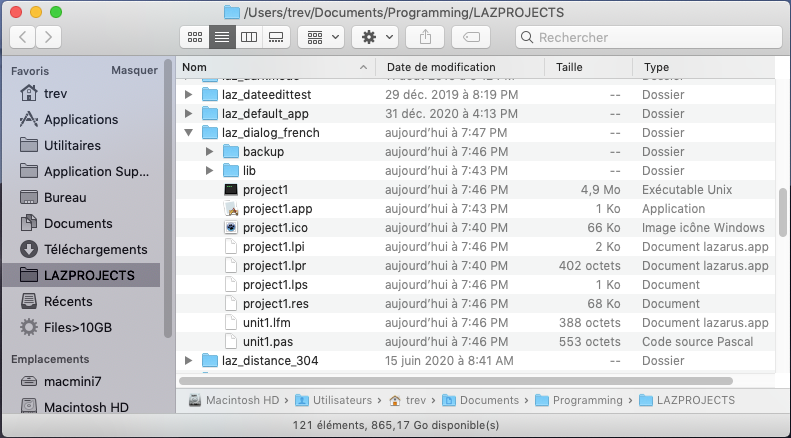 | |
| 245 | 230 | ||
| 246 | 231 | An alternative method for localising a macOS application is to instead create an empty folder for each language in the application bundle's `Resources` directory. For example, for French, add an empty file named `fr.lproj` in `MyApp.app/Contents/Resources`. | |
| 247 | 232 | ||
| 248 | 233 | #### Language designators | |
| 249 | 234 | ||
| 250 | 235 | A language designator is a code that represents a language. Use the two-letter ISO 639-1 standard (preferred) or the three-letter ISO 639-2 standard. If an ISO 639-1 code is not available for a particular language, use the ISO 639-2 code instead. For example, there is no ISO 639-1 code for the Hawaiian language, so use the ISO 639-2 code. For a complete list of ISO 639-1 and ISO 639-2 codes, see [ISO 639.2 Codes for the Representation of Names and Languages](http://www.loc.gov/standards/iso639-2/php/English_list.php). | |
| 251 | 236 | ||
| 252 | 237 | ## Conclusion | |
| 253 | 238 | ||
| 254 | 239 | Although some issues of localization (e.g. right-to-left mode, sorting order) have not been discussed I hope that this tutorial covered the most important aspects and is at least a good starting point for beginners. | |
| 255 | 240 | ||
| 256 | 241 | In the end, here is the final screenshot of this tutorial: it shows the image viewer application translated to German. | |
| 257 | 242 | ||
| 258 | 243 | 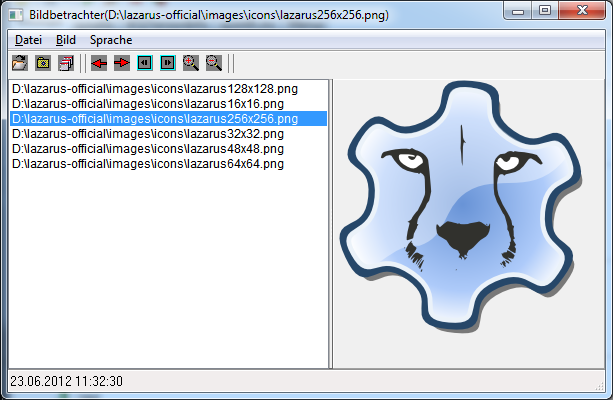. | |
| 259 | 244 | ||
| 260 | 245 | ## See also | |
| 261 | 246 | ||
| 262 | 247 | - [[Localization]] | |
| 263 | 248 | - [[Getting translation strings right]] | |
| 264 | 249 | - [[Translations / i18n / localizations for programs]] | |
| 265 | 250 | - [[macOS Translation|Common macOS user interface captions]] | |
| 266 | 251 | ||
| 267 | 252 | --- | |
| 268 | 253 | *From the Free Pascal wiki, page "Step-by-step instructions for creating multi-language applications", as it stood on 2023-07-16 after a change by Wp, out of the wiki's dump of 2024-05-26. Copyright stays with the author who wrote it, according to the old wiki's [[Licensing]] page. If you have concerns about this material, [message the admin](/wiki-contact).* |