

SQLdb Tutorial1
Sent here from SQLdb Tutorial1 (Français).
Deutsch · English · Español · Français · 中文(中国) · 日本語
Introduction
This tutorial shows you how to program databases using practical example code based on the SQLdb Package. It is primarily targeted at newbies. If somebody is looking for basics about databases and SQL, he should read relevant books/documentation. For this tutorial I use Firebird with the example database employee.fdb. Other databases can also be used; some adjustments will need to be made which are mentioned in the text.
While this tutorial may seem long, it mostly is just a lot of text that explains why you should type what you type. As you can see at the end, the amount of actual code you will need for a working application is not that great. More experienced developers will hopefully be able to glance through the instructions and quickly understand what's going on. Also, you can stop at the end of the Basic example chapter and have a working program.
This tutorial is based on a German tutorial by Swen, but it is extended, especially after the Basic example. Swen wants the German version to remain as-is. If this is a problem, we can rename this version and base a new German translation on that.
From Swen: thanks to Joost and Michael. Without their help this tutorial probably never would have come about.
Requirements
This tutorial is written for use with recent Lazarus versions (Laz 1.0); it should also work on older versions Lazarus 0.9.30.
Please see SQLdb Tutorial0, which will walk you through making sure you have the right sample database set up.
Basic example
Project and components
First you should create a new Lazarus project.
To get access to our database we need one TIBConnection, one TSQLTransaction and one TSQLQuery component from the 'SQLdb tab' in the component palette:

TIBConnection is an Interbase/Firebird specific connection component. If you are using a different database, substitute the proper component from the 'SQLdb tab, e.g. a TSQLite3Connection' for an SQLite database, TPQConnection for a PostgreSQL database. Discussion of setting up any database access libraries is out of scope for this tutorial; see e.g. Databases for that.
Click on the TIBConnection (or equivalent connection component) on your form, and in the Object Inspector, change the name to DBConnection. This will simplify the rest of the tutorial when using different databases. It's also generally a good idea to name your components for something useful in your program (e.g. MainframeDBConnection) so you know what it stands for.
The other two components, TSQLTransaction and TSQLQuery, can be used for all databases that are supported by SQLdb.
To display the data, we use a TDBGrid component, which can be found on the 'Data Controls' tab. To connect this component to the database components we need a TDataSource component from the 'Data Access tab'.
Now we have all database components needed for the first example. You can enlarge the TDBGrid to have enough space to display all data.
Link the components
Next we need to connect our components. A very simple way is to use the object inspector, but you can also do this in your source code.
Change the Transaction property of DBConnection to 'SQLTransaction1'. This causes the Database property of SQLTransaction1 to automatically change to 'DBConnection'.
Then, change the Database property of SQLQuery1 to 'DBConnection'. Lazarus automatically adds the value for the 'Transaction' property.
Next, change the Dataset property of Datasource1 to 'SQLQuery1'.
Finally we change the Datasource property of DBGrid1 to 'Datasource1'.
We now end up with a connection that links its default transaction to a transaction component. The transaction component links its database property to the connection object. These two components are enough to connect and execute instructions, but not enough to show queries. For this, an SQLQuery component is used, which points to the database (and links to its default transaction). With the SQLQuery, we'll later on retrieve data and post it back to the database.
Finally, the datasource component, which is linked to the query component, is a sort of place holder. It keeps track of where in the query dataset we are and the GUI components are linked to that so they all show the same record.
If this is gibberish to you, don't despair: with just some more work, we'll be able to show our first data.
Connecting to the database
How can we now show the data from our database on the screen?
First we need to tell DBConnection where the employee.fdb database is located. Locations of that db differ depending on operating system, it could be something like:
- .../examples/empbuild/ subdirectory of your Firebird installation on Linux
- C:\Program Files\Firebird\Firebird_2_5\examples\empbuild\EMPLOYEE.FDB on a Windows machine
- Using Firebird embedded, the file should be in your project directory
Again you have the choice: you can use the object inspector to assign the path or do it directly in your source code.
We choose to use the object inspector: set the DBConnection 'HostName' property to the Firebird server name or IP adddress. Use localhost if a Firebird server is running on your development machine; use a blank value if you use the embedded Firebird client. Change the DatabaseName property of DBConnection to the path to the employee.fdb file on the database server. If you use embedded Firebird, the path part should be empty and you should just specify the filename.
Before the database server grants access to the data, it will check authorisation via username and password. A serious database application will ask the user for both values when the application is started, and send these to the server when connecting. A possible way of doing this is shown in SQLdb Tutorial3.
However, for now, to simplify matters, we use the object inspector again to hard code these. Change the 'UserName' property to 'SYSDBA' and 'Password' to 'masterkey' (of course, adjust if your database installation has a different username/password).
Now check if all settings so far are correct: set the 'Connected' property to 'True'. If the database path isn't correct or if username or password are wrong, you will get an error message. If the connection was successful, you should cut it now (set 'Connected' to 'False').
PostgreSQL
The situation with PostgreSQL is very similar to that on Firebird. The database name does not have a path - you just specify a name part (e.g. 'employee'). PostgreSQL has no embedded mode, so you need to fill out the HostName property for the connection test to work.
SQLite
For SQLite, you can leave the 'HostName', 'UserName', and 'Password' properties empty. Set the 'DatabaseName' to the name of your SQLite file, e.g. employee.sqlite. Note: sqlite will create the database specified if it doesn't exist, so be careful here.
You should now have something like the following screenshot - todo: this screenshot is actually further along, we only have a button now: framed|center|Form and components set up
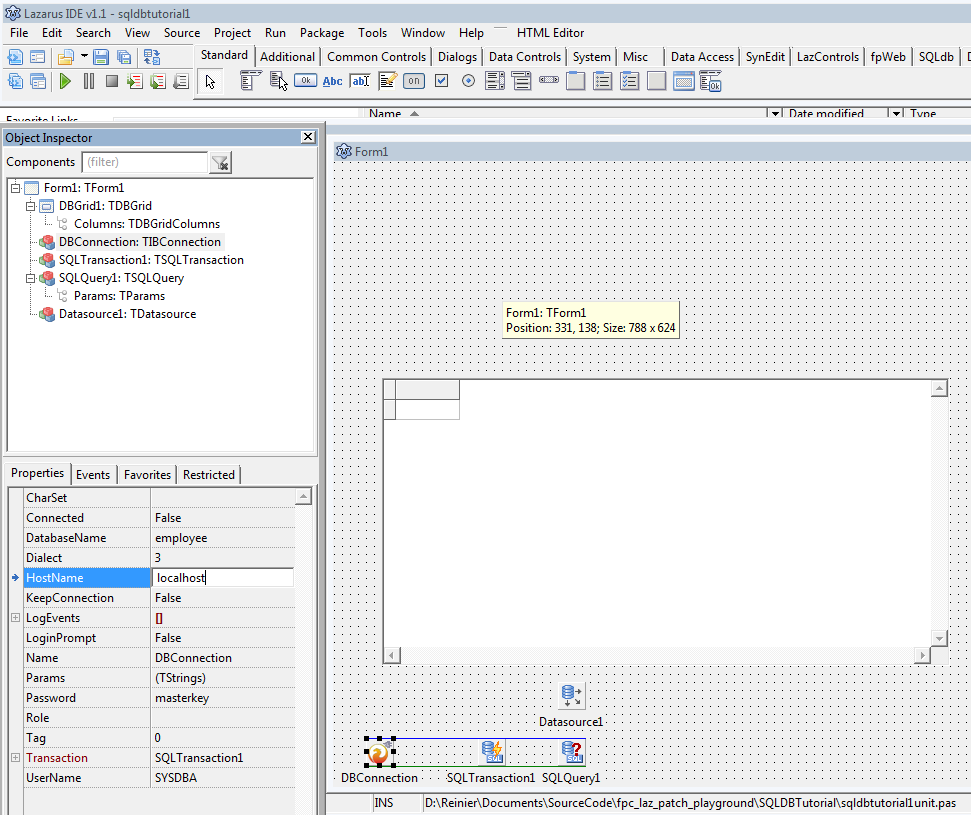
Change the property Options → dgDisplayMemoText of the DBGrid to '(True)'. Otherwise you will see (MEMO) in all the data fields.
Choosing what data to show
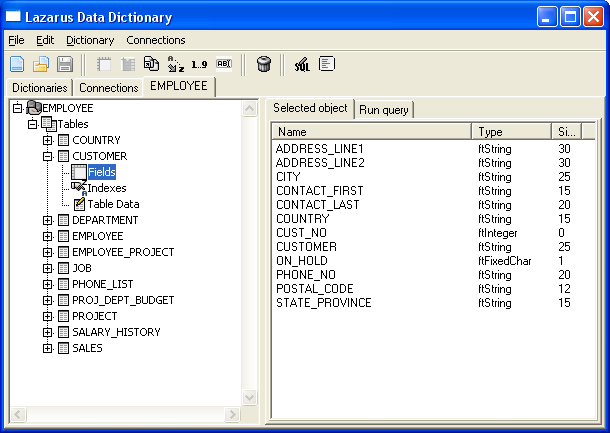
Although the connection was successful, no data was displayed. The reason is simple. We haven't told the database server which data to return: the employee.fdb database contains several tables, and we haven't told Firebird the table we want to see. If you don't know the structure of a database, you can use tools like FlameRobin, to display the contents. Lazarus also provides such a tool - the DataDesktop. You can find it in the /tools/lazdatadesktop/ subdirectory of Lazarus. Save our project and then open the project lazdatadesktop.lpi and compile it.
framed|center|The DataDesktop in action
Back to our example.
We want to display all data from the table 'CUSTOMER'. The SQL instruction for that is:
select * from CUSTOMERWe need to assign this command to the 'SQL' property of SQLQuery1. In the source code of our project this would look like:
SQLQuery1.SQL.Text := 'select * from CUSTOMER';The SQL instruction must be enclosed by single quotes. You also have the ability to assign the content of another component (e.g. Edit1.Text). This is not always a good idea; see Secure programming (a more advanced text) for details on SQL injection.
Let's add a TButton from the 'Standard' tab on the form. When the user clicks on the button, data retrieval should start. Change its Caption property from "Button1" to Show data".
We will need some code for this. Double click on Button1. Lazarus then creates the skeleton of the necessary procedure. In our source code we should find the following lines:
procedure TForm1.Button1Click(Sender: TObject);
begin

end;
Between begin and end we must enter the instructions needed to display the data.... obviously that will be something to do with SQLQuery1..
The 'SQL' property of SQLQuery1 can only be changed, if SQLQuery1 is not active. That's why we close the component first:
SQLQuery1.Close;Then we assign our SQL instruction to the 'SQL' property, overwriting any previous SQL commands:
SQLQuery1.SQL.Text := 'select * from CUSTOMER';Now we need to establish the connection to the database, activate the transaction and open the query:
DBConnection.Connected := True;
SQLTransaction1.Active := True;
SQLQuery1.Open;
You can omit the first two instructions, because they are done automatically by the third instruction. If you compile the project at this point, you could already see the data from the 'CUSTOMER' table.
However, a serious application must make sure that all open database connections are properly closed when not needed anymore. Otherwise the secondary effects would not be foreseeable. So, we use the OnClose event of our form (create it with a double click in the object inspector):
procedure TForm1.FormClose(Sender: TObject; var CloseAction: TCloseAction);
begin

end;
To close the connection we use the reverse order compared to our opening code:
SQLQuery1.Close;
SQLTransaction1.Active := False;
DBConnection.Connected := False;
If you set DBConnection.Connected to False, the Transaction and the Query is automatically closed and you can omit closing them manually.
Summary
Up to now we have learned how to connect to a database using the SQLdb package and how to display the contents of a table on the screen. If you want to add more functionality such as editing, please continue with SQLdb Tutorial2
If you followed the previous steps, then your code should look like:
unit Unit1;

{$mode objfpc}{$H+}

interface

uses
  Classes, SysUtils, IBConnection, sqldb, db, FileUtil, Forms, Controls,
  Graphics, Dialogs, DBGrids, StdCtrls;

type

  { TForm1 }

  TForm1 = class(TForm)
    Button1: TButton;
    Datasource1: TDatasource;
    DBGrid1: TDBGrid;
    DBConnection: TIBConnection;
    SQLQuery1: TSQLQuery;
    SQLTransaction1: TSQLTransaction;
    procedure Button1Click(Sender: TObject);
    procedure FormClose(Sender: TObject; var CloseAction: TCloseAction);
  private
    { private declarations }
  public
    { public declarations }
  end;

var
  Form1: TForm1;

implementation

{$R *.lfm}

{ TForm1 }

procedure TForm1.Button1Click(Sender: TObject);
begin
  SQLQuery1.Close;
  SQLQuery1.SQL.Text:= 'select * from CUSTOMER';
  DBConnection.Connected:= True;
  SQLTransaction1.Active:= True;
  SQLQuery1.Open;
end;

procedure TForm1.FormClose(Sender: TObject; var CloseAction: TCloseAction);
begin
  SQLQuery1.Close;
  SQLTransaction1.Active:= False;
  DBConnection.Connected:= False;
end;

end.
See also
- SQLdb Tutorial0: Instructions for setting up sample tables/sample data for the tutorial series.
- SQLdb Tutorial2: Second part of the DB tutorial series, showing editing, inserting etc.
- SQLdb Tutorial3: Third part of the DB tutorial series, showing how to program for multiple databases and use a login form
- SQLdb Tutorial4: Fourth part of the DB tutorial series, showing how to use data modules
- Lazarus Database Overview: Information about the databases that Lazarus supports. Links to database-specific notes.
- SQLdb Package: information about the SQLdb package
- SQLdb Programming Reference: an overview of the interaction of the SQLdb database components
- SqlDBHowto: information about using the SQLdb package
- Working With TSQLQuery: information about TSQLQuery
From the Free Pascal wiki, page "SQLdb Tutorial1", as it stood on 2022-11-01 after a change by Kj14, out of the wiki's dump of 2024-05-26. Copyright stays with the author who wrote it, according to the old wiki's Licensing page. If you have concerns about this material, message the admin.
Edited on wiki.freepascal.org by 20 people, 2009–2022
From the official wiki's backup of 26 May 2024: who edited this page there, and when. Edits made there after that date were not recorded, and the earlier versions are not shown here; the main page says why.
| When | Who | What changed |
|---|---|---|
| Swen | New page: {{SQLdb Tutorial}} == Introduction == This tutorial has the intention to show the usage of the SQLdb Package on the basis of practical examples. It is primarily targeted at newbies. ... | |
| Swen | (minor) | |
| Swen | Example 1 (minor) | |
| Swen | Enhancement of example 1 (minor) | |
| Swen | Enhancement of example 1 (minor) | |
| Swen | Enhancement of example 1 (minor) | |
| JimBeam | Translation of a German snippet (minor) | |
| Swen | Requirements (minor) | |
| BigChimp | See also: Added link to Firebird in action, categories (minor) | |
| BigChimp | Requirements (minor) | |
| BigChimp | Example 1: Grammar/wording/layout/clarification | |
| BigChimp | Enhancement of example 1: Grammar,clarity | |
| BigChimp | Enhancement of example 1 (minor) | |
| BigChimp | Requirements: Added Customer table DDL so people stuck with other databases can play along ;) | |
| BigChimp | Requirements: newer sqldblaz (minor) | |
| BigChimp | Example 1: Subheaders for additional clarity | |
| BigChimp | Enhancement of example 1: Subheadings, enhanced error message | |
| BigChimp | Error handling (minor) | |
| BigChimp | Chosing what data to show (minor) | |
| BigChimp | Connecting to the database (minor) | |
| BigChimp | Requirements: Added DLLs | |
| BigChimp | Requirements (minor) | |
| BigChimp | Requirements (minor) | |
| BigChimp | Requirements (minor) | |
| BigChimp | Connecting to the database: Added required hostname - no need to go explaining about embedded mode... | |
| BigChimp | Connecting to the database | |
| BigChimp | Choosing what data to show (minor) | |
| BigChimp | Connecting to the database (minor) | |
| BigChimp | Enhancement of example 1: Updated program code with Lazarus 0.9.31 generated code (minor) | |
| BigChimp | Error handling: Fixed dangling line in rationale. Rationale is still too verbose to my liking, but I won't dismantle the original author's work just because I think it's too wordy ;) (minor) | |
| BigChimp | Requirements (minor) | |
| BigChimp | Database libraries on Windows (minor) | |
| BigChimp | Enhancement of example 1: Moved source code to summary above, more logical - part 1 (minor) | |
| BigChimp | Summary: Moved source code to summary above, more logical - part 2 of 2 (minor) | |
| BigChimp | Connecting to the database (minor) | |
| BigChimp | Filtering data: Minor clarifications | |
| BigChimp | Error handling (minor) | |
| BigChimp | Example 1 | |
| BigChimp | Enhancement of example 1 | |
| BigChimp | Enhancement of the basic example: Added editing/data writing | |
| BigChimp | Introduction: Grammar, other dbs | |
| BigChimp | Requirements: Allow non-Firebird dbs | |
| BigChimp | Project and components: Other databases | |
| BigChimp | Requirements (minor) | |
| BigChimp | Error handling: Other database users (minor) | |
| BigChimp | Editing data using the grid | |
| Billyraybones | typos, some formatting (minor) | |
| BigChimp | Choosing what data to show: .Clear is not necessary for sqlquery when using .Text:='bla' | |
| BigChimp | See also: Change SQLDBHowto reference from Dutch to English (minor) | |
| BigChimp | Filtering data: Added dynamic database connection setup | |
| BigChimp | Connecting to the database (minor) | |
| BigChimp | Dynamic database connection (minor) | |
| BigChimp | Filtering data: Incorporated code from previous section (minor) | |
| BigChimp | Summary: Incorporated code from earlier section (minor) | |
| BigChimp | Dynamic database connection | |
| BigChimp | Editing data using the grid: Hiding first, autonumber column | |
| BigChimp | Introduction: It may seem long, but really, it isn't. Trust me. | |
| BigChimp | Hiding primary key column: Please help fix this tutorial; added download link https://bitbucket.org/reiniero/fpc_laz_patch_playground/downloads/SQLDBTutorial1_3Sept2011.zip | |
| BigChimp | Introduction: Details on German version & Swen's preferences; hint that user can stop after Basic example | |
| BigChimp | Hiding primary key column: Added insert functionality | |
| BigChimp | Dynamic database connection: typo (minor) | |
| BigChimp | Inserting new data: Deleting data | |
| BigChimp | Summary: updates from previous sections (minor) | |
| BigChimp | See also: Embedded database for free ;) | |
| BigChimp | Deleting data (minor) | |
| BigChimp | No employee.fdb installed?: Indicate firebird not necessary (minor) | |
| BigChimp | Connecting to the database (minor) | |
| BigChimp | Error handling: Less detail on reasons for errors - they distract from the discussion. | |
| Rjbosch | ||
| Rjbosch | ||
| Rjbosch | ||
| Vincent | Text replace - "delphi>" to "syntaxhighlight>" (minor) | |
| Zoran | No Firebird or employee.fdb installed? | |
| BigChimp | Firebird on Windows: Link to firebird embedded page | |
| BigChimp | Sqlite: creating database | |
| BigChimp | Moved button lower; sqlite details | |
| BigChimp | Finished adding sqlite notes in article | |
| BigChimp | SQLite, other databases (minor) | |
| BigChimp | Use empty filter | |
| BigChimp | No Firebird or employee.fdb installed?: Fixed wrong field type | |
| BigChimp | SQLite, other databases (minor) | |
| HowardPC | See also (minor) | |
| HowardPC | Introduction (minor) | |
| Markusd112 | Replaced tag syntaxhighlight with source tag in the last listing on the page (minor) | |
| BigChimp | Undo revision 61147 by Markusd112: we use syntaxhighlight everywhere instead of source. Better to fix the typo in syntaxhiglight here... | |
| BigChimp | Fixed typo in <syntaxhiglight>. Thanks Markus for drawing attention to this! | |
| BigChimp | <syntaxhighlight> is better than <source>. See https://www.mediawiki.org/wiki/Extension:SyntaxHighlight_GeSHi#Alternative_Tag | |
| BigChimp | Requirements: Added postgres install notes | |
| BigChimp | Project and components: Layout, postgresql example | |
| BigChimp | Link the components: Explain a bit what the components do. | |
| BigChimp | Connecting to the database: postgresql notes | |
| BigChimp | = PostgreSQL (minor) | |
| BigChimp | SQLite, other database | |
| BigChimp | See also | |
| BigChimp | PostgreSQL | |
| BigChimp | No Firebird or employee.fdb installed?: Stay within VARCHAR(25) (minor) | |
| BigChimp | No Firebird or employee.fdb installed?: Change cust no to match postgresql serial datatype (minor) | |
| BigChimp | PostgreSQL: Added serial cust_no instead of regular insert. This should let inserts work. | |
| BigChimp | Split up sql db tutorial for brevity/apparent complexity | |
| BigChimp | (minor) | |
| BigChimp | remove superfluous SQLQuery1.clear | |
| Chronos | fixed link | |
| Cuniculophile | moved SQLdb Tutorial1 to SQLdb Tutorial1 (Français): Je n'ai pas trouvé comment signifier qu'il s'agissait d'une traduction (minor) | |
| Cuniculophile | moved SQLdb Tutorial1 (Français) to SQLdb Tutorial1 over redirect (minor) | |
| BigChimp | Links to tutorial3, cosmetic copy/paste error fixed (minor) | |
| BigChimp | Added salary column used in sqldb tutorial3 | |
| BigChimp | Undo revision 63973 by BigChimp (talk) | |
| BigChimp | Added employee example ready for sqldbtutorial3 | |
| BigChimp | No Firebird or employee.fdb installed? (minor) | |
| BigChimp | Installation on Linux: update with -dev library | |
| BigChimp | Firebird database libraries on other systems (minor) | |
| BigChimp | Indicate postgresql and sqlite already catered for; clarify windows lib instructions | |
| BigChimp | Link the components (minor) | |
| BigChimp | Connecting to the database | |
| BigChimp | Choosing what data to show: button caption | |
| Tangentstorm | Firebird database libraries on Windows (minor) | |
| BigChimp | Database dlls should be in Lazarus directory, not project directory | |
| BigChimp | SQLite (minor) | |
| BigChimp | SQLite (minor) | |
| BigChimp | PostgreSQL: layout, clarificaton on insert statements | |
| Bertman | Changed customer and employee data statements to make the SQL-statements work when copied (minor) | |
| Bartlebee | corrected typo. Added small comment for sqlite (minor) | |
| Bartlebee | SQLite: A regular name does not work. Needs the entire path. | |
| BigChimp | moved install instructions to tutorial0 | |
| BigChimp | See also (minor) | |
| BigChimp | (minor) | |
| Bartlebee | Undo revision 73555 by Bartlebee (talk) I realize I was incorrect | |
| BigChimp | Project and components: image | |
| Socke | Connecting to the database: fixed broken link (minor) | |
| FTurtle | ||
| Kapibara | Choosing what data to show | |
| Arent | ||
| Arent | Basic example | |
| Arent | Project and components | |
| Arent | Project and components | |
| Arent | Project and components | |
| Trev | Fixed syntax highlighting; deleted category included in page template (minor) | |
| Kj14 | added note to SQLite section about (MEMO) text fields |
Talk about this page
Nobody has opened a bench for this page yet. Sign in to open one.