

SQLdb Tutorial0: what changed
Revision 1 to 2. Removed lines have a minus sign; added lines have a plus sign.
| Old | New | Line | |
|---|---|---|---|
| 1 | 1 | ## Introduction | |
| 2 | 2 | ||
| 3 | 3 | This article will help you set up your database environment with sample tables and data to use in SQLdb Tutorial 1, 2 and 3. | |
| 4 | 4 | ||
| 5 | 5 | Although this page is quite long, you will only go through a few of the sections as this article contains instructions for various database systems. | |
| 6 | 6 | ||
| 7 | 7 | If you want to get up and running quickly, I'd suggest installing the Firebird server and example database as described below. | |
| 8 | 8 | ||
| 9 | 9 | ## Requirements | |
| 10 | 10 | ||
| 11 | 11 | This tutorial is written for use with recent Lazarus versions (Laz 1.0); it should also work on older versions Lazarus 0.9.30. | |
| 12 | 12 | ||
| 13 | 13 | Furthermore you need an SQL/relational database, such as [Firebird](http://sourceforge.net/project/showfiles.php?group_id=9028) (if possible version 2.0 or newer). It's easiest if you use standard settings (e.g user name SYSDBA and password masterkey), and that you have the employee sample database installed. | |
| 14 | 14 | ||
| 15 | 15 | You can use another database (e.g. Microsoft SQL Server, MySQL, PostgreSQL, Oracle, SQLite, Sybase ASE or another database using ODBC). Please make sure you have the required database client libraries installed (see the various wiki articles on databases) Please see below (section **No Firebird or employee.fdb installed?**) for a way to set up your tables | |
| 16 | 16 | ||
| 17 | 17 | ## Firebird installation | |
| 18 | 18 | ||
| 19 | 19 | In case you haven't yet installed Firebird or the sample database that is used with the tutorials, please find some instructions below. | |
| 20 | 20 | ||
| 21 | 21 | ### Install Firebird client/server | |
| 22 | 22 | ||
| 23 | 23 | If you haven't installed anything, you can download and run the installer from www.firebirdsql.org and install the server (e.g. "32-bit Classic, Superclassic & Superserver"). | |
| 24 | 24 | ||
| 25 | 25 | ### Firebird database libraries on Windows | |
| 26 | 26 | ||
| 27 | 27 | After installation, on Windows you will need to have the Firebird client DLLs present: | |
| 28 | 28 | ||
| 29 | 29 | - they could be in your system directory (available for all programs) | |
| 30 | 30 | - they can also be in your Lazarus directory (for design time support in the IDE) and in the output directory where the executable is (to run the compiled program). | |
| 31 | 31 | ||
| 32 | 32 | If you haven't installed the Firebird server, an easy way to get the client DLLs is: download Firebird Embedded 2.5 from [1](http://www.firebirdsql.org/en/firebird-2-5/) Extract these files to your application directory: | |
| 33 | 33 | ||
| 34 | 34 | ``` bash | |
| 35 | 35 | fbclient.dll #only if using the server | |
| 36 | 36 | #or | |
| 37 | 37 | fbembed.dll #only if using embedded | |
| 38 | 38 | firebird.msg | |
| 39 | 39 | ib_util.dll | |
| 40 | 40 | icudt30.dll | |
| 41 | 41 | icuin30.dll | |
| 42 | 42 | icuuc30.dll | |
| 43 | 43 | Microsoft.VC80.CRT.manifest | |
| 44 | 44 | msvcp80.dll | |
| 45 | 45 | msvcr80.dll | |
| 46 | 46 | ``` | |
| 47 | 47 | ||
| 48 | 48 | Rename fbembed.dll to fbclient.dll (the name for a regular, client-server Firebird client - this helps use on older Lazarus/FPC versions). The embedded Firebird DLL can also act as a regular Firebird client. | |
| 49 | 49 | ||
| 50 | 50 | Make sure the employee.fdb database is in your project directory. You can copy it from the examples/empbuild/ directory of the firebird 2.5 server. | |
| 51 | 51 | ||
| 52 | 52 | Finally, compile your project (even if it empty) once to create the output directory, and copy the dlls, as well as the employee.fdb database, into that directory. | |
| 53 | 53 | ||
| 54 | 54 | ### Firebird database libraries on other systems | |
| 55 | 55 | ||
| 56 | 56 | On Linux/OSX, you will also need the Firebird client shared libraries. On Linux you can use your distribution's method of getting programs to get the Firebird client packages, e.g. on Debian: | |
| 57 | 57 | ||
| 58 | 58 | ``` bash | |
| 59 | 59 | aptitude install libfbclient2 firebird-dev #we need the dev version because FPC 2.6 and lower will look for libfbclient.so | |
| 60 | 60 | ``` | |
| 61 | 61 | ||
| 62 | 62 | ## No Firebird or employee.fdb installed? | |
| 63 | 63 | ||
| 64 | 64 | If you don't have the employee sample database installed or are using a different database, here is a minimal version of the table we'll be using (note: directions for some specific databases can be found below). | |
| 65 | 65 | ||
| 66 | 66 | ### Automatic creation | |
| 67 | 67 | ||
| 68 | 68 | The easiest way of setting this up is to create a new empty database on your system, then connect to it with the TSQLScriptSample sample/utility program. This program is included with current Lazarus development releases in the `./examples/database/tsqlscript` directory, but can also be downloaded from | |
| 69 | 69 | ||
| 70 | 70 | ||
| 71 | 71 | <http://svn.freepascal.org/svn/lazarus/trunk/examples/database/tsqlscript/> | |
| 72 | 72 | ||
| 73 | 73 | Compile and run the program, then connect to the database: | |
| 74 | 74 | ||
| 75 | - | ||
| 76 | - | ||
| 77 | - | ||
| 78 | - | ||
| 75 | + | 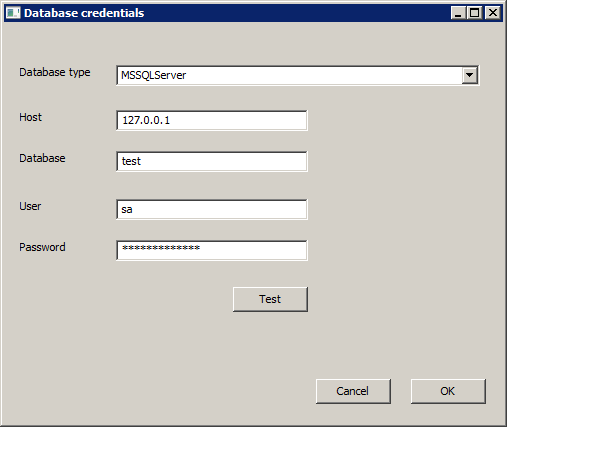 | |
| 79 | 76 | ||
| 80 | 77 | then click the button *Copy table creation script*, and *Run script*: | |
| 81 | 78 | ||
| 82 | - | ||
| 83 | - | ||
| 84 | - | ||
| 85 | - | ||
| 79 | + | 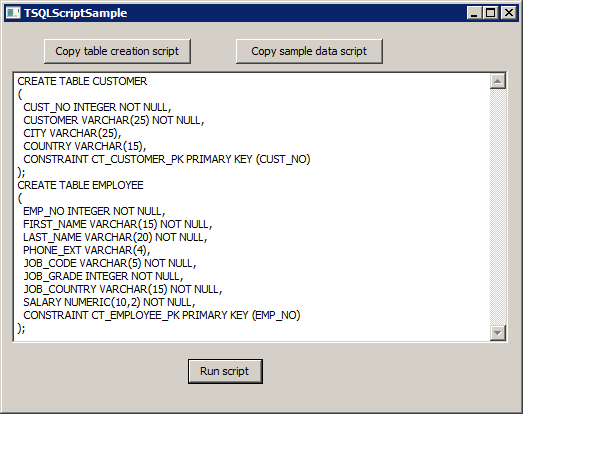 | |
| 86 | 80 | ||
| 87 | 81 | The program should indicate success. Now do the same for *Copy sample data script*, and *Run script* | |
| 88 | 82 | ||
| 89 | 83 | In case of problems, you can try the manual steps below. | |
| 90 | 84 | ||
| 91 | 85 | ### Manual creation | |
| 92 | 86 | ||
| 93 | 87 | We will create CUSTOMER and EMPLOYEE tables that will be used in a later tutorial. | |
| 94 | 88 | ||
| 95 | 89 | Run these SQL commands in your database editor/tool: | |
| 96 | 90 | ||
| 97 | 91 | ``` sql | |
| 98 | 92 | CREATE TABLE CUSTOMER | |
| 99 | 93 | ( | |
| 100 | 94 | CUST_NO INTEGER NOT NULL, | |
| 101 | 95 | CUSTOMER VARCHAR(25) NOT NULL, | |
| 102 | 96 | CITY VARCHAR(25), | |
| 103 | 97 | COUNTRY VARCHAR(15), | |
| 104 | 98 | CONSTRAINT CT_CUSTOMER_PK PRIMARY KEY (CUST_NO) | |
| 105 | 99 | ); | |
| 106 | 100 | ``` | |
| 107 | 101 | ||
| 108 | 102 | ``` sql | |
| 109 | 103 | CREATE TABLE EMPLOYEE | |
| 110 | 104 | ( | |
| 111 | 105 | EMP_NO INTEGER NOT NULL, | |
| 112 | 106 | FIRST_NAME VARCHAR(15) NOT NULL, | |
| 113 | 107 | LAST_NAME VARCHAR(20) NOT NULL, | |
| 114 | 108 | PHONE_EXT VARCHAR(4), | |
| 115 | 109 | JOB_CODE VARCHAR(5) NOT NULL, | |
| 116 | 110 | JOB_GRADE INTEGER NOT NULL, | |
| 117 | 111 | JOB_COUNTRY VARCHAR(15) NOT NULL, | |
| 118 | 112 | SALARY NUMERIC(10,2) NOT NULL, | |
| 119 | 113 | CONSTRAINT CT_EMPLOYEE_PK PRIMARY KEY (EMP_NO) | |
| 120 | 114 | ); | |
| 121 | 115 | ``` | |
| 122 | 116 | ||
| 123 | 117 | Some data so you can at least show something.... first some clients: | |
| 124 | 118 | ||
| 125 | 119 | ``` sql | |
| 126 | 120 | INSERT INTO CUSTOMER (CUST_NO, CUSTOMER, CITY, COUNTRY) VALUES (1, 'Michael Design', 'San Diego', 'USA'); | |
| 127 | 121 | INSERT INTO CUSTOMER (CUST_NO, CUSTOMER, CITY, COUNTRY) VALUES (2, 'VC Technologies', 'Dallas', 'USA'); | |
| 128 | 122 | INSERT INTO CUSTOMER (CUST_NO, CUSTOMER, CITY, COUNTRY) VALUES (3, 'Klämpfl, Van Canneyt', 'Boston', 'USA'); | |
| 129 | 123 | INSERT INTO CUSTOMER (CUST_NO, CUSTOMER, CITY, COUNTRY) VALUES (4, 'Felipe Bank', 'Manchester', 'England'); | |
| 130 | 124 | INSERT INTO CUSTOMER (CUST_NO, CUSTOMER, CITY, COUNTRY) VALUES (5, 'Joost Systems, LTD.', 'Central Hong Kong', 'Hong Kong'); | |
| 131 | 125 | INSERT INTO CUSTOMER (CUST_NO, CUSTOMER, CITY, COUNTRY) VALUES (6, 'Van der Voort Int.', 'Ottawa', 'Canada'); | |
| 132 | 126 | INSERT INTO CUSTOMER (CUST_NO, CUSTOMER, CITY, COUNTRY) VALUES (7, 'Mrs. Mauvais', 'Pebble Beach', 'USA'); | |
| 133 | 127 | INSERT INTO CUSTOMER (CUST_NO, CUSTOMER, CITY, COUNTRY) VALUES (8, 'Asinine Vacation Rentals', 'Lihue', 'USA'); | |
| 134 | 128 | INSERT INTO CUSTOMER (CUST_NO, CUSTOMER, CITY, COUNTRY) VALUES (9, 'Fax', 'Turtle Island', 'Fiji'); | |
| 135 | 129 | INSERT INTO CUSTOMER (CUST_NO, CUSTOMER, CITY, COUNTRY) VALUES (10, 'FPC Corporation', 'Tokyo', 'Japan'); | |
| 136 | 130 | INSERT INTO CUSTOMER (CUST_NO, CUSTOMER, CITY, COUNTRY) VALUES (11, 'Dynamic Intelligence Corp', 'Zurich', 'Switzerland'); | |
| 137 | 131 | INSERT INTO CUSTOMER (CUST_NO, CUSTOMER, CITY, COUNTRY) VALUES (12, '3D-Pad Corp.', 'Paris', 'France'); | |
| 138 | 132 | INSERT INTO CUSTOMER (CUST_NO, CUSTOMER, CITY, COUNTRY) VALUES (13, 'Swen Export, Ltd.', 'Milan', 'Italy'); | |
| 139 | 133 | INSERT INTO CUSTOMER (CUST_NO, CUSTOMER, CITY, COUNTRY) VALUES (14, 'Graeme Consulting', 'Brussels', 'Belgium'); | |
| 140 | 134 | INSERT INTO CUSTOMER (CUST_NO, CUSTOMER, CITY, COUNTRY) VALUES (15, 'Klenin Inc.', 'Den Haag', 'Netherlands'); | |
| 141 | 135 | ``` | |
| 142 | 136 | ||
| 143 | 137 | Then some employees: | |
| 144 | 138 | ||
| 145 | 139 | ``` sql | |
| 146 | 140 | INSERT INTO EMPLOYEE (emp_no, first_name, last_name, phone_ext, job_code, job_grade, | |
| 147 | 141 | job_country, salary) | |
| 148 | 142 | VALUES (1,'William','Shatner','1702','CEO',1,'USA',48000); | |
| 149 | 143 | INSERT INTO EMPLOYEE (emp_no, first_name, last_name, phone_ext, job_code, job_grade, | |
| 150 | 144 | job_country, salary) | |
| 151 | 145 | VALUES (2,'Ivan','Rzeszow','9802','Eng',2,'Russia',38000); | |
| 152 | 146 | INSERT INTO EMPLOYEE (emp_no, first_name, last_name, phone_ext, job_code, job_grade, | |
| 153 | 147 | job_country, salary) | |
| 154 | 148 | VALUES (3,'Erin','Powell','1703','Admin',2,'USA',45368); | |
| 155 | 149 | ``` | |
| 156 | 150 | ||
| 157 | 151 | Please create the database, table and insert the data in your database environment. | |
| 158 | 152 | ||
| 159 | 153 | ### SQLite | |
| 160 | 154 | ||
| 161 | 155 | If you are using SQLite, you can create the database mentioned above in your project directory by running the sqlite executable: | |
| 162 | 156 | ||
| 163 | 157 | ``` bash | |
| 164 | 158 | sqlite employee.sqlite | |
| 165 | 159 | ``` | |
| 166 | 160 | ||
| 167 | 161 | Now copy and paste the above CREATE TABLE and INSERT statements. To test if the right data is present, enter this query: | |
| 168 | 162 | ||
| 169 | 163 | ``` SQL | |
| 170 | 164 | select * from customer; | |
| 171 | 165 | ``` | |
| 172 | 166 | ||
| 173 | 167 | End your session with | |
| 174 | 168 | ||
| 175 | 169 | ``` SQL | |
| 176 | 170 | .quit | |
| 177 | 171 | ``` | |
| 178 | 172 | ||
| 179 | 173 | A file called employee.sqlite should now be created in your project directory. | |
| 180 | 174 | ||
| 181 | 175 | Make sure the required sqlite dll/so is installed - e.g. on Windows, sqlite3.dll should be present in | |
| 182 | 176 | ||
| 183 | 177 | - your Lazarus + project output directory or | |
| 184 | 178 | - your system directory | |
| 185 | 179 | ||
| 186 | 180 | Also, if you have a 32-bit sqlite dll, make sure you have a 32-bit lazarus. | |
| 187 | 181 | ||
| 188 | 182 | Compile your project (even if it is empty) once to create the output directory, and (on Windows) copy the dll, as well as the employee.sqlite database, into that directory. | |
| 189 | 183 | ||
| 190 | 184 | ### PostgreSQL | |
| 191 | 185 | ||
| 192 | 186 | This section assumes you're using a Linux server and the shell; comparable steps can be done using Windows and GUI tools such as pgadmin. | |
| 193 | 187 | ||
| 194 | 188 | Log in to your server and switch to the postgres account: | |
| 195 | 189 | ||
| 196 | 190 | ``` bash | |
| 197 | 191 | su - postgres -c psql # immediately start up psql SQL interpreter | |
| 198 | 192 | ``` | |
| 199 | 193 | ||
| 200 | 194 | Create a user for the database and the tables: | |
| 201 | 195 | ||
| 202 | 196 | ``` SQL | |
| 203 | 197 | CREATE USER employee WITH PASSWORD 'hellopassword'; -- of course, adjust password to taste | |
| 204 | 198 | -- something like 'CREATE ROLE' should appear indicating success. | |
| 205 | 199 | -- to later change the password you can use something like | |
| 206 | 200 | -- alter user employee with password '<newpasswordhere>'; | |
| 207 | 201 | ||
| 208 | 202 | -- We're going to let the password never expire; if you want more security, you can leave this step out: | |
| 209 | 203 | ALTER USER employee VALID UNTIL 'infinity'; --password never expires | |
| 210 | 204 | ||
| 211 | 205 | -- Now we're tightening it up a bit again: | |
| 212 | 206 | -- Don't allow user to create a database or create other users: | |
| 213 | 207 | ALTER USER employee NOCREATEDB NOCREATEROLE; --restrict object creation | |
| 214 | 208 | -- something like 'ALTER ROLE' should appear indicating success. | |
| 215 | 209 | ||
| 216 | 210 | -- Create our database: | |
| 217 | 211 | CREATE DATABASE employee; | |
| 218 | 212 | -- something like CREATE DATABASE should appear indicating success. | |
| 219 | 213 | ||
| 220 | 214 | -- Assign all privileges on database employee to user employee: | |
| 221 | 215 | GRANT ALL PRIVILEGES ON DATABASE employee TO employee; -- allow user full permissions to database | |
| 222 | 216 | -- something like GRANT should appear indicating success. | |
| 223 | 217 | ||
| 224 | 218 | -- We create the table using a serial datatype - aka autonumber/autoincrement: | |
| 225 | 219 | CREATE TABLE customer | |
| 226 | 220 | ( | |
| 227 | 221 | cust_no serial NOT NULL, | |
| 228 | 222 | customer character varying(25) NOT NULL, | |
| 229 | 223 | city character varying(25), | |
| 230 | 224 | country character varying(15), | |
| 231 | 225 | CONSTRAINT integ_60 PRIMARY KEY (cust_no ) | |
| 232 | 226 | ); | |
| 233 | 227 | ||
| 234 | 228 | -- Then create the employee table: | |
| 235 | 229 | CREATE TABLE EMPLOYEE | |
| 236 | 230 | ( | |
| 237 | 231 | EMP_NO SERIAL NOT NULL, | |
| 238 | 232 | FIRST_NAME VARCHAR(15) NOT NULL, | |
| 239 | 233 | LAST_NAME VARCHAR(20) NOT NULL, | |
| 240 | 234 | PHONE_EXT VARCHAR(4), | |
| 241 | 235 | JOB_CODE VARCHAR(5) NOT NULL, | |
| 242 | 236 | JOB_GRADE INTEGER NOT NULL, | |
| 243 | 237 | JOB_COUNTRY VARCHAR(15) NOT NULL, | |
| 244 | 238 | SALARY NUMERIC(10,2) NOT NULL, | |
| 245 | 239 | CONSTRAINT CT_EMPLOYEE_PK PRIMARY KEY (EMP_NO) | |
| 246 | 240 | ); | |
| 247 | 241 | ||
| 248 | 242 | -- Now copy and paste the INSERT statements from the section above to insert the data. | |
| 249 | 243 | ||
| 250 | 244 | -- To test if the right data is present, enter this query: | |
| 251 | 245 | SELECT * FROM customer; | |
| 252 | 246 | -- You should see some customer data. | |
| 253 | 247 | ||
| 254 | 248 | -- Exit out of psql: | |
| 255 | 249 | \q | |
| 256 | 250 | ``` | |
| 257 | 251 | ||
| 258 | 252 | Now you should be on a shell logged in as the postgres user. | |
| 259 | 253 | ||
| 260 | 254 | If your server is on another machine than your development machine, make sure you allow network access to the database. See your postgresql documentation for details, but something like this should work: | |
| 261 | 255 | ||
| 262 | 256 | ``` bash | |
| 263 | 257 | # please adjust nano (e.g. use vim,emacs,joe...) and the postgres version number depending on situation | |
| 264 | 258 | nano /etc/postgresql/8.4/main/pg_hba.conf | |
| 265 | 259 | ``` | |
| 266 | 260 | ||
| 267 | 261 | Verify if there is a line like - NOTE: replace 192.168.0.1 with your own LAN ip address range | |
| 268 | 262 | ||
| 269 | 263 | \#allow access from local network using md5 hashed passwords: host all all 192.168.0.1/24 md5 | |
| 270 | 264 | ||
| 271 | 265 | or more restrictive: | |
| 272 | 266 | ||
| 273 | 267 | \# only allow network access to the employee database by the employee user host employee employee 192.168.0.1/24 md5 | |
| 274 | 268 | ||
| 275 | 269 | If there isn't such a line, add the line at the end, save and close your editor. See PostgreSQL documentation for more details. | |
| 276 | 270 | ||
| 277 | 271 | Reload PostgreSQL settings: | |
| 278 | 272 | ||
| 279 | 273 | ``` bash | |
| 280 | 274 | ||
| 281 | 275 | psql | |
| 282 | 276 | ``` | |
| 283 | 277 | ||
| 284 | 278 | then | |
| 285 | 279 | ||
| 286 | 280 | ``` SQL | |
| 287 | 281 | ||
| 288 | 282 | SELECT pg_reload_conf(); --reload settings... | |
| 289 | 283 | -- ...and exit back to shell: | |
| 290 | 284 | \q | |
| 291 | 285 | ``` | |
| 292 | 286 | ||
| 293 | 287 | Test logging in to PostgreSQL. | |
| 294 | 288 | ||
| 295 | 289 | Note: by default PostgreSQL tries an ident/unix domain socket login which doesn't allow passwords. So we specify a host to force TCP/IP login: | |
| 296 | 290 | ||
| 297 | 291 | ``` bash | |
| 298 | 292 | psql -h 127.0.0.1 -d employee -U employee -W #Log in via tcp/ip. Enter your db password. | |
| 299 | 293 | ``` | |
| 300 | 294 | ||
| 301 | 295 | Make sure the required PostgreSQL dll/so and any required other libraries is installed - e.g. on Windows, they should be either: | |
| 302 | 296 | ||
| 303 | 297 | - in your Lazarus + project output directory or | |
| 304 | 298 | - in your system directory | |
| 305 | 299 | ||
| 306 | 300 | Compile your project (even if it is empty) once to create the output directory, and (on Windows) copy the dlls into that directory. | |
| 307 | 301 | ||
| 308 | 302 | ## Finish | |
| 309 | 303 | ||
| 310 | 304 | Now you've set up your database, you can continue to [[SQLdb Tutorial1|the first "real" tutorial]]. | |
| 311 | 305 | ||
| 312 | 306 | ## See also | |
| 313 | 307 | ||
| 314 | 308 | - [[SQLdb Tutorial1]]: First part of the DB tutorial series, showing how to set up a grid that shows database data | |
| 315 | 309 | - [[SQLdb Tutorial2]]: Second part of the DB tutorial series, showing editing, inserting etc. | |
| 316 | 310 | - [[SQLdb Tutorial3]]: Third part of the DB tutorial series, showing how to program for multiple databases and use a login form | |
| 317 | 311 | - [[SQLdb Tutorial4]]: Fourth part of the DB tutorial series, showing how to use data modules | |
| 318 | 312 | - [[Lazarus Database Overview]]: Information about the databases that Lazarus supports. Links to database-specific notes. | |
| 319 | 313 | - [[SQLdb Package]]: information about the SQLdb package | |
| 320 | 314 | - [[SQLdb Programming Reference]]: an overview of the interaction of the SQLdb database components | |
| 321 | 315 | - [[SqlDBHowto]]: information about using the SQLdb package | |
| 322 | 316 | - [[Working With TSQLQuery]]: information about TSQLQuery | |
| 323 | - | ||
| 324 | - | ||
| 325 | 317 | ||
| 326 | 318 | --- | |
| 327 | 319 | *From the Free Pascal wiki, page "SQLdb Tutorial0", as it stood on 2019-08-29 after a change by Ottod, out of the wiki's dump of 2024-05-26. Copyright stays with the author who wrote it, according to the old wiki's [[Licensing]] page. If you have concerns about this material, [message the admin](/wiki-contact).* |