

SQLDBRestSchemaEditor: what changed
Revision 1 to 2. Removed lines have a minus sign; added lines have a plus sign.
| Old | New | Line | |
|---|---|---|---|
| 1 | 1 | ## Introduction | |
| 2 | 2 | ||
| 3 | 3 | The SQLDBRestBridge schema editor allows you to edit schema files for a [[SQLDBRestBridge]] schema. | |
| 4 | 4 | ||
| 5 | 5 | The editor is implemented in the sqldbrestschemadesigner.lpk package and included in the Lazarus IDE if you register the lazsqldbrest.lpk package. It can also be compiled as a standalone application, the application is located in the editor project under the components/sqldbrestb directory. | |
| 6 | 6 | ||
| 7 | 7 | The standalone editor can be used to create schema files, which can be used to load schemas using the **LoadFromFile** method. | |
| 8 | 8 | ||
| 9 | 9 | ## Workings | |
| 10 | 10 | ||
| 11 | 11 | The schema editor has one form, which looks as follows when a schema is loaded. | |
| 12 | 12 | ||
| 13 | - | ||
| 14 | - | ||
| 15 | - | ||
| 16 | - | ||
| 13 | + | 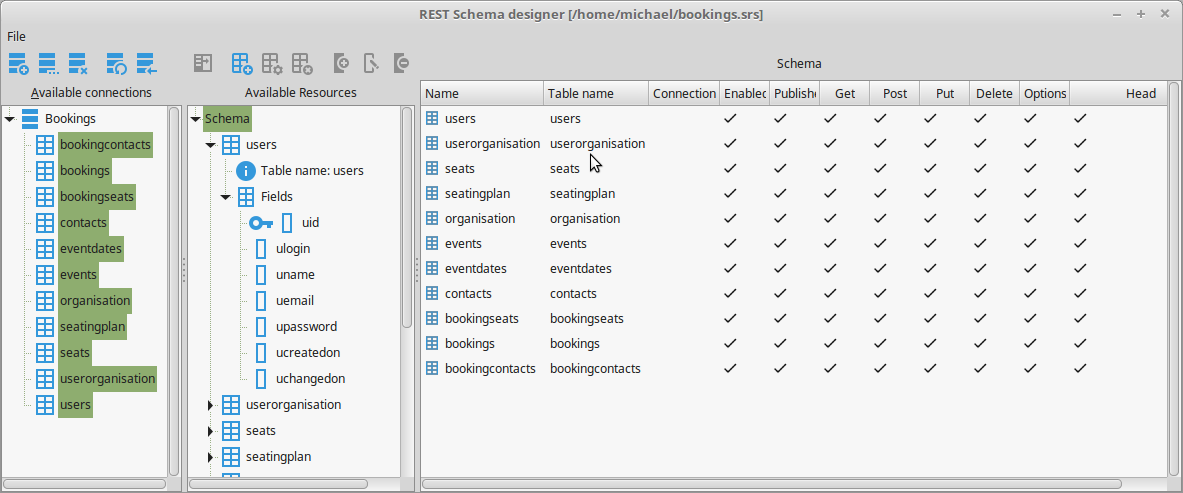 | |
| 17 | 14 | ||
| 18 | 15 | The left side *Available connections* shows the known connections, and for each connection to a database, the tables in the database can be shown. Using drag & drop, the tables (you can select multiple tables at once) can be dragged to the middle part of the screen. The known connections can be hidden using the button above the tree. | |
| 19 | 16 | ||
| 20 | 17 | The middle part of the screen *Available Resources* shows the resources defined in the schema. You can add new resources by dragging them from the connections, or using the 'Add resource' button. | |
| 21 | 18 | ||
| 22 | 19 | The right part of the screen shows the details of the item selected in the *Available resources*. This can be one of 4 details | |
| 23 | 20 | ||
| 24 | 21 | 1. When the schema node is selected, the list of tables is shown (see the above screenshot). You can double click a resource, and the selected resource will be shown for editing. | |
| 25 | 22 | 2. When a resource node is selected, the resource editor is shown (see below) | |
| 26 | 23 | 3. When the 'fields' node below a resource node is selected, the list of fields is shown. You can double click a field, and the selected field will be shown for editing. | |
| 27 | 24 | 4. When a field node is selected, the field editor is shown. | |
| 28 | 25 | ||
| 29 | 26 | Changes to a current node are automatically saved when selecting another node. | |
| 30 | 27 | ||
| 31 | 28 | A double click on a selected node will show the same editor as selecting a node, but in a modal dialog. | |
| 32 | 29 | ||
| 33 | 30 | You can add new resources by dragging them from the connections, or using the 'Add resource' button. The 'expose connection' above the list of connections will add all tables of a connection to the schema. | |
| 34 | 31 | ||
| 35 | 32 | The menu allows several actions: | |
| 36 | 33 | ||
| 37 | - | ||
| 38 | - | ||
| 39 | - | ||
| 40 | - | ||
| 34 | + | 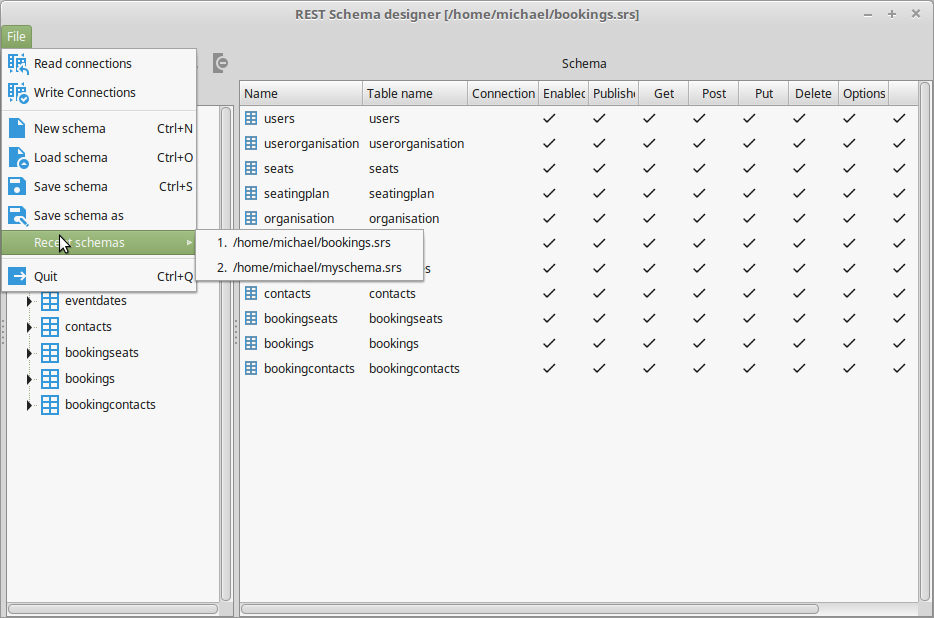 | |
| 41 | 35 | ||
| 42 | 36 | 1. **Read connections** Loads a list of connection details from an .ini file. | |
| 43 | 37 | 2. **Write connections** Saves the list of connections shown in the left panel to an .ini file. | |
| 44 | 38 | 3. **New schema** Creates a new empty schema. | |
| 45 | 39 | 4. **Load schema** Loads a schema file and displays the resources. | |
| 46 | 40 | 5. **Save schema** Saves the resources to a schema file. | |
| 47 | 41 | 6. **Recent schemas** a MRU menu with recently loaded or saved schema files. | |
| 48 | 42 | 7. **Quit** exits the program. | |
| 49 | 43 | ||
| 50 | 44 | A schema file has the .srs extension, but this is not obligatory. It is a JSON file created by the SaveToFile method of the TSQLDBRestSchema class, and can be loaded with the LoadFromFile method. | |
| 51 | 45 | ||
| 52 | 46 | ## Resource editor | |
| 53 | 47 | ||
| 54 | 48 | The resource editor is shown when a resource is selected in the available resources tree. It looks as follows: | |
| 55 | 49 | ||
| 56 | - | ||
| 57 | - | ||
| 58 | - | ||
| 59 | - | ||
| 50 | + | 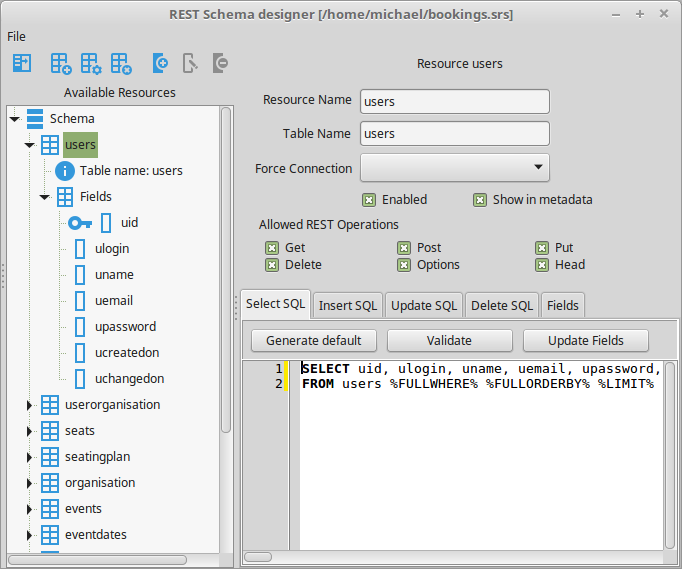 | |
| 60 | 51 | ||
| 61 | 52 | The various edits correspond to the properties of the TSQLDBRestResource class. | |
| 62 | 53 | ||
| 63 | 54 | The 4 tabs at the bottom can be used to edit the SQL Statements. | |
| 64 | 55 | ||
| 65 | 56 | The *SELECT* statement can be automatically generated from the table name. The entered statement can also be validated, to check if the SQL is correct. When the SQL SELECT Statement has changed, the list of published fields can be automatically refreshed using the 'Update Fields' button. This will reset the fields list, so any adjustments that were made to the list of fields will be lost. | |
| 66 | 57 | ||
| 67 | 58 | The last tab displays the list of fields defined for the resource. | |
| 68 | 59 | ||
| 69 | - | ||
| 70 | - | ||
| 71 | - | ||
| 72 | - | ||
| 60 | + | 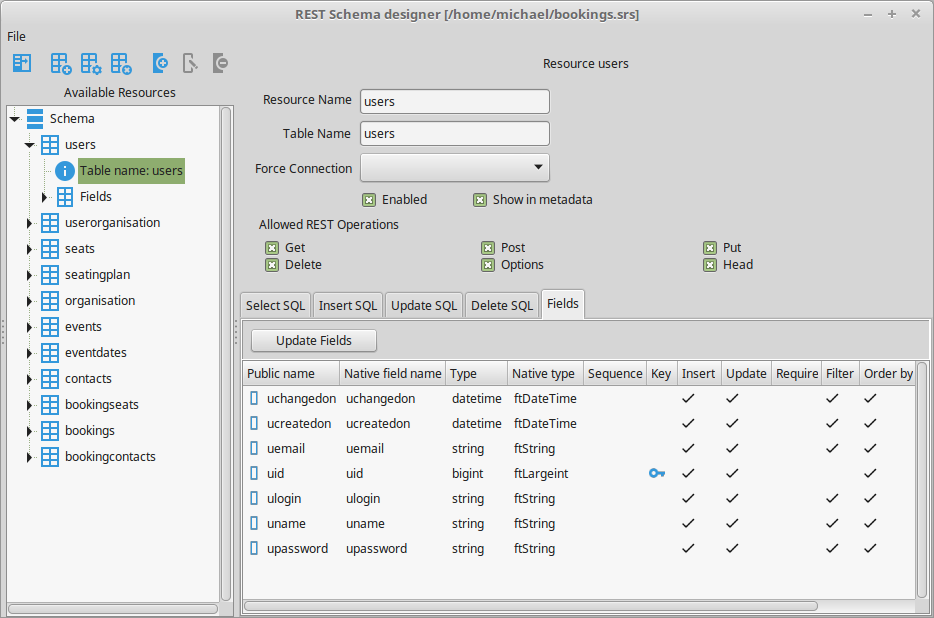 | |
| 73 | 61 | ||
| 74 | 62 | This list should be identical to the list in the treeview. Double-clicking a field will display the field editor. | |
| 75 | 63 | ||
| 76 | 64 | ## Field editor | |
| 77 | 65 | ||
| 78 | 66 | The field editor shows the properties of a selected field. These are the properties of the TSQLDBRestField class. It looks as follows: | |
| 79 | 67 | ||
| 80 | - | ||
| 81 | - | ||
| 82 | - | ||
| 83 | - | ||
| 68 | + | 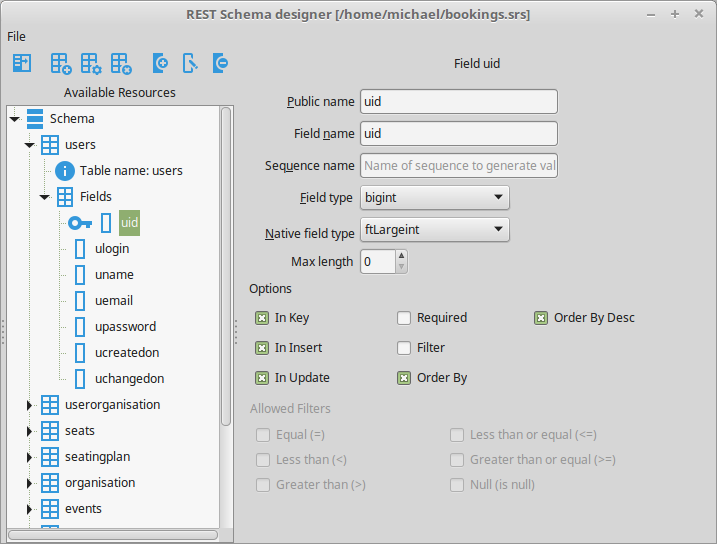 | |
| 84 | 69 | ||
| 85 | 70 | ## Fields editor | |
| 86 | 71 | ||
| 87 | 72 | The fields editor is shown when the 'Fields' node is selected in the resource tree. It is currently read-only, and looks as follows: | |
| 88 | 73 | ||
| 89 | - | ||
| 90 | - | ||
| 91 | - | ||
| 92 | - | ||
| 74 | + | 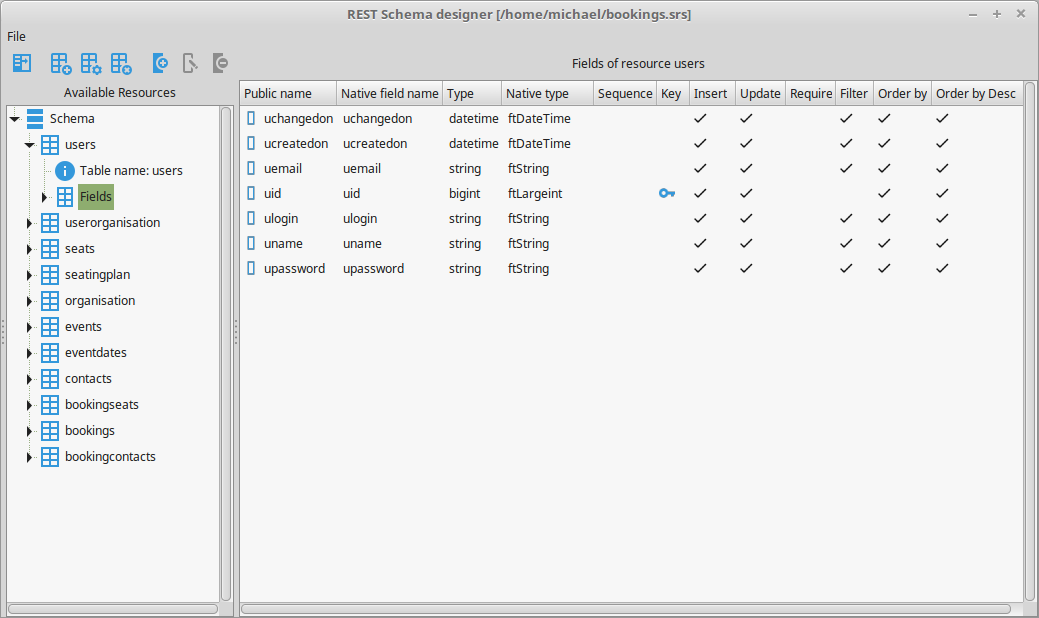 | |
| 93 | 75 | ||
| 94 | 76 | Double clicking a field will take you to the field editor for the selected field. | |
| 95 | 77 | ||
| 96 | 78 | --- | |
| 97 | 79 | *From the Free Pascal wiki, page "SQLDBRestSchemaEditor", as it stood on 2019-05-11 after a change by Michael, out of the wiki's dump of 2024-05-26. Copyright stays with the author who wrote it, according to the old wiki's [[Licensing]] page. If you have concerns about this material, [message the admin](/wiki-contact).* |