

Remote Debugging: what changed
Revision 0 to 1. Removed lines have a minus sign; added lines have a plus sign.
Title: Remote Debugging
| Old | New | Line | |
|---|---|---|---|
| 1 | + | ## Introduction | |
| 2 | + | ||
| 3 | + | Remote debugging means you work on your local computer and you want to start and debug a program on another computer, the remote machine. In the following examples the name of the local computer is 'localcomp' and the name of the remote computer is 'remotecomp'. | |
| 4 | + | ||
| 5 | + | > **Note:** Remote debugging will only work if the gdb supports async mode (see gdb doc for "set target async"). GDBServer usually does. GDB does for some targets only. | |
| 6 | + | > | |
| 7 | + | > In some cases gdb/gdbserver does support it, but not if "mi" mode is used (used by the IDE. A workaround for this must yet be implemented in the IDE.\ | |
| 8 | + | > **IF async mode is not supported, or not for "mi" then:** | |
| 9 | + | > | |
| 10 | + | > - It is currently not possible to use the "Pause" function to interrupt the running application. | |
| 11 | + | > - It is not possible to modify break-/watch-points, while the application in the debugger is running. | |
| 12 | + | > - One should no switch editor tabs, or open/close units, while the application in the debugger is running. | |
| 13 | + | > | |
| 14 | + | > The 2nd and 3rd can be done, if the app in the debugger is paused. The only way for the app to become paused is by reaching a breakpoint that was set before the app was run. | |
| 15 | + | ||
| 16 | + | ## Using SSH (Secure Shell) | |
| 17 | + | ||
| 18 | + | SSH (SSH client) is a program for logging into a remote machine and for executing commands on a remote machine. It provides secure encrypted communications between two untrusted hosts over an insecure network. X11 connections and arbitrary TCP/IP ports can also be forwarded over the secure channel. | |
| 19 | + | ||
| 20 | + | See the SSH man page for details. This text only covers SSH protocol 2. For differences for protocol 1 see the SSH man page. | |
| 21 | + | ||
| 22 | + | ### Requirements for Lazarus | |
| 23 | + | ||
| 24 | + | You must be able to log in via ssh to the remote machine (the computer where the program will run). This means the remote machine has an installed and running SSH server and you have an account allowed to login from your local machine (the computer where the Lazarus IDE is running). | |
| 25 | + | ||
| 26 | + | You can test this by doing: | |
| 27 | + | ||
| 28 | + | ``` bash | |
| 29 | + | ||
| 30 | + | ssh username@remotecomp ls -la | |
| 31 | + | ``` | |
| 32 | + | ||
| 33 | + | This will create an SSH connection to 'remotecomp' with the username 'username'. After authentication it will print out a directory listing and return. | |
| 34 | + | ||
| 35 | + | #### Configuring SSH | |
| 36 | + | ||
| 37 | + | The IDE needs an SSH connection that does not prompt for a password. There are a lot of possibilities to achieve this. This text only describes a few. For security reasons it is strongly recommended that you read the SSH manpage. | |
| 38 | + | ||
| 39 | + | Solution 1: User based authentication. | |
| 40 | + | ||
| 41 | + | This will allow one specific user on the local computer to establish an SSH connection to the remote computer as a specific user without prompting for passwords. | |
| 42 | + | ||
| 43 | + | ||
| 44 | + | ToDo: describe the server settings. On redhat this works without any change. | |
| 45 | + | ||
| 46 | + | Step 1 | |
| 47 | + | create the public and private keys on the local machine | |
| 48 | + | ||
| 49 | + | This will create two files on the local machine: | |
| 50 | + | ||
| 51 | + | ` ~/.ssh/id_rsa and ~/.ssh/id_rsa.pub` | |
| 52 | + | ||
| 53 | + | If you already have these files, skip this step. | |
| 54 | + | ||
| 55 | + | ``` bash | |
| 56 | + | ||
| 57 | + | ssh-keygen -t rsa | |
| 58 | + | ``` | |
| 59 | + | ||
| 60 | + | Keep the default and leave the passphrase empty. | |
| 61 | + | ||
| 62 | + | Step 2 | |
| 63 | + | copy the public key of the local machine to the remote machine | |
| 64 | + | ||
| 65 | + | ``` bash | |
| 66 | + | ||
| 67 | + | scp ~/.ssh/id_rsa.pub user@remotecomp:remote.pub | |
| 68 | + | ``` | |
| 69 | + | ||
| 70 | + | Step 3 | |
| 71 | + | create the file ~/.ssh/authorized_keys2 on the remote machine | |
| 72 | + | ||
| 73 | + | ``` bash | |
| 74 | + | ||
| 75 | + | ssh user@remotecomp | |
| 76 | + | touch ~/.ssh/authorized_keys2 | |
| 77 | + | chmod 600 ~/.ssh/authorized_keys2 | |
| 78 | + | ``` | |
| 79 | + | ||
| 80 | + | The chmod will set the permissions to only allow yourself to read the file. SSH requires this. | |
| 81 | + | ||
| 82 | + | ``` bash | |
| 83 | + | ||
| 84 | + | cat remote.pub >> ~/.ssh/authorized_keys2 | |
| 85 | + | rm remote.pub | |
| 86 | + | exit | |
| 87 | + | ``` | |
| 88 | + | ||
| 89 | + | Step 4 | |
| 90 | + | test | |
| 91 | + | ||
| 92 | + | You should now be able to login without password. | |
| 93 | + | ||
| 94 | + | ``` bash | |
| 95 | + | ||
| 96 | + | ssh user@remotecomp | |
| 97 | + | ``` | |
| 98 | + | ||
| 99 | + | Step 5 | |
| 100 | + | Setup the ssh debugger in the IDE | |
| 101 | + | ||
| 102 | + | *ToDo* | |
| 103 | + | ||
| 104 | + | ------------------------------------------------------------------------ | |
| 105 | + | ||
| 106 | + | Step 6 | |
| 107 | + | Set "Run parameters" | |
| 108 | + | ||
| 109 | + | For remote debug we need to set the correct value for "Host application", "Command line parameters" and "Working directory". Remember: **It is remote!** | |
| 110 | + | ||
| 111 | + | <figure> | |
| 112 | + | <img src="remote_debug_run_parameters.png" title="remote_debug_run_parameters.png" /> | |
| 113 | + | <figcaption>remote_debug_run_parameters.png</figcaption> | |
| 114 | + | </figure> | |
| 115 | + | ||
| 116 | + | Step 7 | |
| 117 | + | Set "Debugger parameters" | |
| 118 | + | ||
| 119 | + | Select "Debugger type and path" to "GNU Debugger trough SSH(ssh)" | |
| 120 | + | ||
| 121 | + | 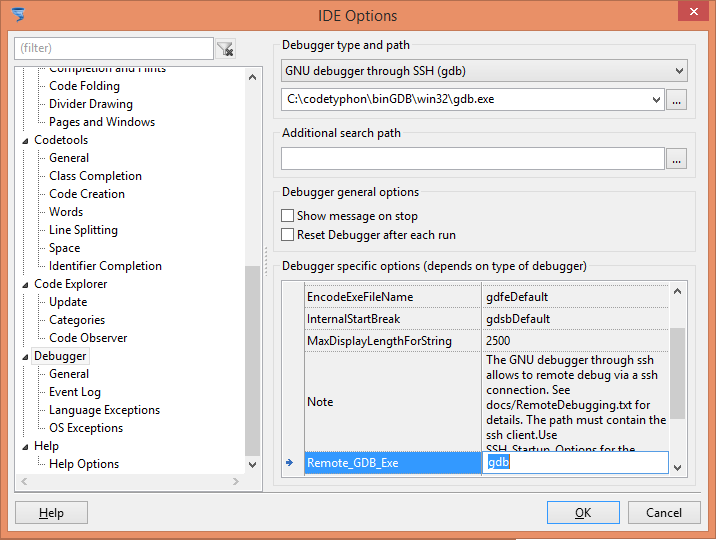 *ToDo* | |
| 122 | + | ||
| 123 | + | ## Using gdbserver | |
| 124 | + | ||
| 125 | + | For now this is the best approach I could find: Steps for remote debugging from Windows to Linux machine, other situations should not be so much different: | |
| 126 | + | ||
| 127 | + | 1- Manually include gdbmidebugger the public "uses" clause of debugmanager.pas file located in lazarus/ide and recompile ide. | |
| 128 | + | ||
| 129 | + | 2- Install gdb and gdbserver on Linux. | |
| 130 | + | ||
| 131 | + | 3- Make a cross compile Lazarus. | |
| 132 | + | ||
| 133 | + | 4- Set IDE options/Debugger to gdbserver and in the debugger options on the bottom set Debugger_Remote_Hostname to remote Linux machine IP or name and set the port to 2159. | |
| 134 | + | ||
| 135 | + | 5- Add a Linux build mode to project option. | |
| 136 | + | ||
| 137 | + | 6- Build project on Linux build mode. | |
| 138 | + | ||
| 139 | + | 7- Use whatever tool like WinSCP to move binary file to Linux machine. for WinSCP use it like this : WinSCP.com /script=script.txt and content of script.txt will be like this (you can use WinSCP 5.8 and later session/ script menu to make and modify it) : | |
| 140 | + | ||
| 141 | + | ``` pascal | |
| 142 | + | open sftp://username:remotepassword@remotenameorip/ -hostkey="XXXXXX" | |
| 143 | + | ||
| 144 | + | cd ./projectdir | |
| 145 | + | put -permissions=744 "C:\Project\project1" | |
| 146 | + | ||
| 147 | + | exit | |
| 148 | + | ``` | |
| 149 | + | ||
| 150 | + | 8- Run gdbserver on remote machine like this : gdbserver host:2159 ./project1 | |
| 151 | + | ||
| 152 | + | 9- Set breakpoints where you want. | |
| 153 | + | ||
| 154 | + | 10- Run project in your IDE and test it. | |
| 155 | + | ||
| 156 | + | For more reading see : | |
| 157 | + | ||
| 158 | + | - [[http://forum.lazarus.freepascal.org/index.php/topic,32393.0.html Remote debugging from Windows to Linux]] | |
| 159 | + | - [[http://forum.lazarus.freepascal.org/index.php/topic,19014.msg107930.html|http://forum.lazarus.freepascal.org/index.php/topic,19014.msg107930.html#msg107930 Initial GdbServer post on forum]] | |
| 160 | + | - [[http://forum.lazarus.freepascal.org/index.php/topic,20101.msg115408.html|http://forum.lazarus.freepascal.org/index.php/topic,20101.msg115408.html#msg115408 target async support (ssh and gdbserver)]] | |
| 161 | + | - [[https://forum.lazarus.freepascal.org/index.php/topic,66960.msg514304.html|https://forum.lazarus.freepascal.org/index.php/topic,66960.msg514304.html#msg514304 Some of the gdb-server backend settings explained]] | |
| 162 | + | ||
| 163 | + | ## Using gdbserver on cross-platform remote | |
| 164 | + | ||
| 165 | + | When, say, you want cross-build an application for Raspberry Pi on Windows and then debug it remotely on RasPi, the default **gdb.exe** wouldn't work. You need to obtain **gdb-multiarch** (supports different remote architectures). For Windows, the easiest way is to install [MSYS2 distribution](https://www.msys2.org) and then install the package gdb-multiarch ([w64 gdb-multiarch](https://packages.msys2.org/package/mingw-w64-x86_64-gdb-multiarch)). | |
| 166 | + | ||
| 167 | + | Then, in Lazarus, in **Debugger backend** options, select "GNU remote debugger (gdbserver)", set "Debugger path" to **gdb-multiarch.exe**, and specify "Architecture" **arm**. | |
| 168 | + | ||
| 169 | + | ## Using avr-gdb | |
| 170 | + | ||
| 171 | + | I've managed to debug AVR programs using two different methods: | |
| 172 | + | ||
| 173 | + | Executing code through [simavr](https://github.com/buserror/simavr) (an AVR simulator) | |
| 174 | + | ||
| 175 | + | simavr includes a gdbserver interface. To simulate and debug code, launch simavr with the -g option: | |
| 176 | + | ||
| 177 | + | `./runavr -g -m atmega328p -f 16000000 <firmware>` | |
| 178 | + | ||
| 179 | + | By default a remote gdb connection is available on port 1234. | |
| 180 | + | ||
| 181 | + | Running on hardware and debugging over DEBUGwire using [dwire-debug](https://github.com/dcwbrown/dwire-debug) | |
| 182 | + | ||
| 183 | + | Launch dwire as follows: | |
| 184 | + | ||
| 185 | + | `./dwdebug device <serial port>, gdbserver, qr` | |
| 186 | + | ||
| 187 | + | By default a remote gdb connection is available on port 4444. The *qr* option will result in dwire exiting with the target running when the debug connection is killed. Note that currently dwire returns *S00* when hitting a breakpoint. This results in Lazarus displaying a popup dialog with an error message. This is to indicate that a non-standard signal was received and is merely an annoyance. See [this](https://github.com/dcwbrown/dwire-debug/issues/33) for a fix. | |
| 188 | + | ||
| 189 | + | To configure Lazarus for debugging over avr-gdb | |
| 190 | + | ||
| 191 | + | - Select *GNU remote debugger* under Debugger options | |
| 192 | + | - Enter path to avr-gdb | |
| 193 | + | - Enter the appropriate port number | |
| 194 | + | - At the moment a Lazarus [patch](https://bugs.freepascal.org/view.php?id=32084) is required because no process ID is available on the embedded platform. | |
| 195 | + | ||
| 196 | + | I've tested different versions of gdb compiled for AVR target: | |
| 197 | + | ||
| 198 | + | - gdb 6.6 - Doesn't work because async mode isn't supported. | |
| 199 | + | - gdb 7.0.1 - ~~Works~~ Sometimes work, see note below. | |
| 200 | + | - gdb 8.0-9.1 - Doesn't work as is, but work with this [patch](https://sourceware.org/bugzilla/show_bug.cgi?id=13519#c13). | |
| 201 | + | - gdb 10.1 - This version finally includes the patch to fix the disassemble bug. | |
| 202 | + | ||
| 203 | + | Notes | |
| 204 | + | ||
| 205 | + | - After I upgraded Linux Mint and retested gdb 7.0.1 I noticed the following warning while testing a debug session: | |
| 206 | + | ||
| 207 | + | `warning: (Internal error: pc 0xa2 in read in psymtab, but not in symtab.)` GDB would sometimes not work properly and debugging from Lazarus using this version of gdb could hang the IDE. | |
| 208 | + | ||
| 209 | + | - Using gdb 10.1 with Lazarus gdbmi debugger gives an error on startup if the AVR RTL has been compiled with debug information. This error does not appear to affect the stability or functionality of gdb with Lazarus (based on preliminary testing). | |
| 210 | + | ||
| 211 | + | --- | |
| 212 | + | *From the Free Pascal wiki, page "Remote Debugging", as it stood on 2024-04-13 after a change by Martin, out of the wiki's dump of 2024-05-26. Copyright stays with the author who wrote it, according to the old wiki's [[Licensing]] page. If you have concerns about this material, [message the admin](/wiki-contact).* |