

Office Automation/zh CN: what changed
Revision 1 to 2. Removed lines have a minus sign; added lines have a plus sign.
| Old | New | Line | |
|---|---|---|---|
| 1 | 1 | *(Windows only)* | |
| 2 | 2 | ||
| 3 | 3 | 与 Office 办公软件交互,从代码中生成电子表格,文本文档及幻灯片的能力对办公来说是非常有价值的,可以节省大量时间避免做重复任务。 | |
| 4 | 4 | ||
| 5 | 5 | 这样的一种例子是建立一可以读取任意格式文件的程序,并输出为一 Excel 文档,这项任务使用代码完成远比手工完成高效地多。 | |
| 6 | 6 | ||
| 7 | 7 | ## 使用 OpenOffice UNO 桥 | |
| 8 | 8 | ||
| 9 | 9 | OpenOffice 有针对 C++, Java, JavaScript 和 Python 的语言绑定件。在 Windows 平台上,OpenOffice 也可通过 COM 自动化使用 Pascal 操纵(见下文),但目前在 OS X 和 Linux 上使用 Pascal 操纵 OpenOffice 的 UNO (通用网络对象)并不那么容易。 如果您对使用 Pascal 开发面向对象的”桥“感兴趣,请参看如下联接以获取更多信息。(注意:以下连接特别具有 Sun 专业范儿) | |
| 10 | 10 | ||
| 11 | 11 | [api.openoffice.org](http://api.openoffice.org/) | |
| 12 | 12 | ||
| 13 | 13 | [About Bridges](http://wiki.services.openoffice.org/wiki/Uno/Article/About_Bridges) | |
| 14 | 14 | ||
| 15 | 15 | ## 使用 COM 自动化与 OpenOffice 和 Microsoft Office 交互 | |
| 16 | 16 | ||
| 17 | 17 | 自动化是 Windows 特有的所以以下两个事例不能在 OS X 或 Linux 上运行. 对于后两者请参见 [Making do without Windows COM Automation](http://wiki.lazarus.freepascal.org/Multiplatform_Programming_Guide#Making_do_without_Windows_COM_Automation). 如果您只是想在您的程序中创建或查看文字处理文档,参看以下联接 [XDev Toolkit](http://web.fastermac.net/~MacPgmr/XDev/XDevStatus.html#RTF). | |
| 18 | 18 | ||
| 19 | 19 | ### Windows 上的 OpenOffice | |
| 20 | 20 | ||
| 21 | 21 | 以下是简单示例,展示了如何使用 OpenOffice 自动化服务器打开一文档。注意该示例仅可在 Windows 上运行。 | |
| 22 | 22 | ||
| 23 | 23 | ``` pascal | |
| 24 | 24 | program TestOO; | |
| 25 | 25 | ||
| 26 | 26 | {$IFDEF FPC} | |
| 27 | 27 | {$MODE Delphi} | |
| 28 | 28 | {$ELSE} | |
| 29 | 29 | {$APPTYPE CONSOLE} | |
| 30 | 30 | {$ENDIF} | |
| 31 | 31 | ||
| 32 | 32 | uses | |
| 33 | 33 | SysUtils, Variants, ComObj; | |
| 34 | 34 | ||
| 35 | 35 | const | |
| 36 | 36 | ServerName = 'com.sun.star.ServiceManager'; | |
| 37 | 37 | var | |
| 38 | 38 | Server : Variant; | |
| 39 | 39 | Desktop : Variant; | |
| 40 | 40 | LoadParams : Variant; | |
| 41 | 41 | Document : Variant; | |
| 42 | 42 | TextCursor : Variant; | |
| 43 | 43 | begin | |
| 44 | 44 | if Assigned(InitProc) then | |
| 45 | 45 | TProcedure(InitProc); | |
| 46 | 46 | ||
| 47 | 47 | try | |
| 48 | 48 | Server := CreateOleObject(ServerName); | |
| 49 | 49 | except | |
| 50 | 50 | WriteLn('Unable to start OO.'); | |
| 51 | 51 | Exit; | |
| 52 | 52 | end; | |
| 53 | 53 | ||
| 54 | 54 | Desktop := Server.CreateInstance('com.sun.star.frame.Desktop'); | |
| 55 | 55 | ||
| 56 | 56 | LoadParams := VarArrayCreate([0, -1], varVariant); | |
| 57 | 57 | ||
| 58 | 58 | {Create new document} | |
| 59 | 59 | Document := Desktop.LoadComponentFromURL('private:factory/swriter', '_blank', 0, LoadParams); | |
| 60 | 60 | ||
| 61 | 61 | {or Open existing} //you must use forward slashes, not backward! | |
| 62 | 62 | //Document := Desktop.LoadComponentFromURL('file:///C:/my/path/mydoc.doc', '_blank', 0, LoadParams); | |
| 63 | 63 | ||
| 64 | 64 | TextCursor := Document.Text.CreateTextCursor; | |
| 65 | 65 | ||
| 66 | 66 | {Insert existing document} //Substitute your path and doc | |
| 67 | 67 | TextCursor.InsertDocumentFromURL('file:///C:/my/path/mydoc.doc', LoadParams); | |
| 68 | 68 | end. | |
| 69 | 69 | ``` | |
| 70 | 70 | ||
| 71 | 71 | ### Windows 上的 Office | |
| 72 | 72 | ||
| 73 | 73 | 以下是简单示例,展示了如何在您的程序中使用 Word 自动化服务器打开一文档。注意该示例仅可在 Windows 下运行。可在 Delphi 和 FPC 下编译通过。 | |
| 74 | 74 | ||
| 75 | 75 | ``` pascal | |
| 76 | 76 | program TestMsOffice; | |
| 77 | 77 | ||
| 78 | 78 | {$IFDEF FPC} | |
| 79 | 79 | {$MODE Delphi} | |
| 80 | 80 | {$ELSE} | |
| 81 | 81 | {$APPTYPE CONSOLE} | |
| 82 | 82 | {$ENDIF} | |
| 83 | 83 | ||
| 84 | 84 | uses | |
| 85 | 85 | SysUtils, Variants, ComObj; | |
| 86 | 86 | ||
| 87 | 87 | const | |
| 88 | 88 | ServerName = 'Word.Application'; | |
| 89 | 89 | var | |
| 90 | 90 | Server : Variant; | |
| 91 | 91 | w:widestring; | |
| 92 | 92 | begin | |
| 93 | 93 | if Assigned(InitProc) then | |
| 94 | 94 | TProcedure(InitProc); | |
| 95 | 95 | ||
| 96 | 96 | try | |
| 97 | 97 | Server := CreateOleObject(ServerName); | |
| 98 | 98 | except | |
| 99 | 99 | WriteLn('Unable to start Word.'); | |
| 100 | 100 | Exit; | |
| 101 | 101 | end; | |
| 102 | 102 | ||
| 103 | 103 | {Open existing document} //Substitute your path and doc | |
| 104 | 104 | w:= UTF8Decode('c:\my\path\mydoc.doc'); | |
| 105 | 105 | Server.Documents.Open(w); //OLE uses BSTR (http://msdn.microsoft.com/en-us/library/windows/desktop/ms221069(v=vs.85).aspx). Only widestring is compatible with BSTR in FPC, so conversion is needed for nonlatin chars. | |
| 106 | 106 | Server.Visible := True; {Make Word visible} | |
| 107 | 107 | ||
| 108 | 108 | end. | |
| 109 | 109 | ``` | |
| 110 | 110 | ||
| 111 | 111 | 以下是展示如何使用Word自动化服务器创建一Word文档对象 | |
| 112 | 112 | ||
| 113 | 113 | ``` pascal | |
| 114 | 114 | var | |
| 115 | 115 | Server: Variant; | |
| 116 | 116 | begin | |
| 117 | 117 | try | |
| 118 | 118 | Server := GetActiveOleObject('Word.Application'); | |
| 119 | 119 | except | |
| 120 | 120 | try | |
| 121 | 121 | ShowMessage('Word not already open create a Word Object'); | |
| 122 | 122 | // If no instance of Word is running, try to Create a new Word Object | |
| 123 | 123 | Server := CreateOleObject('Word.Application'); | |
| 124 | 124 | except | |
| 125 | 125 | ShowMessage('Cannot start Word/Word not installed ?'); | |
| 126 | 126 | Exit; | |
| 127 | 127 | end; | |
| 128 | 128 | end; | |
| 129 | 129 | end; | |
| 130 | 130 | ``` | |
| 131 | 131 | ||
| 132 | 132 | 限制: 因为 **End** 是FPC中的保留字,在*&*号后应被用做参数。 | |
| 133 | 133 | ||
| 134 | 134 | ``` pascal | |
| 135 | 135 | Server.ActiveDocument.Application.Selection.start:=Server.ActiveDocument.Application.Selection.&end+1; | |
| 136 | 136 | ``` | |
| 137 | 137 | ||
| 138 | 138 | 许多Excel的示例可参见该主题的德语Wiki页面 [[ExcelAutomation/de]]. | |
| 139 | 139 | ||
| 140 | 140 | ## 使用 fpXMLXSDExport 单元 | |
| 141 | 141 | ||
| 142 | 142 | FPC 2.6及更新的版本包含**fpXMLXSDExport**单元,它是FCL-DB导出组件的一部分。有了它您就可以导出数据集合到各种XML格式,包括Microsoft Access兼容格式和Excel兼容格式。 | |
| 143 | 143 | ||
| 144 | 144 | The Access format can output XML with or without an embedded XSD data/table definition. Note that exporting binary/BLOB type data needs additional action at the Access import end, as Access does not support proper binary fields, only OLE fields. | |
| 145 | 145 | ||
| 146 | 146 | In the Excel format, multiline text fields are not supported at the moment: the line ends are removed during the export. | |
| 147 | 147 | ||
| 148 | 148 | Lazarus provides a visual component for this: after installing the **lazdbexport** package, you will see the **TXMLXSDExporter** component on the **Data Export** tab | |
| 149 | 149 | ||
| 150 | 150 | See [[fpXMLXSDExport]] for details. | |
| 151 | 151 | ||
| 152 | 152 | ## Using the FPSpreadsheet Library | |
| 153 | 153 | ||
| 154 | 154 | Another way to automate repetitive work with spreadsheets is to use the [[FPSpreadsheet]] library. It can read and write spreadsheets in several formats and it doesn't require having any external application installed on the machine. | |
| 155 | 155 | ||
| 156 | 156 | The advantages are that fpspreadsheet is 100% [[Object Pascal]] code, and it requires no external libraries or programs. | |
| 157 | 157 | ||
| 158 | 158 | ## Writing an Excel file using ADO | |
| 159 | 159 | ||
| 160 | 160 | please write me. | |
| 161 | 161 | ||
| 162 | 162 | ## Reading/Writing an Excel file using OLE | |
| 163 | 163 | ||
| 164 | 164 | This method needs Excel to be installed on the user's machine because it uses OLE to access it. | |
| 165 | 165 | ||
| 166 | 166 | ***Keep in mind that this method starts Excel in the background, which opens the file and works with it like a real user.*** | |
| 167 | 167 | ||
| 168 | 168 | - Create a new form with button, stringgrid and edit. | |
| 169 | 169 | - Create a new Excel file and fill a few cells. | |
| 170 | 170 | ||
| 171 | - | ||
| 172 | - | ||
| 173 | - | ||
| 174 | - | ||
| 171 | + | 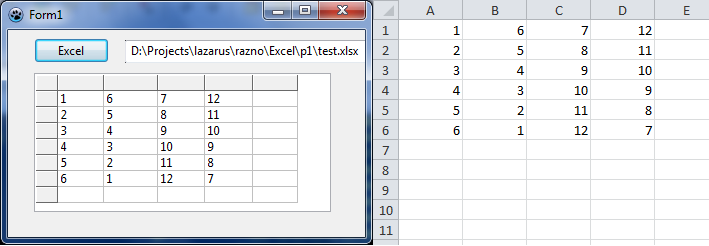 | |
| 175 | 172 | ||
| 176 | 173 | Example - Open/Read Excel file: | |
| 177 | 174 | ||
| 178 | 175 | ``` pascal | |
| 179 | 176 | uses ..... comobj; | |
| 180 | 177 | ||
| 181 | 178 | procedure TForm1.Button1Click(Sender: TObject); | |
| 182 | 179 | ||
| 183 | 180 | Var XLApp: OLEVariant; | |
| 184 | 181 | x,y: byte; | |
| 185 | 182 | path: variant; | |
| 186 | 183 | ||
| 187 | 184 | begin | |
| 188 | 185 | XLApp := CreateOleObject('Excel.Application'); // requires comobj in uses | |
| 189 | 186 | try | |
| 190 | 187 | XLApp.Visible := False; // Hide Excel | |
| 191 | 188 | XLApp.DisplayAlerts := False; | |
| 192 | 189 | path := edit1.Text; | |
| 193 | 190 | XLApp.Workbooks.Open(Path); // Open the Workbook | |
| 194 | 191 | for x := 1 to 4 do | |
| 195 | 192 | begin | |
| 196 | 193 | for y := 1 to 6 do | |
| 197 | 194 | begin | |
| 198 | 195 | SG.Cells[x,y] := XLApp.Cells[y,x].Value; // fill stringgrid with values | |
| 199 | 196 | end; | |
| 200 | 197 | end; | |
| 201 | 198 | finally | |
| 202 | 199 | XLApp.Quit; | |
| 203 | 200 | XLAPP := Unassigned; | |
| 204 | 201 | end; | |
| 205 | 202 | ``` | |
| 206 | 203 | ||
| 207 | 204 | If you want to make some changes and you want them to write back into the Excel, file you can use: | |
| 208 | 205 | ||
| 209 | 206 | ``` pascal | |
| 210 | 207 | XLApp.Cells[x,y].Value := SG.Cells[y,x]; | |
| 211 | 208 | ``` | |
| 212 | 209 | ||
| 213 | 210 | If you want to save: | |
| 214 | 211 | ||
| 215 | 212 | ``` pascal | |
| 216 | 213 | XLApp.ActiveWorkBook.Save; | |
| 217 | 214 | ``` | |
| 218 | 215 | ||
| 219 | 216 | ## Read/Writing an Excel file using the SpreadSheet Interface Component | |
| 220 | 217 | ||
| 221 | 218 | The component provides a library interface, abstracting the Excel COM and the Calc Open Office UNO interfaces. The component is available here: <http://tcoq.free.fr/composants.html> (Link verified in May 2016) | |
| 222 | 219 | ||
| 223 | 220 | Since Automation is not yet available, but COM is available, the Excel interface component provides a set of Lazarus classes encapsulating calls to the Excel COM interface (the one below the Automation). It hides most of the drudgery of working with low-level code. Be careful, this is a work-in-progress. Use it at your own risk. | |
| 224 | 221 | ||
| 225 | 222 | **Functionality:** | |
| 226 | 223 | ||
| 227 | 224 | - creating and loading excel workbooks, | |
| 228 | 225 | - saving workbooks, | |
| 229 | 226 | - creating and accessing sheets, | |
| 230 | 227 | - getting values and setting values (and formulas) in cells, | |
| 231 | 228 | - getting and changing color of cells, | |
| 232 | 229 | - getting and changing column height and row width, | |
| 233 | 230 | - creating comments, | |
| 234 | 231 | - creating shapes, | |
| 235 | 232 | - creating charts. | |
| 236 | 233 | ||
| 237 | 234 | **Inits first.** | |
| 238 | 235 | ||
| 239 | 236 | ``` pascal | |
| 240 | 237 | IMPLEMENTATION | |
| 241 | 238 | USES | |
| 242 | 239 | ExcelUtilities, | |
| 243 | 240 | SpreadSheetInterfaces ; | |
| 244 | 241 | ||
| 245 | 242 | VAR | |
| 246 | 243 | aCell : IRange ; | |
| 247 | 244 | aValue : OleVariant ; // Not sure about this, but it works. ie( Edit.Text := STRING(aValue); ) | |
| 248 | 245 | ExcelApp : TExcelApplication ; | |
| 249 | 246 | ExcelWbs : IWorkBooks ; | |
| 250 | 247 | ||
| 251 | 248 | ExcelBook : IWorkBook ; | |
| 252 | 249 | ExcelSheet : ISheet ; | |
| 253 | 250 | ExcelSheets : ISheets ; | |
| 254 | 251 | ``` | |
| 255 | 252 | ||
| 256 | 253 | Getting a sheet is simple: | |
| 257 | 254 | ||
| 258 | 255 | ``` pascal | |
| 259 | 256 | // Initializing the common excel workbook: | |
| 260 | 257 | ExcelApp := TExcelApplication.Create(nil) ; | |
| 261 | 258 | ExcelApp.Active := True ; | |
| 262 | 259 | ExcelApp.Visible := True ; | |
| 263 | 260 | ||
| 264 | 261 | ExcelWbs := ExcelApp.WorkBooks ; | |
| 265 | 262 | ExcelBook := ExcelWbs.Add ; | |
| 266 | 263 | ExcelSheets := ExcelBook.Sheets ; | |
| 267 | 264 | ExcelSheet := ExcelSheets.Sheet(1) ; | |
| 268 | 265 | ``` | |
| 269 | 266 | ||
| 270 | 267 | Playing around with cells is simple too: | |
| 271 | 268 | ||
| 272 | 269 | ``` pascal | |
| 273 | 270 | // adding a value | |
| 274 | 271 | aCell := ExcelSheet.Cells(1, 1) ; | |
| 275 | 272 | aCell.Value := 10; | |
| 276 | 273 | ||
| 277 | 274 | // adding a formula | |
| 278 | 275 | aCell := ExcelSheet.Cells(2,1) ; | |
| 279 | 276 | aCell.Formula := '=A1+10' ; | |
| 280 | 277 | ||
| 281 | 278 | // getting the value computed in Excel | |
| 282 | 279 | aValue := aCell.Value ; | |
| 283 | 280 | ``` | |
| 284 | 281 | ||
| 285 | 282 | The test case provided has many more examples. | |
| 286 | 283 | ||
| 287 | 284 | ## Copy HTML to the clipboard | |
| 288 | 285 | ||
| 289 | 286 | You can copy HTML to the clipboard which is understood by many applications. This way you can copy formatted text. For those applications that only understand text put plain text too. | |
| 290 | 287 | ||
| 291 | 288 | Microsoft Office applications require HTML to be pasted onto the clipboard in a more complex format than described here. [[Clipboard|See here for an example that works with Microsoft Office.]] | |
| 292 | 289 | ||
| 293 | 290 | ``` pascal | |
| 294 | 291 | uses | |
| 295 | 292 | ClipBrd; | |
| 296 | 293 | ... | |
| 297 | 294 | // register the mime type for text/html. You can do this once at program start: | |
| 298 | 295 | ClipbrdFmtHTML:=RegisterClipboardFormat('text/html'); | |
| 299 | 296 | ... | |
| 300 | 297 | // Clear any previous formats off the clipboard before starting | |
| 301 | 298 | Clipboard.Clear; | |
| 302 | 299 | ||
| 303 | 300 | // put text and html on the clipboard. Other applications will choose the best format automatically. | |
| 304 | 301 | ThePlainUTF8Text:='Simple text'; | |
| 305 | 302 | Clipboard.AsText:=ThePlainUTF8Text; | |
| 306 | 303 | ||
| 307 | 304 | AsHTML:='<b>Formatted</b> text'; // text with formattings | |
| 308 | 305 | Clipboard.AddFormat(ClipbrdFmtHTML,AsHTML[1],length(AsHTML)); | |
| 309 | 306 | ``` | |
| 310 | 307 | ||
| 311 | 308 | ## See also | |
| 312 | 309 | ||
| 313 | 310 | - [[Clipboard]] | |
| 314 | 311 | ||
| 315 | 312 | ## External links | |
| 316 | 313 | ||
| 317 | 314 | - [Excel file format](http://sc.openoffice.org/excelfileformat.pdf) - description on OpenOffice website | |
| 318 | 315 | ||
| 319 | 316 | --- | |
| 320 | 317 | *From the Free Pascal wiki, page "Office Automation/zh CN", as it stood on 2020-02-21 after a change by Trev, out of the wiki's dump of 2024-05-26. Copyright stays with the author who wrote it, according to the old wiki's [[Licensing]] page. If you have concerns about this material, [message the admin](/wiki-contact).* |