

Office Automation
Deutsch · English · Español · Français · Italiano · Русский · 中文(中国)
(Windows only)
The ability to interact with Office software and generate spreadsheets, text documents and presentations from code can be invaluable in the office, and save a lot of time otherwise spent on repetitive tasks.
One example of this is the creation of applications that can read files in an arbitrary format and output an Excel file, a task that can be done much more efficiently with code than manually.
Using the OpenOffice UNO Bridge
OpenOffice has language bindings for C++, Java, JavaScript and Python. On Windows, OpenOffice can also be manipulated in Pascal via COM Automation (see below), but there is currently no easy way of using OpenOffice's UNO (Universal Network Objects) from Pascal on OS X and Linux. If you're interested in developing an OO "bridge" for Pascal, please refer to these links for more information (caution: these links are quite techie in true Sun fashion):
Using COM Automation to interact with OpenOffice and Microsoft Office
Automation is unique to Windows so the following two examples won't work on OS X or Linux. For those platforms, please refer to Making do without Windows COM Automation. If you only need to create and/or view a word processing document from your program, take a look at the XDev Toolkit.
OpenOffice/LibreOffice on Windows
Here's a simple example of how to open a document with your program using the OpenOffice Automation server. Note that this works only on Windows.
program TestOO;

{$IFDEF FPC}
 {$MODE Delphi}
{$ELSE}
 {$APPTYPE CONSOLE}
{$ENDIF}

uses
  SysUtils, Variants, ComObj;

const
  ServerName = 'com.sun.star.ServiceManager';
var
  Server     : Variant;
  Desktop    : Variant;
  LoadParams : Variant;
  Document   : Variant;
  TextCursor : Variant;
begin
  if Assigned(InitProc) then
    TProcedure(InitProc);

  try
    Server := CreateOleObject(ServerName);
  except
    WriteLn('Unable to start OO.');
    Exit;
  end;

  Desktop := Server.CreateInstance('com.sun.star.frame.Desktop');

  LoadParams := VarArrayCreate([0, -1], varVariant);

   {Create new document}
  Document := Desktop.LoadComponentFromURL('private:factory/swriter', '_blank', 0, LoadParams);

   {or Open existing} //you must use forward slashes, not backward!
  //Document := Desktop.LoadComponentFromURL('file:///C:/my/path/mydoc.doc', '_blank', 0, LoadParams);

  TextCursor := Document.Text.CreateTextCursor;

   {Insert existing document}  //Substitute your path and doc
  TextCursor.InsertDocumentFromURL('file:///C:/my/path/mydoc.doc', LoadParams);
end.
More comprehensive examples can found here:
- OLECreateTextDoc: Create and populate a text document with paragraph, table and frame
- OLEEditTextDoc: Load an existing text document, search with regular expression, replace text and add rows to a table
Office on Windows
Here's a simple example of how to open a document with your program using the Word Automation server. Note that this example works only on Windows. This will work with both delphi and fpc.
program TestMsOffice;

{$IFDEF FPC}
 {$MODE Delphi}
{$ELSE}
 {$APPTYPE CONSOLE}
{$ENDIF}

uses
  SysUtils, Variants, ComObj;

const
  ServerName = 'Word.Application';
var
  Server     : Variant;
  w:widestring;
begin
  if Assigned(InitProc) then
    TProcedure(InitProc);

  try
    Server := CreateOleObject(ServerName);
  except
    WriteLn('Unable to start Word.');
    Exit;
  end;

   {Open existing document}  //Substitute your path and doc
  w:= UTF8Decode('c:\my\path\mydoc.doc');
  Server.Documents.Open(w); //OLE uses BSTR (http://msdn.microsoft.com/en-us/library/windows/desktop/ms221069(v=vs.85).aspx). Only widestring is compatible with BSTR in FPC, so conversion is needed for nonlatin chars.
  Server.Visible := True;  {Make Word visible}

end.
Here is a sample code how to work in an open Word document, using the Word Automation server.
var
  Server: Variant;
begin
  try
    Server := GetActiveOleObject('Word.Application');
  except
    try
      ShowMessage('Word not already open create a Word Object');
      // If no instance of Word is running, try to Create a new Word Object
      Server := CreateOleObject('Word.Application');
    except
      ShowMessage('Cannot start Word/Word not installed ?');
      Exit;
    end;
  end;
end;
Limitations: Since End is a reserved word in FPC it shall be used as a parameter after the & sign.
Server.ActiveDocument.Application.Selection.start:=Server.ActiveDocument.Application.Selection.&end+1;A lot of examples for Excel are available on the German wiki page ExcelAutomation/de.
Using the fpXMLXSDExport unit
FPC 2.6 and newer contain the fpXMLXSDExport unit, part of the FCL-DB export components. With that, you can export datasets to various XML formats, including a Microsoft Access-compatible format and a Microsoft Excel-compatible format.
The Access format can output XML with or without an embedded XSD data/table definition. Note that exporting binary/BLOB type data needs additional action at the Access import end, as Access does not support proper binary fields, only OLE fields.
In the Excel format, multiline text fields are not supported at the moment: the line ends are removed during the export.
Lazarus provides a visual component for this: after installing the lazdbexport package, you will see the TXMLXSDExporter component on the Data Export tab
See fpXMLXSDExport for details.
Using the FPSpreadsheet Library
Another way to automate repetitive work with spreadsheets is to use the FPSpreadsheet library. It can read and write spreadsheets in several formats and it doesn't require having any external application installed on the machine.
The advantages are that fpspreadsheet is 100% Object Pascal code, and it requires no external libraries or programs.
Writing an Excel file using ADO
please write me.
Reading/Writing an Excel file using OLE
This method needs Excel to be installed on the user's machine because it uses OLE to access it.
Keep in mind that this method starts Excel in the background, which opens the file and works with it like a real user.
- Create a new form with button, stringgrid and edit.
- Create a new Excel file and fill a few cells.
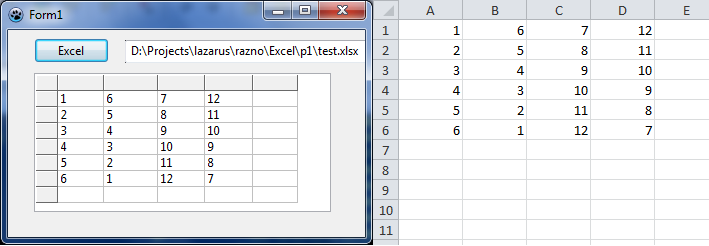
Example - Open/Read Excel file:
uses .....  comobj;

procedure TForm1.Button1Click(Sender: TObject);

Var   XLApp: OLEVariant;
      x,y: byte;
      path: variant;

begin
 XLApp := CreateOleObject('Excel.Application'); // requires comobj in uses
 try
   XLApp.Visible := False;         // Hide Excel
   XLApp.DisplayAlerts := False;
   path := edit1.Text;
   XLApp.Workbooks.Open(Path);     // Open the Workbook
   for x := 1 to 4 do
    begin
     for y := 1 to 6 do
      begin
       SG.Cells[x,y] := XLApp.Cells[y,x].Value;  // fill stringgrid with values
      end;
    end;
 finally
   XLApp.Quit;
   XLAPP := Unassigned;
  end;
If you want to make some changes and you want them to write back into the Excel, file you can use:
XLApp.Cells[x,y].Value := SG.Cells[y,x];If you want to save:
XLApp.ActiveWorkBook.Save;Read/Writing an Excel file using the SpreadSheet Interface Component
The component provides a library interface, abstracting the Excel COM and the Calc Open Office UNO interfaces. The component is available here: http://tcoq.free.fr/composants.html (Link verified in May 2016)
Since Automation is not yet available, but COM is available, the Excel interface component provides a set of Lazarus classes encapsulating calls to the Excel COM interface (the one below the Automation). It hides most of the drudgery of working with low-level code. Be careful, this is a work-in-progress. Use it at your own risk.
Functionality:
- creating and loading excel workbooks,
- saving workbooks,
- creating and accessing sheets,
- getting values and setting values (and formulas) in cells,
- getting and changing color of cells,
- getting and changing column height and row width,
- creating comments,
- creating shapes,
- creating charts.
Inits first.
  IMPLEMENTATION
  USES
    ExcelUtilities,
    SpreadSheetInterfaces ;

  VAR
   aCell    : IRange ;
   aValue   : OleVariant ; // Not sure about this, but it works. ie( Edit.Text := STRING(aValue); )
   ExcelApp : TExcelApplication ;
   ExcelWbs : IWorkBooks ;

  ExcelBook   : IWorkBook ;
  ExcelSheet  : ISheet ;
  ExcelSheets : ISheets ;
Getting a sheet is simple:
  // Initializing the common excel workbook:
  ExcelApp         := TExcelApplication.Create(nil) ;
  ExcelApp.Active  := True ;
  ExcelApp.Visible := True ;

  ExcelWbs    := ExcelApp.WorkBooks ;
  ExcelBook   := ExcelWbs.Add ;
  ExcelSheets := ExcelBook.Sheets ;
  ExcelSheet  := ExcelSheets.Sheet(1) ;
Playing around with cells is simple too:
  // adding a value
  aCell := ExcelSheet.Cells(1, 1) ;
  aCell.Value := 10;

  // adding a formula
  aCell := ExcelSheet.Cells(2,1) ;
  aCell.Formula := '=A1+10' ;

  // getting the value computed in Excel
  aValue := aCell.Value ;
The test case provided has many more examples.
Copy HTML to the clipboard
You can copy HTML to the clipboard which is understood by many applications. This way you can copy formatted text. For those applications that only understand text put plain text too.
Microsoft Office applications require HTML to be pasted onto the clipboard in a more complex format than described here. See here for an example that works with Microsoft Office.
uses
  ClipBrd;
...
  // register the mime type for text/html. You can do this once at program start:
  ClipbrdFmtHTML:=RegisterClipboardFormat('text/html');
...
  // Clear any previous formats off the clipboard before starting
  Clipboard.Clear;

  // put text and html on the clipboard. Other applications will choose the best format automatically.
  ClipBoard.SetAsHtml('<b>Formatted</b> text', 'Simple Text');
See also
External links
- Excel file format - description on OpenOffice website
From the Free Pascal wiki, page "Office Automation", as it stood on 2023-11-03 after a change by Bart, out of the wiki's dump of 2024-05-26. Copyright stays with the author who wrote it, according to the old wiki's Licensing page. If you have concerns about this material, message the admin.
Talk about this page
Nobody has opened a bench for this page yet. Sign in to open one.