

Notarization for macOS 10.14.5+: what changed
Revision 2 to 3. Removed lines have a minus sign; added lines have a plus sign.
| Old | New | Line | |
|---|---|---|---|
| 1 | 1 | ## Overview | |
| 2 | 2 | ||
| 3 | 3 | Beginning with macOS 10.14.5 (Mojave), software signed with a new Apple developer certificate and all new or updated kernel extensions must be notarized to run. Beginning in macOS 10.15 (Catalina), all software built after June 1, 2019, and code signed with an Apple developer certificate must be notarized. *Notarization is not required for software distributed through the Apple App Store* because the App Store submission process already includes equivalent security checks. | |
| 4 | 4 | ||
| 5 | 5 | In November 2023, Apple amended the Notarizing process and rules, and changed the utility program to notarytool. These changes are now shown below. | |
| 6 | 6 | ||
| 7 | 7 | Notarization is designed by Apple to give users more confidence that Apple developer-signed software has been checked by Apple for malicious components. Notarization is not an App Review. The Apple notary service is an automated system that scans software for malicious content, checks for code-signing issues, and returns the results. If there are no issues, the notary service generates a ticket to staple to the software; the notary service also publishes that ticket online where Gatekeeper can find it. | |
| 8 | 8 | ||
| 9 | 9 | When the user first installs or runs software, the presence of a ticket (either online or attached to the executable) tells Gatekeeper that Apple notarized the software. Gatekeeper then places descriptive information in the initial launch dialog to help the user make an informed choice about whether to launch the app. | |
| 10 | 10 | ||
| 11 | 11 | > **Note:** **Even if an application has not been notarized, it can still be run by control-clicking on the app, or right clicking for the context menu, and choosing *Open* - see the Gatekeeper "bypass" dialog in the gallery [[Notarization for macOS 10.14.5+|below]].** | |
| 12 | 12 | ||
| 13 | 13 | Code signing an application without also notarizing it is now a totally pointless exercise *unless* you are only distributing your application via the App Store. | |
| 14 | 14 | ||
| 15 | 15 | ## Gatekeeper dialogs | |
| 16 | 16 | ||
| 17 | 17 | 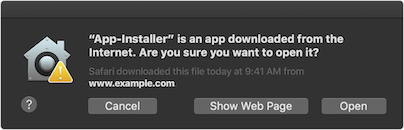 | |
| 18 | 18 | ||
| 19 | 19 | Gatekeeper Dialog before Catalina where an app that is not notarized is first opened (Mojave macOS 10.14 dialog) | |
| 20 | 20 | ||
| 21 | 21 | 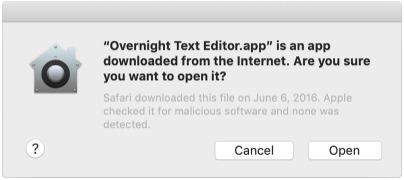 | |
| 22 | 22 | ||
| 23 | 23 | Gatekeeper dialog where an app which is signed and notarized is first opened (Catalina macOS 10.15.1 dialog) | |
| 24 | 24 | ||
| 25 | 25 | 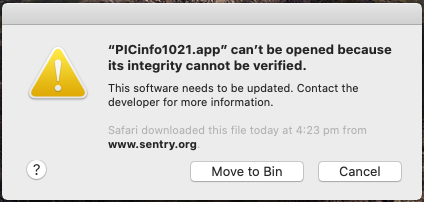 | |
| 26 | 26 | ||
| 27 | 27 | Gatekeeper dialog where an app is not signed nor notarized is first opened (Catalina macOS 10.15.1 dialog) | |
| 28 | 28 | ||
| 29 | 29 | 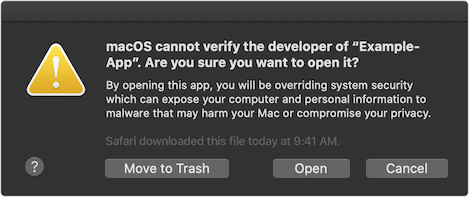 | |
| 30 | 30 | ||
| 31 | 31 | The Gatekeeper "bypass" dialog, accessed by control-clicking on the app (Catalina macOS 10.15.3 dialog) | |
| 32 | 32 | ||
| 33 | 33 | ## Notarization requirements | |
| 34 | 34 | ||
| 35 | 35 | Notarization requires the Xcode command line tools from Xcode 10 or later. Building a new app for notarization requires macOS 10.13.6 or later. Stapling an app requires macOS 10.12 or later. | |
| 36 | 36 | ||
| 37 | 37 | Apple's notary service requires you to: | |
| 38 | 38 | ||
| 39 | 39 | - Enable code-signing for all of the executables you distribute. | |
| 40 | 40 | - Enable the [[Hardened runtime for macOS|Hardened Runtime]] capability for your application and command line targets. | |
| 41 | 41 | - Use a “Developer ID” application, kernel extension, or installer certificate for your code-signing signature. | |
| 42 | 42 | - Include a secure timestamp with your code-signing signature (include the --timestamp option when running the codesign tool). | |
| 43 | 43 | - Don’t include the com.apple.security.get-task-allow entitlement with the value set to any variation of true. If your software hosts third-party plug-ins and needs this entitlement to debug the plug-in in the context of a host executable, see [Avoid the Get-Task-Allow Entitlement](https://developer.apple.com/documentation/xcode/notarizing_macos_software_before_distribution/resolving_common_notarization_issues#3087731). | |
| 44 | 44 | - Link against the macOS 10.9 or later SDK. | |
| 45 | 45 | ||
| 46 | 46 | On 3 September 2019 Apple announced that until January 2020 developers could get new versions of applications notarized even though they were not [[Hardened runtime for macOS|hardened]] or fully compliant with the normal requirements. **That deadline was later extended to 3 February 2020. The above notarization requirements are now in full effect.** | |
| 47 | 47 | ||
| 48 | 48 | ### Apple Statement 23 December 2019 | |
| 49 | 49 | ||
| 50 | 50 | In June, we announced that all Mac software distributed outside the Mac App Store must be notarized by Apple in order to run by default on macOS Catalina. In September, we temporarily adjusted the notarization prerequisites to make this transition easier and to protect users on macOS Catalina who continue to use older versions of software. Starting February 3, 2020, all submitted software must meet the original notarization prerequisites. | |
| 51 | 51 | ||
| 52 | 52 | If you haven’t yet done so, upload your software to the notary service and review the developer log for warnings. These warnings will become errors starting February 3 and must be fixed in order to have your software notarized. Software notarized before February 3 will continue to run by default on macOS Catalina. | |
| 53 | 53 | ||
| 54 | 54 | As a reminder, all installer packages must be signed since they may contain executable code. Disk images do not need to be signed, although signing them can help your users verify their contents. | |
| 55 | 55 | ||
| 56 | 56 | ## Notarizing an application | |
| 57 | 57 | ||
| 58 | 58 | These instructions assume you have completed the other preparatory steps: [[Code Signing for macOS|code signed]] the application, implemented the [[Hardened runtime for macOS|hardened runtime capability]], [[Code Signing for macOS|code signed]] the installer pkg (if you have one) etc. | |
| 59 | 59 | ||
| 60 | 60 | You can't upload the .app bundle directly to the notary service, you need to create a compressed archive containing the application or you can put applications, kernel extensions, and other software in a container, like a disk image, and notarize the container. The notary service accepts disk images (UDIF format), signed flat installer packages, and ZIP archives. It processes nested containers as well, like packages inside a disk image. | |
| 61 | 61 | ||
| 62 | 62 | ### Step 1 - Create disk image | |
| 63 | 63 | ||
| 64 | 64 | Create a disk image by opening a Terminal and running the following command: | |
| 65 | 65 | ||
| 66 | 66 | ``` bash | |
| 67 | 67 | hdiutil create -volname MyApp -srcfolder /path/to/MyApp.app -ov -format UDBZ MyApp.dmg | |
| 68 | 68 | ``` | |
| 69 | 69 | ||
| 70 | 70 | ### Step 2 - Code sign the disk image | |
| 71 | 71 | ||
| 72 | 72 | Disk images must be signed with your Developer ID Application Certificate and include a secure timestamp. | |
| 73 | 73 | ||
| 74 | 74 | Code sign the disk image by opening a Terminal and running the following command: | |
| 75 | 75 | ||
| 76 | 76 | ``` bash | |
| 77 | 77 | codesign -s "Developer ID Application: Your Name (Team ID)" --timestamp MyApp.dmg | |
| 78 | 78 | ``` | |
| 79 | 79 | ||
| 80 | 80 | Note: See [[Code Signing for macOS]] for more details relevant to code signing especially if doing this on aarch64 for an x86_64 binary. | |
| 81 | 81 | ||
| 82 | 82 | ### Step 3 - Generate an app-specific password | |
| 83 | 83 | ||
| 84 | 84 | To generate an app-specific password, refer to this [Apple Support article](https://support.apple.com/en-us/HT204397). *Note:* this is a password that will be specific to the notarization application (xcrun notarytool) and not to the application being notarized. You therefore only need to do this once, but make sure you copy the generated password and save it somewhere. | |
| 85 | 85 | ||
| 86 | 86 | > **Tip:** Save the password to your keychain with:\ | |
| 87 | 87 | > \ | |
| 88 | 88 | > `xcrun notarytool store-credentials "notarytool-password" --apple-id "<AppleID>" --team-id <DeveloperTeamID> --password <secret_2FA_password>`\ | |
| 89 | 89 | > \ | |
| 90 | 90 | > and then you can use `"@keychain:<name for pwd>"` in the following commands. | |
| 91 | 91 | ||
| 92 | 92 | ### Step 4 - Upload the disk image to the notary service | |
| 93 | 93 | ||
| 94 | 94 | > **Note:** When you notarize the container disk image, notarytool also notarizes the application inside, so you can skip the step of notarizing the application itself. | |
| 95 | 95 | ||
| 96 | 96 | Upload the disk image file to the Apple notary service by opening a Terminal and running the following command: | |
| 97 | 97 | ||
| 98 | 98 | ``` bash | |
| 99 | 99 | xcrun notarytool submit --apple-id "me@mysoftware.com" --password <app-specifc-password> --team-id <your 10 character team ID> /Path/to/MyApp.dmg | |
| 100 | 100 | ``` | |
| 101 | 101 | ||
| 102 | 102 | The response includes an *id* (session-ID) that we use later to keep track of this submission with the notarization service. It will be used again to check on the status. | |
| 103 | 103 | ||
| 104 | 104 | If the upload is successful you should receive output similar to the following: | |
| 105 | 105 | ||
| 106 | 106 | Conducting pre-submission checks for MyApp.dmg and initiating connection to the Apple notary service... | |
| 107 | 107 | Submission ID received | |
| 108 | 108 | id: 43e04940-1601-4959-a40c-79b83172d22b | |
| 109 | 109 | Upload progress: 100,00% (3,97 MB of 3,97 MB) | |
| 110 | 110 | Successfully uploaded file | |
| 111 | 111 | id: 43e04940-1601-4959-a40c-79b83172d22b | |
| 112 | 112 | path: /Path/to/MyApp.dmg | |
| 113 | 113 | ||
| 114 | 114 | ### Step 5 - Check the notarization process | |
| 115 | 115 | ||
| 116 | 116 | The notarization process generally takes less than an hour, and usually just few minutes. They no longer issue emails, so you will need to check its progress from time to time by opening a Terminal and running the following command: | |
| 117 | 117 | ||
| 118 | 118 | ``` bash | |
| 119 | 119 | xcrun notarytool info --apple-id "me@mysoftware.com" --password <app-specifc-password> --team-id <your 10 character team ID> session-ID | |
| 120 | 120 | ``` | |
| 121 | 121 | ||
| 122 | 122 | When the notarization process completes successfully the above command will return information similar to the following: | |
| 123 | 123 | ||
| 124 | 124 | Looking up : 43e04940-1601-4959-a40c-79b83172d22b | |
| 125 | 125 | Successfully received submission info | |
| 126 | 126 | createdDate: 2024-05-06T10:16:46.448Z | |
| 127 | 127 | id: 43e04940-1601-4959-a40c-79b83172d22b | |
| 128 | 128 | name: MyApp.dmg | |
| 129 | 129 | status: Accepted | |
| 130 | 130 | ||
| 131 | 131 | The possible status results are: In process, Accepted or Failure. | |
| 132 | 132 | ||
| 133 | 133 | Accepted means success in this context. If the status is failure, then further details can be obtained with the "log" command: | |
| 134 | 134 | ||
| 135 | 135 | ``` bash | |
| 136 | 136 | xcrun notarytool log --apple-id "me@mysoftware.com" --password <app-specifc-password> --team-id <your 10 character team ID> session-ID | |
| 137 | 137 | ``` | |
| 138 | 138 | ||
| 139 | 139 | ### Step 6 - Staple the ticket to the disk image | |
| 140 | 140 | ||
| 141 | 141 | The notarization process produces a ticket that tells Gatekeeper that your application is notarized. After notarization completes successfully, the next time any user attempts to run your application on macOS 10.14 or later, Gatekeeper will find the ticket online. This includes users who downloaded your application before notarization. | |
| 142 | 142 | ||
| 143 | 143 | After step 5 receives the "Package Approved" status message, you should also attach the ticket to the disk image file using the stapler tool, so that future distributions include the ticket. This ensures that Gatekeeper can find the ticket even when a network connection is not available. | |
| 144 | 144 | ||
| 145 | 145 | To staple the ticket to the disk image file, open a Terminal and run the following command: | |
| 146 | 146 | ||
| 147 | 147 | ``` bash | |
| 148 | 148 | xcrun stapler staple /path/to/MyApp.dmg | |
| 149 | 149 | ``` | |
| 150 | 150 | ||
| 151 | 151 | If the command completes successfully, the output should be similar to: | |
| 152 | 152 | ||
| 153 | 153 | Processing: /Path/to/MyApp.dmg | |
| 154 | 154 | Processing: /Path/to/MyApp.dmg | |
| 155 | 155 | The staple and validate action worked! | |
| 156 | 156 | ||
| 157 | 157 | Note: While you can staple an installer package and disk image directly, if notarization used a zip file, the application bundle needs to be unzipped and then it can be stapled and rezipped. | |
| 158 | 158 | ||
| 159 | 159 | ### Step 7 - Verify notarization of the disk image | |
| 160 | 160 | ||
| 161 | 161 | To verify the notarization of the disk image, open a Terminal and run the following command: | |
| 162 | 162 | ||
| 163 | 163 | ``` bash | |
| 164 | 164 | spctl -a -vv -t install MyApp.dmg | |
| 165 | 165 | ``` | |
| 166 | 166 | ||
| 167 | 167 | A successful verification of the notarization process should produce output similar to the following: | |
| 168 | 168 | ||
| 169 | 169 | MyApp.dmg: accepted | |
| 170 | 170 | source=Notarized Developer ID | |
| 171 | 171 | origin=Developer ID Application: <Developer Name> (<TEAM_ID>) | |
| 172 | 172 | ||
| 173 | 173 | ### Step 8 - Verify notarization of the application | |
| 174 | 174 | ||
| 175 | 175 | To verify the notarization of the application, install the application, open a Terminal and run the following command: | |
| 176 | 176 | ||
| 177 | 177 | ``` bash | |
| 178 | 178 | spctl -a -vv /Applications/MyApp.app | |
| 179 | 179 | ``` | |
| 180 | 180 | ||
| 181 | 181 | A successful verification of the notarization process should produce output similar to the following: | |
| 182 | 182 | ||
| 183 | 183 | /Applications/MyApp.app: accepted | |
| 184 | 184 | source=Notarized Developer ID | |
| 185 | 185 | origin=Developer ID Application: <Developer Name> (<TEAM_ID>) | |
| 186 | 186 | ||
| 187 | 187 | **Important:** test the application by putting it in the Applications directory. It's treated differently by the Gatekeeper when in the "installed" location. | |
| 188 | 188 | ||
| 189 | 189 | Alternatively, the Apple-recommended way to verify the notarization of an application is to open a Terminal and run the following command: | |
| 190 | 190 | ||
| 191 | 191 | xcrun stapler validate MyApp.app | |
| 192 | 192 | ||
| 193 | 193 | A successful verification of the notarization process should produce output similar to the following: | |
| 194 | 194 | ||
| 195 | 195 | Processing: MyApp.app | |
| 196 | 196 | The validate action worked! | |
| 197 | 197 | ||
| 198 | 198 | ## Notarizing a command line tool | |
| 199 | 199 | ||
| 200 | 200 | Command line tools can be code signed, but they cannot be easily notarized because they do not have an [[Application Bundle]] and a standalone `Info.plist` [[macOS property list files|property list file]]. You can relatively easily insert an `Info.plist` file in your command line tool executable. | |
| 201 | 201 | ||
| 202 | 202 | ### Inserting an Info.plist in a command line executable | |
| 203 | 203 | ||
| 204 | 204 | Here is a template that you can customise for your command line utility. I extracted it from a command line utility executable written in C named "simplereach" which I built with Xcode 11.3.1 on Mojave after enabling the "Create Info.plist Section in Binary" under the "Packaging" options (I have omitted the unnecessary Xcode-related build info from it). | |
| 205 | 205 | ||
| 206 | 206 | ``` xml | |
| 207 | 207 | <!DOCTYPE plist PUBLIC "-//Apple//DTD PLIST 1.0//EN" "http://www.apple.com/DTDs/PropertyList-1.0.dtd"> | |
| 208 | 208 | <plist version="1.0"> | |
| 209 | 209 | <dict> | |
| 210 | 210 | <key>BuildMachineOSBuild</key> | |
| 211 | 211 | <string>18G8022</string> | |
| 212 | 212 | <key>CFBundleDevelopmentRegion</key> | |
| 213 | 213 | <string>English</string> | |
| 214 | 214 | <key>CFBundleDocumentTypes</key> | |
| 215 | 215 | <array> | |
| 216 | 216 | <dict> | |
| 217 | 217 | <key>CFBundleTypeOSTypes</key> | |
| 218 | 218 | <array> | |
| 219 | 219 | <string>fold</string> | |
| 220 | 220 | <string>disk</string> | |
| 221 | 221 | <string>****</string> | |
| 222 | 222 | </array> | |
| 223 | 223 | </dict> | |
| 224 | 224 | </array> | |
| 225 | 225 | <key>CFBundleExecutable</key> | |
| 226 | 226 | <string>simplereach</string> | |
| 227 | 227 | <key>CFBundleIdentifier</key> | |
| 228 | 228 | <string>com.mycompany.simplereach</string> | |
| 229 | 229 | <key>CFBundleInfoDictionaryVersion</key> | |
| 230 | 230 | <string>6.0</string> | |
| 231 | 231 | <key>CFBundleName</key> | |
| 232 | 232 | <string>simplereach</string> | |
| 233 | 233 | <key>CFBundlePackageType</key> | |
| 234 | 234 | <string>APPL</string> | |
| 235 | 235 | <key>CFBundleShortVersionString</key> | |
| 236 | 236 | <string>1.0</string> | |
| 237 | 237 | <key>CFBundleSupportedPlatforms</key> | |
| 238 | 238 | <array> | |
| 239 | 239 | <string>MacOSX</string> | |
| 240 | 240 | </array> | |
| 241 | 241 | <key>CFBundleVersion</key> | |
| 242 | 242 | <string>1</string> | |
| 243 | 243 | <key>LSMinimumSystemVersion</key> | |
| 244 | 244 | <string>10.14</string> | |
| 245 | 245 | </dict> | |
| 246 | 246 | </plist> | |
| 247 | 247 | ``` | |
| 248 | 248 | ||
| 249 | 249 | You will need to modify a few key strings in the above file. Substitute your own: | |
| 250 | 250 | ||
| 251 | 251 | - **BuildMachineOSBuild** string can be obtained from a Terminal with the command `sw_vers`. The "18G8022" strong is for Mojave 10.14.6. | |
| 252 | 252 | - **CFBundleDevelopmentRegion** string if it is not "English". | |
| 253 | 253 | - **CFBundleExecutable** string with your utility name. | |
| 254 | 254 | - **CFBundleIdentifier** string (conventionally your domain name in reverse followed by utility name; feel free use anything unique). | |
| 255 | 255 | - **CFBundleName** string (use the same value as for CFBundleExecutable). | |
| 256 | 256 | - **CFBundleShortVersionString** string with your version number. | |
| 257 | 257 | - **LSMinimumSystemVersion** string with the minimum macOS version on which your utility will run. | |
| 258 | 258 | ||
| 259 | 259 | You can then insert the `Info.plist` file into your application by telling the linker to add it as a __TEXT section named __info_plist: | |
| 260 | 260 | ||
| 261 | - | ||
| 261 | + | ```text | |
| 262 | + | fpc -k"-sectcreate __TEXT __info_plist Info.plist" my_utility.pas | |
| 263 | + | ``` | |
| 262 | 264 | ||
| 263 | 265 | To check whether it has been successfully inserted you can run the following command in a Terminal: | |
| 264 | 266 | ||
| 265 | - | ||
| 267 | + | ```text | |
| 268 | + | otool -X -v -s __TEXT __info_plist my_utility | |
| 269 | + | ``` | |
| 266 | 270 | ||
| 267 | 271 | ### Signing a command line executable | |
| 268 | 272 | ||
| 269 | 273 | Now that the `Info.plist` file has been inserted in the executable, you are ready to code sign it by executing the following commands in a Terminal: | |
| 270 | 274 | ||
| 271 | - | ||
| 272 | - | ||
| 273 | - | ||
| 274 | - | ||
| 275 | + | ```text | |
| 276 | + | cd /path/to/my_utility | |
| 277 | + | mkdir bin | |
| 278 | + | mv my_utility bin/ | |
| 279 | + | codesign -f --strict --timestamp --options=runtime -s "Developer ID Application: YOUR NAME (TEAM_ID)" bin/my_utility | |
| 280 | + | ``` | |
| 275 | 281 | ||
| 276 | 282 | It is *critical* that you create the `bin` directory and move your utility to it before signing. Failure to do so will result in a `_CodeSignature directory` being created which is not appropriate for a command line utility and the notarisation process will fail. | |
| 277 | 283 | ||
| 278 | 284 | To verify this was successful you can run the following command in a Terminal: | |
| 279 | 285 | ||
| 280 | - | ||
| 286 | + | ```text | |
| 287 | + | codesign -vv bin/my_utility | |
| 288 | + | ``` | |
| 281 | 289 | ||
| 282 | 290 | If code signing was successful, the output should be something similar to: | |
| 283 | 291 | ||
| 284 | - | ||
| 285 | - | ||
| 292 | + | ```text | |
| 293 | + | my_utility: valid on disk | |
| 294 | + | my_utility: satisfies its Designated Requirement | |
| 295 | + | ``` | |
| 286 | 296 | ||
| 287 | 297 | ### Submitting a command line executable for notarization | |
| 288 | 298 | ||
| 289 | 299 | As you cannot notarize a bare executable, you need to incorporate it into a container (.dmg - Disk Image, .pkg - Installer Package, or a ZIP archive file). A ZIP archive is the simplest so in a Terminal execute the following command: | |
| 290 | 300 | ||
| 291 | - | ||
| 301 | + | ```text | |
| 302 | + | zip my_utility.zip bin/my_utility | |
| 303 | + | ``` | |
| 292 | 304 | ||
| 293 | 305 | You are now ready to upload your command line utility to Apple's servers for notarization. In a terminal execute the following command: | |
| 294 | 306 | ||
| 295 | - | ||
| 307 | + | ```text | |
| 308 | + | xcrun notarytool submit --apple-id "me@mysoftware.com" --password <app-specifc-password> --team-id <your 10 character team ID> my_utility.zip | |
| 309 | + | ``` | |
| 296 | 310 | ||
| 297 | 311 | If you do not already have an app specific password, see above for how to generate one. | |
| 298 | 312 | ||
| 299 | 313 | The response includes an *id* (session-ID) that we use later to keep track of this submission with the notarization service. It will be used again to check on the status. | |
| 300 | 314 | ||
| 301 | 315 | If the upload is successful you should receive output similar to the following: | |
| 302 | 316 | ||
| 303 | 317 | Conducting pre-submission checks for my_utility.zip and initiating connection to the Apple notary service... | |
| 304 | 318 | Submission ID received | |
| 305 | 319 | id: 43e04940-1601-4959-a40c-79b83172d22b | |
| 306 | 320 | Upload progress: 100,00% (3,97 MB of 3,97 MB) | |
| 307 | 321 | Successfully uploaded file | |
| 308 | 322 | id: 43e04940-1601-4959-a40c-79b83172d22b | |
| 309 | 323 | path: /Path/to/my_utility.zip | |
| 310 | 324 | ||
| 311 | 325 | ### Checking the notarization progress | |
| 312 | 326 | ||
| 313 | 327 | The notarization process generally takes less than an hour, and usually just few minutes. They no longer issue emails, so you will need to check its progress from time to time by opening a Terminal and running the following command: | |
| 314 | 328 | ||
| 315 | 329 | ``` bash | |
| 316 | 330 | xcrun notarytool info --apple-id "me@mysoftware.com" --password <app-specifc-password> --team-id <your 10 character team ID> session-ID | |
| 317 | 331 | ``` | |
| 318 | 332 | ||
| 319 | 333 | When the notarization process completes successfully the above command will return information similar to the following: | |
| 320 | 334 | ||
| 321 | 335 | Looking up : 43e04940-1601-4959-a40c-79b83172d22b | |
| 322 | 336 | Successfully received submission info | |
| 323 | 337 | createdDate: 2024-05-06T10:16:46.448Z | |
| 324 | 338 | id: 43e04940-1601-4959-a40c-79b83172d22b | |
| 325 | 339 | name: MyApp.dmg | |
| 326 | 340 | status: Accepted | |
| 327 | 341 | ||
| 328 | 342 | The possible status results are: In process, Accepted or Failure. Accepted means success in this context. If the status is failure, then further details can be obtained with the "log" command: | |
| 329 | 343 | ||
| 330 | 344 | ``` bash | |
| 331 | 345 | xcrun notarytool log --apple-id "me@mysoftware.com" --password <app-specifc-password> --team-id <your 10 character team ID> session-ID | |
| 332 | 346 | ``` | |
| 333 | 347 | ||
| 334 | 348 | In case of a notarization failure, consult Troubleshooting below for help. | |
| 335 | 349 | ||
| 336 | 350 | ### Verifying notarization of a command line executable | |
| 337 | 351 | ||
| 338 | 352 | To verify the notarization of a command line tool, open a Terminal and run the following command: | |
| 339 | 353 | ||
| 340 | - | ||
| 354 | + | ```text | |
| 355 | + | spctl -a -t open --context context:primary-signature -vv my_utility | |
| 356 | + | ``` | |
| 341 | 357 | ||
| 342 | 358 | A successful verification of a properly notarized command line executable should produce output similar to the following: | |
| 343 | 359 | ||
| 344 | - | ||
| 345 | - | ||
| 346 | - | ||
| 360 | + | ```text | |
| 361 | + | my_utility: accepted | |
| 362 | + | source=Notarized Developer ID | |
| 363 | + | origin=Developer ID Application: Your Name (Z9HBGNDZZ9) | |
| 364 | + | ``` | |
| 347 | 365 | ||
| 348 | 366 | ## Troubleshooting | |
| 349 | 367 | ||
| 350 | 368 | ### Notarization upload process | |
| 351 | 369 | ||
| 352 | 370 | If the notarisation upload process does not go well, you should be able to find a compressed log file in your temporary directory which may shed some light on what happened. You can view it by opening a Terminal and running the following commands (substitute the name of your log file which includes your application bundle-id): | |
| 353 | 371 | ||
| 354 | 372 | ``` bash | |
| 355 | 373 | cd ${TMPDIR} | |
| 356 | 374 | gzcat c51ca05f-cf49-405f-be57-26873faab5f6_3073718126753816760org.sentry.myapp-20191231004646-273.itmsp6022059143057318377.log | |
| 357 | 375 | ``` | |
| 358 | 376 | ||
| 359 | 377 | which, for a successful notarization upload, should look similar to: | |
| 360 | 378 | ||
| 361 | - | ||
| 362 | - | ||
| 363 | - | ||
| 364 | - | ||
| 365 | - | ||
| 366 | - | ||
| 367 | - | ||
| 368 | - | ||
| 369 | - | ||
| 370 | - | ||
| 371 | - | ||
| 372 | - | ||
| 373 | - | ||
| 374 | - | ||
| 375 | - | ||
| 379 | + | ```text | |
| 380 | + | [2019-12-31 19:46:46 AEDT] <main> INFO: Starting upload for packageName: org.sentry.myapp-20191231004646-273.itmsp | |
| 381 | + | [2019-12-31 19:46:46 AEDT] <main> INFO: Thread Pool Configuration: {processors=12, perCoreThreadMultiplier=1.65, coreThreads=6, maxThreads=14, minConnections=6, maxConnections=13, rateLimit=100000000000 KBs} | |
| 382 | + | [2019-12-31 19:46:46 AEDT] <main> INFO: Reservation CPUSource113/v4/93/41/ce/9341ce96-e7bc-2577-eaac-4528c888a70d/metadata.xml created for file: (metadata.xml), part count:(1), file size: (538) | |
| 383 | + | [2019-12-31 19:46:46 AEDT] <main> INFO: Reservation CPUSource113/v4/93/41/ce/9341ce96-e7bc-2577-eaac-4528c888a70d/MyApp_31122019.dmg created for file: (MyApp_31122019.dmg), part count:(1), file size: (1400933) | |
| 384 | + | [2019-12-31 19:46:46 AEDT] <RLT-002> INFO: Starting upload for reservation: (CPUSource113/v4/93/41/ce/9341ce96-e7bc-2577-eaac-4528c888a70d/metadata.xml) file: (metadata.xml/1) size: 538 | |
| 385 | + | [2019-12-31 19:46:46 AEDT] <RLT-003> INFO: Starting upload for reservation: (CPUSource113/v4/93/41/ce/9341ce96-e7bc-2577-eaac-4528c888a70d/myapp_31122019.dmg) file: (MyApp_31122019.dmg/1) size: 1400933 | |
| 386 | + | [2019-12-31 19:46:47 AEDT] <RLT-002> INFO: Finished part upload for: (metadata.xml/1) 2.91 KB/s in 0 seconds | |
| 387 | + | [2019-12-31 19:46:47 AEDT] <RLT-002> INFO: Finished upload for reservation: (CPUSource113/v4/93/41/ce/9341ce96-e7bc-2577-eaac-4528c888a70d/metadata.xml) file: (metadata.xml) | |
| 388 | + | [2019-12-31 19:46:47 AEDT] <pool-8-thread-1> INFO: Reservation committed: (CPUSource113/v4/93/41/ce/9341ce96-e7bc-2577-eaac-4528c888a70d/metadata.xml) file: (metadata.xml) | |
| 389 | + | [2019-12-31 19:46:49 AEDT] <RLT-003> INFO: Finished part upload for: (MyApp_31122019.dmg/1) 781.33 KB/s in 1 second | |
| 390 | + | [2019-12-31 19:46:49 AEDT] <RLT-003> INFO: Finished upload for reservation: (CPUSource113/v4/93/41/ce/9341ce96-e7bc-2577-eaac-4528c888a70d/MyApp_31122019.dmg) file: (MyApp_31122019.dmg) | |
| 391 | + | [2019-12-31 19:46:49 AEDT] <main> INFO: Waiting on reservation commit(s) to finish. | |
| 392 | + | [2019-12-31 19:46:49 AEDT] <pool-8-thread-1> INFO: Reservation committed: (CPUSource113/v4/93/41/ce/9341ce96-e7bc-2577-eaac-4528c888a70d/MyApp_31122019.dmg) file: (MyApp_31122019.dmg) | |
| 393 | + | [2019-12-31 19:46:49 AEDT] <pool-8-thread-1> INFO: All reservation commit(s) finished. | |
| 394 | + | [2019-12-31 19:46:49 AEDT] <main> INFO: 456.36 KB/s in 3 seconds | |
| 395 | + | ``` | |
| 376 | 396 | ||
| 377 | 397 | ### Notarization process failures | |
| 378 | 398 | ||
| 379 | 399 | If the when you check you find that the notarization process has failed. For example: | |
| 380 | 400 | ||
| 381 | 401 | Date RequestUUID Status Status Code Status Message | |
| 382 | 402 | ------------------------- ------------------------------------ ------- ----------- ---------------- | |
| 383 | 403 | 2020-02-29 13:54:08 +0000 fa2e5d79-cba0-469d-bb27-859a8f081821 invalid 2 Package Invalid | |
| 384 | 404 | ||
| 385 | 405 | You can retrieve the URL for the notarization log file with the command: | |
| 386 | 406 | ||
| 387 | 407 | ``` bash | |
| 388 | 408 | xcrun notarytool log --apple-id "me@mysoftware.com" --password <app-specifc-password> --team-id <your 10 character team ID> session-ID | |
| 389 | 409 | ``` | |
| 390 | 410 | ||
| 391 | 411 | which should yield information similar to the following: | |
| 392 | 412 | ||
| 393 | 413 | No errors getting notarization info. | |
| 394 | 414 | ||
| 395 | 415 | Date: 2020-02-29 13:54:08 +0000 | |
| 396 | 416 | Hash: 1b08ea5cdf97eb6fed9b959a549d4b325eb5e90f16538139a29a83f75609d87b | |
| 397 | 417 | LogFileURL: https://osxapps-ssl.itunes.apple.com/itunes-assets/[...] | |
| 398 | 418 | RequestUUID: fa2e5d79-cba0-469d-bb27-859a8f081821 | |
| 399 | 419 | Status: invalid | |
| 400 | 420 | Status Code: 2 | |
| 401 | 421 | Status Message: Package Invalid | |
| 402 | 422 | ||
| 403 | 423 | You can then cut and paste the LogFileURL into your web browser and retrieve the notarization process log file which will look something like this: | |
| 404 | 424 | ||
| 405 | 425 | { | |
| 406 | 426 | "logFormatVersion": 1, | |
| 407 | 427 | "jobId": "fa2e5d79-cba0-469d-bb27-859a8f081821", | |
| 408 | 428 | "status": "Invalid", | |
| 409 | 429 | "statusSummary": "Archive contains critical validation errors", | |
| 410 | 430 | "statusCode": 4000, | |
| 411 | 431 | "archiveFilename": "test.dmg", | |
| 412 | 432 | "uploadDate": "2020-02-29T13:54:08Z", | |
| 413 | 433 | "sha256": "1b08ea5cdf97eb6fed9b959a549d4b325eb5e90f16538139a29a83f75609d87b", | |
| 414 | 434 | "ticketContents": null, | |
| 415 | 435 | "issues": [ | |
| 416 | 436 | { | |
| 417 | 437 | "severity": "error", | |
| 418 | 438 | "code": null, | |
| 419 | 439 | "path": "test.dmg/MyApp.app/Contents/MacOS/MyApp", | |
| 420 | 440 | "message": "The executable does not have the hardened runtime enabled.", | |
| 421 | 441 | "docUrl": null, | |
| 422 | 442 | "architecture": "x86_64" | |
| 423 | 443 | } | |
| 424 | 444 | ] | |
| 425 | 445 | } | |
| 426 | 446 | ||
| 427 | 447 | In the above failure case, it was because the executable had not been [[Hardened runtime for macOS|hardened]]. | |
| 428 | 448 | ||
| 429 | 449 | It is also worthwhile mentioning that it is *always* worth retrieving the notarization log file to check for warnings which are not yet errors so that you can fix them before they do become errors which prevent successful notarization. | |
| 430 | 450 | ||
| 431 | 451 | Here is an example of a notarization process log from a successful notarization: | |
| 432 | 452 | ||
| 433 | 453 | { | |
| 434 | 454 | "logFormatVersion": 1, | |
| 435 | 455 | "jobId": "fa2e5d79-cba0-469d-bb27-859a8f081822", | |
| 436 | 456 | "status": "Accepted", | |
| 437 | 457 | "statusSummary": "Ready for distribution", | |
| 438 | 458 | "statusCode": 0, | |
| 439 | 459 | "archiveFilename": "test.dmg", | |
| 440 | 460 | "uploadDate": "2020-03-01T01:50:55Z", | |
| 441 | 461 | "sha256": "1945554c24da3bb1d587b7c9f968dcbb925b726f2f663b816301928c06593dd9", | |
| 442 | 462 | "ticketContents": [ | |
| 443 | 463 | { | |
| 444 | 464 | "path": "test.dmg", | |
| 445 | 465 | "digestAlgorithm": "SHA-256", | |
| 446 | 466 | "cdhash": "1d4d033edbecc2baf7ff8ce0fa16691be990595f" | |
| 447 | 467 | }, | |
| 448 | 468 | { | |
| 449 | 469 | "path": "test.dmg/MyApp.app", | |
| 450 | 470 | "digestAlgorithm": "SHA-256", | |
| 451 | 471 | "cdhash": "7f9d54e76f25807e2b425a09684aa8cb54dcd17f", | |
| 452 | 472 | "arch": "x86_64" | |
| 453 | 473 | }, | |
| 454 | 474 | { | |
| 455 | 475 | "path": "test.dmg/MyApp.app/Contents/MacOS/MyApp", | |
| 456 | 476 | "digestAlgorithm": "SHA-256", | |
| 457 | 477 | "cdhash": "7f9d54e762c7907e2b425a09684aa8cb54dcd17f", | |
| 458 | 478 | "arch": "x86_64" | |
| 459 | 479 | }, | |
| 460 | 480 | { | |
| 461 | 481 | "path": "test.dmg/MyApp.app/Contents/Resources/MyApp.help", | |
| 462 | 482 | "digestAlgorithm": "SHA-256", | |
| 463 | 483 | "cdhash": "b544a32a216578e7805ca93b968377cdd92f7ec6", | |
| 464 | 484 | "arch": "i386" | |
| 465 | 485 | }, | |
| 466 | 486 | { | |
| 467 | 487 | "path": "test.dmg/MyApp.app/Contents/Resources/MyApp.help", | |
| 468 | 488 | "digestAlgorithm": "SHA-256", | |
| 469 | 489 | "cdhash": "b544a32a216578e7805ca93b968377cdd92f7ec6", | |
| 470 | 490 | "arch": "x86_64" | |
| 471 | 491 | }, | |
| 472 | 492 | { | |
| 473 | 493 | "path": "test.dmg/MyApp.app/Contents/Resources/MyApp.help", | |
| 474 | 494 | "digestAlgorithm": "SHA-256", | |
| 475 | 495 | "cdhash": "b544a32a216578e7805ca93b968377cdd92f7ec6", | |
| 476 | 496 | "arch": "x86_64h" | |
| 477 | 497 | } | |
| 478 | 498 | ], | |
| 479 | 499 | "issues": null | |
| 480 | 500 | } | |
| 481 | 501 | ||
| 482 | 502 | ### Notarization check failures | |
| 483 | 503 | ||
| 484 | 504 | If the notarization process succeeds, but when you check whether your application is properly notarized and it does not pass the notarization check successfully, you can use the `Console.app` to inspect the log files for information about the rejection (after trying to launch the blocked application). Be aware you should open the `Console.app` *before* trying to open your blocked application, otherwise not all messages may be logged. You should choose your device in the left sidebar of the `Console.app` and check for the process **XprotectService** in the logs. | |
| 485 | 505 | ||
| 486 | 506 | ## See also | |
| 487 | 507 | ||
| 488 | 508 | - [[Apple Developer Certificates]] | |
| 489 | 509 | - [[Code Signing for macOS]] | |
| 490 | 510 | - [[Hardened runtime for macOS]] | |
| 491 | 511 | - [[Signing and Notarization FAQ]] | |
| 492 | 512 | ||
| 493 | 513 | ## External links | |
| 494 | 514 | ||
| 495 | 515 | - [Apple: Notarizing your app before distribution](https://developer.apple.com/documentation/security/notarizing_your_app_before_distribution) | |
| 496 | 516 | - [Apple: Notarizing macOS Software Before Distribution](https://developer.apple.com/documentation/xcode/notarizing_macos_software_before_distribution) | |
| 497 | 517 | - [Apple: Customizing the Notarization Workflow](https://developer.apple.com/documentation/xcode/notarizing_macos_software_before_distribution/customizing_the_notarization_workflow) | |
| 498 | 518 | - [Apple: Common notarization issues](https://developer.apple.com/documentation/xcode/notarizing_macos_software_before_distribution/resolving_common_notarization_issues) | |
| 499 | 519 | - [Apple: Using app-specific passwords](https://support.apple.com/en-us/HT204397) | |
| 500 | 520 | - [Notarize FPC](https://github.com/neurolabusc/NotarizeFPC) A script to notarize a command line utility and package it in an installer .pkg file. | |
| 501 | 521 | ||
| 502 | 522 | --- | |
| 503 | 523 | *From the Free Pascal wiki, page "Notarization for macOS 10.14.5+", as it stood on 2024-05-06 after a change by Rossh lz, out of the wiki's dump of 2024-05-26. Copyright stays with the author who wrote it, according to the old wiki's [[Licensing]] page. If you have concerns about this material, [message the admin](/wiki-contact).* |