

MySQLDatabases: what changed
Revision 1 to 2. Removed lines have a minus sign; added lines have a plus sign.
| Old | New | Line | |
|---|---|---|---|
| 1 | 1 | ## Introduction | |
| 2 | 2 | ||
| 3 | 3 | This page will explain how to connect to a [[mysql|MySQL]] server using visual components. | |
| 4 | 4 | ||
| 5 | 5 | > **Note:** This page has been written a long time ago and may be out of date. Also, most of the concepts described here are not MySQL specific but apply to all SQLDB databases. Therefore, following the SQLdb Tutorial series mentioned below may be easier | |
| 6 | 6 | ||
| 7 | 7 | Note: see also these tutorials that teach data-bound controls, parameterized queries, database independent programming etc: | |
| 8 | 8 | ||
| 9 | 9 | - [[SQLdb Tutorial1]] | |
| 10 | 10 | - [[SQLdb Tutorial2]] | |
| 11 | 11 | - [[SQLdb Tutorial3]] | |
| 12 | 12 | ||
| 13 | 13 | They are written for all databases that support sqldb, including MySQL. | |
| 14 | 14 | ||
| 15 | 15 | If needed, see also [[mysql|mysql#SQLDB_tutorials_and_example_code]] for yet more tutorials (that are also written a long time ago. | |
| 16 | 16 | ||
| 17 | 17 | ## Available Components | |
| 18 | 18 | ||
| 19 | 19 | ### SQLdb Components | |
| 20 | 20 | ||
| 21 | 21 | In any even vaguely recent version of Lazarus, the SQLDB components are installed by default. | |
| 22 | 22 | ||
| 23 | - | ||
| 24 | - | ||
| 25 | - | ||
| 26 | - | ||
| 23 | + |  | |
| 27 | 24 | ||
| 28 | 25 | On the SQLDB tab you will find: | |
| 29 | 26 | ||
| 30 | 27 | - Various connectors, including [[TMySQL40Connection]]..[[TMySQL56Connection]] (or perhaps even newer versions) and the most versatile of all [[TSQLConnector]] that may load any of the mysql/oracle/postgres/mssql/interbase/firebird/odbc drivers. | |
| 31 | 28 | - [[TSQLQuery]] | |
| 32 | 29 | ||
| 33 | 30 | If the SQLDB tab is missing, have a look at [[Install Packages]] for an "Install Howto". | |
| 34 | 31 | ||
| 35 | 32 | ## Explanation of the used components | |
| 36 | 33 | ||
| 37 | 34 | ### TMySQLConnection | |
| 38 | 35 | ||
| 39 | 36 | The TMySQLConnection is used to store parameters to connect to the database server. It enables you to set the host to connect to, and the userid and password to use in the connection. Another property of the TMySQLConnection is used to indicate the database you want to use. The 'LoginPrompt' is not functional yet, so make sure that next to the HostName and DatabaseName the UserName and Password properties have values as well before you try to open the connection. Be sure to use a TSQLTransaction as well and connect it to your MySQLConnection by setting the Transaction property, or you will not be able to open a SQLQuery. | |
| 40 | 37 | ||
| 41 | 38 | > **Note:** As indicated above, there are various MySQLConnection components that differ in version number. The version number **must** match the version number of the client library you use to connect to your server. So if you are running a MySQL 5.1 server but use a MySQL 5.0 client, use the TMySQL50Connection. | |
| 42 | 39 | ||
| 43 | 40 | You should check MySQL documentation to make sure the combination between client version and server version is supported - e.g. you may well have problems connecting to a 4.0 server using a 5.x client. | |
| 44 | 41 | ||
| 45 | 42 | In all cases put a copy of libmysql.dll *and any other required files/dlls* | |
| 46 | 43 | ||
| 47 | 44 | - in your Lazarus directory and the same directory as your project files or | |
| 48 | 45 | - in the Windows system directory (if you don't want to keep copying files). Note that on 64 bit Windows you have to put the 32 bit library in SysWOW64, while 64 bit libraries go into System32. | |
| 49 | 46 | ||
| 50 | 47 | ### TSQLTransaction | |
| 51 | 48 | ||
| 52 | 49 | A [[TSQLTransaction]] is needed for some internal housekeeping. A SQLTransaction is automatically activated when you open a dataset using it. Closing a connection also deactivates the related transaction and closes all datasets using it. | |
| 53 | 50 | ||
| 54 | 51 | ### TSQLQuery | |
| 55 | 52 | ||
| 56 | 53 | [[TSQLQuery]] is used to execute SQLstatements on the server. You can retrieve data by setting the SQL to some SELECT statement and call the Open method. Or you can manipulate data by issuing some an INSERT, DELETE or UPDATE statement. In the latter case you should not use the Open method but the ExecSQL method. | |
| 57 | 54 | ||
| 58 | 55 | ### TDataSource | |
| 59 | 56 | ||
| 60 | 57 | A [[TDataSource]] provides the connection between the visible data aware components like DBEdit, DBGrid and a dataset. It makes the data available for the data aware components to display. A datasource can only be connected to a single dataset at a time but there can be several data aware components connected. | |
| 61 | 58 | ||
| 62 | 59 | ### TDBGrid | |
| 63 | 60 | ||
| 64 | 61 | A [[TDBGrid]] can be used to present the data retrieved by a Dataset. The DBGrid needs a datasource to connect to a dataset. When the dataset is opened, the DBgrid will automatically be populated with the data. | |
| 65 | 62 | ||
| 66 | 63 | ## Our program | |
| 67 | 64 | ||
| 68 | 65 | ### The basics | |
| 69 | 66 | ||
| 70 | 67 | We will try to make a program based on the one made [[Lazarus Database Tutorial/nl|here (in Dutch)]] which is based on the [[Lazarus Database Tutorial|original (in English)]] by Chris. | |
| 71 | 68 | ||
| 72 | 69 | ### The main form | |
| 73 | 70 | ||
| 74 | 71 | We will use the same main screen and build all functionality from scratch :) As you will see there is a lot less to take care of, because the components really take away all the hard stuff! So lets start by making a screen that looks like this. | |
| 75 | 72 | ||
| 76 | 73 | 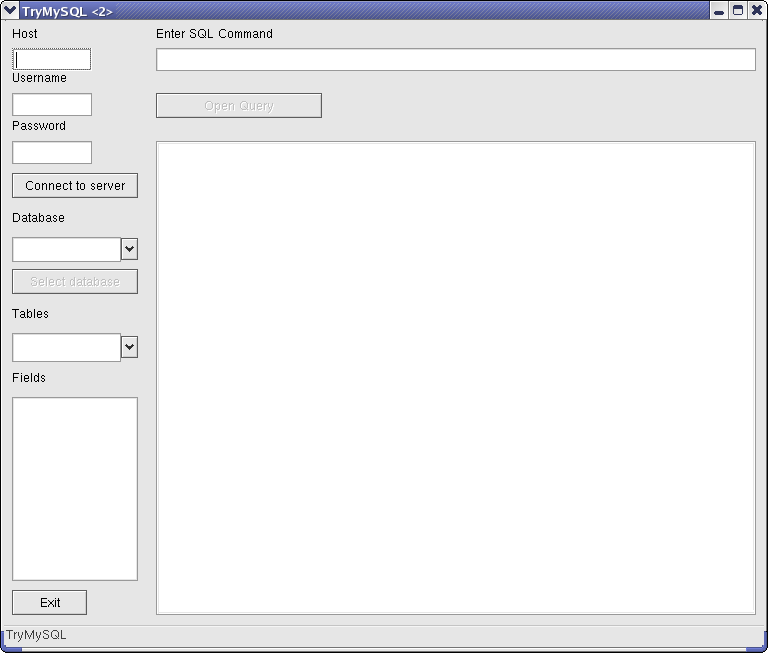 | |
| 77 | 74 | ||
| 78 | 75 | From the SQLdb-tab place a [[TMySQL56Connection]]  (or other mysql-client version) a [[TSQLTransaction]]  and a [[TSQLQuery]]  on this form. Don't change the default names given to this components. Except for the connection component. To make this article the same for all versions of MySQL, name your TMySQL##Connection component: `MySQLConnection1`. We have to link these components together so they can do their job. So the following properties have to be set: | |
| 79 | 76 | ||
| 80 | 77 | | | | | | |
| 81 | 78 | |------------------|--------------|------------------| | |
| 82 | 79 | | **Component** | **Property** | **Value** | | |
| 83 | 80 | | MySQLConnection1 | Transaction | SQLTransaction1 | | |
| 84 | 81 | | SQLTransaction1 | Database | MySQLConnection1 | | |
| 85 | 82 | | SQLQuery1 | Transaction | SQLTransaction1 | | |
| 86 | 83 | | SQLQuery1 | Database | MySQLConnection1 | | |
| 87 | 84 | ||
| 88 | 85 | The Transaction-property of SQLQuery1 will automatically be set if you have set the Transaction property of MySQLConnection1 first. When you set this, you will notice that SQLTransaction1.Database has been set to MySQLConnection1. | |
| 89 | 86 | ||
| 90 | 87 | As said earlier: Make sure you are using the correct Connection component for your version of MySQL server. | |
| 91 | 88 | ||
| 92 | 89 | ### The code | |
| 93 | 90 | ||
| 94 | 91 | As you can see in the screen dump the only buttons available on start of the program are "Connect to server" and "Exit". For the other buttons to work we need more information so these are disabled. We could decide to disable "Connect to Server" as well until the information for the host, username and password has been given. I decided against this because our user might think: "Nothing seems possible, so let's hit exit." :) | |
| 95 | 92 | ||
| 96 | 93 | Before I start giving you any code I would like to stress that there should be more exception handling in the code. Critical sections should be placed in | |
| 97 | 94 | ||
| 98 | 95 | `try ... finally` | |
| 99 | 96 | ||
| 100 | 97 | or | |
| 101 | 98 | ||
| 102 | 99 | `try ... except` | |
| 103 | 100 | ||
| 104 | 101 | constructions. | |
| 105 | 102 | ||
| 106 | 103 | #### Connect to a server | |
| 107 | 104 | ||
| 108 | 105 | The first thing we have to do is get connected to our server. As when connecting we don't know what databases are available on the server we will ask for a list of databases on connecting. However there is one catch, to make the connection we have to enter a valid DatabaseName in the properties of the MySQLConnection. You will see in the code that I am using the "mysql" database. This database is used by mysql for some housekeeping so it will always be there. | |
| 109 | 106 | ||
| 110 | 107 | ``` pascal | |
| 111 | 108 | procedure TFormTryMySQL.ConnectButtonClick(Sender: TObject); | |
| 112 | 109 | begin | |
| 113 | 110 | // Check if we have an active connection. If so, let's close it. | |
| 114 | 111 | if MySQLConnection1.Connected then CloseConnection(Sender); | |
| 115 | 112 | // Set the connection parameters. | |
| 116 | 113 | MySQLConnection1.HostName := HostEdit.Text; | |
| 117 | 114 | MySQLConnection1.UserName := UserEdit.Text; | |
| 118 | 115 | MySQLConnection1.Password := PasswdEdit.Text; | |
| 119 | 116 | MySQLConnection1.DatabaseName := 'mysql'; // MySQL is allways there! | |
| 120 | 117 | ShowString('Opening a connection to server: ' + HostEdit.Text); | |
| 121 | 118 | MySQLConnection1.Open; | |
| 122 | 119 | // First lets get a list of available databases. | |
| 123 | 120 | if MySQLConnection1.Connected then begin | |
| 124 | 121 | ShowString('Connected to server: ' + HostEdit.Text); | |
| 125 | 122 | ShowString('Retrieving list of available databases.'); | |
| 126 | 123 | SQLQuery1.SQL.Text := 'show databases'; | |
| 127 | 124 | SQLQuery1.Open; | |
| 128 | 125 | while not SQLQuery1.EOF do begin | |
| 129 | 126 | DatabaseComboBox.Items.Add(SQLQuery1.Fields[0].AsString); | |
| 130 | 127 | SQLQuery1.Next; | |
| 131 | 128 | end; | |
| 132 | 129 | SQLQuery1.Close; | |
| 133 | 130 | ShowString('List of databases received!'); | |
| 134 | 131 | end; | |
| 135 | 132 | end; | |
| 136 | 133 | ``` | |
| 137 | 134 | ||
| 138 | 135 | The first thing we do is check to see if we are connected to a server, if we are then we call a private method "CloseConnection". In this method some more housekeeping is done. like disabling buttons and clearing comboboxes and listboxes. Then we set the necessary parameters to connect to server. | |
| 139 | 136 | ||
| 140 | 137 | ||
| 141 | 138 | *Throughout our program you may see calls to ShowString. This method adds a line to the memo on our form which acts like a kind of log.* | |
| 142 | 139 | ||
| 143 | 140 | With the parameters set, we can connect to the server. This is done by calling | |
| 144 | 141 | ||
| 145 | 142 | ``` pascal | |
| 146 | 143 | MySQLConnection1.Open; | |
| 147 | 144 | ``` | |
| 148 | 145 | ||
| 149 | 146 | In a proper application one would place this in an exception handling construct to present a friendly message to the user if the connection failed. When we are connected we want to get a list of databases from the server. To get data from the server a TSQLQuery is used. The SQL property is used to store the SQL-statement send to the server. MySQL knows the "SHOW DATABASES" command to get the list of databases. So after we have set the SQL-text, we call | |
| 150 | 147 | ||
| 151 | 148 | ``` pascal | |
| 152 | 149 | SQLQuery1.Open; | |
| 153 | 150 | ``` | |
| 154 | 151 | ||
| 155 | 152 | On MySQL5 set this to correct error with SQL syntax: | |
| 156 | 153 | ||
| 157 | 154 | ``` pascal | |
| 158 | 155 | SQLQuery1.ParseSQL := False; | |
| 159 | 156 | SQLQuery1.ReadOnly := True; | |
| 160 | 157 | ``` | |
| 161 | 158 | ||
| 162 | 159 | The result set of a SQLQuery can be examined through the fields property. As you can see we iterate through the records by calling | |
| 163 | 160 | ||
| 164 | 161 | ``` pascal | |
| 165 | 162 | SQLQuery1.Next; | |
| 166 | 163 | ``` | |
| 167 | 164 | ||
| 168 | 165 | When we have added all available databases to our combobox, we close the SQLQuery again. | |
| 169 | 166 | ||
| 170 | 167 | #### Selecting a database | |
| 171 | 168 | ||
| 172 | 169 | If the user selects a database in the DatabaseComboBox we enable the "Select Database" button. In the OnClick event of this button we set the DatabaseName of MySQLConnection1, and request a list of tables. The last statement of this procedure enables the "Open Query" Button, so the user can enter a query in the "Command" Editbox and have it send to the server. | |
| 173 | 170 | ||
| 174 | 171 | ``` pascal | |
| 175 | 172 | procedure TFormTryMySQL.SelectDBButtonClick(Sender: TObject); | |
| 176 | 173 | begin | |
| 177 | 174 | // A database has been selected so lets get the tables in it. | |
| 178 | 175 | CloseConnection(Sender); | |
| 179 | 176 | if DatabaseComboBox.ItemIndex <> -1 then begin | |
| 180 | 177 | with DatabaseComboBox do | |
| 181 | 178 | MySQLConnection1.DatabaseName := Items[ItemIndex]; | |
| 182 | 179 | ShowString('Retreiving list of tables'); | |
| 183 | 180 | SQLQuery1.SQL.Text := 'show tables'; | |
| 184 | 181 | SQLQuery1.Open; | |
| 185 | 182 | while not SQLQuery1.EOF do begin | |
| 186 | 183 | TableComboBox.Items.Add(SQLQuery1.Fields[0].AsString); | |
| 187 | 184 | SQLQuery1.Next; | |
| 188 | 185 | end; | |
| 189 | 186 | SQLQuery1.Close; | |
| 190 | 187 | ShowString('List of tables received'); | |
| 191 | 188 | end; | |
| 192 | 189 | OpenQueryButton.Enabled := True; | |
| 193 | 190 | end; | |
| 194 | 191 | ``` | |
| 195 | 192 | ||
| 196 | 193 | MySQL has a special command to get a list of tables, comparable to getting the list of databases, "show tables". The result of this query is handled in the same way as the list of databases and all the tables are added to the TableComboBox. You might wonder why we do not open the connection again before opening the query? Well, this is done automatically (if necessary) when we activate the SQLQuery. | |
| 197 | 194 | ||
| 198 | 195 | #### Fields in a table | |
| 199 | 196 | ||
| 200 | 197 | In MySQL you can again use a form of "SHOW" to get the fields in a table. In this case "SHOW COLUMNS FROM \<tablename\>". If the user picks a table from the TableComboBox the OnChangeEvent of this ComboBox is triggered which fills the FieldListbox. | |
| 201 | 198 | ||
| 202 | 199 | ``` pascal | |
| 203 | 200 | procedure TFormTryMySQL.TableComboBoxChange(Sender: TObject); | |
| 204 | 201 | begin | |
| 205 | 202 | FieldListBox.Clear; | |
| 206 | 203 | SQLQuery1.SQL.Text := 'show columns from ' + TableComboBox.Text; | |
| 207 | 204 | SQLQuery1.Open; | |
| 208 | 205 | while not SQLQuery1.EOF do begin | |
| 209 | 206 | FieldListBox.Items.Add(SQLQuery1.Fields[0].AsString); | |
| 210 | 207 | SQLQuery1.Next; | |
| 211 | 208 | end; | |
| 212 | 209 | SQLQuery1.Close; | |
| 213 | 210 | end; | |
| 214 | 211 | ``` | |
| 215 | 212 | ||
| 216 | 213 | As well as the names of the fields, the result set contains information on the type of field, if the field is a key, if nulls are allowed and some more. | |
| 217 | 214 | ||
| 218 | 215 | #### Showing the data | |
| 219 | 216 | ||
| 220 | 217 | Well as we said we would use components to get connected to the database, lets use some components to show the data as well. We will use a second form to show a grid with the data requested by the user. This form will be shown when the user typed a SQL command in the "Command" editbox and afterwards clicks the "Open Query" button. This is the OnClick event: | |
| 221 | 218 | ||
| 222 | 219 | ``` pascal | |
| 223 | 220 | procedure TFormTryMySQL.OpenQueryButtonClick(Sender: TObject); | |
| 224 | 221 | begin | |
| 225 | 222 | ShowQueryForm := TShowQueryForm.Create(self); | |
| 226 | 223 | ShowQueryForm.Datasource1.DataSet := SQLQuery1; | |
| 227 | 224 | SQLQuery1.SQL.Text := CommandEdit.Text; | |
| 228 | 225 | SQLQuery1.Open; | |
| 229 | 226 | ShowQueryForm.ShowModal; | |
| 230 | 227 | ShowQueryForm.Free; | |
| 231 | 228 | SQLQuery1.Close; | |
| 232 | 229 | end; | |
| 233 | 230 | ``` | |
| 234 | 231 | ||
| 235 | 232 | The ShowQueryForm looks like this: | |
| 236 | 233 | ||
| 237 | - | ||
| 238 | - | ||
| 239 | - | ||
| 240 | - | ||
| 241 | - | ||
| 242 | - | ||
| 243 | - | ||
| 244 | - | ||
| 234 | + | 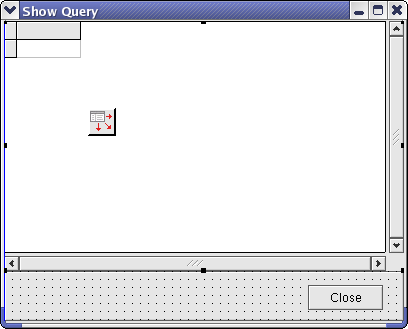 | |
| 245 | 235 | ||
| 246 | 236 | and contains a | |
| 247 | 237 | ||
| 248 | 238 | | | | | | |
| 249 | 239 | |----|----|----| | |
| 250 | 240 | | [[TPanel]] | Align | alBottom | | |
| 251 | 241 | | [[TDataSource]] | | | | |
| 252 | 242 | | [[TDBGrid]] | Align | alClient | | |
| 253 | 243 | | | DataSource | DataSource1 | | |
| 254 | 244 | | [[TButton]] | Caption | Close | | |
| 255 | 245 | ||
| 256 | 246 | The button is placed on the panel. What happens in the "Open Query" OnClick is this. First we create an instance of TShowQueryForm. Secondly we set the DataSet property of the DataSource to our SQLQuery1. Then we set the SQLQuery SQL command to what the user entered in the "Command" editbox and open it. Then the ShowQueryForm is shown modally, this means that it will have the focus of our application until it is closed. When it is closed, we "free" it and close SQLQuery1 again. | |
| 257 | 247 | ||
| 258 | 248 | The Form can be further enhanced by inserting a method for modifying the content of the [[TDataSet]] and ultimately the DataBase. A full version can be downloaded from <http://digitus.itk.ppke.hu/~janma/lazarus/MySql5Test.tar.gz> (with thanks to Arwen and JZombi from the Lazarus MySQL Forum) but the relevant details are as follows: | |
| 259 | 249 | ||
| 260 | 250 | Add a Button at the bottom of the ShowQuery Form named AddButton and with Caption 'Add'. Create a method for AddButtonClick like this: | |
| 261 | 251 | ||
| 262 | 252 | ``` pascal | |
| 263 | 253 | procedure TShowQueryForm.AddButtonClick(Sender: TObject); | |
| 264 | 254 | begin | |
| 265 | 255 | DataSource1.DataSet.Append; | |
| 266 | 256 | end; | |
| 267 | 257 | ``` | |
| 268 | 258 | ||
| 269 | 259 | Change the code for OpenQueryButtonClick to allow for updates to the database when we finish with the Query Form. | |
| 270 | 260 | ||
| 271 | 261 | ``` pascal | |
| 272 | 262 | procedure TFormTryMySQL.OpenQueryButtonClick(Sender: TObject); | |
| 273 | 263 | begin | |
| 274 | 264 | ShowQueryForm := TShowQueryForm.Create(nil); | |
| 275 | 265 | try | |
| 276 | 266 | ShowQueryForm.DataSource1.DataSet := SQLQuery1; | |
| 277 | 267 | // We will write in the database, so let's set ReadOnly to false, | |
| 278 | 268 | // and for that we need to set ParseSQL true | |
| 279 | 269 | SQLQuery1.ParseSQL:=true; | |
| 280 | 270 | SQLQuery1.ReadOnly:=false; | |
| 281 | 271 | SQLQuery1.SQL.Text := CommandEdit.Text; | |
| 282 | 272 | SQLQuery1.Open; | |
| 283 | 273 | ShowQueryForm.ShowModal; | |
| 284 | 274 | finally | |
| 285 | 275 | // set up update mode, and update database | |
| 286 | 276 | SQLQuery1.UpdateMode:=upWhereChanged; | |
| 287 | 277 | SQLQuery1.ApplyUpdates; | |
| 288 | 278 | SQLTransaction1.Commit; | |
| 289 | 279 | ShowQueryForm.Free; | |
| 290 | 280 | SQLQuery1.Close; | |
| 291 | 281 | // set read-only and parsesql back to default | |
| 292 | 282 | SQLQuery1.ParseSQL:=false; | |
| 293 | 283 | SQLQuery1.ReadOnly:=true; | |
| 294 | 284 | end; | |
| 295 | 285 | end; | |
| 296 | 286 | ``` | |
| 297 | 287 | ||
| 298 | 288 | We can now add records to the Database. If we add a TDBNavigator to the ShowQuery Form we can move around the Data Grid more easily, and edit records; the database gets updated with our changes each time we close the ShowQuery Form, and we can test this by opening it up again to inspect the database. | |
| 299 | 289 | ||
| 300 | 290 | If you want to be able to DELETE or otherwise modify records on the original database (ie make sure changes you make to the local dataset get committed back to the database) then you need to have one column in your database table that is a primary key autoincremented, as the 'delete' method requires to be able to generate a 'where' clause when writing instructions back to the database, to identify the records selected for deletion. So use the following code in your MySQL client (it can all be typed on one line, but line breaks have been added for clarity): | |
| 301 | 291 | ||
| 302 | 292 | ``` sql | |
| 303 | 293 | ALTER TABLE TRESTRIG | |
| 304 | 294 | ADD COLUMN AUTOID INT | |
| 305 | 295 | PRIMARY KEY AUTO_INCREMENT; | |
| 306 | 296 | ``` | |
| 307 | 297 | ||
| 308 | 298 | and then you will find that the Delete button on the navigator works. | |
| 309 | 299 | ||
| 310 | 300 | ## Sources | |
| 311 | 301 | ||
| 312 | 302 | The sources for this project can be downloaded [here](http://prdownloads.sourceforge.net/lazarus-ccr/mysql_demo_20050408.tar.gz?download) For more demo projects see [sourceforge](http://sourceforge.net/project/showfiles.php?group_id=92177&package_id=148359) | |
| 313 | 303 | ||
| 314 | 304 | ## See also | |
| 315 | 305 | ||
| 316 | 306 | - [[mysql]] | |
| 317 | 307 | ||
| 318 | 308 | --- | |
| 319 | 309 | *From the Free Pascal wiki, page "MySQLDatabases", as it stood on 2020-02-20 after a change by Trev, out of the wiki's dump of 2024-05-26. Copyright stays with the author who wrote it, according to the old wiki's [[Licensing]] page. If you have concerns about this material, [message the admin](/wiki-contact).* |