

Main menu/zh CN: what changed
Revision 2 to 3. Removed lines have a minus sign; added lines have a plus sign.
| Old | New | Line | |
|---|---|---|---|
| 1 | 1 | **主菜单** | |
| 2 | 2 | ||
| 3 | 3 | 主菜单包括如下内容: File(文件) Edit(编辑) Search(查找) View(查看) Project(工程) Run(运行) components(构件) Tools(工具) Environment(环境) Windows(窗口) Help(帮助) | |
| 4 | 4 | ||
| 5 | 5 | 通常情况下,你可以通过鼠标左键来点击相应的菜单功能,也可以通过热键Alt+相应热键字母(如果焦点不在菜单上,你可以使用Alt键和方向键选择菜单) | |
| 6 | 6 | ||
| 7 | 7 | #### 文件子菜单 | |
| 8 | 8 | ||
| 9 | 9 | 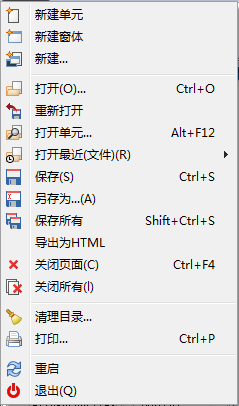 | |
| 10 | 10 | ||
| 11 | 11 | - **新建单元**: 创建一个新的单元文件(Pascal 源代码). | |
| 12 | 12 | - **新建窗体**: 创建一个新的窗体: 提供可视化窗口以及Pascal源代码. | |
| 13 | 13 | - **新建 ...**: 弹出一个对话框,([screenshot](http://lazarus-ccr.sourceforge.net/kbdata/menu-new.jpg)) 可以选择各种类型的文档进行创建。 | |
| 14 | 14 | - **打开**: 弹出一个对话框,可以浏览文件,并选择文件打开。 | |
| 15 | 15 | - **重新打开**: 放弃你对打开文件所进行的编辑,恢复到该文件的初始状态。 | |
| 16 | 16 | - **打开单元...**: 弹出一个对话框,让你从中选择一个。 | |
| 17 | 17 | - **打开最近(文件)**: 列出你最近编辑的文件, 让你从中选择一个。 | |
| 18 | 18 | - **保存**: 保存当前文件, 使用其当前文件名,如果该文件未命名, 系统将提示你取一个(类似于另存为)。 | |
| 19 | 19 | - **另存为**: 允许您选择一个目录和文件名保存当前文件。 | |
| 20 | 20 | - **保存所有**: Lazarus翻译成“全选”,个人认为翻译成“保存所有”更好一点,顾名思义,将所有文件都保存下来。 | |
| 21 | 21 | - **导出为HTML**: 导出为HTML文件。 | |
| 22 | 22 | - **关闭页面**: 关闭当前文件, 提示你是否保存已编辑过的文件。 | |
| 23 | 23 | - **关闭所有**: 关闭当前文件编辑器中所有的文件,提示保存已编辑的文件。 | |
| 24 | 24 | - **清理目录**: 提供可编辑的过滤器,从目录中清理项目临时文件。 | |
| 25 | 25 | - **打印..**: 打印当前文件。 | |
| 26 | 26 | - **重启**: 退出并重新启动Lazarus。 | |
| 27 | 27 | - **退出**: 退出Lazarus,会提示你保存所有修改过的文件 | |
| 28 | 28 | ||
| 29 | 29 | #### 编辑子菜单 | |
| 30 | 30 | ||
| 31 | 31 | 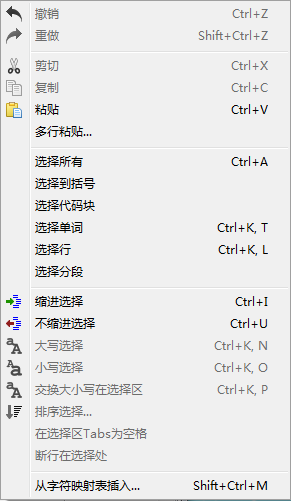 | |
| 32 | 32 | ||
| 33 | 33 | - **撤销**: 撤销最后一次操作, 返回到上一步操作时状态。 | |
| 34 | 34 | - **重做**: 重新最后的操作,取消撤销。 | |
| 35 | 35 | - **剪切**: 删除选定的文本或其他项目,并将其放置在剪贴板中。 | |
| 36 | 36 | - **复制**: 复制选定的文本 | |
| 37 | 37 | - **粘贴**: 将剪贴板中文本复制到光标位置,如果光标位置有选定文本,剪贴板中的内容将取代所选文本。 | |
| 38 | 38 | - **缩进所选**: 将光标所选内容安装Lazarus设置缩进(环境-\>Options-\>Editor-\>普通-\>代码折叠)。这个将你的Pascle代码格式化,使之结构整齐。 | |
| 39 | 39 | - **取消所选缩进**: 删除你所选文本一个级别的缩进。 | |
| 40 | 40 | - **封装所选**: 提供一个窗口列表出一些逻辑上可以封装所选文本,如(begin ... end; try ... except; try ... finally; repeat ... until; { ... } 等等).该功能可以将所选代码包含在begin ... end;或者其他所选的块结构中. | |
| 41 | 41 | - **转换所选为大写**: 转换选择的文本为大写. | |
| 42 | 42 | - **转换所选为小写**: 转换选择的文本为小写. | |
| 43 | 43 | - **制表符转为空格**: 将选择文本中的制表符转换为空格。在Environment -\> Editor options -\> General -\> Tab widths中可以设置制表符宽度。 | |
| 44 | 44 | - **选中节自动换行**: 如果选择的内容所在行超出80个字符将不再显示,使用此功能,将会换行显示,Environment -\> Editor options -\> Display -\> Right Margin, 设置显示宽度。 | |
| 45 | 45 | - **注释选择**: 注释选中的文本,即在行前加 // 。 | |
| 46 | 46 | - **取消注释**: 移除注释信息。 | |
| 47 | 47 | - **排序所选**: 排序所选内容,按字母顺序、区分大小写等等,在列表中对分类进行排序,它将非常有用。 | |
| 48 | 48 | - **选择**: 允许选择文本块、所有、到括号、段落、行、单词等。 | |
| 49 | 49 | - **从字符映射表插入**: 允许插入非键盘符号,如重音字符。 | |
| 50 | 50 | - **插入文本**: 弹出菜单,允许插入标准文本,如CVS关键字(作者、日期、标题等)或GPL信息,用户名或当前时间与日期。 | |
| 51 | 51 | - **自动完成代码**: 它可以节省你很多时间,在你获取或设置属性时,或使用方法时,你可以得到相关提示。在事件中加入方法,可参见[[Lazarus IDE Tools/zh CN|Lazarus IDE工具]]。 | |
| 52 | 52 | - **解析过程**: 使用选定文本(一条语句或多条),以创建一个新的过程。 | |
| 53 | 53 | ||
| 54 | 54 | #### 查找子菜单 | |
| 55 | 55 | ||
| 56 | 56 | 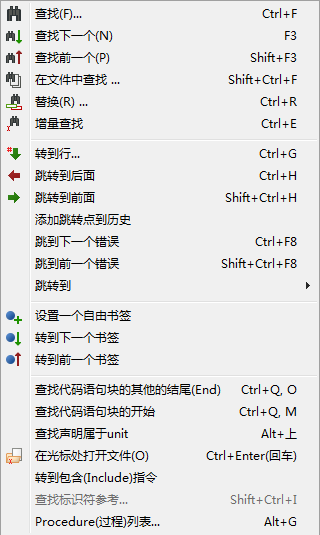 | |
| 57 | 57 | ||
| 58 | 58 | - **查找**: 和大多编辑器一样,弹出一个搜索对话框,输入要搜索的内容,可以按大小写、全字匹配、范围、方向等查找。 | |
| 59 | 59 | - **查找下一个, 查找上一个**: 向上或向下再次搜索指定内容。 | |
| 60 | 60 | - **在文件中查找**: 在文件中搜索指定内容:在弹出的对话框中设置参数,可以按打开的文件,设定的目录,及筛选文件来查找。 | |
| 61 | 61 | - **替换**: 等同于 **查找**; 在弹出的替换对话框中,输入要搜索及要替换的内容。可以按区分大小写的方式,向上或向下进行替换操作。 | |
| 62 | 62 | - **增量搜索**: 高亮显示你搜索的字符串。如,选择*增量搜索*后,你按L后,将会高亮L显示,如果你再按A,编辑器会查找下一个LA并高亮显示。 | |
| 63 | 63 | - **转到行**: 移动光标到指定行。 | |
| 64 | 64 | - **跳转到后一个**:跳转到原来的位置。IDE会记录你的光标位置,根据它来决定你跳转或返回位置。 | |
| 65 | 65 | - **跳转到前一个**: 跳转到下一个位置。跳回来。 | |
| 66 | 66 | - **添加跳转点到历史**: 添加跳转位置到历史记录。 | |
| 67 | 67 | - **查看跳转历史**: 查看跳转点:**功能未实现**。 | |
| 68 | 68 | - **跳转到下一错误**, **跳转到上一错误**: 跳转到上一个或下一个错误处。 | |
| 69 | 69 | - **设置一个自由书签**:标记当前光标所在位置用作书签。在源文件中点击右键,在弹出来的菜单中**跳到书签**和**切换书签**进行跳转操作。 | |
| 70 | 70 | - **跳转到下一书签**, **跳转到上一书签**: 跳转到下一个或上一个书签。 | |
| 71 | 71 | - **查找代码区段结束**: 如果定位在**beign**处,则找到相应的**end**处,反之亦然。 | |
| 72 | 72 | - **查找代码区段开始**: 移动光标到过程或函数的**begin**处。 | |
| 73 | 73 | - **在光标处查找声明**: 查找选择的标识符被声明的地方,如文件没有被打开(如果是一个过程或函数的声明,如classesh.inc),将会被打开。 | |
| 74 | 74 | - **在光标处打开文件名**: 如果选择的内容是文件,将会打开它。你可以看看单元中引用的文件。 | |
| 75 | 75 | - **前往包含指示处**: 如果光标定位在包含的文件处,那么将打开包含的文件。 | |
| 76 | 76 | ||
| 77 | 77 | ''' | |
| 78 | 78 | ||
| 79 | 79 | - **查找标识符参考**: Produces a list of all the lines in the current file, or the current project or all attached files, in which an identifier is mentioned. (~~显示包含标识符的过程(函数)列表。~~) | |
| 80 | 80 | - **重命名标识符**: 允许开发人员重命名一个标识符。 | |
| 81 | 81 | - **过程列表**: 显示当前文件中定义的过程(函数)。 | |
| 82 | 82 | ||
| 83 | 83 | #### 查看子菜单 | |
| 84 | 84 | ||
| 85 | 85 | 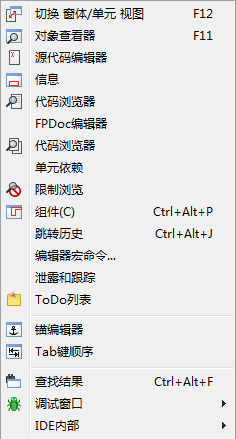 | |
| 86 | 86 | ||
| 87 | 87 | 控制屏幕上的各种窗口和面板显示。 | |
| 88 | 88 | ||
| 89 | 89 | - **对象观察器**: 通常显示在编辑器的左侧,它显示了控件的属性选项。用鼠标选择列表中的控件,会显示它们的属性信息。也可以在窗体中选择控件来改变它们的属性值。 | |
| 90 | 90 | ||
| 91 | 91 | 主面板中的标签“**属性**”:用来改变控件显示属性,如名称、颜色,标题、字体、大小等(两列中,左侧为属性,右来输入或选择属性值)。 “**事件**”:列表控件允许的事件,如点击、双击等。点击**...**在源代码编辑器中编写相应事件。 “**常用**”:显示常用的属性和事件列表(你也可以右击属性,也添加到“常用”中)。 “**限制**“,控件在各平台中的支持情况。 | |
| 92 | 92 | ||
| 93 | 93 | - **源代码编辑器**: 编辑源代码的地方。和大多图形化文本编辑器一样,可以使用鼠标定位输入位置,并支持高亮代码。右击将弹出菜单,通常包含:复制、剪切、粘贴功能。源代码编辑器顶部可多个选项卡,你可以单击来切换不同的源文件来编辑它。源代码编辑器支持缩进和语法高亮,你可以在“Environment”-\>"Editor"中设置相应参数。 | |
| 94 | 94 | ||
| 95 | 95 | - **代码浏览器**: 以树形方式显示定义的信息。“显示类别“:它通常只显示名称、接口部分与实现部分的定义。点击**+**展开显示更多。直到具体的常量、类型、变量及过程、函数的声明。如果修改了源代码,你需要点击“刷新”,来刷新文件结构。 | |
| 96 | 96 | ||
| 97 | 97 | - **单元...**:显示单元文件,显示包含的文件,并可以编辑它。允许显示多个文件,同时打开并编辑它。 | |
| 98 | 98 | ||
| 99 | 99 | - **窗体...**: 显示当前窗体列表,允许选择一个或多个。 | |
| 100 | 100 | ||
| 101 | 101 | - **查看单元信赖关系**: 以树状形式显示单元文件的信赖关系。 | |
| 102 | 102 | ||
| 103 | 103 | - **切换窗体/单元 视图 F12**: 切换源代码编辑器和窗体。你也可以按**F12键**来切换。 | |
| 104 | 104 | ||
| 105 | 105 | - **消息**:显示编译器消息,编译进度或编译错误的信息。 | |
| 106 | 106 | - **查找结果**: 显示找到文件的结果。 | |
| 107 | 107 | - **调试窗口**: 在子菜单中选择用于操作和配置的调试器。具体可以参看调试器。 | |
| 108 | 108 | ||
| 109 | 109 | #### 源代码子菜单 | |
| 110 | 110 | ||
| 111 | 111 | 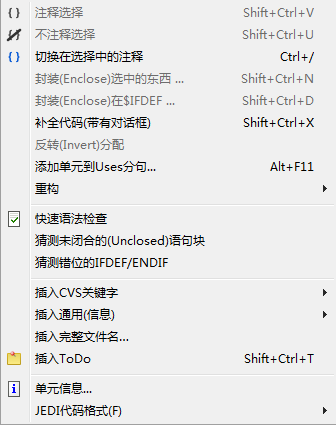 | |
| 112 | 112 | ||
| 113 | 113 | - **Comment Selection**: Comment out the currently selected text. | |
| 114 | 114 | - **Uncomment Selection**: Uncomment the currently selected text. | |
| 115 | 115 | - **Toggle Comment in Selection**: Comment out or uncomment the currently selected text. | |
| 116 | 116 | - **Enclose Selection...**: Enclose the currently selected text with a statement such as Try...Finally. | |
| 117 | 117 | - **Enclose in \$IFDEF...**: Enclose the currently selected text with an IFDEF (conditional defines) statement. | |
| 118 | 118 | - **Complete Code**: | |
| 119 | 119 | - **Add Unit to Uses Section**: Add one or more Units to the uses section in the current file. | |
| 120 | 120 | - **Refactoring**: Open the Refactoring sub-menu. | |
| 121 | 121 | - **Quick Syntax Check**: Run a quick syntax check. | |
| 122 | 122 | - **Guess Enclosed Block**: Let the editor end the enclosed block, such as a missing "End" in an "If" statement. | |
| 123 | 123 | - **Guess Misplaced IFDEF/ENDIF**: Let the editor correct a misplaced conditional defines statement. | |
| 124 | 124 | - **Insert CVS Keyword...**: Insert a CVS keyword, such as "Author" or "Date". | |
| 125 | 125 | - **Insert General**: Insert a general value, such as a "GPL Statement". | |
| 126 | 126 | - **Insert Full Filename...**: Insert the filename. | |
| 127 | 127 | - **Insert ToDo**: Insert a ToDo comment. | |
| 128 | 128 | - **Unit Information...**: Display information about the current unit. | |
| 129 | 129 | - **Unit Dependencies...**: Display the dependencies for the current unit. | |
| 130 | 130 | - **JEDI Code Format**: View the JEDI Code Format options for the project. | |
| 131 | 131 | ||
| 132 | 132 | #### 工程子菜单 | |
| 133 | 133 | ||
| 134 | 134 | 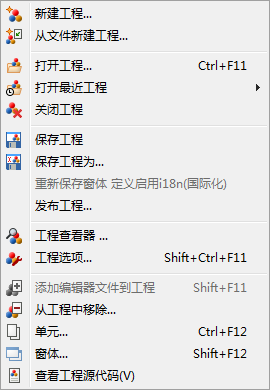 | |
| 135 | 135 | ||
| 136 | 136 | - **新建工程...**: 在弹出的对话框中,选择工程类型,以创建一个新工程。 | |
| 137 | 137 | ||
| 138 | 138 | - **从文件新建工程...**: 打开“选择程序源代码”窗口,选择一个文件,以创建新的项目。 | |
| 139 | 139 | ||
| 140 | 140 | - **打开工程...** 打开“打开工程文件(*.lpi)”窗口,选择一个工程文件,以打开工程。 | |
| 141 | 141 | ||
| 142 | 142 | - **打开最近的工程...**: 显示最近打开的工程列表,以供选择。 | |
| 143 | 143 | ||
| 144 | 144 | - **保存工程**: 等同于“文件”-\>“保存”,将当前工程文件全部保存,如果工程文件未保存,将提示保存它。 | |
| 145 | 145 | ||
| 146 | 146 | - **工程另存为...**: 输入工程名后,另存工程,默认工程名为Project1.lpi;Lazarus不允许你使用相同名称做为项目文件、单元文件名。(参见 [[Lazarus Tutorial/zh CN|下文]])。 | |
| 147 | 147 | ||
| 148 | 148 | - **发布工程...**: 创建整个项目的副本。一个正常的项目目录包含了大量信息,大部分不需要再作发布:lpi文件包含会话信息(如光标位置,单元标签等),项目目录也包含了很多ppu、o及可执行文件。此功能在对话框中你可以设置过滤器排除掉那些无用的文件;也可以使用命令压缩为一个文件。参见 [[Lazarus IDE Tools/zh CN|Lazarus IDE 工具]]。 | |
| 149 | 149 | ||
| 150 | 150 | - **工程浏览器**: 以树状列出当前工程包含的文件及需要的包,你可以删除,或打开选择的文件,也可以添加文件到工程。 | |
| 151 | 151 | ||
| 152 | 152 | - **工程选项...**: 配置工程,在这里,你可以设置程序标题,目标文件名等详细信息。 | |
| 153 | 153 | ||
| 154 | 154 | - **编译器选项 ...**: (Recently moved here from the Run Menu). Opens a multi-page tabbed window which allows configuration of the compiler. Tabs include **Paths** which allows definition of search paths for units, include files, libraries etc, as well as allowing choice of widget type for the forms (gtk, gnome, win32); **Parsing** which allows choice of rules for parsing source programs, **Code** which allows choice of optimisation for faster or smaller programs, choice of target processor, types of checks, heap size etc; **Linking** allowing choice of whether or how to use debugging, static or dynamic libraries, and whether to pass options through to the linker; **Messages** to define what type of messages should be generated during error conditions; **Other** which allows decision to use default configuration file (fpc.cfg) or some other file; **Inherited** which shows a tree structure diagram to indicate how options have been inherited from units already incorporated; **Compilation** which allows definition of commands to be executed before or after the compiler is launched and can allow use of Make files. | |
| 155 | 155 | ||
| 156 | 156 | - **添加代码编辑器中的文件到工程**: 添加文件到当前项目。 | |
| 157 | 157 | ||
| 158 | 158 | - **从工程中移除...**: 在弹出的窗口中,选择文件,以从当前工程中移除。 | |
| 159 | 159 | ||
| 160 | 160 | - **View Source**: 显示代码编辑器。 | |
| 161 | 161 | ||
| 162 | 162 | - **显示 ToDo 列表**:显示与此项目有关的待办事项。它将列出项目中的TODO注释(//TODO)。 | |
| 163 | 163 | ||
| 164 | 164 | 新版本(如1.0.14),Ctrl+Shift+T键,在当前位置添加一个TODO。格式如// TODO : 待办说明。 | |
| 165 | 165 | ||
| 166 | 166 | #### 运行子菜单 | |
| 167 | 167 | ||
| 168 | 168 | 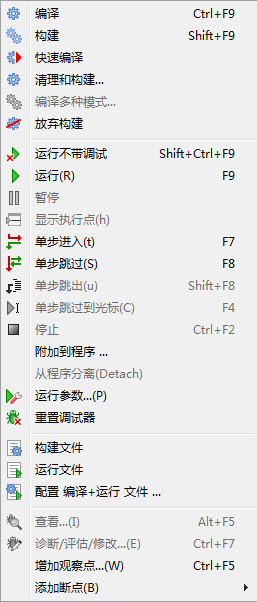 | |
| 169 | 169 | ||
| 170 | 170 | - **构建**: 构建(即编译)项目。 | |
| 171 | 171 | ||
| 172 | 172 | - **构建所有**: 编译项目中所有的文件。 | |
| 173 | 173 | ||
| 174 | 174 | - **中止构建**: 停止构建,一旦它运行——停止时会造成一些异常,如IDE失去响应。(你需要在任务管理器中关闭IDE进程) | |
| 175 | 175 | ||
| 176 | 176 | - **运行**: 常用的方式编译程序,如果成功将开始运行程序;实际情况时,Lazarus保存编辑的文件,启动编译器和链接器。最后执行链接后的可执行程序。 | |
| 177 | 177 | ||
| 178 | 178 | - **暂停**: 暂停执行当前正在运行的程序,这样你可以检查调试输出。通过“运行”可进行恢复。 | |
| 179 | 179 | ||
| 180 | 180 | - **单步进入**: 与调试器配合使用,程序一步一步的执行。 | |
| 181 | 181 | ||
| 182 | 182 | - **Step over**: Causes stepwise execution up to the statement marked, then skips the marked statement, and continues execution at normal speed. Useful in trying to isolate a statement that introduces a logical error. | |
| 183 | 183 | ||
| 184 | 184 | - **运行到光标处**: 执行到光标所在位置,然后停止。通过“运行“恢复程序继续执行。 | |
| 185 | 185 | ||
| 186 | 186 | - **停止**: 停止当前正在运行的程序。无法通过“运行”恢复,这将再次启动程序。 | |
| 187 | 187 | ||
| 188 | 188 | - **带参数运行**: 打开“带参数运行”窗口,将参选参数传递给程序。你可以选择一个运行终端(如X终端);一些系统环境变量可以被覆盖。 | |
| 189 | 189 | ||
| 190 | 190 | ||
| 191 | 191 | 其用途时,在Pascal控制台显示终端窗口。 | |
| 192 | 192 | ||
| 193 | 193 | 如果你正在开发一个控制台模式的Pascal程序(即不使用图形界面),你应该勾选"使用运行的应用程序"。 | |
| 194 | 194 | ||
| 195 | 195 | 当你尝试编译/运行程序时,会得到错误消息: | |
| 196 | 196 | ||
| 197 | - | ||
| 197 | + | ```text | |
| 198 | + | "xterm: Can't execvp /usr/share/lazarus//tools/runwait.sh: Permission denied".(大意为:权限不足。) | |
| 199 | + | ``` | |
| 198 | 200 | ||
| 199 | 201 | 如果出现这种情况,你需要设置程序的拥有可执行权限(如使用 chmod +x 文件名);程序启动后,程序的所有输入/输出都将在控制台中显示。 | |
| 200 | 202 | ||
| 201 | 203 | 程序执行完毕,“Press Enter”显示在屏幕上,这时,程序之前的输入/输出都将在屏幕上显示,直至你按`Enter`关闭控制台窗口。 | |
| 202 | 204 | ||
| 203 | 205 | **注意:** 作为当前版本,对Windows用户,没有控制台命令。直到Lazarus团队的adressess说,下面一行应该工作(on WinXP -- someone please update for other Windowses) | |
| 204 | 206 | ||
| 205 | - | ||
| 207 | + | ```text | |
| 208 | + | C:\Windows\system32\cmd.exe /C ${TargetCmdLine} | |
| 209 | + | ``` | |
| 206 | 210 | ||
| 207 | 211 | 参见[[Console Mode Pascal|Pascal 控制台模式]]的单独教程。 | |
| 208 | 212 | ||
| 209 | 213 | - **重置调试器**: 恢复调试器到最初状态,这时候,变量、断点的值都将重置。 | |
| 210 | 214 | ||
| 211 | 215 | - **构建文件**: 编译(构建)当前文件。 | |
| 212 | 216 | ||
| 213 | 217 | - **运行文件**: 编译、链接并执行当前文件。 | |
| 214 | 218 | ||
| 215 | 219 | - **配置 编译+运行 文件**: 打开“配置构建”窗口,进行构建设置。 | |
| 216 | 220 | ||
| 217 | 221 | --Feibaicamel 14:28, 31 12月 2009 (CET) | |
| 218 | 222 | ||
| 219 | 223 | #### 包子菜单 | |
| 220 | 224 | ||
| 221 | 225 | 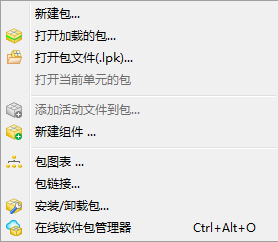 | |
| 222 | 226 | ||
| 223 | 227 | - **打开包**: 显示已安装的包列表[1](http://lazarus-ccr.sourceforge.net/kbdata/OpenPackageSnapshot.png),[打开一个或更多](http://lazarus-ccr.sourceforge.net/kbdata/PackageContentsSnapshot.png),或选择普通或编译器选项。 | |
| 224 | 228 | ||
| 225 | 229 | - **打开包文件**: 打开包文件。 | |
| 226 | 230 | ||
| 227 | 231 | - **打开最近的包**: 打开最近使用的包。 | |
| 228 | 232 | ||
| 229 | 233 | - **将活动单元添加到包**: 将单元文件添加到包中。 | |
| 230 | 234 | ||
| 231 | 235 | - **包关系图**: 显示当前正在使用的软件包[关系图](http://lazarus-ccr.sourceforge.net/kbdata/PackageGraphSnapshot.png)(如果你没有使用其他包,将显示Lazarus包和FCL及LCL包。) | |
| 232 | 236 | ||
| 233 | 237 | - **配置已安装的包**:如果你已经创建了一些组件,此项允许你配置它们。 | |
| 234 | 238 | ||
| 235 | 239 | (**注意**:配图与介绍并不符合,因为Lazarus版本不同,但大多项是相似的,你可以参照着使用。) | |
| 236 | 240 | ||
| 237 | 241 | #### 工具子菜单 | |
| 238 | 242 | ||
| 239 | 243 | 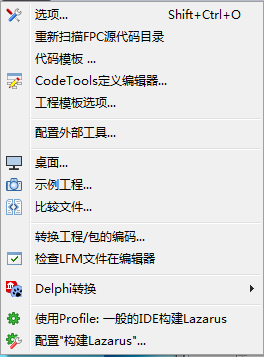 | |
| 240 | 244 | ||
| 241 | 245 | - **配置外部工具**: 允许用户添加各种外部工具(通常是宏)。 | |
| 242 | 246 | ||
| 243 | 247 | - **快速语法检查**: 非实际编译任何源文件,只进行语法快速检查。在开发大的或复杂的程序时,使用此项将节省你的时间;因为编译代码时错误是不可避免的。 | |
| 244 | 248 | ||
| 245 | 249 | - **猜测未关闭的块**: 这是个有用的工具,假设你的一个复杂的嵌套块,缺少end块,使用此项功能可能会帮到你。 | |
| 246 | 250 | ||
| 247 | 251 | - **猜测错位的IFDEF/ENDIF**: 如果你有一个复杂的嵌套,缺少或错位endif时,此项功能会帮到你。 | |
| 248 | 252 | ||
| 249 | 253 | - **生成资源字符串**: Makes the selected string a resource string by placing it in the resourcestrings section. An advantage of resource strongs is you can change them without the need to recompile your project! | |
| 250 | 254 | ||
| 251 | 255 | - **比较Diff**: 允许两个文件进行比较(通常是文件的不同版本)。允许设置一些选项进行比较。 | |
| 252 | 256 | ||
| 253 | 257 | - **在编辑器中检查LFM文件**: 检查lfm文件。 | |
| 254 | 258 | ||
| 255 | 259 | - **转化Delphi单元成Lazarus单元**: 将Delphi单元文件转换为Lazarus单元文件。参见[[Lazarus For Delphi Users|Lazarus为Delphi用户]] 和 [[Code Conversion Guide|代码转换指南]]。 | |
| 256 | 260 | ||
| 257 | 261 | - **转换DFM文件为LFM**: 将Delphi DFM 文件转换为Lazarus的LFM文件。参见[[Lazarus For Delphi Users|Lazarus为Delphi用户]] 和 [[Code Conversion Guide|代码转换指南]]。 | |
| 258 | 262 | ||
| 259 | 263 | - **构建Lazarus**: 重新构建Lazarus,按下按钮,等待构建。(在消息窗口会有状态显示。) | |
| 260 | 264 | ||
| 261 | 265 | - **配置 ”构建Lazarus**: 允许用户确定Lazarus哪部分重建,以及如何重建。如,你可以重建LCL,或一些小部分,你可以选择目标系统,并指定不同目录。 | |
| 262 | 266 | ||
| 263 | 267 | - **重新扫描FPC源代码目录**: 如果改变了环境目录,可以使用此功能让Lazarus重新扫描源目录。如果扫描失败,你需要检查“工具”-\>“选项”中配置FPC源目录。及重新扫描FPC源代码目录。 | |
| 264 | 268 | ||
| 265 | 269 | #### 窗口子菜单 | |
| 266 | 270 | ||
| 267 | 271 | 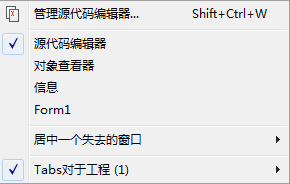 | |
| 268 | 272 | ||
| 269 | 273 | Contains a list of the currently opened files and the available windows such as **Source Editor**, **Object Inspector** and **Project Inspector**. Clicking on the name of one of the windows brings it to the foreground and gives it focus. | |
| 270 | 274 | ||
| 271 | 275 | #### 帮助子菜单 | |
| 272 | 276 | ||
| 273 | 277 | 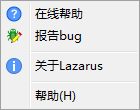 | |
| 274 | 278 | ||
| 275 | 279 | At present this has three selections: | |
| 276 | 280 | ||
| 277 | 281 | - **Online Help** which at present opens a browser window that contains a picture of the running cheetah and a few links to the Lazarus, Free Pascal and Wiki websites | |
| 278 | 282 | - **Reporting a bug** opens the [[How do I create a bug report|wiki page]], which describe the bug reporting procedure | |
| 279 | 283 | - **About Lazarus** Displays a pop-up box with some information about Lazarus. | |
| 280 | 284 | ||
| 281 | 285 | Help can be configured with \[Tools\|Options\|Help\] | |
| 282 | 286 | ||
| 283 | 287 | --- | |
| 284 | 288 | *From the Free Pascal wiki, page "Main menu/zh CN", as it stood on 2021-12-08 after a change by Kupferstecher, out of the wiki's dump of 2024-05-26. Copyright stays with the author who wrote it, according to the old wiki's [[Licensing]] page. If you have concerns about this material, [message the admin](/wiki-contact).* |