

macOS property list files: what changed
Revision 0 to 1. Removed lines have a minus sign; added lines have a plus sign.
Title: macOS property list files
| Old | New | Line | |
|---|---|---|---|
| 1 | + | *(macOS only)* | |
| 2 | + | ||
| 3 | + | *(iOS only)* | |
| 4 | + | ||
| 5 | + | ## Overview | |
| 6 | + | ||
| 7 | + | A property list is a representation of a hierarchy of objects that can be stored in the file system and reconstituted later. Property lists give applications a lightweight and portable way to store small amounts of data. They are hierarchies of data made from specific types of objects—they are, in effect, an object graph. Property lists are easy to create programmatically and are even easier to serialize into a representation that is persistent. Applications can later read the static representation back into memory and recreate the original hierarchy of objects. Both Cocoa Foundation and Core Foundation have APIs related to property list serialization and deserialization. | |
| 8 | + | ||
| 9 | + | ### Data types | |
| 10 | + | ||
| 11 | + | Property lists consist only of certain types of data: dictionaries, arrays, strings, numbers (integer and float), dates, binary data, and Boolean values. Dictionaries and arrays are special types because they are collections; they can contain one or multiple data types, including other dictionaries and arrays. This hierarchical nesting of objects creates a graph of objects. The abstract data types have corresponding Foundation classes, Core Foundation types, and XML elements for collection objects and value objects. | |
| 12 | + | ||
| 13 | + | ### Data formats | |
| 14 | + | ||
| 15 | + | You can write property lists out in XML, JSON and binary formats. The binary format is much more compact than the XML version and thus more efficient. It is recommended for most situations. However, you can manually edit an XML property list if you ever need to. You can also edit a JSON file because it is just concatenated text and much less verbose than pure XML. Property list files have the filename extension of plist. | |
| 16 | + | ||
| 17 | + | You should not use property lists to store large, complex graphs of objects, especially when the objects have variable mutability settings. And you cannot use property lists to store objects that are not supported by the architecture, such as model objects. For these cases, use archiving instead. Although property lists can include NSData objects, it’s best to not use data objects in property lists to hold large amounts of binary data. | |
| 18 | + | ||
| 19 | + | ### XML, JSON or binary? | |
| 20 | + | ||
| 21 | + | The property list file type can be identified using the **file** command on macOS: | |
| 22 | + | ||
| 23 | + | ` $ file org.sentry.picinfo.plist`\ | |
| 24 | + | ` org.sentry.picinfo.plist: Apple binary property list // binary format` | |
| 25 | + | ||
| 26 | + | ` $ file org.sentry.picinfo.plist`\ | |
| 27 | + | ` org.sentry.picinfo.plist: XML 1.0 document text, ASCII text // XML format` | |
| 28 | + | ||
| 29 | + | ` $ file org.sentry.picinfo.plist`\ | |
| 30 | + | ` org.sentry.picinfo.plist: ASCII text, with no line terminators // JSON format` | |
| 31 | + | ||
| 32 | + | Converting between the different plist formats can be performed using the `plutil` command line utility on macOS: | |
| 33 | + | ||
| 34 | + | ` $ plutil -convert binary1 org.sentry.picinfo.plist // convert to binary format` | |
| 35 | + | ||
| 36 | + | ` $ plutil -convert xml1 org.sentry.picinfo.plist // convert to XML format` | |
| 37 | + | ||
| 38 | + | ` $ plutil -convert json org.sentry.picinfo.plist // convert to JSON format` | |
| 39 | + | ||
| 40 | + | ## Info.plist | |
| 41 | + | ||
| 42 | + | Every macOS and iOS application relies on the presence of special metadata in each application or bundle. This metadata is used in many different ways. Some of it is displayed to the user, some of it is used internally by the system to identify your application location, the icon to display, the document types it supports and many other behaviours that have an impact outside the bundle itself. Some of the metadata is used by the system frameworks to facilitate the launch of applications. The way an application provides its metadata to the system is through the use of a special file called an *information property list file* which is named `Info.plist`. | |
| 43 | + | ||
| 44 | + | ### Creating an Info.plist | |
| 45 | + | ||
| 46 | + | The simplest way to create an information property list file for as macOS application is to let Lazarus create it for you. When you use the Lazarus Project \> Project Options, and click the *Create application bundle* option, Lazarus creates a default [[Application Bundle|application bundle]] and an `Info.plist` file which you can find in the project_name.app/Contents subdirectory. The file created by Lazarus comes preconfigured with basic key value pairs that every information property list should have. | |
| 47 | + | ||
| 48 | + | Here's an example of an `Info.plist` created by Lazarus for a simple macOS application: | |
| 49 | + | ||
| 50 | + | ``` xml | |
| 51 | + | <?xml version="1.0" encoding="UTF-8"?> | |
| 52 | + | <!DOCTYPE plist PUBLIC "-//Apple Computer//DTD PLIST 1.0//EN" "http://www.apple.com/DTDs/PropertyList-1.0.dtd"> | |
| 53 | + | <plist version="1.0"> | |
| 54 | + | <dict> | |
| 55 | + | <key>CFBundleDevelopmentRegion</key> | |
| 56 | + | <string>English</string> | |
| 57 | + | <key>CFBundleExecutable</key> | |
| 58 | + | <string>MyApp</string> | |
| 59 | + | <key>CFBundleName</key> | |
| 60 | + | <string>MyApp</string> | |
| 61 | + | <key>CFBundleIdentifier</key> | |
| 62 | + | <string>com.company.MyApp</string> | |
| 63 | + | <key>CFBundleInfoDictionaryVersion</key> | |
| 64 | + | <string>6.0</string> | |
| 65 | + | <key>CFBundlePackageType</key> | |
| 66 | + | <string>APPL</string> | |
| 67 | + | <key>CFBundleSignature</key> | |
| 68 | + | <string>MyAp</string> | |
| 69 | + | <key>CFBundleShortVersionString</key> | |
| 70 | + | <string>0.1</string> | |
| 71 | + | <key>CFBundleVersion</key> | |
| 72 | + | <string>1</string> | |
| 73 | + | <key>CSResourcesFileMapped</key> | |
| 74 | + | <true/> | |
| 75 | + | <key>CFBundleDocumentTypes</key> | |
| 76 | + | <array> | |
| 77 | + | <dict> | |
| 78 | + | <key>CFBundleTypeRole</key> | |
| 79 | + | <string>Viewer</string> | |
| 80 | + | <key>CFBundleTypeExtensions</key> | |
| 81 | + | <array> | |
| 82 | + | <string>*</string> | |
| 83 | + | </array> | |
| 84 | + | <key>CFBundleTypeOSTypes</key> | |
| 85 | + | <array> | |
| 86 | + | <string>fold</string> | |
| 87 | + | <string>disk</string> | |
| 88 | + | <string>****</string> | |
| 89 | + | </array> | |
| 90 | + | </dict> | |
| 91 | + | </array> | |
| 92 | + | <key>NSHighResolutionCapable</key> | |
| 93 | + | <true/> | |
| 94 | + | </dict> | |
| 95 | + | </plist> | |
| 96 | + | ``` | |
| 97 | + | ||
| 98 | + | ### Editing an Info.plist | |
| 99 | + | ||
| 100 | + | To edit the contents of your `Info.plist` file, you can use any text editor that uses UTF-8 though it may be safer to use Xcode which understands the XML formatting of information property list files. Double-click the `Info.plist` filename in Finder which will automatically open the Xcode property list editor. | |
| 101 | + | ||
| 102 | + | > **Note:** The property list editor in Xcode displays human-readable strings (instead of the actual key name) for many keys by default. To display the actual key names as they appear in the `Info.plist file`, Control-click any of the keys in the editor window and enable the Show Raw Keys/Values item in the contextual menu. | |
| 103 | + | ||
| 104 | + | To edit the value for a specify key, double-click the value in the Xcode property list editor to select it, then type a new value. Most values are specified as strings but Xcode also supports several other scalar types. You can also specify complex types such as an array or dictionary. The property list editor displays an appropriate interface for editing each type. To change the type of a given value, make sure the value is not selected and Control-click it to display its contextual menu. From the Value Type submenu, select the type you want to use for the value. | |
| 105 | + | ||
| 106 | + | ### Adding keys to an Info.plist | |
| 107 | + | ||
| 108 | + | Although the `Info.plist` file generated by Lazarus contains the most critical keys required by the system, most applications should typically specify several additional keys. Many subsystems and system applicationss use the `Info.plist` file to gather information about your application. For example, when the user chooses File \> Get Info for your application, the Finder displays information from many of these keys in the resulting information window. | |
| 109 | + | ||
| 110 | + | To add a key/value pair: | |
| 111 | + | ||
| 112 | + | - Click the Add button (+) beside a key in the property list editor or select an existing property and press Return. | |
| 113 | + | - Choose a key from the pop-up menu (press the Down Arrow key to display it if it’s not visible) or type a new key name in the Key column. | |
| 114 | + | - Choose a type from the pop-up menu in the Type column. | |
| 115 | + | - Enter a value in the Value column. | |
| 116 | + | ||
| 117 | + | To add a value to an array or dictionary, expand the disclosure triangle beside the array or dictionary. Next, click the Add button (+) or press Return to add a child property. | |
| 118 | + | ||
| 119 | + | To delete a key/value pair: | |
| 120 | + | ||
| 121 | + | - Click the Remove button (—) beside a key in the property list editor or select a property and press Delete. | |
| 122 | + | ||
| 123 | + | ### Syntax checking | |
| 124 | + | ||
| 125 | + | In cases where you have edited a property list file by hand rather than by using Xcode's property list editor, it is prudent to syntax check the file using the `plutil` command line utility on macOS. This is very handy because `plutil` will tell you the number of the line on which it finds an error. | |
| 126 | + | ||
| 127 | + | A successful syntax check: | |
| 128 | + | ||
| 129 | + | ` $ plutil Info.plist`\ | |
| 130 | + | ` Info.plist: OK`\ | |
| 131 | + | ` ` | |
| 132 | + | ||
| 133 | + | An syntax check where a problem has been found: | |
| 134 | + | ||
| 135 | + | ` $ plutil Info.plist`\ | |
| 136 | + | ` Info.plist: Found non-key inside <dict> at line 40` | |
| 137 | + | ||
| 138 | + | Of course `plutil` will syntax check *any* property list file, not just `Info.plist`. | |
| 139 | + | ||
| 140 | + | ### Recommended Key/Value pairs | |
| 141 | + | ||
| 142 | + | #### iOS | |
| 143 | + | ||
| 144 | + | An iOS application should include the following keys in its information property list file: | |
| 145 | + | ||
| 146 | + | - CFBundleDevelopmentRegion | |
| 147 | + | - CFBundleDisplayName | |
| 148 | + | - CFBundleExecutable | |
| 149 | + | - CFBundleIconFiles | |
| 150 | + | - CFBundleIdentifier | |
| 151 | + | - CFBundleInfoDictionaryVersion | |
| 152 | + | - CFBundlePackageType | |
| 153 | + | - CFBundleVersion | |
| 154 | + | - LSRequiresIPhoneOS | |
| 155 | + | ||
| 156 | + | In addition to these keys, there are several that are commonly included: | |
| 157 | + | ||
| 158 | + | - UIRequiredDeviceCapabilities (required) | |
| 159 | + | - UIStatusBarStyle | |
| 160 | + | - UIInterfaceOrientation | |
| 161 | + | - UIRequiresPersistentWiFi | |
| 162 | + | ||
| 163 | + | #### macOS Cocoa | |
| 164 | + | ||
| 165 | + | A macOS Cocoa application should include the following keys in its information property list file. Most are set by Lazarus automatically when you create your application bundle, but some will need to be edited and some may need to be added. | |
| 166 | + | ||
| 167 | + | - CFBundleDevelopmentRegion | |
| 168 | + | - CFBundleDisplayName | |
| 169 | + | - CFBundleExecutable | |
| 170 | + | - CFBundleIconFile | |
| 171 | + | - CFBundleIdentifier | |
| 172 | + | - CFBundleInfoDictionaryVersion | |
| 173 | + | - CFBundleName | |
| 174 | + | - CFBundlePackageType | |
| 175 | + | - CFBundleShortVersionString | |
| 176 | + | - CFBundleVersion | |
| 177 | + | - NSHumanReadableCopyright | |
| 178 | + | ||
| 179 | + | ### Localizing an Info.plist | |
| 180 | + | ||
| 181 | + | The values for many keys in an information property list file are human-readable strings that are displayed to the user by the Finder or your own app. When you localize your app, you should be sure to localize the values for these strings in addition to the rest of your app’s content. | |
| 182 | + | ||
| 183 | + | Localized values are not stored in the `Info.plist` file itself. Instead, you store the values for a particular localization in a strings file with the name InfoPlist.strings. You place this file in the same language-specific project directory that you use to store other resources for the same localization. The contents of the InfoPlist.strings file are the individual keys you want localized and the appropriately translated value. The routines that look up key values in the `Info.plist` file take the user’s language preferences into account and return the localized version of the key (from the appropriate InfoPlist.strings file) when one exists. If a localized version of a key does not exist, the routines return the value stored in the `Info.plist` file. | |
| 184 | + | ||
| 185 | + | In addition to the recommended keys, there are several keys that should be localized and placed in your language-specific `InfoPlist.strings` files: | |
| 186 | + | ||
| 187 | + | - CFBundleDisplayName | |
| 188 | + | - CFBundleName | |
| 189 | + | - CFBundleShortVersionString | |
| 190 | + | - NSHumanReadableCopyright | |
| 191 | + | ||
| 192 | + | For example, TextEdit has several keys that are displayed in the Finder and thus should be localized. Suppose your information property list file defines the following keys: | |
| 193 | + | ||
| 194 | + | ``` xml | |
| 195 | + | <key>CFBundleDisplayName</key> | |
| 196 | + | <string>TextEdit</string> | |
| 197 | + | <key>NSHumanReadableCopyright</key> | |
| 198 | + | <string>Copyright © 1995-2009, Apple Inc.,All Rights Reserved. | |
| 199 | + | </string> | |
| 200 | + | ``` | |
| 201 | + | ||
| 202 | + | The French localization for TextEdit then includes the following strings in the InfoPlist.strings file of its `Contents/Resources/French.lproj` directory: | |
| 203 | + | ||
| 204 | + | ``` xml | |
| 205 | + | CFBundleDisplayName = "TextEdit"; | |
| 206 | + | NSHumanReadableCopyright = "Copyright © 1995-2009 Apple Inc.\nTous droits réservés."; | |
| 207 | + | ``` | |
| 208 | + | ||
| 209 | + | ### Protected Resources | |
| 210 | + | ||
| 211 | + | With the introduction of macOS 10.15 (Catalina), users have to consent for an application to use: | |
| 212 | + | ||
| 213 | + | - Camera | |
| 214 | + | - Microphone | |
| 215 | + | - Screen recording | |
| 216 | + | - Keyboard input monitoring (except for the applications own input) | |
| 217 | + | - Files and folders protection: | |
| 218 | + | - Data that requires user consent to access | |
| 219 | + | - Private data which is managed by the system. | |
| 220 | + | ||
| 221 | + | New protected areas in Catalina: | |
| 222 | + | ||
| 223 | + | - Desktop | |
| 224 | + | - Documents | |
| 225 | + | - Downloads | |
| 226 | + | - iCloud Drive | |
| 227 | + | - Third-party cloud storage (Dropbox, OneDrive, Box, etc.) | |
| 228 | + | - Removable volumes | |
| 229 | + | - Network volumes | |
| 230 | + | ||
| 231 | + | User consent is not required to create new files in protected locations. Only reading data from protected locations. Files can be checked to see if they're readable/writable without triggering consent dialogs. | |
| 232 | + | ||
| 233 | + | Private data managed by the system: | |
| 234 | + | ||
| 235 | + | ||
| 236 | + | - Messages | |
| 237 | + | - Safari browsing history | |
| 238 | + | - HTTP cookies | |
| 239 | + | - Call History | |
| 240 | + | - iTunes backups | |
| 241 | + | - Time Machine backups | |
| 242 | + | - Trash | |
| 243 | + | ||
| 244 | + | An application does not need Full Disk Access to move a file to the Trash, but needs authorization to the file being moved. The caller retains access to the file, even once it's in the Trash. | |
| 245 | + | ||
| 246 | + | 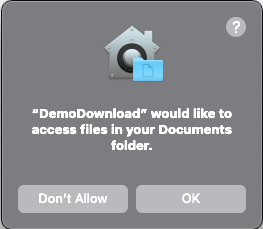 When an application attempts to access, for example, a user's Documents folder, a default dialog will be displayed asking the user for permission. | |
| 247 | + | ||
| 248 | + | A sample of the generic dialog from macOS 11.2.3 (Big Sur) which asks for user consent is on the left. | |
| 249 | + | ||
| 250 | + | The user is shown with this dialog only the first time that the application is run. Note that if a developer rebuilds the application, and it is not signed, then the dialog will be shown again. | |
| 251 | + | ||
| 252 | + | To enable a developer to show a more helpful consent dialog which explains why access is required to the protected resource, a number of new property list keys are available: | |
| 253 | + | ||
| 254 | + | | Raw Key | Key Name | Value | Available from macOS version | | |
| 255 | + | |----|----|----|----| | |
| 256 | + | | NSCalendarsUsageDescription | Privacy - Calendars Usage Description | String explaining why the application is requesting access to the user’s calendar data. | 10.14 | | |
| 257 | + | | NSRemindersUsageDescription | Privacy - Reminders Usage Description | String explaining why the application is requesting access to the user’s reminders. | 10.14 | | |
| 258 | + | | NSCameraUsageDescription | Privacy - Camera Usage Description | String explaining why the application is requesting access to the user's camera. | 10.14 | | |
| 259 | + | | NSMicrophoneUsageDescription | Privacy - Microphone Usage Description | String explaining why the application is requesting access to the user's microphone. | 10.14 | | |
| 260 | + | | NSContactsUsageDescription | Privacy - Contacts Usage Description | String explaining why the application is requesting access to the user’s contacts. | 10.8 | | |
| 261 | + | | NSDesktopFolderUsageDescription | Privacy - Desktop Folder Usage Description | String explaining why the application needs access to the user’s Desktop folder. | 10.15 | | |
| 262 | + | | NSDocumentsFolderUsageDescription | Privacy - Documents Folder Usage Description | String explaining why the application needs access to the user’s Documents folder. | 10.15 | | |
| 263 | + | | NSDownloadsFolderUsageDescription | Privacy - Downloads Folder Usage Description | String explaining why the application needs access to the user’s Downloads folder. | 10.15 | | |
| 264 | + | | NSNetworkVolumesUsageDescription | Privacy - Network Volumes Usage Description | String explaining why the application needs access to files on a network volume. | 10.15 | | |
| 265 | + | | NSRemovableVolumesUsageDescription | Privacy - Removable Volumes Usage Description | String explaining why the application needs access to files on a removable volume. | 10.15 | | |
| 266 | + | | NSFileProviderPresenceUsageDescription | Privacy - File Provider Presence Usage Description | String explaining why the application needs to be informed when other applications access files that it manages. | 10.15 | | |
| 267 | + | | NSFileProviderDomainUsageDescription | Privacy - Access to a File Provider Domain Usage Description | String explaining why the application needs access to files managed by a file provider. | 10.15 | | |
| 268 | + | | NSLocationUsageDescription | Privacy - Location Usage Description | String explaining why the application is requesting access to the user’s location information. | 10.14 | | |
| 269 | + | | NSLocalNetworkUsageDescription | Privacy - Local Network Usage Description | String explaining why the application is requesting access to the local network. | 11.0 | | |
| 270 | + | | NSPhotoLibraryUsageDescription | Privacy - Photo Library Usage Description | String explaining why the application is requesting access to the user’s photo library. | 10.14 | | |
| 271 | + | | NSAppleEventsUsageDescription | Privacy - AppleEvents Sending Usage Description | String explaining why the application is requesting the ability to send Apple events. | 10.14 | | |
| 272 | + | | NSSystemAdministrationUsageDescription | Privacy - System Administration Usage Description | String explaining why the application is requesting to manipulate the system configuration. | 10.14 | | |
| 273 | + | | NSSpeechRecognitionUsageDescription | Privacy - Speech Recognition Usage Description | String explaining why the application is requesting to send user data to Apple’s speech recognition servers. | 10.15 | | |
| 274 | + | | | | | | | |
| 275 | + | ||
| 276 | + | ## See also | |
| 277 | + | ||
| 278 | + | - [[Add an Apple Help Book to your macOS app]] - `Info.plist` file changes needed to support an Apple Help Book. | |
| 279 | + | - [[Apple-specific UI elements|Fixing your application name]] - `Info.plist` file changes to turn "MyApp" into "My App". | |
| 280 | + | ||
| 281 | + | ## External links | |
| 282 | + | ||
| 283 | + | - [Apple: Information Property List](https://developer.apple.com/documentation/bundleresources/information_property_list) | |
| 284 | + | ||
| 285 | + | - [Apple: Property List Programming Guide](https://developer.apple.com/library/archive/documentation/Cocoa/Conceptual/PropertyLists/Introduction/Introduction.html) | |
| 286 | + | ||
| 287 | + | - [Apple: Information Property List Files](https://developer.apple.com/library/archive/documentation/General/Reference/InfoPlistKeyReference/Articles/AboutInformationPropertyListFiles.html) | |
| 288 | + | ||
| 289 | + | - [Apple: macOS Info.plist Keys and Values](https://developer.apple.com/library/archive/documentation/General/Reference/InfoPlistKeyReference/Introduction/Introduction.html) | |
| 290 | + | ||
| 291 | + | - [Apple: iOS Info.plist Keys and Values](https://developer.apple.com/library/archive/documentation/General/Reference/InfoPlistKeyReference/Articles/iPhoneOSKeys.html) | |
| 292 | + | ||
| 293 | + | - [Apple: Protected Resouces](https://developer.apple.com/documentation/bundleresources/information_property_list/protected_resources) | |
| 294 | + | ||
| 295 | + | --- | |
| 296 | + | *From the Free Pascal wiki, page "macOS property list files", as it stood on 2021-03-10 after a change by Trev, out of the wiki's dump of 2024-05-26. Copyright stays with the author who wrote it, according to the old wiki's [[Licensing]] page. If you have concerns about this material, [message the admin](/wiki-contact).* | |
| 297 | + | Category: Data Structures | |
| 298 | + | Category: JSON | |
| 299 | + | Category: Localization | |
| 300 | + | Category: XML | |
| 301 | + | Category: iOS | |
| 302 | + | Category: macOS |