

macOS Programming Tips: what changed
Revision 3 to 4. Removed lines have a minus sign; added lines have a plus sign.
| Old | New | Line | |
|---|---|---|---|
| 1 | 1 | *(macOS only)* | |
| 2 | 2 | ||
| 3 | 3 | ## Choice of Lazarus LCL widgetsets | |
| 4 | 4 | ||
| 5 | 5 | With macOS there are various widgetsets which can be used with Lazarus. Each has its strengths and weaknesses. | |
| 6 | 6 | ||
| 7 | 7 | **Carbon widgetset** (see the [[Carbon Interface]] page) | |
| 8 | 8 | ||
| 9 | 9 | | Pros | Cons | | |
| 10 | 10 | |----|----| | |
| 11 | 11 | | All standard LCL controls working | The entire Carbon framework has been deprecated by Apple. It is not available in 64 bit macOS applications. It was completely removed from macOS 10.15 Catalina (October 2019). The Carbon widgetset is no longer being developed. | | |
| 12 | 12 | | No additional libraries or frameworks to install; uses Carbon framework included with macOS | | | |
| 13 | 13 | | Native macOS look and feel | Only relevant to macOS | | |
| 14 | 14 | ||
| 15 | 15 | **Cocoa widgetset** (see the [[Cocoa Interface]] page) | |
| 16 | 16 | ||
| 17 | - | ||
| 18 | - | ||
| 19 | - | ||
| 20 | - | ||
| 21 | - | ||
| 22 | - | ||
| 23 | - | ||
| 24 | - | ||
| 17 | + | | Pros | Cons | | |
| 18 | + | |---|---| | |
| 19 | + | | All standard LCL controls working | There may still be some minor bugs lurking; please report them! | | |
| 20 | + | | No additional libraries or frameworks to install; · uses the Cocoa framework included with macOS | | | |
| 21 | + | | The only graphical framework for macOS 10.15 Catalina and later | | | |
| 22 | + | | Necessary for graphical 64 bit applications | | | |
| 23 | + | | Native macOS look and feel | Only relevant to macOS | | |
| 25 | 24 | ||
| 26 | 25 | **GTK widgetset** | |
| 27 | 26 | ||
| 28 | 27 | | Pros | Cons | | |
| 29 | 28 | |----|----| | |
| 30 | 29 | | All standard LCL controls working | Ugly; clunky common dialogs; doesn't look like Mac software | | |
| 31 | 30 | | This widgetset is well tested | Requires X11 and bulky GTK to be installed to run Lazarus or any GUI apps created with Lazarus | | |
| 32 | 31 | | | Have to start Lazarus at command line -- can't double-click Lazarus or place on dock (same with GUI apps) -- although see Creating an app bundle for a GTK application for how you can add this capability yourself. | | |
| 33 | 32 | ||
| 34 | 33 | **Qt widgetset** (see the [[Qt Interface Mac]] page) | |
| 35 | 34 | ||
| 36 | 35 | | Pros | Cons | | |
| 37 | 36 | |----|----| | |
| 38 | 37 | | Native macOS look and feel | Requires the Qt interface framework to be installed to run app, which is rather large | | |
| 39 | 38 | | All standard LCL controls working | | | |
| 40 | 39 | | The Qt widgetset also available for other platforms, so any effort put into developing Qt widgetset benefits multiple platforms | | | |
| 41 | 40 | | The Qt interface provides rich functionality | | | |
| 42 | 41 | | The Qt widgetset is easier to develop than other widgetsets | | | |
| 43 | 42 | ||
| 44 | 43 | ## Cross compiling macOS applications | |
| 45 | 44 | ||
| 46 | 45 | See the [[Cross compiling]] article. | |
| 47 | 46 | ||
| 48 | 47 | ## Commonly used Unix commands | |
| 49 | 48 | ||
| 50 | 49 | If you’re coming to macOS from Windows, you may find some of its Unix terminal commands confusing. Here are some equivalents. For more information about a command, enter `man command` in an Applications \> Utilities \> Terminal. | |
| 51 | 50 | ||
| 52 | 51 | | Action | Windows command prompt window | macOS Terminal or X11 window | | |
| 53 | 52 | |----|----|----| | |
| 54 | 53 | | Change to a different directory | cd | cd | | |
| 55 | 54 | | Make a new directory | mkdir | mkdir | | |
| 56 | 55 | | Delete a directory | rmdir | rmdir | | |
| 57 | 56 | | List file directory in chronological order with detail | dir /od | ls -ltr | | |
| 58 | 57 | | Copy a file, preserving its date-time stamp | copy | cp -p | | |
| 59 | 58 | | Display contents of a text file | type | cat | | |
| 60 | 59 | | Delete a file | erase | rm | | |
| 61 | 60 | | Move a file | move | mv | | |
| 62 | 61 | | Rename a file | ren | mv | | |
| 63 | 62 | | Find a file | dir /s | find | | |
| 64 | 63 | | Grep a file | findstr | grep | | |
| 65 | 64 | | Display differences between two text files | fc | diff | | |
| 66 | 65 | | Change file attributes | attrib | chmod | | |
| 67 | 66 | | “Super-user” root authorization | N/A | sudo | | |
| 68 | 67 | | Create symbolic link to a file or directory | mklink | ln | | |
| 69 | 68 | | Shrink executable file size | strip (included w/ Free Pascal) | strip | | |
| 70 | 69 | ||
| 71 | 70 | ## Useful commands and tools included with macOS | |
| 72 | 71 | ||
| 73 | 72 | **open** | |
| 74 | 73 | ||
| 75 | 74 | See the [[macOS Open Sesame]] article for the many and varied uses of the macOS `open` command. | |
| 76 | 75 | ||
| 77 | 76 | **zip / unzip** | |
| 78 | 77 | ||
| 79 | 78 | These are standard command-line zip archive compression/uncompression utilities. | |
| 80 | 79 | ||
| 81 | 80 | **Console** | |
| 82 | 81 | ||
| 83 | 82 | Drag the *Console* application from `/Applications/Utilities` and drop it on the dock so you always have it handy. Launch it whenever you want to see messages or errors output to the console by GUI apps (for example, when they crash). Invaluable for debugging. | |
| 84 | 83 | ||
| 85 | 84 | **Activity Monitor** | |
| 86 | 85 | ||
| 87 | 86 | The *Activity Monitor* application is also in `/Applications/Utilities` and is useful for monitoring CPU, memory, energy, network and disk usage. | |
| 88 | 87 | ||
| 89 | 88 | **otool** | |
| 90 | 89 | ||
| 91 | 90 | Use the *otool* command line utility to display information about an executable file or library. For example, enter the following to see information about Lazarus: | |
| 92 | 91 | ||
| 93 | 92 | ``` bash | |
| 94 | 93 | cd /usr/local/share/lazarus | |
| 95 | 94 | otool –L lazarus | |
| 96 | 95 | ``` | |
| 97 | 96 | ||
| 98 | 97 | This shows that Lazarus is dependent on various libraries in `/usr/lib` and `/System/Library/Frameworks/`, as you would expect. Open a Terminal and type `man otool` to view its manual page. | |
| 99 | 98 | ||
| 100 | 99 | **install_name_tool** | |
| 101 | 100 | ||
| 102 | 101 | Use *install_name_tool* with the *–change* switch to change where an executable file or library looks for a library that it requires. Open a Terminal and type `man install_name_tool` to view its manual page. | |
| 103 | 102 | ||
| 104 | 103 | **iconutil** | |
| 105 | 104 | ||
| 106 | 105 | Use the *iconutil* command line utility in `/usr/bin/` to create icon files (.icns) for use with your .app bundles. Open a Terminal and type `man iconutil` for its manual page. | |
| 107 | 106 | ||
| 108 | 107 | **pkgbuild, productbuild / Disk Utility** | |
| 109 | 108 | ||
| 110 | 109 | Use these utilities to create disk image (.dmg) files for deploying your applications. See [[Deploying Your Application]] for more information. | |
| 111 | 110 | ||
| 112 | 111 | Command line tools `pkgbuild` and `productbuild` are in `/usr/bin/`. Disk Utility is in `/Applications/Utilities`. You can drag and drop Disk Utility on the dock. | |
| 113 | 112 | ||
| 114 | 113 | A popular third party option is the GUI application [Packages](http://s.sudre.free.fr/Software/Packages/about.html) which creates .pkg installer archives. | |
| 115 | 114 | ||
| 116 | 115 | **PlistBuddy** | |
| 117 | 116 | ||
| 118 | 117 | The command line utility `PlistBuddy`, which is found in `/usr/libexec/`, may be used to read and modify the values inside of [[macOS property list files|property list files]]. | |
| 119 | 118 | ||
| 120 | 119 | **Script Editor / osascript** | |
| 121 | 120 | ||
| 122 | 121 | Use the *Script Editor* application to edit, compile and run AppleScript files. It’s located in `/Applications/Utilities/`. | |
| 123 | 122 | ||
| 124 | 123 | Use the command line utility *osascript* from `/usr/bin/` to execute an AppleScript command or file from the command line or from a script file. For more information, enter `man osascript` in a Terminal to view its manual page. | |
| 125 | 124 | ||
| 126 | 125 | **latency** | |
| 127 | 126 | ||
| 128 | 127 | The *latency* diagnostic command line utility found in `/usr/bin/` monitors scheduling and interrupt latency measuring the number of context switches and interrupts, and reporting on the resulting delays. Open a Terminal and type `man latency` to view its manual page. | |
| 129 | 128 | ||
| 130 | 129 | **fs_usage** | |
| 131 | 130 | ||
| 132 | 131 | The *fs_usage* diagnostic command line utility reports system calls and page faults related to filesystem activity in real-time. The output displays the timestamp, system call, filename, elapsed time and name of the process. Open a Terminal and type `man fs_usage` to view its manual page. | |
| 133 | 132 | ||
| 134 | 133 | **Safari** | |
| 135 | 134 | ||
| 136 | 135 | Yes, I know, it is a web browser - but it is more. You can read manual pages with it too. So, rather than opening a Terminal and then typing `man 3 pause`, you can simply type `x-man-page://3/pause` into Safari's URL field and access the man page that way. Unfortunately recent version of Safari now ask you if you want to allow Safari to open the Terminal and this new security behaviour cannot be turned off and your choice is not remembered. | |
| 137 | 136 | ||
| 138 | 137 | **sc_usage** | |
| 139 | 138 | ||
| 140 | 139 | The *sc_usage* command line utility samples system calls and page faults, displaying them onscreen. Open a Terminal and type `man sc_usage` to view its manual page. | |
| 141 | 140 | ||
| 142 | 141 | **vm_stat** | |
| 143 | 142 | ||
| 144 | 143 | The *vm_stat* command line utility displays virtual memory statistics. Open a Terminal and type `man vm_stat` to view its manual page. | |
| 145 | 144 | ||
| 146 | 145 | **DevToolsSecurity** | |
| 147 | 146 | ||
| 148 | 147 | The *DevToolsSecurity* command line utility changes the security authorisation policies for use of the Apple-code-signed debugger and performance analysis tools on development systems. See further [[lldb|DevToolsSecurity]]. | |
| 149 | 148 | ||
| 150 | 149 | ## Cross-platform considerations | |
| 151 | 150 | ||
| 152 | 151 | When you plan to compile the same application for different widget sets (eg Windows, GTK and Cocoa) or plan to use multiple languages, you should layout the controls on your form(s) using the [[Anchor Sides|anchor editor]] and set the [[Autosize / Layout|AutoSize]] property of your controls to *True*. Doing this from the beginning will save you a lot of frustrating layout problems later. | |
| 153 | 152 | ||
| 154 | 153 | ## Apple-specific UI elements | |
| 155 | 154 | ||
| 156 | 155 | The Apple user interface in macOS has a number of unique features (eg the Dock, Apple main menu bar, sheets, drawers, user notifications, etc). For details on how to provide these non-cross-platform features in your applications, see the article [[Apple-specific UI elements]]. | |
| 157 | 156 | ||
| 158 | 157 | ## Setting environment variables for an application | |
| 159 | 158 | ||
| 160 | 159 | On macOS, the normal way to set any environment variables needed by an application is to set them in the LSEnvironment property of your application's [[macOS property list files|Info.plist]] file. | |
| 161 | 160 | ||
| 162 | 161 | ## How to obtain the path to the Bundle | |
| 163 | 162 | ||
| 164 | 163 | ``` pascal | |
| 165 | 164 | ||
| 166 | 165 | {$mode objfpc}{$H+} | |
| 167 | 166 | {$modeswitch objectivec1} | |
| 168 | 167 | ||
| 169 | 168 | ... | |
| 170 | 169 | ||
| 171 | 170 | uses | |
| 172 | 171 | CocoaAll; // for NSBundle | |
| 173 | 172 | ||
| 174 | 173 | ... | |
| 175 | 174 | ||
| 176 | 175 | function GetBundlePath: string; | |
| 177 | 176 | begin | |
| 178 | 177 | Result := NSBundle.mainBundle.bundlePath.UTF8String; | |
| 179 | 178 | end; | |
| 180 | 179 | ``` | |
| 181 | 180 | ||
| 182 | 181 | This returns the full path up to and including the application bundle name (eg `/Users/Me/MyApp.app`). | |
| 183 | 182 | ||
| 184 | 183 | Related: [[Locating the macOS application resources directory]]. | |
| 185 | 184 | ||
| 186 | 185 | ## Determining where to store files | |
| 187 | 186 | ||
| 188 | 187 | ## Determining if a file is readable | |
| 189 | 188 | ||
| 190 | 189 | The Lazarus function [fileisreadable](https://lazarus-ccr.sourceforge.io/docs/lazutils/lazfileutils/fileisreadable.html) reports if the user has read permissions for the specified file. However, modern versions of macOS will restrict [access to the following locations](https://developer.apple.com/library/archive/documentation/Security/Conceptual/AppSandboxDesignGuide/AppSandboxInDepth/AppSandboxInDepth.html): | |
| 191 | 190 | ||
| 192 | 191 | - The app container directory. Upon first launch, the operating system creates a special directory for use by your app—and only by your app—called a container. Each user on a system gets an individual container for your app, within their home directory; your app has unfettered read/write access to the container for the user who ran it. | |
| 193 | 192 | - App group container directories. A sandboxed app can specify an entitlement that gives it access to one or more app group container directories, each of which is shared among all apps with that entitlement. | |
| 194 | 193 | - User-specified files. A sandboxed app (with an appropriate entitlement) automatically obtains access to files in arbitrary locations when those files are explicitly opened by the user or are dragged and dropped onto the application by the user. | |
| 195 | 194 | - Related items. With the appropriate entitlement, your app can access a file with the same name as a user-specified file, but a different extension. This can be used for accessing files that are functionally related (such as a subtitle file associated with a movie) or for saving modified files in a different format (such as re-saving an RTF flat file as an RTFD container after the user added a picture). | |
| 196 | 195 | - Temporary directories, command-line tool directories, and specific world-readable locations. A sandboxed app has varying degrees of access to files in certain other well-defined locations. | |
| 197 | 196 | ||
| 198 | 197 | At the moment, there appears to be no reliable API to determine if a file is readable in all situations. Apple's own *isReadableFileAtPath* method is essentially a wrapper around the BSD *access* system call and does not take into account the various security and privacy features that Apple has added since macOS 10.0. Below, is a brute force method that determines if a file is readable by physically reading the first byte of data from the file. This is necessarily slower than simply reading the file permissions, but does provide a robust solution: | |
| 199 | 198 | ||
| 200 | 199 | ``` pascal | |
| 201 | 200 | function FileIsReadableByThisExecutable(const AFilename: string): boolean; | |
| 202 | 201 | // macOS will block applications from reading files outside their sandbox | |
| 203 | 202 | // therefore, simply knowing the user has read acces is not sufficient | |
| 204 | 203 | // requires "uses LazFileUtils" | |
| 205 | 204 | var | |
| 206 | 205 | f: file; | |
| 207 | 206 | b: byte; | |
| 208 | 207 | begin | |
| 209 | 208 | Result := lazfileutils.FileIsReadable(AFilename); | |
| 210 | 209 | {$IFDEF Darwin} | |
| 211 | 210 | if not Result then exit; //globally not readable | |
| 212 | 211 | if FileSizeUtf8(AFilename) < 1 then exit(false); | |
| 213 | 212 | AssignFile(f, AFilename); | |
| 214 | 213 | {$I+} | |
| 215 | 214 | try | |
| 216 | 215 | FileMode := fmOpenRead; //Set file access to read only | |
| 217 | 216 | Reset(f, 1); | |
| 218 | 217 | if ioresult <> 0 then | |
| 219 | 218 | exit; | |
| 220 | 219 | b := 0; | |
| 221 | 220 | BlockRead(f, b, sizeof(b)); | |
| 222 | 221 | CloseFile(f); | |
| 223 | 222 | result := true; | |
| 224 | 223 | except | |
| 225 | 224 | result := false; | |
| 226 | 225 | end; | |
| 227 | 226 | {$ENDIF} | |
| 228 | 227 | end; | |
| 229 | 228 | ``` | |
| 230 | 229 | ||
| 231 | 230 | Many system frameworks that provide access to [protected resources](https://developer.apple.com/documentation/bundleresources/information_property_list/protected_resources) have dedicated APIs for checking and requesting authorization to use those resources. This allows you to adjust your application’s behaviour depending on the current access it has. For example, if the user denies your application permission to do something, you can remove related elements from your user interface. Because a user can change authorization at any time using Settings, always check the authorization status of a feature before accessing it. In cases without a dedicated API, be prepared to gracefully handle access failures as above. | |
| 232 | 231 | ||
| 233 | 232 | For an example of an authorization API, see [AVCaptureDevice API](https://developer.apple.com/documentation/avfoundation/avcapturedevice/1624613-authorizationstatus). | |
| 234 | 233 | ||
| 235 | 234 | ## Accessing system information | |
| 236 | 235 | ||
| 237 | 236 | Sysctl provides an interface that allows you to retrieve many kernel parameters in macOS (and Linux and the BSDs). This provides a wealth of information detailing system hardware which can be useful when debugging user issues or simply optimising your application (eg to take advantage of threads on multi-core CPU systems). The NSProcessInfo class provides access to a collection of information about the current process. The IOKit framework implements non-kernel access to I/O Kit objects (eg to retrieve the Mac platform serial number and UUID). For full details and example code, see the article [[Accessing macOS System Information]]. | |
| 238 | 237 | ||
| 239 | 238 | ## Retrieve username/ full username | |
| 240 | 239 | ||
| 241 | 240 | The code to retrieve the current user's username (eg joe) or full username (eg Joe Bloggs) can be found in the article [[macOS Retrieve (full)username]]. | |
| 242 | 241 | ||
| 243 | 242 | ## Making a beep | |
| 244 | 243 | ||
| 245 | 244 | Procedure declaration: | |
| 246 | 245 | ||
| 247 | 246 | ``` pascal | |
| 248 | 247 | procedure NSBeep; cdecl; | |
| 249 | 248 | external '/System/Library/Frameworks/AppKit.framework/AppKit' name 'NSBeep'; | |
| 250 | 249 | ``` | |
| 251 | 250 | ||
| 252 | 251 | To use it: | |
| 253 | 252 | ||
| 254 | 253 | ``` pascal | |
| 255 | 254 | procedure MakeBeep; | |
| 256 | 255 | begin | |
| 257 | 256 | {$IFDEF DARWIN} | |
| 258 | 257 | NSbeep; | |
| 259 | 258 | {$ENDIF} | |
| 260 | 259 | ||
| 261 | 260 | [...] | |
| 262 | 261 | end; | |
| 263 | 262 | ``` | |
| 264 | 263 | ||
| 265 | 264 | You can also assign NSBeep to the [OnBeep](https://www.freepascal.org/docs-html/rtl/sysutils/onbeep.html) (TBeepHandler in the SysUtils unit), by setting it on Form creation. | |
| 266 | 265 | ||
| 267 | 266 | This way you can call the regular [Beep](https://www.freepascal.org/docs-html/rtl/sysutils/beep.html) function (by default, Beep contains no implementation to actually produce a beep). | |
| 268 | 267 | ||
| 269 | 268 | ``` pascal | |
| 270 | 269 | procedure TForm1.FormCreate(Sender: TObject); | |
| 271 | 270 | begin | |
| 272 | 271 | {$IFDEF DARWIN} | |
| 273 | 272 | OnBeep := @NSbeep; | |
| 274 | 273 | {$ENDIF} | |
| 275 | 274 | ||
| 276 | 275 | [...] | |
| 277 | 276 | end; | |
| 278 | 277 | ``` | |
| 279 | 278 | ||
| 280 | 279 | ## Show application in all desktop spaces | |
| 281 | 280 | ||
| 282 | 281 | An application defaults to showing only in the desktop space in which it was opened. To show your application in all desktop spaces for macOS 10.5+ (Leopard): | |
| 283 | 282 | ||
| 284 | 283 | ``` pascal | |
| 285 | 284 | {$modeswitch objectivec1} | |
| 286 | 285 | ||
| 287 | 286 | Uses CocoaAll ... | |
| 288 | 287 | ||
| 289 | 288 | procedure TForm1.MenuItem35Click(Sender: TObject); | |
| 290 | 289 | var | |
| 291 | 290 | theWindow: NSWindow; | |
| 292 | 291 | begin | |
| 293 | 292 | theWindow := NSView(Form1.Handle).window; // Form1 is the name of the main form - adjust as necessary | |
| 294 | 293 | theWindow.setCollectionBehavior(theWindow.collectionBehavior or NSWindowCollectionBehaviorCanJoinAllSpaces); | |
| 295 | 294 | end; | |
| 296 | 295 | ``` | |
| 297 | 296 | ||
| 298 | 297 | ## Launch/Toggle full screen | |
| 299 | 298 | ||
| 300 | 299 | To toggle an application window full screen for macOS 10.7+ (Lion): | |
| 301 | 300 | ||
| 302 | 301 | ``` pascal | |
| 303 | 302 | {$modeswitch objectivec1} | |
| 304 | 303 | ||
| 305 | 304 | Uses CocoaAll ... | |
| 306 | 305 | ||
| 307 | 306 | procedure TForm1.Button1Click(Sender: TObject); | |
| 308 | 307 | var | |
| 309 | 308 | Window: NSWindow; | |
| 310 | 309 | begin | |
| 311 | 310 | Window := NSView(Form1.Handle).window; | |
| 312 | 311 | Window.toggleFullScreen(Nil); | |
| 313 | 312 | end; | |
| 314 | 313 | ``` | |
| 315 | 314 | ||
| 316 | 315 | To launch your application full screen you can call the button event handler (as below) or move the button event handler code (above) to the form's on activate event handler: | |
| 317 | 316 | ||
| 318 | 317 | ``` pascal | |
| 319 | 318 | procedure TForm1.FormActivate(Sender: TObject); | |
| 320 | 319 | begin | |
| 321 | 320 | Form1.Button1Click(Form1); | |
| 322 | 321 | end; | |
| 323 | 322 | ``` | |
| 324 | 323 | ||
| 325 | 324 | ## Locale settings (date & time separator, currency symbol, ...) | |
| 326 | 325 | ||
| 327 | 326 | On macOS, like on other Unix platforms, the RTL does not load the locale settings by default. They can be initialised in three ways. See the article [[Locale settings for macOS]] for details. | |
| 328 | 327 | ||
| 329 | 328 | ## Accessibility for users with special needs | |
| 330 | 329 | ||
| 331 | 330 | macOS includes a wide variety of features and assistive technologies, such as screen and cursor magnification, a full-featured screen reader, visual flash alerts, closed captioning support, and much more. Take advantage of these features to make your apps accessible to users with special needs. Please refer to the [[LCL Accessibility|Accessibility]] article for more details. | |
| 332 | 331 | ||
| 333 | 332 | ## LCL FontDialog workaround | |
| 334 | 333 | ||
| 335 | 334 | The FontDialog.OnApplyClicked event handler is not supported in macOS. So this code will have no effect (the message will not be shown): | |
| 336 | 335 | ||
| 337 | 336 | ``` pascal | |
| 338 | 337 | procedure TForm1.Button1Click(Sender: TObject); | |
| 339 | 338 | begin | |
| 340 | 339 | FontDialog1.Execute; | |
| 341 | 340 | end; | |
| 342 | 341 | ||
| 343 | 342 | procedure TForm1.FontDialog1ApplyClicked(Sender: TObject); | |
| 344 | 343 | begin | |
| 345 | 344 | ShowMessage('Apply Clicked'); | |
| 346 | 345 | end; | |
| 347 | 346 | ``` | |
| 348 | 347 | ||
| 349 | 348 | The workaround is to restructure the code as follows: | |
| 350 | 349 | ||
| 351 | 350 | ``` pascal | |
| 352 | 351 | procedure TForm1.Button1Click(Sender: TObject); | |
| 353 | 352 | begin | |
| 354 | 353 | if FontDialog1.Execute then | |
| 355 | 354 | begin | |
| 356 | 355 | ShowMessage('Apply Clicked'); | |
| 357 | 356 | end; | |
| 358 | 357 | end; | |
| 359 | 358 | ``` | |
| 360 | 359 | ||
| 361 | 360 | ## Coping with missing features across macOS versions | |
| 362 | 361 | ||
| 363 | 362 | For an example of how to cope elegantly with new features in macOS which are missing from older macOS versions, see [[Accessing macOS System Information|this example]]. | |
| 364 | 363 | ||
| 365 | 364 | ## Updating a GUI from a secondary thread | |
| 366 | 365 | ||
| 367 | 366 | Apple’s UI frameworks, and Cocoa in particular, can only be called from the main thread. This means that if you have a background threading process, it cannot interact with the user interface because all user interface objects are marked as not safe for threading. Touching the user interface from a background thread can cause all sorts of issues, including corruption of internal state, crashes, or inexplicable incorrect behaviour. | |
| 368 | 367 | ||
| 369 | 368 | For example code implementing a solution to this issue, refer to the [[macOS NSURLSession|Downloading files with graphical user interface feedback]] article. | |
| 370 | 369 | ||
| 371 | 370 | ## Using PrintDialog in Cocoa | |
| 372 | 371 | ||
| 373 | 372 | PrintDialog is only partially implemented (July 2020) in Cocoa. As a result, this code does not display the dialog: | |
| 374 | 373 | ||
| 375 | 374 | ``` pascal | |
| 376 | 375 | procedure TForm1.btnPrintDialogClick(Sender: TObject); | |
| 377 | 376 | begin | |
| 378 | 377 | if PrintDialog1.Execute then | |
| 379 | 378 | Panel1.Invalidate; | |
| 380 | 379 | end; | |
| 381 | 380 | ``` | |
| 382 | 381 | ||
| 383 | 382 | This code will display the dialog: | |
| 384 | 383 | ||
| 385 | 384 | ``` pascal | |
| 386 | 385 | procedure TForm1.btnPrintDialogClick(Sender: TObject); | |
| 387 | 386 | begin | |
| 388 | 387 | PrintDialog1.Options:= PrintDialog1.Options + [poBeforeBeginDoc]; | |
| 389 | 388 | if PrintDialog1.Execute then | |
| 390 | 389 | Panel1.Invalidate; | |
| 391 | 390 | end; | |
| 392 | 391 | ``` | |
| 393 | 392 | ||
| 394 | 393 | ## Detecting the Apple Command key | |
| 395 | 394 | ||
| 396 | 395 | The Apple Command key is *ssMeta*. Heres' how to test for it being depressed: | |
| 397 | 396 | ||
| 398 | 397 | ``` pascal | |
| 399 | 398 | procedure TForm1.FormKeyDown(Sender: TObject; var Key: Word; Shift: TShiftState); | |
| 400 | 399 | var | |
| 401 | 400 | ssCmd: TShiftStateEnum; | |
| 402 | 401 | begin | |
| 403 | 402 | // Define standard menu command key as ssCmd | |
| 404 | 403 | {$IFDEF DARWIN} | |
| 405 | 404 | ssCmd := ssMeta; // Apple | |
| 406 | 405 | {$ELSE} | |
| 407 | 406 | ssCmd := ssCtrl // FreeBSD, Linux, Windows | |
| 408 | 407 | {$ENDIF} | |
| 409 | 408 | ||
| 410 | 409 | if (ssCmd in Shift) then | |
| 411 | 410 | Caption:='Command key pressed' | |
| 412 | 411 | else | |
| 413 | 412 | Caption := IntToStr(Key) + ' not the command key'; | |
| 414 | 413 | end; | |
| 415 | 414 | ``` | |
| 416 | 415 | ||
| 417 | 416 | ## Updating the GUI from a non-main thread | |
| 418 | 417 | ||
| 419 | 418 | Any attempt to provide user feedback to the graphical user interface from within a delegate method running on a secondary background thread will cause the application to die with a log entry similar to this: | |
| 420 | 419 | ||
| 421 | 420 | ```text | |
| 422 | 421 | *** Terminating app due to uncaught exception 'NSInternalInconsistencyException', | |
| 423 | 422 | reason: 'NSWindow drag regions should only be invalidated on the Main Thread!' | |
| 424 | 423 | ``` | |
| 425 | 424 | ||
| 426 | 425 | The cause? Apple’s UI frameworks, and Cocoa in particular, can only be called from the main thread. Touching the user interface from a background thread can cause all sorts of issues, including corruption of internal state, crashes, or inexplicable incorrect behaviour. | |
| 427 | 426 | ||
| 428 | 427 | One solution may be found in the [[macOS NSURLSession]] article which also has a code example. | |
| 429 | 428 | ||
| 430 | 429 | ## Libraries | |
| 431 | 430 | ||
| 432 | 431 | ### Using a library in a Mac application | |
| 433 | 432 | ||
| 434 | 433 | Many software projects use external libraries to complement their functionality. For example, OpenAL might be utilized to provide sound support, or FreeType might be utilized to provide font rendering support for FCL-Image. macOS already comes with a number of open source libraries installed, being that OpenAL is one of them. If one of these libraries is utilized, one should simply add the corresponding import unit to the uses clause and start using the library. To use other open source libraries which aren't included with macOS, the easiest way is by grabbing a pre-compiled library from the application bundle of popular open source applications. FreeType for example is included inside the application bundle from Gimp in the path `Gimp.app/Resources/lib/libfreetype.6.dylib`. Another option is downloading the source code from the library and building it manually, but compiling a C library is usually an unpleasant task for pure Pascal developers. | |
| 435 | 434 | ||
| 436 | 435 | So, again in the previous example, let's say that an application requires the FreeType library. One can grab the libfreetype.6.dylib file from Gimp and then place it in a location of our source code tree, for example `../Mac/libfreetype.dylib` relative to the path of the main project file, which is where the executable is placed. To properly link the application the Free Pascal command line option `-Fl../Mac` should be added, so that this path is added to the library search path. The linker will then find the library in this location and read the install path which is written inside it. At runtime the linker will search for the library in this install path. To change the install path to our desired one, the command line application install_name_tool, which comes with the Apple Developer Tools, can be used. It can be utilized with the following command line command: | |
| 437 | 436 | ||
| 438 | 437 | ``` bash | |
| 439 | 438 | install_name_tool libfreetype.dylib -id @executable_path/../Frameworks/libfreetype.dylib | |
| 440 | 439 | ``` | |
| 441 | 440 | ||
| 442 | 441 | One can then verify if this command worked by using the command: | |
| 443 | 442 | ||
| 444 | 443 | ``` bash | |
| 445 | 444 | otool -D libfreetype.dylib | |
| 446 | 445 | ``` | |
| 447 | 446 | ||
| 448 | 447 | It should return the written path. When building the application bundle, we should copy the libfreetype.dylib file to the Frameworks sub-directory. The *install_name_tool* command uses the *@executable_path* macro to set an install path *relative to the executable*, which is inside the MacOS folder in the application bundle. Now the application can be built, the bundle and then the application can be run and it will load the library correctly from the application bundle. | |
| 449 | 448 | ||
| 450 | 449 | ### Using a library installed using fink | |
| 451 | 450 | ||
| 452 | 451 | For using libraries, which were installed using fink, you need to add the path to the libraries. The default is `/sw/lib`. Adding the option `-Fl/sw/lib` to the command line tells the linker where to find the libraries. The resulting application is fine for distribution with fink, but in order to run without fink, you have to make a "standalone" version. There are several possibilities to achieve this, one of them will be outlined here: | |
| 453 | 452 | ||
| 454 | 453 | - Copy the .dylib file into the application bundle, for example to the `Contents/MacOS/` next to the executable binary. Then, adjust the paths install_name_tool: | |
| 455 | 454 | ||
| 456 | 455 | - Change the path of the library in the executable: | |
| 457 | 456 | ||
| 458 | 457 | ``` bash | |
| 459 | 458 | install_name_tool -change /sw/lib/libfreetype.dylib @executable_path/libfreetype.dylib @executable_path/your_executable_binary | |
| 460 | 459 | ``` | |
| 461 | 460 | ||
| 462 | 461 | - Adjust the path in the library: | |
| 463 | 462 | ||
| 464 | 463 | ``` bash | |
| 465 | 464 | install_name_tool -id @executable_path/libfreetype.dylib @executable_path/libfreetype.dylib | |
| 466 | 465 | install_name_tool -change /sw/lib/libfreetype.dylib @executable_path/libfreetype.dylib @executable_path/libfreetype.dylib | |
| 467 | 466 | ``` | |
| 468 | 467 | ||
| 469 | 468 | The complete list of libraries in your executable can be obtained with: | |
| 470 | 469 | ||
| 471 | 470 | ``` bash | |
| 472 | 471 | otool -L @executable_path/your_executable_binary | grep version | cut -f 1 -d ' ' | |
| 473 | 472 | ``` | |
| 474 | 473 | ||
| 475 | 474 | For the list of libraries from fink only, without libraries from `/usr/lib` and `/System/Library`, use this command: | |
| 476 | 475 | ||
| 477 | 476 | ``` bash | |
| 478 | 477 | otool -L @executable_path/your_executable_binary | grep version | cut -f 1 -d ' ' | grep -v \/System\/Library | grep -v \/usr\/lib | |
| 479 | 478 | ``` | |
| 480 | 479 | ||
| 481 | 480 | With this a script can be created which loops over all libraries from fink in the executable. Be aware of the fact that the libraries can call libraries from fink. You have to adjust them as well. | |
| 482 | 481 | ||
| 483 | 482 | Another important point of libraries from fink is, that they have only one architecture, ie i386, ppc, aarch64, x86_64 or ppc64. For a universal application, you have to combine single architecture libraries with `lipo`. | |
| 484 | 483 | ||
| 485 | 484 | ### Dynamic Libraries | |
| 486 | 485 | ||
| 487 | 486 | For the details of creating and using dynamic libraries, see [[macOS Dynamic Libraries]] and [[macOS Frameworks]]. | |
| 488 | 487 | ||
| 489 | 488 | ### Static Libraries | |
| 490 | 489 | ||
| 491 | 490 | For the details of creating and using static libraries, see [[macOS Static Libraries]]. | |
| 492 | 491 | ||
| 493 | 492 | ### Which dynamic libraries are used? | |
| 494 | 493 | ||
| 495 | 494 | A little known method for checking which dynamic libraries an executable uses is as simple as setting an environment variable. The macOS dynamic linker checks the following environment variables during the launch of each process. | |
| 496 | 495 | ||
| 497 | 496 | | Environment Variable | Description | | |
| 498 | 497 | |----|----| | |
| 499 | 498 | | DYLD_PRINT_TO_FILE | This is a path to a (writable) file. Normally, the dynamic linker writes all logging output (triggered by DYLD_PRINT_* settings) to file descriptor 2 (usually stderr). This setting causes the dynamic linker to write logging output to the specified file. | | |
| 500 | 499 | | DYLD_PRINT_LIBRARIES | When this is set, the dynamic linker writes to file descriptor 2 (normally stderr) the filenames of the libraries the program is using. This is useful to make sure that your program is loading the dynamic libraries you want. | | |
| 501 | 500 | | DYLD_PRINT_RPATHS | Causes dyld to print a line each time it expands an @rpath variable and whether that expansion was successful or not. | | |
| 502 | 501 | ||
| 503 | 502 | For full details of many other environment variables and their effect, see the manual page for dyld (type `man dyld` in a Terminal). | |
| 504 | 503 | ||
| 505 | 504 | ### OpenSSL, LibreSSL, Secure Transport, Network Framework | |
| 506 | 505 | ||
| 507 | 506 | Apple deprecated the use of the included OpenSSL libraries in Mac OS X 10.7 (Lion) in July 2011 and suggested that developers should either include the needed libraries in their application bundle or use the [Secure Transport API](https://developer.apple.com/documentation/security/secure_transport) which itself has now been deprecated in favour of the [Network Framework](https://developer.apple.com/documentation/network) introduced in macOS 10.14 (Mojave). Use of the Apple-provided OpenSSL and LibreSSL libraries by applications is strongly discouraged by Apple (see [this statement](https://developer.apple.com/library/archive/documentation/Security/Conceptual/cryptoservices/SecureNetworkCommunicationAPIs/SecureNetworkCommunicationAPIs.html#//apple_ref/doc/uid/TP40011172-CH13-SW3)). | |
| 508 | 507 | ||
| 509 | 508 | In the FPC 3.0.4 release, when trying to load the unversioned `libcrypto.dylib` or `libssl.dylib`, macOS terminates the application with the error: "Invalid dylib load. Clients should not load the unversioned libssl dylib as it does not have a stable ABI.". The fix for that bug (see [Bug \#36484](https://bugs.freepascal.org/view.php?id=36484)) was included in FPC 3.2.0 which caused FPC to fall back to using LibreSSL v2.2 (`libssl.35.dylib`) from June 2015. | |
| 510 | 509 | ||
| 511 | 510 | As of the FPC 3.2.0 release, FPC breaks the ability of macOS to connect to web sites using HTTPS with TLSv1.2 or TLSv1.3 protocols only, because it fails to load the most recent Apple included LibreSSL libraries. It uses the very old LibreSSL v2.2 because the two libraries (`libssl.35.dylib` and `libcrypto.35.dylib`) for that version have matching version numbers (like OpenSSL) whereas the more recent LibreSSL library versions have mismatching version numbers. | |
| 512 | 511 | ||
| 513 | 512 | The issue has been fixed in FPC trunk (see [Bug \#37977](https://bugs.freepascal.org/view.php?id=37977)) and is included in FPC 3.2.2. However, it still uses the outdated Apple-included system libraries listed in the table below. | |
| 514 | 513 | ||
| 515 | - | ||
| 516 | - | ||
| 517 | - | ||
| 518 | - | ||
| 519 | - | ||
| 520 | - | ||
| 521 | - | ||
| 522 | - | ||
| 523 | - | ||
| 524 | - | ||
| 525 | - | ||
| 526 | - | ||
| 527 | - | ||
| 528 | - | ||
| 529 | - | ||
| 530 | - | ||
| 531 | - | ||
| 532 | - | ||
| 533 | - | ||
| 534 | - | ||
| 535 | - | ||
| 536 | - | ||
| 537 | - | ||
| 538 | - | ||
| 539 | - | ||
| 540 | - | ||
| 541 | - | ||
| 542 | - | ||
| 543 | - | ||
| 544 | - | ||
| 545 | - | ||
| 546 | - | ||
| 547 | - | ||
| 548 | - | ||
| 549 | - | ||
| 550 | - | ||
| 551 | - | ||
| 552 | - | ||
| 553 | - | ||
| 554 | - | ||
| 555 | - | ||
| 556 | - | ||
| 557 | - | ||
| 514 | + | | macOS version | OpenSSL libraries | LibreSSL libraries | | |
| 515 | + | |---|---|---| | |
| 516 | + | | 10.8, 10.9, 10.10 | libssl.0.9.7.dylib + libcrypto.0.9.7.dylib · libssl.0.9.8.dylib + libcrypto.0.9.8.dylib | - - | | |
| 517 | + | | 10.11 | libssl.0.9.7.dylib + libcrypto.0.9.7.dylib · libssl.0.9.8.dylib + libcrypto.0.9.8.dylib | libssl.35.dylib + libcrypto.35.dylib | | |
| 518 | + | | 10.12 | libssl.0.9.7.dylib + libcrypto.0.9.7.dylib · libssl.0.9.8.dylib + libcrypto.0.9.8.dylib | libssl.35.dylib + libcrypto.35.dylib · libssl.39.dylib + libcrypto.38.dylib | | |
| 519 | + | | 10.13 | libssl.0.9.7.dylib + libcrypto.0.9.7.dylib · libssl.0.9.8.dylib + libcrypto.0.9.8.dylib | libssl.35.dylib + libcrypto.35.dylib · libssl.39.dylib + libcrypto.38.dylib · libssl.43.dylib + libcrypto.41.dylib | | |
| 520 | + | | 10.14 | libssl.0.9.7.dylib + libcrypto.0.9.7.dylib · libssl.0.9.8.dylib + libcrypto.0.9.8.dylib | libssl.35.dylib + libcrypto.35.dylib · libssl.43.dylib + libcrypto.41.dylib · libssl.44.dylib + libcrypto.42.dylib | | |
| 521 | + | | 10.15 | libssl.0.9.7.dylib + libcrypto.0.9.7.dylib · libssl.0.9.8.dylib + libcrypto.0.9.8.dylib | libssl.35.dylib + libcrypto.35.dylib · libssl.43.dylib + libcrypto.41.dylib · libssl.44.dylib + libcrypto.42.dylib · libssl.46.dylib + libcrypto.44.dylib | | |
| 522 | + | | 11 | libssl.0.9.7.dylib + libcrypto.0.9.7.dylib · libssl.0.9.8.dylib + libcrypto.0.9.8.dylib | libssl.35.dylib + libcrypto.35.dylib · libssl.43.dylib + libcrypto.41.dylib · libssl.44.dylib + libcrypto.42.dylib · libssl.46.dylib + libcrypto.44.dylib | | |
| 523 | + | | 12 | libssl.0.9.7.dylib + libcrypto.0.9.7.dylib · libssl.0.9.8.dylib + libcrypto.0.9.8.dylib | libssl.35.dylib + libcrypto.35.dylib · libssl.43.dylib + libcrypto.41.dylib · libssl.44.dylib + libcrypto.42.dylib · libssl.46.dylib + libcrypto.44.dylib · libssl.48.dylib + libcrypto.46.dylib | | |
| 558 | 524 | ||
| 559 | 525 | All the more reason to **not** use the macOS supplied library versions and either include your own up-to-date library versions or use the Apple Network Framework when you need direct access to protocols like TLS, TCP, and UDP for your custom application protocols. For details of including your own dynamic libraries in FPC or Lazarus applications, refer to [[macOS Dynamic Libraries]]. | |
| 560 | 526 | ||
| 561 | 527 | You can continue to use the [[macOS NSURLSession|NSURLSession API]], which is built on the Apple Network Framework, for loading HTTPS-based and URL-based resources. This does not use the OpenSSL or LibreSSL system-included libraries. | |
| 562 | 528 | ||
| 563 | 529 | #### OpenSSL versions | |
| 564 | 530 | ||
| 565 | 531 | As at September 2023, the latest OpenSSL stable version is the 3.0 series which is supported until 7th September 2026. This is also a Long Term Support (LTS) version. Note that OpenSSL 3.0+ has significant ABI changes. | |
| 566 | 532 | ||
| 567 | 533 | The previous LTS version OpenSSL 1.1.1 was on life support until 11th September 2023 at which time all support ceased (see [OpenSSL 1.1.1 End of Life](https://www.openssl.org/blog/blog/2023/09/11/eol-111/)), so no more bug fixes for security problems. | |
| 568 | 534 | ||
| 569 | 535 | All older OpenSSL versions (including 1.1.0, 1.0.2, 1.0.0, 0.9.8 and 0.9.7) have been out of support for much longer, contain multiple security vulnerabilities and should not be used if you value security and your reputation. | |
| 570 | 536 | ||
| 571 | 537 | ## Application deployment/distribution | |
| 572 | 538 | ||
| 573 | 539 | ### Creating Universal binaries | |
| 574 | 540 | ||
| 575 | 541 | #### aarch64 or Intel x86_64 | |
| 576 | 542 | ||
| 577 | 543 | Lazarus will create an application tuned for a single CPU. With the [[Cocoa Interface]] version of the [[LCL]], this is either Apple Silicon aarch64 or Intel x86_64. You may want to distribute your application as a 'Universal Binary', allowing users that may have either an Apple Silicon ARM64 processor or Intel processor to use the application. | |
| 578 | 544 | ||
| 579 | 545 | For the fun details details of creating universal binaries for these two processor architectures, see [[macOS Big Sur changes for developers|Creating a universal binary for aarch64 and x86_64]]. | |
| 580 | 546 | ||
| 581 | 547 | #### PowerPC or Intel i386 | |
| 582 | 548 | ||
| 583 | 549 | Lazarus will create an application tuned for a single CPU. With the [[Carbon Interface]] version of the [[LCL]], this is either [[PowerPC]] or Intel i386 (32 bit). You may want to distribute your application as a 'Universal Binary', allowing users that may have either a PowerPC or Intel computer to use the application. To do this, you need to compile two versions of your application: one with PowerPC as the target CPU and one as Intel. Next, you need to stitch these two executables together using the macOS program "lipo" (installed with the other Xcode developer tools required by Lazarus). For example, consider two versions of the application 'myprogram'. One in the 'ppc' folder compiled for PowerPC and one in the 'intel' folder compiled for Intel CPUs. You can then combine these two into a universal application by running this command: | |
| 584 | 550 | ||
| 585 | 551 | ```text | |
| 586 | 552 | lipo -create ./ppc/myproj ./intel/myproj -output ./myproj | |
| 587 | 553 | ``` | |
| 588 | 554 | ||
| 589 | 555 | Now, copy the newly created application myproj to the MacOS folder inside your [[Application Bundle]]. | |
| 590 | 556 | ||
| 591 | 557 | A note on 64 bit binaries: Depending on the version of macOS and after corresponding (cross-)compilers are installed, programs which do not use the LCL can also be built as ppc64 or x86_64 binaries, in particular command line utilities. `lipo` is used in the same way to put them into universal binaries. | |
| 592 | 558 | ||
| 593 | 559 | ### Executable size optimisation | |
| 594 | 560 | ||
| 595 | 561 | The normal way to optimise the size of your executable with Lazarus would be: | |
| 596 | 562 | ||
| 597 | 563 | 1\. Project \> Project Options \> Compilation and Linking | |
| 598 | 564 | ||
| 599 | 565 | - Check Optimisation level 3 (-O3) | |
| 600 | 566 | - Check Smaller rather than faster (-Os) | |
| 601 | 567 | - Check Smart Linkable (-CX) | |
| 602 | 568 | - Check Link smart (-XX) | |
| 603 | 569 | ||
| 604 | 570 | 2\. Project \> Project Options \> Debugging | |
| 605 | 571 | ||
| 606 | 572 | - Uncheck all except Strip Symbols From Executable (-Xs) | |
| 607 | 573 | ||
| 608 | 574 | An example (Xcode 11.3; macOS Mojave 10.14.6): | |
| 609 | 575 | ||
| 610 | 576 | - MyApp compiled with Lazarus defaults (-O1) - executable size 12,011,600 bytes. | |
| 611 | 577 | - MyApp compiled with (-O3) - executable size - executable size 12,011,600 bytes. | |
| 612 | 578 | - MyApp compiled with (-O3) and (-Os) - executable size 12,011,592 bytes. | |
| 613 | 579 | - MyApp compiled with (-O3), (-Os) and (-CX) - executable size 12,011,592 bytes. | |
| 614 | 580 | - MyApp compiled with (-O3), (-Os), (-CX) and (-XX) - executable size 4,624,076 bytes! | |
| 615 | 581 | - MyApp compiled with (-O3), (-Os), (-CX), (-XX) and (-Xs) - executable size 4,624,076 bytes. | |
| 616 | 582 | ||
| 617 | 583 | **Problem:** Whoa! Stripping symbols from the executable ***should have made a difference***. The reason it did not make any difference is that Apple removed the ability to strip the symbol table from an executable in Xcode 3.1 (2007 Leopard 10.5). Previously, in Xcode 2.5 (2005 Tiger 10.4), the linker could strip the symbol table from 32 bit executables. So, providing the (-Xs) option to the linker has no effect at all. | |
| 618 | 584 | ||
| 619 | 585 | **Solution:** The strip command line utility will strip the symbol table. Manually running `strip MyApp` in a Terminal resulted in the executable size further reducing from 4,624,076 bytes to 2,922,396 bytes. | |
| 620 | 586 | ||
| 621 | 587 | ### Deploying an application for an older version of the operating system | |
| 622 | 588 | ||
| 623 | 589 | When compiling an application on a specific macOS release without any special options, the application is only guaranteed to work on that particular major operating system release and later (eg when compiling under Snow Leopard 10.6.8, the application is only guaranteed to work on Snow Leopard 10.6.8 and later). | |
| 624 | 590 | ||
| 625 | 591 | Here is an example of an error that you may encounter when running an application compiled for Leopard 10.5 under Tiger 10.4 in case you use the widestring manager: | |
| 626 | 592 | ||
| 627 | 593 | dyld: Library not loaded: /usr/lib/libiconv.2.dylib | |
| 628 | 594 | Referenced from: /Volumes/..../yourprogram | |
| 629 | 595 | Reason: Incompatible library version: yourprogram requires version 7.0.0 or later, but libiconv.2.dylib provides version 5.0.0 | |
| 630 | 596 | Trace/BPT trap | |
| 631 | 597 | ||
| 632 | 598 | Here is an example of an error that you may encounter when running an application compiled for Snow Leopard 10.6.8 under Snow Leopard 10.6.7: | |
| 633 | 599 | ||
| 634 | 600 | ```text | |
| 635 | 601 | Runtime error 203 | |
| 636 | 602 | ``` | |
| 637 | 603 | ||
| 638 | 604 | #### FPC 2.6.2 and above | |
| 639 | 605 | ||
| 640 | 606 | See the article [[FPC New Features 2.6.2|Support for specifying and querying the deployment version]] which is current up to and including FPC 3.04. | |
| 641 | 607 | ||
| 642 | 608 | For FPC 3.2 (aka fixes branch) see the article [[User Changes 3.2|Default target macOS version]]. | |
| 643 | 609 | ||
| 644 | 610 | **Adding custom options only when compiling for macOS** | |
| 645 | 611 | ||
| 646 | 612 | To add the above custom options only when compiling for macOS add to Project / Compiler options / IDE macros / Conditionals: | |
| 647 | 613 | ||
| 648 | 614 | ``` pascal | |
| 649 | 615 | if TargetOS = 'darwin' then begin | |
| 650 | 616 | UsageCustomOptions += ' -WM10.6'; | |
| 651 | 617 | end; | |
| 652 | 618 | ``` | |
| 653 | 619 | ||
| 654 | 620 | #### FPC 2.6.1 and below | |
| 655 | 621 | ||
| 656 | 622 | See the [[FPC 2.6.1 macOS Targets]] article. | |
| 657 | 623 | ||
| 658 | 624 | ### Creating an app bundle for a GTK application | |
| 659 | 625 | ||
| 660 | 626 | macOS needs an app bundle for an executable file in order to drop it on the dock or launch it by double-clicking. An app bundle is really just a special folder that can have the same name as the executable, but with an .app extension. Finder doesn't display the .app extension, although you'll see it if you use the UNIX `ls` command in a Terminal window to list the directory contents. For details of how to create an app bundle for a GTK application, see [[Creating an app bundle for GTK applications]]. | |
| 661 | 627 | ||
| 662 | 628 | ### Code Signing | |
| 663 | 629 | ||
| 664 | 630 | Before macOS Sierra users had the option to allow the installation of applications from "anywhere", "the App Store" and "identified developers". From macOS Sierra on, the "anywhere" option was removed. Thereafter, clicking on an application to run it results in a scary dialog being presented to your users stating: "YourApp can't be opened because it is from an unidentified developer. Your security preferences allow installations of only apps from the App Store and identified developers". The only dialog option is to close it. | |
| 665 | 631 | ||
| 666 | 632 | Users can still run your application, but they have to know they can right-click or control-click on your application and then they get another scary dialog stating "YourApp is from an unidentified developer. Are you sure you want to open it?" but this time the dialog has an "open" button and a pre-focussed "cancel" button. | |
| 667 | 633 | ||
| 668 | 634 | [[Code signing]] an application that has been written in Lazarus and Free Pascal requires only a few steps that are described in the article [[Code Signing for macOS]]. Note: You will need to pay Apple \$US 99 per year to be an "identified developer" and code sign your applications. | |
| 669 | 635 | ||
| 670 | 636 | ### Notarization | |
| 671 | 637 | ||
| 672 | 638 | Beginning with macOS Mojave 10.14.5 all new or updated kernel extensions and all software from developers new to distributing with a Developer ID must also be notarized in order to run or users are prevented from running the application with a very scary dialog stating: "YourApp can't be opened because Apple cannot check it for malicious software. This software needs to be updated. Contact the developer for more information." | |
| 673 | 639 | ||
| 674 | 640 | Beginning with macOS 10.15 Catalina (released in October 2019), notarization is required by default for all software. If your application is not notarised, your users get the very scary dialog stating: "YourApp can't be opened because Apple cannot check it for malicious software. This software needs to be updated. Contact the developer for more information." This is in addition to requiring the application to be code signed. | |
| 675 | 641 | ||
| 676 | 642 | The steps to notarize an application are described in the article [[Notarization for macOS 10.14.5+|Notarization for macOS 10.14.5%2B]]. | |
| 677 | 643 | ||
| 678 | 644 | ### Deploying your application | |
| 679 | 645 | ||
| 680 | 646 | See [[Deploying Your Application|macOS Deployment]]. | |
| 681 | 647 | ||
| 682 | 648 | ## Using stdout and stderr for logging and debugging | |
| 683 | 649 | ||
| 684 | 650 | ### Using a Terminal | |
| 685 | 651 | ||
| 686 | 652 | Unix systems usually allow output to `stdout` and `stderr` for GUI applications (while for Windows it requires creating a console object, using the file handle as `stdout/stderr` or linking the application as a non-GUI). The output is really useful for debugging and logging purposes. | |
| 687 | 653 | ||
| 688 | 654 | macOS GUI applications (the ones created by Lazarus) are deployed as [bundles](http://en.wikipedia.org/wiki/Application_bundle). The bundled application conceals the output. However, it is possible to see the output generated by a simple `WriteLn('Debug: Test')` or `WriteLn(stderr, 'Debug: error alert!');`, by launching the application bundle's executable from a Terminal. Here are the steps: | |
| 689 | 655 | ||
| 690 | 656 | - Launch Terminal (found in Applications \> Utilities) | |
| 691 | 657 | - Change to the project directory | |
| 692 | 658 | - Launch the executable: | |
| 693 | 659 | ||
| 694 | 660 | ```text | |
| 695 | 661 | $ ./MyApp.app/Contents/MacOS/MyApp | |
| 696 | 662 | ``` | |
| 697 | 663 | ||
| 698 | 664 | - once MyApp is running, the output will be seen in the Terminal window. | |
| 699 | 665 | ||
| 700 | 666 | 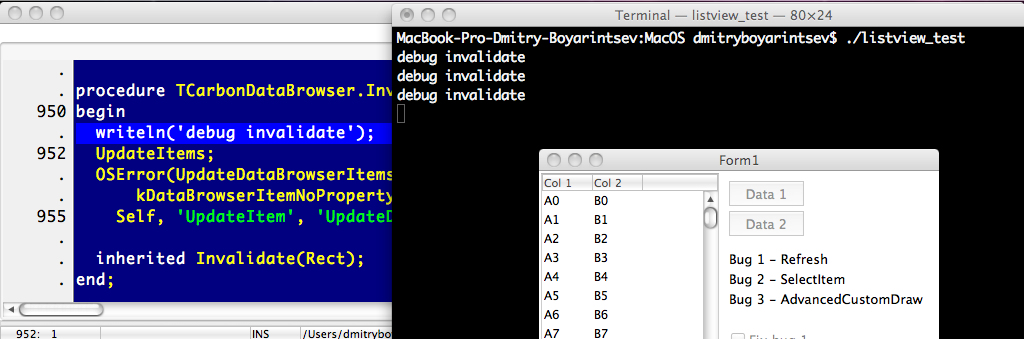 | |
| 701 | 667 | ||
| 702 | 668 | This is especially useful when using Project Options \> Compiler Options \> Debugging when you have ticked the Other debugging info - Use Heaprtc unit (check for mem-leaks). The Terminal will show the report: | |
| 703 | 669 | ||
| 704 | 670 | ``` pascal | |
| 705 | 671 | Heap dump by heaptrc unit of ./MyApp | |
| 706 | 672 | 1441 memory blocks allocated : 99080/102040 | |
| 707 | 673 | 1441 memory blocks freed : 99080/102040 | |
| 708 | 674 | 0 unfreed memory blocks : 0 | |
| 709 | 675 | True heap size : 458752 (32 used in System startup) | |
| 710 | 676 | True free heap : 458720 | |
| 711 | 677 | ``` | |
| 712 | 678 | ||
| 713 | 679 | ### Using the Console | |
| 714 | 680 | ||
| 715 | 681 | It is also possible to see the output by using the native macOS `NSLog()` procedure which logs your error message to the Apple System Log facility. You can read the System Log in realtime using the Console utility (located in Applications \> Utilities). As there will be many message entries scrolling by, add MyApp as a process to the search window to filter the entries being shown. For example: | |
| 716 | 682 | ||
| 717 | 683 | ``` pascal | |
| 718 | 684 | MyAudioPlayer := AVAudioPlayer.alloc.initWithContentsOfURL_error(url, @err); | |
| 719 | 685 | ||
| 720 | 686 | if Assigned(MyAudioPlayer) then | |
| 721 | 687 | MyAudioPlayer.play | |
| 722 | 688 | else | |
| 723 | 689 | NSLog(NSStr('Error in procedure PlayAudio(): %@'), err); | |
| 724 | 690 | ``` | |
| 725 | 691 | ||
| 726 | 692 | When the audio file is missing from the application's Resources directory, the following appears in the Console system log: | |
| 727 | 693 | ||
| 728 | 694 |  | |
| 729 | 695 | ||
| 730 | 696 | Note that the NSlog information also appears in the Terminal if you have opened the application as explained above. | |
| 731 | 697 | ||
| 732 | 698 | ## Troubleshooting | |
| 733 | 699 | ||
| 734 | 700 | The following articles are relevant for troubleshooting application issues: | |
| 735 | 701 | ||
| 736 | 702 | - [[Cocoa Debugging|Cocoa debugging]] | |
| 737 | 703 | - [[lldb|Debugging with the macOS lldb debugger]] | |
| 738 | 704 | - [[macOS Gatekeeper Debugging Tips]] | |
| 739 | 705 | - [[LazLogger|LazLogger (part of Lazarus) will log to a file]] | |
| 740 | 706 | - [[Logging exceptions]] | |
| 741 | 707 | - [[heaptrc|Memory leak checking]] | |
| 742 | 708 | ||
| 743 | 709 | Seek help in the forums: | |
| 744 | 710 | ||
| 745 | 711 | - [[Forum|How to use the Forums effectively]] | |
| 746 | 712 | - [FPC and Lazarus Forums](https://forum.lazarus.freepascal.org) | |
| 747 | 713 | ||
| 748 | 714 | Obscure native macOS error codes? | |
| 749 | 715 | ||
| 750 | 716 | - [Look up Apple API errors quickly!](https://OSStatus.com) | |
| 751 | 717 | ||
| 752 | 718 | Finally, if the issue is in Free Pascal or Lazarus and not your own code: | |
| 753 | 719 | ||
| 754 | 720 | - [[How do I create a bug report]] | |
| 755 | 721 | - [[Tips on writing bug reports]] | |
| 756 | 722 | ||
| 757 | 723 | ## Converting legacy Pascal code | |
| 758 | 724 | ||
| 759 | 725 | Bxxx code macro replacements: | |
| 760 | 726 | ||
| 761 | 727 | - BAnd(i,j) = ((i) and (j)) | |
| 762 | 728 | - BOr(i,j) = ((i) or (j)) | |
| 763 | 729 | - BXOr(i,j) = ((i) xor (j)) | |
| 764 | 730 | - Bsr(i,n) = ((i) shr (n)) | |
| 765 | 731 | - Bsl(i,n) = ((i) shl (n)) | |
| 766 | 732 | - BTST(i,n) = ((((i) shr (n)) and 1)=1) | |
| 767 | 733 | - BSet(i,n) = i:=(i) or (1 shl (n)) | |
| 768 | 734 | - BClr(i,n) = i:=(i) and not (1 shl (n)) | |
| 769 | 735 | ||
| 770 | 736 | See also: [[Porting from Mac Pascal]]. | |
| 771 | 737 | ||
| 772 | 738 | ## See also | |
| 773 | 739 | ||
| 774 | 740 | - [[Portal:Mac|Lazarus/FPC macOS Portal]] - more macOS tips and code snippets | |
| 775 | 741 | ||
| 776 | 742 | - [[Installing Lazarus on macOS]] | |
| 777 | 743 | ||
| 778 | 744 | ## External Links | |
| 779 | 745 | ||
| 780 | 746 | - [Apple developer documents](https://developer.apple.com/documentation/) - current and up to date | |
| 781 | 747 | ||
| 782 | 748 | - [Apple archived developer documents](https://developer.apple.com/library/archive/navigation/) - dated, but often more helpful | |
| 783 | 749 | ||
| 784 | 750 | - [Making Your Lazarus App Mac-Friendly](https://macpgmr.github.io/MacXPlatform/MacXPlatform_Part8.html) (Apple help info outdated) | |
| 785 | 751 | ||
| 786 | 752 | - Using Xcode for Pascal projects, refer to [this page](https://macpgmr.github.io/ObjP/ProjectXC.html). | |
| 787 | 753 | ||
| 788 | 754 | --- | |
| 789 | 755 | *From the Free Pascal wiki, page "macOS Programming Tips", as it stood on 2023-09-13 after a change by Trev, out of the wiki's dump of 2024-05-26. Copyright stays with the author who wrote it, according to the old wiki's [[Licensing]] page. If you have concerns about this material, [message the admin](/wiki-contact).* |