

MSEide+MSEgui/fr: what changed
Revision 1 to 2. Removed lines have a minus sign; added lines have a plus sign.
| Old | New | Line | |
|---|---|---|---|
| 1 | 1 | **Information** : Le projet MSEide+MSEgui est continué par les [amis de Martin Schreiber](https://github.com/mse-org). Rejoignez-nous ! | |
| 2 | 2 | ||
| 3 | 3 | La version la plus récente de MSEide+MSEgui peut-être téléchargée sur la page suivante : <https://github.com/mse-org/mseide-msegui> | |
| 4 | 4 | ||
| 5 | 5 | Biographie de † Martin Schreiber (en anglais) : <https://sites.google.com/view/martin-schreiber-biography/> | |
| 6 | 6 | ||
| 7 | 7 | # Introduction | |
| 8 | 8 | ||
| 9 | 9 | MSEide+MSEgui est un outil multiplateforme de développement entièrement écrit en Pascal. La bibliothèque MSEgui n'est pas compatible avec la VCL. La bibliothèque graphique est une interface à win32 et X11. Quoiqu'étant l'œuvre d'une seule personne (Martin Schreiber) l'EDI et la bibliothèque offrent de nombreuses fonctionnalités : | |
| 10 | 10 | ||
| 11 | 11 | - Encodage interne des caractère en UCS2. | |
| 12 | 12 | - Outil d'internationalisation inclus. | |
| 13 | 13 | - Docking forms. | |
| 14 | 14 | - Embedded forms (similar to TFrame). | |
| 15 | 15 | - Visual form inheritance. | |
| 16 | 16 | - Liaison à xlib et à gdi32, sans dépendance à une autre bibliothèque. | |
| 17 | 17 | - Composants pour la gestion de bases de données et composants visuels pour l'édition des données. | |
| 18 | 18 | - Débogage intégré. | |
| 19 | 19 | - Integrated report designer. | |
| 20 | 20 | - Flexible and handy build system with switchable macros. | |
| 21 | 21 | - Et d'autres choses encore... | |
| 22 | 22 | ||
| 23 | 23 | ## Mais que faites-vous de Lazarus ? | |
| 24 | 24 | ||
| 25 | 25 | [Lazarus](http://www.lazarus.freepascal.org) est un EDI qui offre un haut degré de compatibilité avec la VCL (la bibliothèque de composants visuels de Delphi) et des applications avec un aspect différent sur de nombreuses plateformes. Cet aspect natif est important pour beaucoup de développeurs. Cependant, le parti pris de la compatibilité avec la VCL nécessite un travail compliqué d'interface avec les différents ensembles de composants visuels (GTK, Win32, Carbon, Qt). L'évolution de ces ensembles (par exemple le passage de GTK1 à GTK2) oblige à des réadaptations continuelles. | |
| 26 | 26 | ||
| 27 | 27 | [MSEide+MSEgui](http://sourceforge.net/projects/mseide-msegui/) n'a ni l'avantage de la compatibilité avec la VCL, ni un style différent pour chaque plateforme. La bibliothèque visuelle fait interface avec Win32 et X11. L'avantage de s'appuyer sur X11 est de pouvoir atteindre durablement un grand nombre de plateformes. | |
| 28 | 28 | ||
| 29 | 29 | Lazarus et MSEide+MSEgui poursuivent donc des objectifs différents. À vous de voir lequel correspond le mieux à vos attentes ! | |
| 30 | 30 | ||
| 31 | 31 | ## Pourquoi ce wiki | |
| 32 | 32 | ||
| 33 | 33 | La conception de MSEgui est une nouvelle approche. MSEgui apporte des solutions innovantes aux problèmes de toujours. La bibliothèque MSEgui est donc radicalement différente de la VCL/LCL/CLX. Passer de la VCL à MSEgui sera plus difficile que de passer [[Code Conversion Guide|de la VCL à la LCL]]. Ces pages de wiki ont pour but de vous guider dans vos premiers pas. | |
| 34 | 34 | ||
| 35 | 35 | # Installation | |
| 36 | 36 | ||
| 37 | 37 | - Dernière version publiée par Martin Schreiber : 4.6.2 | |
| 38 | 38 | - Page d'accueil : [Site de MSEide+MSEgui](http://mseide-msegui.sourceforge.net/) | |
| 39 | 39 | - Téléchargement : [Sourceforge](http://sourceforge.net/projects/mseide-msegui/files/) | |
| 40 | 40 | ||
| 41 | 41 | - Version courante du projet continué par les amis de Martin Schreiber : 5.1.0 | |
| 42 | 42 | - Page d'accueil : [Nouveau site de MSEide+MSEgui](https://github.com/mse-org/mseide-msegui) | |
| 43 | 43 | - Téléchargement : [Github](https://github.com/mse-org/mseide-msegui/releases) | |
| 44 | 44 | ||
| 45 | 45 | Les instructions pour l'installation se trouvent sur la page d'accueil. | |
| 46 | 46 | ||
| 47 | 47 | # Premières notions | |
| 48 | 48 | ||
| 49 | 49 | ## Ouverture d'un projet | |
| 50 | 50 | ||
| 51 | 51 | Lancez l'EDI et utilisez le menu Project-\>Open pour ouvrir le projet de démonstration msegui/apps/demo/demo.prj. Le nom du projet s'affiche dans le titre de la fenêtre principale. Appuyez sur F9 et (pourvu que vous ayez suivi les consignes d'installation), admirez la rapidité du tandem formé par Free Pascal et MSEide. | |
| 52 | 52 | ||
| 53 | 53 | ## Premiers pas dans le développement rapide d'applications | |
| 54 | 54 | ||
| 55 | 55 | Arrêtez l'application en cliquant sur le bouton Exit. Utilisez le menu Project-\>Source pour ouvrir le fichier demo.pas. Appuyez sur la touche Ctrl et simultanément cliquez sur le paramètre mainfo dans la ligne de code suivante : | |
| 56 | 56 | ||
| 57 | 57 | `application.createform(tmainfo,mainfo);` | |
| 58 | 58 | ||
| 59 | 59 | Le fichier main.pas s'ouvre automatiquement dans l'éditeur et le curseur se positionne à l'endroit où la variable mainfo est déclarée. Cliquez sur F12 pour passer de l'unité à la fiche et inversement. Tout ne sera pas aussi facile : c'est la raison d'être de la page que vous êtes en train de lire. Cliquez sur le bouton : l'éditeur de propriétés s'ouvre (inhabituel mais commode). Nous allons ajouter un deuxième bouton. Si nécessaire, affichons la palette de composants en utilisant l'item de menu View-\>Toolbar-\>Component Palette. Sélectionnons le composant tbutton sur l'onglet Widget (c'est le premier). Cliquons sur la forme pour placer le bouton. Renseignons la propriété caption de la manière habituelle. La création d'une procédure liée à un événement ne se fait pas de la manière accoutumée, par un double clic sur la propriét onexecute. Au lieu de cela, vous devez sélectionner la propriété onexecute dans l'éditeur de propriétés, taper le nom que vous vous avez choisi pour la procédure et appuyer sur Entrée. Le code de la procédure est automatiquement créé et le curseur se place à l'endroit de la définition. Utilisez la combinaison de touches Ctrl-Shift-flèche du bas (ou du haut) pour aller de la définition à l'implémentation. Ajoutez dans le corps de la procédure quelque chose comme writeln('Hello world'); puis appuyez sur F9. Le résultat de l'instruction writeln s'affiche dans la console cible de MSEide, que vous pouvez rendre visible par le menu View-\>Target Console. | |
| 60 | 60 | ||
| 61 | 61 | ## Ajouter un menu | |
| 62 | 62 | ||
| 63 | 63 | ### Création du menu | |
| 64 | 64 | ||
| 65 | - | ||
| 65 | + | Sélectionnez le composant `tmainmenu`, dans l'onglet Gui de la palette de composants, et déposez le composant sur la forme principale. | |
| 66 | 66 | ||
| 67 | - | ||
| 68 | - | ||
| 69 | - | ||
| 70 | - | ||
| 67 | + | 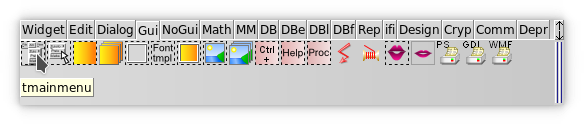 | |
| 71 | 68 | ||
| 72 | - | ||
| 69 | + | Cliquez sur la forme principale (`mainfo`) pour que l'inspecteur d'objet affiche les propriétés de la forme principale. Utilisez la flèche à droite de la propriété mainmenu, pour sélectionner `tmainmenu1` comme menu principal de la forme principale. | |
| 73 | 70 | ||
| 74 | - | ||
| 75 | - | ||
| 76 | - | ||
| 77 | - | ||
| 71 | + | 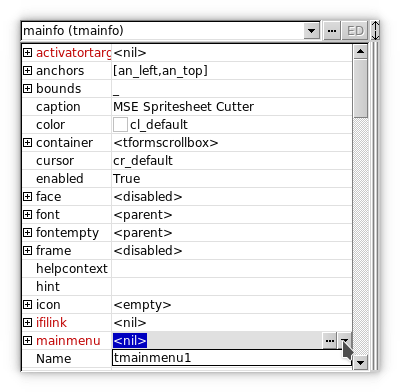 | |
| 78 | 72 | ||
| 79 | 73 | ### Création des items de menu | |
| 80 | 74 | ||
| 81 | - | ||
| 75 | + | Dans l'inspecteur d'objet, développez la branche mainmenu. Dans cette branche, développez la propriété menu. Changez la valeur de submenu.count : remplacez 0 par 1 (ou une valeur supérieure). | |
| 82 | 76 | ||
| 83 | - | ||
| 84 | - | ||
| 85 | - | ||
| 86 | - | ||
| 77 | + | 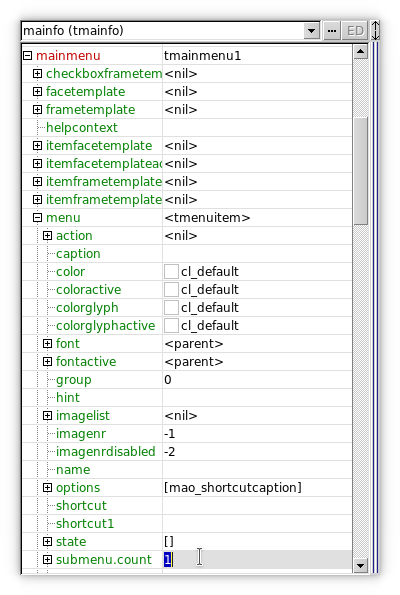 | |
| 87 | 78 | ||
| 88 | - | ||
| 79 | + | Développez la propriété submenu.count, qui affichera "Item 0". Dépliez "Item 0" et changez la valeur de la propriété caption : mettez par exemple "&File". | |
| 89 | 80 | ||
| 90 | - | ||
| 91 | - | ||
| 92 | - | ||
| 93 | - | ||
| 81 | + | 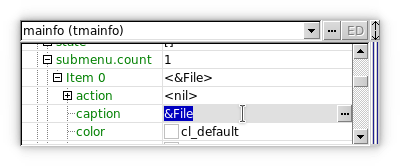 | |
| 94 | 82 | ||
| 95 | - | ||
| 83 | + | Répétez ensuite la même procédure, en changeant la valeur de submenu.count pour "Item 0" : mettez par exemple 1. | |
| 96 | 84 | ||
| 97 | - | ||
| 85 | + | Développez la propriété submenu.count et changez la valeur de la propriété caption pour le nouvel "Item 0". Mettez par exemple "E&xit". Appuyez sur F9 : votre programme devrait avoir un menu *F*ile avec une entrée E*x*it. | |
| 98 | 86 | ||
| 99 | - | ||
| 100 | - | ||
| 101 | - | ||
| 102 | - | ||
| 87 | + | 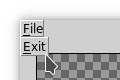 | |
| 103 | 88 | ||
| 104 | 89 | ### Autre méthode | |
| 105 | 90 | ||
| 106 | - | ||
| 91 | + | Une autre méthode consiste à cliquer avec le bouton droit de la souris, dans l'inspecteur d'objet, sur la propriété submenu.count, ou sur une propriété "Item n". Vous verrez apparaître un menu contextuel. Utilisez ce menu pour insérer, ajouter ou supprimer des items de menu. | |
| 107 | 92 | ||
| 108 | 93 | Dès que vous avez plus d'un sous-menu, vous pouvez déplacer les items en les faisant glisser avec la souris. Commencez le mouvement de la souris sur la ligne "Item n". | |
| 109 | 94 | ||
| 110 | 95 | ## Créer un projet à partir d'un modèle | |
| 111 | 96 | ||
| 112 | 97 | Pour créer un projet à partir d'un modèle (template), utilisez le menu Project-\>New-\>From Template. Pour une application graphique, choisissez "default.prj" ; pour une application console, choisissez "console.prj". | |
| 113 | 98 | ||
| 114 | 99 | # Vue d'ensemble | |
| 115 | 100 | ||
| 116 | 101 | MSEgui est une bibliothèque qui fournit les matériaux permettant de construire des applications avec interface graphique<sup>1</sup>. | |
| 117 | 102 | ||
| 118 | 103 | MSEide est un environnement de développement conçu pour la production de logiciels avec Free Pascal et MSEgui. MSEide peut aussi être utilisé pour produire des applications pour micro-contrôleurs, avec le compilateur GCC. | |
| 119 | 104 | ||
| 120 | 105 | La version courante de MSEide+MSEgui fonctionne sous i386-linux, x86-64-linux, arm-linux, x86-64-freebsd, i386-win32 and x86-64-win64. Les microprocesseurs supportés sont CPU32, ARM and AVR32. MSEgui n'est lié à aucune plateforme en particulier. Des plateformes supplémentaires peuvent être ajoutées, à condition d'implémenter les éléments dependants du système. Les modules de MSEgui propres à un système en particulier se trouvent dans les sous-répertoires du dossier lib/common/kernel. | |
| 121 | 106 | ||
| 122 | 107 | ## Principaux objectifs recherchés au cours du développement | |
| 123 | 108 | ||
| 124 | 109 | - Une productivité accrue. | |
| 125 | 110 | - Une apparence et des fonctionnalités identiques sur toutes les plateformes, sans précautions particulières de la part de l'utilisateur. | |
| 126 | 111 | - Aussi peu de dépendances que possibles. | |
| 127 | 112 | - Orthogonalité : il doit y avoir aussi peu d'interférences que possible entre les différents éléments du programme et aussi peu d'exceptions et de cas spéciaux que possible. | |
| 128 | 113 | - Des composants hautement paramétrables. | |
| 129 | 114 | - Travailler avec MSEide+MSEgui devrait être amusant. | |
| 130 | 115 | ||
| 131 | 116 | ## Architecture | |
| 132 | 117 | ||
| 133 | - | ||
| 118 | + | MSEgui ne dépend d'aucune bibliothèque externe de composants. MSEgui communique directement avec l'interface graphique du système d'exploitation, X11 via Xlib sous Linux et GDI sous Windows. | |
| 134 | 119 | ||
| 135 | - | ||
| 120 | + | Les éléments individuels de la bibliothèque n'emploient aucune ressource du système d'exploitation. Seule la fenêtre principale est connue du système d'exploitation. Le traitement des événements externes (clavier, souris, contrôle du focus) se fait à l'intérieur de MSEgui, en Pascal. | |
| 136 | 121 | ||
| 137 | 122 | La classe de base pour les éléments de la bibliothèque est la classe `twidget`. Il n'y a aucune distinction entre les éléments graphiques simples et ceux qui peuvent recevoir le focus (comme c'est le cas avec Delphi). Tous les widgets MSEgui disposent de toutes les fonctionnalités de la classe `twidget`. | |
| 138 | 123 | ||
| 139 | 124 | La classe `twidget` a deux propriétés remarquables qui sont d'une part `twidget.frame` et d'autre part `twidget.face`. Quand ces deux propriétés ne sont pas utilisées, elles ont la valeur **nil**, de façon à ne consommer aucune ressource. | |
| 140 | 125 | ||
| 141 | 126 | La propriété `twidget.frame` est responsable du cadre qui entoure la surface utile de l'élément. L'apparence du cadre est modifiable. Ce peut être un simple cadre 3D, rapide à dessiner, aussi bien qu'une construction complexe basée sur des images. Le cadre comprend aussi des éléments qui peuvent être utilisés pour faire des barres de défilement, des boutons et des labels. | |
| 142 | 127 | ||
| 143 | 128 | La propriété `twidget.face` dessine l'arrière-plan de la surface utile d'un élément. Des dégradés de couleur et des images peuvent être utilisés. Une transparence partielle est possible. | |
| 144 | 129 | ||
| 145 | - | ||
| 130 | + | Setting the properties of frame and face can be centralised by using `tframecomp` and `tfacecomp`, which can be selected into `tframe` and `tface` as templates. | |
| 146 | 131 | ||
| 147 | - | ||
| 132 | + | The next level of centralization is `tskincontroller`, through which program-wide settings can be made. In order to achieve that, `tskinkontroller` assigns to the GUI elements the appropriate `tframcomp` and `tfacecomp` templates. | |
| 148 | 133 | ||
| 149 | - | ||
| 134 | + | The control of the widget functions (focusin, focusout, ...) is done by virtual procedures and functions and not through messages. The MSEgui message function has other tasks. Also a Corba-style interface is used - for the safe connection between the various components and the automatic disconnection through destroy, a `tobjectlinker` is used. | |
| 150 | 135 | ||
| 151 | - | ||
| 136 | + | The type `msestring` is used in MSEgui for storing text. At the moment, msestring equals WideString. However, the reference counted FPC WideString (UnicodeString) is planned to be used under Windows, as soon as it becomes available in one of the future FPC releases. | |
| 152 | 137 | ||
| 153 | 138 | In text files the utf-8, ASCII or the local encoding is used - MSEide+MSEgui does not use utf-16 files. | |
| 154 | 139 | ||
| 155 | - | ||
| 140 | + | The MSEgui database components provide the conversion from the local encoding or the utf-8 (adjustable) to WideString for the data buffering. For file operations, a set of MSEgui's own functions with WideString interface exists. An MSEgui application can therefore work consistently with WideStrings, which is a significant relief for some tasks. | |
| 156 | 141 | ||
| 157 | - | ||
| 142 | + | Specialized data edit widgets for the basic data types (integer, real, tdatetime, ...) are available in MSEgui (`tintegeredit`, `trealedit`, `tdatetimeedit`, ...). The main event property of these widgets is `onsetvalue`, which can be used for reacting upon user input. | |
| 158 | 143 | ||
| 159 | 144 | The `t*edit` widgets can be inserted into a `twidgetgrid` and in that way form a column of the appropriate data format. | |
| 160 | 145 | ||
| 161 | - | ||
| 146 | + | For viewing and editing of data fields a `tdbwidgetgrid` togeather with a set of `tdb*editwidget`s can be used. Worth mentioning are also different lookup components and a `tlookupbuffer`, a fast associative data memory. | |
| 162 | 147 | ||
| 163 | - | ||
| 148 | + | The basic component of the MSEgui's database environment is `tmsebufdataset`, from which `tmsesqlquery` is derived. MSEgui DB is a fork of the FPC SQLDB system, where TBufDataset and large parts of TSQLQuery and the connection components have been completely rewritten. | |
| 164 | 149 | ||
| 165 | 150 | `tmsebufdataset` offers local indices, calculated and internalcalc-fields, a mode with an interrupted database connection, an in-memory mode where no database connectivity is necessary and can keep a local journal, in order to later reconect a previously disconnected database connection. `tmsebufdataset` stores texts as WideStrings of variable length. | |
| 166 | 151 | ||
| 167 | - | ||
| 152 | + | Further, there are SQL script components and `tsqlresult` for quick queries without the TDataset overhead. Persistent TField instances are either kept within `tmsesqlquery`, where they can be edited in the object inspector via `tmsesqlquery.controller.fields`, or they can be inserted into forms or modules as as individual components from the 'DBf' component palette. | |
| 168 | 153 | ||
| 169 | - | ||
| 154 | + | MSEide supports 'visual form inheritance', Submodule (Delphi TFrame equivalent) and allows the assignment of components of other forms or modules to component properties at design time. | |
| 170 | 155 | ||
| 171 | - | ||
| 156 | + | Internationalization is done via resource modules that are loadable at runtime. The MSEi18n, a tool that supports the import and export of texts in spreadsheet programs is available for editing - therefore facilitating a translation by nonprogrammers. | |
| 172 | 157 | ||
| 173 | 158 | <sup>1</sup>) This chapter is based on a translation of a German text provided by Martin Schreiber. | |
| 174 | 159 | ||
| 175 | 160 | # Tips: MSEide | |
| 176 | 161 | ||
| 177 | 162 | ## Larger fonts | |
| 178 | 163 | ||
| 179 | 164 | Some may find the standard menu font a bit small. The standard font for the main menu of an MSEgui application is the font defined by the stf_menu stock font. You can change a stock font value with a startup parameter, \<fontheight\> is given in pixels. | |
| 180 | 165 | ||
| 181 | 166 | `--FONTALIAS=<alias>,<fontname>[,<fontheight>[,<fontwidth>[,<options>]]]` | |
| 182 | 167 | ||
| 183 | 168 | So if you start the mseide like this, you can get a larger menu font: | |
| 184 | 169 | ||
| 185 | 170 | ` mseide --FONTALIAS=stf_menu,sans,16` | |
| 186 | 171 | ||
| 187 | 172 | In order to increase the base font size for all stock fonts use | |
| 188 | 173 | ||
| 189 | 174 | ` mseide --FONTALIAS=stf_default,,16` | |
| 190 | 175 | ||
| 191 | 176 | ## Shortcuts | |
| 192 | 177 | ||
| 193 | 178 | Common | |
| 194 | 179 | ||
| 195 | 180 | - **Ctrl+F4** - Close | |
| 196 | 181 | - **Ctrl+S** - Save | |
| 197 | 182 | - **Ctrl+E** - Select page | |
| 198 | 183 | - **F11** - Toggle Form/Inspector | |
| 199 | 184 | - **F12** - Toggle Form/Unit | |
| 200 | 185 | - **Shift+Ctrl+\[0..9\]** - Bookmark 0..9 | |
| 201 | 186 | - **Ctrl+\[0..9\]** - Go to bookmark 0..9 | |
| 202 | 187 | - **Ctrl+LeftClick** - Go to var(class, method, unit) declaration | |
| 203 | 188 | - **Shift+Ctrl+Up** - Go to method declaration | |
| 204 | 189 | - **Shift+Ctrl+Down** - Go to method implementation | |
| 205 | 190 | - **Shift+Ctrl+Space** - Show procedure header | |
| 206 | 191 | ||
| 207 | 192 | Debug | |
| 208 | 193 | ||
| 209 | 194 | - **F7** - Step | |
| 210 | 195 | - **F8** - Next | |
| 211 | 196 | - **F9** - Continue | |
| 212 | 197 | - **Shift+F7** - Finish | |
| 213 | 198 | - **Shift+Ctrl+F8** - Next instruction | |
| 214 | 199 | - **Shift+Ctrl+F7** - Step instruction | |
| 215 | 200 | - **F5** - Toggle breakpoint | |
| 216 | 201 | - **Shift+F5** - Toggle breakpoint enabled/disabled | |
| 217 | 202 | - **Ctrl+B** - Breakpoints on/off | |
| 218 | 203 | - **Ctrl+W** - Watches on/off | |
| 219 | 204 | ||
| 220 | 205 | Editor | |
| 221 | 206 | ||
| 222 | 207 | - **Ctrl+Z** - Undo | |
| 223 | 208 | - **Ctrl+X** - Cut | |
| 224 | 209 | - **Ctrl+C** - Copy | |
| 225 | 210 | - **Ctrl+V** - Paste | |
| 226 | 211 | - **Ctrl+F** - Find | |
| 227 | 212 | - **F3** - Search again | |
| 228 | 213 | - **Ctrl+L** - Go to line. | |
| 229 | 214 | - **Ctrl+I** - Indent block | |
| 230 | 215 | - **Ctrl+U** - Unindent | |
| 231 | 216 | ||
| 232 | 217 | ## Print from IDE | |
| 233 | 218 | ||
| 234 | 219 | You need [Ghostscript](https://ghostscript.com/). | |
| 235 | 220 | ||
| 236 | 221 | ## Recent opened files or projects | |
| 237 | 222 | ||
| 238 | 223 | The last opened projects are in the dropdown list of 'Project'-'Open'-'Name'. The last opened files are in the dropdown list of 'File'-'Open'-'Name'. | |
| 239 | 224 | ||
| 240 | 225 | ## Menu Editing | |
| 241 | 226 | ||
| 242 | 227 | - Use submenu.count to set the wanted menu items count. | |
| 243 | 228 | - Right click on submenu.count or on a menu item "Item X" to display a context-sensitive menu that allows to insert,append or delete a submenu entry | |
| 244 | 229 | - Use drag and drop on a submenu entry to move the the item in the array. | |
| 245 | 230 | ||
| 246 | 231 | ## New Panels in the IDE | |
| 247 | 232 | ||
| 248 | 233 | Example, you want to have the watch, stack and cpu window in a window: | |
| 249 | 234 | ||
| 250 | 235 | - select the menu item **View**-**Panels**-**New Panel**. | |
| 251 | 236 | - select the menu item **View**-**Watches**. | |
| 252 | 237 | - drag the Watches window by the grip (not the window title!) in the new panel. | |
| 253 | 238 | - same with Stack and CPU window. | |
| 254 | 239 | - to split horizontal drag one of the grip of the inserted widgets to the left border of the panel. | |
| 255 | 240 | - to split vertical drag one of the grip of the inserted widgets to the bottom border of the panel. | |
| 256 | 241 | - to use tabs drag one of the grip of the inserted widgets to the centre of the panel. | |
| 257 | 242 | ||
| 258 | 243 | ## Design Tab-Order | |
| 259 | 244 | ||
| 260 | 245 | Main way in **MSEide** is set the tab order after all widgets are placed in the form with the popup menu function "Set Tab Order". Select a widget in the container where you wish to set the tab oder, click right, click "Set Tab Order", click row 0, click "Start", click the widget in the container which should get tab order 0, click the widget which should get tab order 1.. | |
| 261 | 246 | ||
| 262 | 247 | An alternative is to drag and drop the rows to the desired position. The first row corresponds to the tab order 0 the second to the 1 and so on. | |
| 263 | 248 | ||
| 264 | 249 | ### Creating a new event handler | |
| 265 | 250 | ||
| 266 | 251 | Select the event you want in the **Object Inspector**, then type name of the new event handler. IDE create a new procedure(declaration and implementation) in the source code. If you double-click the name of the event handler in the **Object Inspector**, source editor opens with the cursor at begin of your handler implementation. | |
| 267 | 252 | ||
| 268 | 253 | # Trucs et astuces | |
| 269 | 254 | ||
| 270 | 255 | ## Contrôle à onglets | |
| 271 | 256 | ||
| 272 | 257 | - Déposez un contrôle **ttabwidget** sur la fiche. Vous avez alors un conteneur (*ttabwidget1*) pour vos pages. | |
| 273 | 258 | - Déposez autant de contrôles **ttabpage** que vous le souhaitez sur *ttabwidget1*. | |
| 274 | 259 | ||
| 275 | 260 | ## Séparateur | |
| 276 | 261 | ||
| 277 | 262 | Supposons que nous ayons deux widgets (widgetLeft, widgetRight) entre lesquels nous souhaitons un séparateur horizontal. (Le séparateur sera positionné à la verticale, mais la séparation sera horizontale, n'est-ce pas ?) | |
| 278 | 263 | ||
| 279 | 264 | - Ajoutez un TSplitter sur la fiche et donnez-lui la taille que vous souhaitez. | |
| 280 | 265 | - Donnez à la propriété **linkleft** de *tsplitter1* la valeur **widgetLeft**, et à la propriété **linkright** la valeur **widgetRight**. Nos deux widgets sont désormais collés au séparateur. | |
| 281 | 266 | - Donnez à la propriété **spo_hmove** la valeur **True**. C'est tout. | |
| 282 | 267 | - Si vous souhaitez conserver une proportion entre la largeur de *widgetLeft* et celle de *widgetRight* lorsque la forme est redimensionnée, donnez à la propriété **so_hprop** la valeur **True**. | |
| 283 | 268 | - Pour un séparateur vertical, utilisez les propriétés **linktop**, **linkbottom**, **spo_vmove**, **spo_vprop**. | |
| 284 | 269 | ||
| 285 | 270 | ## Switch-off auto-scrolling of the form(widget) | |
| 286 | 271 | ||
| 287 | 272 | Change the **container - frame - sbhorz - options - sbo_showauto** property of the form to **False**. | |
| 288 | 273 | ||
| 289 | 274 | ## Read/write data in the twidgetgrid | |
| 290 | 275 | ||
| 291 | 276 | - **editwidget.value** -\> value of the actual row | |
| 292 | 277 | - **editwidget\[rowindex\]** or **editwidget.gridvalue\[rowindex\]** -\> value of the addressed row | |
| 293 | 278 | - **editwidget.gridvalues** the whole column as a dynamic array. | |
| 294 | 279 | ||
| 295 | 280 | ## First events | |
| 296 | 281 | ||
| 297 | 282 | **OnCreate** is called before loaded procedures of the components of the form are called, **OnLoaded** is called after loaded procedures of the components of the form are called. Many components do initializations in loaded procedures, event properties are inactive before procedure loaded of the component is called. | |
| 298 | 283 | ||
| 299 | 284 | ## MDI | |
| 300 | 285 | ||
| 301 | 286 | MDI - application can be created using TDockFormWidget or TDockPanel (as MDI-area) and TDockForm (as ancestor for you MDI-child window). There are examples: | |
| 302 | 287 | ||
| 303 | 288 | - How to use TDockForm with custom MDI-buttons <http://brefi.narod.ru/mdi_example2.tar.gz> or in *\$MSESOURCES/contributed/ivankob/examples* | |
| 304 | 289 | - Simple MDI-controller (create, switch, ... the child windows) <http://mihafpc.narod.ru/MDISample.tar.gz> or in *\$MSESOURCES/contributed/miha* | |
| 305 | 290 | ||
| 306 | 291 | ## Drawing | |
| 307 | 292 | ||
| 308 | 293 | ### Redraw form the additional thread | |
| 309 | 294 | ||
| 310 | 295 | Use a **tthreadcomp** (tab **Gui**) to do the long time procedure. If you need to access widgets and other gui variables from the additional thread, call **application.lock** before and **aplication.unlock** after accessing the main event thread elements. | |
| 311 | 296 | ||
| 312 | 297 | ### Force repaint | |
| 313 | 298 | ||
| 314 | 299 | - **twidget.invalidate** to invalidate an individual widget | |
| 315 | 300 | - **twidget.rootwidget.invalidate** to invalidate the window | |
| 316 | 301 | - **application.invalidate** to invalidate all windows (=forms) in the application | |
| 317 | 302 | ||
| 318 | 303 | ### Draw text | |
| 319 | 304 | ||
| 320 | 305 | There are two methods to draw texts in MSEgui: | |
| 321 | 306 | ||
| 322 | 307 | - Simple text positioning by baseline position of start of the first character with **tcanvas.drawstring**. | |
| 323 | 308 | - With the drawtext procedures of **msedrawstring.pas**. | |
| 324 | 309 | ||
| 325 | 310 | ### Widgets canvas | |
| 326 | 311 | ||
| 327 | 312 | No twidget has a canvas. The canvas used for painting is normally one of the canvas of twindow, it can also be an canvas of a tbitmap or a tprinter or... MSEgui uses one canvas to paint a whole window with all widgets. *tcanvas.font* is initialized by **twidget.getfont**, *canvas.color* by **twidget.actualcolor** before calling **twidget.dopaint**, see **twidget.paint** procedure in msegui.pas. | |
| 328 | 313 | ||
| 329 | 314 | ### Theming (Frames & Faces) | |
| 330 | 315 | ||
| 331 | 316 | Every twidget has a property **frame** and **face**. If they are deactivated (\<disabled\> in object inspector) they are only an nil pointer and need no more resources. Activate them by clicking on the ellipse button in the right object inspector column in the row face respective frame. | |
| 332 | 317 | ||
| 333 | 318 | The **face** property defines the background of the client area of the widget. | |
| 334 | 319 | ||
| 335 | 320 | It is a combination of a fade and a bitmap. Both of them can be semitransparent. The bitmap can be stretched and/or tiled. Example: you want to create a button with a fade as face. | |
| 336 | 321 | ||
| 337 | 322 | - place a *tbutton* on the form. | |
| 338 | 323 | - in object inspector activate property face. | |
| 339 | 324 | - set *face.fade.color.count* to 2. | |
| 340 | 325 | - click on the **+** at *color.count*. | |
| 341 | 326 | - in item 0 select cl_gray. | |
| 342 | 327 | - in item 1 select cl_ltgray, now you have a left to write fade from gray to light gray. | |
| 343 | 328 | - change *face.fade.direction* to *gd_up* or *gd_down*, you get a convex resp. concave fade. | |
| 344 | 329 | ||
| 345 | 330 | If you want, you can blend an additional structure over the fade: | |
| 346 | 331 | ||
| 347 | 332 | - select the wanted pattern image in *face.image*. | |
| 348 | 333 | - activate *face.image.alignment* al_tiled. | |
| 349 | 334 | - adjust *face.image.transparency* to your needs, \$000000 = opaque, \$ffffff = fully transparent. The number defines the transparency of the three color channels (\$RRGGBB). | |
| 350 | 335 | ||
| 351 | 336 | To centralise the face look use an **tfacecomp** (tab *Gui*) and select the facecomp in *template* of the *face* properties. | |
| 352 | 337 | ||
| 353 | 338 | The **frame** property defines the look of an additional frame around the component and shows a possible caption at the widget. Example: you want an lowered frame around and a caption right of the button. | |
| 354 | 339 | ||
| 355 | 340 | - activate property *frame*. | |
| 356 | 341 | - set *frame.levelo* to -1. | |
| 357 | 342 | - set *frame.leveli* to 1. | |
| 358 | 343 | - enter the caption text in *frame.caption*. | |
| 359 | 344 | - set *frame.captionpos* to cp_right. | |
| 360 | 345 | ||
| 361 | 346 | To centralise the frame look use an **tframecomp** (tab *Gui*) and select the framecomp in *template* of the *frame* properties. | |
| 362 | 347 | ||
| 363 | 348 | ### Desktop colors in the MSE application | |
| 364 | 349 | ||
| 365 | 350 | Default values of the mapped colors stored in the array **msegraphics.defaultmapped**. For change it's values you can use function **msegraphics.setcolormapvalue** [Win32 and KDE example](http://www.freepascal.org/wiki/index.php/User:Miha) (*\$MSESOURCES/contributed/miha/GuiStyle.pas*) | |
| 366 | 351 | ||
| 367 | 352 | # Application examples and screenshots | |
| 368 | 353 | ||
| 369 | 354 | ## A Firebird application | |
| 370 | 355 | ||
| 371 | 356 | The following screen shots are taken from an MSEgui Firebird database application. The programmer writes he has customized the look and feel of his application in about 30 minutes with a tfacecomp and two tframecomp. He states that the look and feel is identical on Linux and Windows. | |
| 372 | 357 | ||
| 373 | - | ||
| 374 | - | ||
| 375 | - | ||
| 376 | - | ||
| 358 | + | 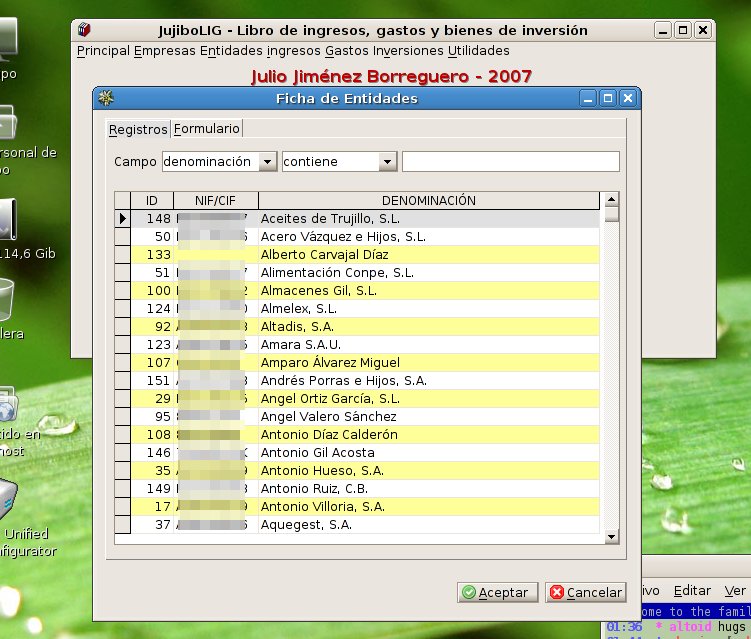 | |
| 377 | 359 | ||
| 378 | - | ||
| 379 | - | ||
| 380 | - | ||
| 381 | - | ||
| 360 | + |  | |
| 382 | 361 | ||
| 383 | 362 | Linux version: 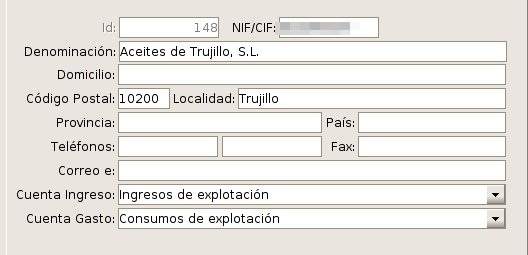 | |
| 384 | 363 | ||
| 385 | 364 | Windows version: 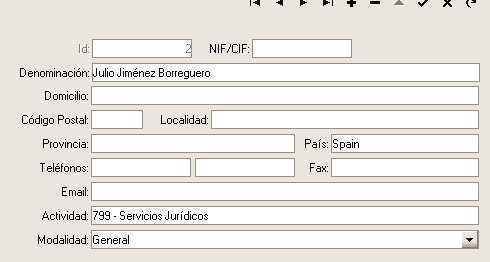 | |
| 386 | 365 | ||
| 387 | 366 | Linux version: 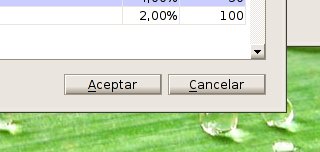 | |
| 388 | 367 | ||
| 389 | 368 | Windows version: 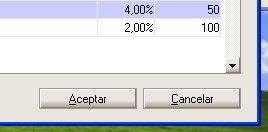 | |
| 390 | 369 | ||
| 391 | 370 | The report is designed and rendered with the built-in MSEide+MSEgui report designer and report generator. | |
| 392 | 371 | ||
| 393 | - | ||
| 394 | - | ||
| 395 | - | ||
| 396 | - | ||
| 372 | + | 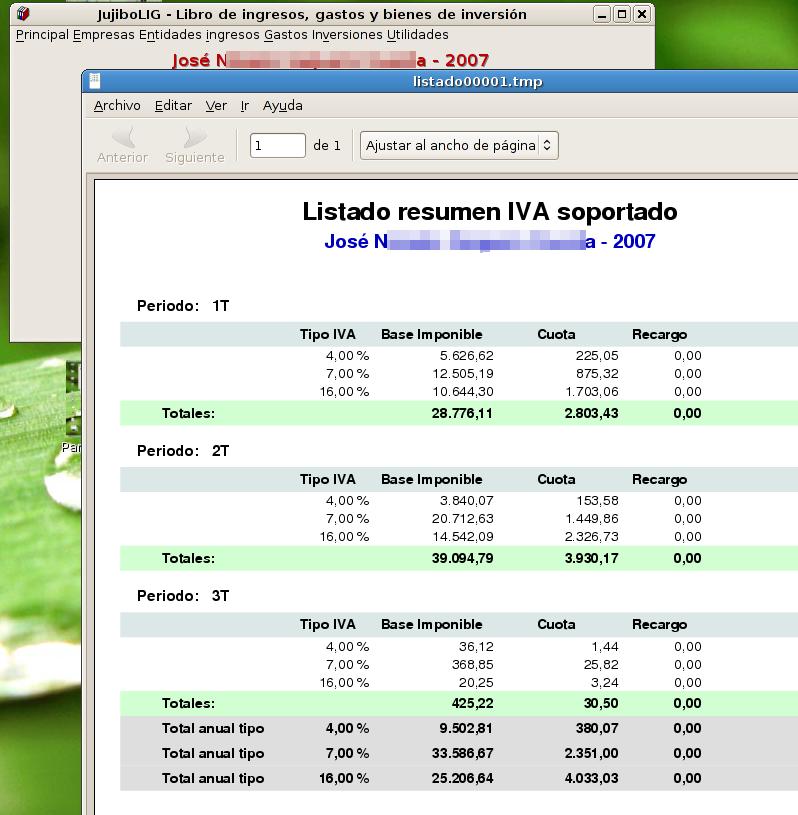 | |
| 397 | 373 | ||
| 398 | 374 | Two MDI forms with fade and flat frame. | |
| 399 | 375 | ||
| 400 | - | ||
| 401 | - | ||
| 402 | - | ||
| 403 | - | ||
| 376 | + | 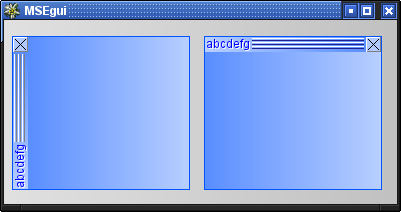 | |
| 404 | 377 | ||
| 405 | 378 | ## An embedded system | |
| 406 | 379 | ||
| 407 | 380 | An embedded system for medical applications, in this case steam sterilizers, was realized with MSE-IDE & MSE-GUI for the control unit, nowadays also commonly called the "human machine interface", HMI. | |
| 408 | 381 | ||
| 409 | - | ||
| 410 | - | ||
| 411 | - | ||
| 412 | - | ||
| 382 | + | 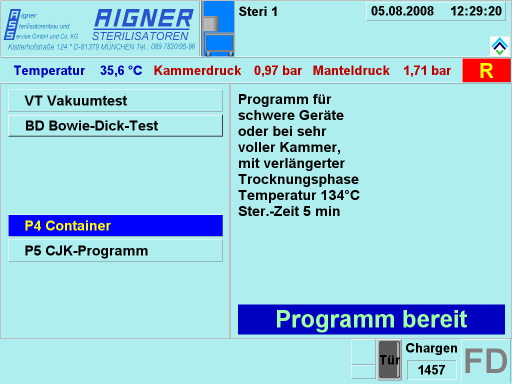 | |
| 413 | 383 | ||
| 414 | 384 | The control unit uses a touch panel a its display, therefore all active controls have to be made rather large to enable the personnel to handle them easily. The main screen consists of a few informational display fields and allows to select the implemented sterilizing processes by means of a menu consisting of several button components showing the process names along with a short description in a separate panel. The visibility of the buttons and their captions are defined during program loading by means of a configuration file. The informational fields display the devices' operating values in real time using a MSE system timer to collect the information from the PLC.\ | |
| 415 | - | ||
| 385 | + | ||
| 416 | 386 | 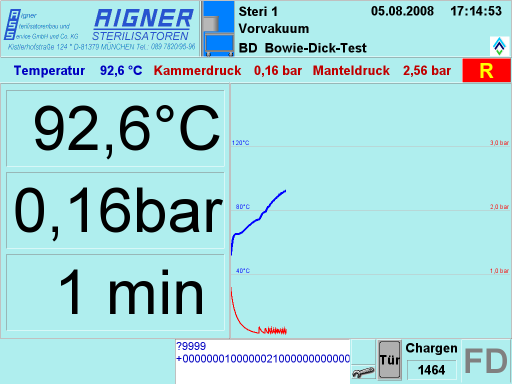 | |
| 417 | 387 | ||
| 418 | 388 | After processing has been started, the display is switched to a different format showing the operating values in large digits on some numeric display field components on the left and a graphical representation of the process history on the right, again both as real time "live displays". If the diagram curves would reach the right panel border, the diagram would change to a scrolling mode, always showing the current state at the extreme right.\ | |
| 419 | - | ||
| 389 | + | ||
| 420 | 390 | 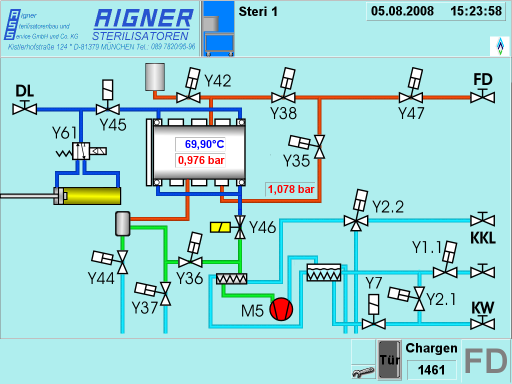 | |
| 421 | 391 | ||
| 422 | 392 | For diagnostic purposes, also a schematic state display is available. This shows a simplified schematic of the apparatus, along with real time animated symbols of the control elements, as there are valves and pumps, each displayed in a derived version of a timage component, created and placed dynamically on program load. Also shown are the most important process values as numerical displays, also dynamically placed. The schematic field really is the output of a separate program, running in parallel to the process display which provides the upper and lower parts of the screen display.\ | |
| 423 | - | ||
| 393 | + | ||
| 424 | 394 | 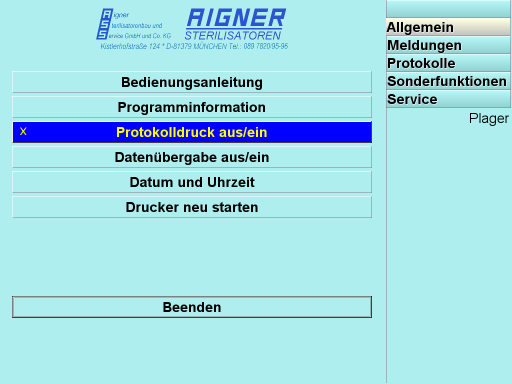 | |
| 425 | 395 | ||
| 426 | 396 | There is also a mode for setting several control and function parameters and to recall previous operational and diagnostic data. It is organised as a tabbed screen containing several run time parametrized menu pages and a couple of display field pages. Some of the pages allow access only after entering a pass code to prevent missuse of critical functions.\ | |
| 427 | - | ||
| 397 | + | ||
| 428 | 398 | 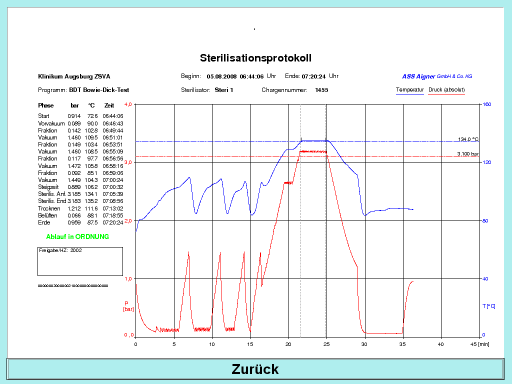 | |
| 429 | 399 | ||
| 430 | 400 | This is a screen displaying a graphical protocol of a previous process. The protocol is usually printed out immediately after termination, as required by the regulations. The printer output is generated as a postscript file, processed by ghostscript both for print out and for the on screen display shown, which uses the png format for loading into the display field.\ | |
| 431 | - | ||
| 401 | + | ||
| 432 | 402 | 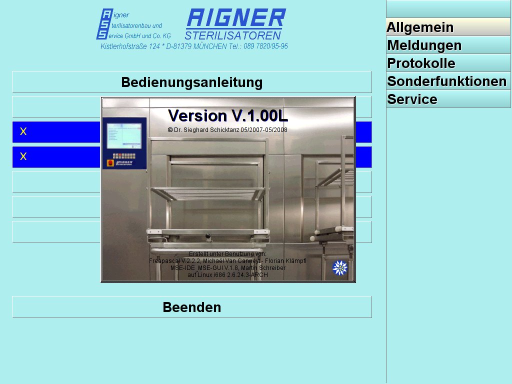 | |
| 433 | 403 | ||
| 434 | 404 | Of course, there is also an attribution display, showing program version, creator information and the tools used for the creation of the system, Free Pascal and MSE-IDE & MSE-GUI. As background, it uses a photography of one such apparatus as it is used in clinics displayed in an image component carrying several label fields used for the text. Above all of that sits a transparent button to close the picture. | |
| 435 | 405 | ||
| 436 | 406 | # Reference: MSEide | |
| 437 | 407 | ||
| 438 | 408 | - To move and resize components without gridsnap use shift+cursorkeys and ctrl+cursorkeys. | |
| 439 | 409 | - There are many possibilities with properties twidget.frame and twidget.face, for instance tiled semitransparent bitmaps and color fades (all twidget descendants have these properties!). | |
| 440 | 410 | ||
| 441 | 411 | For client area of forms use tmseform.container.frame and tmseform.container.face, tmseform has additionally onpaint to do custom drawing. | |
| 442 | 412 | ||
| 443 | 413 | You can write your own widgets and override procedure dopaint or use teventwidget with onpaint,onresize,onmouseevent,onkeydown,onkeyup... | |
| 444 | 414 | ||
| 445 | 415 | `How to convert filenames to windows format? `\ | |
| 446 | 416 | `Unit msefileutils: `\ | |
| 447 | 417 | `function tosysfilepath(const path: filenamety): filenamety; `\ | |
| 448 | 418 | `procedure tosysfilepath1(var path: filenamety); `\ | |
| 449 | 419 | `Converts to filename format of actual OS. `\ | |
| 450 | 420 | `function tomsefilepath(const path: filenamety): filenamety; `\ | |
| 451 | 421 | `procedure tomsefilepath1(var path: filenamety); `\ | |
| 452 | 422 | `Converts from filename format of actual OS.` | |
| 453 | 423 | ||
| 454 | 424 | `Where is the MDI ??? `\ | |
| 455 | 425 | `In MSEgui we have tdockform and tdockpanel for that purpose. `\ | |
| 456 | 426 | `Have a look at property dragdock.` | |
| 457 | 427 | ||
| 458 | 428 | ## MSEi18n | |
| 459 | 429 | ||
| 460 | 430 | # [[Reference: MSEgui]] | |
| 461 | 431 | ||
| 462 | 432 | [[Reference: MSEgui|On this page you can find a working in progress for documenting MSEGUI.]] | |
| 463 | 433 | ||
| 464 | 434 | # External links | |
| 465 | 435 | ||
| 466 | 436 | WARNING: MSE project is part now of mse-org: <https://github.com/mse-org> | |
| 467 | 437 | ||
| 468 | 438 | MSEide & MSEgui sources are here: <https://github.com/mse-org/mseide-msegui> | |
| 469 | 439 | ||
| 470 | 440 | Website: <http://mseide-msegui.sourceforge.net/> | |
| 471 | 441 | ||
| 472 | 442 | Community website: <http://www.msegui.com> | |
| 473 | 443 | ||
| 474 | 444 | Unofficial incomplete help pages started from Z505 at: <http://z505.com/cgi-bin/mse/idx.cgi?file=generalindex> | |
| 475 | 445 | ||
| 476 | 446 | Read the beginner's tutorial (in Russian) at: <http://freepascal.ru/article/mse/20060108181639/> | |
| 477 | 447 | ||
| 478 | 448 | Also: "MSEide+MSEgui. Draw lesson." (in Russian) <http://freepascal.ru/article/mse/20060205191314/> | |
| 479 | 449 | ||
| 480 | 450 | You can also find an English translation here: <http://www.geocities.com/yetanothergeek/mseide-tutorial-en/> | |
| 481 | 451 | ||
| 482 | 452 | This page in Russian: <http://freepascal.ru/wiki/index.php/MSEide%26MSEgui> | |
| 483 | 453 | ||
| 484 | 454 | MSElang, the future compiler for the MSEide+MSEgui project <https://gitlab.com/mseide-msegui/mselang/wikis/home> | |
| 485 | 455 | ||
| 486 | 456 | ------------------------------------------------------------------------ | |
| 487 | 457 | ||
| 488 | 458 | --- | |
| 489 | 459 | *From the Free Pascal wiki, page "MSEide+MSEgui/fr", as it stood on 2024-02-28 after a change by Roland57, out of the wiki's dump of 2024-05-26. Copyright stays with the author who wrote it, according to the old wiki's [[Licensing]] page. If you have concerns about this material, [message the admin](/wiki-contact).* |